How to fix
Can’t access Virus and Threat Protection settings
on Windows
Resolve issues accessing Virus and Threat Protection in Windows 10 and 11 effortlessly. Get expert-tested solutions for seamless security management.

![[Fix] Can’t access Virus and Threat Protection settings in Windows](https://ugetfix.com/wp-content/uploads/articles/askit/fix-cant-access-virus-and-threat-protection-settings-in-windows-copy_en-768x432.jpg)
What causes [Fix] Can’t access Virus and Threat Protection settings in Windows?
- Modifications to system settings that restrict access to security features
- Altered group policy settings
- Changes made in the system's registry
- Software installations that adjust system settings without user knowledge
- Restrictions commonly implemented on organizational computers
Repairs Windows system files, removes malware, and restores a clean OS state — without reinstalling.
Hi, I'm on a personal laptop. When I try to access the virus & threat protection section of Windows Defender, I get a popup saying that my IT Administrator has limited access. Since this isn't an IT administration issue, what could be causing this?
When attempting to access the Virus & Threat Protection settings in Windows Defender, some users are confronted with a notification stating, "Page not available - Your IT administrator has limited access to some areas of this app, and the item you tried to access is not available. Contact IT help desk for more information."
This message can be particularly confusing for individuals using personal devices, as there is no IT administrator to restrict access. Occasionally, people might see a message saying "Page not found" as well.
Users can't access Virus and Threat Protection settings due to modifications to system settings that restrict access to critical security features. Such restrictions are commonly implemented on organizational computers to maintain security protocols. However, on personal devices, these changes may occur due to software installations that adjust system settings, sometimes without the user's knowledge.
The problem might be rooted in altered group policy settings or changes made in the system's registry. These settings are meant to provide an additional layer of security by restricting unauthorized changes to vital security features, but when misapplied, users can't access Virus & Threat Protection settings even on their personal PCs.
Resolving this issue typically involves running a Windows update troubleshooter, installing the latest Windows Security Platform update/installing Windows updates, fixing corrupted system files, re-registering the app, disconnecting school or work accounts, or restoring default services in Windows.
For a smoother resolution, consider using a specialized PC repair app [d1]. Such tools are designed to automatically diagnose and repair common system issues, improve system stability, repair corrupted files, remove system junk, fix registry errors, and more.
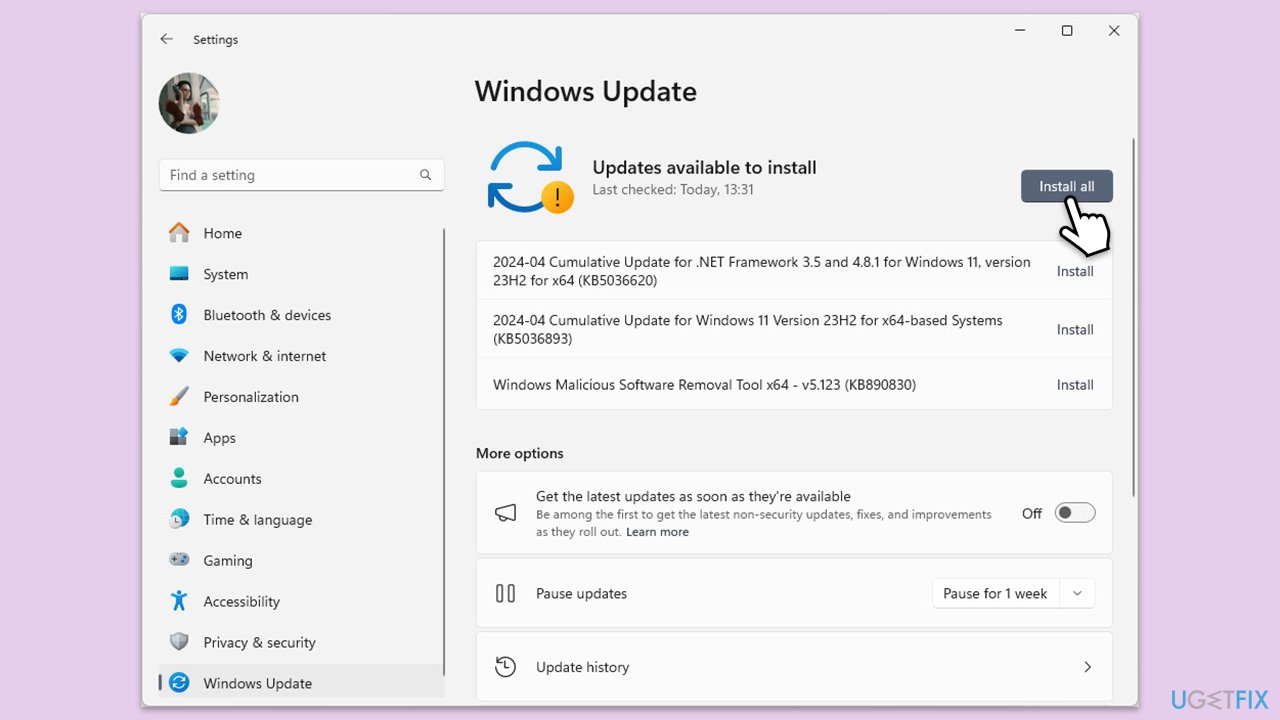
Fix 1. Update Defender via Windows update
Updating Windows Defender ensures you have the latest security patches and performance improvements for your antivirus program. Regular updates can resolve underlying bugs that might be causing access issues.
- Type Updates in Windows search and press Enter.
- The new window will open and you should be notified about available updates - click Install all.
- If none are available, click Check for updates, and they should be installed automatically.
- Don't forget to install all the available optional updates.
- When done, reboot your computer.
Fix 2. Install the latest Windows Security Platform update manually
If automatic updates are not resolving the issue, installing the latest Windows Security Platform update manually can help by providing the most recent fixes and features directly related to Windows Defender.
- Go to the official Microsoft Defender update page.
- Scroll down to the Manually download the update section.
- Download the update that matches your system’s architecture (32-bit or 64-bit).
- Run the downloaded file and follow the installation prompts.
- Restart your computer after installation to apply the update.
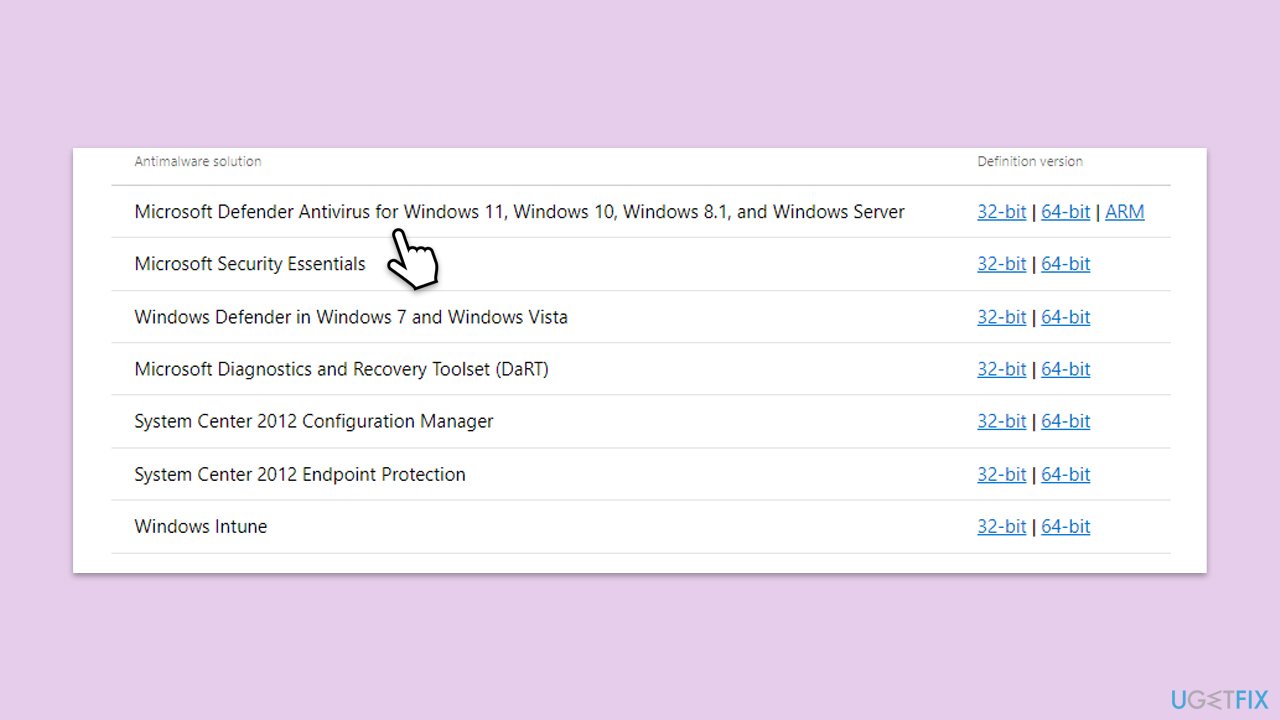
Note: run the Windows update again after this.
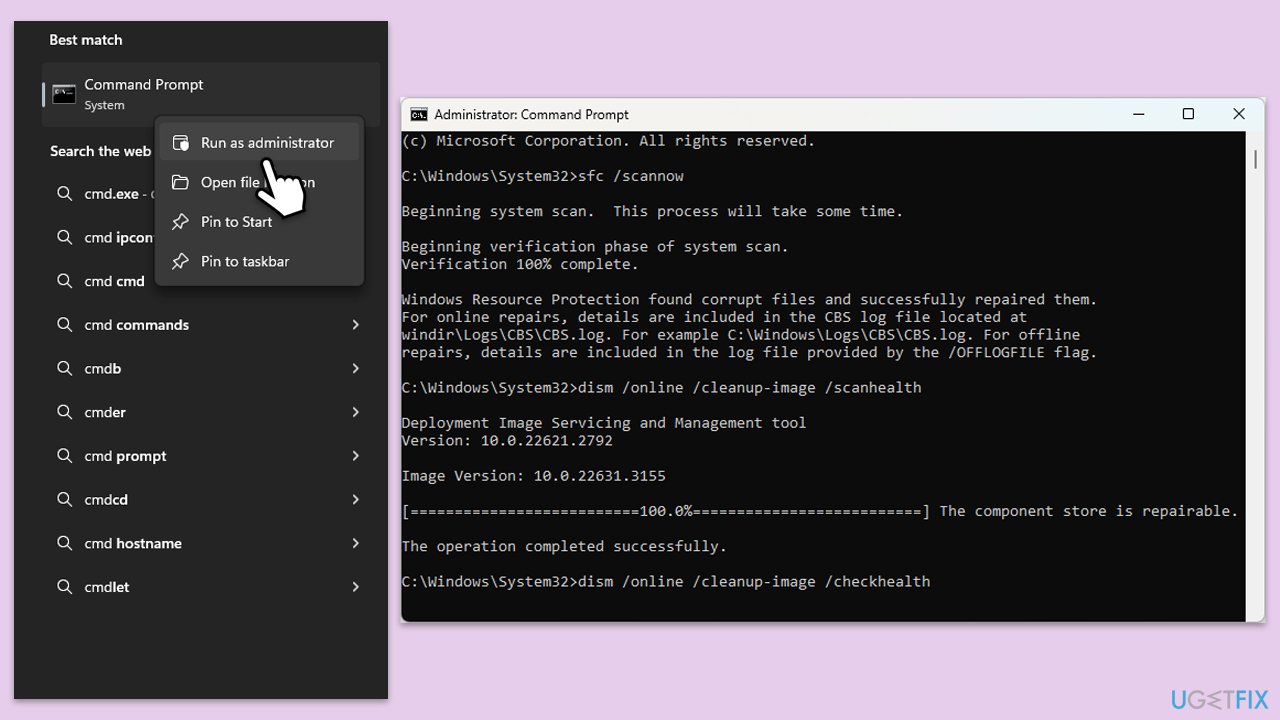
Fix 3. Repair corrupted system files
Corrupted system files can cause Windows Defender to behave unexpectedly. Running the System File Checker (SFC) and Deployment Image Servicing and Management (DISM) tools can repair these files.
- Type cmd in Windows search.
- Right-click on Command Prompt and select Run as administrator.
- User Account Control should pop up – click Yes.
- Type this command and press Enter:
sfc /scannow - Wait for the scan to finish.
- As soon as the scan finishes, Windows will report whether integrity violations were found and if they could be fixed. Regardless of the outcome, use these commands next, pressing Enter after each:
Dism /Online /Cleanup-Image /CheckHealth
Dism /Online /Cleanup-Image /ScanHealth
Dism /Online /Cleanup-Image /RestoreHealth - Close down the Command Prompt and restart your device.
Fix 4. Re-register Defender via PowerShell
Re-registering Windows Defender files via PowerShell can help fix any issues with Defender’s functionality by refreshing its core operation files.
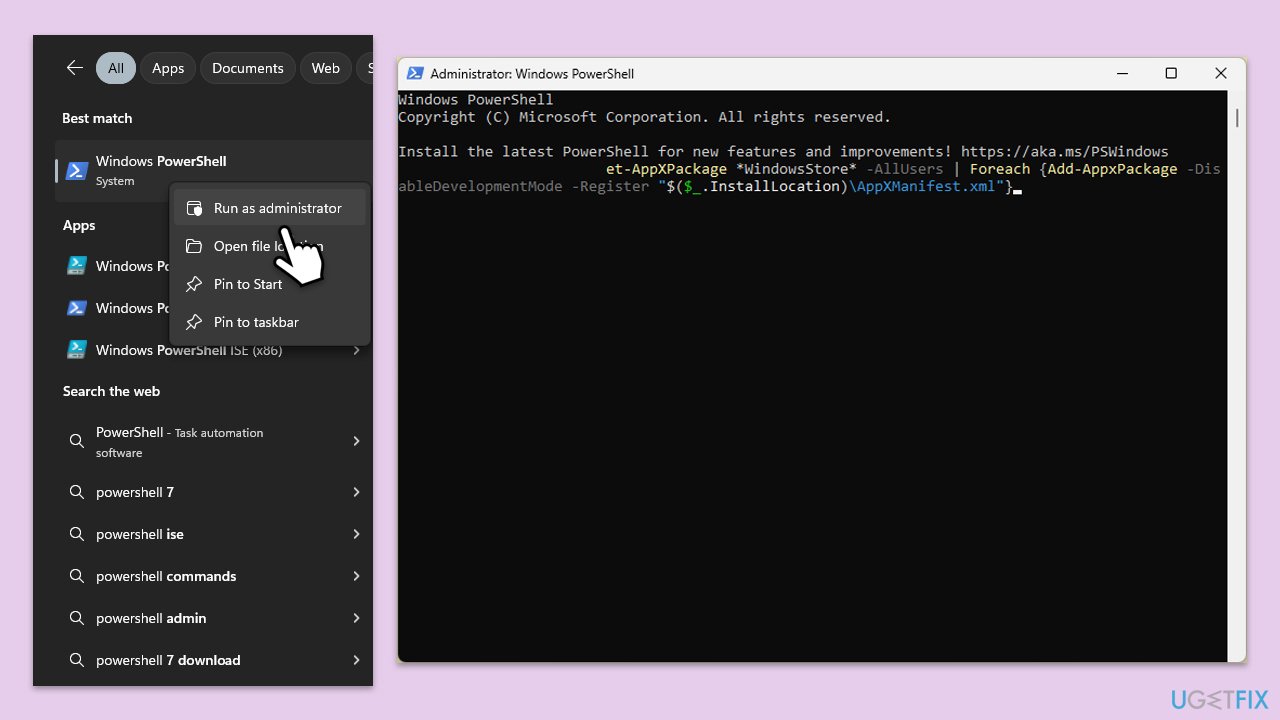
- Type PowerShell in Windows search.
- Right-click on the result and pick Run as administrator.
- When UAC shows up, click Yes.
- Copy and paste the following command, pressing Enter after:
Get-AppXPackage | Foreach {Add-AppxPackage -DisableDevelopmentMode -Register "$($_.InstallLocation)\AppXManifest.xml"} - Restart your computer.
Fix 5. Disconnect School or Work account (if applicable)
If your PC is connected to a school or work account, it might be subject to administrative controls that restrict access to certain settings, including Windows Defender.
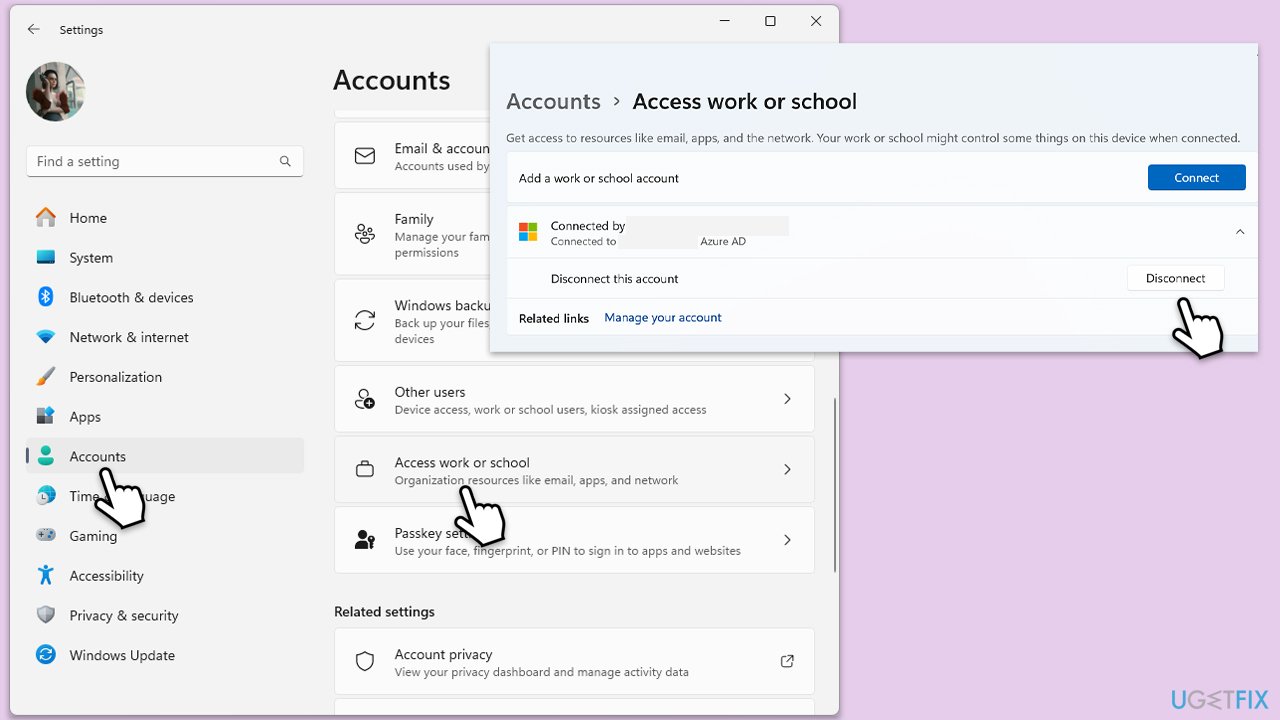
- Open Settings by pressing the Win + I.
- Go to Accounts and then Access work or school.
- Select the connected account and click on Disconnect.
- Confirm your choice and restart your computer to see if access to Defender settings is restored.
Fix 6. Restore default Defender services via Registry Editor
Restoring default configurations for Windows Defender services in the Registry can help if settings have been changed that restrict access.
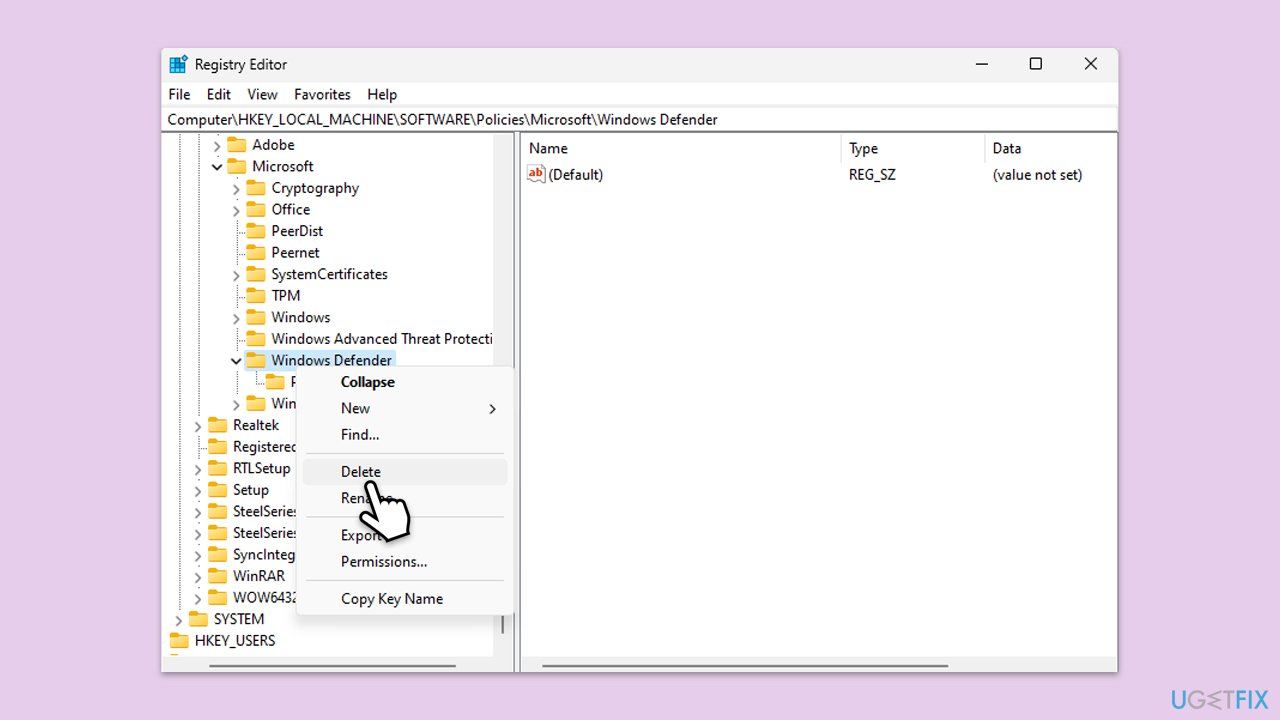
- Type regedit in Windows search and press Enter to open Registry Editor.
- Navigate to the following location:
HKEY_LOCAL_MACHINE\SOFTWARE\Policies\Microsoft\Windows Defender - Right-click on the Windows Defender folder and select Delete.
- Restart your computer to apply the changes and reset Defender to its default settings.
Bottom line
To resolve the issue of not being able to access Virus and Threat Protection settings, users can try running a Windows update troubleshooter, installing the latest Windows Security Platform update, fixing corrupted system files, or re-registering the app. If these solutions do not work, consider using a specialized PC repair app or seeking further assistance.




Report an issue
What's wrong with this guide? We review every report and update or remove content.
Report received — thank you. We'll review and fix it.
You need a free account to submit a report.
Be the first to comment