How to fix
Can’t close Calculator app
on Windows
Struggling to close the Calculator app in Windows 10 or 11? Discover effective fixes with expert-tested solutions for seamless performance.

![[Fix] Can’t close Calculator app in Windows](https://ugetfix.com/wp-content/uploads/articles/askit/fix-cant-close-calculator-app-in-windows_en-768x432.jpg)
What causes [Fix] Can’t close Calculator app in Windows?
- Calculator app becomes unresponsive
- Standard closing methods fail
- App consumes too many system resources
- Obscured access to other applications
- Disruption of user workflow
Repairs Windows system files, removes malware, and restores a clean OS state — without reinstalling.
Hello. Is there another way to close the Calculator app in Windows because it is not responding? Any suggestions would be appreciated.
The Calculator app in Windows is a Microsoft-provided built-in utility that allows users to perform basic arithmetic calculations as well as more advanced mathematical functions. It is a useful tool for performing quick calculations and conversions.
Users may be frustrated if they are unable to close the Calculator app in Windows. Users usually expect to be able to close an application when they no longer require it in order to free up system resources and reduce clutter on their desktop or taskbar. However, if the Calculator app becomes unresponsive or does not respond to standard methods of closing, such as clicking the "X" button or using the Alt+F4 keyboard shortcut, it can be inconvenient and disrupt the user's workflow.
This problem can affect users in a variety of ways. For starters, it may prevent users from accessing other applications or windows that are obscured by the unresponsive Calculator app, causing them to miss out on work or tasks. Second, if the app consumes too many system resources or causes slowdowns, it can have a negative impact on overall system performance and responsiveness. Finally, the inability to close the Calculator app can be inconvenient and may force users to resort to alternative methods or workarounds in order to regain control of their desktop.
There are a few possible solutions to this problem that can be tried. These solutions could include restarting the computer, using Task Manager to forcefully terminate the Calculator app process, updating or reinstalling the app, or closing the app using command-line tools.
In this guide, you will find 5 steps that should help you fix Calculator app not closing in Windows. You can also try using a maintenance tool like [d1] that can fix most system errors, BSODs,[ref en-1] corrupted files, and registry[ref en-2] issues. Otherwise, follow the step-by-step instructions below.
Method 1. End the Calculator App Process
- Press the Ctrl + Shift + Esc keys simultaneously on your keyboard to open the Task Manager.
- Once the Task Manager window appears, you will see a list of running processes and applications. Make sure you are on the Processes tab.
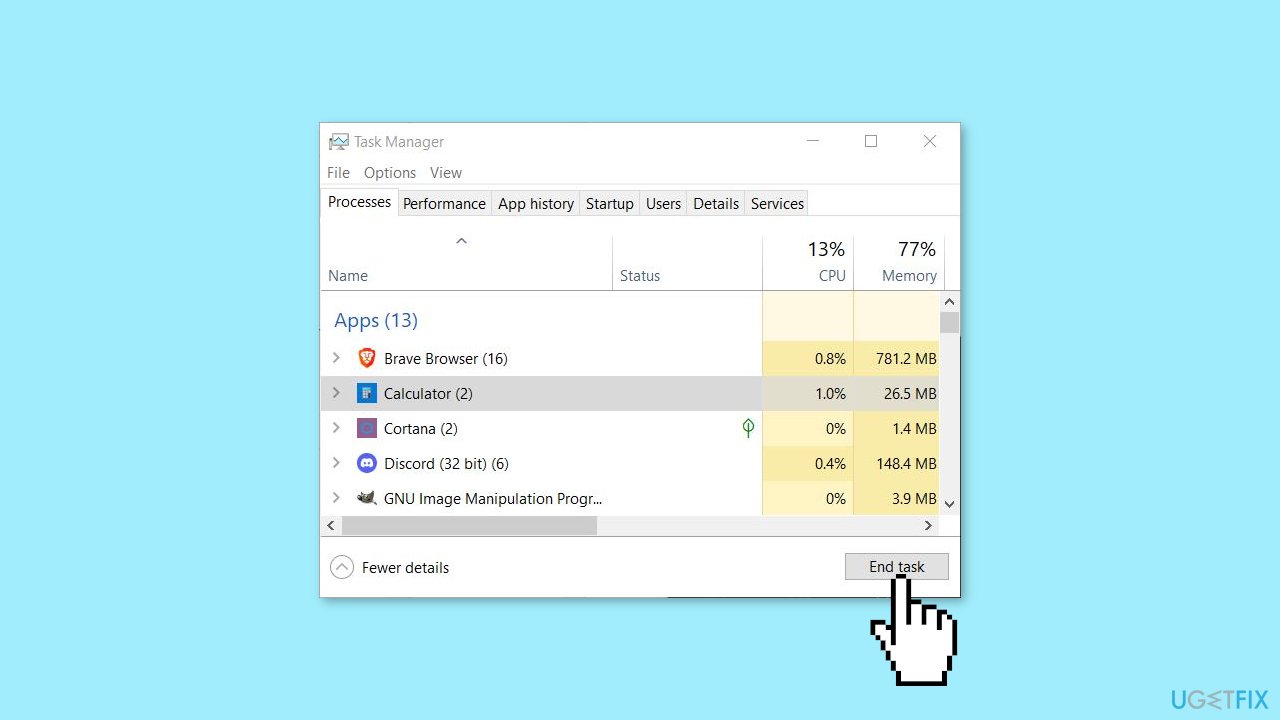
- Look for the Calculator or Calculator.exe entry in the list of processes.
- Once you have located the Calculator app process, click on it to select it.
- After selecting the Calculator app process, click on the End Task button located at the bottom-right corner of the Task Manager window.
- Click on End Process or Yes to proceed with terminating the Calculator app.
Method 2. Run Microsoft Store Apps Troubleshooter
- Open the Start menu.
- Click the gear-shaped icon to launch the Settings app.
- In the Settings app, click on the System tab.
- Click on Troubleshoot.
- Select Other troubleshooters.
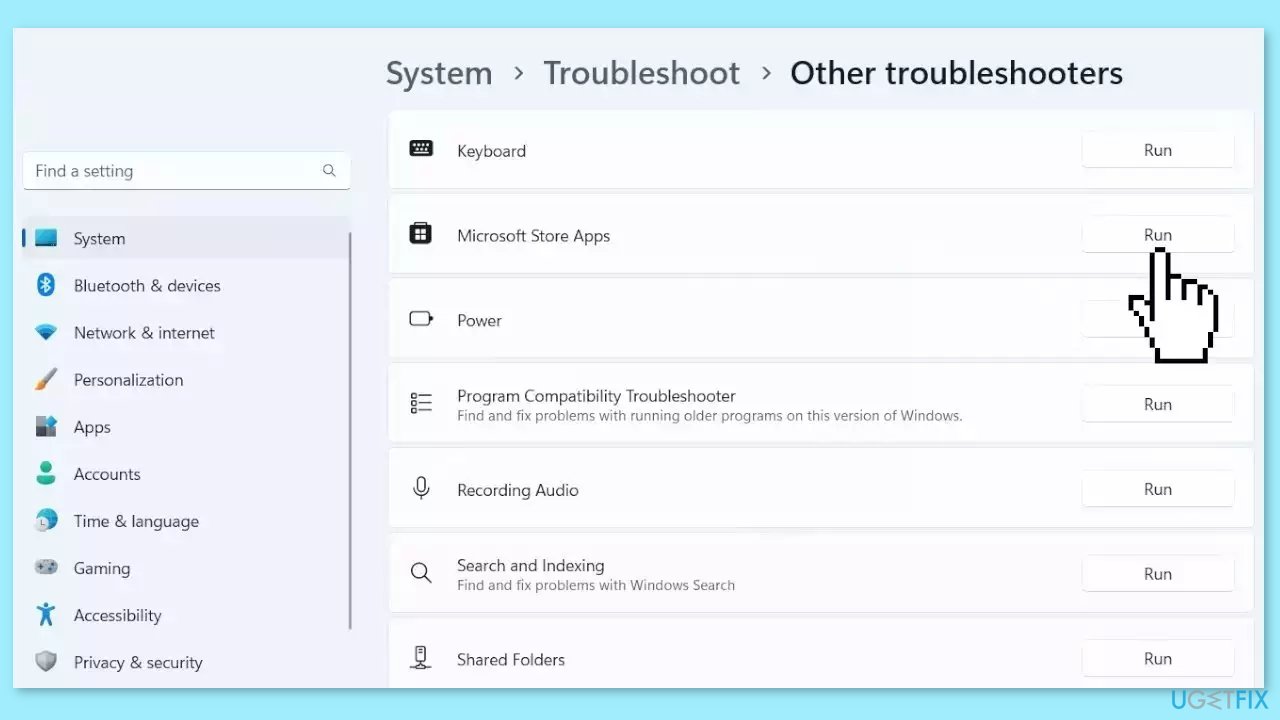
- Look for Microsoft Store Apps and click the Run button next to it.
- Follow the on-screen prompts to run the troubleshooter.
Method 3. Repair or Reset Calculator app
- Go to Settings on your device.
- Click on Apps or Apps & Features in the Settings menu.
- Scroll down the list of apps and locate the Calculator app.
- Click on the Calculator app.
- Click on Advanced options below the app description.
- In the Advanced options menu, locate the Terminate button and click on it.
- Follow the prompts to terminate the Calculator app.
- Once terminated, in the Advanced options menu, locate the Repair button and click on it.
- Wait for the repair process to finish. This may take some time.
- If repairing the app did not fix the problem, go back to the previous menu.
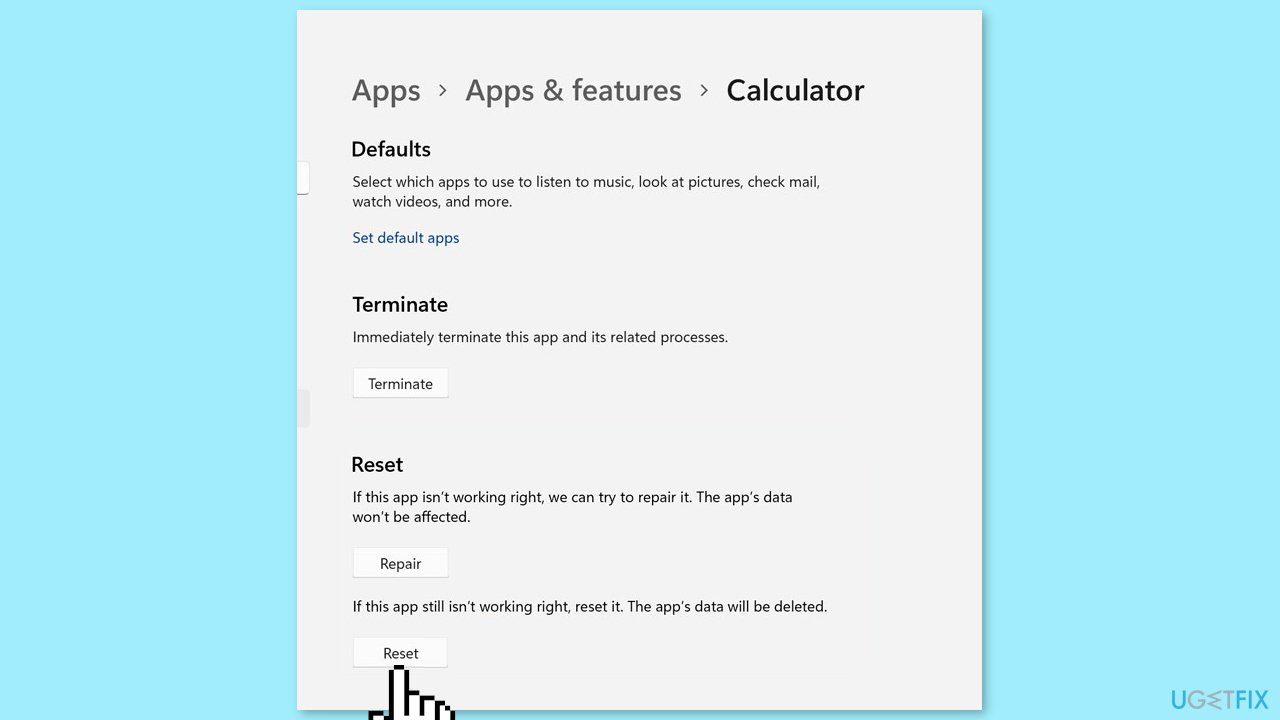
- Click on the Reset button within the Calculator app options.
- Follow any prompts or instructions to reset the Calculator app.
Method 4. Reinstall the Calculator app
- Go to Settings on your device.
- Click on Apps or Apps & Features in the Settings menu.
- Scroll down the list of apps and locate the Calculator app.
- Click on the Calculator app.
- Click on Advanced options below the app description.
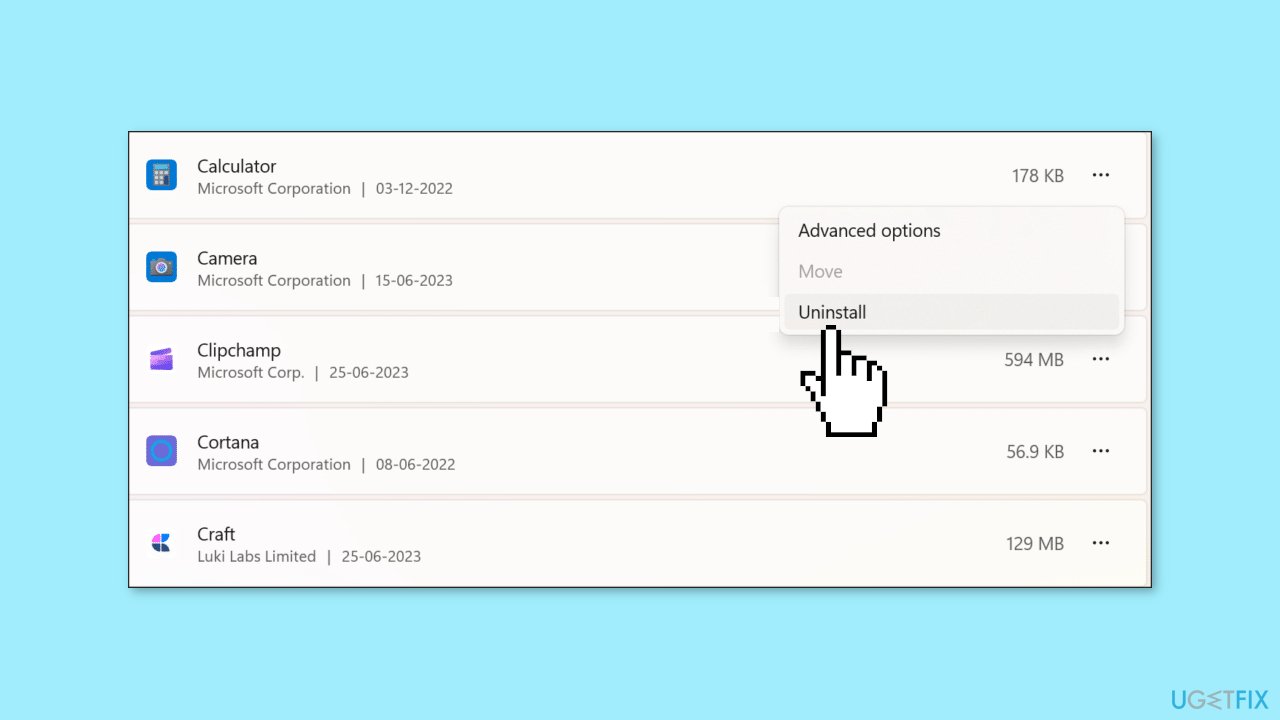
- In the Advanced options menu, locate the Uninstall button and click on it.
- Follow the prompts that appear to uninstall the Calculator app from your device.
- After uninstalling, open the Microsoft Store and find the Calculator app.
- Click on the Get button within the Microsoft Store app page for the Calculator app.
- Follow the prompts and instructions provided by the Store app to download and install the Calculator app on your device.
Method 5. Repair Windows Store and Apps
- Press the Windows key + X.
- Click on Windows PowerShell (Admin) from the menu that appears.
- Copy the following command:
Get-AppXPackage | Foreach {Add-AppxPackage -DisableDevelopmentMode -Register "$($_.InstallLocation)\AppXManifest.xml"}
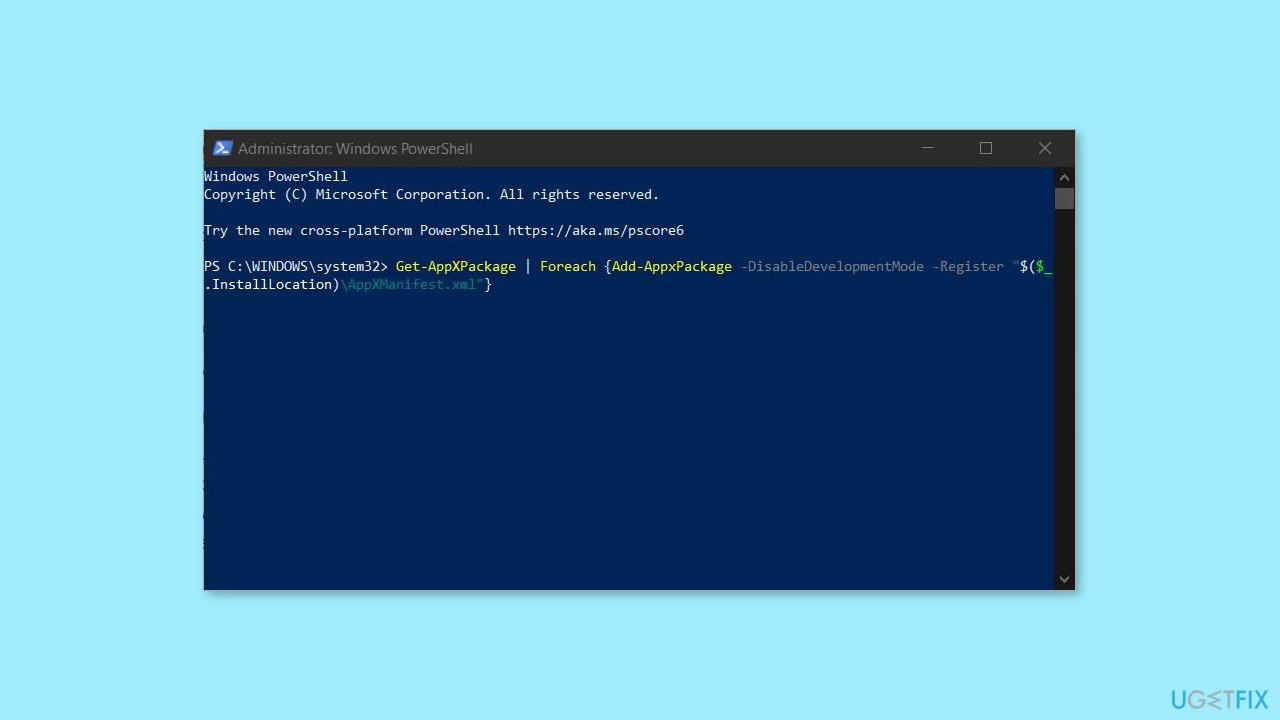
- Paste the copied command into the PowerShell window.
- Press the Enter key to execute the command.
- Wait for the process to complete.
- Restart your PC.
- After restarting, check if the desired outcome has been achieved.
Bottom line
To fix the issue of the Calculator app not closing in Windows, you can try ending the app process using Task Manager, restarting your computer, updating or reinstalling the app, or using command-line tools. If none of these solutions work, consider using a maintenance tool to address potential system errors.
Frequently asked questions
Try pressing Alt + F4 to force close the Calculator app. If that doesn't work, you can also use Task Manager to end the Calculator process.
Go to Settings > Apps > Apps & features, find Calculator, click on it, and select 'Advanced options' to reset the app. This can resolve issues with the app not responding.
Check for any pending Windows updates, as they may contain fixes for the Calculator app. Additionally, consider reinstalling the app from the Microsoft Store to resolve any underlying issues.




Report an issue
What's wrong with this guide? We review every report and update or remove content.
Report received — thank you. We'll review and fix it.
You need a free account to submit a report.
Be the first to comment