How to fix
Can’t delete detection history
on Windows
Struggling to delete detection history in Windows 10 or Windows 11? Follow our expert-tested guide for quick fixes that work seamlessly. Fixed in minutes!

![[Fix] Can’t delete detection history in Windows](https://ugetfix.com/wp-content/uploads/articles/askit/fix-cant-delete-detection-history-in-windows_en-768x432.jpg)
What causes [Fix] Can’t delete detection history in Windows?
- Inability to delete detection history in Windows 11
- Microsoft Defender continues to flag previously detected files as dangerous
- Recorded history prevents installation of updated software versions
- Conflict between security measures and user needs for software updates
- Users unable to install or use software linked to flagged files
Repairs Windows system files, removes malware, and restores a clean OS state — without reinstalling.
Hello. I tried to install an app in Windows but it gets flagged by Microsoft Defender. I tried to delete the app from detection history but it does not work. Is there a way to fix this?
The inability to delete Detection history in Windows 11 poses a significant concern for users relying on Microsoft Defender for security. In addition to acting quickly to remove or quarantine a file upon detection of a danger, Defender also records the event in the Protection history. Even after the file has been fixed or deleted, users trying to install or use software linked to the reported file will continue to encounter difficulties because of this recorded history.
For software engineers and businesses dedicated to enhancing their goods by removing flaws and malicious files, this becomes more challenging. Users are unable to install the updated and secure versions of these apps without difficulty because of the lingering mark in the Protection history record, even if the developers have taken great care to ensure the cleanliness and integrity of their software. Microsoft Defender keeps flagging the program as dangerous, which stops it from being installed.
The problem draws attention to a possible conflict between security solutions' proactive nature and users' requirement to modify their systems to accommodate updates made by authorized software developers. Because of this, users are put in a difficult situation where the tool's insistence on linking a file to a previous threat prevents them from using better software normally and safely.
Users who depend on a wide variety of software programs for work, play, and other reasons may find this problem to be highly disruptive. The inability to update or install software seamlessly can be quite annoying and frustrating, which can negatively affect user experience and perhaps cause productivity issues.
Microsoft must address this issue to strike a balance between enabling the seamless operation of reputable and upgraded software and solid security controls, even while people encountering this difficulty look for answers. Potential fixes could include improving Defender's response to past threats or giving users greater control over how they manage their Protection history logs without jeopardizing system security as a whole.
In this guide, you will find step-by-step instructions on how to manually delete Microsoft Defender detection history in Windows. If you experience any other OS issues, you can run a maintenance tool like [d1] that can fix most system errors, BSODs, corrupted files, and registry issues. Otherwise, follow the step-by-step instructions below.
Delete Detection History Manually
Erase the detection history by navigating through the directory, as Windows Defender stores the relevant data in a designated location.
- Press the Windows key + E to open File Explorer.
- Navigate to C:\ProgramData\Microsoft\Windows Defender\Scans\History\Service.
- Click on the View menu and choose Show > Hidden items.
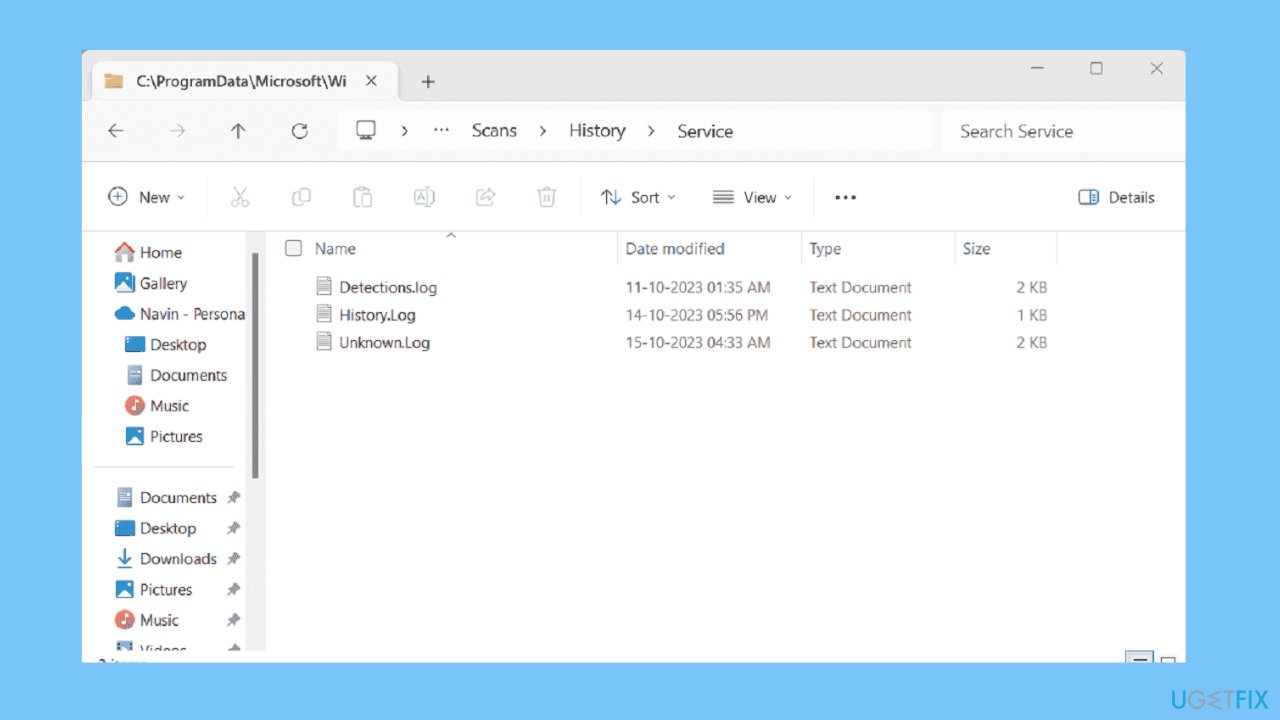
- Identify and select the log files visible in the directory.
- Delete the selected log files.
- Proceed to C:\ProgramData\Microsoft\Windows Defender\Support.
- Delete all files present in the Support directory.
Bottom line
To address the issue, users can try improving Defender's response to past threats or gain greater control over their detection history management. If these solutions do not work, users may need to seek further assistance or alternative methods to manage their software installations.
Frequently asked questions
If you're unable to delete detection history in Windows 10, it may be due to system permissions or an active security feature that prevents changes. Check your user account settings and ensure your antivirus software isn't interfering.
In Windows 11, try resetting the Windows Security app or running the System File Checker to resolve any underlying issues that may be blocking deletion. Additionally, ensure that your system is fully updated.
You can create a scheduled task in Windows 10 or Windows 11 that runs a script to clear detection history at regular intervals, but this requires some technical knowledge. Make sure to back up your settings before attempting automation.




Report an issue
What's wrong with this guide? We review every report and update or remove content.
Report received — thank you. We'll review and fix it.
You need a free account to submit a report.
Be the first to comment