ACTIVE MALWARE WINDOWS

How to fix
Can’t delete file with long name
on Windows

Struggling to delete files with long names on Windows 10 or 11? Discover quick, effective solutions to resolve this issue and reclaim your storage—exper…

[Fix] Can’t delete file with long name
Quick Summary
Error severity
Medium
Est. time
10 minutes
Offer Fortect PC Suite
Start fix →
Ad · we may earn a commission
0 Comments
01

What causes [Fix] Can’t delete file with long name?

  • Compatibility issues with applications
  • System stability problems
  • Restrictions on path length in Windows API
  • Older software not managing long file paths
  • Malware or buggy updates affecting system performance
Offer Fortect PC Suite

Repairs Windows system files, removes malware, and restores a clean OS state — without reinstalling.

Ad · we may earn a commission
Get Fortect PC Suite ↗

Hello. Can you help? Please, I need assistance. No matter what I try, I can't delete a file with a long name. This issue with the too-long name of a file has become annoying, and I cannot solve it. However, I need to delete these files and get the device back to my ex. I cannot leave the computer like this. Please, save me from this misery.

[Fix] Can't delete file with long name is a common issue and you are not alone in this. However, the problem cannot be easily solved. At least not for everyone. The problem can be related to various issues and get triggered by different problems on every device it shows up. These error messages can differ, but the issue is a long name[ref en-1].

This problem can result from compatibility issues or system stability. Long file paths can cause issues with some applications or scripts that cannot handle paths longer than the specified limit. Also, older software or utilities might not be designed to manage long file paths, leading to errors or unexpected behavior.

Common reasons for computer errors can stem from APIs. The Windows API has restrictions on path length, which can cause problems for applications using these APIs. We should also consider whether the system is damaged or not stable enough for these commands to go through.

Extremely long paths can affect system stability and performance, especially during file operations like copying, moving, or backing up. It is a simple function, but the computer is not running as it should when it is damaged by malware, buggy update, or other instances, so errors or other problems like Can't delete file with long names can occur.

The error Can't delete file with long name can appear when you want to eliminate one or a bunch of files. The long filenames (LFNs) concept dates back to Windows 95 and its MS-DOS architecture. The LFN system allows file and directory names up to 255 characters long, a significant upgrade from the older 8.3 naming convention, which limited names to eight characters followed by a three-character extension.
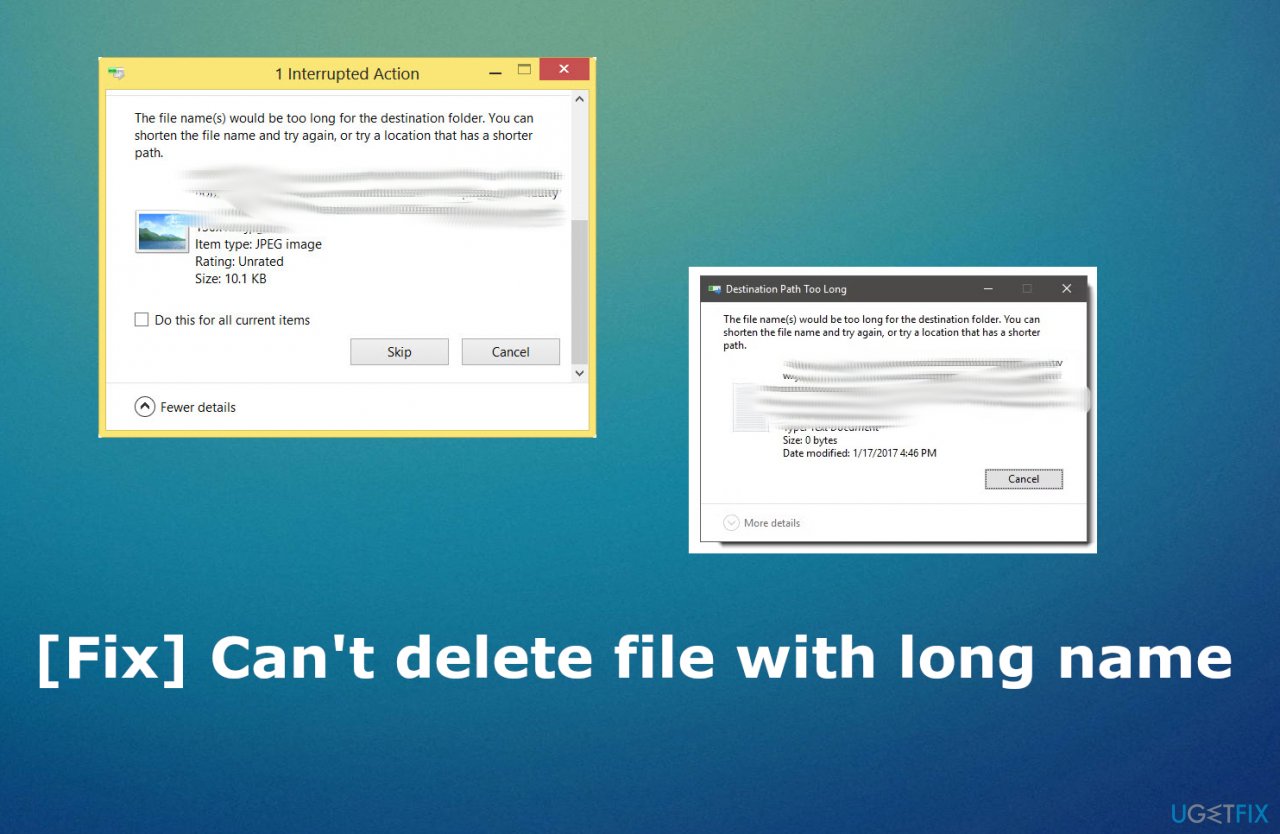
Due to Windows' backward compatibility, it can convert between the two naming systems, which helps when filenames exceed their intended limits. However, many Windows programs still expect file paths to be shorter than 255 characters, excluding the file path. This is where the issue with "Can't delete file with long name" error comes.

Cant delete file longname fix

When copying a file, the entire file path is considered, which can lead to issues with overly long filenames. Long filenames can arise from various sources. Other operating systems, third-party software cache files, or media files with extensive names might generate them. Files buried deep within directory structures, such as network shares, can also contribute to this problem.

Can this file-deleting issue be solved?

Managing these files can be tricky. While you can often use the software that created the file to address the issue like this Can't delete file with long name message, there's an easier solution if that doesn't work. Windows might display a warning or prevent certain operations when encountering a file name or path that exceeds the limit. This alerts users to problems with long names or deeply nested directories.

Understanding and managing these limitations can help maintain system stability and ensure compatibility with various applications and scripts. If you encounter issues with long filenames, particularly the issue where you can't delete files with long names, try to manage them through the creating software or consider renaming or restructuring your files and directories to stay within limits.

Renaming the file might be the obvious solution, but the issue triggered by another machine problem might not be fixed that way.

[Fix] Can't delete file with long name 

Automatic tools that rely on system repair and performance issue fixing could work to keep the device up to date and running smoothly. You should never encounter these errors and avoid the need to fix Can't delete file with long name issue if you run occasional scans with [d1]. This is the precaution or quick fix for the damaged files, but you should check the following steps, which are more in-depth, too.

Delete in File Explorer

  • Open File Explorer and find the directory where the file is.
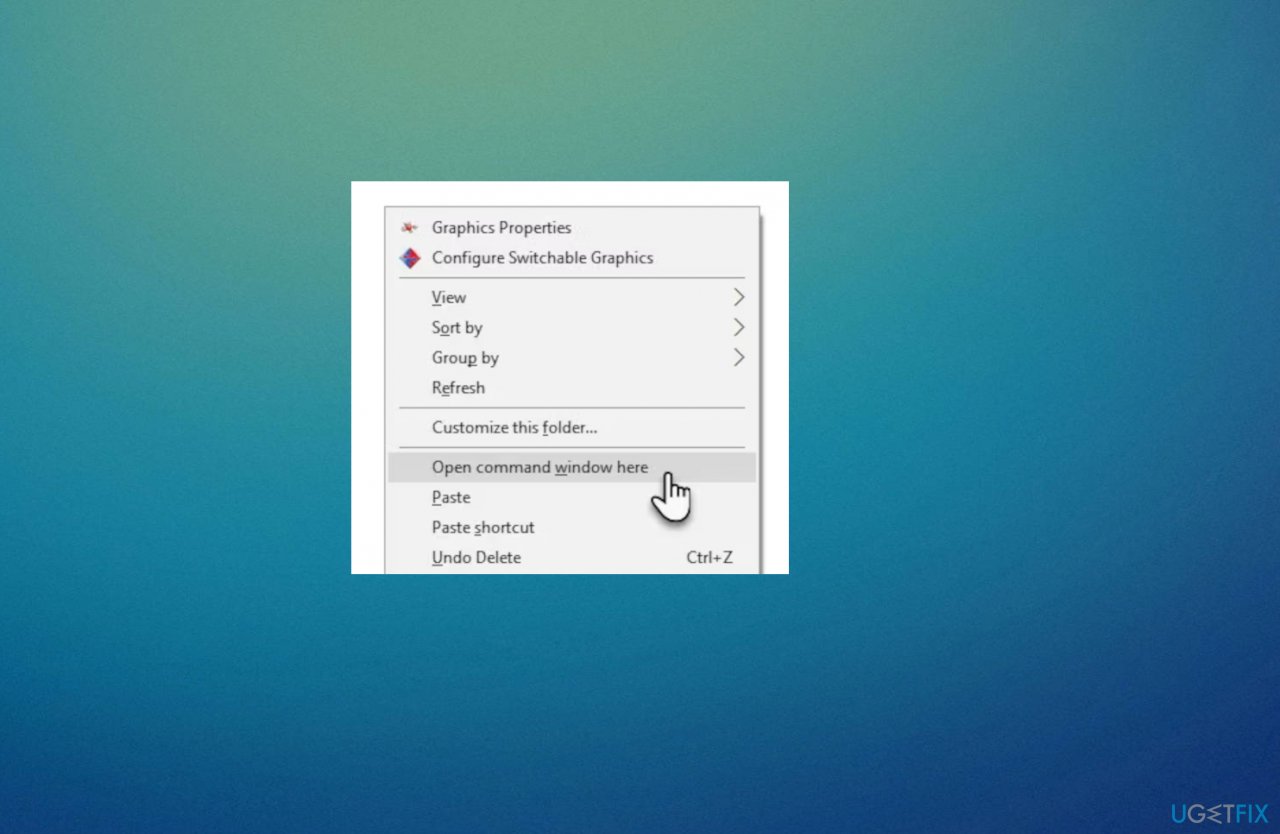
  • Press Shift and right-click the empty area.
  • Cick Open Command Window Here to open Command Prompt.
    Cant delete file longname path
    Cant delete file longname path
  • Type DIR /X and press Enter.
    Cant delete file longname cmd
    Cant delete file longname cmd
  • All files in the current directory will be listed, and you can see that long filenames will be reduced to simply "WHYSOL~1.TXT".

Use the Safe Mode function

  • Press Windows + R key.
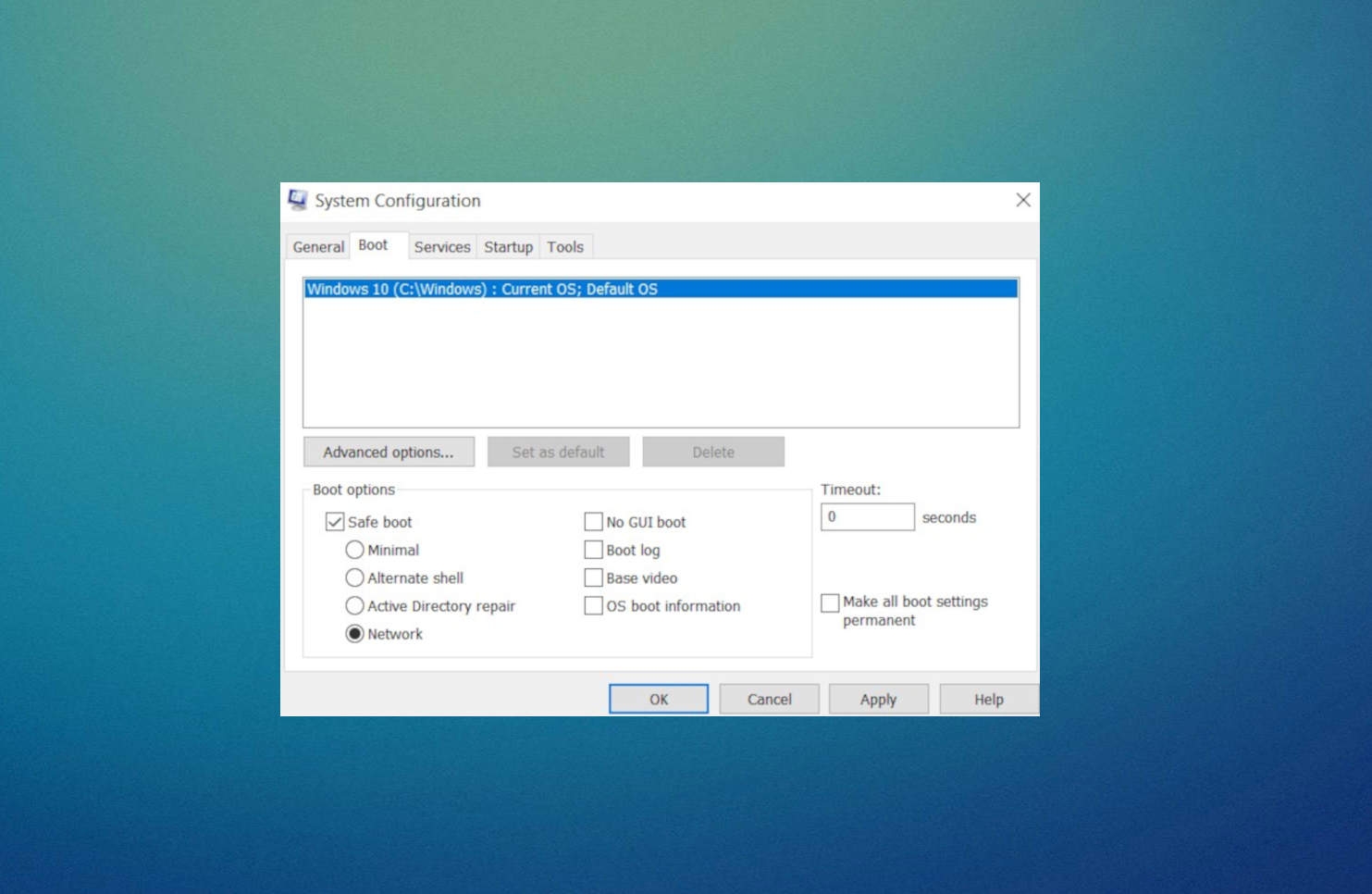
  • Input msconfig in the Windows RUN window, and hit Enter to open the System Configuration utility.
  • Click the Boot tab. Under Boot options, check Safe Boot then click Network and Hit OK.
    Cant delete file longname system
    Cant delete file longname system
  • Restart the PC and you will be login to Safe mode.
  • Once you have deleted it to go back to normal mode, just repeat the process and uncheck Safe Boot.

If the issue is occurring due to the Firefox isuse

  • Right-click while holding shift the file name in Explorer and select Copy as path.
  • Open a Cmd window (-R cmd).
  • Enter del \\?\ and then right-click to paste in the copied path. The result should look something like this:
    del \\?\"C:\Users\SomeUser\Downloads\DATAIM~1.URL"
  • Press Enter to delete the file.

Bottom line

To resolve the issue of not being able to delete files with long names, you can try using command prompt commands, third-party software, or adjusting system settings. If none of these solutions work, consider seeking professional help or further technical support.

Frequently asked questions

You can use the Command Prompt to delete files with long names by navigating to the file's directory and using the 'del' command followed by the file name in quotes.

Try renaming the file to a shorter name first, or use a third-party tool like Unlocker to force the deletion.

Yes, you can use PowerShell by typing 'Remove-Item -LiteralPath "<full file path>"' to delete files with long names in both Windows 10 and Windows 11.


Did this fix work for you?
Daniel Quinn

Written & verified by

Browser & Web App Specialist
Browser troubleshooting Extension conflicts Web app errors Browser performance Cache and cookie issues

Daniel Quinn specialises in browser troubleshooting and web application errors across Chrome, Firefox, Edge, and other major browsers on Windows. He covers browser crashes, extension conflicts, rendering failures, performance degradation, and compatibility errors with web-based tools. Daniel's guides help readers distinguish between a browser-level issue and an underlying Windows problem — narrowing down the cause before recommending a targeted fix. His writing is known for testing fixes across multiple browser versions and Windows editions, ensuring the steps work in real conditions.

0 Comments

Be the first to comment

Still worried? Run a free check.

Paste any URL or domain — we'll scan it against 4.2M known threats in 10 seconds.

View full scanner → Add to your website →