How to fix
Can’t delete OneDrive files or folders
on Windows
Resolve issues with deleting OneDrive files or folders in Windows 10 or Windows 11 effortlessly. Expert-tested solutions ensure quick fixes!

![[Fix] Can’t delete OneDrive files or folders in Windows](https://ugetfix.com/wp-content/uploads/articles/askit/fix-cant-delete-onedrive-files-or-folders-in-windows_en-768x432.jpg)
What causes [Fix] Can’t delete OneDrive files or folders in Windows?
- File sharing and permission settings may prevent deletion
- Files may be open or in use by other programs
- Files may need to be renamed or moved outside the OneDrive folder
- OneDrive syncing may need to be temporarily paused
- Software conflicts may require resetting or reinstalling the OneDrive app
Repairs Windows system files, removes malware, and restores a clean OS state — without reinstalling.
Hello. OneDrive does not let me delete one folder. What could be the issue?
Users may find it inconvenient to be unable to delete OneDrive files or folders in Windows. Microsoft OneDrive is a cloud-based storage service that allows users to store and sync their files across multiple devices. It provides easy access to files from anywhere, as well as collaboration features that allow users to share and collaborate on files.
Users may face a number of challenges when attempting to delete OneDrive files or folders. For starters, if unwanted files cannot be removed, they can cause clutter and take up unnecessary storage space. This can result in a disorganized file system and difficulties finding and managing important files.
Second, if users are unable to delete files they no longer need or want to share with others, the problem can impede productivity and collaboration. Furthermore, if files cannot be deleted, the synchronization process may be hampered, resulting in conflicts and discrepancies across devices.
There are a few potential solutions to the problem of being unable to delete OneDrive files or folders. Checking for file sharing and permission settings, ensuring that files are not open or in use by other programs, or experimenting with alternative methods such as changing file names, moving files outside the OneDrive folder, or temporarily pausing OneDrive syncing are all examples. If the problem persists, resetting or reinstalling the OneDrive app may be attempted to resolve any potential software conflicts.
In this guide, you will find 7 steps that should help you fix the inability to delete files or folders in OneDrive. If you experience any other OS issues, you can try a maintenance tool like [d1] that can fix most system errors, BSODs,[ref en-1] corrupted files, registry[ref en-2] issues, or clear cookies and cache.[ref en-3] Otherwise, follow the step-by-step instructions provided below.
Solution 1. Close the File
Deleting the file may not be possible as it could be currently in use by a program. Ensure that you have closed the file on your device and request other users on your network to do the same. Additionally, verify if you have shared the file with others and cease sharing if necessary.
Solution 2. Check File and Folder Permissions
If the folder was shared with you by another individual, it is possible that you lack the required permissions to delete it, especially if someone has modified the link permissions in OneDrive. In such cases, you can request the administrator to grant you the necessary permission or ask them to delete the file on your behalf.
Solution 3. Delete File from another Device
If you are the administrator of the file or have the required permissions but are unable to delete it, you can attempt to delete it using a different device. Since all files and folders in OneDrive are synchronized across multiple devices, you can delete the file from your smartphone or another laptop.
Solution 4. Rename or Move the File or Folder
Here's an unconventional method that might help you delete a file that seems impossible to delete. Try changing the file's name by selecting it and pressing F2 or clicking on the Rename option in the toolbar. Then, attempt to delete the file with its new name. If this doesn't work, you can also try moving the file. Cut the file that you are unable to delete, paste it outside of the OneDrive folder, and then try deleting it again.
Solution 5. Pause OneDrive Sync
- Open OneDrive from the taskbar.
- Click on the Help & Settings icon located at the top-right corner of the OneDrive window.
- Select Pause syncing from the dropdown menu.
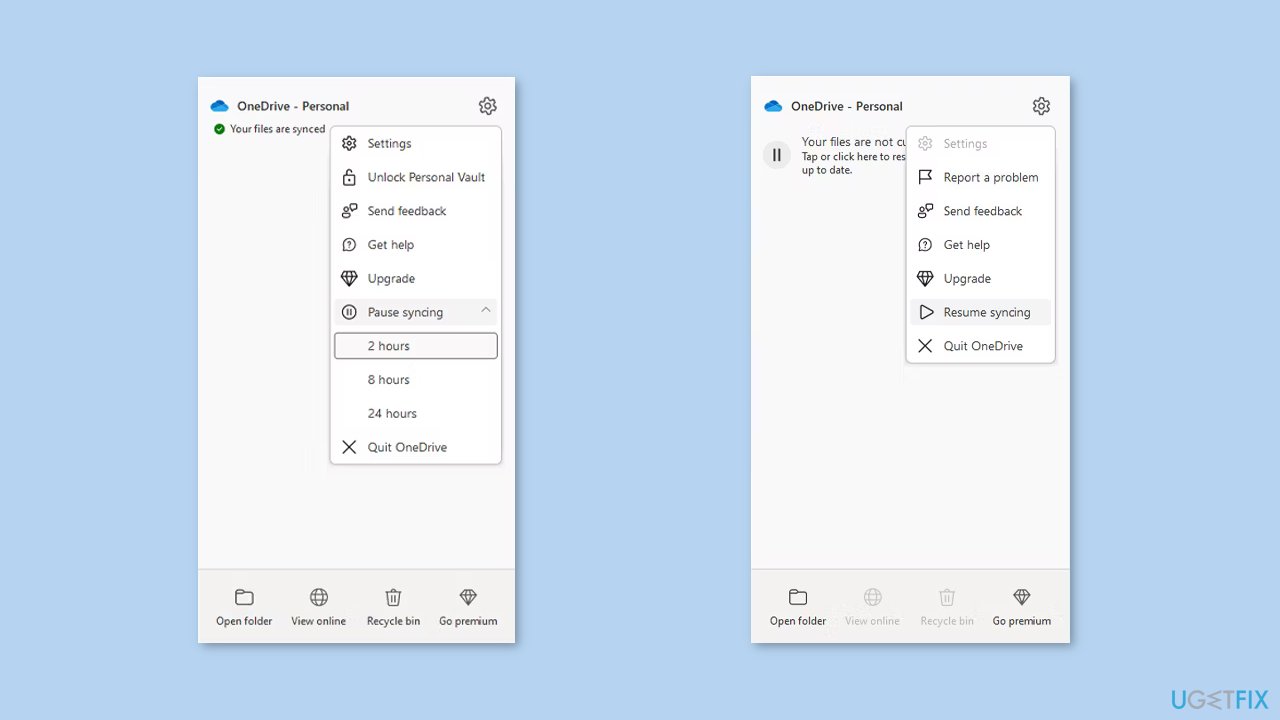
- Choose the desired duration to pause the sync.
- Wait for a few moments after pausing OneDrive's sync.
- Attempt to delete the file.
- If you wish to resume syncing after deleting the file, open OneDrive and click on the Pause button.
- Alternatively, you can go to Help & Settings and select Unpause sync.
Solution 6. Disable Files on Demand
- Right-click the OneDrive icon from the taskbar.
- Click on Help & Settings, and then select Settings.
- Choose the Settings tab.
- Uncheck the option Save space and download files as you use them.
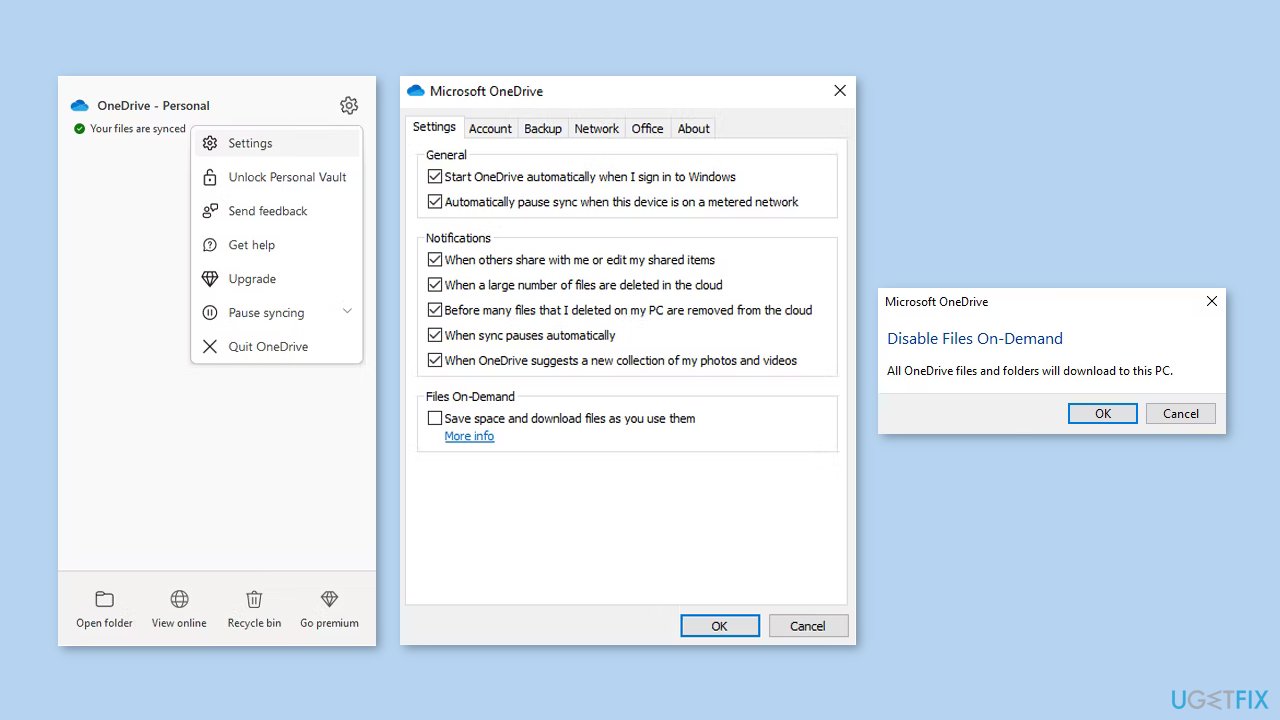
- If it's already disabled, enable and disable it again.
- Click OK to save the changes.
- Once you have successfully deleted the file, repeat the steps above to re-enable Files on Demand.
Solution 7. Reset OneDrive
- Open the OneDrive app.
- Click on the three-dot menu located at the top-right corner.
- Select Settings from the menu.
- Click on Reset now at the bottom of the menu.

- If Windows displays an error message, follow these additional steps:
- Launch Command Prompt with administrative rights.
- Run the command line:
C:\Program Files\Microsoft OneDrive\onedrive.exe /reset
- Press Enter.
Bottom line
To resolve the issue of not being able to delete OneDrive files or folders, you can try closing any open files, checking sharing settings, renaming or moving files, pausing syncing, or resetting the OneDrive app. If these solutions do not work, consider using a maintenance tool to address other potential system errors.
Frequently asked questions
You may be unable to delete OneDrive files in Windows 10 due to synchronization issues or permission settings. Try pausing synchronization or checking the file's properties for any restrictions.
If you encounter an error when deleting OneDrive folders in Windows 11, ensure that the folder is not open in any application and check for any pending sync conflicts in your OneDrive settings.
To force delete OneDrive files in Windows, you can use the Command Prompt with administrative privileges to manually remove the files or reset OneDrive by running the command 'onedrive.exe /reset'.




Report an issue
What's wrong with this guide? We review every report and update or remove content.
Report received — thank you. We'll review and fix it.
You need a free account to submit a report.
Be the first to comment