How to fix
Can’t disable Focus Assist
on Windows
Struggling to disable Focus Assist on Windows 10 or Windows 11? Get quick solutions and expert-tested tips to restore your settings in minutes!

![[Fix] Can’t disable Focus Assist in Windows](https://ugetfix.com/wp-content/uploads/articles/askit/how-to-fix-cant-disable-focus-assist-in-windows_en-768x432.jpg)
What causes [Fix] Can’t disable Focus Assist in Windows?
- Corrupted system files
- Improper settings configuration
- Software conflicts
- User account issues
Repairs Windows system files, removes malware, and restores a clean OS state — without reinstalling.
Hello, I have an issue I hope you can help me with. I do not want to use Focus Assist in Windows, so I tried to disable it. However, after restarting my PC, it is enabled again, and it is kind of annoying to disable it every time. Is there a fix for this?
Windows Focus Assist is the perfect tool for a distraction-free work experience. Once turned on, it will automatically mute notifications, alerts, and other hindrances that can interrupt your workflow or gaming session. You can find this feature in the Action Center located in the system tray and choose from several options: whether to have it activated full time, off completely, or set up specific times of activation and deactivation throughout the day.
Focus Assist allows users to customize their notifications and pick only the ones they deem important, such as calls, texts, or reminders. This feature also comes with different levels of intensity, ranging from "Priority Only," which screens upcoming messages for certain types of significance, to "Alarms Only," which silences all activities except alarms. Also, it can help extend a laptop's battery life by cutting down on background tasks and unimportant notifications.
Despite from seeming quite useful for many, some users prefer not to employ this Windows feature, and usually, there is no problem with getting rid of it via the settings. Unfortunately, some users reported that they can't disable Focus Assist in Windows even after trying to do so.
According to multiple reports on various IT forums, once Focus Assist is disabled, it does not come up at the time. The problems start when a computer is rebooted, and the feature simply comes back. As many users reported frustration because they needed to turn off this feature every time, there are luckily some solutions that can be helpful.
In the below steps, we show how to resolve a situation where you can't disable Focus Assist. To exclude issues such as corrupted system files, we recommend first running a PC repair tool [d1].
Disable Focus Assist correctly
First of all, let's make sure you are disabling the feature correctly. Please follow these steps:
- Click the Windows button and select Settings.
- Go to System section.
- Click Focus Assist.
- Ensure Focus Assist is set to the Off option.
- Under Automatic rules, make sure each of the rules is switched to the Off position as well.
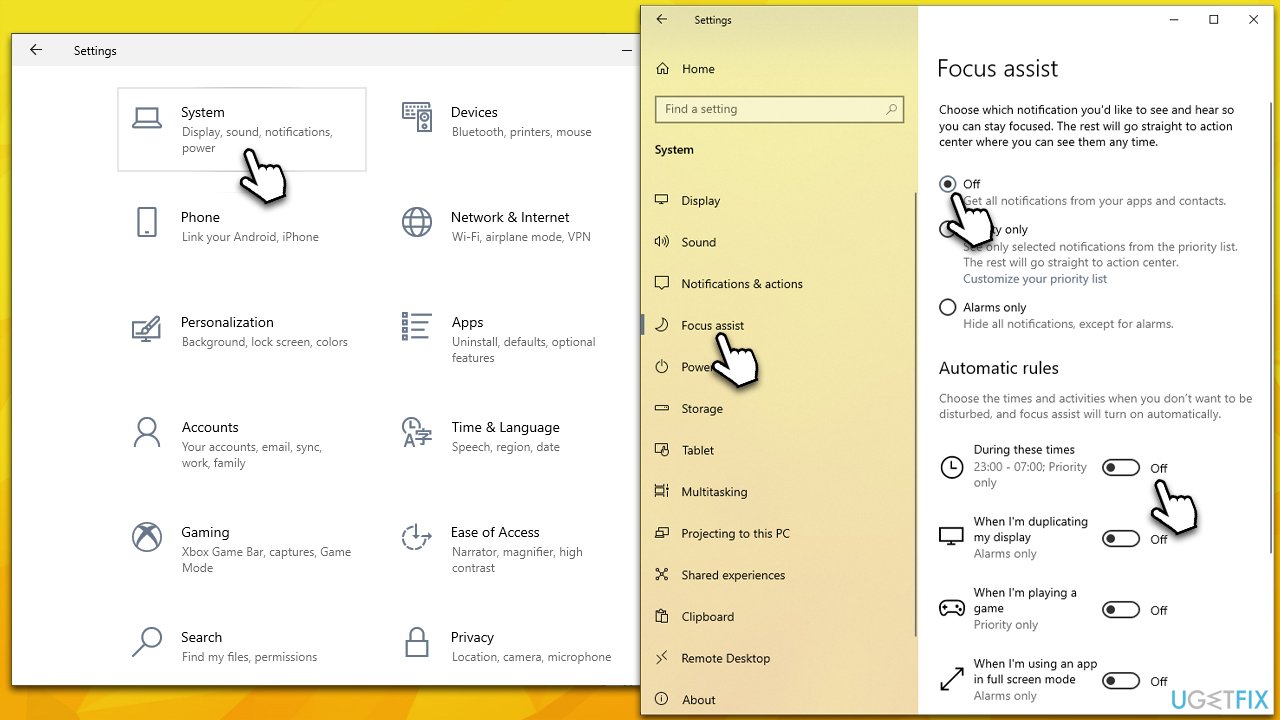
If, after performing these steps, Focus Assist still comes up, please follow the solutions below.
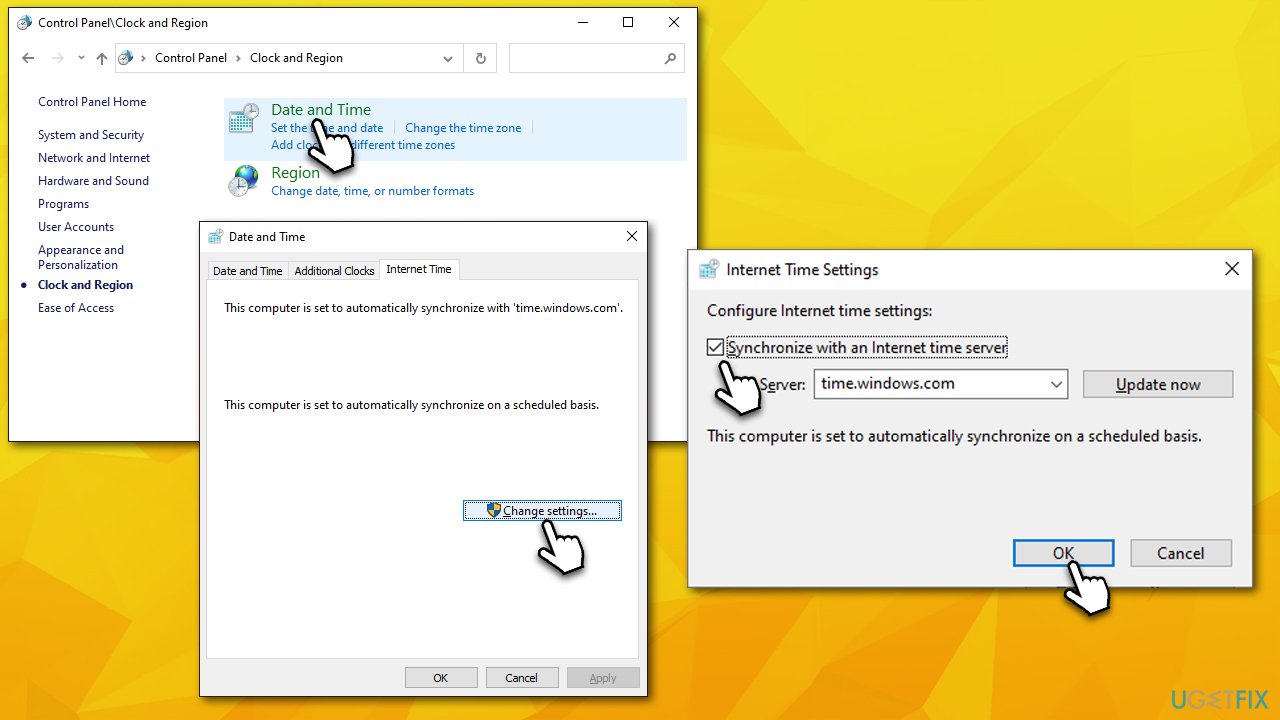
1. Check the time and date
If your time and date are off, it might interfere with Focus Assist functionality.
- Type in Control Panel in Windows search and press Enter.
- Go to Clock and Region and click on Date and Time.
- Pick the Internet Time tab and select Change Settings.
- Make sure that Synchronize with an Internet time server box is ticked.
- Click Update now and OK.
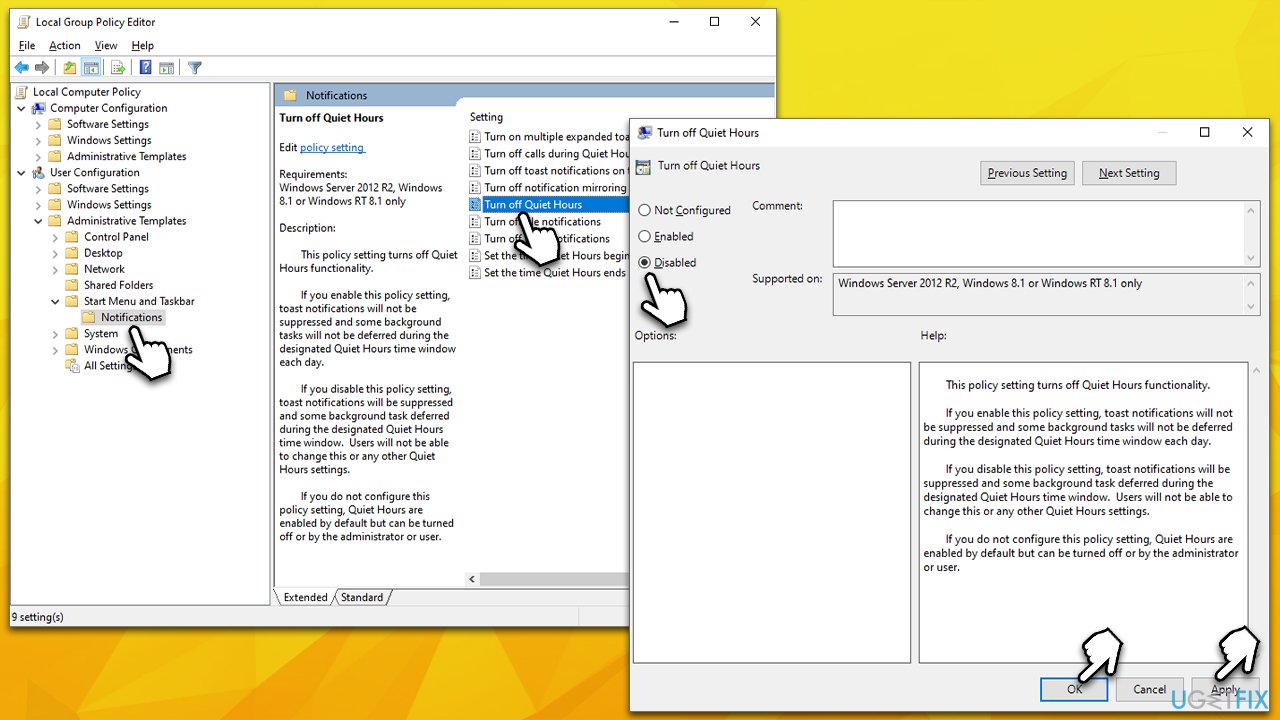
2. Disable Focus Assist via Group Policy Editor
Before proceeding, make sure you have administrator privileges on the account.
- In the Windows search field, type in Edit Group Policy and press Enter.
- Now go to the following path:
User Configuration > Administrative Templates > Start Menu and Taskbar > Notifications - On the right, double-click Turn Off Quiet Hours entry.
- Select Disabled option.
- Click Apply and OK.
- Restart your PC.
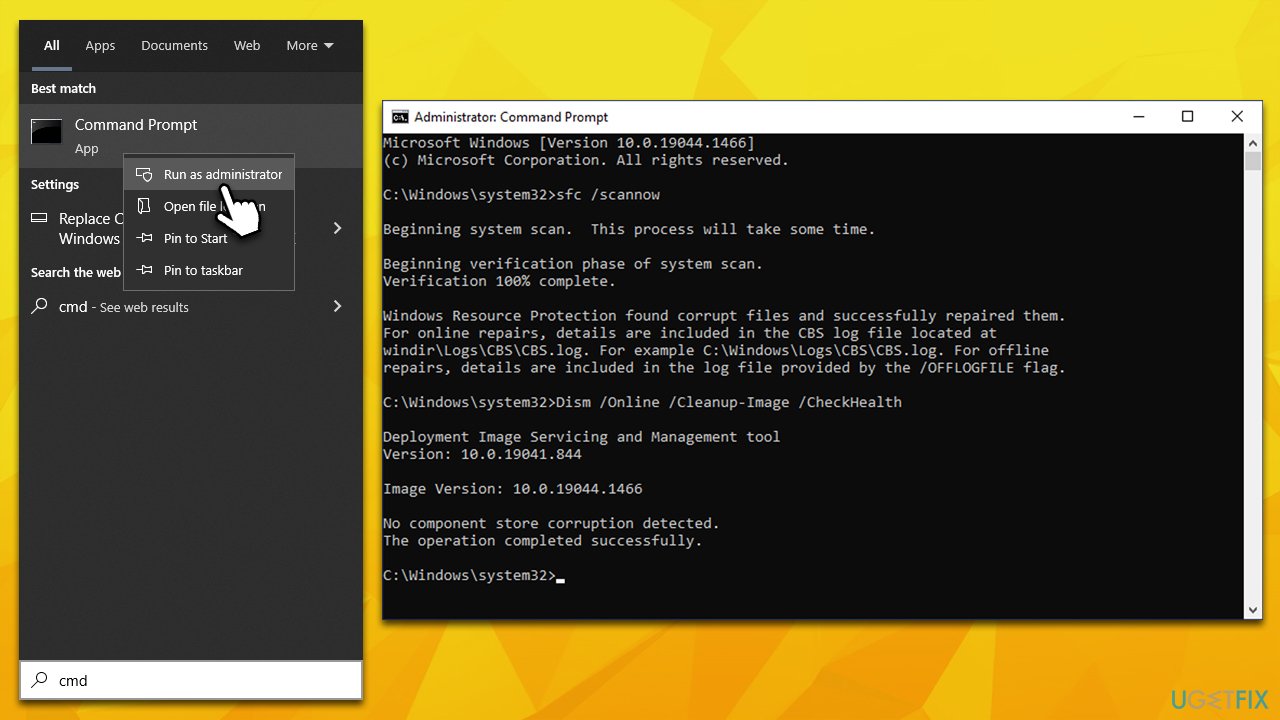
3. Run SFC and DISM
Corrupted system files might cause all kinds of malfunctions, so we recommend running commands that would address this:
- Type cmd in Windows search
- Right-click on Command Prompt result and select Run as administrator
- When User Account Control shows up, click Yes
- Paste the following command into the new window:
sfc /scannow - Press Enter and wait till the scan is finished
- Once done, run this set of commands, pressing Enter after each:
DISM /Online /Cleanup-Image /CheckHealth
DISM /Online /Cleanup-Image /ScanHealth
DISM /Online /Cleanup-Image /RestoreHealth - Restart your computer.
Bottom line
To resolve the issue of being unable to disable Focus Assist, users can run a PC repair tool to address potential corrupted system files. Additionally, checking settings and ensuring no software conflicts exist may help. If none of these solutions work, further troubleshooting may be necessary.
Frequently asked questions
If the Focus Assist toggle is grayed out, check your Group Policy settings or ensure that your Windows is fully updated, as these can restrict changes to Focus Assist.
To disable Focus Assist, click on the Action Center icon in the taskbar and select the Focus Assist tile until it shows 'Off'.
If you can't find the Focus Assist settings, ensure that you're looking in the 'System' section of the Settings app, and check for any software conflicts that might hide this feature.




Report an issue
What's wrong with this guide? We review every report and update or remove content.
Report received — thank you. We'll review and fix it.
You need a free account to submit a report.
Be the first to comment