How to fix
Can’t enable HDR
on Windows
Resolve the HDR issue on Windows 10 effortlessly. Follow our expert-tested solutions to enable HDR and enhance your visual experience today!

![[Fix] Can’t enable HDR in Windows 10](https://ugetfix.com/wp-content/uploads/articles/askit/fix-cant-enable-hdr-in-windows-10_en-768x432.jpg)
What causes [Fix] Can’t enable HDR in Windows 10?
- Built-in display does not meet minimum requirements for HDR streaming
- Lack of codecs for 10-bit video decoding
- Outdated graphics drivers
- Underlying system problems
- Corrupted files or registry issues
Repairs Windows system files, removes malware, and restores a clean OS state — without reinstalling.
Hello. I tried to enable HDR on my Windows 10 PC but the feature is not working. Any tips to fix this would be appreciated.
High Dynamic Range (HDR) streaming is a feature that provides a wider range of colors and brightness levels, creating a more vivid and immersive viewing experience. This feature is available in Windows and is particularly beneficial for those who enjoy watching movies, playing games, or working with high-resolution images and videos.
However, some users may experience issues when trying to enable HDR in Windows 10. This can be frustrating, as it can prevent them from taking full advantage of their display capabilities. The issue can also affect those who have invested in an HDR-compatible monitor or TV, only to find that the feature is not working as expected.
There can be several reasons why users may be unable to enable HDR in Windows 10. For example, the built-in display of a laptop may not meet the minimum requirements for HDR streaming. There are several solutions available to help users enable HDR in Windows 10.
However, it's important to note that the solution will vary depending on the cause of the issue. For example, if the built-in display of a laptop does not meet the minimum requirements for HDR streaming, users may need to consider investing in a new device that does. On the other hand, if the issue is caused by a lack of codecs for 10-bit video decoding, users can try installing the latest graphics drivers[ref en-1] (WDDM).
In this guide, you will find 5 steps that should help you enable HDR in Windows 10. Keep in mind, that you may be experiencing issues because of underlying system problems. You can use a maintenance tool like [d1] that can fix most system errors, BSODs,[ref en-2] corrupted files, registry[ref en-3] issues, or clear cookies and cache. Otherwise, follow the step-by-step instructions below.
Solution 1. Check Minimum Requirements
To stream HDR video on Windows 10, the following minimum requirements must be met:
On a laptop:
- The built-in display needs to have a minimum resolution of 1080p and a max brightness of 300 nits or higher.
- The integrated graphics card must have PlayReady support and codecs for 10-bit video decoding.
On a PC:
- The monitor must support HDR10 and have HDMI 2.0 or DisplayPort 1.4 or higher.
- The graphics card must have PlayReady 3.0 support. For example, AMD Radeon RX 400 series or higher, NVIDIA GeForce 1000 series or higher, or Intel UHD Graphics 600 series or higher support the HDR requirements.
- Windows 10 must have codecs for 10-bit video decoding and the latest graphics drivers (WDDM) installed.
Solution 2. Allow HDR Content to Play while on Battery
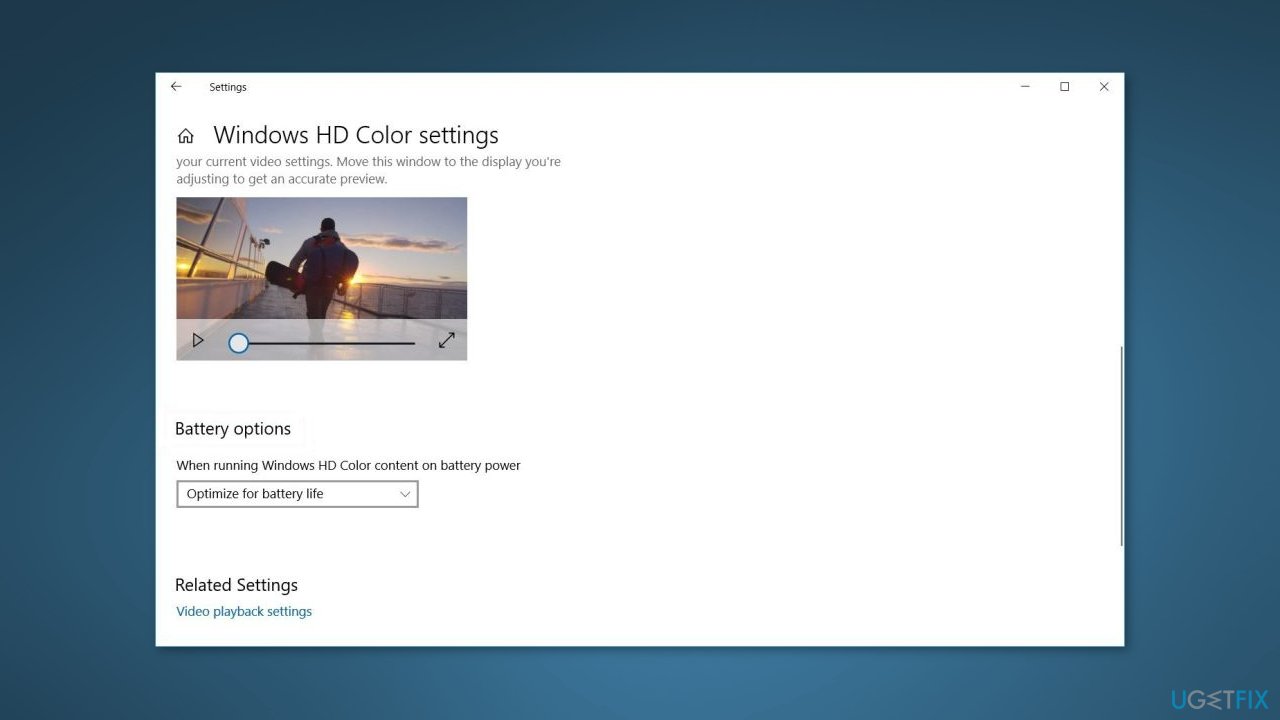
If the built-in display of a laptop with support for HDR is showing on the Windows HD Color settings page, but the option to enable it is not accessible, it may be because the power default settings are disabling HDR when running on battery. To fix this, either connect the laptop to a power source or change the settings to allow HDR content to play while on battery.
- Open Settings and click on System
- Click on Display
- Click the Windows HD Color settings option
- Under the Battery options section, clear the Don't allow HDR games and apps on battery option
Solution 3. Enable HDR using the Registry Editor
- Press the Windows key + R to open the Run dialog box
- Type regedit and click OK
- Click Yes when the UAC prompt appears
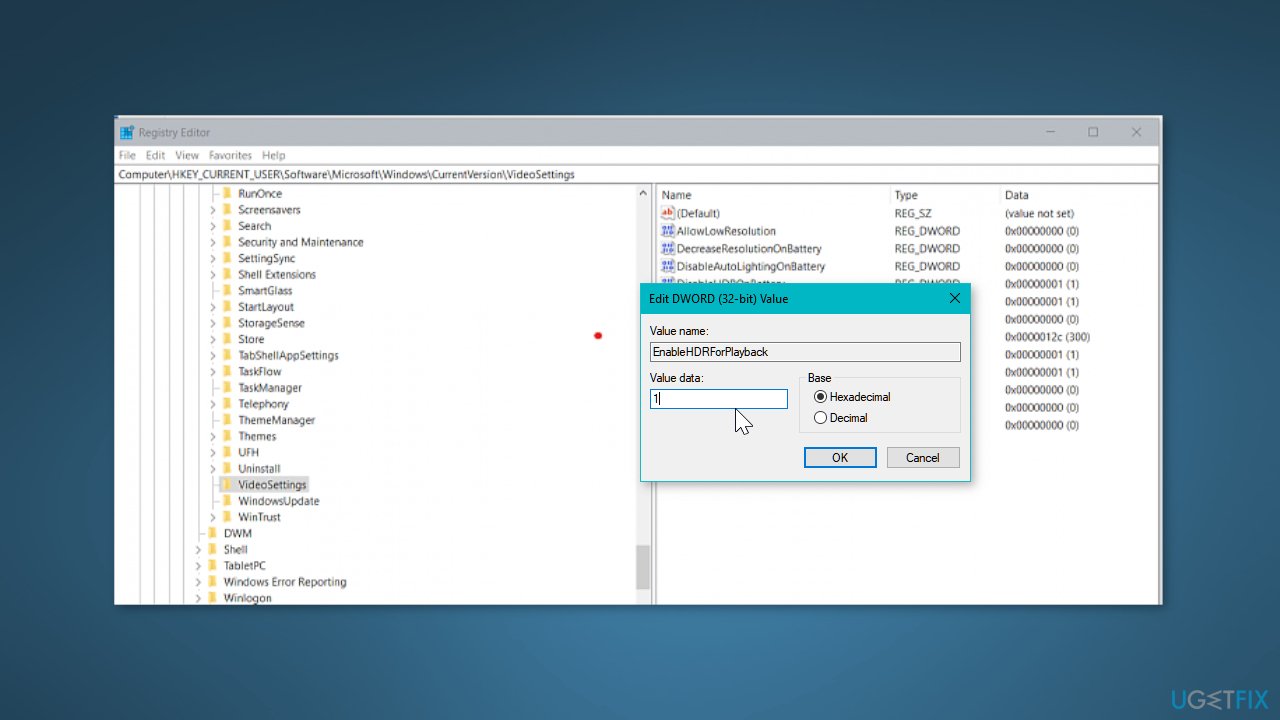
- In the Registry Editor, navigate to the following location:
Computer\HKEY_CURRENT_USER\SOFTWARE\Microsoft\Windows\CurrentVersion\VideoSettings
- Right-click on EnableHDRForPlayback and select Modify
- Enter 1 in the Data value field
- Click OK to save the changes
- Go to Start and select Settings from the desktop screen
- Select System and open Display
- Try enabling the HDR stream option to see if it works
If the issue persists,
- Press the Windows key, and type cmd
- Click on Open as Administrator for Command Prompt
- Type in the following command and hit Enter to execute:
reg add “HKCU\Software\Microsoft\Windows\CurrentVersion\VideoSettings” /v EnableHDRForPlayback /t REG_DWORD /d 1
- Once the command is executed successfully, exit the Command Prompt
- Restart your computer before trying to turn on the HDR Stream option in Windows 10
Solution 4. Go back to the previous version of Windows
- Press the Windows key + I
- Open Update and Security
- Open the Recovery tab from the left pane
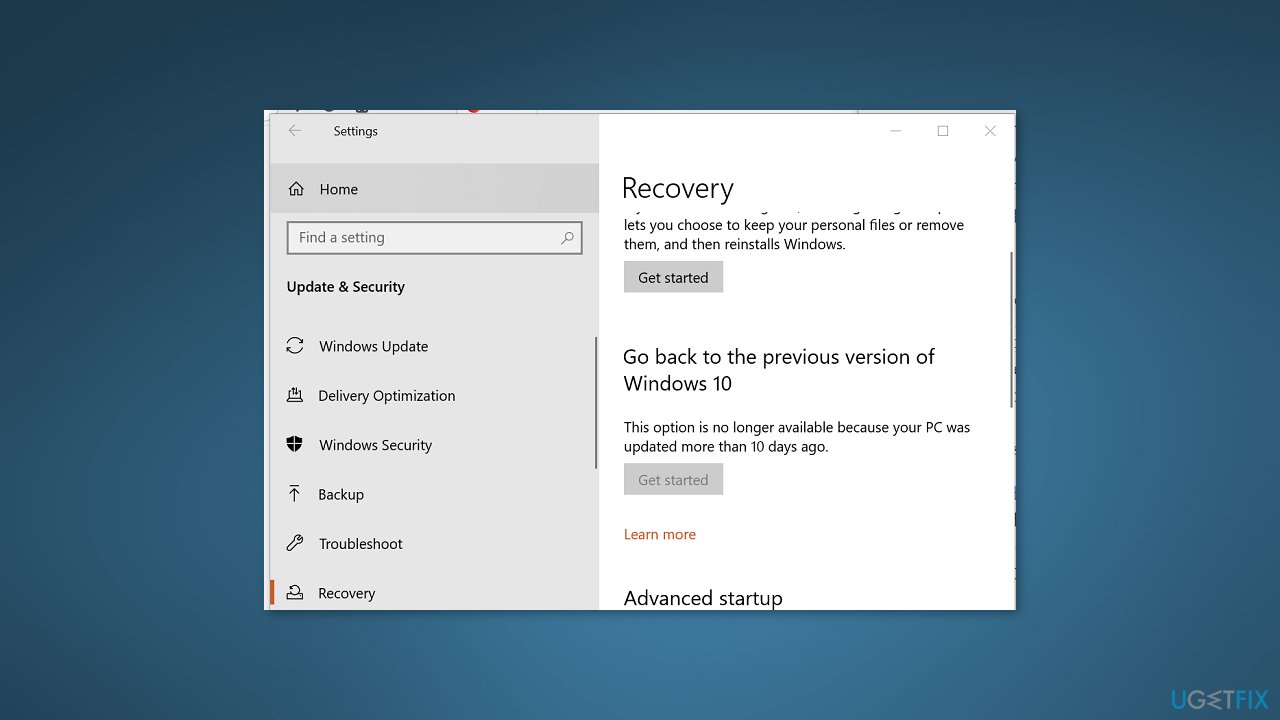
- Scroll down to Go back to the previous version of the Windows 10 section
- Click on Get started
- Follow the on-screen instructions to restore your PC to the earlier version of Windows 10
- Once restored, check if you can enable the Stream HDR option in settings
Note: the option to Go back to the previous version of Windows 10 will not be available after 10 days of updating the system.
Solution 5. Check the Display and HDMI Ports
- Check if the multi-monitor setup is not causing the issue when connecting multiple HDR-enabled displays to your PC.
- If you are using a monitor plus TV setup, try turning on HDR Stream with only your TV connected to the PC.
- An incompatible HDMI cable can also cause HDR issues in Windows 10. Make sure to use an HDMI 2.0b cable, as HDR requires it to transmit the signal. If the HDMI cable is HDMI 1.4v, replace it with an HDMI 2.0b cable
- If the HDR Stream option is still missing for your display, it's likely that your monitor or TV does not support HDR technology.
Bottom line
To enable HDR in Windows 10, check that your display meets the minimum requirements, install the latest graphics drivers, and consider using a maintenance tool to fix system errors. If these solutions do not resolve the issue, you may need to invest in a new device that supports HDR.
Frequently asked questions
The HDR option may not appear if your display doesn't support HDR or if you haven't updated your graphics drivers. Make sure your monitor is HDR-capable and that you are using the latest drivers for your graphics card.
If HDR is grayed out, check if your display is connected via HDMI 2.0 or DisplayPort 1.4, as these are required for HDR. Additionally, ensure that your Windows 10 settings are configured correctly for HDR display.
Yes, if your system meets the hardware requirements for HDR, you can enable it in the Display settings under 'Windows HD Color'. Make sure to adjust your settings accordingly for optimal performance.




Report an issue
What's wrong with this guide? We review every report and update or remove content.
Report received — thank you. We'll review and fix it.
You need a free account to submit a report.
Be the first to comment