How to fix
Can’t log in to iCloud due to blank error message
on Windows
Resolve the iCloud blank error message on Windows 10 or 11 effortlessly. Follow our expert-tested solutions to regain access quickly! Fixed in minutes.

![[Fix] Can’t log in to iCloud due to blank error message on Windows](https://ugetfix.com/wp-content/uploads/articles/askit/cant-log-in-to-icloud-due-to-blank-error-message-on-windows_en-768x432.jpg)
What causes [Fix] Can’t log in to iCloud due to blank error message on Windows?
- Windows and Apple apps are not optimized to work well with each other
- Different technologies and development frameworks used by Windows and Apple
- Corrupted system files
- Outdated Windows updates
- Issues with the iCloud app installation
- Problems with user account settings
Repairs Windows system files, removes malware, and restores a clean OS state — without reinstalling.
Hello. I tried to log in to iCloud on Windows but I got a blank error message which prevents me from doing so. What should I do?
iCloud is a cloud storage service offered by Apple that allows users to store their documents, photos, and other files online. The iCloud app for Windows allows users to access these files on their Windows computers, as well as to sync their contacts, calendar, and other data across multiple devices.
However, some people have been experiencing an issue - users are unable to log in to iCloud on their Windows computers due to an empty error message that pops up without an error code or message. This can negatively impact people as they may not be able to access their important files and data stored in iCloud.
There are many possibilities why this could be happening. The main reason Windows and Apple apps are not optimized to work well with each other is that the two companies use different technologies, development frameworks and design philosophies.
The architecture and underlying technologies of Windows and Apple operating systems are different, which means that apps developed for one platform may not work seamlessly on the other. For example, Apple's iOS uses a different graphics API (Metal)[ref en-1] than Windows (DirectX),[ref en-2] which makes it difficult for iOS apps to run on Windows, and vice versa.
Possible solutions to the blank error message on iCloud when trying to log in includes fixing corrupted system files, checking for Windows updates, reinstalling the iCloud app, or creating a new local account. In this guide, you will find 6 steps that should help you fix "Can't log in to iCloud due to blank error message on Windows."
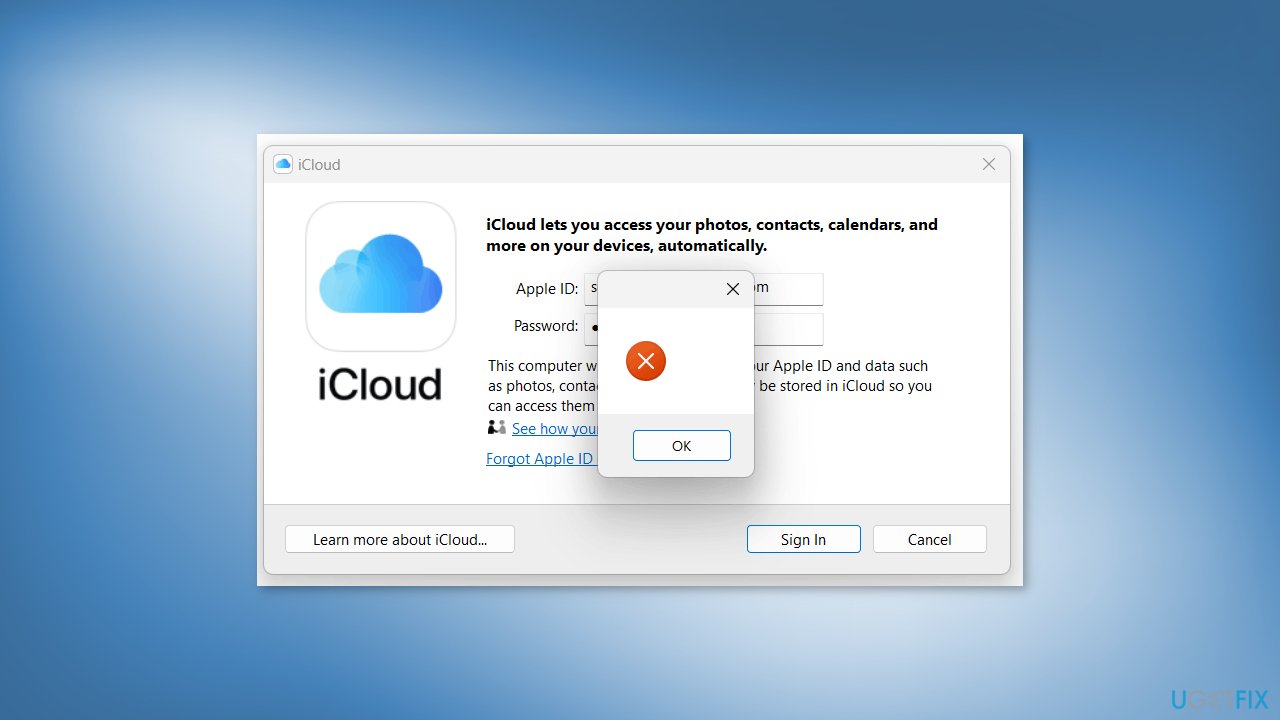
Keep in mind, that the login process may be failing because of underlying system issues. You should employ a maintenance tool like [d1] that can fix most system errors, BSODs,[ref en-3] corrupted files, and registry issues. Otherwise, follow the step-by-step instructions below.
Solution 1. Fix Corrupted System Files
Use Command Prompt commands to repair system file corruption:
- Open Command Prompt as administrator
- Use the following command and press Enter:
sfc /scannow

- Reboot your system
- If SFC returned an error, then use the following command lines, pressing Enter after each:
DISM /Online /Cleanup-Image /CheckHealth
DISM /Online /Cleanup-Image /ScanHealth
DISM /Online /Cleanup-Image /RestoreHealth
Solution 2. Update Windows
- Click Start and select Settings
- Go to the Windows Update section
- Click Check for updates and wait
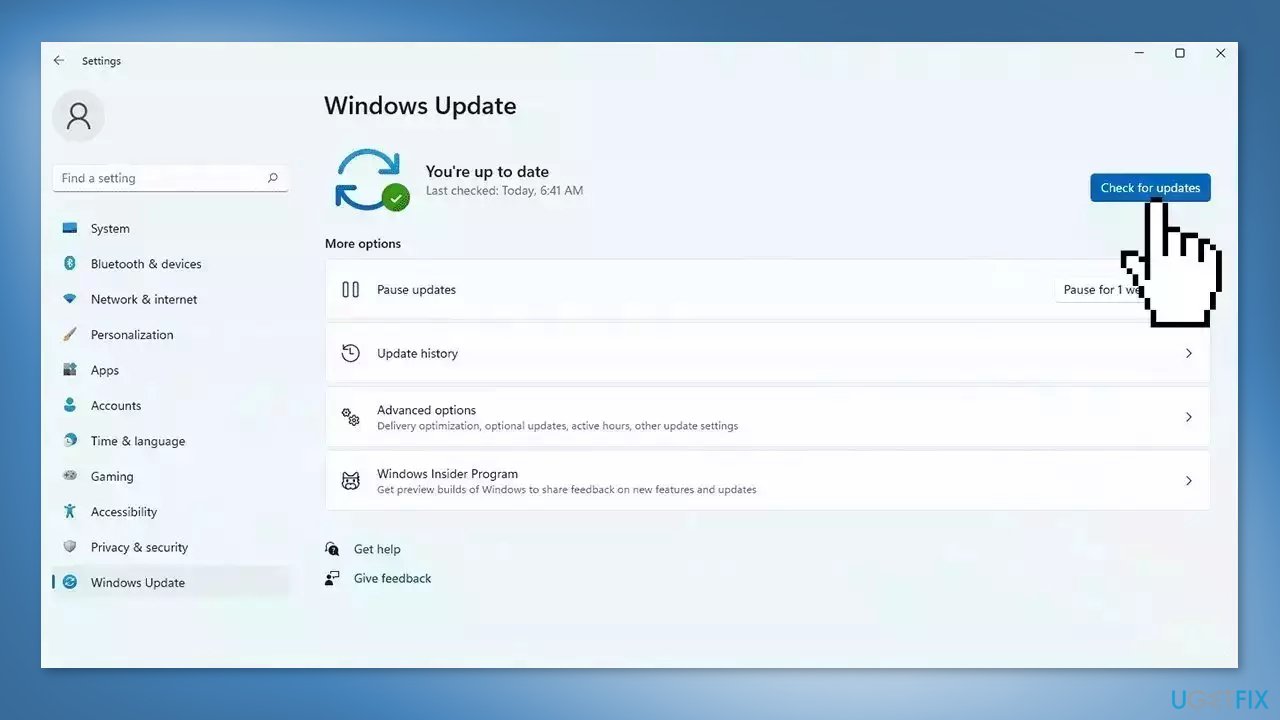
- Go to the Advanced options and install optional updates
- Reboot your system
Solution 3. Restart the Bonjour Service
- Press the Windows key + R to open the Run box
- Type services.msc then press Enter
- The services window should open
- Look for the Bonjour Service and right-click on it

- Select Restart
- Try to sign into iCloud again
Solution 4. Reinstall the iCloud app
- Go to Windows Settings and head to Apps & features
- Locate iCloud in the list, then click it to select the Uninstall button
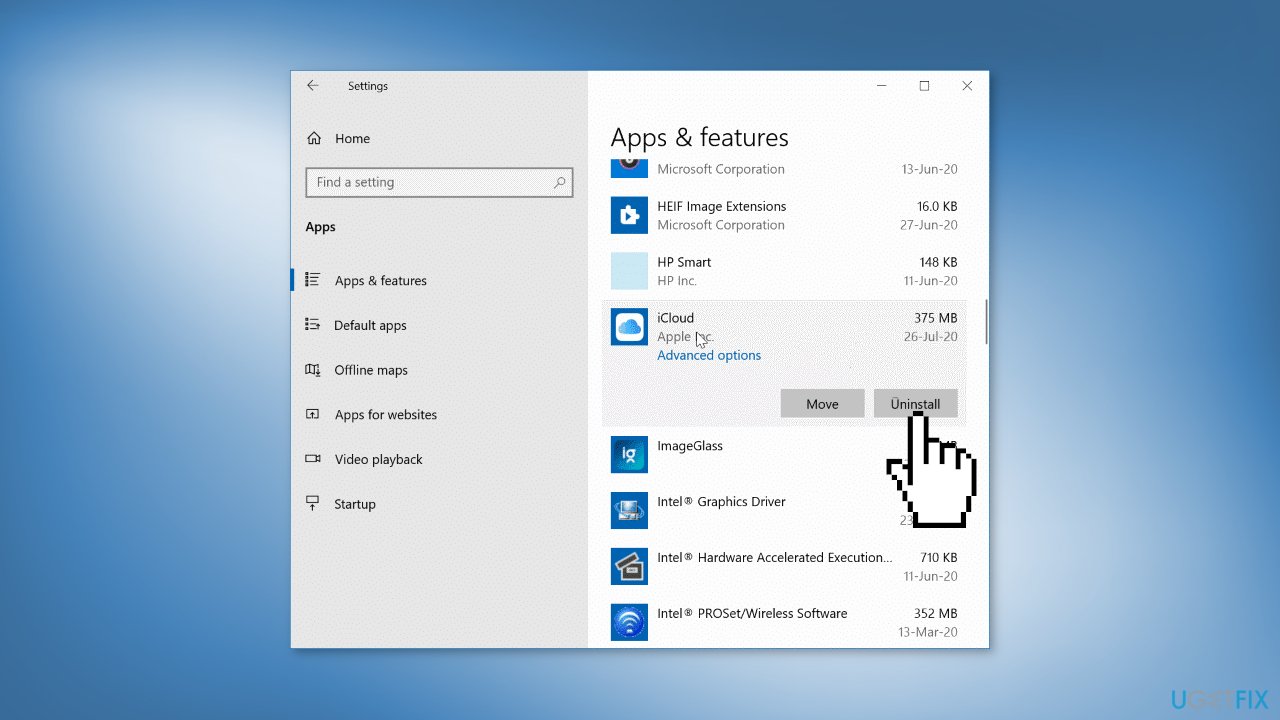
- Now, you can install iCloud from Apple's website on your computer again
Solution 5. Create a new Local User Account
- Press Windows + I to launch Settings
- Select Accounts from the tabs listed on the left and click on Family & other users on the right
- Click on the Add account button next to Add other user
- Select I don’t have this person’s sign-in information and click on Add a user without a Microsoft account
- Enter the user name, password, and answer the three security questions (if you enter a password) in the respective fields
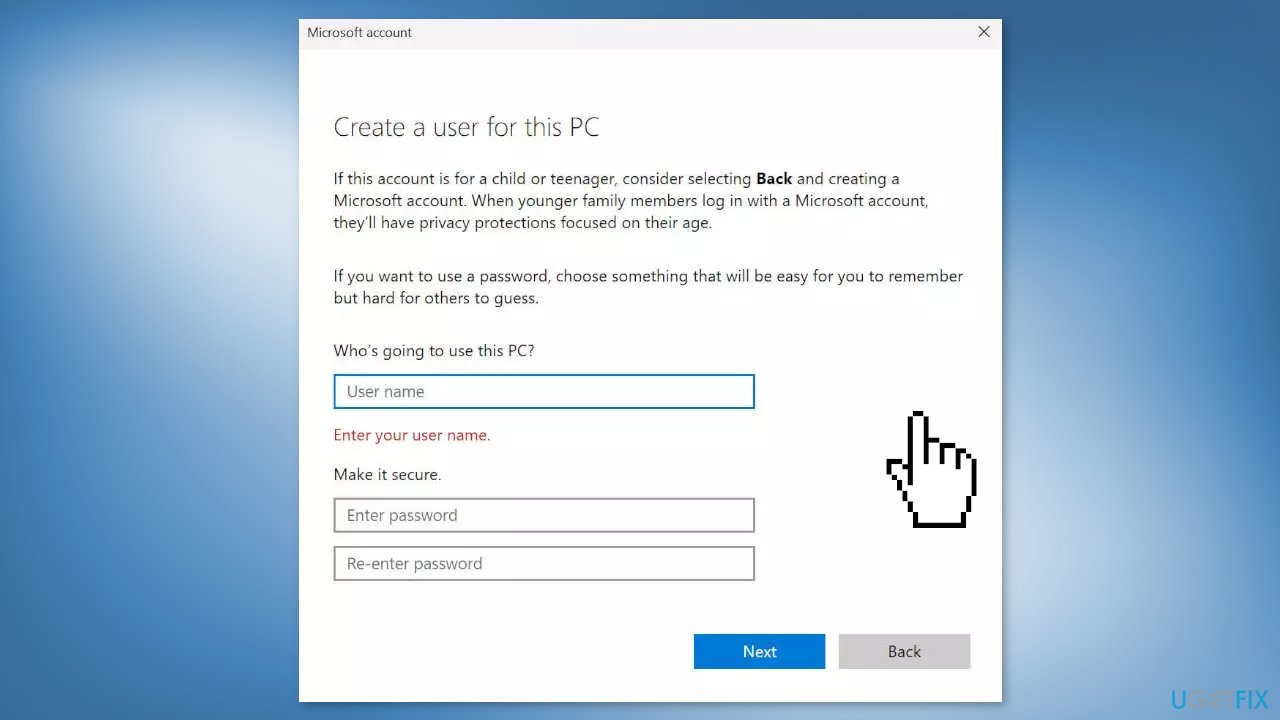
- Click on Next to create the local account
- If you don’t want to create a password-protected local user account, leave the password field blank
- Sign in to your new account and check if you can log in to iCloud
Solution 6. Reset Apple ID Password
Email, password, and security questions:
- Go to the Apple ID account page
- Click on Forgot Apple ID or password
- Enter your Apple ID
- Click Reset password and then Continue
- Select one of the following options for resetting your password:
Answer security questions
Get an email
Use recovery key for two-factor authentication
- Sign in with your new password and update password settings on all your devices
Two-step verification:
- Go to the Apple ID account page
- Click on Forgot Apple ID or password
- Enter your Apple ID and select Reset password
- Click Continue
- Enter your recovery key for two-step verification (if you have lost it, you can't change your password)
- Select a trusted device and a verification code will be sent there
- Enter the verification code
- Create a new password
- Click Reset password
- Sign in with your new password and update the password settings on all your devices
Note: Check that you entered the correct Apple ID, which is typically the main email address associated with your Apple ID account, if you're still having trouble signing in. If not, get in touch with Apple support for more information.
Bottom line
To resolve the blank error message when logging into iCloud on Windows, you can try fixing corrupted system files, checking for Windows updates, reinstalling the iCloud app, or creating a new local account. If these solutions do not work, consider using a maintenance tool to address underlying system issues.
Frequently asked questions
First, ensure that your Windows is updated to the latest version, then try resetting the iCloud application by signing out and signing back in. If the issue persists, consider reinstalling the iCloud app.
Yes, running the iCloud application in compatibility mode for an earlier version of Windows may resolve the blank error message issue.
You can test your network connection by opening a web browser and visiting any website; if it doesn't load, troubleshooting your internet connection may help resolve the iCloud login issue.




Report an issue
What's wrong with this guide? We review every report and update or remove content.
Report received — thank you. We'll review and fix it.
You need a free account to submit a report.
Be the first to comment