How to fix
Can’t move desktop icons to bottom row of the screen
on Windows
Resolve the issue of not being able to move desktop icons to the bottom row in Windows 10 or 11. Get quick, expert-tested solutions!

![[Fix] Can’t move desktop icons to bottom row of the screen in Windows](https://ugetfix.com/wp-content/uploads/articles/askit/cant-move-desktop-icons-to-bottom-row-of-the-screen-in-windows_en-768x432.jpg)
What causes [Fix] Can’t move desktop icons to bottom row of the screen in Windows?
- Grid system restricts icon placement
- Screen resolution settings affect grid size
- Display scaling increases icon size
- Default number of rows and columns may not extend to bottom
- Windows Explorer may have bugs
Repairs Windows system files, removes malware, and restores a clean OS state — without reinstalling.
Hello, ever since upgrading to Windows 11, I've encountered an issue where I can't move desktop icons to the bottom row unless there's already an icon positioned above it. I would appreciate any suggestions.
Have you ever tried rearranging your desktop icons in Windows, only to find that you can't place them on the bottom row of the screen? This peculiar issue can be frustrating for users who prefer a specific layout for their desktop icons. The root cause of this problem, and several solutions, revolve around the grid system that Windows uses for icon placement, among other potential issues.
Windows organizes desktop icons using a grid layout. This grid ensures that icons are neatly aligned and spaced, preventing overlap and maintaining a clean appearance. Each icon occupies a cell in the grid, and the operating system automatically aligns icons to the nearest grid point. This system is beneficial for keeping desktops organized but can sometimes restrict user preferences for icon placement, particularly on the bottom row of the screen.
The inability to place icons on the bottom row might be a result of the grid's size and the screen's resolution settings. The grid layout is designed to accommodate a default number of rows and columns, which might not always extend to the very bottom of the desktop screen, especially if display settings, such as scaling, increase the size of icons and text.
For users experiencing difficulty placing icons on the bottom row of their Windows desktop, the solutions vary from simple adjustments to more technical fixes. Whether it's tweaking the grid settings, restarting Windows Explorer, or running system diagnostics, the right approach can restore flexibility and control over desktop icon arrangements.
Solutions to this and related issues are detailed below this article, providing step-by-step instructions and tips for troubleshooting common problems with desktop icons in Windows. If you frequently experience issues with Windows Explorer or other Windows components, we recommend scanning your system with [d1] repair software.

Fix 1. Restart Windows Explorer
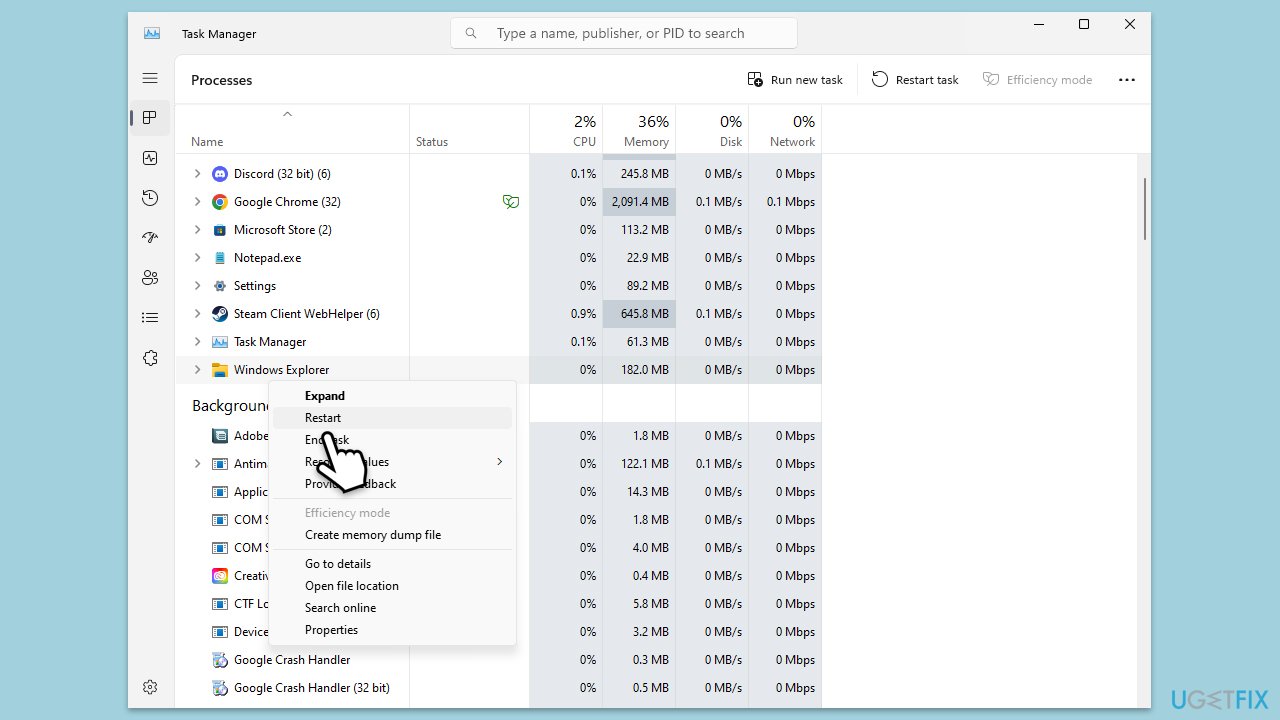
Sometimes, Windows Explorer might bug out and cause various issues, including where users can't move desktop icons to the bottom row, right above the taskbar.
- Press Ctrl + Shift + Esc to open Task Manager.
- Click More details if needed.
- Look for Windows Explorer.
- Right-click and select Restart.
- Several UI elements will disappear for a few moments and reappear soon thereafter.
Fix 2. Disable grid
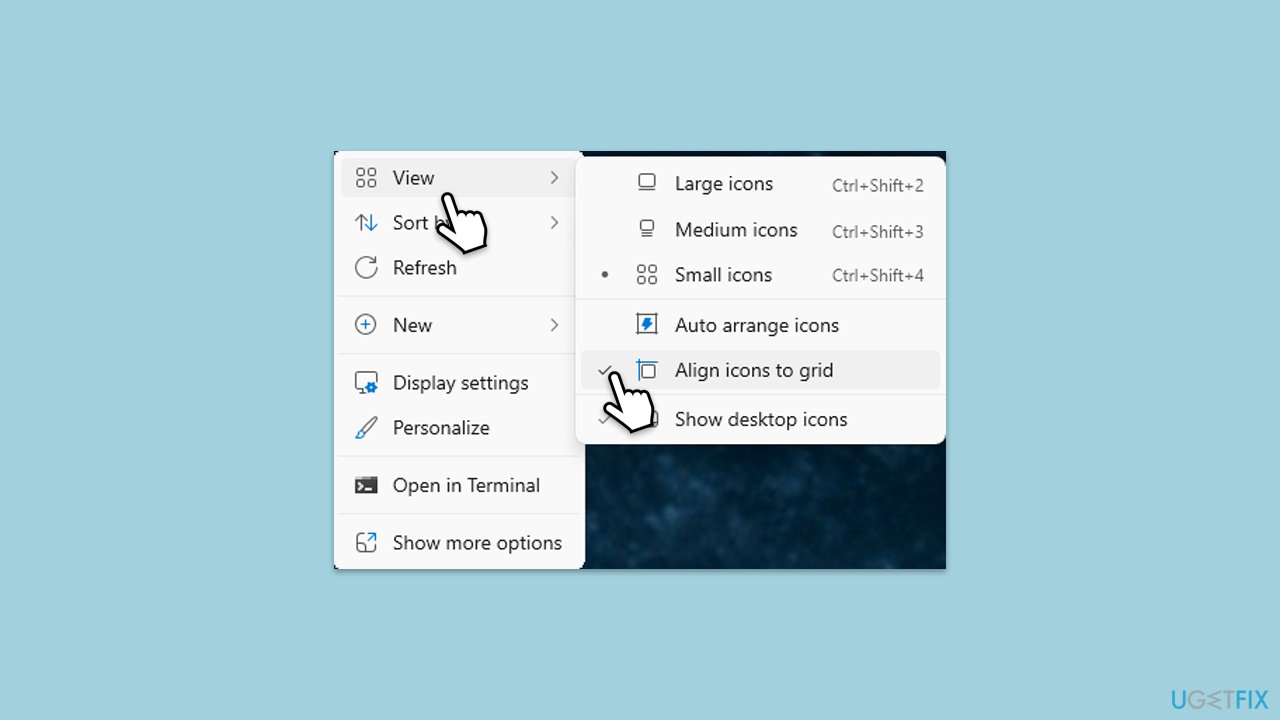
As mentioned, the grid might prevent you from moving the icons to the bottom of the screen. You can disable it easily.
- Right-click anywhere on your desktop (empty space).
- Hover your mouse over View.
- Alight icons to grid option should be ticked.
- Click on it once to disable this option.
- You now can freely move desktop icons.
Fix 3. Change scaling settings
This solution helped several people to fix icons that can't be placed at the bottom of the screen in Windows.
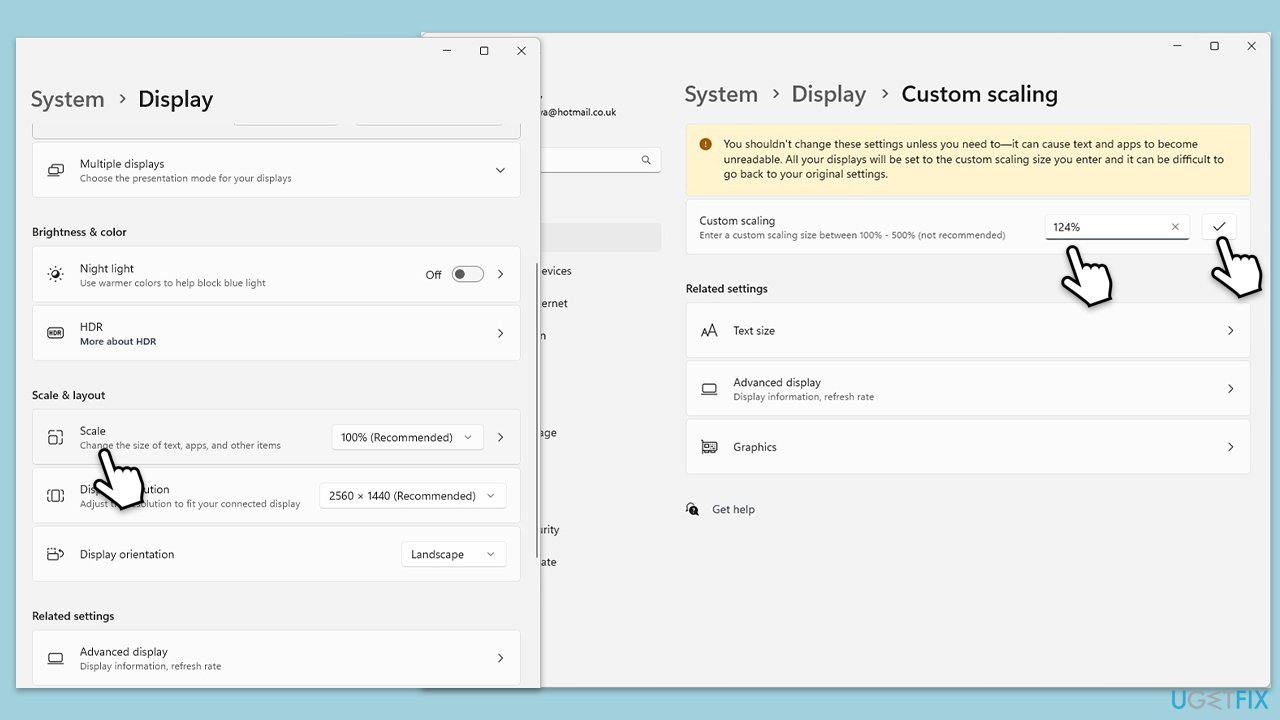
- Click on Start and pick Settings.
- Go to System and then select the Display section.
- Under Scale & layout, click on Scale.
- In the Custom scaling window, type in 124%.
- Click OK.
- Restart your system to apply the changes.
Fix 4. Perform Clean Boot
Conflicting or incompatible software might cause Windows Explorer to misbehave. To check this, you can access Clean Boot and see if the problem occurs there:
- Press the Win + R to open the Run dialog.
- Type msconfig and press Enter.
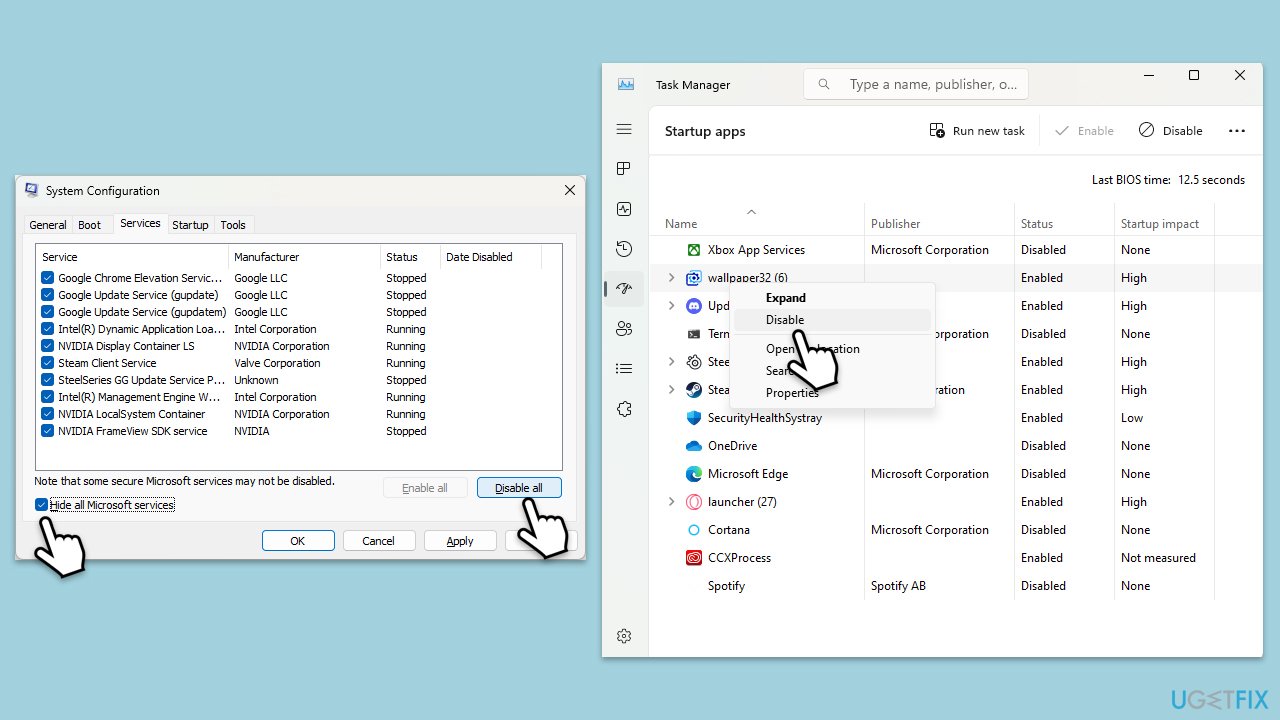
- In the System Configuration window, select Selective Startup, and uncheck Load startup items.
- Go to the Services tab and check the box Hide all Microsoft services, then click Disable all.
- Click on the Startup tab and open Task Manager.
- Disable all the startup items in the Task Manager.
- Click OK, and restart the computer.
- If the issue is resolved, then it means one of the background programs was causing the problem. In this case, you would enable each service one by one or in groups (and restart each time) to identify the specific service causing the problem.
- If the issue still persists in the Clean Boot state, it likely means that the problem is not related to third-party services and applications, and you may need to explore other solutions.
Fix 5. Run SFC and DISM
To fix corrupted system files, you can run commands using elevated Command Prompt. Here's how:
- Type cmd in Windows search.
- Right-click on Control Panel and choose Run as administrator.
- User Account Control will ask whether you want to allow changes - click Yes.
- In the Command Prompt window, paste the following command and hit Enter:
sfc /scannow - Once the scan is complete, use the following commands and press Enter after each:
Dism /Online /Cleanup-Image /CheckHealth
Dism /Online /Cleanup-Image /ScanHealth
Dism /Online /Cleanup-Image /RestoreHealth - (Note: if you get an error executing this last command, add /Source:C:\RepairSource\Windows /LimitAccess to it and try again).
- Restart your PC.

Bottom line
To resolve the issue of not being able to move desktop icons to the bottom row, users can try restarting Windows Explorer, adjusting grid settings, or running system diagnostics. If these solutions do not work, consider using repair software to scan your system for further issues.
Frequently asked questions
This issue may occur due to display settings or icon arrangement settings. Try adjusting your screen resolution or disabling 'Auto Arrange' in the desktop context menu.
Check if the desktop is set to 'Align Icons to Grid' and disable it if necessary. Additionally, ensure that your display scaling is set to 100% to allow for proper icon placement.
Make sure your taskbar is not set to 'Auto-hide' and that there are no other applications or toolbars occupying the bottom of your screen.




Report an issue
What's wrong with this guide? We review every report and update or remove content.
Report received — thank you. We'll review and fix it.
You need a free account to submit a report.
Be the first to comment