How to fix
Can’t pin Excel files to taskbar
on Windows
Resolve the issue of pinning Excel files to your taskbar in Windows 10 and 11 effortlessly. Quick solutions, expert-tested fixes, zero traces left.

![[Fix] Can’t pin Excel files to taskbar in Windows](https://ugetfix.com/wp-content/uploads/articles/askit/fix-cant-pin-excel-files-to-taskbar-in-windows_en-768x432.jpg)
What causes [Fix] Can’t pin Excel files to taskbar in Windows?
- Software bug
- Configuration issue
- File associations not configured properly
- Microsoft Office installation needs repair
- Specific settings or policies within an organization's network
Repairs Windows system files, removes malware, and restores a clean OS state — without reinstalling.
Hello. I can't pin any Excel files to the taskbar. I can unpin files, but they can't be re-pinned. How do I fix this?
The inability to pin Excel files to the Windows Taskbar is a problem that can be both inconvenient and hindering in terms of improving workflow. It's crucial to realize that this issue only affects Excel because users can still pin files to other programs like File Explorer and Word. This problem could interfere with the user's regular and preferred manner of accessing frequently used Excel files.
Practically speaking, this problem may have a variety of effects on users. First, it can make it harder for them to access crucial Excel files. Users who frequently pin particular files to the Taskbar do so for easier access, and being unable to do so can interfere with their regular workflow.
Additionally, the inability to pin Excel files could result in a disorganized and cluttered desktop. Users may resort to keeping multiple Excel files open at once or regularly moving across folders, both of which can be time-consuming and result in a less productive workplace. Additionally, users may find it more difficult to organize their most crucial and frequently used Excel files on the Taskbar as a result of being unable to pin and unpin files as needed.
As for potential fixes, the issue can be brought on by a software bug or configuration issue. The user may need to check for updates to Excel, confirm that the file associations are configured properly, or even repair the Microsoft Office installation to resolve this.
In some cases, the problem may be related to specific settings or policies within an organization's network, in which case it would be advisable to reach out to the IT department for further assistance and guidance. In this guide, you will find 4 steps that should help you fix pinning Excel files to the taskbar not working in Windows. You can also try running a maintenance tool like [d1] that can fix most system errors, BSODs, corrupted files, and registry issues. Otherwise, follow the step-by-step instructions below.

Solution 1. Re-pin Excel
- On your Taskbar, locate the Excel icon.
- Right-click on the Excel icon.
- Choose the Unpin from taskbar option.
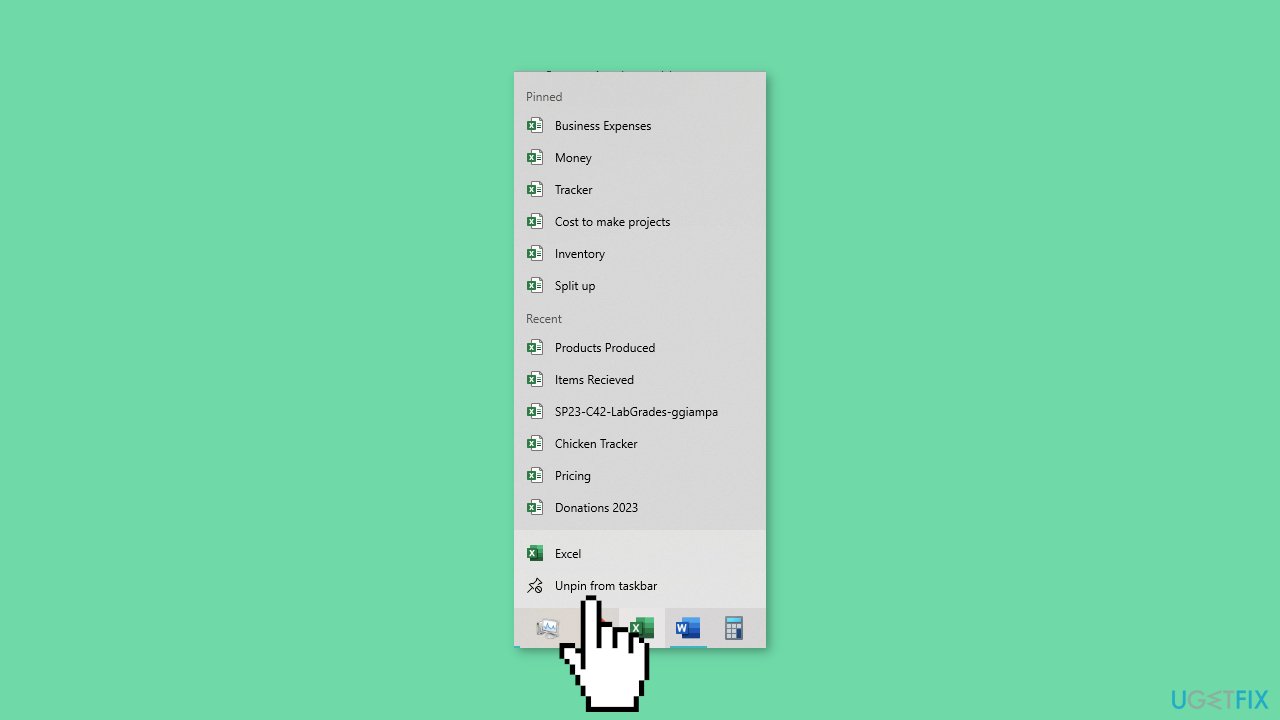
- Wait for a brief moment to ensure the unpinning process is completed.
- Locate Excel in your apps or search for it in the Start menu.
- Right-click on Excel in the Start menu.
- Select the Pin to Taskbar option.
- Now, try pinning files to the Excel icon on your Taskbar to see if the issue is resolved.
Solution 2. Repair or Reset Microsoft Office
- Open the Windows Settings.
- Click on the Apps or Apps & Features option, depending on your Windows version.
- Scroll through the list of installed apps to find the Microsoft Office application you want to repair or reset.
- Click on the Microsoft Office app.
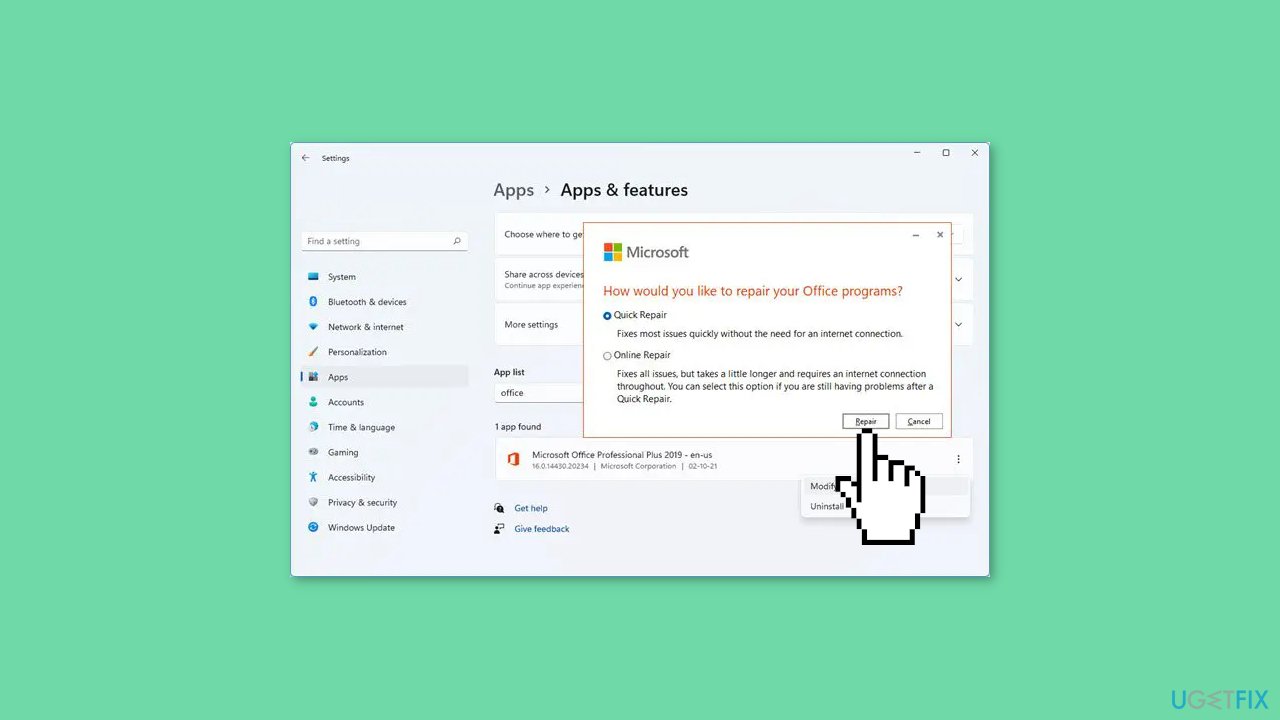
- Look for options like Modify or Repair, which may vary depending on your Office version.
- Follow the on-screen instructions to either repair or reset the Microsoft Office app, depending on the available options.
- Allow the repair or reset process to complete. This may involve downloading and replacing corrupted or missing files.
- Once the repair or reset process is finished, restart your computer to apply the changes.
Solution 3. Remove Pins
- Take note of your pinned items, including Word and Explorer pins.
- Open the Explorer application.
- Paste %AppData%\Microsoft\Windows\Recent\AutomaticDestinations in the Explorer address bar.
- Delete all the files with the name automaticDestinations-ms within the folder.
- This action will eliminate your pinned items.
Solution 4. Show Recently Opened Items
- Open the Windows Settings.
- Click on the Personalisation option.
- Select the Start tab within the Personalisation settings.
- Toggle the switch to turn on the Show recently opened items in Start, Jump Lists and File Explorer option.
Bottom line
To fix the issue of not being able to pin Excel files to the taskbar, users can check for updates to Excel, confirm file associations, or repair the Microsoft Office installation. If the problem persists, it is advisable to reach out to the IT department for further assistance.
Frequently asked questions
This issue may arise if the Excel application is not properly configured or if there are corrupted user settings. Try resetting the Excel settings or repairing the Office installation to resolve the problem.
If the option is missing, ensure that the Excel application is open and try dragging the file directly to the taskbar icon. If that doesn't work, check your Windows settings for any restrictions on pinning files.
Yes, certain group policies or user account settings might restrict pinning applications or files. Review your group policy settings or user permissions to ensure they allow pinning.




Report an issue
What's wrong with this guide? We review every report and update or remove content.
Report received — thank you. We'll review and fix it.
You need a free account to submit a report.
Be the first to comment