How to fix
Can’t print multiple pictures per sheet
on Windows
Easily resolve issues printing multiple pictures per sheet in Windows 10 or Windows 11. Get expert-tested solutions and start printing perfectly today!

![[Fix] Can’t print multiple pictures per sheet in Windows](https://ugetfix.com/wp-content/uploads/articles/askit/fix-cant-print-multiple-pictures-per-sheet-in-windows_en-768x432.jpg)
What causes [Fix] Can’t print multiple pictures per sheet in Windows?
- Users cannot configure the layout for printing multiple photos
- Printing process starts immediately without options
- Ineffective use of paper and ink
- Increased printing costs and inconvenience
- Limited ability to tailor printing choices
Repairs Windows system files, removes malware, and restores a clean OS state — without reinstalling.
Hello. Windows does not let me choose to print multiple photos per page. Is there a way to fix this?
The typical procedure for printing photos from the Pictures folder is to select one or more images, right-click, and then select "Print" to open up further printing options. However, instead of being presented with the option to print multiple pictures per page (Print Pictures option), the printing process starts immediately without giving the user a chance to configure the layout.
This restriction may adversely affect users' printing experiences in a number of ways. First off, as users cannot effectively use the area on a single page to print several photographs, it may result in waste of paper and ink. Users may incur needless fees as a result of this, which could also have a negative influence on the environment, especially if they frequently print images.
Furthermore, the inability to print numerous images per page might considerably slow down users' printing processes. When customers want to print multiple images on one sheet, they might have to do so manually using other applications or by printing each photo separately. This additional effort increases printing costs and inconvenience while also taking time.
Additionally, consumers' ability to tailor their printing choices is constrained by the absence of this capability. Users will be limited by the absence of such tools if they want to develop photo albums, print several copies of tiny photos on a single page, or make photo collages. Users who are used to having more control over their printing outputs may find this lack of personalization to be infuriating.
In this guide, you will find 4 steps that should help you fix the issue of being unable to print multiple pictures per sheet in Windows. You can also try a maintenance tool like [d1] that can fix most system errors, BSODs,[ref en-1] corrupted files, and registry[ref en-2] issues. Otherwise, follow the step-by-step instructions below.
Solution 1. Set Printer as Default
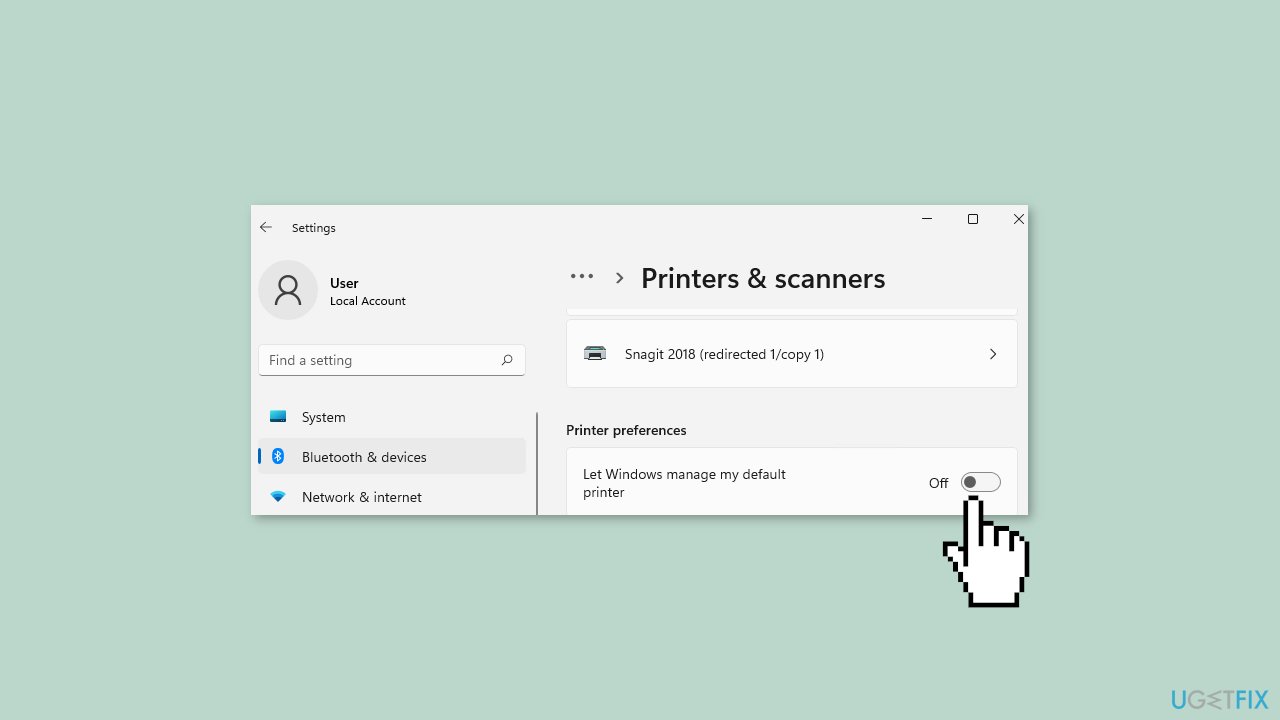
- Open Settings.
- Select Bluetooth & devices from the left column.
- Click on Printers & scanners on the right.
- Find the option Let Windows manage my default printer and ensure it is toggled to the off position.
- Scroll back up if needed.
- Select the desired Microsoft Print to PDF printer to set it as default.
- Click on Set as default.
- Now, try printing multiple photos again.
Solution 2. Switch to the Photos App
- Click on the Start button.
- Go to Settings.
- Navigate to System.
- Click on Default apps.
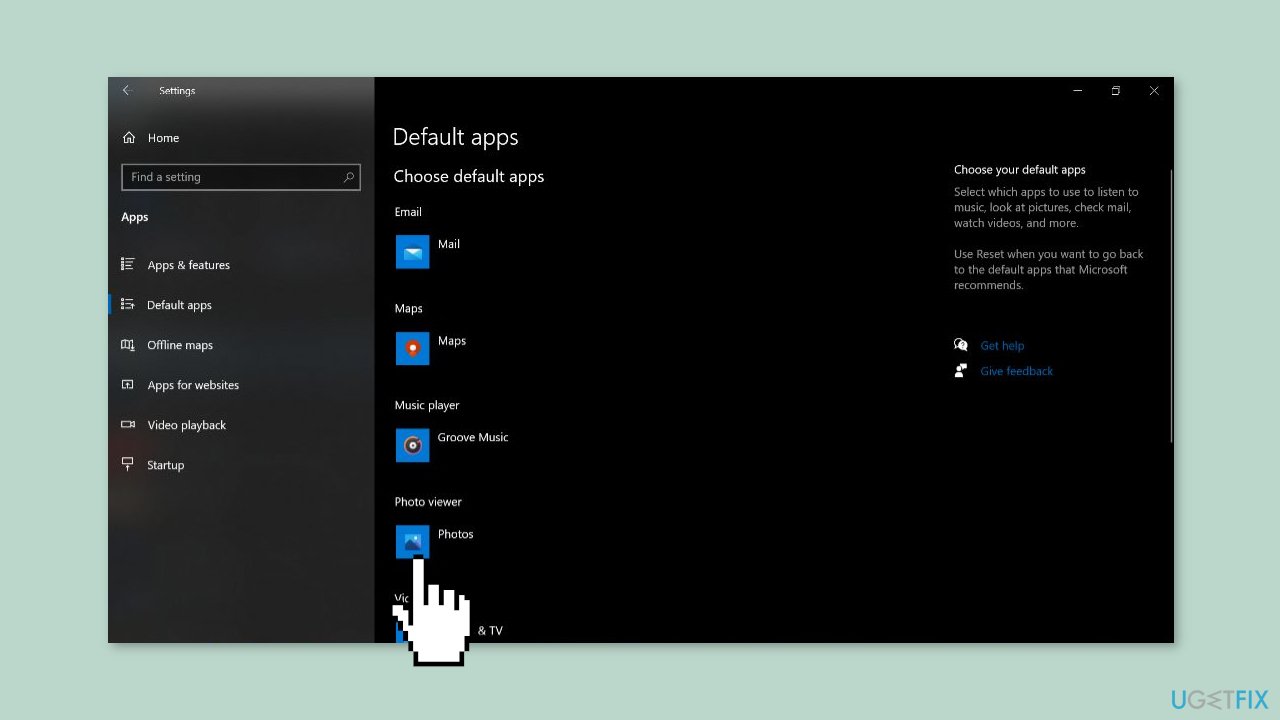
- Locate the Photo Viewer dropdown menu.
- Select the Photos app from the dropdown menu.
Solution 3. Uninstall the latest Windows Update
- Press the Windows key + I to open Settings.
- Go to Windows Update from the navigation pane.
- Click on Update history.
- Scroll to the bottom and click on Uninstall updates.
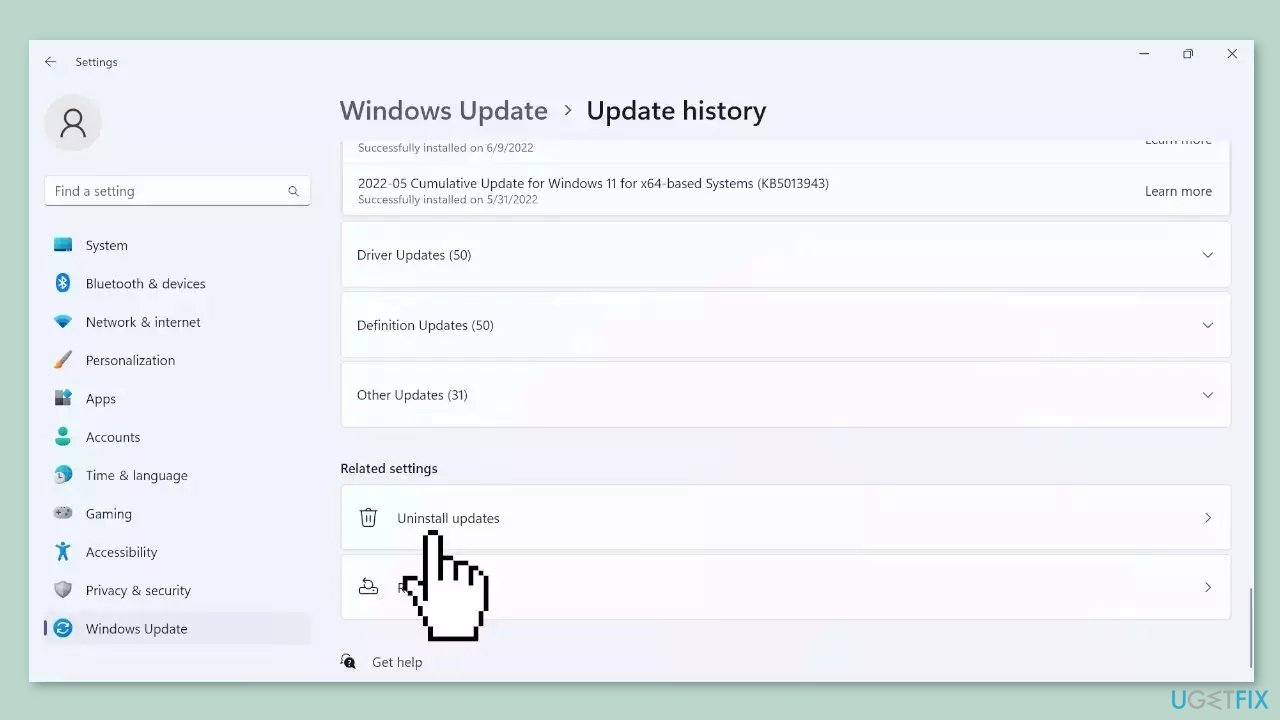
- Locate the update after which the error first appeared.
- Click on Uninstall next to that update.
- Confirm the uninstallation when prompted.
- Finally, restart the computer to complete the process.
Solution 4. Update Drivers
- Press the Windows key on your keyboard.
- Type Device Manager in the search bar.
- Click on Device Manager to open it.
- In the Device Manager window, locate and click on Printers to expand the category.
- Find your printer in the list.
- Right-click on your printer.
- Select Update driver from the context menu.
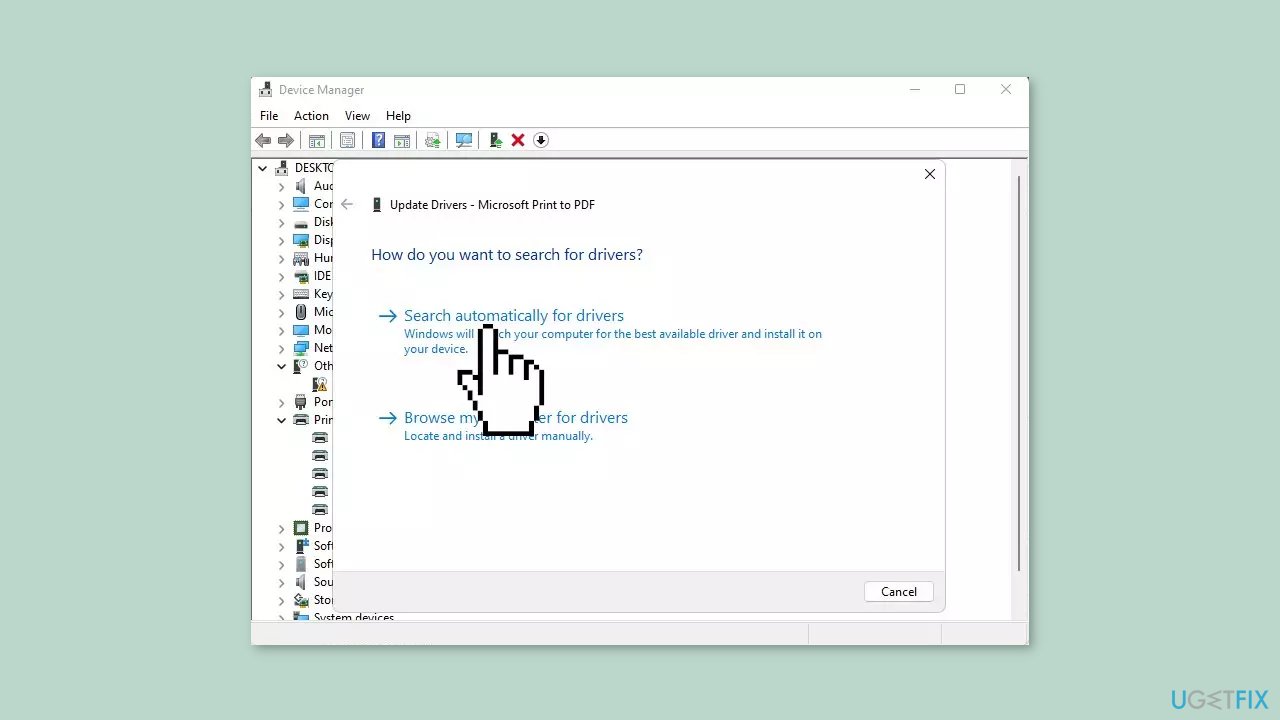
- Choose the option Search automatically for updated drivers.
- Windows will search for the most suitable driver for your printer.
- If a suitable driver is found, Windows will recommend installing it.
You can also use a dedicated utility, like [rev id="DriverFix"], that can find the best drivers for your machine and install them automatically.
Bottom line
This guide provides steps to fix the issue of being unable to print multiple pictures per sheet in Windows, including setting the printer as default. If these solutions do not resolve the problem, consider using a maintenance tool to address system errors.
Frequently asked questions
You can try updating your printer drivers or checking the printer settings in the 'Print Pictures' option to ensure the layout settings are correctly configured.
Ensure that your default printer is correctly set and check for any pending Windows updates that might resolve compatibility issues.
You can use the built-in Photos app, which has a 'Print' feature that allows you to select multiple images and choose how they appear on the sheet.




Report an issue
What's wrong with this guide? We review every report and update or remove content.
Report received — thank you. We'll review and fix it.
You need a free account to submit a report.
Be the first to comment