How to fix
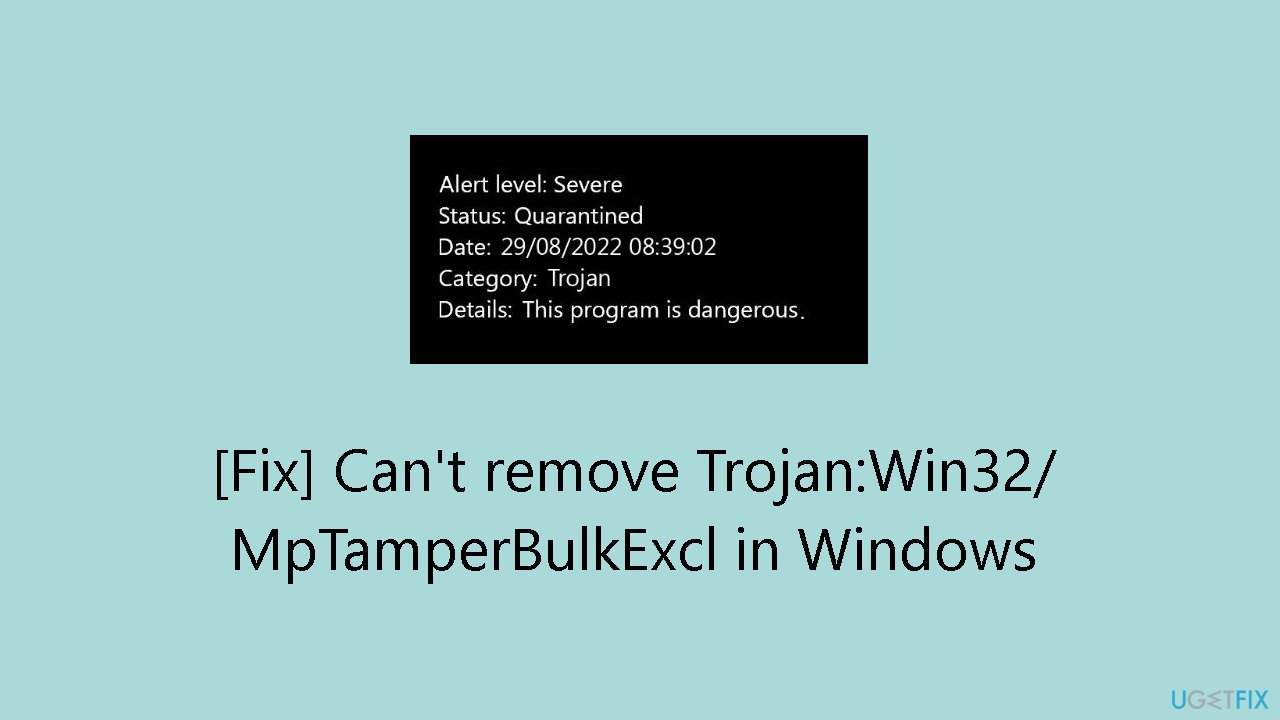
Can’t remove Trojan:Win32/MpTamperBulkExcl
on Windows
Struggling to remove Trojan:Win32/MpTamperBulkExcl on Windows 10 or 11? Follow our expert-tested solutions and get your system clean in minutes.

![[Fix] Can’t remove Trojan:Win32/MpTamperBulkExcl in Windows](https://ugetfix.com/wp-content/uploads/articles/askit/cant-remove-trojan_en-768x432.jpg)
What causes [Fix] Can’t remove Trojan:Win32/MpTamperBulkExcl in Windows?
- Malicious program presence
- Covert operation without user awareness
- Potential for unauthorized changes to important files
- Increased network activity
- Ability to serve as a backdoor for additional malware
Repairs Windows system files, removes malware, and restores a clean OS state — without reinstalling.
Hello. I can't get rid of Trojan:Win32/MpTamperBulkExcl. Microsoft Defender keeps showing notifications about a threat but I don't know how to remove it. Any suggestions would help.
The presence of Trojan:Win32/MpTamperBulkExcl on a Windows system raises significant concerns as users grapple with the potential consequences of this malicious program. Trojans of this kind frequently display a variety of undesirable behaviors that jeopardize the security of the system.
Trojans are generally recognized for their ability to function covertly, frequently without the user's awareness. Trojan:Win32/MpTamperBulkExcl might cause many symptoms, including sudden crashes, a discernible decrease in system performance, or unauthorized changes to important files. Users may also experience an increase in network activity, as trojans often establish connections with remote servers to facilitate data exfiltration or receive commands from malicious actors.
One of the primary concerns with trojans is their potential to serve as a backdoor for additional malware. They might open the door for further malicious software to infiltrate and jeopardize the security of the system. Furthermore, trojans are skilled at obtaining private data, such as bank account information or login passwords, which could result in identity theft or financial damage for the victim.
Beyond just causing symptoms, Trojan:Win32/MpTamperBulkExcl can also jeopardize the operating system's general stability and reliability. Users become subject to various security concerns, and the trojan's existence might lead to more extensive cybersecurity dangers.
Addressing this type of threat requires a comprehensive approach that involves thorough system scanning, removal of the malicious code, and strengthening overall cybersecurity measures. In this guide, you will find 3 steps that should help you remove Trojan:Win32/MpTamperBulkExcl. Read the step-by-step instructions provided below.
Method 1. Scan for Malware
- Click on the Windows Start menu or press the Windows key on your keyboard.
- Type Microsoft Defender in the search bar and click on Microsoft Defender Antivirus to open the application.
- Click on the Virus & threat protection option in the left-hand menu.
- Click on the Quick scan or Full scan option, depending on your preference.
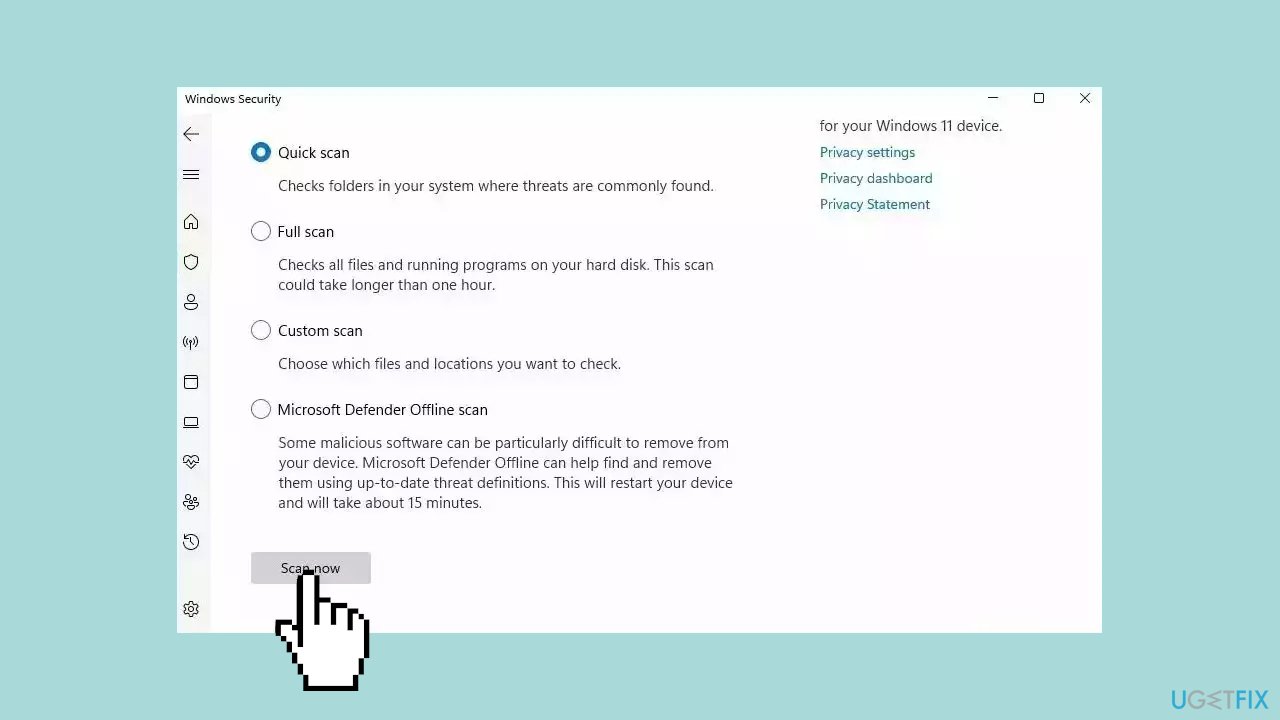
- If you choose Quick scan, Microsoft Defender Antivirus will scan the most vulnerable and commonly infected areas of your computer.
- If you choose Full scan, Microsoft Defender Antivirus will scan your entire computer, including all files, folders, and programs.
- Click on the Scan now button to start the selected scan type and wait for the scan to complete.
- The time it takes will depend on the size of your hard drive and the number of files being scanned.
- Once the scan is complete, you will be informed of any detected threats, and you can choose to quarantine or remove them.
- If no threats are found, Microsoft Defender Antivirus will inform you that your device is secure.
Method 2. Run a Repair Tool
[d1] is a tool that is designed to diagnose and fix problems with a computer's operating system. It can effectively troubleshoot and repair system errors, BSODs, corrupted files, registry issues, and other problems that can cause a computer to perform poorly or become unresponsive. Additionally, it can automatically clear cookies and cache which are often the cause of many malfunctions.
To identify and repair problems, the tool performs a scan of the system and replaces or repairs any damaged or corrupted files and other issues that it finds. While many users have reported that it is effective at fixing certain types of computer problems, it is important to note that it is not a guaranteed solution and may not work for all issues.
Method 3. Clear the Defender Threat History
If you removed the malicious file, but Windows keeps showing detection notifications, you need to clear Windows Defender threat history. Erase the detection history by navigating through the directory, as Windows Defender stores the relevant data in a designated location.
- Press the Windows key + E to open File Explorer.
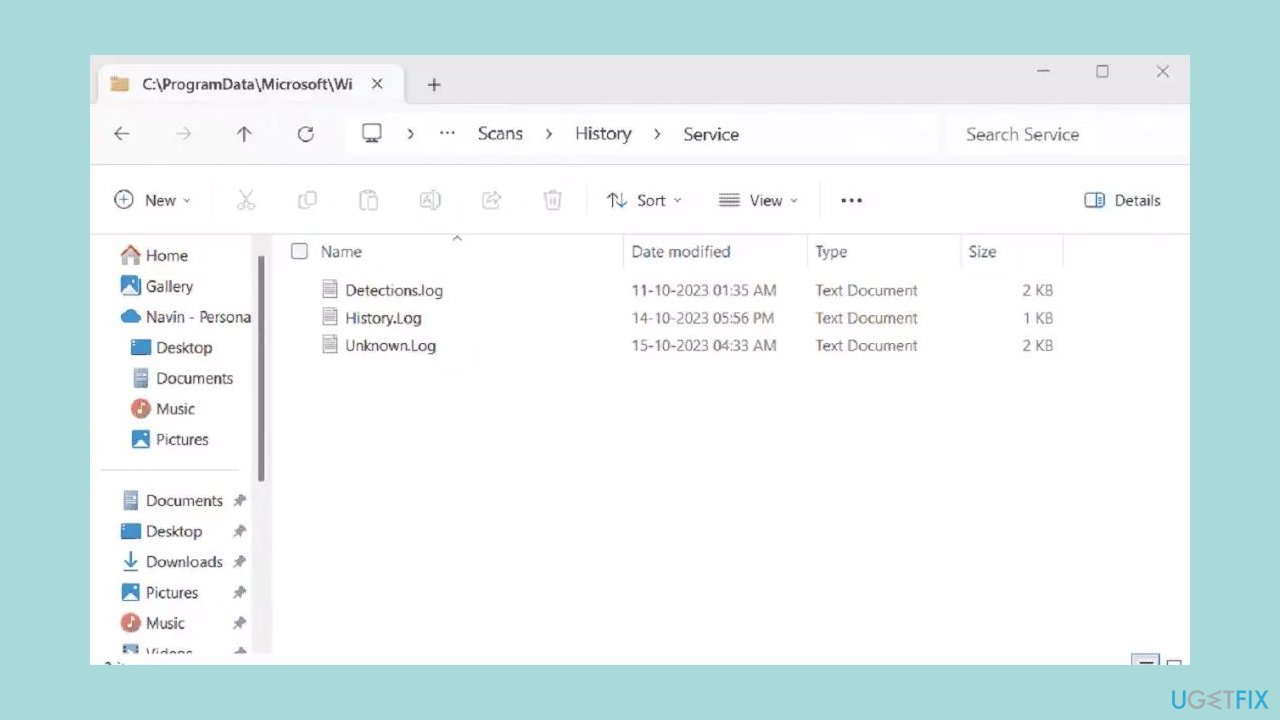
- Navigate to C:\ProgramData\Microsoft\Windows Defender\Scans\History\Service.
- Click on the View menu and choose Show > Hidden items.
- Identify and select the log files visible in the directory.
- Delete the selected log files.
- Proceed to C:\ProgramData\Microsoft\Windows Defender\Support.
- Delete all files present in the Support directory.
Bottom line
To remove Trojan:Win32/MpTamperBulkExcl, users should perform a malware scan using Microsoft Defender, choosing either a Quick scan or Full scan. If these steps do not resolve the issue, further investigation into additional security measures may be necessary.
Frequently asked questions
To remove Trojan:Win32/MpTamperBulkExcl from Windows 10, run a full system scan using Windows Defender or a trusted antivirus program, and follow the prompts to quarantine or delete any detected threats.
Yes, it is safe to remove Trojan:Win32/MpTamperBulkExcl on Windows 11, as it is a malicious program that can compromise your system's security.
If you cannot remove Trojan:Win32/MpTamperBulkExcl with your antivirus on Windows, consider using the Windows Recovery Environment to perform a system restore or reset your PC to eliminate the threat.




Report an issue
What's wrong with this guide? We review every report and update or remove content.
Report received — thank you. We'll review and fix it.
You need a free account to submit a report.
Be the first to comment