How to fix
Can’t rename a file
on Windows
Struggling to rename a file in Windows 10 or Windows 11? Discover effective solutions to tackle this issue quickly and effortlessly. Expert-tested!

![[Fix] Can’t rename a file in Windows](https://ugetfix.com/wp-content/uploads/articles/askit/fix-cant-rename-a-file-in-windows_en-768x432.jpg)
What causes [Fix] Can’t rename a file in Windows?
- File is open in another program
- File is set to read-only
- User lacks permission to modify the file
- File is being used by a process
Repairs Windows system files, removes malware, and restores a clean OS state — without reinstalling.
Hi, around a week ago, I noticed that I couldn't rename a file in File Explorer. Now, the issue is getting even worse, and I can't seem to rename quite a few files. Any tips would be appreciated.
Files are an essential part of modern computing, and they are used to store various types of data, such as documents, images, videos, and more. The files can have different extensions depending on their type, such as .docx for Word documents, .jpg for images, .mp4 for videos, and so on.
Renaming files is a common task that users perform when organizing or sharing them with others. However, sometimes, users may encounter a problem where they can't rename a file on Windows.
When users try to rename a file on Windows, they may encounter an error message that says, "The action can't be completed because the file is open in another program." This error message can be frustrating as it prevents users from renaming their files. In other cases, people reported that the renaming process simply doesn't work with no errors.
The reason why users can't rename files on Windows is that the file is currently being used by another program or process. Windows prevents users from renaming a file in use to avoid any potential data loss or corruption. For example, if a user tries to rename a Word document currently open in Microsoft Word, Windows will prevent them from doing so to prevent any changes from being lost.
Another reason why users may not be able to rename a file on Windows is if the file is set to read-only. This means that the user does not have permission to modify or rename the file. In such cases, users need to change the file's permissions to allow modification or rename.
Renaming files is a basic task that users perform regularly. However, when users can't rename files on Windows, it can be due to various reasons, including the file being in use by another program or process or the file being set to read-only.
Knowing why this issue occurs can help users troubleshoot and solve the problem quickly, and the instructions below can help you with that. We would also recommend checking your system with [d1] PC repair to ensure there are no underlying issues with it.
1. Remove the read-only restriction
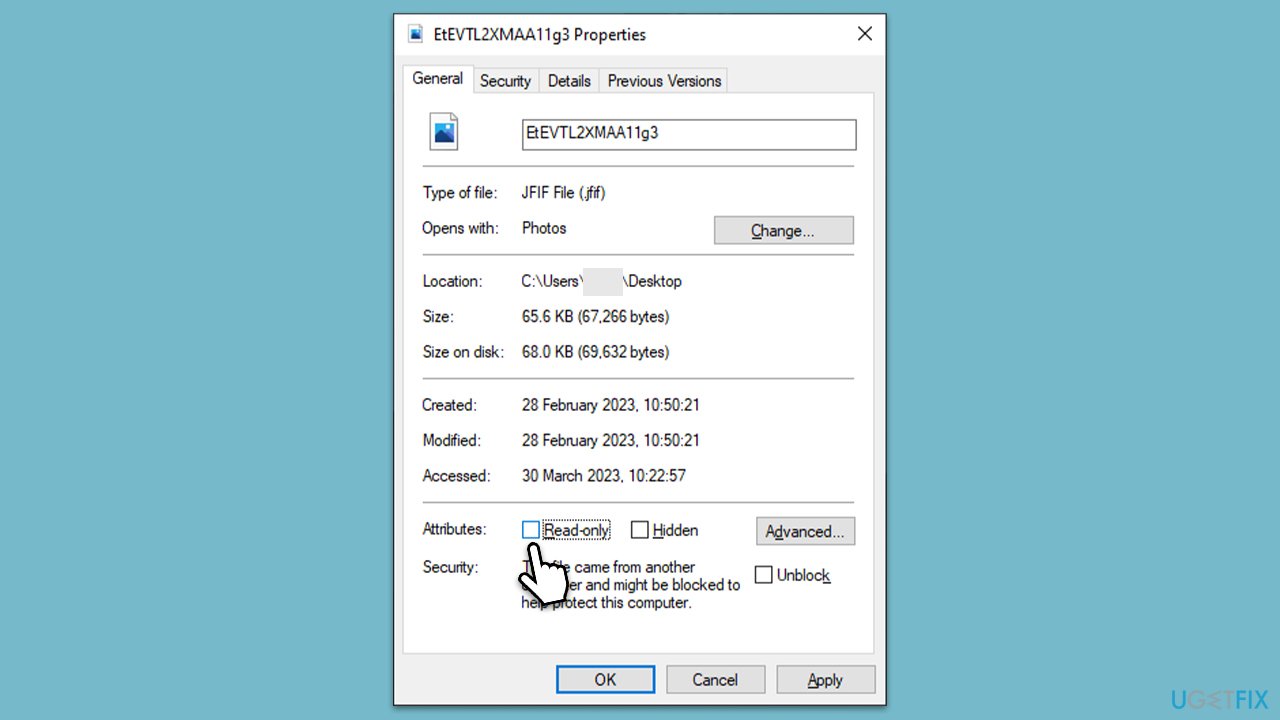
As mentioned, the file or folder might be set to the "Read-only" setting, which would prevent you from renaming it. It's really easy to resolve this:
- Right-click on a file or folder that you can't rename and select Properties.
- In the General tab, look at the bottom of the window to find the Attributes section.
- Here, untick the Read-only option.
2. Update Windows
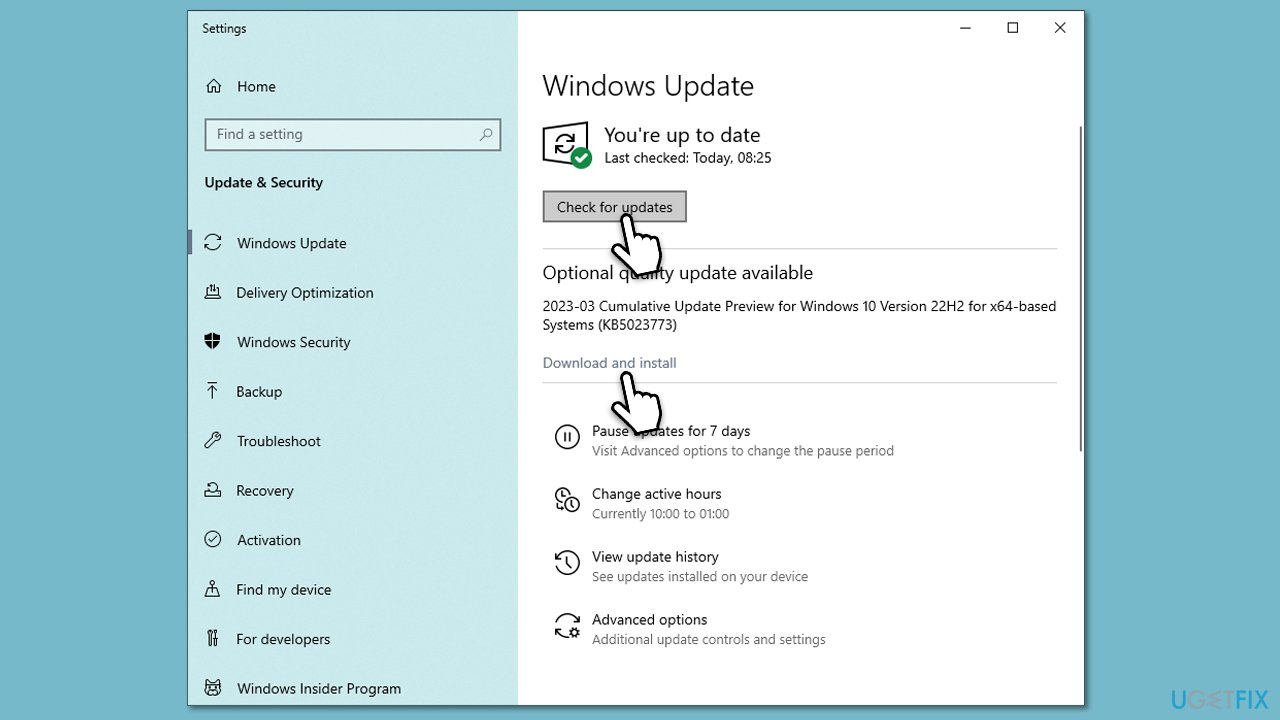
If the issue is caused by a general bug, updating Windows could resolve it.
- Type Updates in Windows search and hit Enter.
- Click on the Check for updates button to scan for available updates.
- Windows will now search for updates available for your computer.
- Make sure you also install all optional updates.
- When done, restart your PC to complete the installation process.
3. Set admin account
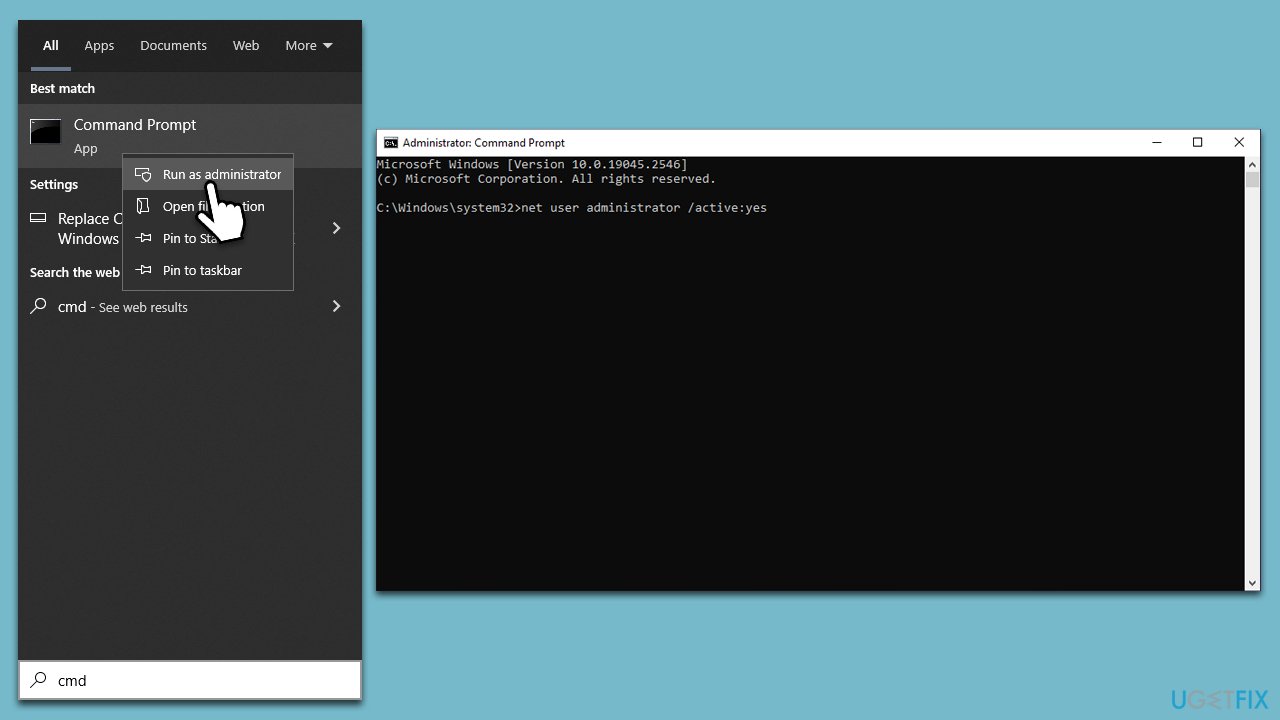
- Type cmd in Windows search.
- Right-click on Command Prompt and select Run as administrator.
- When User Account Control shows up, click Yes.
- In the new window, copy and paste the following command:
net user administrator /active:yes - Close down the Command Prompt and try to rename the file again.
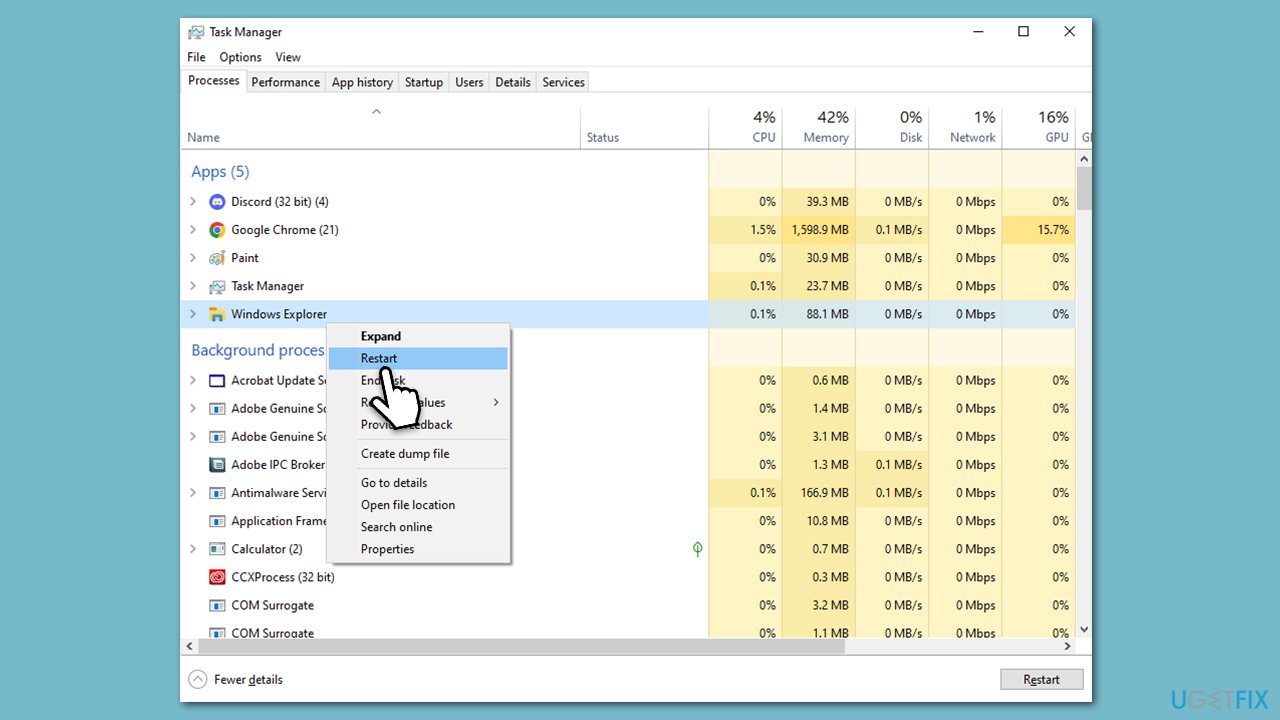
4. Restart Windows Explorer
- Press Ctrl + Shift + Esc to open Task Manager.
- Click More details if needed.
- Look for Windows Explorer.
- Right-click and select Restart.
- Several UI elements will disappear for a few moments and reappear soon thereafter.
5. Take ownership
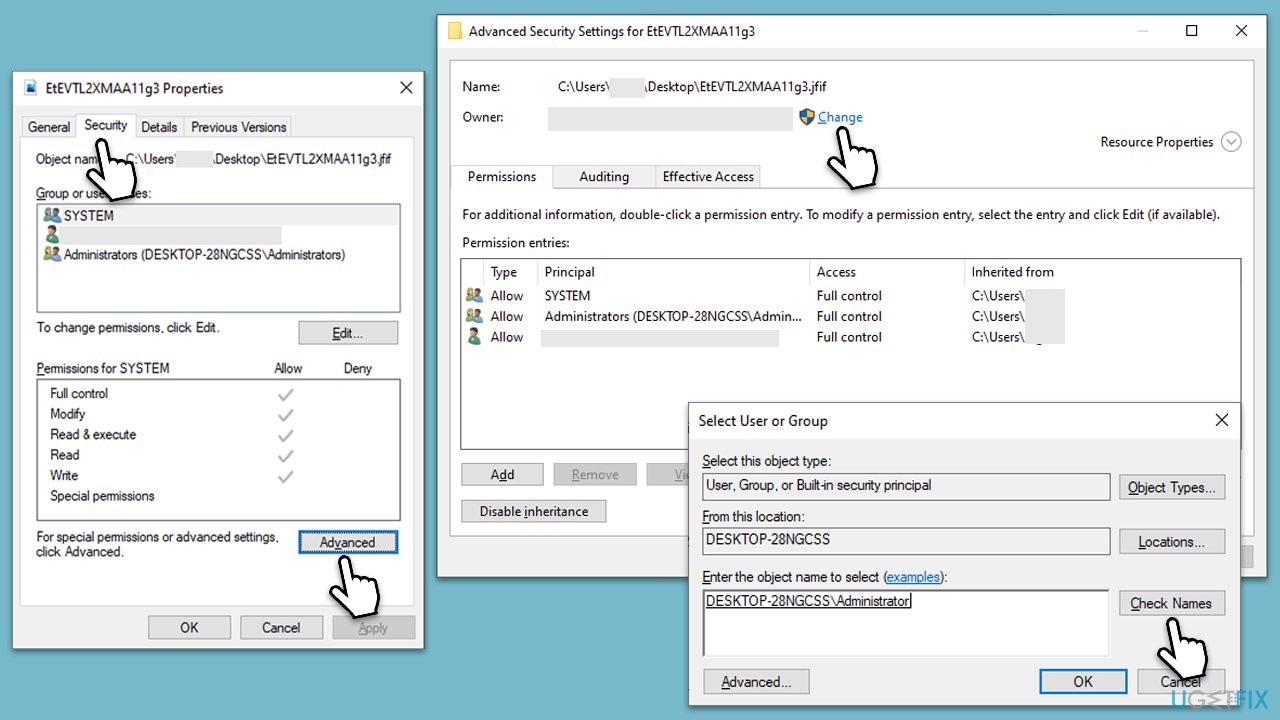
- Right-click on the file or folder in question and pick Properties.
- Go to the Security tab and select Advanced.
- Under Owner, click the Change button.
- In the new window, type in your account name (Microsoft account email) or simply use Administrator (make sure you are logged in as one) and click Check Names.
- When shown, select your account and click OK.
- Mark the Replace owner on subcontainers and objects checkbox and click Apply and OK.
- Now go back to Properties > Security tab of the folder and select Edit under Permissions.
- Select the group that you are using (for example, User group) and make sure that Full control is selected.
- Click Apply and OK.
6. Temporarily disable Controlled folder access
Note: this is a security feature. If you disable it, your computer might be at risk of malware infections, so proceed with caution.
- In your taskbar, open the system tray and click on Windows Security.
- Go to the Virus & threat protection section.
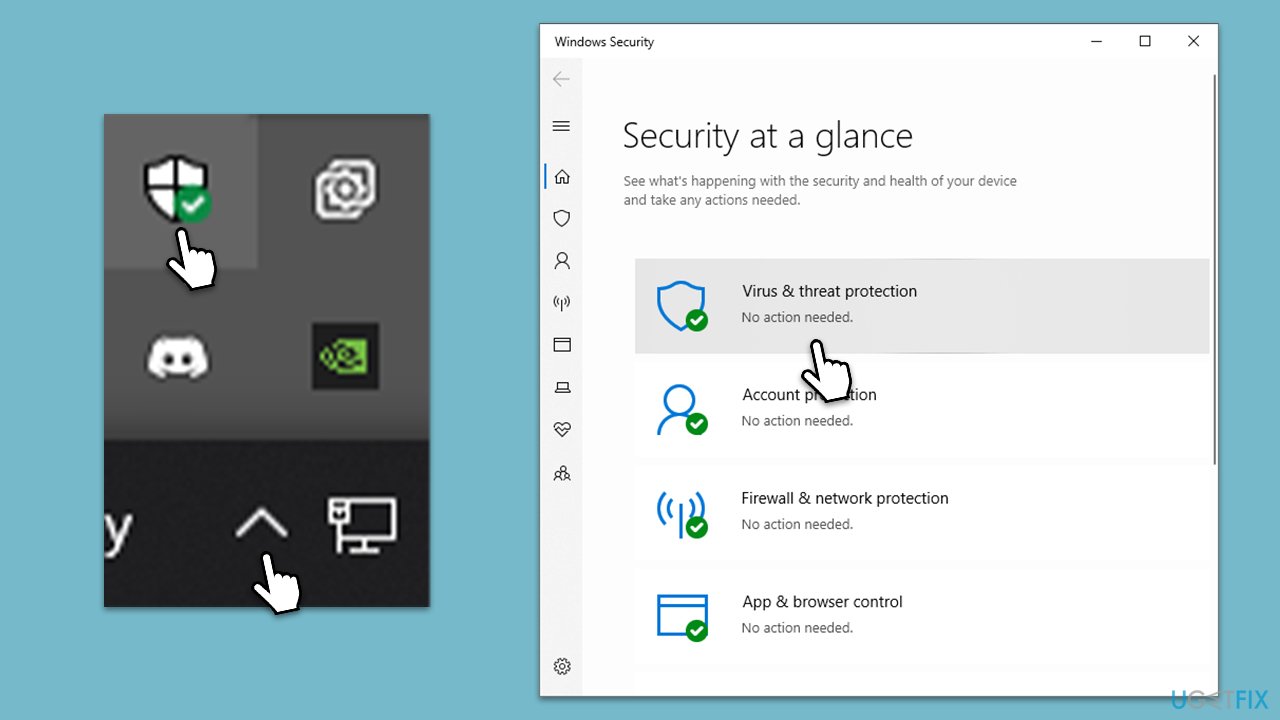
- Under Virus & threat protection settings, select Manage settings.
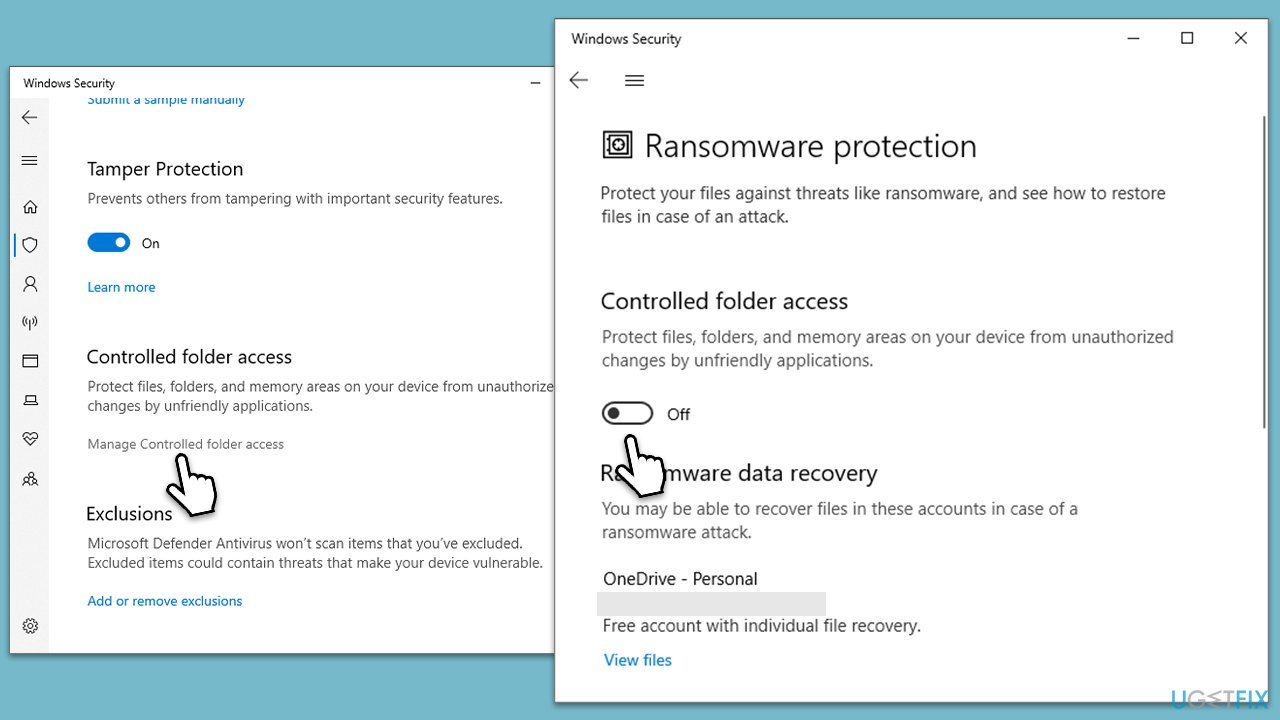
- Scroll down to Controlled folder access and click Manage Controlled folder access.
- Toggle the switch to the left to disable the setting and restart your PC.
Bottom line
To resolve the issue of not being able to rename files, users can check if the file is open in any application, change the file's read-only status, or adjust the file's permissions. If these solutions do not work, users may need to investigate further or seek additional help.
Frequently asked questions
You may not have the necessary permissions to rename the file, or another program might be using it. Check for any running applications that might be accessing the file or adjust your user permissions.
Error messages can indicate issues such as file corruption or permission restrictions. Try running a system file check or ensuring you have administrative rights to rename the file.
You can try restarting your computer to unlock the file or use the Task Manager to end the process that is using it. If all else fails, consider using third-party software to force rename the file.




Report an issue
What's wrong with this guide? We review every report and update or remove content.
Report received — thank you. We'll review and fix it.
You need a free account to submit a report.
Be the first to comment