How to fix
Can’t resize app window
on Windows
Struggling to resize app windows in Windows 10 or 11? Discover effective fixes that restore functionality quickly and efficiently. Expert-tested solutions!

![[Fix] Can’t resize app window in Windows](https://ugetfix.com/wp-content/uploads/articles/askit/fix-cant-resize-app-window-in-windows_en-768x432.jpg)
What causes [Fix] Can’t resize app window in Windows?
- Inappropriate Scale and Layout configuration
- Tablet Mode enabled
- Third-party application conflicts
- High-resolution screens
- Multiple monitors
Repairs Windows system files, removes malware, and restores a clean OS state — without reinstalling.
Hello. For some reason, Windows does not let me resize application windows. Is there a fix to this issue?
The inability to resize app windows in Windows can be a bothersome problem for users. There are various possible causes for this problem, and determining the underlying problem is critical to finding a viable solution. An inappropriate Scale and Layout configuration is a frequent source of this problem.
When the scale is set to an unexpected value or there are conflicting display settings, users may be unable to resize app windows as normal. This problem is especially common in systems with high-resolution screens or many monitors, where scaling changes might have unforeseen implications.
Tablet Mode is another issue that can prevent users from resizing app windows. Tablet Mode, which inhibits typical scaling behavior, may be enabled accidentally or through system malfunctions in some instances. Users with two-in-one devices or touchscreen devices may be affected by this issue. While Tablet Mode is useful for touch-centric use, it can impede the desktop experience by making it difficult to manage app windows.
Another possible cause of the inability to resize app windows is third-party application conflicts. Some apps may interfere with Windows' window management system, resulting in unexpected behavior and the inability to resize windows for users.
In this guide, you will find 6 steps that should help you fix the issue of being unable to resize app windows. You can also try a maintenance tool like [d1] that can fix most system errors, BSODs,[ref en-1] corrupted files, registry[ref en-2] issues, or clear cookies and cache.[ref en-3] Otherwise, follow the step-by-step instructions below.
Method 1. Use the App’s Window Menu
- Launch the app you want to resize.
- Press Alt + Spacebar.
- In the window menu, select Maximize if you want to make the app full-screen or minimize if it is already in fullscreen mode.
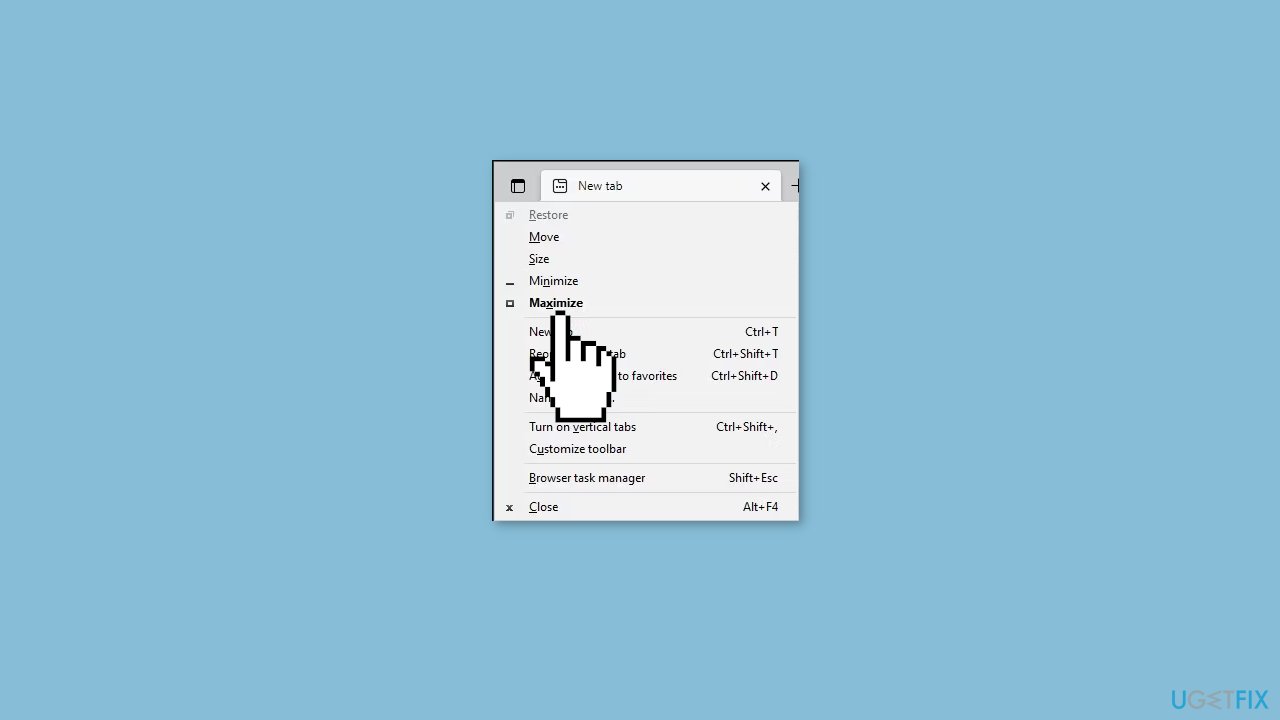
- Once the app is resized, drag the app window to further resize it if needed.
- Close and relaunch the app.
- Now you should be able to resize the app window as before.
- Alternatively, you can right-click on any app’s title bar to open the app window menu. Note that this option may not work if the title bar is stuck or not visible.
Method 2. Disable Tablet Mode
- Press the Windows key + A to open the Action Center in Windows 10.
- Click on Tablet Mode to turn it off.
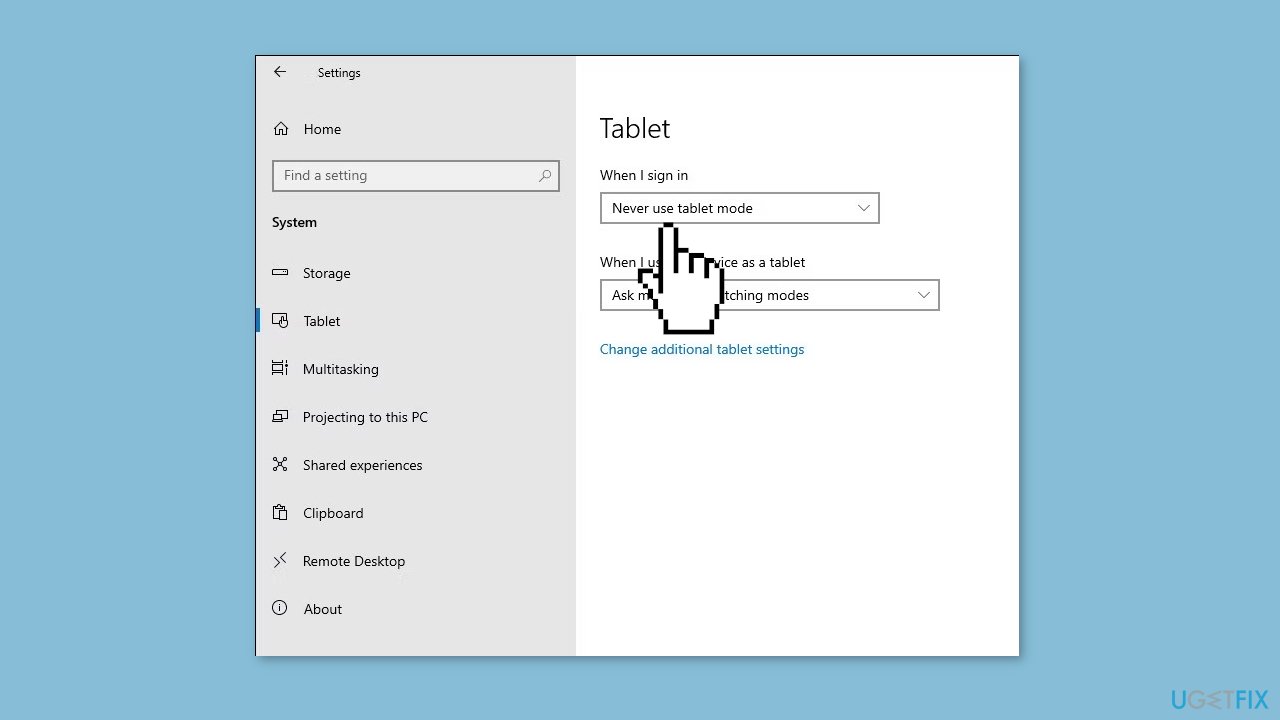
- After disabling Tablet Mode, you should be able to resize app windows as usual.
- If you are using Windows 11 and have a two-in-one device, ensure that you are not in Tablet Mode, as Windows 11 does not have a dedicated Tablet Mode.
- To exit Tablet Mode in Windows 11, attach the display to the base of your two-in-one device to use it as a laptop mode.
Method 3. Set Scale and Layout to Recommended Settings
- Press the Windows key + I to open Settings.
- Click on the System tab.
- Scroll down to the Scale & Layout section.
- Click the Scale drop-down and select the Recommend option from the list.
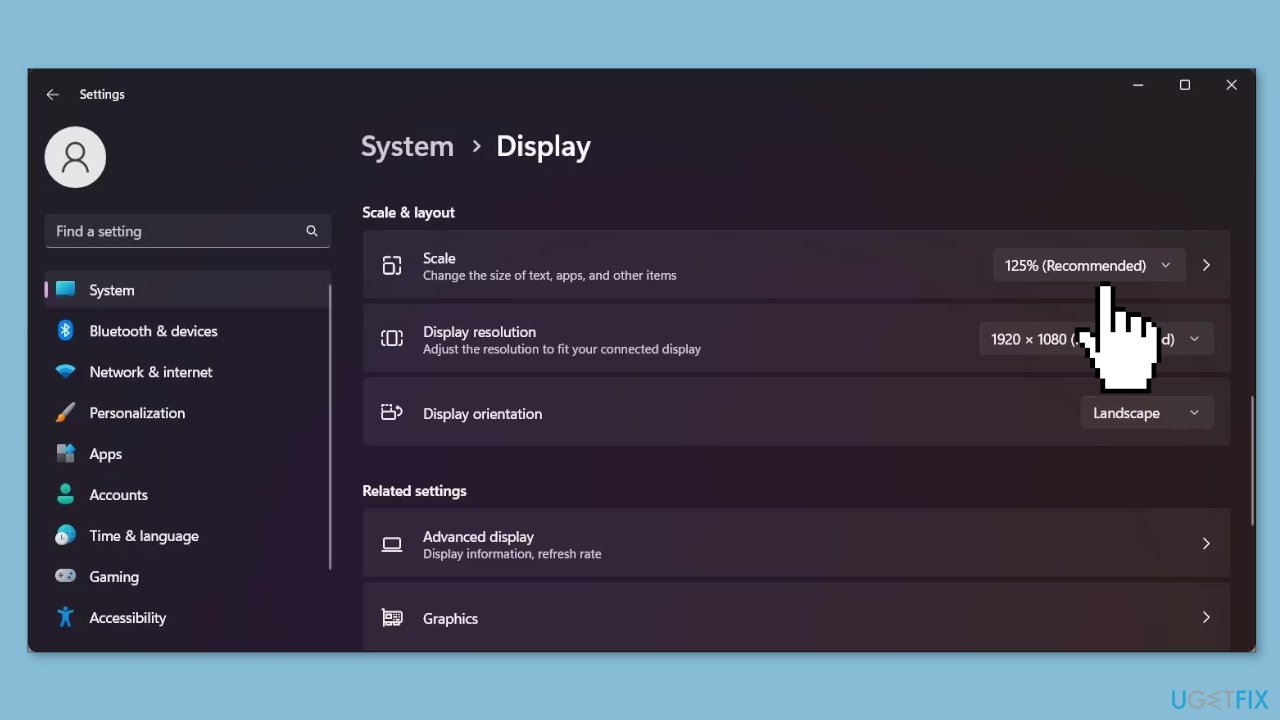
- Click the Display resolution drop-down and select the Recommend option.
- Click the Display orientation drop-down and select Landscape.
- With the display settings now restored to Windows recommended, check if you can resize or minimize the app window as usual.
Method 4. Disable Tablet Mode Using Registry Editor
- Press the Windows key + R to open the Run dialog.
- Type regedit and click OK to open the Registry Editor.
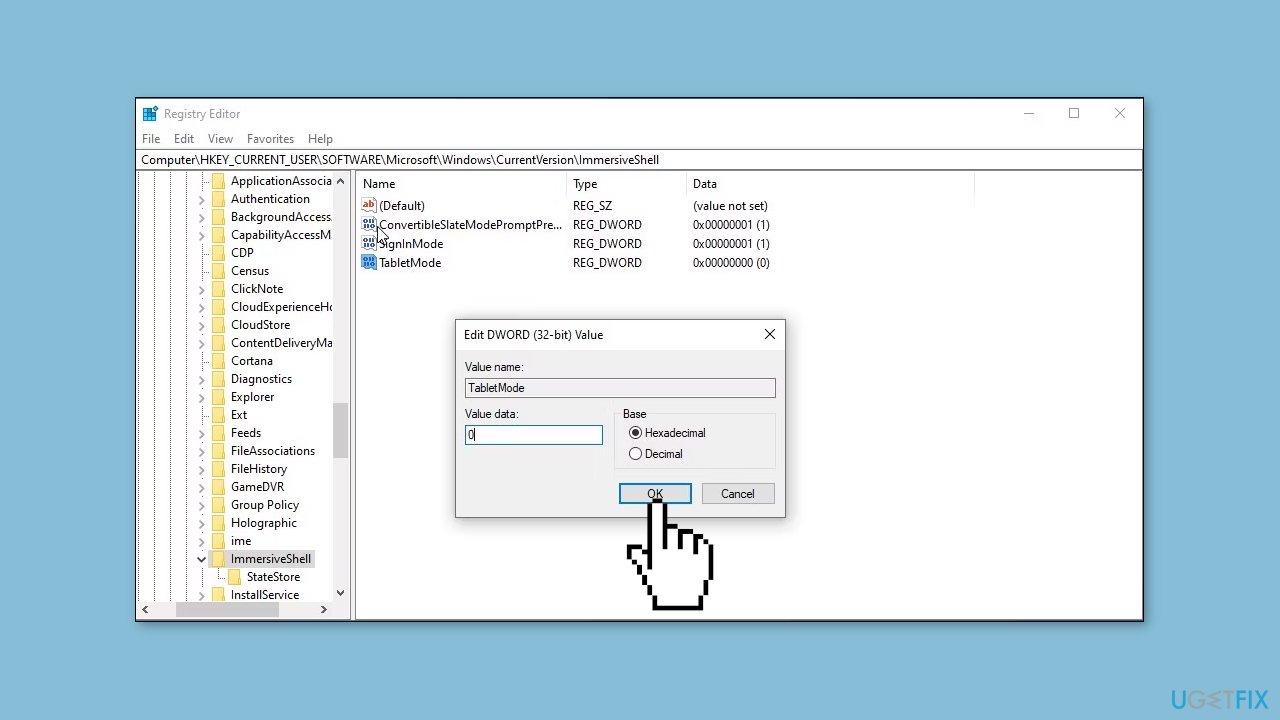
- Navigate to the following location: Computer\HKEY_CURRENT_USER\SOFTWARE\Microsoft\Windows\CurrentVersion\ImmersiveShell
- In the right pane, select and right-click on the TabletMode value.
- Choose Modify from the context menu.
- In the Value Data field, type 0 and click OK to save the changes.
- Close the Registry Editor.
- Restart your PC to apply the changes.
- After the restart, relaunch the app and check if there are any improvements in resizing or minimizing the app window.
Method 5. Try Clean Boot
- Open the Search menu, type in system configuration, and press Enter.
- Under the Services tab, tick the Hide all Microsoft services box.
- Click on Disable all button.
- Head over to the Startup tab and click on Open Task Manager.
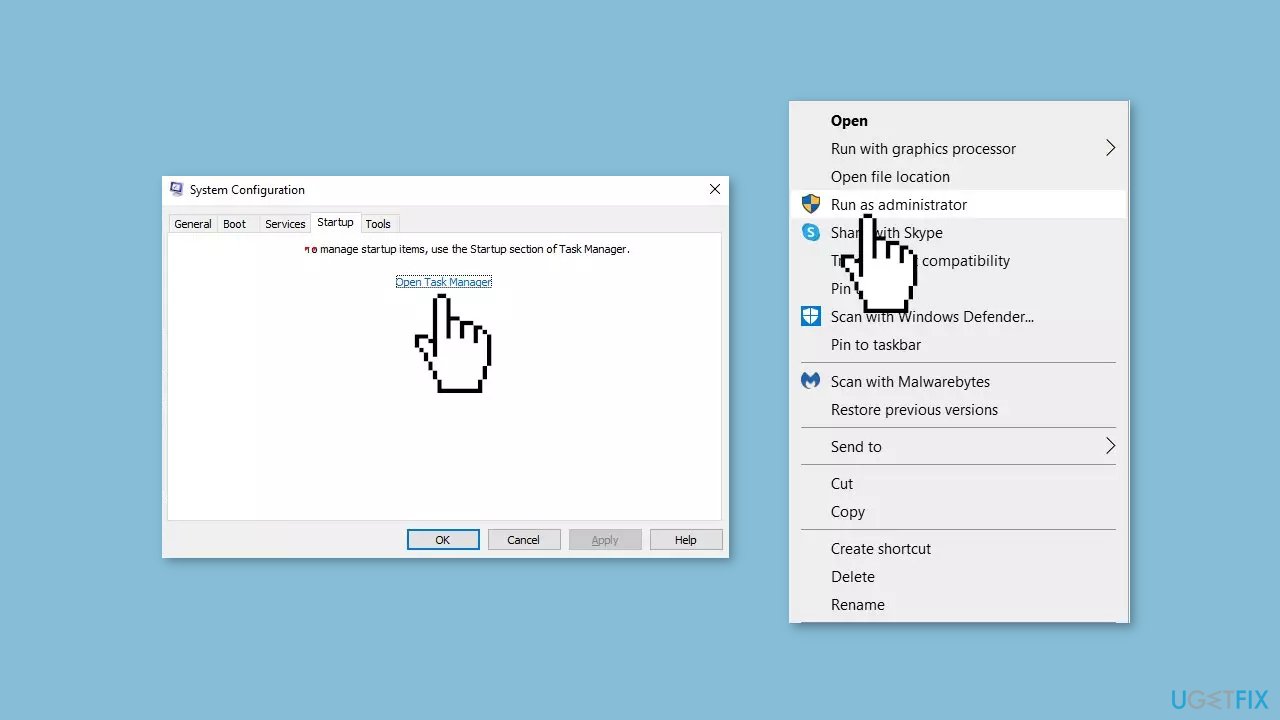
- Select a third-party program and click on Disable at the top.
- Repeat this step to disable all third-party apps and programs.
- Restart your PC to enter the clean boot state and see if the issue persists.
- If the issue disappeared in the clean boot state, then you can be certain that a third-party app is causing it.
- Go through all recently installed apps or programs and remove them one by one.
Method 6. Use System Restore
System Restore is a feature in Microsoft Windows that allows users to revert their computer's state to a previous point in time. This can be helpful if you have made changes to your system that are causing problems.
- Press the Windows key + R on your keyboard to open the Run box.
- Type SystemPropertiesProtection and press Enter.
- Go to the System Protection tab.
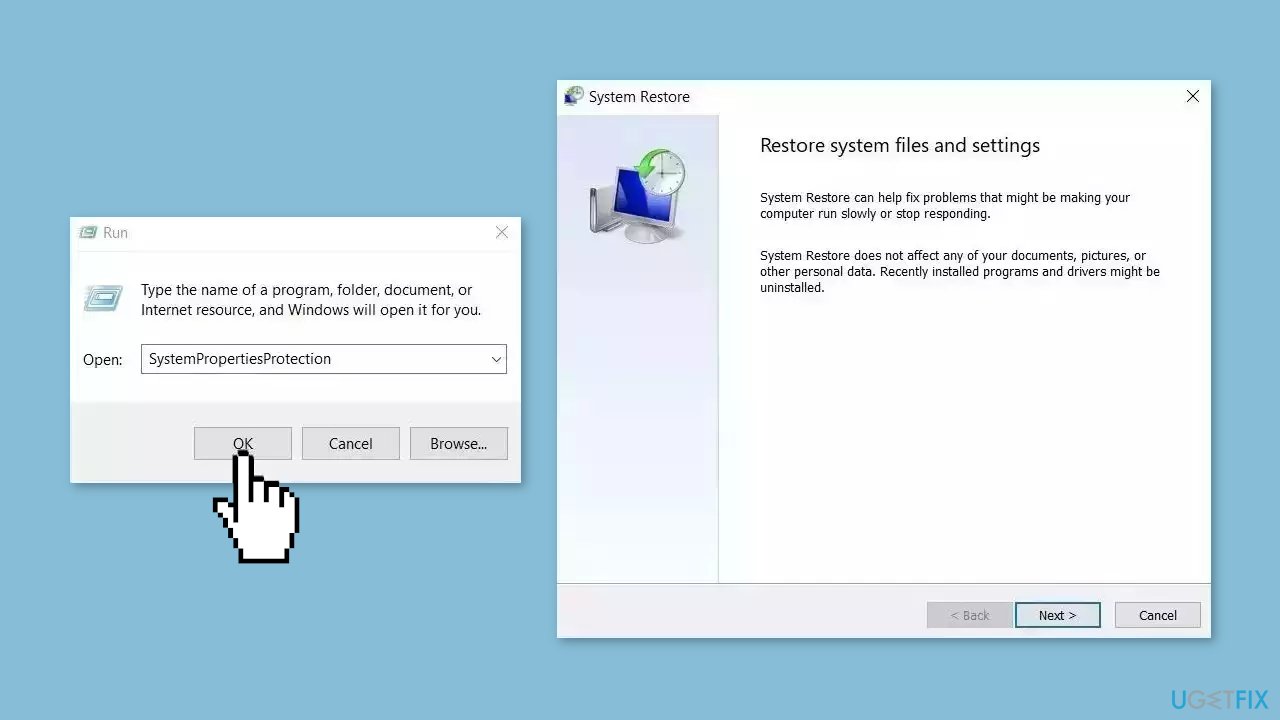
- You will see the System Restore… button. Click it to run System Restore.
- Follow the prompts until you can select a restore point.
- Select the one you want (ideally before the issue started occurring) and go ahead with the process.
Bottom line
This guide provides steps to fix the inability to resize app windows, including using the app's window menu and adjusting display settings. If these methods do not resolve the issue, consider using a maintenance tool to fix system errors.
Frequently asked questions
This issue may occur due to corrupted display drivers or incorrect display settings. Try updating your graphics drivers or changing your display settings to fix the problem.
If the resize option is grayed out, ensure that the application is not maximized and check for any conflicting software that might restrict window resizing. Restarting the app or your PC can also help resolve the issue.
You can reset the window layout by closing the app, deleting its configuration files, or using the 'Reset' option in the app's settings if available. This can restore the default window behavior.




Report an issue
What's wrong with this guide? We review every report and update or remove content.
Report received — thank you. We'll review and fix it.
You need a free account to submit a report.
Be the first to comment