How to fix
Can’t save files to Desktop
on Windows
Struggling to save files to your Desktop in Windows 10 or 11? Discover expert-tested solutions to fix this issue quickly and easily, with screenshots.

![[Fix] Can’t save files to Desktop in Windows](https://ugetfix.com/wp-content/uploads/articles/askit/fix-cant-save-files-to-desktop-in-windows_en-768x432.jpg)
What causes [Fix] Can’t save files to Desktop in Windows?
- Missing Desktop folder path
- Incorrect security settings
- Third-party antivirus software conflicts
- User profile issues
- Corrupted system files
Repairs Windows system files, removes malware, and restores a clean OS state — without reinstalling.
Hello. When I try to save a file to Desktop, this option is missing. Why can't I save files to Desktop anymore? Any tips would be appreciated.
For many users, the inability to save files to the Windows Desktop can be a confusing and annoying problem. The Windows Desktop provides a practical location for organizing and accessing frequently used software, shortcuts, and files. When this functionality is compromised, the workflow of the user and their general computing experience may be interfered with.
A prominent symptom of this issue is the emergence of an error notice with the text "File path. File not found. Check the filename and try again" when attempting to save a file to the Desktop. Alternatively, some users could discover that the "Save As" function's "Desktop" option is not displayed, making it difficult to save files straight to this location.
The effect of this problem on users is significant. It may result in more frustration and less productivity when performing routine computer tasks. Users who depend on the Desktop as a practical workspace might be forced to use different locations for file storage, which would disturb their current workflow. Furthermore, the error message itself may be obscure and unhelpful, leaving users unsure of how to solve the issue.
Although there may be a number of underlying causes for this problem, viable fixes frequently entail checking system settings, user profiles, or even third-party program involvement. Users may need to explore options such as adjusting security settings, ensuring the Desktop folder path is correctly configured, or identifying and temporarily disabling third-party antivirus software that might be causing conflicts.
In this guide, you will find 5 steps that should help you fix the issue of not being able to save files to Desktop in Windows. You can also run a maintenance tool like [d1] that can fix most system errors, BSODs,[ref en-1] corrupted files, registry[ref en-2] issues, or clear cookies and cache[ref en-3] automatically. Otherwise, follow the step-by-step instructions below.
Solution 1. Install Windows Updates
- Click Start and select Settings.
- Go to the Windows Update section.
- Click Check for updates and wait.
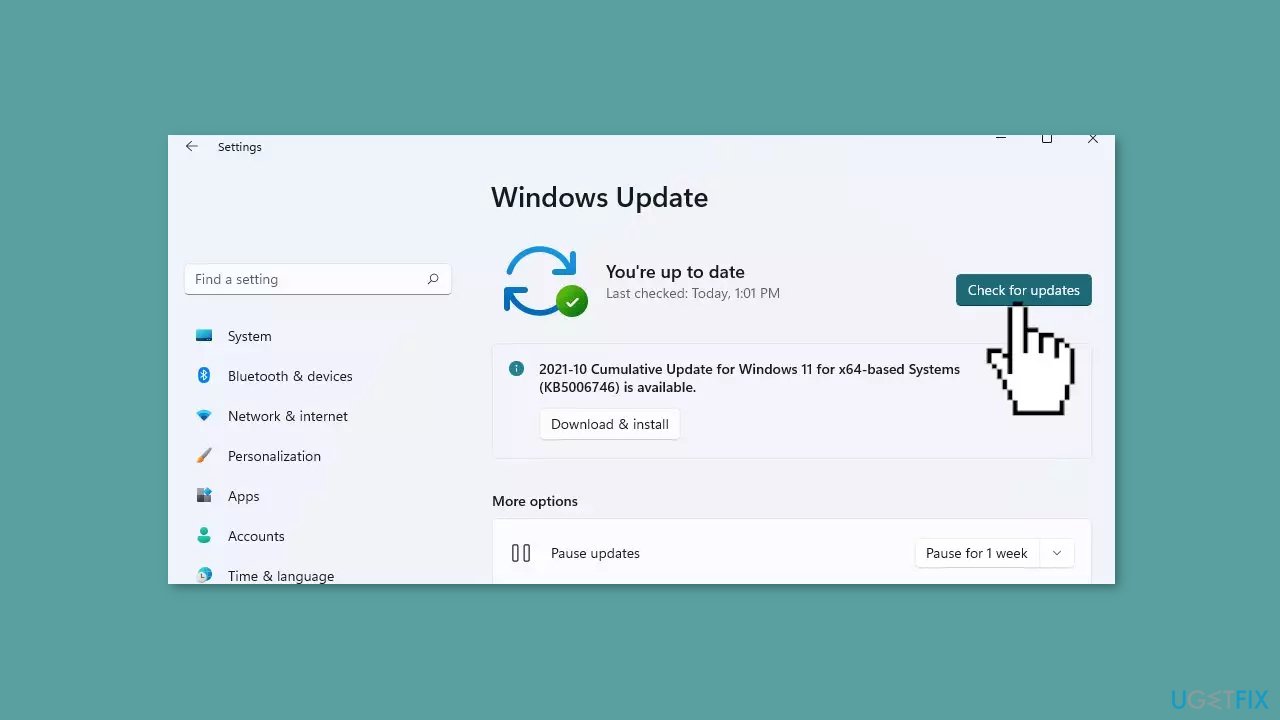
- Go to the Advanced options and install optional updates.
- Reboot your system.
Solution 2. Turn off Controlled Folder Access
- Press the Windows key + I keyboard shortcut to open Settings.
- Select the Update & Security option.
- Move on to the Windows Defender tab.
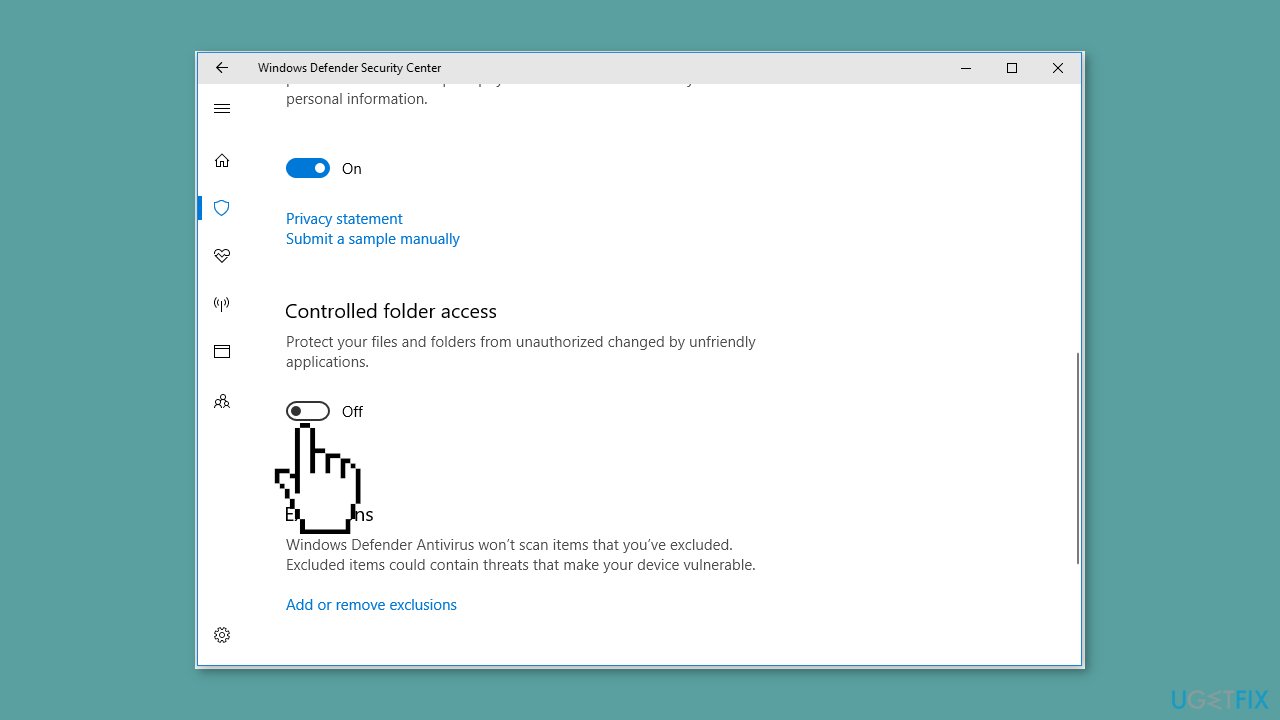
- Click on Open Windows Defender Security Center > Virus & threat protection > Virus & threat protection settings.
- In the new window, scroll down to turn off the button under Controlled folder access.
- In the UAC (User Account Control) window, select the Yes option to make this change take effect.
Solution 3. Allow the App through Controlled Folder Access
- In Windows Settings, click Windows Defender > Open Windows Defender Security Center > Virus & threat protection > Virus & threat protection settings.
- Under Controlled folder access, click on Allow an app through Controlled folder access.
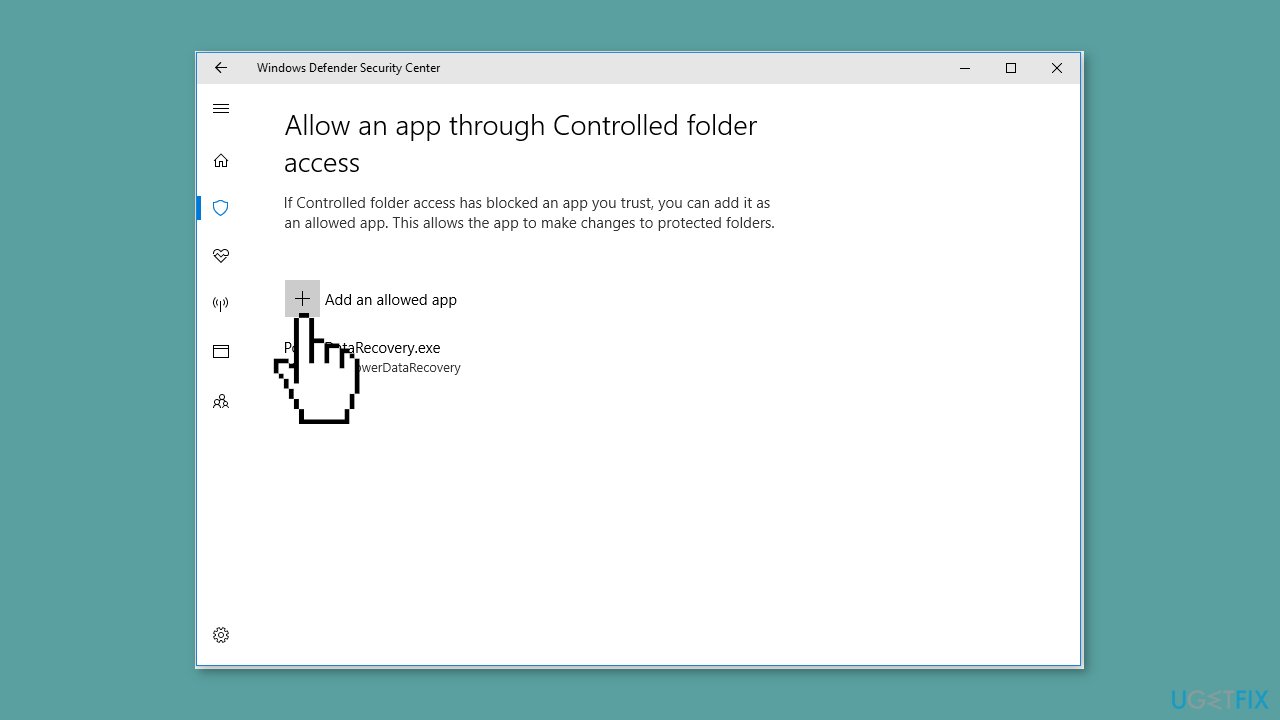
- In the new window, click the + icon next to Add an allowed app.
- Then find, select, and open the wanted app.
Solution 4. Turn off Real-Time Protection
- Click the search icon and search for Windows Security.
- Select Windows Security to open it.
- Select Virus & threat protection from the left menu.
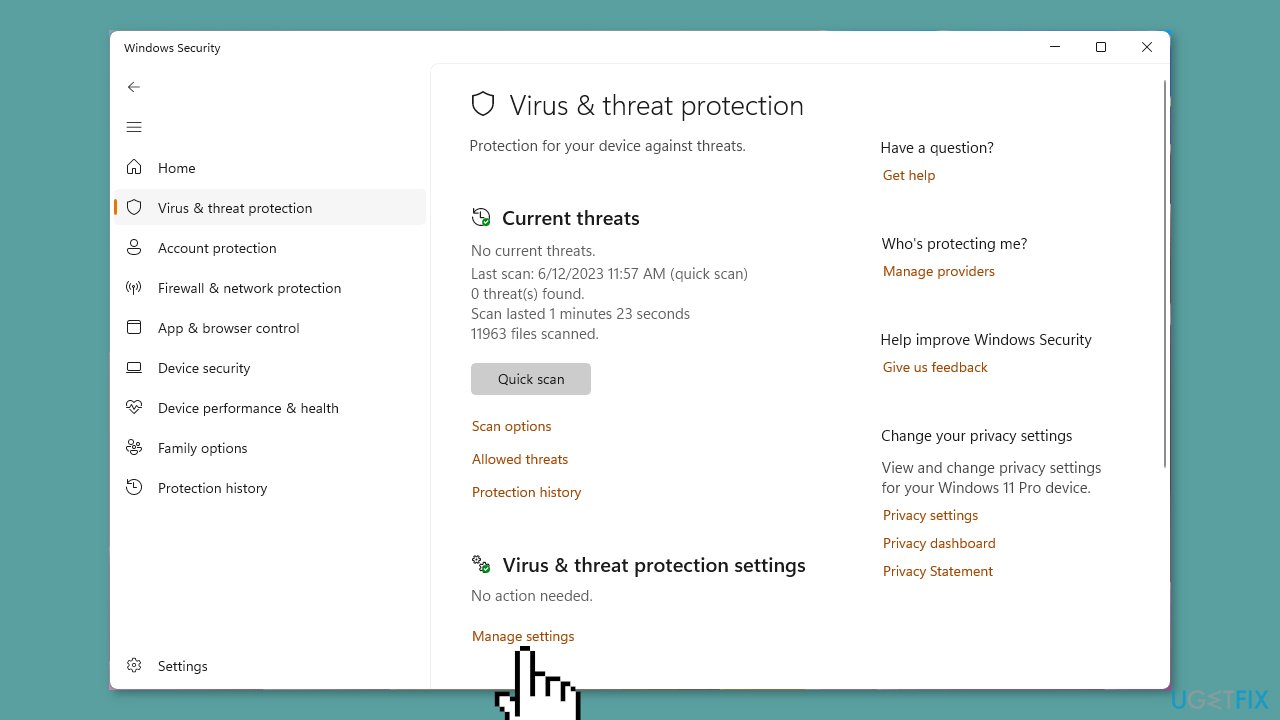
- Click Manage settings under Virus & threat protection settings.
- Turn off the button for Real-time protection.
- If you see the User Account Control interface, click the Yes button to continue.
Solution 5. Disable Third-Party Antivirus
The "unable to save files to desktop" issue may be related to either Windows Security or third-party antivirus software. To investigate this potential cause, consider temporarily disabling all antivirus programs.
Bottom line
To resolve the issue of not being able to save files to the Desktop in Windows, you can try installing Windows updates, checking your Desktop folder path, adjusting security settings, or disabling third-party antivirus software. If these solutions do not work, consider running a maintenance tool to fix system errors or corrupted files.
Frequently asked questions
This issue may occur due to permission settings or a corrupted user profile. Try checking your user account permissions or creating a new profile to see if the problem persists.
In Windows 11, ensure that your Desktop is not set to read-only and check for any third-party software interfering with file-saving capabilities. Running the System File Checker can also help identify and fix underlying issues.
To resolve this error, verify that your system has enough storage space and that no security settings are blocking file access. Additionally, restarting Windows Explorer can sometimes resolve temporary glitches.




Report an issue
What's wrong with this guide? We review every report and update or remove content.
Report received — thank you. We'll review and fix it.
You need a free account to submit a report.
Be the first to comment