How to fix
Can’t see my wireless network but can see others around me
on Windows
Resolve the issue of missing wireless networks on Windows 10 and 11 with our easy-to-follow guide. Get connected quickly, expert-tested for reliability!

![[Fix] Can’t see my wireless network but can see others around me](https://ugetfix.com/wp-content/uploads/articles/askit/fix-cant-see-my-wireless-network-but-can-see-others-around-me_en-768x432.jpg)
What causes [Fix] Can’t see my wireless network but can see others around me?
- General bugs
- Faulty Windows updates
- System file corruption
- Windows not recognizing the local network
- Wireless network adapter issues
Repairs Windows system files, removes malware, and restores a clean OS state — without reinstalling.
Hello. Today I opened up my laptop and noticed that I have no internet connection. I checked it and saw it is not connected, and I can't see my own wireless network. However, I can see all the neighboring network connections just fine. Please advise on what to do.
Windows operating system provides users with the ability to connect to wireless networks, which is a convenient way to access the internet without needing to be physically connected to a network. In order to connect to a wireless network, the user must have a wireless network adapter installed on their computer or device. Once this is done, the user can access the wireless network settings through the Control Panel or by clicking on the Wi-Fi icon in the system tray.
Windows provides users with various options for managing wireless connections. They can choose to connect to a specific network automatically or manually, depending on their preferences. Windows can also prioritize available networks based on their signal strength and automatically connect to the most reliable network.
Users can set up their devices to connect automatically to a specific wireless network when it is in range, which is what most people do. However, some users noticed that their internet is suddenly gone, and they can no longer see their wireless network, although they do see many other network connections nearby (like their neighbors).
Reasons why users can't see their wireless network but can of those around be can be many. But what it does come down to is that Windows does not recognize the available local network. This can be caused by many things, including general bugs, faulty Windows updates, system file corruption, and more.
Below we provide several solutions that should help you fix the issue where you can't see your wireless network on Windows. If you would like to attempt to solve the problem faster, you can always rely on a PC repair tool such as [d1].
1. Start with troubleshooter
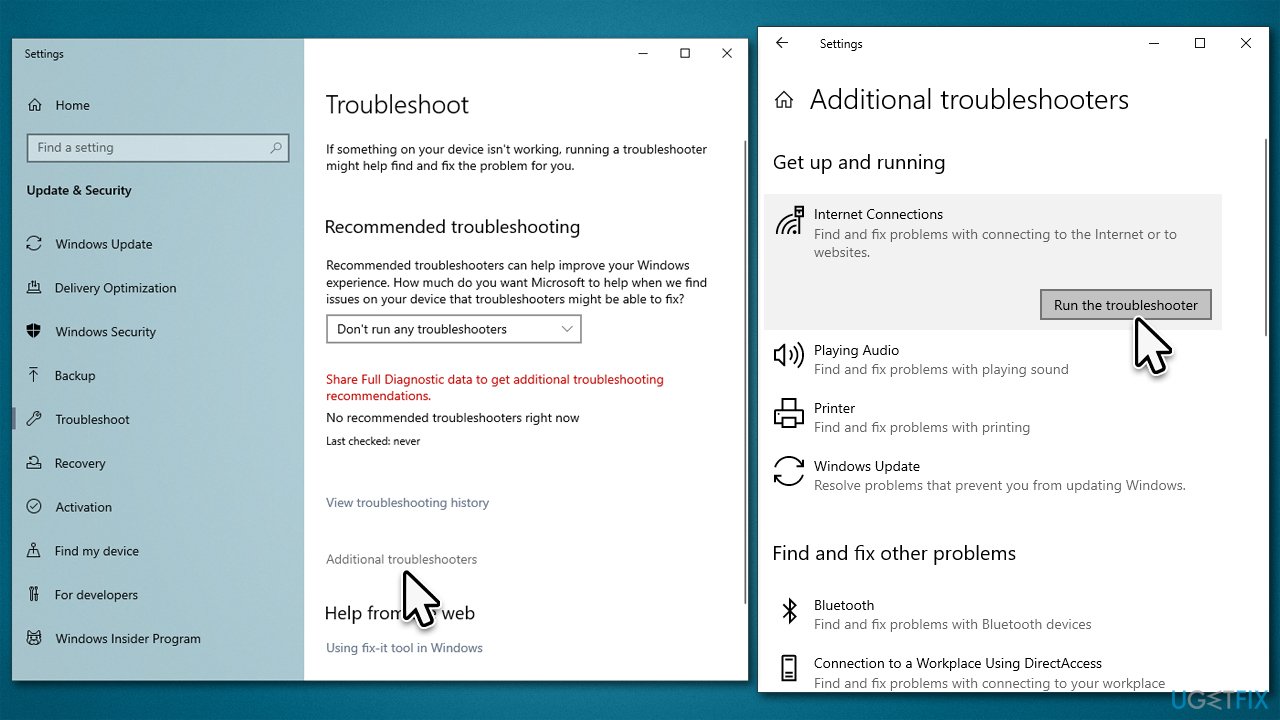
Troubleshooters are excellent tools for dealing with various PC issues.
- Type troubleshoot in Windows search and press Enter.
- Click Additional troubleshooting/Other troubleshooters.
- Locate Internet Connections and click Run/Run the troubleshooter.
- Wait till the scan is finished and apply the suggested fixes.
- Restart your system.
2. Install all the latest Windows updates
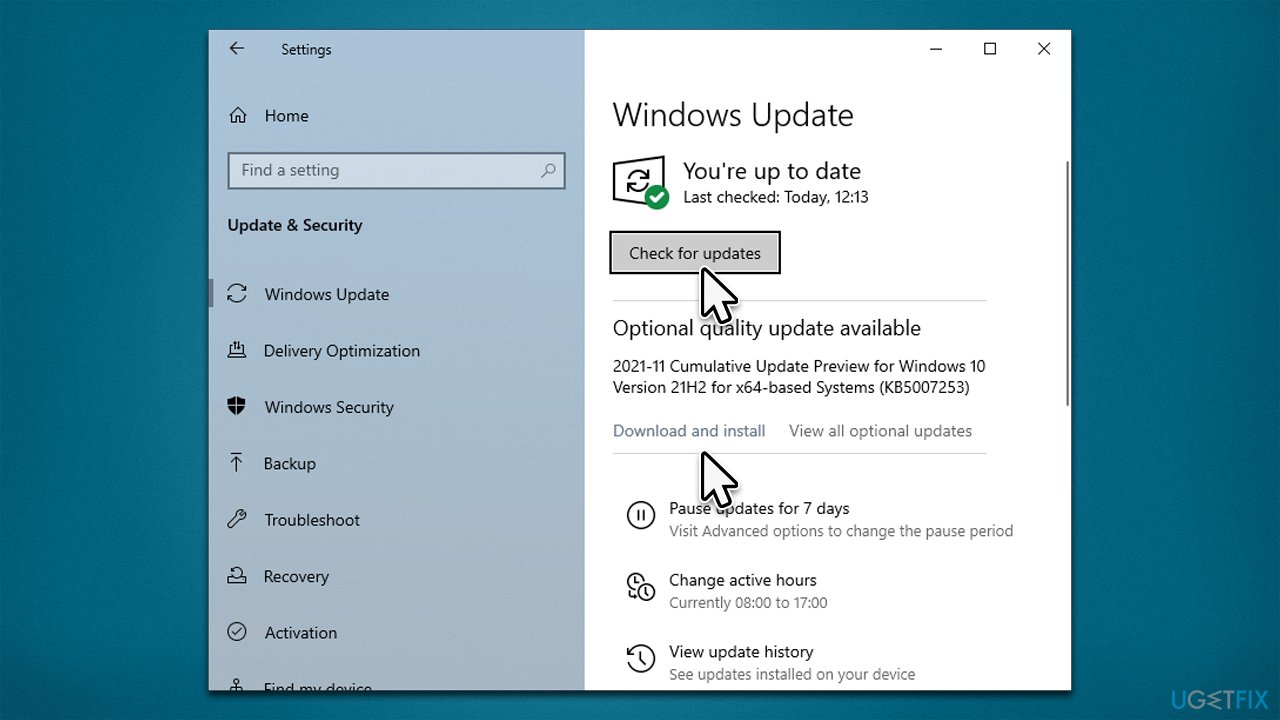
For this, you need to have an active internet connection, so try connecting via an Ethernet cable.
- Type Updates in Windows search and press Enter.
- Click Check for updates and wait.
- Install all the optional updates as well.
- Restart your system.
3. Change Power Management settings
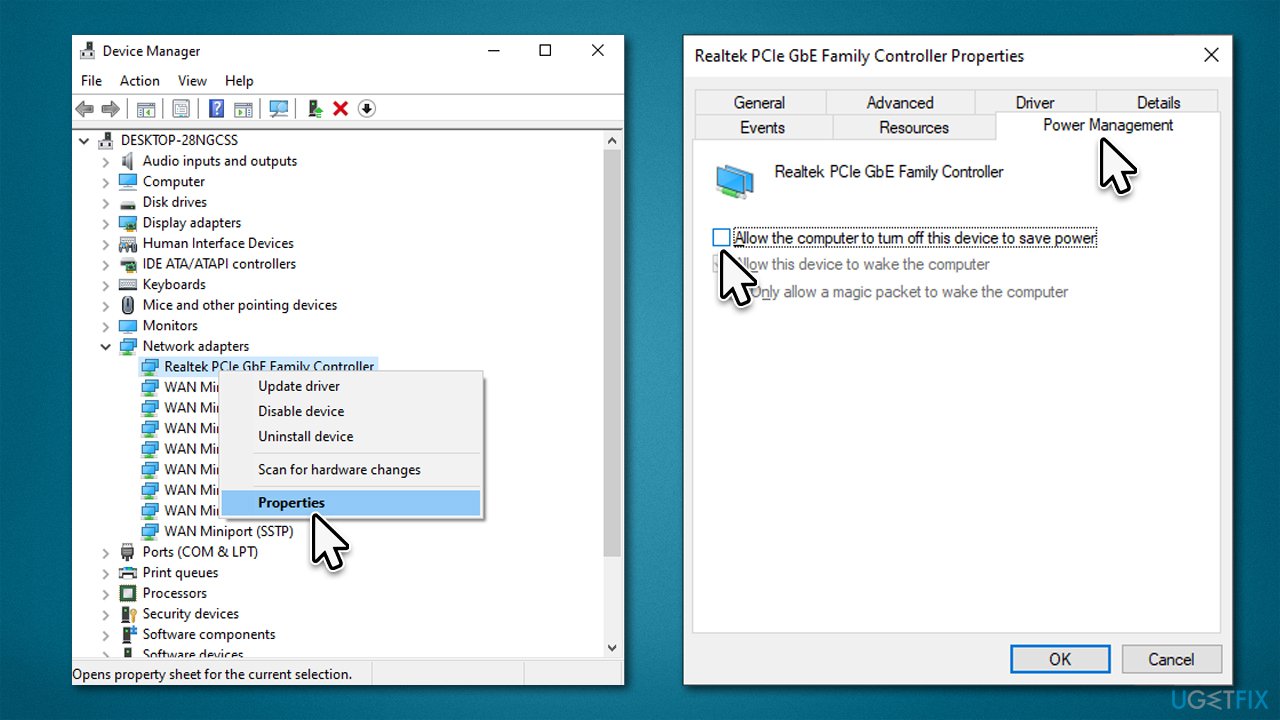
- Type devmgmt.msc in Windows search and press Enter.
- Expand the Network adapters section.
- Right-click on your device and select Properties.
- Go to the Power Management tab.
- Untick the Allow the computer to turn off this device to save power option and click OK.
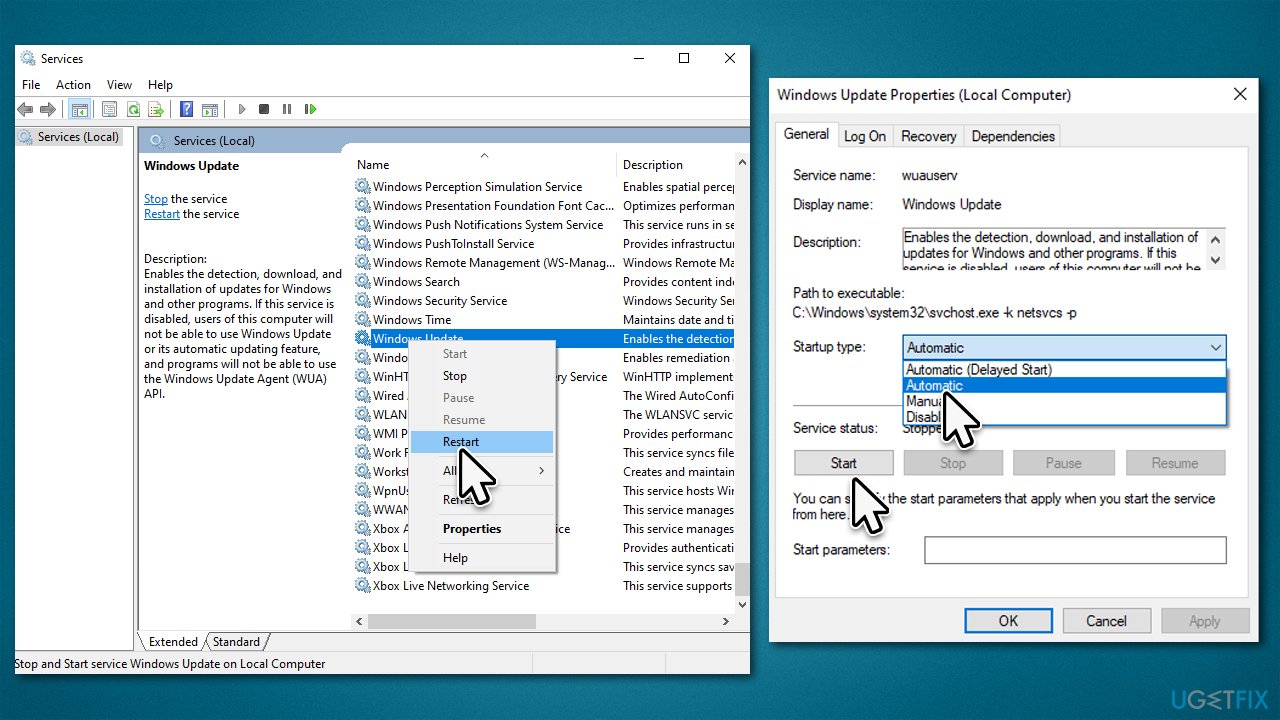
4. Check related services
You should make sure that related services are running. If they are, restart them. If not, select the automatic startup type.
- Type Services in Windows search and hit Enter.
- Scroll down and find the following services:
Remote Procedure Call (RPC)
Windows EnentLog
Windows Update - If the service is running, right-click and select Restart.
- In another case, double-click the service to open Properties.
- Under Startup Type, select Automatic from the drop-down menu.
- Click Start, Apply, and OK.
5. Reset your internet connection via Command Prompt
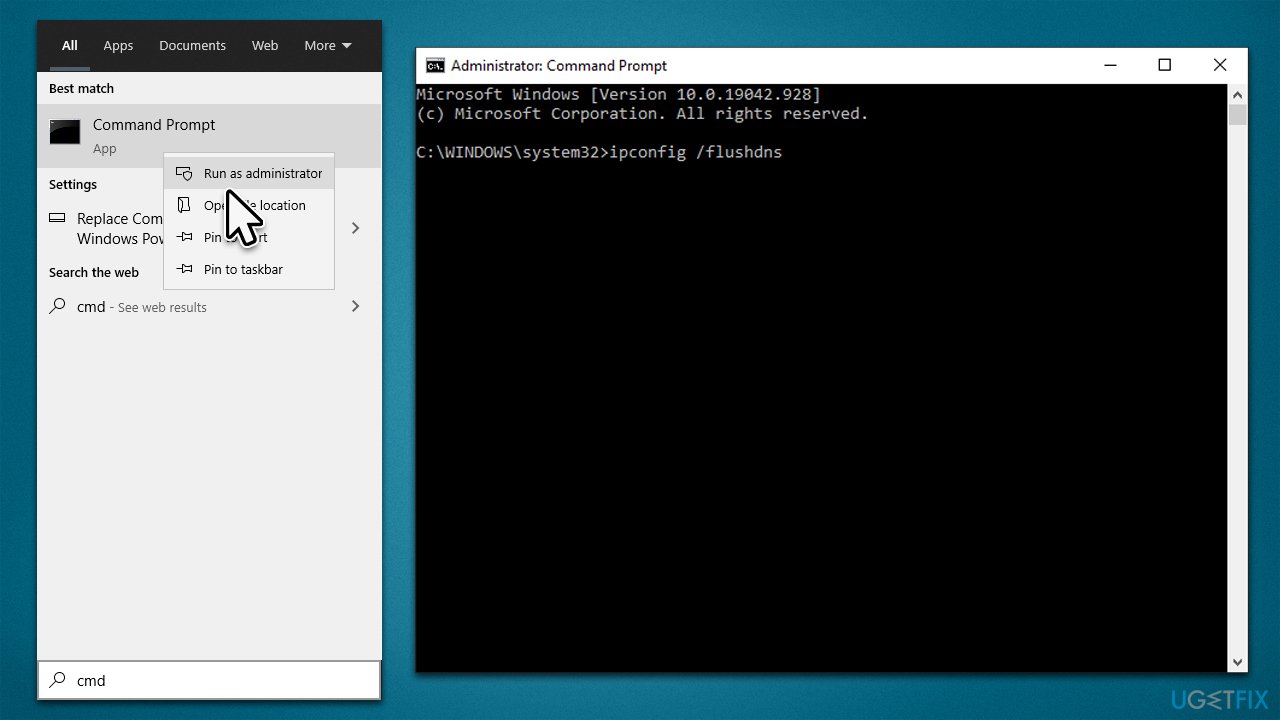
- Type cmd in Windows search.
- Right-click on Command Prompt and pick Run as administrator.
- When UAC shows up, click Yes.
- In the new window, copy and paste the following commands one at a time, pressing Enter after each:
ipconfig /flushdns
ipconfig /registerdns
ipconfig /release
ipconfig /renew
netsh winsock reset - Restart your PC.
6. Reset your router
If the issue affects all of your devices (for example, you can't see your WiFi on your phone), it is likely caused by your router or modem. Resetting it might help in this situation.
- Shut down your computer.
- Go to your physical router or modem and hold the Power button until it turns off.
- Unplug the device from the electric socket.
- Wait for about a minute, then plug it back in and launch it.
- Keep in mind that some devices take minutes to load up, so be patient.
Bottom line
To resolve the issue of not seeing your wireless network, you can start by using the troubleshooter, checking your wireless network adapter, and ensuring that your network settings are properly configured. If these solutions do not work, consider using a PC repair tool or seeking further technical assistance.
Frequently asked questions
This issue can occur due to various reasons, such as incorrect network settings, disabled Wi-Fi, or interference from other devices. Ensure that your Wi-Fi is turned on and that your network is set to broadcast its SSID.
You can refresh your network settings by running the 'Network Reset' tool found in the Settings app under 'Network & Internet'. This will remove and reinstall your network adapters, which may help in detecting your wireless network.
If your wireless network is hidden, you can manually connect to it by selecting 'Add a new network' in the Wi-Fi settings and entering the SSID and password. Make sure your router is configured to broadcast the SSID if you want it to be visible.




Report an issue
What's wrong with this guide? We review every report and update or remove content.
Report received — thank you. We'll review and fix it.
You need a free account to submit a report.
Be the first to comment