How to fix
Can’t sign in to Microsoft 365
on Windows
Resolve Microsoft 365 sign-in issues on Windows 10 or 11 effortlessly. Follow expert-tested solutions and regain access in no time! Fixed in minutes.

![[Fix] Can’t sign in to Microsoft 365](https://ugetfix.com/wp-content/uploads/articles/askit/fix-cant-sign-in-to-microsoft-365_en-768x432.jpg)
What causes [Fix] Can’t sign in to Microsoft 365?
- Incorrect credentials
- Account lock
- Glitch in the system
- Outdated or corrupt stored credentials
Repairs Windows system files, removes malware, and restores a clean OS state — without reinstalling.
Hello. I can't sign in to Microsoft 365. I am sure I am using the correct password. How do I fix this?
Microsoft 365 is a cloud-based productivity suite that includes various services such as Exchange Online, SharePoint, OneDrive, Skype for Business, and more. It offers users a centralized platform to access their work data from anywhere, and collaborate with their team effectively.
However, users may experience issues with signing in to their Microsoft 365 account, which can lead to frustration and hindrance in their workflow. A possible reason for this issue could be incorrect credentials, an account lock, or a glitch in the system.
One may think that typing the wrong password is just for old people or for those who still use flip phones, but even the most tech-savvy of us can fall victim to typos. So, before attempting any troubleshooting steps, users should check if their account isn't locked, and check their password manager to ensure they're using the right credentials.
Additionally, they should also make sure that their keyboard layout isn't accidentally changed, as typing in the wrong characters can cause sign-in issues. Restarting the app and rebooting the computer can often fix the glitch, and restore normal functionality.
In this guide, you will find 4 steps that should help you sign in to Microsoft 365 without issue. Keep in mind, that this may also be caused by underlying system issues. You can use a maintenance tool like [d1] that can fix most system errors, BSODs,[ref en-1] corrupted files, registry[ref en-2] issues, or clear cookies and cache[ref en-3] automatically. Otherwise, follow the step-by-step instructions below.
Solution 1. Remove Stored Credentials
Stored Credentials refer to the usernames and passwords that are saved on your computer for easy access to various accounts and websites. These credentials are stored in the Credential Manager, a feature of the Windows operating system.
Removing Stored Credentials can fix sign-in issues with Microsoft 365, or other websites and applications, because sometimes these stored credentials can become outdated or corrupt, leading to authentication errors. Removing the stored credentials forces the computer to request new credentials the next time you sign in, which can resolve the issue.
- Launch Control Panel
- Click the View by menu and select Large icons
- Go to Credential Manager
- Select Windows Credentials
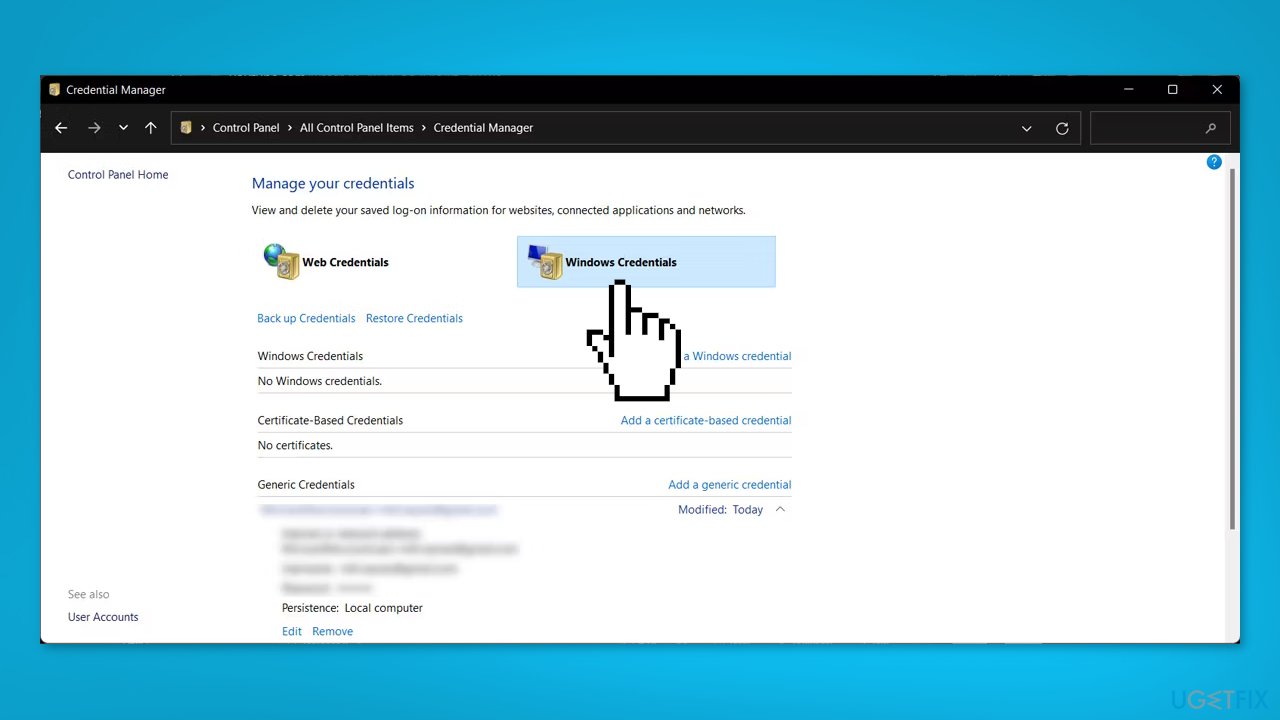
- Check Generic Credentials list
- Click on the desired Microsoft 365 credential
- Select Remove
- Confirm the action in a pop-up window
- Restart your PC
Solution 2. Create a New Local Account
- Press the Windows key + I or go to Start menu and search for settings
- Navigate to Accounts > Family & other users
- Click on Add account
- Select I don’t have this person’s sign-in information
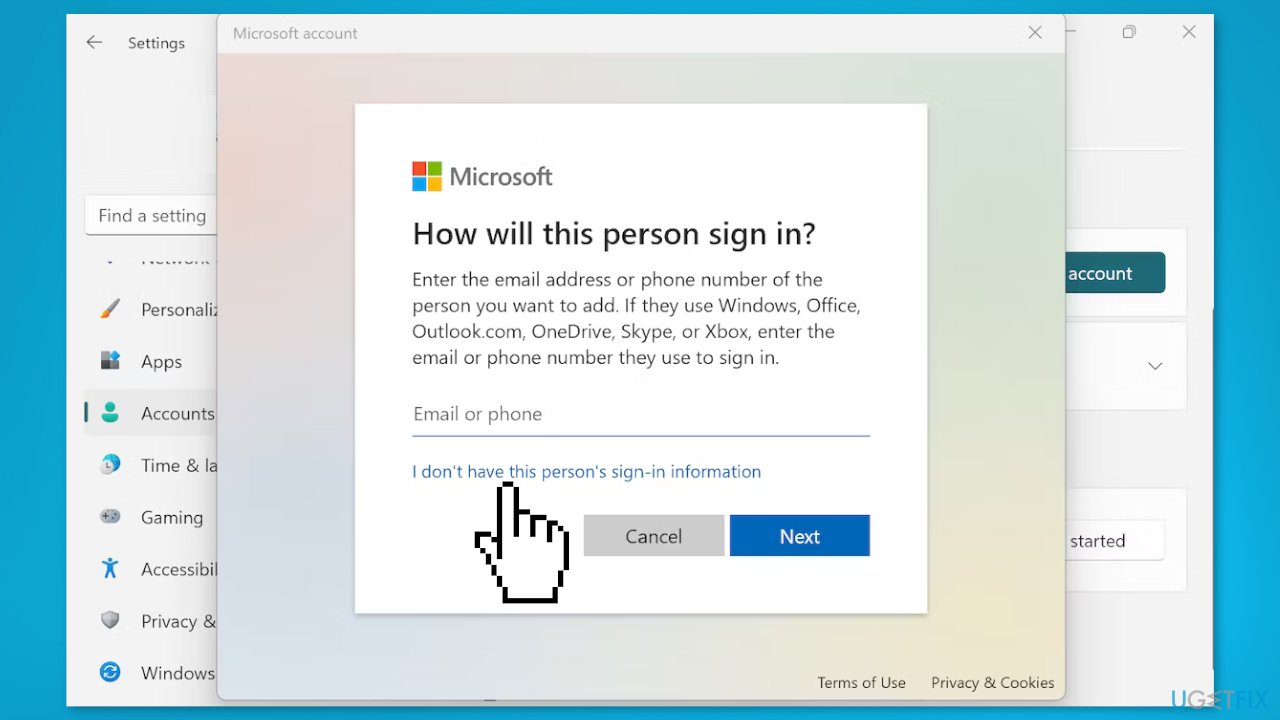
- Click Add a user without a Microsoft account and select Next
- Enter a relevant username and password
- Set up relevant security questions
- Click Next and an account will be created
Solution 3. Repair Microsoft 365
- Right-click on the Start button
- Go to Apps and features
- Find Microsoft 365 in the list of installed apps
- Click the three-dot icon next to it
- Click Modify
- Select Quick repair option
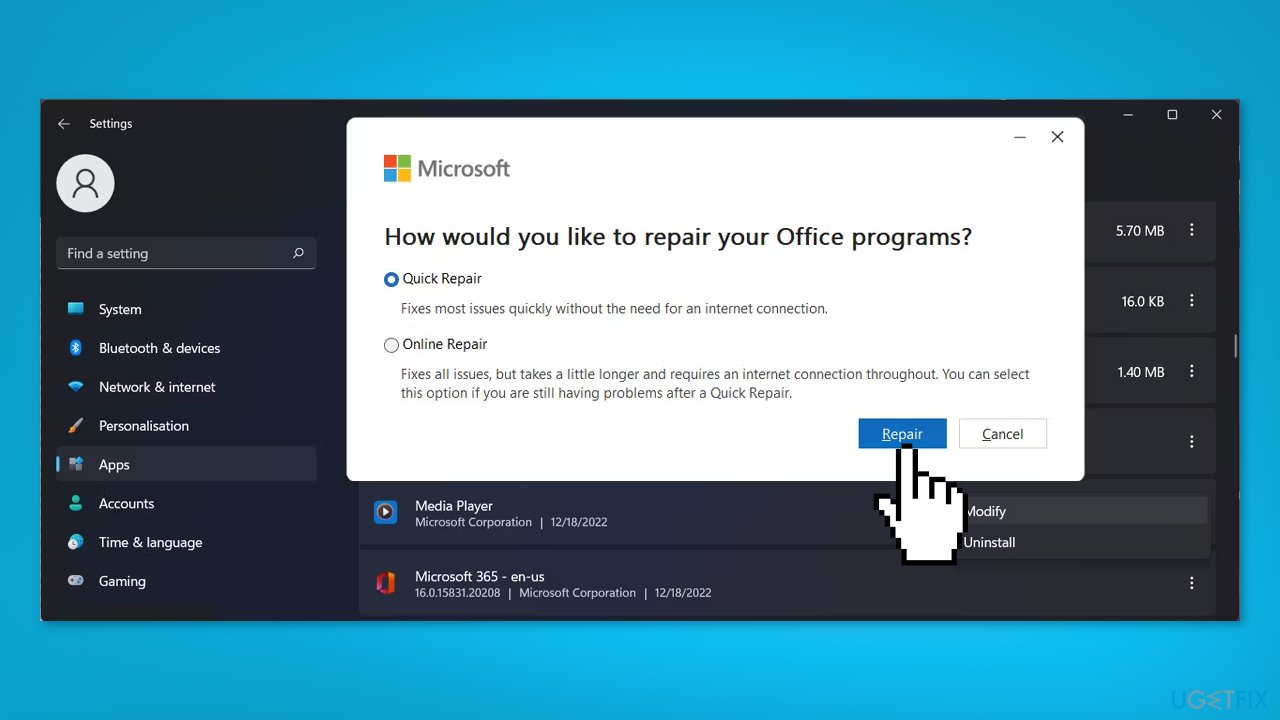
- Click Repair to start the process
Solution 4. Disable Modern Authentification
Modern Authentication is a security feature in Windows that enhances the authentication process for accessing various services and applications, including Microsoft 365. It enables multi-factor authentication and conditional access for enhanced security.
In some cases, disabling Modern Authentication may resolve sign-in issues with Microsoft 365 because it can sometimes interfere with the authentication process. When disabled, the system will revert to basic authentication, which may resolve any issues caused by the more advanced Modern Authentication process.
- Press the Windows key + R to open a Run dialog
- Type regedit and press Enter
- Go to HKEY_CURRENT_USER > Software > Microsoft > Office > 16.0 > Common > Identity
- In the right pane, create a new DWORD (32-bit) Value
- Name it EnableADAL
- Set Base to Hexadecimal
- Set Value data to 0
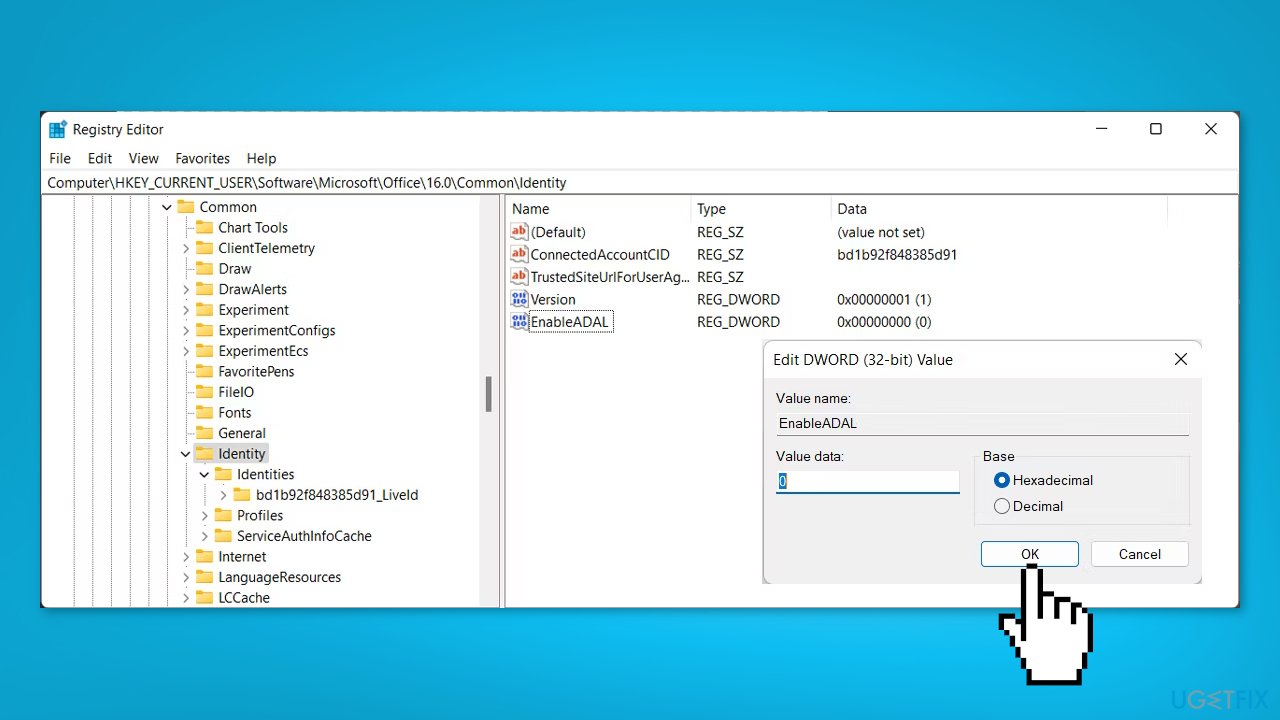
- Click OK to save your new system settings
- Restart your computer
- Try to sign in to your Microsoft 365 account
Bottom line
To resolve the sign-in issue with Microsoft 365, users should check their account status, verify their credentials, and ensure their keyboard layout is correct. Additionally, removing stored credentials from the Credential Manager may help. If these steps do not work, consider using a maintenance tool to address underlying system issues.
Frequently asked questions
First, check your internet connection and ensure that your Windows 10 is updated. If the problem persists, try resetting your Microsoft account password and clearing the browser cache.
On Windows 11, ensure that your device's date and time settings are correct, as this can affect authentication. Additionally, try signing in using a different browser or the Microsoft 365 app.
If you encounter an error message, note the specific code or description provided, then visit the Microsoft support site for troubleshooting steps tailored to that error. Also, consider checking for any updates for Windows 10 or Windows 11 that might resolve the issue.




Report an issue
What's wrong with this guide? We review every report and update or remove content.
Report received — thank you. We'll review and fix it.
You need a free account to submit a report.
Be the first to comment