
[Fix] Can't switch out of S-Mode in Windows

Prefer to fix it yourself? The manual steps follow.
7 methods in this guide
Hello. I tried to switch out of S-Mode in Windows but I received the "Try that again. Something went wrong on our end. Waiting a bit might help." error message. What can I do to get rid of it?
S-Mode is a feature found in Windows 10 and Windows 11. This feature is intended to improve the operating system's security and performance. When set to S-Mode, your device can only install and run apps from the Microsoft Store. This can add an extra layer of security because all apps available in the Microsoft Store are certified before they are made available to users.
Some users, however, may wish to disable S-Mode in order to install and run apps that are not available in the Microsoft Store. Disabling S-Mode is useful for users who need to use apps that aren't available in the Microsoft Store, such as work or school apps.
Unfortunately, some users have reported that they are unable to switch out of S-Mode on Windows and receive the "Try that again. Something went wrong on our end. Waiting a bit might help." error message. This can be a frustrating issue because it prevents users from using their devices as they would like. The problem could be caused by a variety of factors, including a problem with the Microsoft Store app or a problem with the device itself.
If users are unable to exit S-Mode, they may be unable to use their device in the manner that they desire. This can be especially troublesome for users who need to use apps that aren't available in the Microsoft Store because they won't be able to install and run them.
There are several potential solutions to this problem, including resetting the Microsoft Store app or restoring the device to factory settings. These solutions, however, can be complex and may not be suitable for all users. In some cases, users may need to contact Microsoft support to resolve the problem.
In this guide, you will find 7 steps that should help you fix the problem of being unable to switch out of S-Mode. Otherwise, follow the step-by-step instructions provided below.
Method 1. Restart Windows Update Service
- Press the Windows key + R combination to open the Run dialog box.
- Type services.msc in the Run dialog box and press Enter to open the Services app.
- Select the Windows Update service from the list.
- Click on the Start button. If it is already running, press the Restart button.
- Right-click on the Windows Update service.
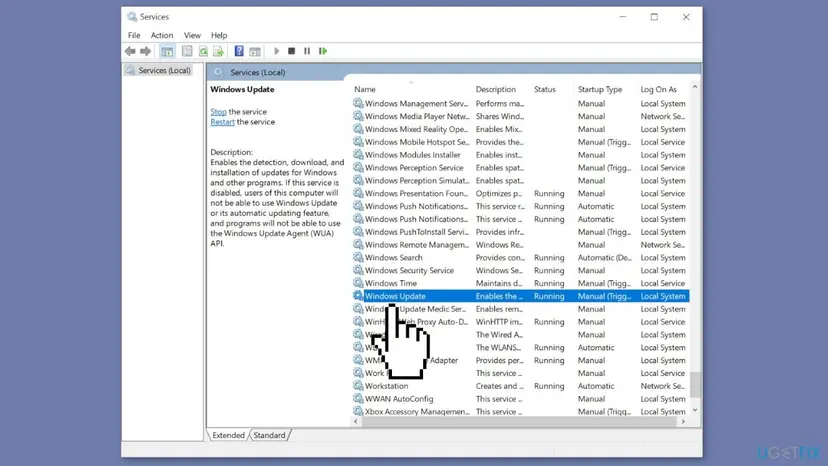
- Select the Properties option from the context menu.
- Set the Startup type to Automatic in the Properties dialog box.
- Press the Apply button.
- Press the OK button to apply new settings.
Method 2. Clear Microsoft Store Cache
Like most applications, Microsoft Store creates and stores cache data to enhance performance. However, if this cache becomes corrupt, you may experience various issues.
- Open the Run dialog box by pressing the Windows key + R.
- If the hotkeys don't work, you can use any other method to open the Run dialog box.
- In the search bar of the Run dialog box, type wsreset.exe.
- Click OK.
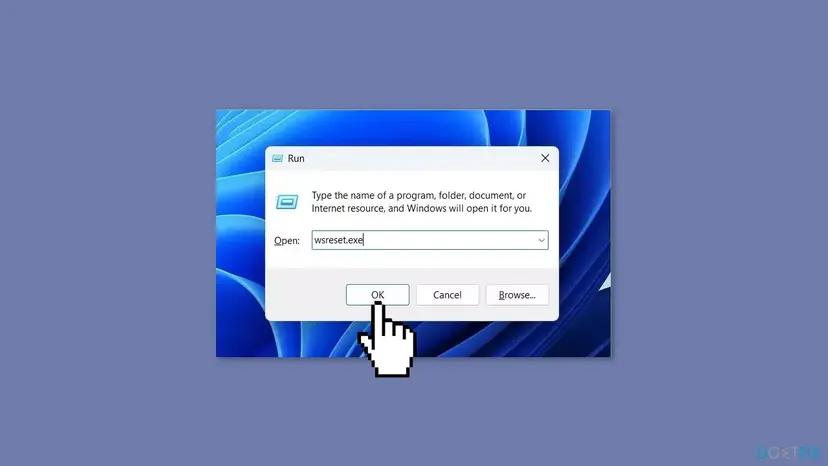
- A blank Command Prompt window will appear for a few seconds.
- Once the cache is cleared, Windows will close the Command Prompt window and automatically launch the Microsoft Store app.
Method 3. Repair or Reset Microsoft Store
- Launch Windows Settings on your PC by pressing the Windows key + I or by clicking on the Start menu and selecting Settings.
- Select the Apps option from the left pane.
- Click on Apps & features from the right side.
- You may use the search bar at the top and type in Microsoft Store or scroll down to find Microsoft Store from the list.
- Select the three horizontal dots next to it and choose Advanced options.
- Scroll down to the Reset section and click on the Repair button.
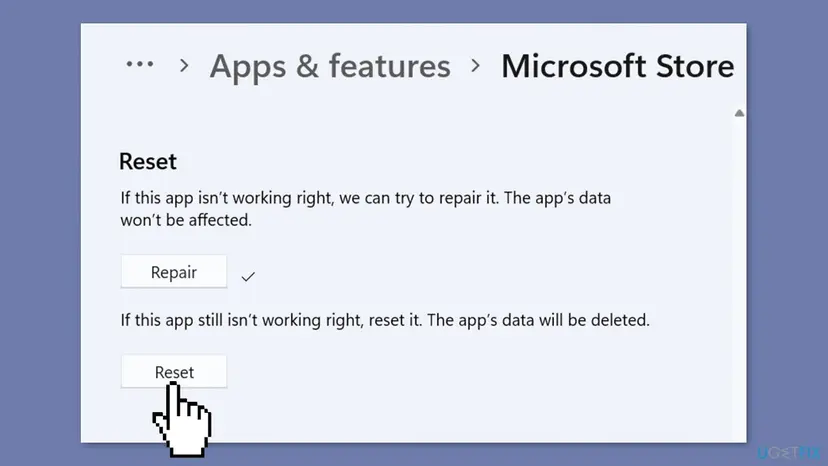
- Wait for the repair process to complete.
- If you’re still unable to switch out of S mode on Windows after repairing, click on the Reset button to bring the app back to its default settings.
- Wait for the reset process to complete.
Method 4. Disable Proxy
- Launch the Run dialog by pressing the Windows key + R keys from your keyboard.
- Type in ms-settings:network-proxy in the search bar and click on OK to open Proxy settings.
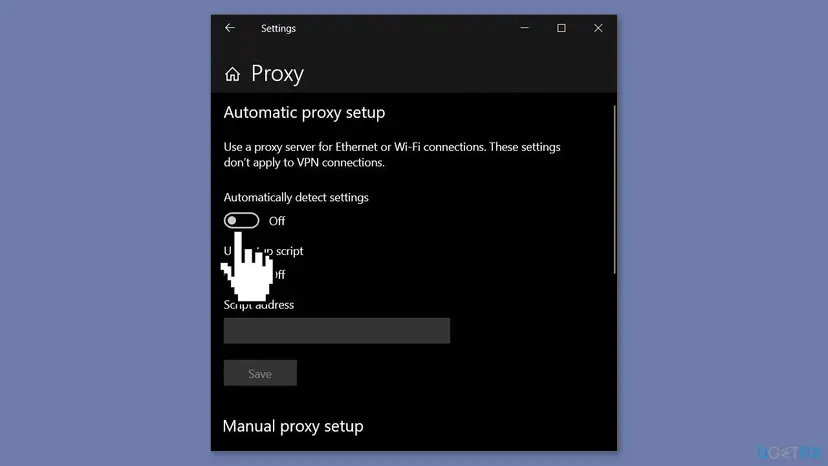
- Click on the Automatic proxy setup section.
- Turn off the toggle for Automatically detect settings.
Method 5. Change DNS
- Right-click on the Network icon on the taskbar and select Open Network & Internet settings.
- Click on the Change adapter settings link from the left pane.
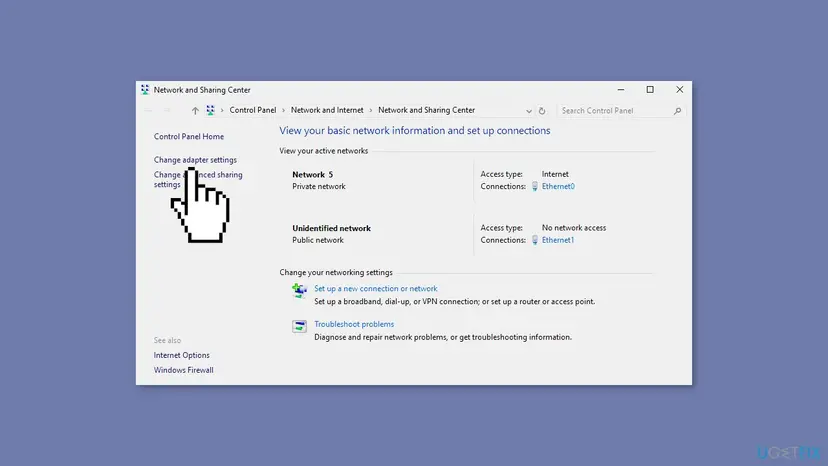
- A Network Connections folder will appear. From there, right-click on your network connection and select Properties.
- Once in Properties, look for Internet Protocol Version 4 and click on it.
- Click on the Properties button.
- Select Use the following DNS server addresses.
- Type in 8.8.8.8 for the Preferred DNS server.
- Type in 8.8.4.4 for the Alternate DNS server.
- Click on OK to apply these changes.
Method 6. Reset Network
- Go to Settings by pressing the Windows key + I.
- Navigate to the Network & internet tab from the left pane.
- Scroll down and choose Advanced network settings.
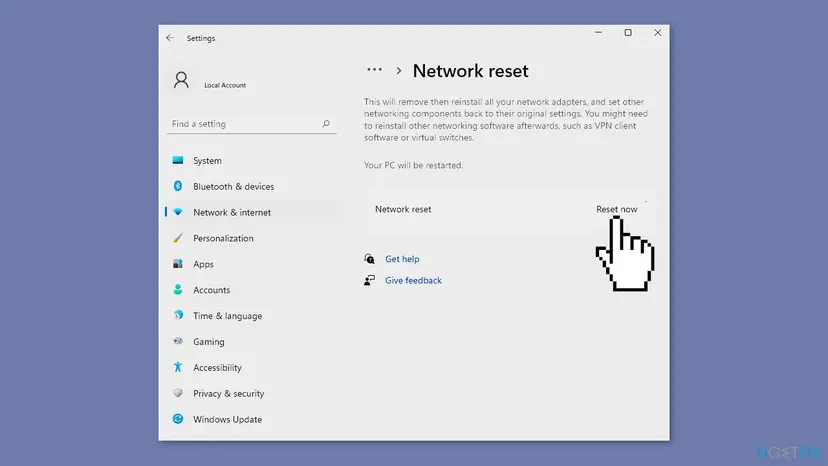
- Click on Network Reset.
- Finally, select the Reset now button and select Yes from the prompt that follows.
Method 7. Create a New User Account
- Press the Windows key + I to open Settings.
- Click on Accounts from the left pane.
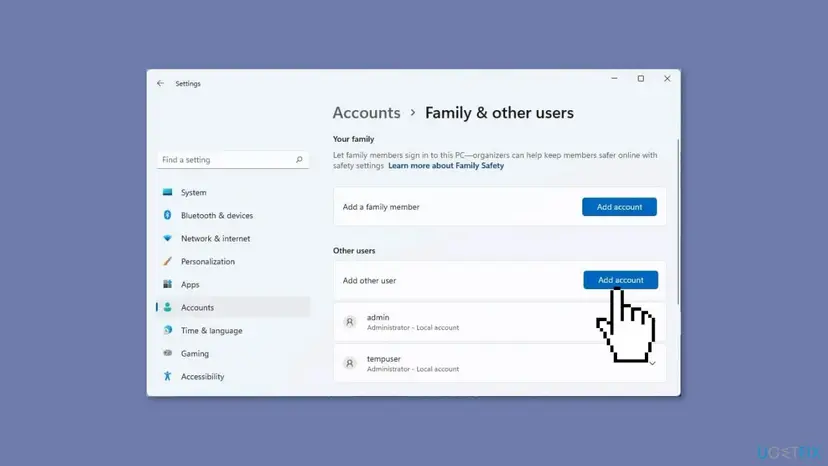
- Select Other users from the right pane.
- Choose the Add account button.
- Follow the on-screen instructions to create another user account.
Did this fix work?
One click, no account. It tells the next reader which guides are worth their time.
Questions and experiences: [Fix] Can't switch out of S-Mode in Windows
Still broken, or found a fix we did not cover? Ask here: members and our editors answer. Reading is open; writing needs a free account.
…