How to fix
Can’t type
on Windows
Resolve the issue of not being able to type in the Windows 11 search box with quick solutions. Expert-tested tips to fix it fast!

![[Fix] Can’t type in Windows 11 search box](https://ugetfix.com/wp-content/uploads/articles/askit/fix-cant-type-in-windows-11-search-box-copy_en-768x432.jpg)
What causes [Fix] Can’t type in Windows 11 search box?
- System update issues
- Minor bugs
- Conflicts between applications
- Search-related system services not running properly
- Corrupted user profiles
- Issues with Windows input settings
Repairs Windows system files, removes malware, and restores a clean OS state — without reinstalling.
I have this problem on Windows 11 - I can't type in the search box. Whenever I place a cursor there and try to type something, shortcuts for apps are being used instead. How can I make it work properly again? I also don't know when precisely this started happening.
Windows 11 has brought a host of new features and updates, but some users have encountered issues with the search box, which is crucial for navigating the system. One of the complaints from users is that they can't type in Windows 11 search bar.
For some, nothing appears when they try to input text, while for others, typing leads to unexpected behavior like app shortcuts pinned to the Start menu opening instead. Not being able to type in Windows search box can be particularly frustrating, as it prevents quick access to settings, files, and programs.
The causes for this problem can vary, but it often occurs after a system update, due to minor bugs, or conflicts between certain applications and the search functionality. Additionally, system services related to search may not be running properly, causing this malfunction. In some instances, corrupted user profiles or issues with the Windows input settings might also contribute to the issue.
The good news is that there are ways to address this problem, which typically involve resetting certain services or correcting system settings. A more in-depth solution may involve looking into system updates or repairs to ensure everything is functioning properly.
For users looking for a more automated solution, using a reliable [d1] PC repair tool can quickly resolve underlying system issues that might be contributing to this error, ensuring smoother functionality across Windows 11.

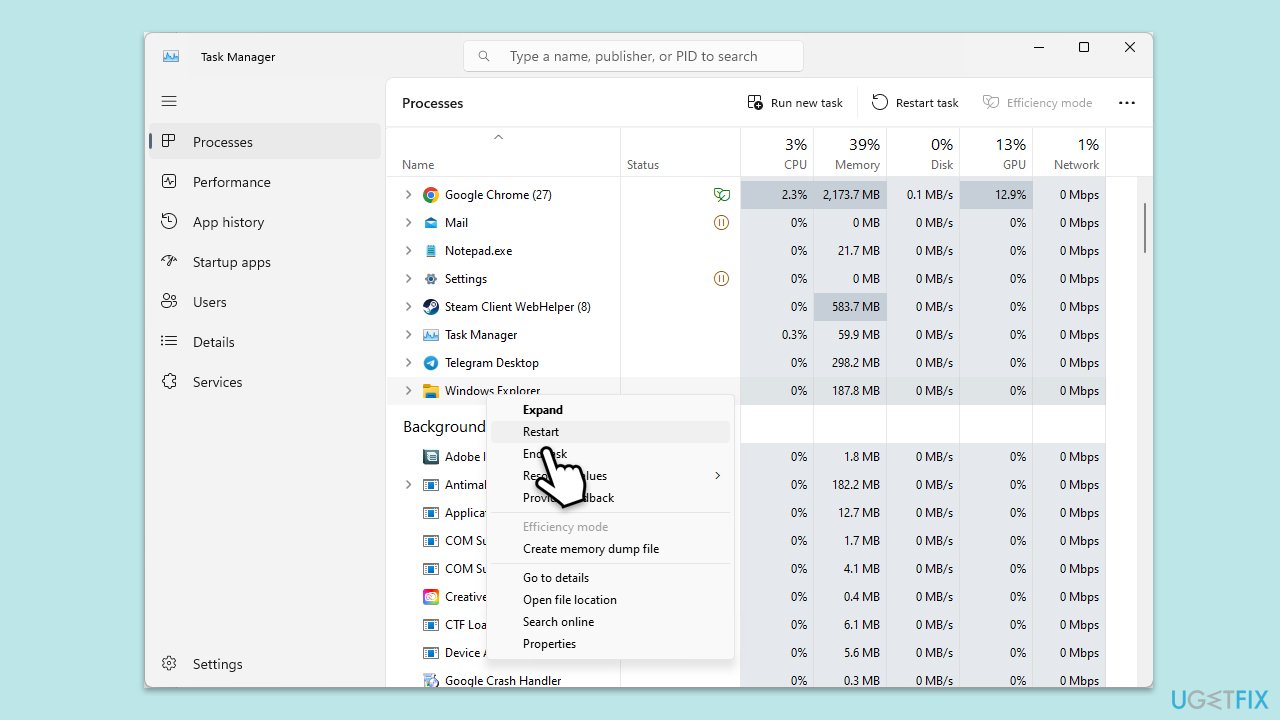
Fix 1. Restart Windows Explorer
- Press Ctrl + Shift + Esc to open Task Manager.
- Click More details if needed.
- Look for Windows Explorer.
- Right-click and select Restart.
- Several UI elements will disappear for a few moments and reappear soon thereafter.
Fix 2. Rebuild the Windows search index
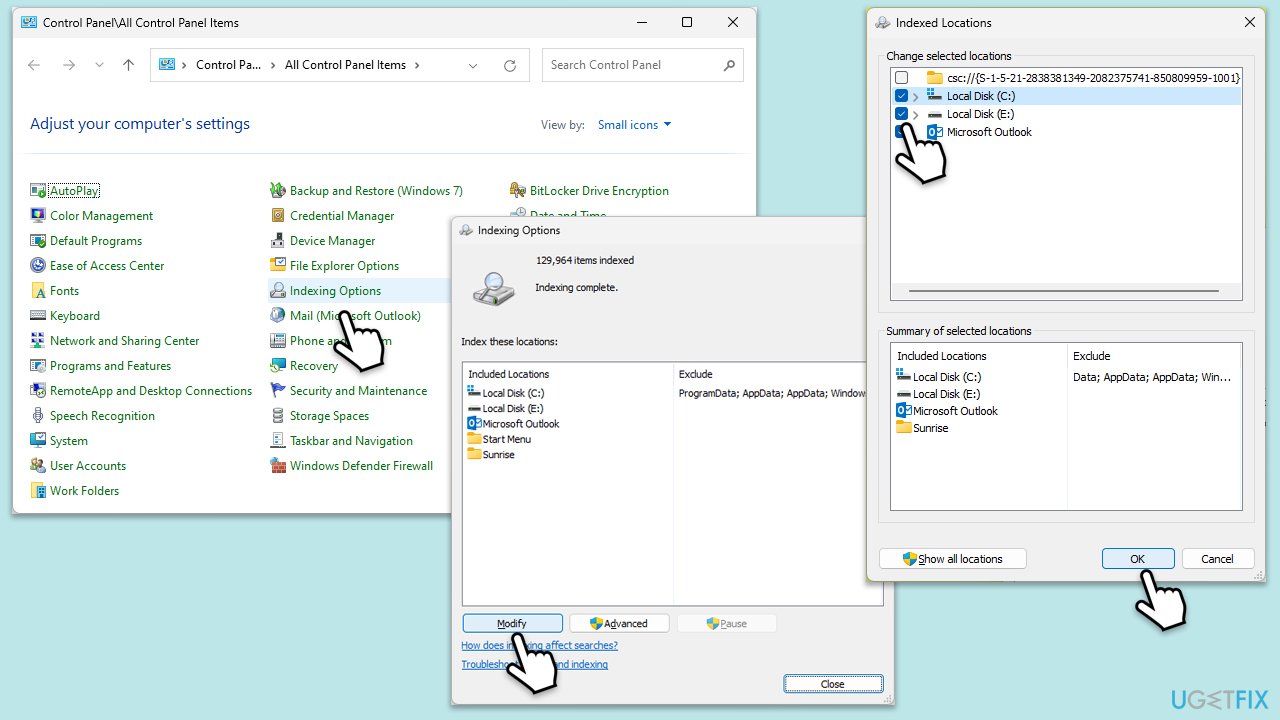
- Open Control Panel.
- On the top-right corner, click on View by option and select Small icons.
- Pick Indexing options.
- Click Modify.
- Mark the locations that you want to be indexed and click OK (you can also use Show all locations at the bottom-left of the window if you can't see the location you are looking for).
- In the Indexing Options window, click Advanced.
- Click Rebuild under Delete and rebuild index. This might take a while, depending on how large your drives are. During the rebuilding process, you might not be able to use the search bar or receive incomplete results.
- Click OK.
Fix 3. Restart Windows Search Service
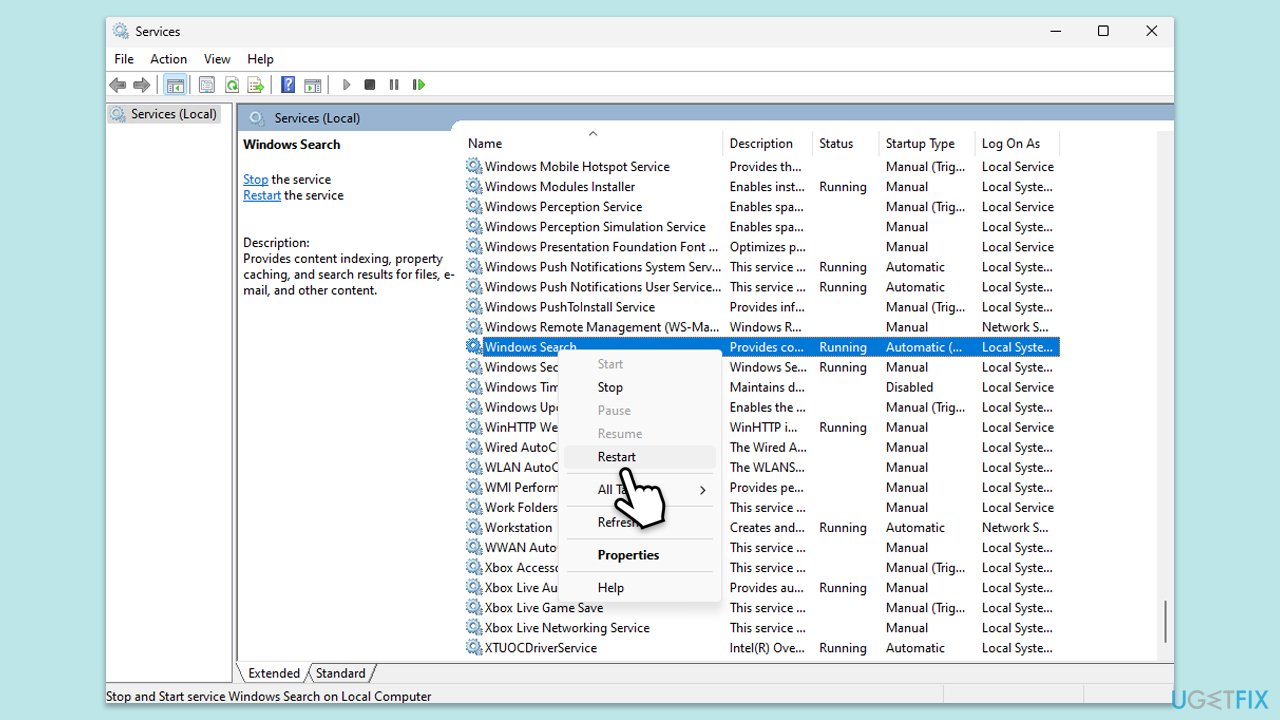
- Type Services in Windows search and press Enter.
- Locate Windows Search Service.
- If it is already running, right-click and select Restart.
- if the service is not running, double-click it, and pick Automatic under the Startup type from the drop-down menu.
- Click Start, Apply, and OK.
Fix 4. Use Windows Troubleshooter
- Click Start and select Settings.
- Go to the Update & Security (Win10) or System (Win11) section.
- Select Troubleshoot.
- Pick Additional troubleshooters/Other troubleshooters.
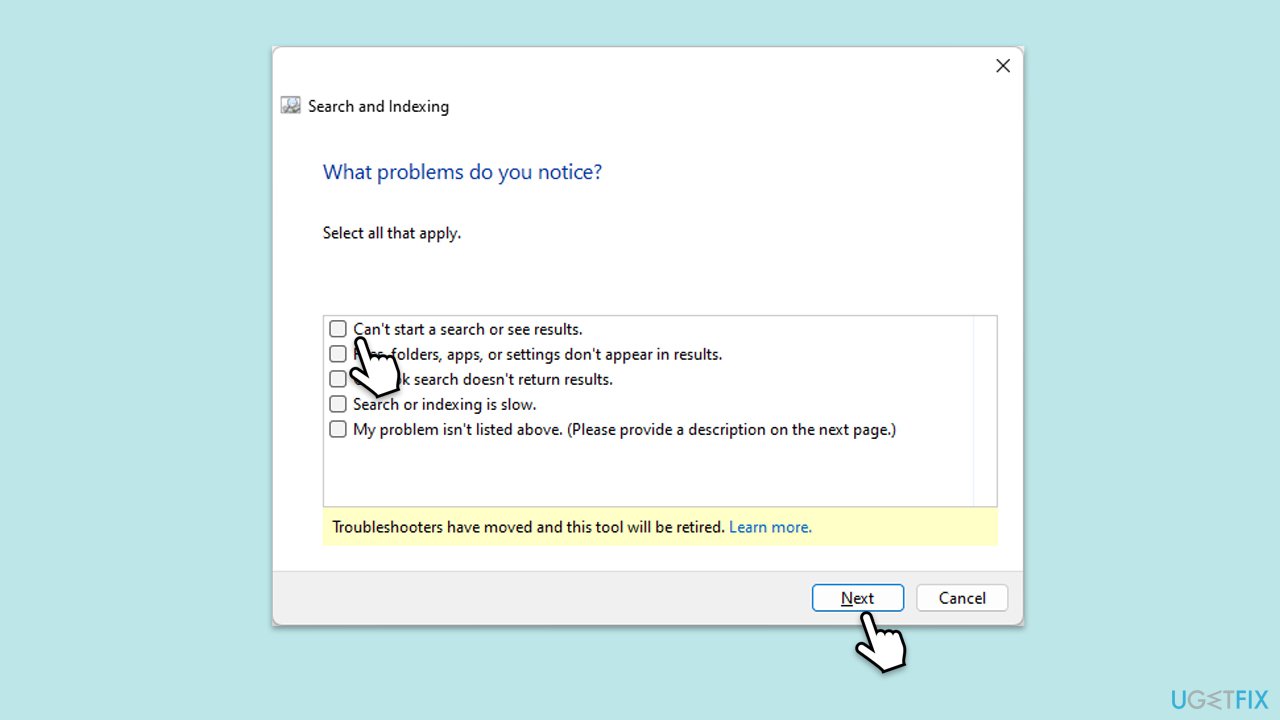
- Scroll down to find the Search and Indexing troubleshooter.
- Click on it and select Run the troubleshooter/Run.
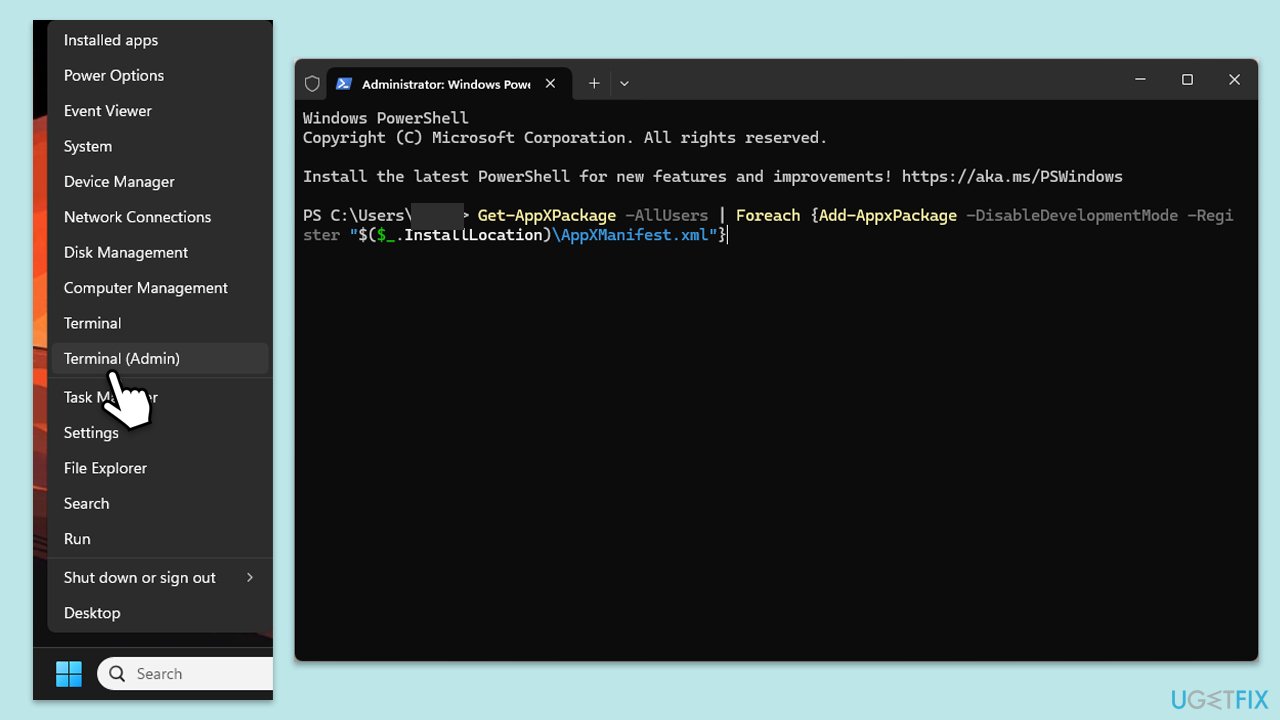
Fix 5. Re-register the search box using PowerShell
- Press Win + X and select Windows Terminal (Admin)/PowerShell (Admin).
- When the User Account Control window shows up, click Yes.
- In the terminal, type the following command:
Get-AppXPackage -AllUsers | Foreach {Add-AppxPackage -DisableDevelopmentMode -Register "$($_.InstallLocation)\AppXManifest.xml"} - Press Enter and restart your computer.
Fix 6. Update Windows
- Right-click on Start and pick Settings.
- Go to Windows Update or Update & Security.
- Here, click Install Updates or Check for updates.
- Wait for the process to be finished and restart your system.
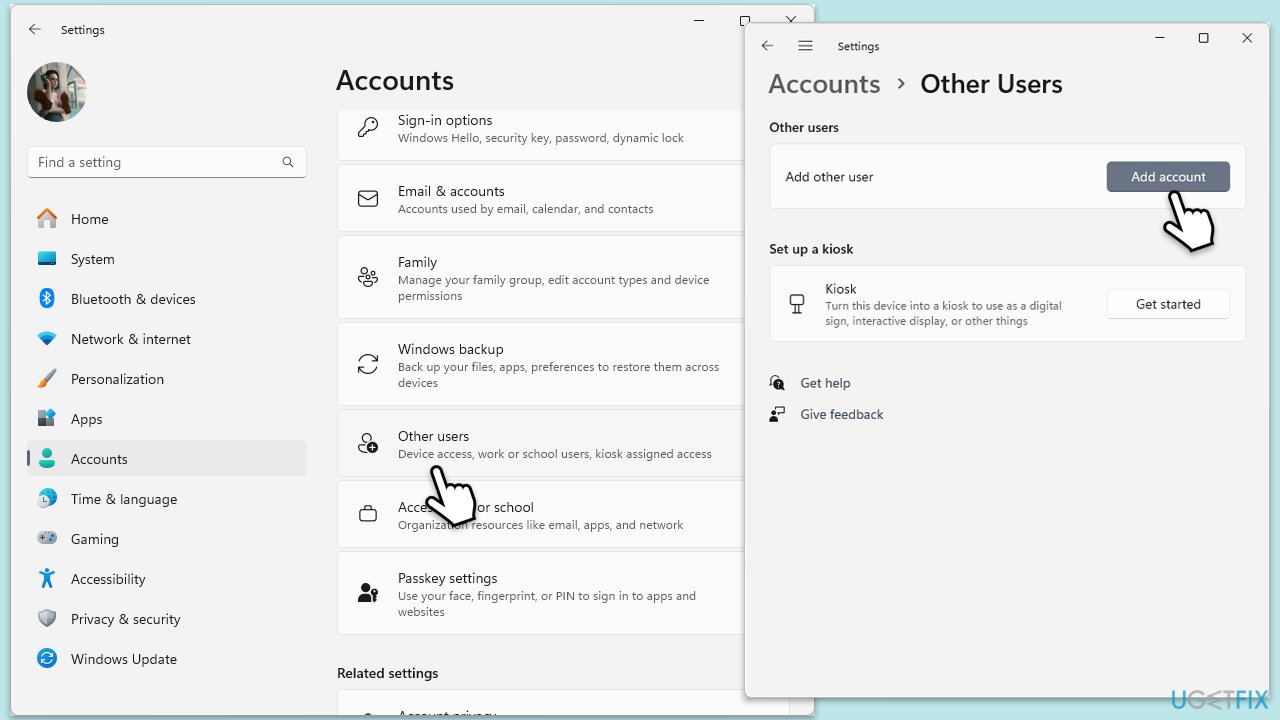
Fix 7. Create a new user account
- Open Windows Settings.
- Go to Accounts then Family/Family & other users.
- Under Other users, click Add account/Add someone else to this PC.
- Follow the prompts to create a new user account. If you don't have Microsoft account details, you can choose I don't have this person's sign-in information followed by Add a user without a Microsoft account.
- Assign a username and password for the new account and complete the setup.
- Then go back to the Accounts section. Under Family/Family & other users, select the newly created account and click Change account type.
- Under Account type, pick Administrator and click OK.
Fix 8. Repair-install Windows
Repairing Windows installation is not as complicated as it once was. Before proceeding, make sure you disable third-party anti-virus software and disconnect any unnecessary peripherals.
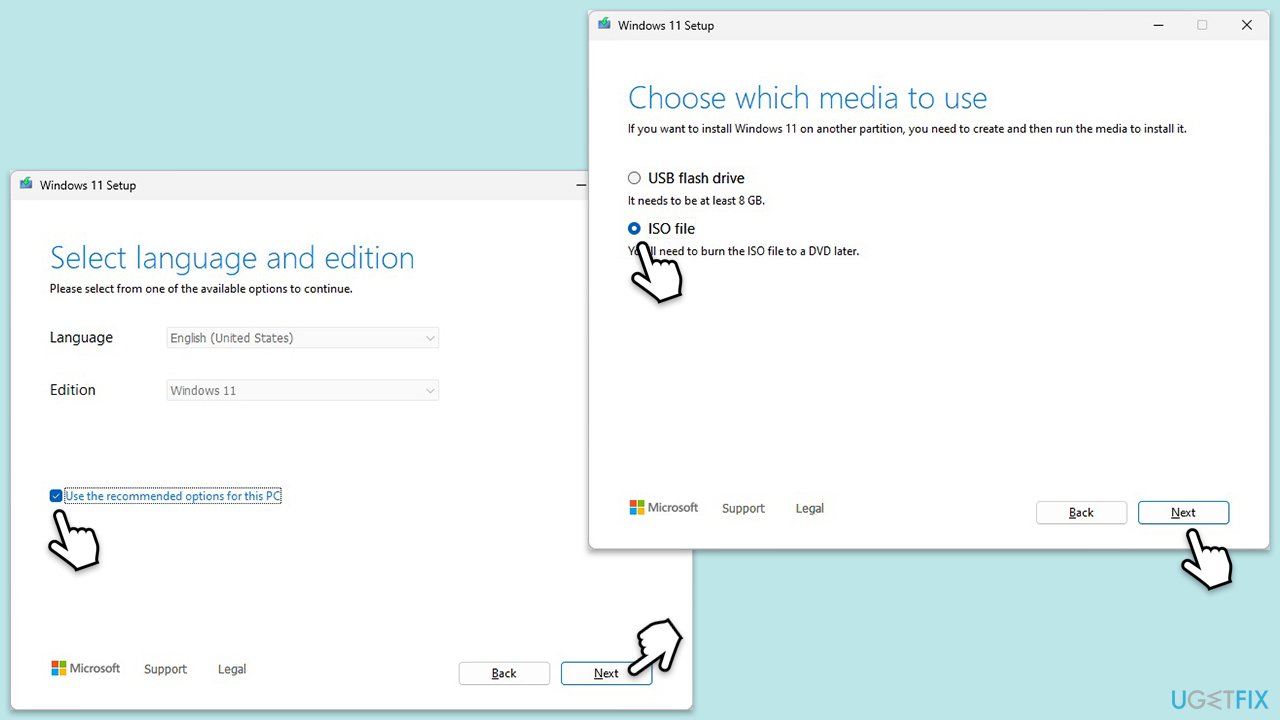
- Visit the official Microsoft website and download Windows 10 installation media (Windows 11 version).
- Double-click the installer, select Yes when UAC shows up, and agree to the terms.
- Select the ISO file and click Next, then follow the instructions to finish the process.
- Right-click on ISO and click Mount.
- Open the location of the ISO, right-click on it, and select Mount.
- Launch the installer.
- Select Upgrade this PC now and click Next.
- Windows will start downloading the needed files.
- Agree to the terms once again and click Next.
- Before installing, ensure you are happy with your choices (otherwise, you can click the Change what to keep option).
- Finally, click Install to begin the upgrade process.
Bottom line
To resolve the issue of not being able to type in the Windows 11 search box, you can try restarting Windows Explorer or rebuilding the Windows search index. If these solutions do not work, consider using a reliable PC repair tool or looking into system updates and repairs.
Frequently asked questions
First, try restarting your computer, as this can resolve temporary glitches. If that doesn't work, check for Windows updates and ensure your system is running the latest version.
You can reset the search feature by opening the Settings app, navigating to Privacy & security, and selecting Search permissions to adjust the settings. Alternatively, you can run the Windows Search troubleshooter from the Troubleshoot section in Settings.
Yes, you can use the System File Checker tool by running 'sfc /scannow' in the Command Prompt to repair any corrupted system files. Additionally, consider re-registering the Windows Search app using PowerShell.




Report an issue
What's wrong with this guide? We review every report and update or remove content.
Report received — thank you. We'll review and fix it.
You need a free account to submit a report.
Be the first to comment