How to fix
Can’t type password on the login screen
on Windows
Resolve password typing issues on the login screen in Windows 10 and 11 effortlessly. Expert-tested solutions to get you back in quickly!

![[Fix] Can’t type password on the login screen in Windows](https://ugetfix.com/wp-content/uploads/articles/askit/cant-type-password-on-the-login-screen-in-windows_en-768x432.jpg)
What causes [Fix] Can’t type password on the login screen in Windows?
- Temporary software glitches
- Keyboard driver issues
- Fast startup features
- Outdated system software
- Peripheral interference
Repairs Windows system files, removes malware, and restores a clean OS state — without reinstalling.
Hi. I can't type my password on the login screen in Windows. I am not really sure what happened, but now I seem to be locked out of my PC. How do I resolve this?
The Windows login screen serves as the initial interface users encounter upon powering on their computers. This feature plays a crucial role in ensuring the security and privacy of user data by restricting access only to individuals who can authenticate their identity through a password. As such, the login screen acts as the first line of defense against unauthorized access, enabling users to safely leave their computers unattended, safe in the knowledge that their data is protected.
However, some users have reported encountering an issue where they can't type their passwords on the login screen. This issue effectively locks them out of their system, preventing them from using Windows as they normally would. This not only disrupts productivity but also poses potential data accessibility concerns.
This problem can arise due to a variety of reasons. It could be due to temporary software glitches, keyboard driver issues, fast startup features, outdated system software, or even peripheral interference. Despite its potentially alarming nature, the issue is generally resolvable with the appropriate troubleshooting steps.
Given the range of possible causes, solutions vary. It may be as simple as restarting the system to clear any temporary software glitches. If the problem lies with the keyboard driver, an update or reinstallation could rectify the issue. Disabling the fast startup feature can also be effective, as it is known to cause such issues. If all else fails, keeping the system software updated or checking for peripheral interference might be the key to resolving the issue.
Below, you will find detailed instructions on how to implement these solutions. With careful follow-through, it is possible to regain access to your system and resume your Windows experience uninterrupted. If the issue is not related to hardware or other issues, we recommend running a scan with automatic PC repair software [d1].
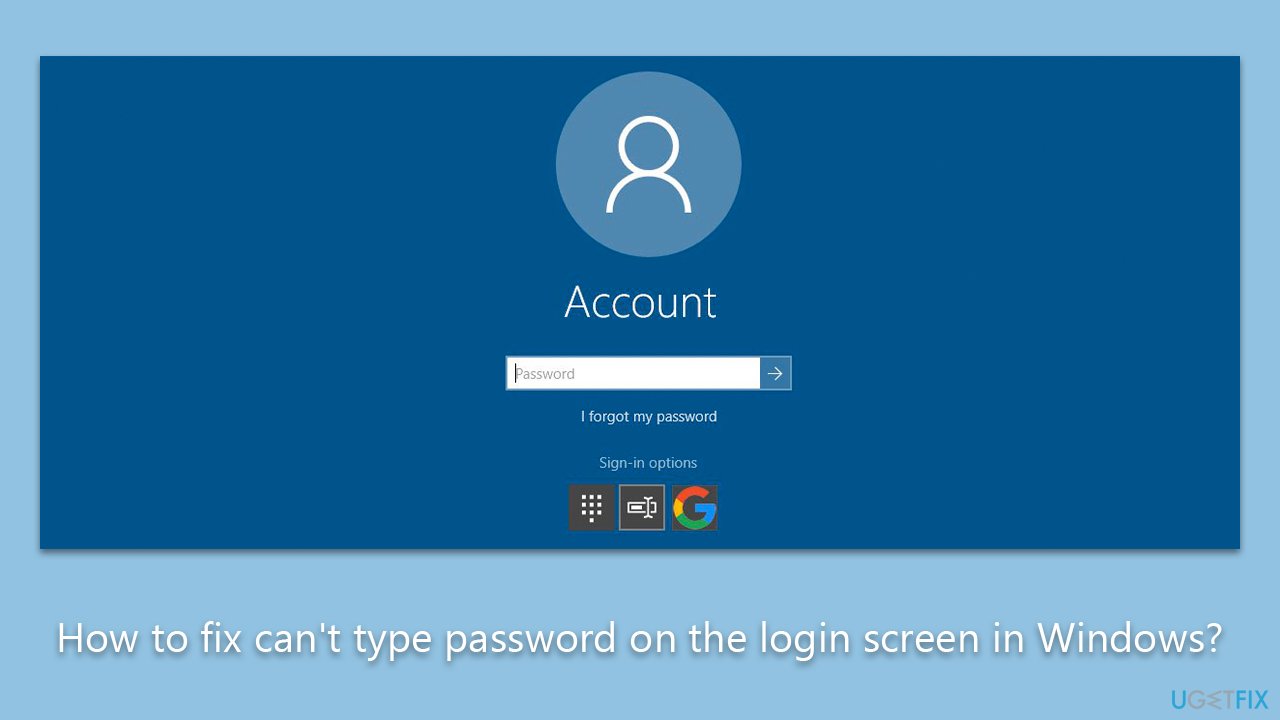
1. Unplug your keyboard temporarily
This action works because it allows the system to reset the connection with the keyboard, potentially resolving any communication issues between the two. Sometimes, glitches may cause the system to not properly recognize the keyboard inputs.
- Shut down your computer.
- Unplug the keyboard from the computer.
- Wait for about a minute.
- Plug the keyboard back into the computer.
- Power on your computer and try entering your password on the login screen.
2. Restart your PC
A simple restart can clear out temporary software glitches that might be preventing you from typing your password on the login screen. Restarting effectively refreshes the system and can often resolve such issues.
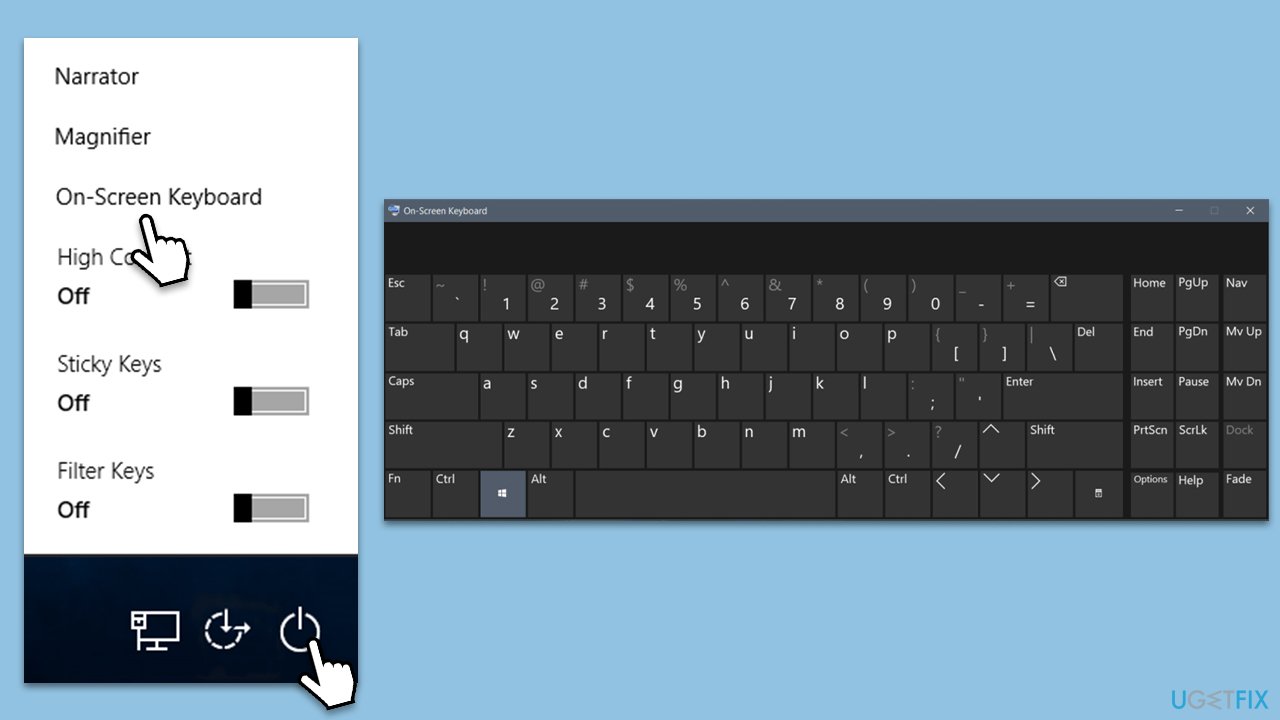
- If you are on the login screen, press the power icon, usually located at the bottom right of the screen.
- Select Restart from the available options.
- Wait for the computer to reboot, and then try typing your password again.

3. Use an alternative or virtual keyboard
The virtual keyboard is a feature in Windows that allows you to input commands through a keyboard displayed on the screen. It can be a workaround when you can't type your password at the login screen due to a physical keyboard issue.
- On the login screen, locate an icon at the bottom-right corner, typically known as the Ease of Access icon.
- Click on this icon and select On-Screen Keyboard from the list of options.
- A virtual keyboard will appear on the screen. You can use this keyboard to enter your password by clicking on the virtual keys with your mouse.
Alternatively, if you have access to another physical keyboard (for instance, if you have a spare USB keyboard), you could try using it to enter your password. This could help determine whether the issue is with your keyboard itself.
4. Run the hardware troubleshooter
Once you've logged in to Windows, it is time to make sure that the issue where you can't type a password on the login screen in Windows goes away (if it persists).
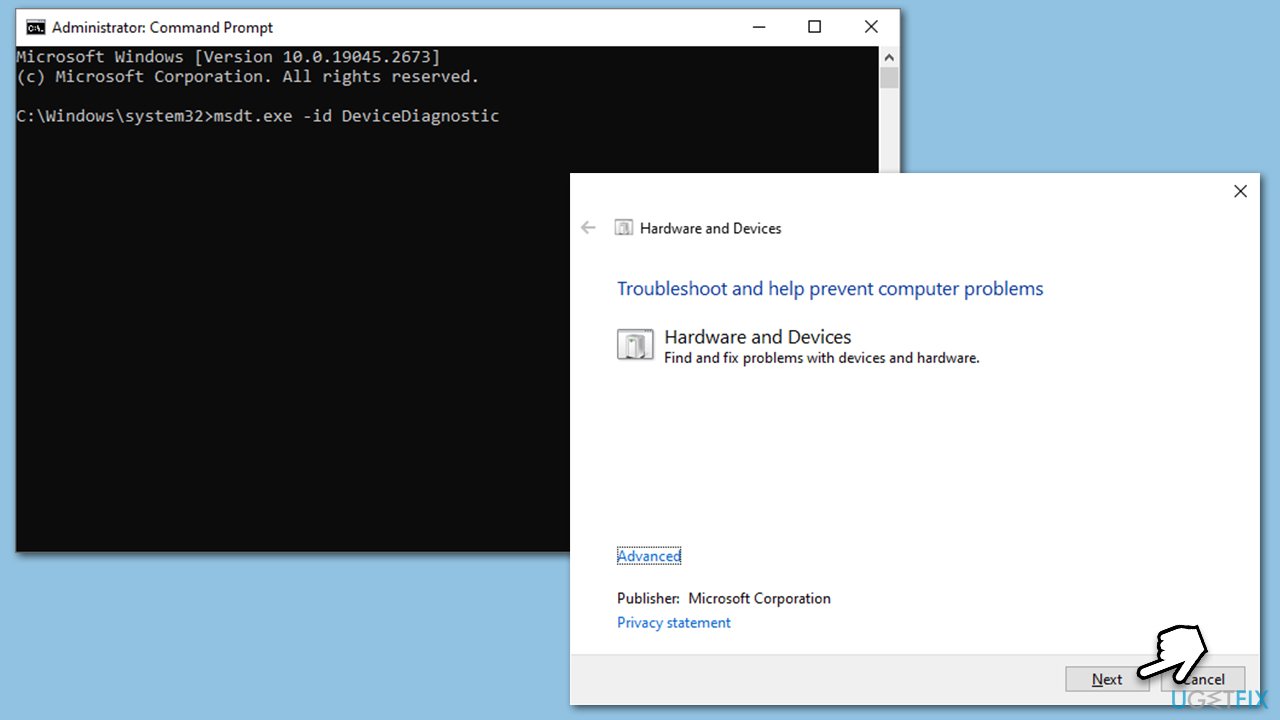
- Type cmd in Windows search.
- Right-click on the Command Prompt result and pick Run as administrator.
- Copy and paste the following command, pressing Enter after:
msdt.exe -id DeviceDiagnostic - Follow on-screen instructions to run the troubleshooter and apply the suggested fixes.
- Restart your device.
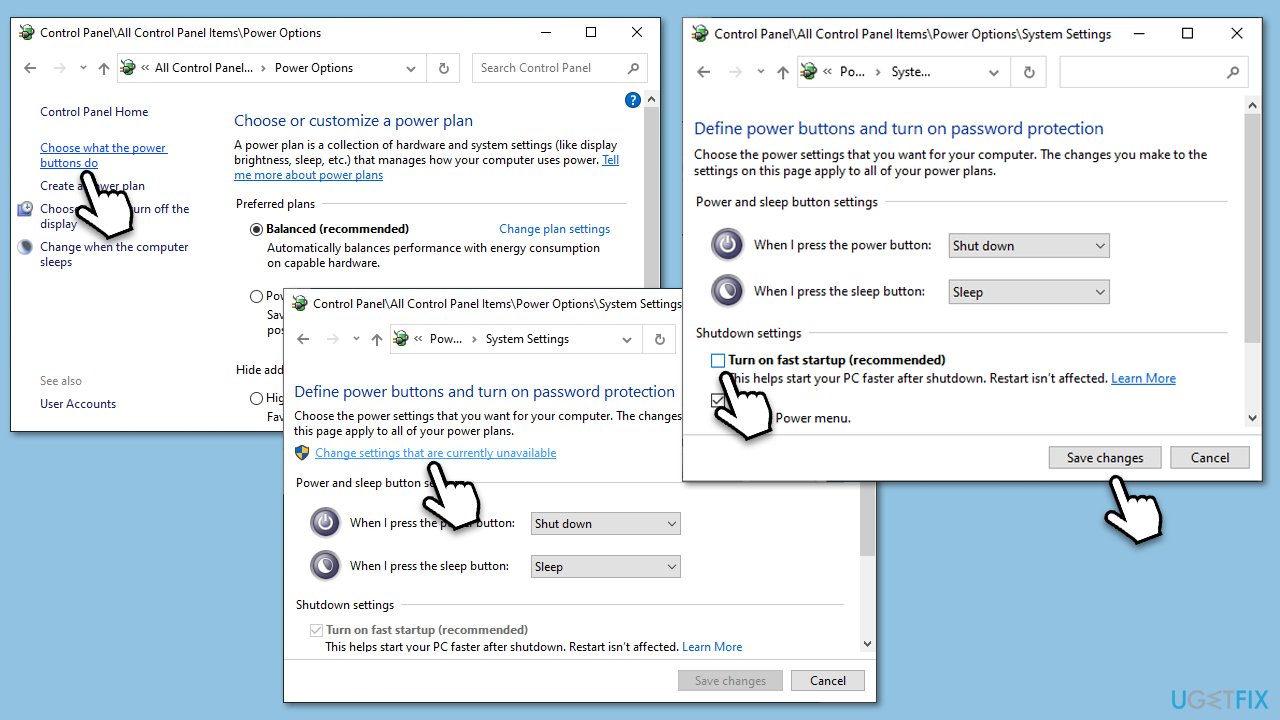
5. Disable fast startup
Fast startup is a feature that can cause issues with the login screen. By disabling it, you might resolve the problem.
- Open Control Panel and go to Power Options.
- Click on Choose what the power buttons do.
- Click on Change settings that are currently unavailable.
- Uncheck the Turn on fast startup option.
- Click Save changes.
6. Install all Windows updates and update drivers
Keeping your Windows operating system and all its drivers updated is critical for the system's smooth operation. These updates often come with fixes for various issues, including those that might affect keyboard functionality.
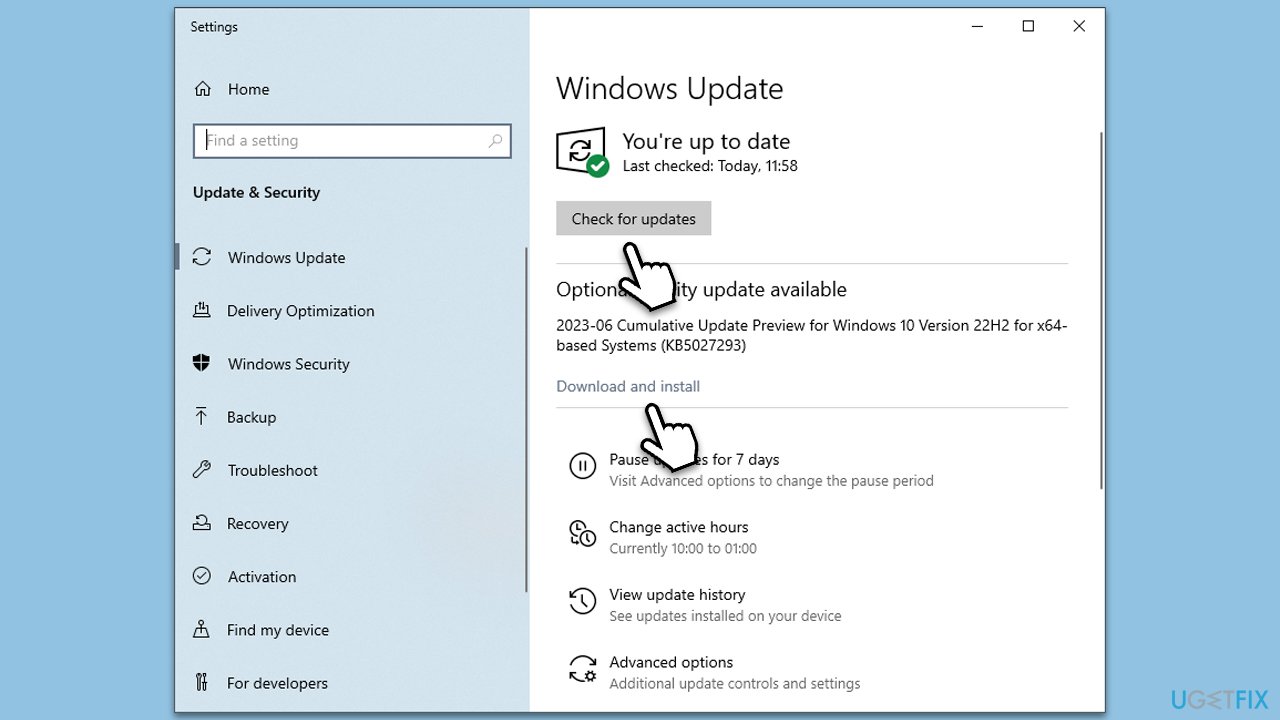
Instructions for installing Windows updates:
- Access Settings by clicking on the Windows Start button and selecting the gear icon.
- Select Update & Security.
- Click on Windows Update, then Check for updates.
- If updates are available, install them and restart your computer (make sure to install optional updates as well).
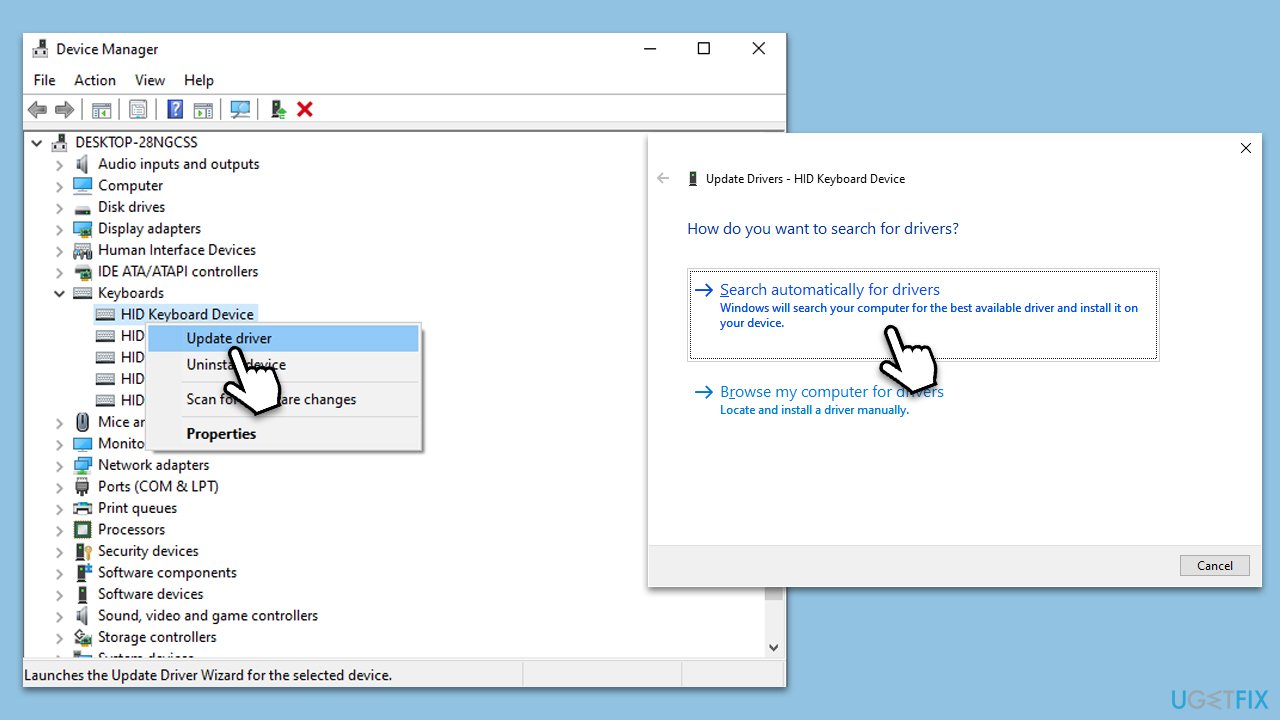
Instructions for updating drivers:
- Type Device Manager in the Windows search bar and select the corresponding result.
- Expand the category of the driver you want to update (for instance, Keyboards for keyboard drivers).
- Right-click on the specific driver and select Update driver.
- Select Search automatically for drivers and follow the prompts.
- After the updates, restart your computer.
Alternatively, you could employ an automatic driver updater such as [rev id="DriverFix"] for a hassle-free approach.
Bottom line
This issue can often be resolved by restarting the system, updating or reinstalling the keyboard driver, or disabling the fast startup feature. Keeping the system software updated and checking for peripheral interference may also help. If none of these solutions work, consider running a scan with automatic PC repair software.
Frequently asked questions
Try connecting an external keyboard to see if that resolves the issue. If not, boot into Safe Mode and check for any recent updates or drivers that may have caused the problem.
You can attempt to use the on-screen keyboard by clicking the accessibility icon on the login screen. If that works, it may indicate a hardware issue with your keyboard.
Yes, you can use the password reset disk or access your Microsoft account online to reset your password if you're unable to type it on the login screen.




Report an issue
What's wrong with this guide? We review every report and update or remove content.
Report received — thank you. We'll review and fix it.
You need a free account to submit a report.
Be the first to comment