How to fix
Can’t uninstall Windows update
on Windows
Struggling to uninstall a Windows update on Windows 10 or 11? Our expert-tested guide provides quick solutions to fix the issue in minutes.

![[Fix] Can’t uninstall Windows update](https://ugetfix.com/wp-content/uploads/articles/askit/fix-cant-uninstall-windows-update-copy_en-768x432.jpg)
What causes [Fix] Can’t uninstall Windows update?
- Not all Windows updates are designed to be removable
- Critical security updates may restrict uninstallation
- Updates that change system files irreversibly may not be uninstallable
- Uninstallation option is available for a limited time after the update
- System instability or persistent errors may occur when uninstallation fails
Repairs Windows system files, removes malware, and restores a clean OS state — without reinstalling.
So I had troubles with the latest Windows update and people online recommended simply to uninstall it until it's fixed. I did so but after restarting the PC I've noticed that the problem is still there and, unsurprisingly, the update is there as well. It seems like I can't uninstall Windows updates. Could you help me?
Windows updates are designed to enhance functionality, security, and performance of your operating system. However, occasionally, updates may cause issues, making users want to uninstall them. This can become problematic if Windows does not allow the uninstallation process to be performed, leaving users stuck with unwanted changes or system behavior.
Why can't some updates be uninstalled?
Not all Windows updates are designed to be removable. For critical security updates or updates integral to the operating system's functionality, Microsoft might restrict the ability to uninstall these updates to maintain system integrity and security. Moreover, if an update changes system files in a way that becomes irreversible, the option to uninstall it may not be presented.
However, most of the updates should be uninstallable - this is available for a limited time after the update is implemented. There are ways to bypass this, and we explore them in the later sections.
What happens when users can't uninstall Windows updates?
When users attempt to uninstall problematic updates and fail, it can lead to a range of issues. These might include system instability, loss of functionality for certain features, or persistent errors. Users often find themselves in a frustrating situation, especially if the update causes more harm than good in their specific setup.
Addressing uninstallation issues
To tackle the inability to uninstall certain Windows updates, users can consider the following strategies:
- Using System Restore.
- Uninstalling the update via Command Prompt.
- Repairing corrupted files.
- Resetting Windows update components.
- Trying to uninstall in a Clean Boot state.
- Repair-installing Windows.
We explain the exact steps you need to take in order to apply these fixes below. However, we recommend you try running [d1] repair before you attempt manual solutions, as it can perform numerous troubleshooting steps automatically and save you a lot of time.
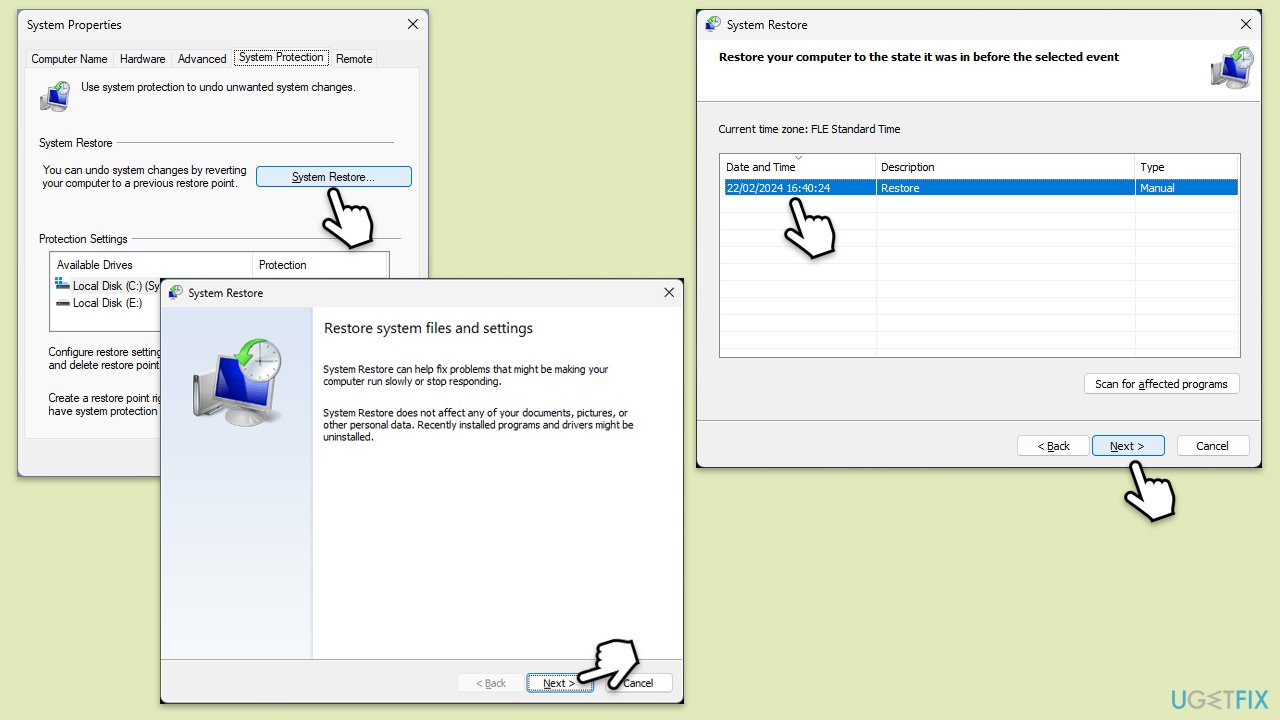
Fix 1. Use System Restore
System Restore can revert your system back to an earlier point in time before the problematic update was installed. This method is effective because it does not affect your personal files but reverses any system and software changes.
- Type Create a restore point in the Windows search bar and press Enter.
- In the System Properties window, click System Restore.
- Choose a restore point before the issues have begun.
- Click Next and follow the on-screen instructions to complete the system restore.
- Restart your computer after the process is finished.
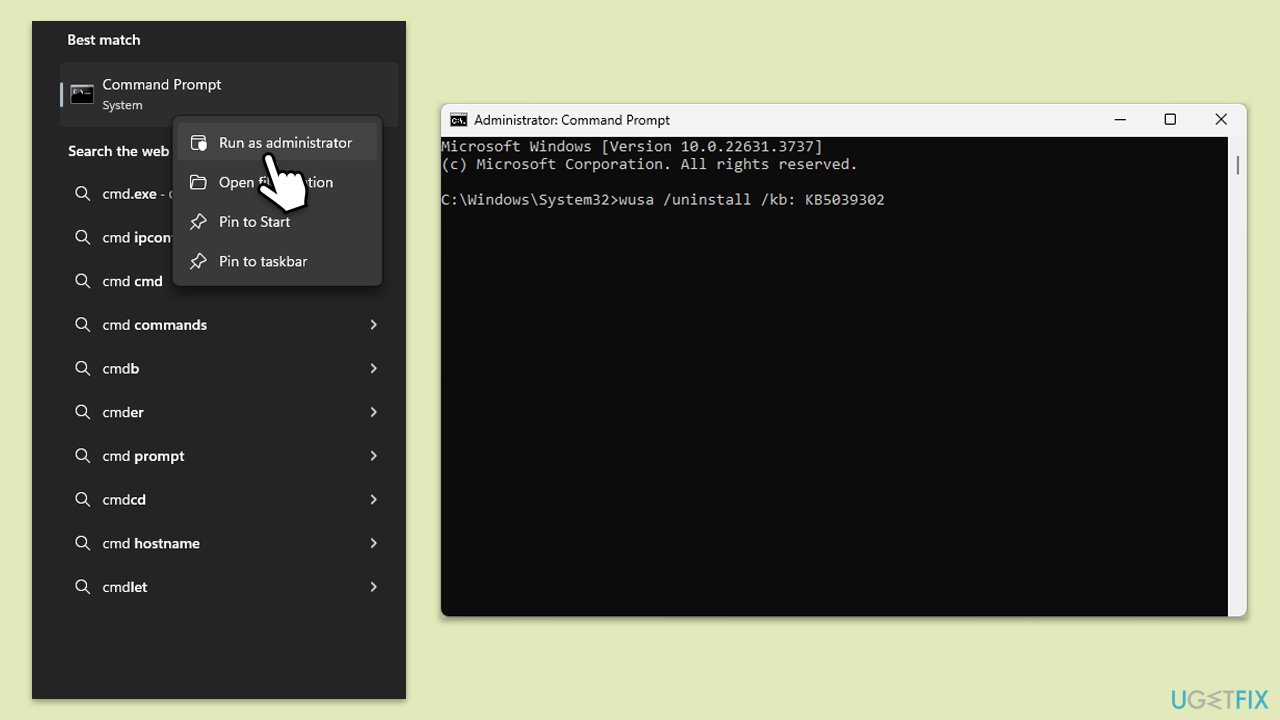
Fix 2. Uninstall the update via Command Prompt
Using Command Prompt to uninstall a Windows update gives you direct control to remove specific updates using their unique identifiers.
- Type cmd in Windows search.
- Right-click on Command Prompt and pick Run as administrator.
- When User Account Control (UAC) asks you whether you want to allow changes, click Yes.
- Type in the following command and press Enter (replace KB1234567 with the appropriate KB number you want to uninstall):
wusa /uninstall KB1234567 - Restart your PC.
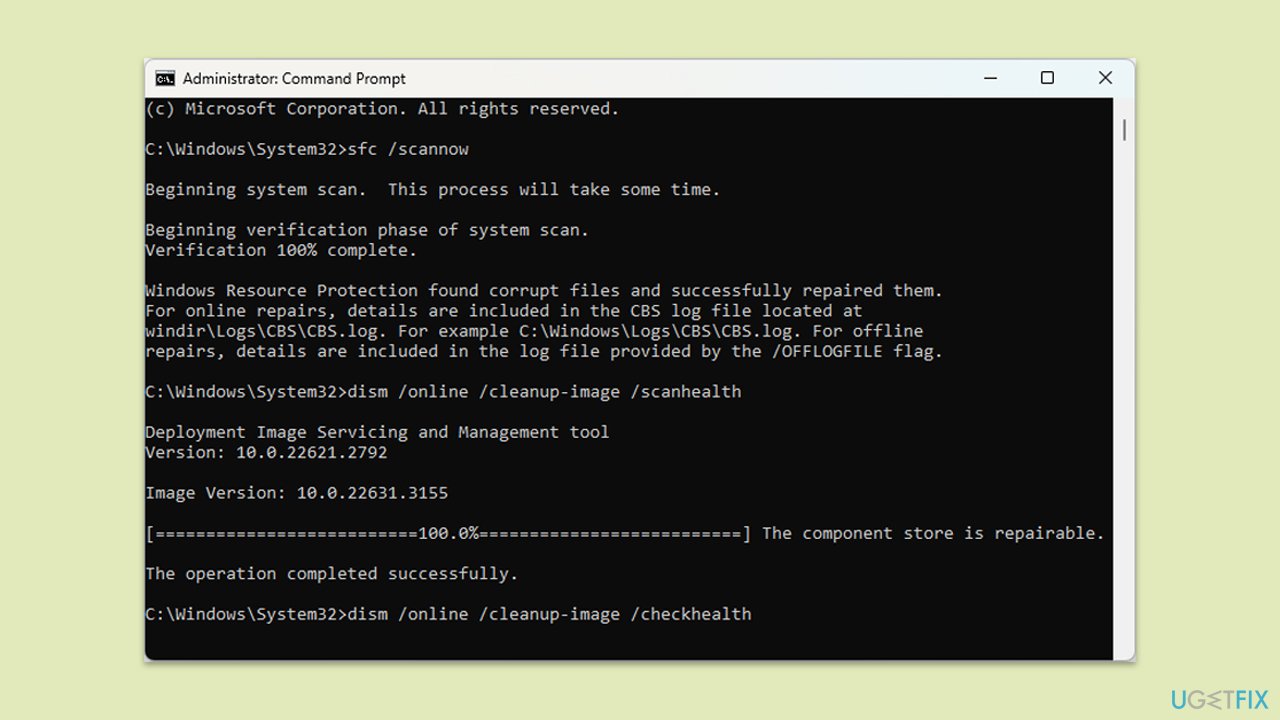
Fix 3. Repair corrupted files
Corrupted system files can prevent the uninstallation of updates. Follow these steps to address this:
- Open Command Prompt as an administrator.
- Use the following command and press Enter:
sfc /scannow - When the scan is complete, you should also run the following commands to repair Windows image files:
DISM /Online /Cleanup-Image /CheckHealth
DISM /Online /Cleanup-Image /ScanHealth
DISM /Online /Cleanup-Image /RestoreHealth - Restart your computer.
Fix 4. Reset Windows update components
Resetting the Windows Update components clears the update history and cache, potentially resolving issues preventing the uninstallation of updates.
- Open Command Prompt as an administrator.
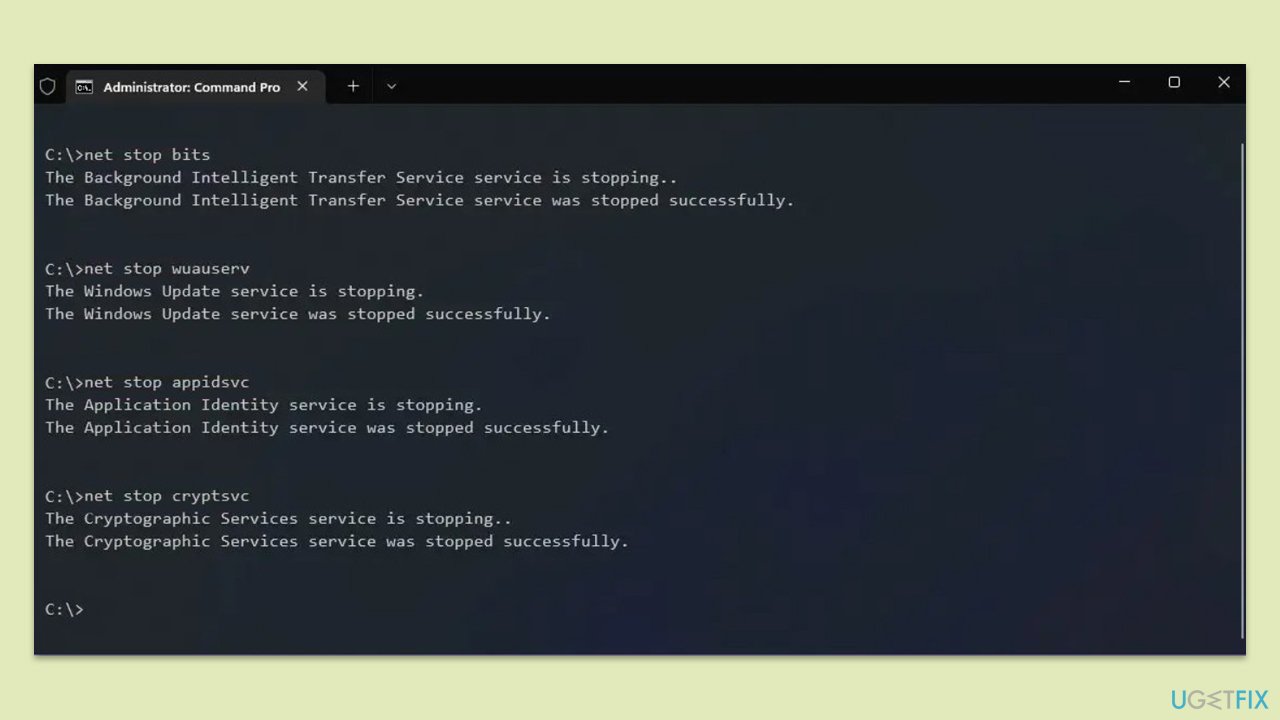
- Stop the Windows Update services by typing the following commands and pressing Enter after each:
net stop wuauserv
net stop cryptSvc
net stop bits
net stop msiserver - Delete the qmgr*.dat files by typing the following:
del "%ALLUSERSPROFILE%\Application Data\Microsoft\Network\Downloader\qmgr*.dat - Reset the network list by using these commands:
cd /d %windir%\system32
netsh winsock reset - Rename the SoftwareDistribution and Catroot2 folders with the following commands:
ren C:\Windows\SoftwareDistribution SoftwareDistribution.old
ren C:\Windows\System32\catroot2 catroot2.old - Restart the services you stopped by typing the following commands and pressing Enter after each:
net start wuauserv
net start cryptSvc
net start bits
net start msiserver - Restart your PC.
Fix 5. Uninstall in a Clean Boot state
Performing the uninstallation in a Clean Boot state ensures that no third-party applications interfere with the process.
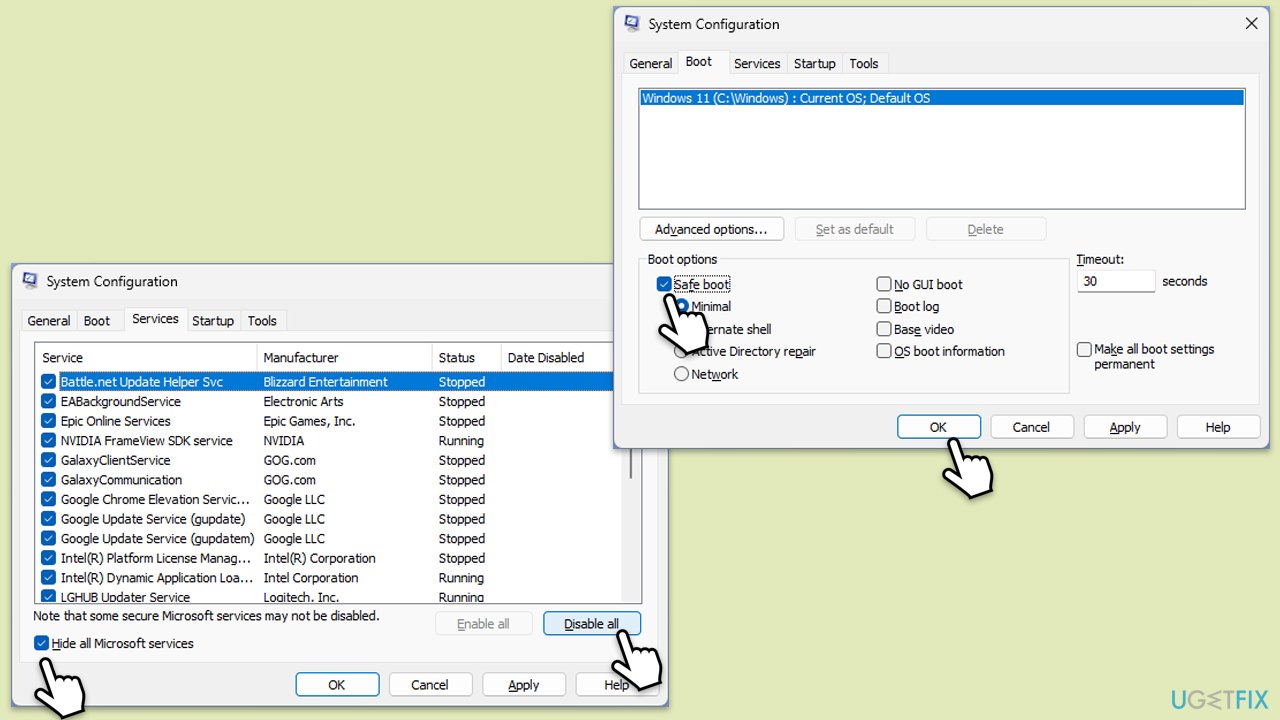
- Type msconfig inWindows Search and press Enter to open the System Configuration window.
- Click on the Services tab and check the Hide all Microsoft Services box.
- Click Disable all to disable non-Microsoft services, then click the Startup tab.
- Open the Task Manager, disable all startup items, and close the Task Manager.
- Go to the Boot tab and mark the Safe boot option.
- Click OK on the System Configuration window and restart your computer.
- Attempt to uninstall the update via Control Panel or Settings.
- Once done, reverse the changes in System Configuration to restart normally.
Fix 6. Repair-install Windows
A repair-install reinstalls Windows while preserving your files, settings, and installed applications, which can resolve deeper issues preventing update uninstallation.
- Visit the official Microsoft website and download Windows 10 installation media (Windows 11 version).
- Double-click the MediaCreationTool.exe file to launch it.
- When UAC shows up, click Yes.
- Accept license terms.
- Select Language and Edition (make sure it matches the one you have currently installed) or simply mark the Use the recommended options for this PC and click Next).
- Select the ISO file and click Next.
- Pick the location for your ISO file and wait till all the needed files are downloaded, then click Finish.
- Go to the location of your ISO file, right-click, and select Mount.
- Run the setup.exe file.
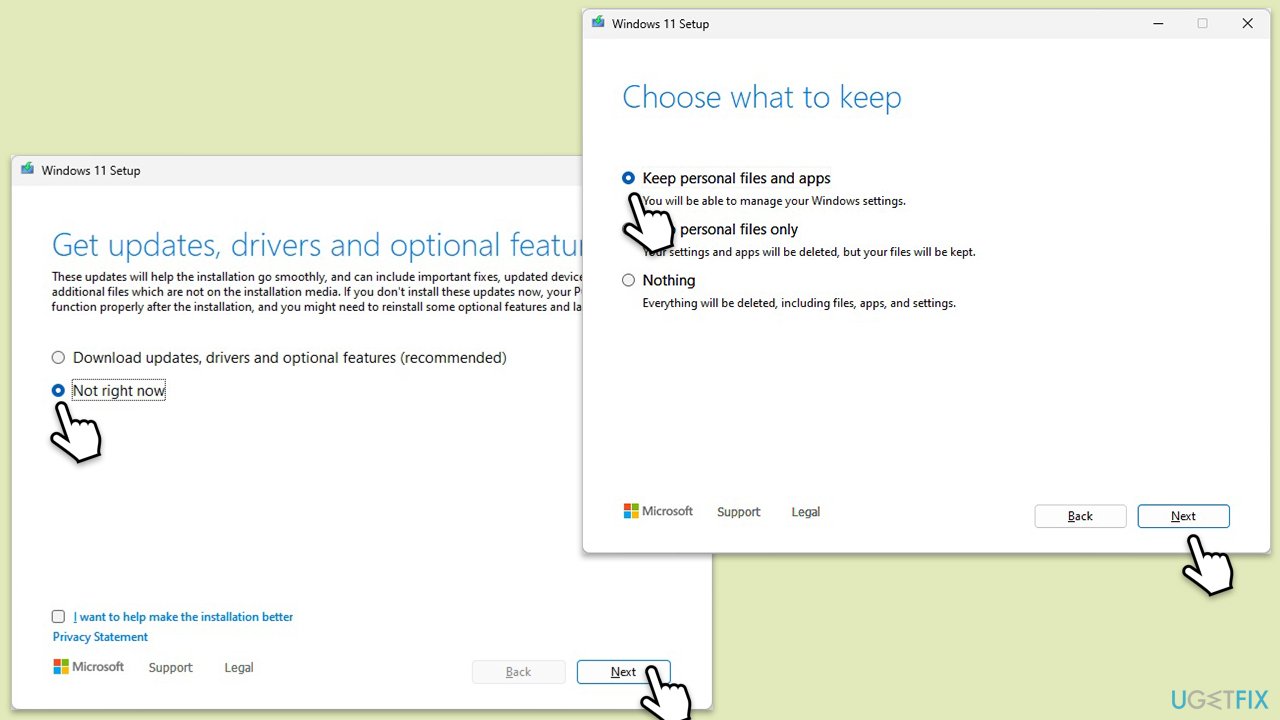
- You will be asked whether you want to update Windows to the latest version - pick Not right now and click Next.
- Accept Terms and Windows will make several checks to ensure everything is fine.
- Click Change what to keep.
- Here, you have several options: Keep your files and apps, Keep files only, or Keep nothing - choose what suits you the best. Click Next.
- Finally, click Install to begin the installation process.
Bottom line
To address the inability to uninstall Windows updates, users can try strategies such as using System Restore, uninstalling via Command Prompt, repairing corrupted files, resetting Windows update components, or performing a Clean Boot. If these methods do not resolve the issue, consider repair-installing Windows.
Frequently asked questions
To uninstall a Windows update in Windows 10, go to Settings > Update & Security > Windows Update, then click on 'View update history' and select 'Uninstall updates' to remove the specific update.
If the uninstall option is greyed out in Windows 11, you may need to boot into Safe Mode and then attempt to uninstall the update from the Settings app again.
Yes, you can use the Windows Recovery Environment or the DISM command in Command Prompt to forcefully remove problematic updates if the standard method fails.




Report an issue
What's wrong with this guide? We review every report and update or remove content.
Report received — thank you. We'll review and fix it.
You need a free account to submit a report.
Be the first to comment