
How to unpause Windows updates when Resume updates does not work

Prefer to fix it yourself? The manual steps follow.
- 6methods
- 2 to 30 minutes
- Intermediate
Applies to Windows 11 and Windows 10 Home, Pro, Enterprise and Education, when Windows Update stays on Updates paused or shows Your organization paused some updates for this device
6 methods in this guide
Hello, I have an issue with one of the Windows features. I have recently used the "Pause updates for 7 days" feature and now I can't unpause updates anymore. Please help me fix it.
To unpause Windows updates, open Settings > Windows Update and select Resume updates, then Check for updates. When that button is missing or the pause comes back, something other than you set it: Group Policy, an Intune update ring or a tweak tool. Find which one holds the pause and clear it there.
Open Settings > Windows Update (Windows 10: Update & Security > Windows Update), select Resume updates, then Check for updates and restart (Fix 1). If the page says your organization paused updates, a policy holds the pause: set the two Group Policy settings back to Not Configured (Fix 2) or ask your IT admin to resume the update ring (Fix 3). If the button does nothing, clear the pause dates in the registry (Fix 4).
| Error | No error code. Windows Update stays on Updates paused, the Resume updates button is missing or greyed out, or the page shows "Your organization paused some updates for this device". |
|---|---|
| Where it appears | Settings > Windows Update on Windows 11, Settings > Update & Security > Windows Update on Windows 10. |
| Main cause | The pause was not set from Settings but by a policy: Group Policy, an Intune or other MDM update ring, or a tool that writes the same policy values. Resume updates in Settings cannot clear a policy. |
| Fastest fix | Resume updates, Check for updates, restart (Fix 1). With the organization message: Group Policy back to Not Configured (Fix 2). |
| Also written as | Can't unpause updates, unpause Windows Update, resume paused updates, Resume updates button missing, updates paused by your organization, wstrzymane (Polish for paused). |
| Longest pause | 35 days from today. Extending sets a new end date within 35 days of the current date; earlier paused time is not added on. |
| Affects | Windows 11 (every version with the Pause updates control) and Windows 10 version 1903 and later. Windows 10 support ended on 14 October 2025. |
| Vendor status | Not a known bug in Microsoft's documentation. Microsoft says a pause ends on its own on the chosen date and can be resumed at any time. |
| Time to fix | 2 minutes from Settings, 10 to 30 minutes when a policy or registry value has to be removed. |
Facts checked on 15 October 2026. Steps written for Windows 11 (25H2 and 26H2) and Windows 10 22H2.
What it means when you can't unpause updates in Windows
Pausing updates delays them until a date you choose. Microsoft's support page says the pause does not turn off automatic updates: while it lasts, Windows does not download or install updates, and the PC does not restart to finish one. Updates that were in progress when you paused are cancelled. On Windows 11 you choose an end date with Pick a date; on Windows 10 you use Pause updates for 7 days or the date list under Advanced options.
Normally the pause is easy to undo: Resume updates removes it, Windows checks for updates at once, and it may download again what it had cancelled. "Can't unpause" means one of three things on your screen:
- The Resume updates button is not there, and the page shows "Your organization paused some updates for this device" or a note that some settings are managed.
- The button is there, you select it, and a moment later the page goes back to Updates paused, or it comes back after a restart.
- The Pause updates control itself is greyed out or gone, so you cannot change the date either.
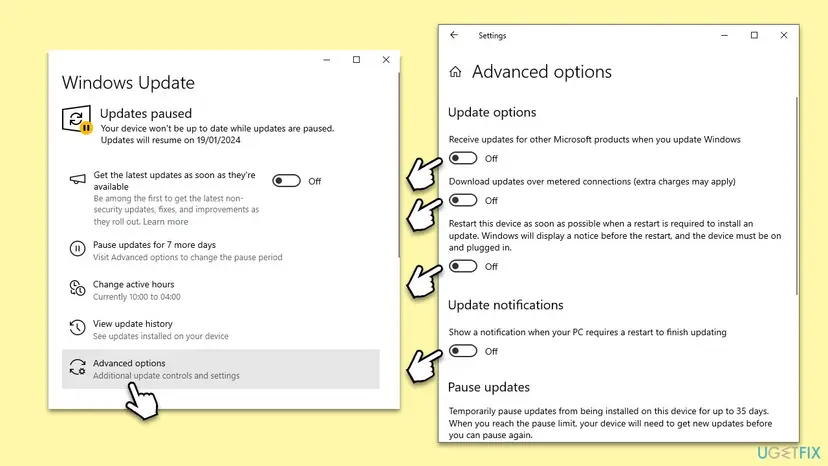
Updates paused. Your device won't be up to date while updates are paused. When a policy holds the pause instead, Settings says: Your organization paused some updates for this device.
Why Resume updates does not work: the causes, most common first
Windows keeps a pause in one of three places, and the Resume updates button only clears the first one. Most cases of a pause that will not go away are a policy pause that Settings cannot touch.
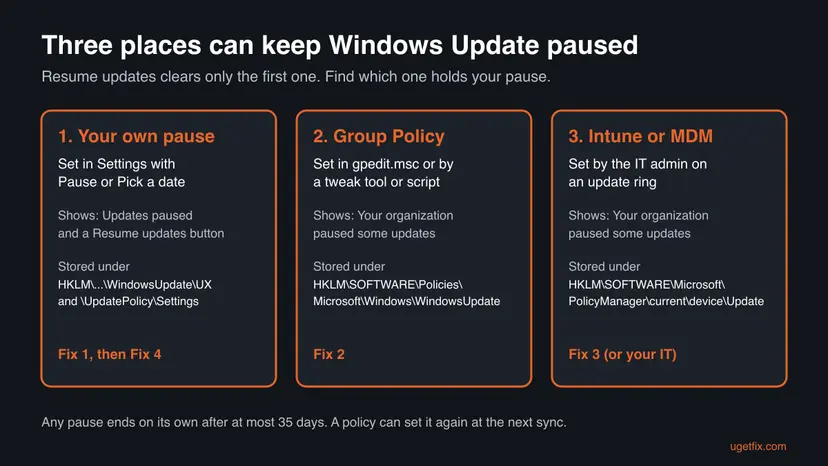
| Cause | How often | What you see | Fix |
|---|---|---|---|
| Your own pause, not yet resumed or with no check for updates afterwards | Most often | Updates paused and a Resume updates button | Fix 1 |
| A Group Policy pause, or a tool or script that wrote the same policy values | Often on Pro PCs and PCs tuned with tweak tools | The organization message, no working Resume button | Fix 2 |
| An Intune or other MDM update ring paused by an IT admin, or its values left behind after the admin resumed it | Work and school PCs | The organization message, the pause returns after you remove it | Fix 3 |
| Pause dates left in the Settings registry values after Resume | Less often | Resume updates does nothing or the pause returns after a restart | Fix 4 |
| The update services or system files are damaged | Rarely | Resume works, but Check for updates fails or hangs | Fix 5 and Fix 6 |
An IT blog that manages Windows updates with Intune found the third case on its own devices: after the admin resumed the paused update ring, the value PauseQualityUpdatesStartTime_ProviderSet stayed on some PCs, and those PCs stayed paused.
How to unpause Windows updates in Windows 11 and Windows 10
Fix 1 takes two minutes and is all most readers need. Fixes 2 and 3 are for a pause that a policy set, which is the usual reason the button is missing. Fix 4 clears what Settings left behind. Fixes 5 and 6 repair Windows Update itself when the pause is gone but updates still do not come.
| What you see or have | Start with |
|---|---|
| Updates paused and a Resume updates button | Fix 1 |
| "Your organization paused some updates for this device" on your own PC with Windows Pro | Fix 2 |
| The organization message on Windows Home, after using a tweak tool or a script that pauses updates for years | Fix 2, part B |
| A work or school PC, or the pause comes back after you removed it | Fix 3 |
| You select Resume updates and nothing changes, or you want to unpause from the command line | Fix 4 |
| The pause is gone, but Check for updates fails or hangs | Fix 5, then Fix 6 |
Fix 1. Resume updates in Settings, check for updates and restart
2 minutesNo riskEveryone first, and above all when the page shows a Resume updates button.
Microsoft says you can resume a pause at any time, and Windows then checks for updates and installs the newest ones. The check for updates afterwards confirms the pause is really gone.
- Windows 11: select Start > Settings > Windows Update. Windows 10: select Start > Settings > Update & Security > Windows Update.
- Select Resume updates at the top of the page. Windows starts checking for updates on its own.
- When the check ends, select Check for updates once more and install what is offered.
- Restart with Start > Power > Restart if an update asks for it.
- Open the Windows Update page again and look at the top line: it should no longer say Updates paused.
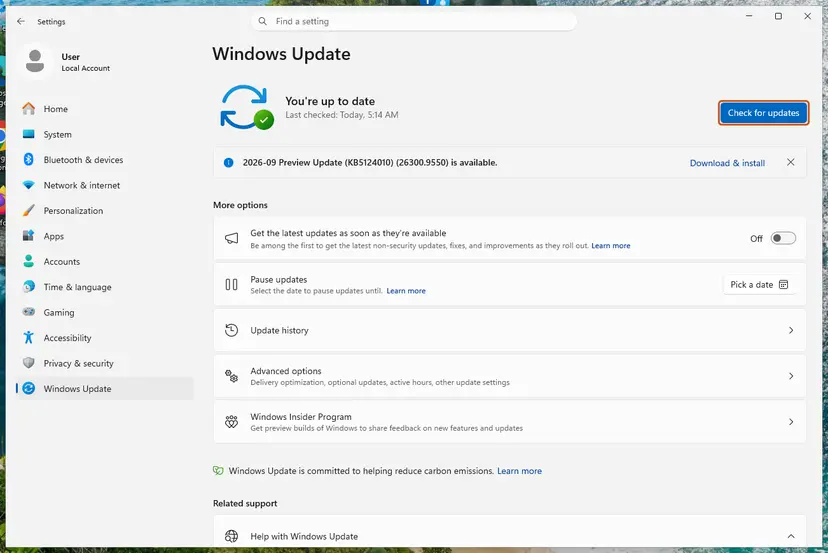
If the page shows "Your organization paused some updates for this device" and no Resume button, Settings cannot lift this pause. Go to Fix 2 on a home PC, or Fix 3 on a work or school PC.
It worked if: The page shows the update status or a list of updates, and the Pause updates control offers a new pause instead of a resume date.
If not: If the button is missing, use Fix 2 or Fix 3. If it is there but the pause returns, go to Fix 4.
Fix 2. Remove a Group Policy pause or one written by a tweak tool
10 minutesRead the warningThe page says your organization paused updates on a PC that no company manages, or you used a tool to pause updates.
Microsoft's policy reference maps the pause to two Group Policy settings stored under the Policies WindowsUpdate key. While they are set, the pause stays in effect for 35 days from the start date or until the date field is cleared, whatever Settings says.
Part A: Windows Pro, Enterprise and Education. The Local Group Policy Editor shows the settings by name. Windows Home has no Group Policy Editor; use Part B.
- Open the Run box. Press Windows key + R.
- Start the editor. Type the command below and select OK. Select Yes if Windows asks for permission.
gpedit.msc
These steps were written for Windows 11 and Windows 10, Pro, Enterprise and Education (the steps are the same). The full page with the other versions and what each result means: Open the Local Group Policy Editor
- In the left pane go to Computer Configuration > Administrative Templates > Windows Components > Windows Update > Manage updates offered from Windows Update.
- Double-click Select when Quality Updates are received, select Not Configured and OK. This removes the setting Pause Quality Updates starting.
- Double-click Select when Preview Builds and Feature Updates are received, select Not Configured and OK. This removes Pause Preview Builds or Feature Updates starting.
- Go to Windows Update > Manage end user experience and set Remove access to "Pause updates" feature to Not Configured. It is the setting that greys out the pause control.
- Open Terminal as administrator, run
gpupdate /force, then restart the PC and open Windows Update.
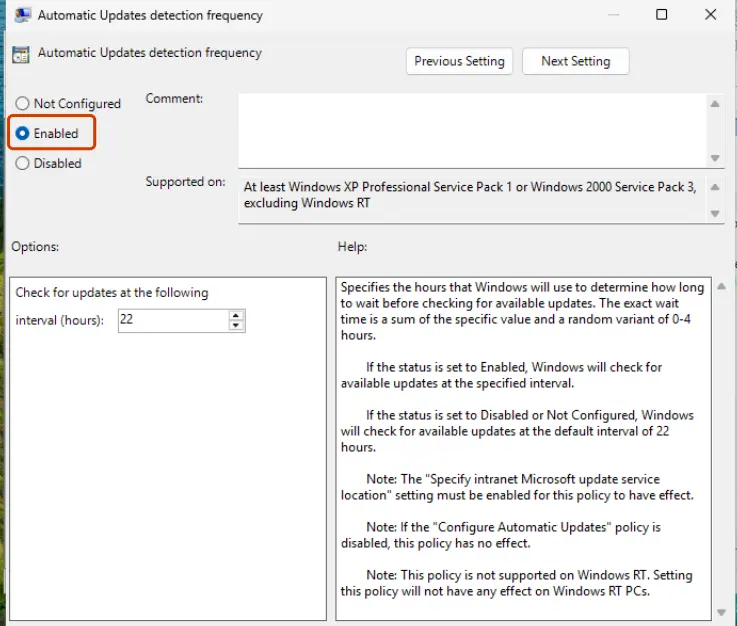
Deleting the wrong value in the registry can change other update settings. Export the key first so you can import it back: Back up the registry before editing it
Part B: Windows Home, or a pause set by a tool or script. Such tools write the policy values straight into the registry. Look at them first:
Terminal (Admin)
reg query "HKLM\SOFTWARE\Policies\Microsoft\Windows\WindowsUpdate"- In the output, note every value whose name starts with Pause, for example PauseDeferrals, and the value SetDisablePauseUXAccess.
- Press Win + R, type
regeditand select OK. PasteHKEY_LOCAL_MACHINE\SOFTWARE\Policies\Microsoft\Windows\WindowsUpdateinto the address bar and press Enter. - Export the key with File > Export before you change it.
- Right-click each value you noted and select Delete. Leave the other values, such as those of a WSUS server your company set, in place.
- Restart the PC and open Settings > Windows Update.
It worked if: The organization message is gone, the page offers Check for updates, and the pause control works again.
If not: If the message stays or returns within hours, the PC is managed by an MDM such as Intune: go to Fix 3.
Fix 3. Resume an Intune update ring or clear its leftover pause values
15 minutesRead the warningA work or school PC, or a pause that comes back after you removed it in Fix 2.
An update ring pause from Intune is stored under PolicyManager current device Update, which Settings and Group Policy do not touch. The IT blog that found the problem saw resumed rings leave _ProviderSet values behind, which keep the PC paused.
If your employer or school manages the PC, the admin paused the update ring on purpose, often to hold back a bad update. Ask them to resume the ring. If you delete the values while the ring is still paused, the next policy sync writes them back.
These values belong to the device management. Export the Update key before you change anything, so you or your IT admin can restore it: Back up the registry before editing it
Terminal (Admin): see what is set
reg query "HKLM\SOFTWARE\Microsoft\PolicyManager\current\device\Update"- In the output, look for PauseQualityUpdates and PauseFeatureUpdates with the value 1, and for any value that starts with PauseQualityUpdatesStartTime or PauseFeatureUpdatesStartTime.
- Open
regedit, go toHKEY_LOCAL_MACHINE\SOFTWARE\Microsoft\PolicyManager\current\device\Updateand export the key with File > Export. - Delete these values if they exist: PauseQualityUpdatesStartTime, PauseFeatureUpdatesStartTime, PauseQualityUpdatesStartTime_ProviderSet, PauseFeatureUpdatesStartTime_ProviderSet, PauseQualityUpdates_WinningProvider and PauseFeatureUpdates_WinningProvider.
- Double-click PauseQualityUpdates and PauseFeatureUpdates and set each Value data to
0. - Restart the PC, open Settings > Windows Update and select Check for updates.
Admins who manage many PCs can run the same removal as an Intune remediation script, which the IT blog in the sources publishes. Readers of that blog report that the values came back the same day when the ring stayed paused in Intune, so resuming the ring comes first.
It worked if: Check for updates runs, and the values you deleted are still absent after a day.
If not: If the values return, the ring is still paused in Intune; only the IT admin can lift it. On your own PC, go to Fix 4.
Fix 4. Clear the pause dates that Settings left in the registry
10 minutesRead the warningYou select Resume updates and nothing changes, the pause returns after a restart, or you want to unpause from the command line.
The Settings page keeps the start and end of your pause in two registry keys. When Resume fails to clear them, Windows still reads an end date in the future and keeps the pause.
Export HKEY_LOCAL_MACHINE\SOFTWARE\Microsoft\WindowsUpdate\UX\Settings and HKEY_LOCAL_MACHINE\SOFTWARE\Microsoft\WindowsUpdate\UpdatePolicy\Settings before you change them, so you can import them back if Windows Update behaves differently afterwards: Back up the registry before editing it

This is also the answer to unpause Windows Update from the command line: Windows has no documented command that resumes a pause, so the commands below delete the stored pause dates. Run them in Terminal or Command Prompt as administrator. A value that does not exist gives an error you can ignore.
Terminal (Admin)
reg delete "HKLM\SOFTWARE\Microsoft\WindowsUpdate\UX\Settings" /v PauseFeatureUpdatesStartTime /f
reg delete "HKLM\SOFTWARE\Microsoft\WindowsUpdate\UX\Settings" /v PauseFeatureUpdatesEndTime /f
reg delete "HKLM\SOFTWARE\Microsoft\WindowsUpdate\UX\Settings" /v PauseQualityUpdatesStartTime /f
reg delete "HKLM\SOFTWARE\Microsoft\WindowsUpdate\UX\Settings" /v PauseQualityUpdatesEndTime /f
reg delete "HKLM\SOFTWARE\Microsoft\WindowsUpdate\UX\Settings" /v PauseUpdatesExpiryTime /f- If the page still says Updates paused after the commands, open
regeditand go toHKEY_LOCAL_MACHINE\SOFTWARE\Microsoft\WindowsUpdate\UpdatePolicy\Settings. - Double-click PausedFeatureDate, clear the Value data field and select OK.
- Do the same with PausedQualityDate.
- Restart the PC, open Settings > Windows Update and select Check for updates.
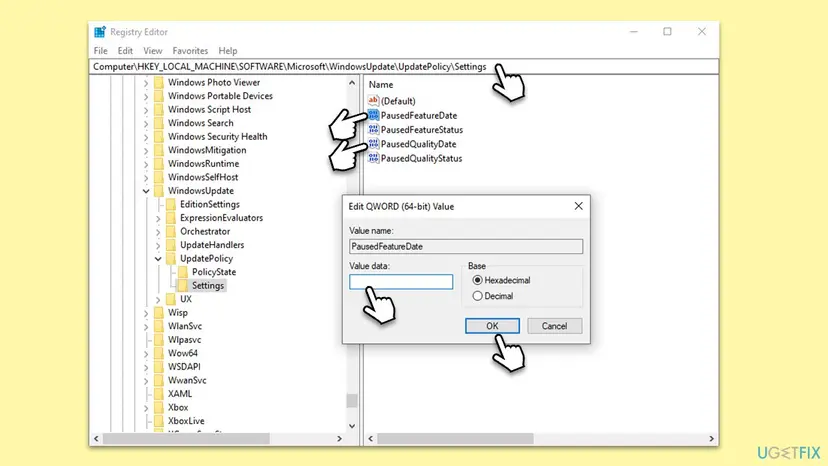
Microsoft does not document these UX and UpdatePolicy value names. They come from the earlier version of this guide and its Registry Editor screenshot, so treat them as Windows internals that a future update may rename or move.
It worked if: After the restart, Windows Update shows Check for updates and no resume date.
If not: If the pause is gone but no updates arrive, go to Fix 5.
Fix 5. Reset the Windows Update services and cache
15 minutesLow riskThe pause is gone, but Check for updates fails, hangs or finds nothing for weeks.
Updates cancelled by the pause can leave half downloaded files in the update cache. Microsoft notes that after a resume Windows may download them again, and a clean cache lets it start from scratch.
The procedure stops the update services, renames the cache folders SoftwareDistribution and catroot2, and starts the services again. Step by step: Reset Windows Update components
- Open Command Prompt as administrator. Type cmd in the search box, right-click Command Prompt and select Run as administrator. Select Yes when Windows asks for permission.
- Stop the update services. Type the commands below and press Enter after each one. If Windows says that other services depend on Cryptographic Services, it stops them too. A message that a service is not started is fine.
net stop wuauserv net stop bits net stop cryptsvc - Delete the download queue files. This clears the list of downloads that the Background Intelligent Transfer Service keeps. If Windows says it cannot find the files, continue.
del "%ALLUSERSPROFILE%\Application Data\Microsoft\Network\Downloader\qmgr*.dat" - Rename the update cache folders. Renaming keeps a copy in case you need it; Windows creates new, empty folders when the services start again. If you get Access is denied, a service is still running: repeat the previous step.
ren %systemroot%\SoftwareDistribution SoftwareDistribution.old ren %systemroot%\System32\catroot2 catroot2.old - Start the services again. Type the commands below and press Enter after each one. The requested service has already been started is fine: Windows started it on its own.
net start cryptsvc net start bits net start wuauserv - Restart and check for updates. Restart the PC. Then select Start > Settings > Windows Update > Check for updates. The first check can take longer than usual because everything is downloaded again.
These steps were written for Windows 11 and Windows 10 (the steps are the same). The full page with the other versions and what each result means: Reset Windows Update components
It worked if: Check for updates runs to the end and offers the current cumulative update.
If not: If the check still fails, note the error code it shows and go to Fix 6.
Fix 6. Repair system files with SFC and DISM
20 to 40 minutesLow riskWindows Update fails with an error code after the pause is gone, or Settings closes when you open it.
A damaged Settings app or update component can make the Resume button fail silently. SFC and DISM replace damaged system files from a clean copy.
Run the two tools in an elevated terminal and restart: Run DISM and SFC to repair Windows system files
- Open an elevated command window. Right-click Start and select Terminal (Admin), or type cmd in the search box, right-click Command Prompt and select Run as administrator. Select Yes when Windows asks for permission.
- Run DISM first. Type the command below and press Enter. DISM downloads clean copies of damaged components from Windows Update, so it can take several minutes. Wait until it says The operation completed successfully.
DISM.exe /Online /Cleanup-Image /RestoreHealth - Run System File Checker. In the same window, type the command below and press Enter. Do not close the window until the verification reaches 100%.
sfc /scannow - Read the result and restart. Compare the last message with the table below this guide, then restart the PC so that repaired files are loaded.
These steps were written for Windows 11 24H2 and 25H2. The full page with the other versions and what each result means: Run DISM and SFC to repair Windows system files
It worked if: SFC reports that it found no integrity violations or repaired them, and Windows Update checks without an error.
If not: Search the error code Windows Update now shows; our guides cover most codes, such as Windows update error 0x80070302.
If updates are still paused: what to check and what to send
Each kind of pause leaves its own trace. Run these three read only commands in Terminal (Admin) and keep the output; it tells you, or your IT admin, which place still holds the pause.
| Command or place | What to look for | Meaning |
|---|---|---|
reg query "HKLM\SOFTWARE\Policies\Microsoft\Windows\WindowsUpdate" | Values starting with Pause, or SetDisablePauseUXAccess | A Group Policy or a tool still sets the pause (Fix 2) |
reg query "HKLM\SOFTWARE\Microsoft\PolicyManager\current\device\Update" | PauseQualityUpdates or PauseFeatureUpdates set to 1, or StartTime values | An MDM such as Intune holds the pause (Fix 3) |
reg query "HKLM\SOFTWARE\Microsoft\WindowsUpdate\UX\Settings" | PauseUpdatesExpiryTime or End Time values with a future date | The Settings pause was not cleared (Fix 4) |
If none of the keys holds a pause and updates still do not install, the problem is no longer the pause. Run Get-WindowsUpdateLog in PowerShell (Admin); it writes WindowsUpdate.log to your desktop. Send that file and the error code from Update history to Microsoft Support or your IT admin.
How to pause updates safely next time
- Pause from Settings only. Windows 11 lets you pick an end date up to 35 days ahead, and the pause ends on its own on that date.
- Extend a pause from the same calendar. Microsoft says the new end date can be up to 35 days from today, and earlier paused time is not added on.
- Avoid tools and scripts that promise to pause updates for years. They write policy values that Resume updates cannot remove.
- On a work or school PC, do not change update policies yourself. The admin's next sync writes them back.
- On Windows 10, remember that free updates from Windows Update ended on 14 October 2025, so a resumed PC gets only what its support status allows. Moving to Windows 11 keeps security updates coming.
When the pause is over, Windows checks for, downloads and installs the newest updates by itself. A long pause therefore means one larger download and a restart soon after it ends; plan that time instead of extending the pause again and again.
Frequently asked questions
How do I unpause Windows updates?
Open Settings > Windows Update on Windows 11, or Settings > Update & Security > Windows Update on Windows 10, and select Resume updates. Windows checks for updates right away. Select Check for updates once more and restart if asked. If there is no Resume button and the page says your organization paused some updates, a policy holds the pause. Settings cannot remove it: set the Group Policy pause settings to Not Configured, or ask the IT admin who manages the PC.
How do I unpause updates on Windows 11?
Select Start > Settings > Windows Update and select Resume updates at the top of the page. Windows 11 then checks for updates and installs the latest ones; restart when it asks. If you paused with Pick a date, the pause would also end on its own on that date. When the button is missing or the pause returns after a restart, follow Fix 2 for a policy pause or Fix 4 for pause dates left in the registry.
How do I unpause updates on Windows 10?
Select Start > Settings > Update & Security > Windows Update and select Resume updates. If you used Pause updates for 7 days, the page shows the date updates resume, and the button ends the pause early. Windows 10 support ended on 14 October 2025, so after a resume Windows Update no longer brings free security fixes to a Windows 10 PC. Microsoft recommends moving to Windows 11. The fixes for a stuck pause are the same as on Windows 11.
Can I unpause Windows Update from the command line?
Windows has no documented command that resumes a pause. What works is deleting the stored pause dates with reg delete in an elevated terminal, as Fix 4 shows for the UX Settings key, and the policy values with Fix 2 or Fix 3 when a policy set the pause. Restart afterwards and select Check for updates. Back up each key first, because these are Windows internals and Microsoft does not document the value names.
What does "Your organization paused some updates for this device" mean?
It means the pause comes from a policy, not from the Pause button. On a work or school PC an IT admin paused an update ring in Intune or another management tool, often to hold back a faulty update. On a home PC the usual source is a Group Policy setting or a tweak tool that wrote the same policy values. Settings cannot lift such a pause; remove the policy (Fix 2) or ask the admin to resume the ring (Fix 3).
Why is the Resume updates button missing?
The button belongs to a pause you set in Settings. When a Group Policy or an MDM policy sets the pause, Settings shows the organization message, and users report that the button is then missing or has no effect. The policy setting Remove access to "Pause updates" feature also greys out the pause control. Check the Policies WindowsUpdate key and the PolicyManager Update key with reg query, as the table under Still paused shows, to see which one is set.
How long can Windows updates be paused?
Up to 35 days from today. Microsoft's support page says the calendar lets you choose only dates within that period, and an extended pause also ends at most 35 days from the current date, without the earlier paused days added on. Policy pauses follow the same limit: Microsoft's policy reference says a paused quality or feature update stays paused for 35 days from the start date or until the field is cleared. When the pause ends, Windows must install the new updates before you can pause again.
Why can't I pause Windows updates?
When the Pause updates control is greyed out, the policy Remove access to "Pause updates" feature is usually set, through Group Policy, a management tool or a tweak tool, and it is stored as SetDisablePauseUXAccess under the Policies WindowsUpdate key. Another reason is the pause limit: after a full 35 day pause, Windows has to install the pending updates before it allows a new pause. Fix 2 shows how to set the policy back to Not Configured.
Is it safe to delete the pause values in the registry?
It is safe when you back up the key first and delete only the values this guide names. They hold dates and on or off flags for the pause, nothing else. Export each key with File > Export in Registry Editor so you can import it back. Do not delete whole keys, and on a company PC let the IT team decide, because the next policy sync writes the values back and your change may break their reporting.
What does wstrzymane mean on the Windows Update page?
Wstrzymane is Polish for paused, as in aktualizacje wstrzymane, updates paused. The steps on this page are the same on a Polish Windows: the Resume button sits at the top of the Windows Update page in Settings, in the same place as in English. If it is missing, the fixes for a policy pause in Fix 2 and Fix 3 apply to every language of Windows 11 and Windows 10.
Sources
- Microsoft Support: Pause updates in Windows (Windows 11 and Windows 10) (support.microsoft.com)
- Microsoft Learn: Update Policy CSP (PauseQualityUpdatesStartTime, PauseFeatureUpdatesStartTime, SetDisablePauseUXAccess and their Group Policy mapping) (learn.microsoft.com)
- Call4Cloud: Windows updates paused, resume not working (WUfB and Intune pause values) (call4cloud.nl)
Did this fix work?
One click, no account. It tells the next reader which guides are worth their time.
Questions and experiences: unpause Windows updates when Resume updates does not work
Still broken, or found a fix we did not cover? Ask here: members and our editors answer. Reading is open; writing needs a free account.
…