How to fix
Can’t update Roblox
on Windows
Resolve Roblox update issues on Windows 10/11 effortlessly. Get expert-tested solutions and fix your game in minutes for uninterrupted fun.

![[Fix] Can’t update Roblox in Windows](https://ugetfix.com/wp-content/uploads/articles/askit/fix-cant-update-roblox-in-windows-copy_en-768x432.jpg)
What causes [Fix] Can’t update Roblox in Windows?
- Insufficient permissions
- Internet connection problems
- Bugs within the Roblox app
- Conflicts with other applications
Repairs Windows system files, removes malware, and restores a clean OS state — without reinstalling.
When I click Play to open Roblox, the update message pops up and kind of hangs for a while, only later to crash and never load the game. Are any possible fixes available for this?
Roblox is a massively popular video game, enjoyed by children and adults alike. Participants can build, share, and engage in an endless array of experiences crafted by the community. Despite its widespread popularity, Roblox is not immune to technical problems. Today, we will look into an issue where users can't update Roblox, as it gets stuck and/or crashes during this process.
One of the most common reasons why Roblox is not updating on Windows is insufficient permissions - the game requires certain rights to modify files and settings during the update process. Another common culprit is internet connection problems, as it requires a stable connection for transferring data. Additionally, bugs within the Roblox app itself may interfere with the update mechanism, preventing the application from refreshing its codebase effectively.
To address these issues, ensuring that Roblox has the necessary permissions to operate on your system is a fundamental step. You should check your internet connection for stability and speed, as these factors significantly impact the update process. Occasionally, troubleshooting the app for potential bugs or conflicts can often resolve the issue.
You can follow the instructions below if you can't update Roblox - even with limited technical knowledge, you can always follow the step-by-step guide. In cases where these interventions do not resolve the updating issue, turning to a PC repair tool [d1] can be an alternative route to resolution.
Fix 1. Run the app as an administrator
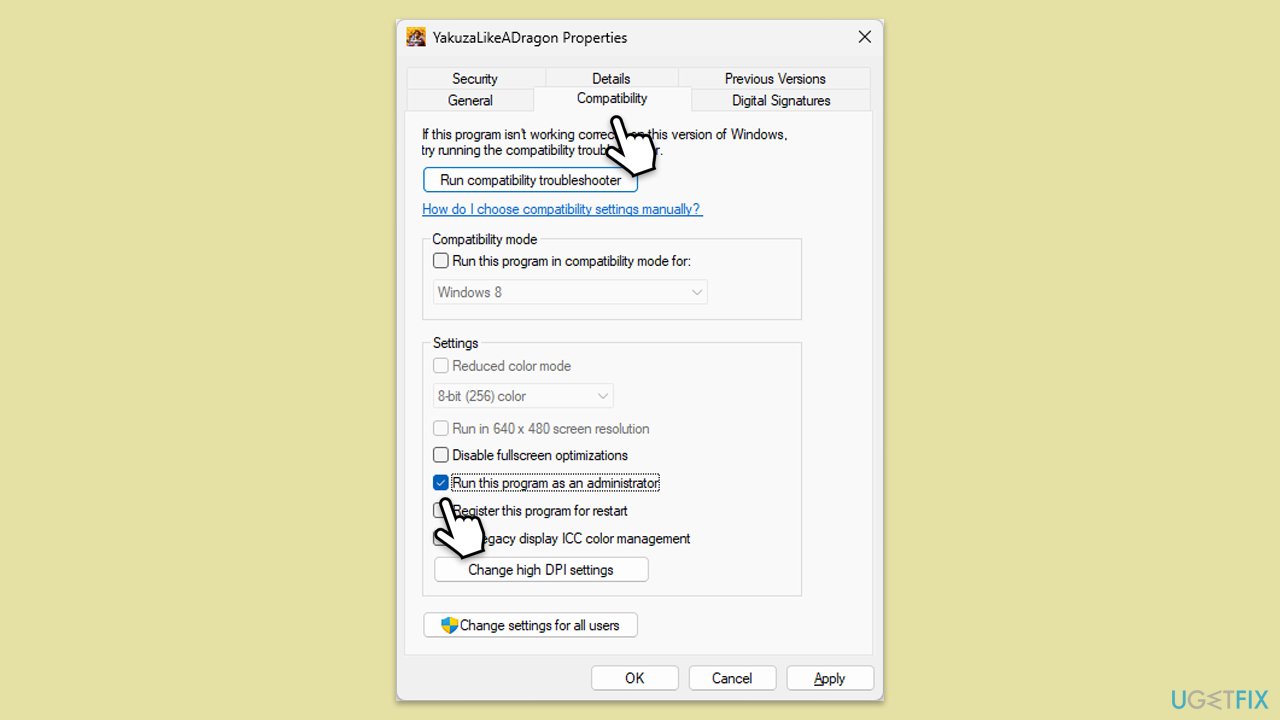
Running Roblox as an administrator grants the application additional permissions that may be necessary for updates or general functionality. This can solve issues related to insufficient permissions which prevent the app from updating or operating correctly.
- Right-click on the Roblox icon.
- Select Properties.
- Go to the Compatibility tab.
- Check the box next to Run this program as an administrator.
- Click Apply, then OK.
- Try updating or launching Roblox again.
Fix 2. Check Roblox server status
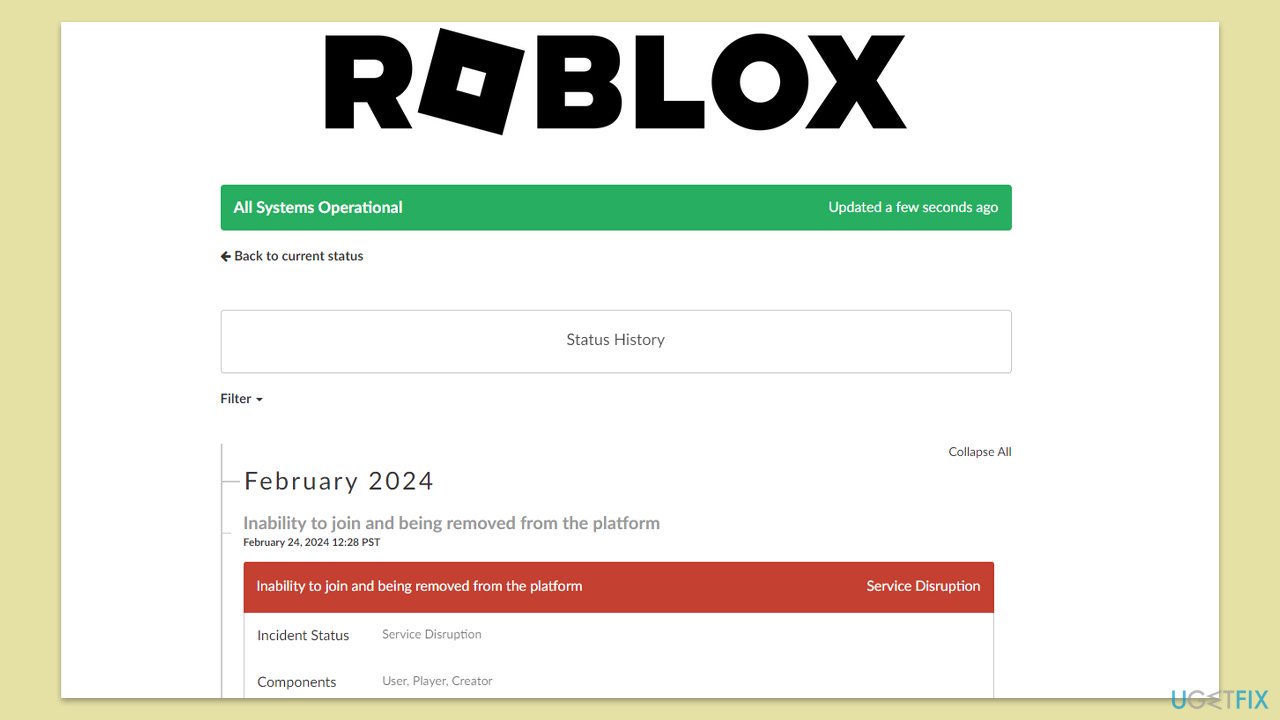
Sometimes the issue might not be on your end but with Roblox's servers. Checking the server status can help determine if the update problems are due to server downtime or maintenance.
- Visit any online server status-checking website or Roblox's official social media channels.
- Look for any updates or announcements regarding server downtime.
Fix 3. Run network and Windows Store apps troubleshooter
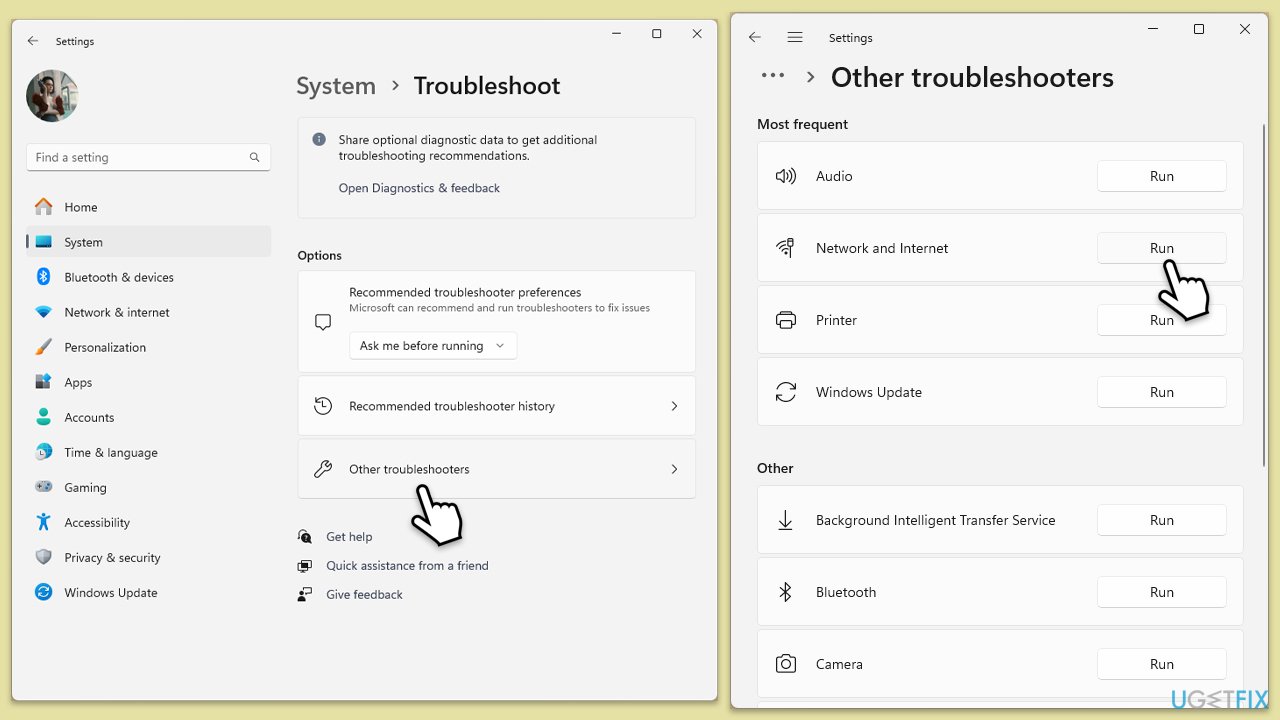
Windows includes built-in troubleshooters that can diagnose and resolve various issues, including those affecting network connections and Microsoft Store apps, which might impact Roblox updates.
- Type Troubleshoot in Windows search and press Enter.
- Go to Additional troubleshooters/Other troubleshooters.
- Find Windows Store Apps from the list and click Run the troubleshooter/Run.
- The troubleshooter will automatically scan your system for potential problems and display any issues.
- Follow the on-screen instructions to apply recommendations.
- Repeat this process Internet connections/Network and Internet troubleshooter.
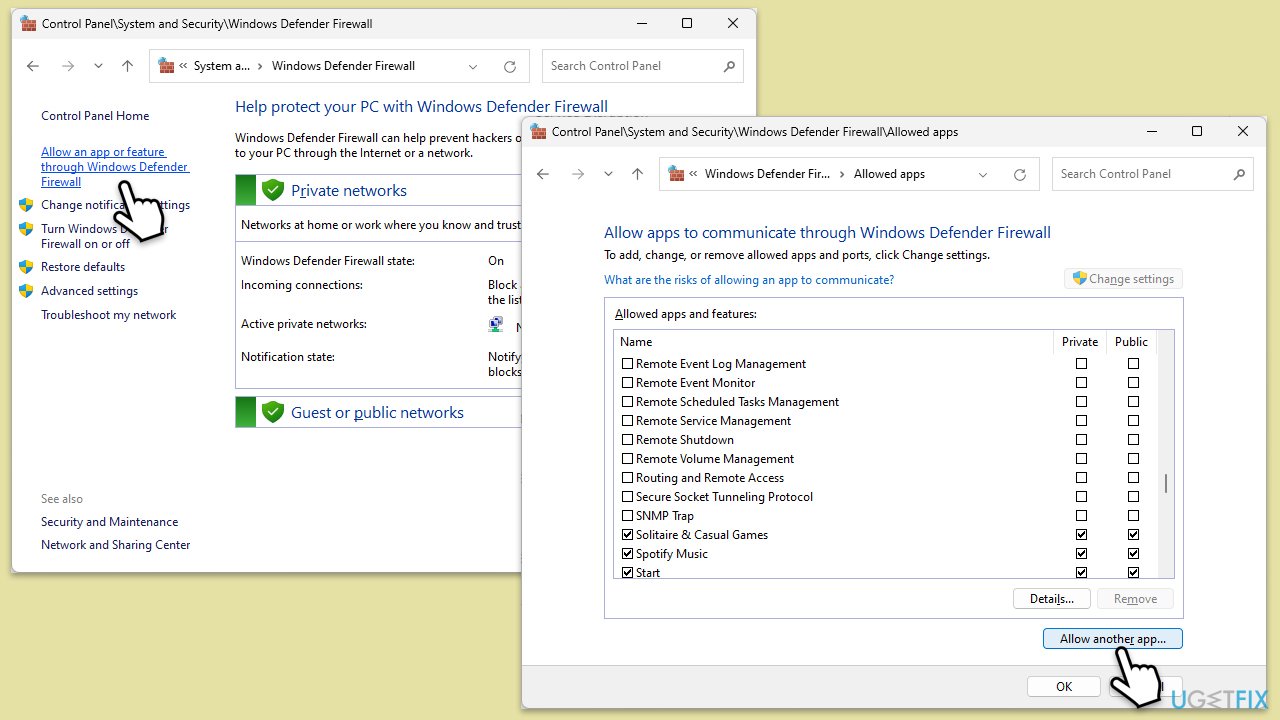
Fix 4. Allow Roblox through Firewall
Windows Firewall can block Roblox from accessing the internet, which is necessary for updates. Allowing Roblox through the firewall can resolve these connectivity issues.
- Type Control Panel in Windows search and press Enter.
- Click on System and Security.
- Select Windows Defender Firewall.
- On the left-hand side, click on Allow an app or feature through Windows Defender Firewall.
- Click on Change settings.
- Scroll down the list to find Roblox. If it's not on the list, click on Allow another app, locate Roblox, and add it.
- Ensure both Private and Public checkboxes are ticked for Roblox.
- Click OK to confirm the changes.
Fix 5. Temporarily disable antivirus or try Clean Boot
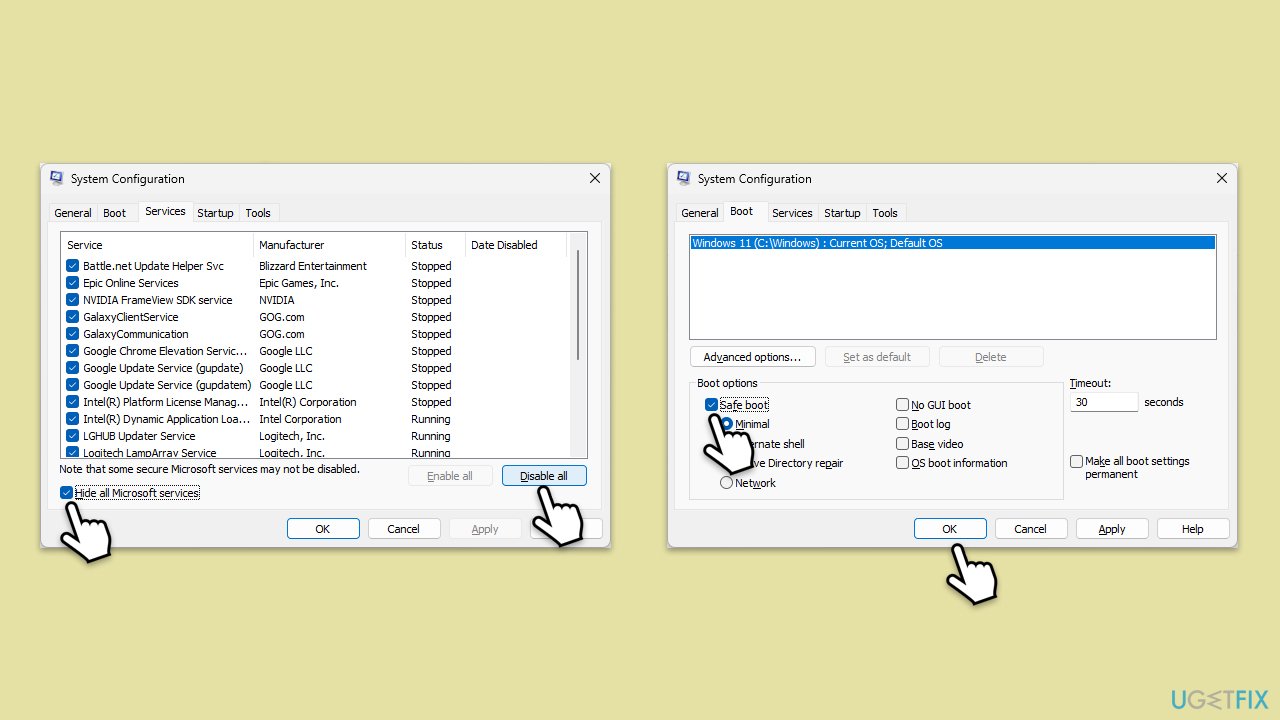
Sometimes, antivirus software can interfere with Roblox's operation or updates. Temporarily disabling the antivirus may help, as can performing a clean boot to start Windows with a minimal set of drivers and startup programs.
- Press Win + R, type msconfig, then press Enter.
- Select the Services tab and tick the Hide all Microsoft services checkbox.
- Pick Disable all.
- Go to the Startup tab and click Open Task Manager.
- Here, right-click on each of the non-Windows entries and select Disable.
- Close down the Task Manager.
- Go to the Boot tab and tick the Safe boot option
- Reboot your system.
Fix 6. Reinstall Roblox
If all else fails, uninstalling and then reinstalling Roblox can resolve persistent issues by replacing potentially corrupted files and ensuring a fresh installation.
- Right-click on Start and pick Apps and Features.
- Scroll down to find Roblox from the list.
- Click Uninstall and then confirm with Uninstall.
- Follow the prompts to remove the app.
- Next, press Win + E on your keyboard to open File Explorer.
- Navigate to the following location (make sure Hidden files are visible):
C:\Users\USERNAME\AppData\Local - Access the Roblox folder, press Ctrl + A to mark everything, and then Shift + Del to delete it all.
- Restart your computer.
- Launch Microsoft Store and install the game again.
Bottom line
To resolve the issue of Roblox not updating, you can run the app as an administrator, check your internet connection for stability, and troubleshoot the app for potential bugs. If these fixes do not work, consider using a PC repair tool as an alternative solution.
Frequently asked questions
Try restarting your computer and then launching Roblox again to initiate the update process. If that doesn't work, check for any pending Windows updates and install them before retrying Roblox.
Ensure your internet connection is stable and consider resetting your network settings in Windows 10 or Windows 11. You can do this by going to Settings > Network & Internet > Status and selecting 'Network reset'.
Yes, you can clear the Roblox cache by deleting the contents of the 'Roblox' folder located in the AppData directory; access it by typing %localappdata% in the Run dialog. After clearing the cache, restart Roblox to see if the update proceeds.




Report an issue
What's wrong with this guide? We review every report and update or remove content.
Report received — thank you. We'll review and fix it.
You need a free account to submit a report.
Be the first to comment