How to fix
Copilot shows blank screen
on Windows
Resolve the blank screen issue with Copilot in Windows 11 effortlessly. Expert-tested solutions ensure your tools are back up and running in minutes.

![[Fix] Copilot shows blank screen in Windows 11](https://ugetfix.com/wp-content/uploads/articles/askit/fix-copilot-shows-blank-screen-in-windows-11-copy_en-768x432.jpg)
What causes [Fix] Copilot shows blank screen in Windows 11?
- Faulty Copilot app installation or cache
- Network connection issues or proxy settings
- Old system files or Windows builds
- Security software interference
- Regional settings or account permissions
Repairs Windows system files, removes malware, and restores a clean OS state — without reinstalling.
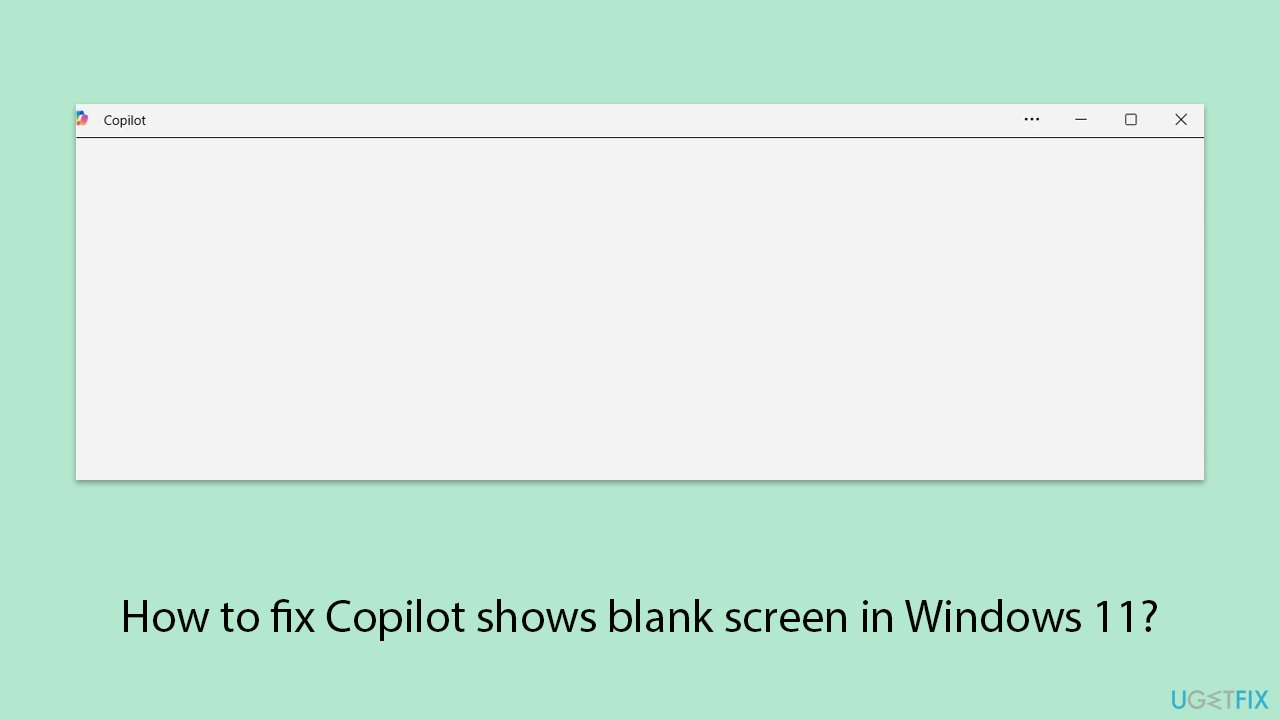
I have been trying to use Copilot on my Windows 11 computer, but when I try to activate it, Copilot shows blank screen and does not open anything. I have also tried restarting my system several times, but the issue persists, not letting me utilize its functionalities.
Copilot blank screen issue in Windows 11 is now a major frustration for users who are trying to use Microsoft's AI helper for productivity or system-specific needs. Recently, users have been opening Copilot to be greeted by a white or black blank screen, rendering the software useless and disrupting workflows that depend on its functionality with Windows 11. The problem has occurred on various Windows 11 builds, including the latest versions like 24H2, indicating a persistent problem with the functionality of the app.
There are a number of causes for the Copilot showing blank screen issue, each with its own solution to restore access. A faulty Copilot app installation or cache may result in a failed load, and resetting or reinstalling the application has a tendency to eliminate such bugs by reviving its inherent elements.
Network connection issues or proxy settings may hinder Copilot from connecting to Microsoft's servers, so maintaining a clean internet connection or restarting network settings may help. Old system files or Windows builds may also not be compliant with Copilot's latest requirements, so updating is required in order to fall back to current standards, and security software interference can be addressed by momentarily switching it off.
Regional settings or account permissions could be to blame in other cases for hindering Copilot's operation, especially if the feature is not fully rolled out in some areas, and modifying these settings or logging out and back in should repair the issue.
The steps below outline numerous solutions to fix Copilot blank screen problem, giving a full solution for getting Copilot working again. As a temporary solution, we strongly recommend [d1], a repair software for PCs that can repair app corruption, connectivity, and system file faults, causing the Copilot to show a blank screen error in Windows 11 automatically.
Fix 1. Refresh Copilot
Stale app data can prevent Copilot from rendering its interface, and refreshing it forces a reload to bring back the expected display.
- Open Copilot - you should see the blank screen.
- Right-click anywhere on the app and select Refresh.
- Copilot should show all the UI elements again.

Fix 2. Update Windows
An outdated Windows build might lack the necessary support for Copilot, and installing the latest updates ensures compatibility with its features.
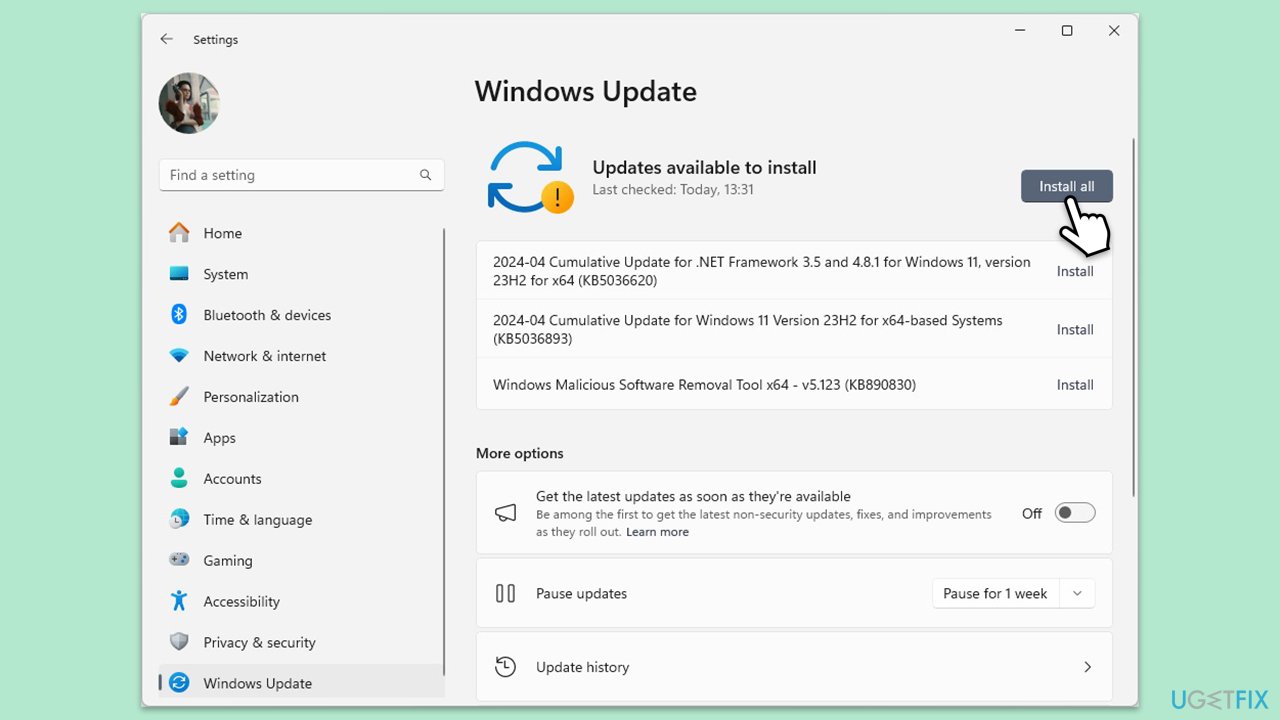
- Type Updates and press Enter.
- In the new window, click Install all (if pending) or Check for updates.
- Wait till all the files are downloaded and installed.
- If optional updates are available, install them as well.
- Restart your device when done.
Fix 3. Check the internet connection
An unstable network might stop Copilot from fetching its content, and switching to a reliable connection can restore its functionality.
Windows 11
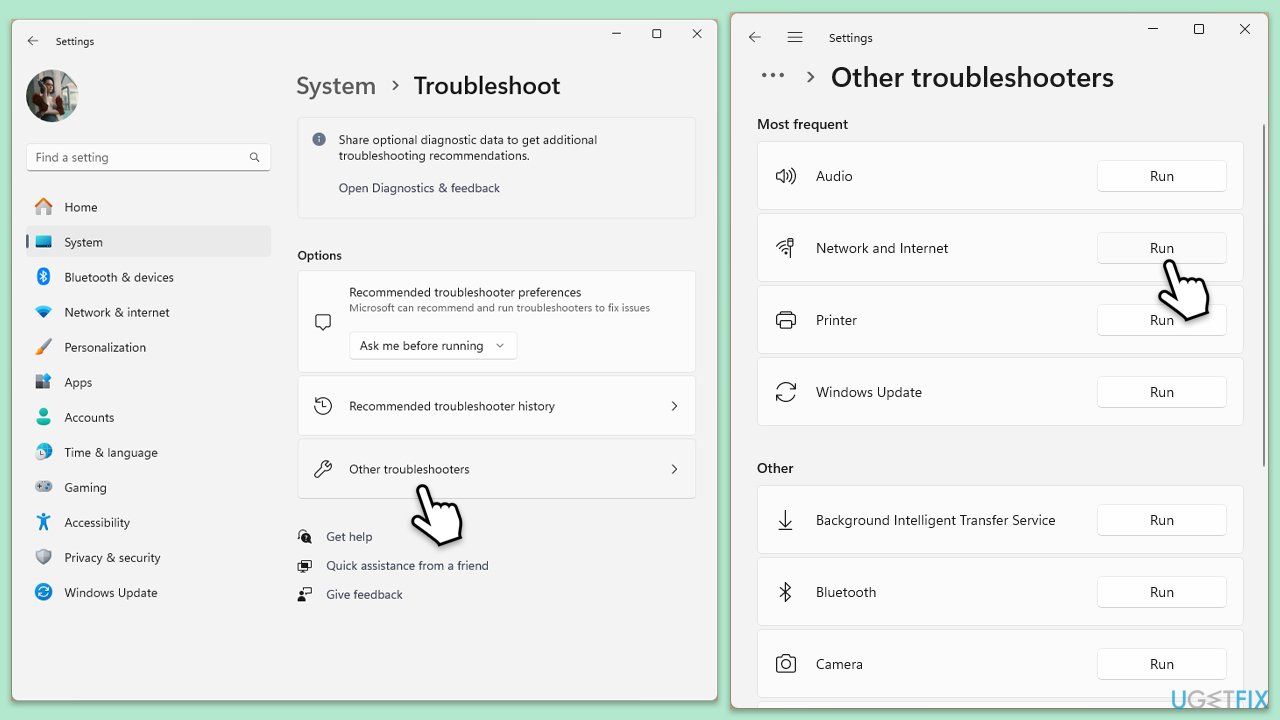
- Type Troubleshoot in Windows search and press Enter.
- Select Other troubleshooters.
- Find Network & Internet troubleshooter from the list and select Run.
- Wait till the process is finished and apply the offered fixes.
- Restart your computer.
Windows 10
- Right-click on Start and pick Settings.
- Go to Network & Internet section.
- On the right side, find the Advanced network settings section.
- Click Network troubleshooter, specify the problem, and wait till the scan is finished.
- When done, apply all the recommendations.
Fix 4. Repair/Reset Copilot
A buildup of corrupted data can prevent Copilot from displaying properly, and resetting the app wipes this clutter for a fresh start.
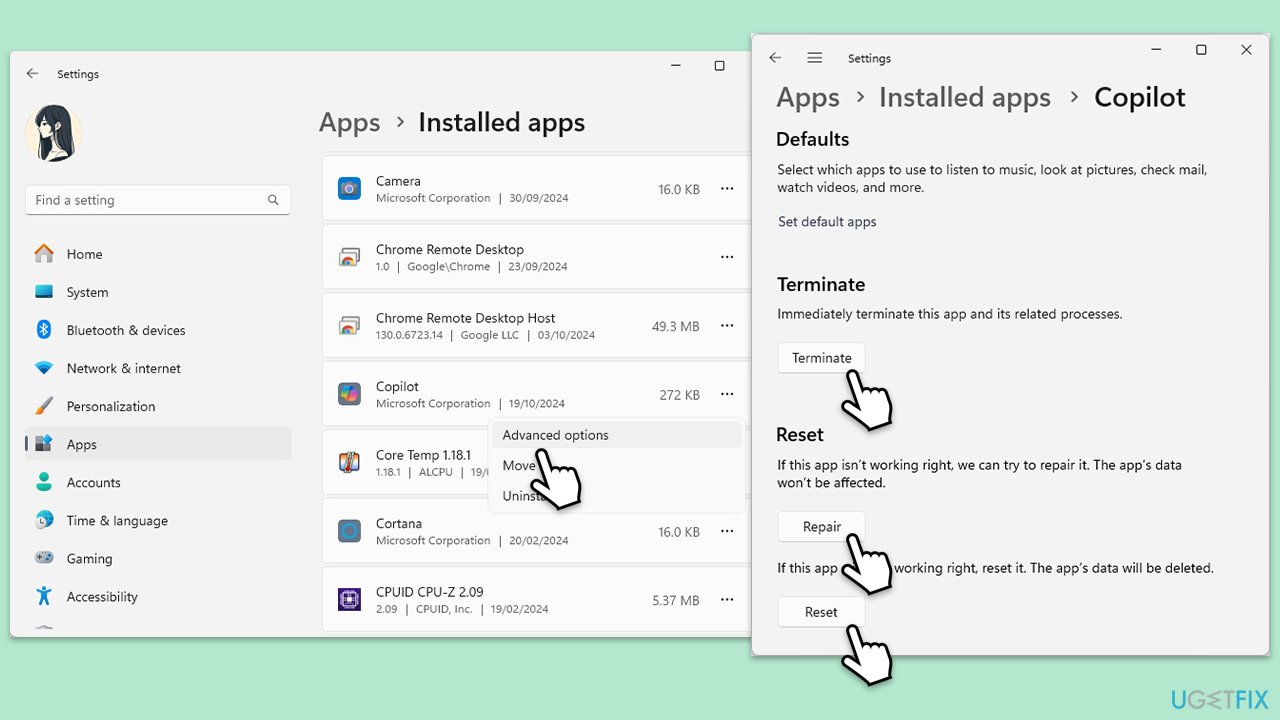
- Right-click on Start and pick Installed apps/Apps & Features.
- Scroll down to find Copilot and click Advanced options.
- Scroll down and select Repair, then wait till the process is finished.
- If that doesn't help, try the Reset option instead.
Fix 5. Reinstall Copilot app
A faulty installation can cause display issues, and a clean reinstall replaces problematic files with a fresh version.
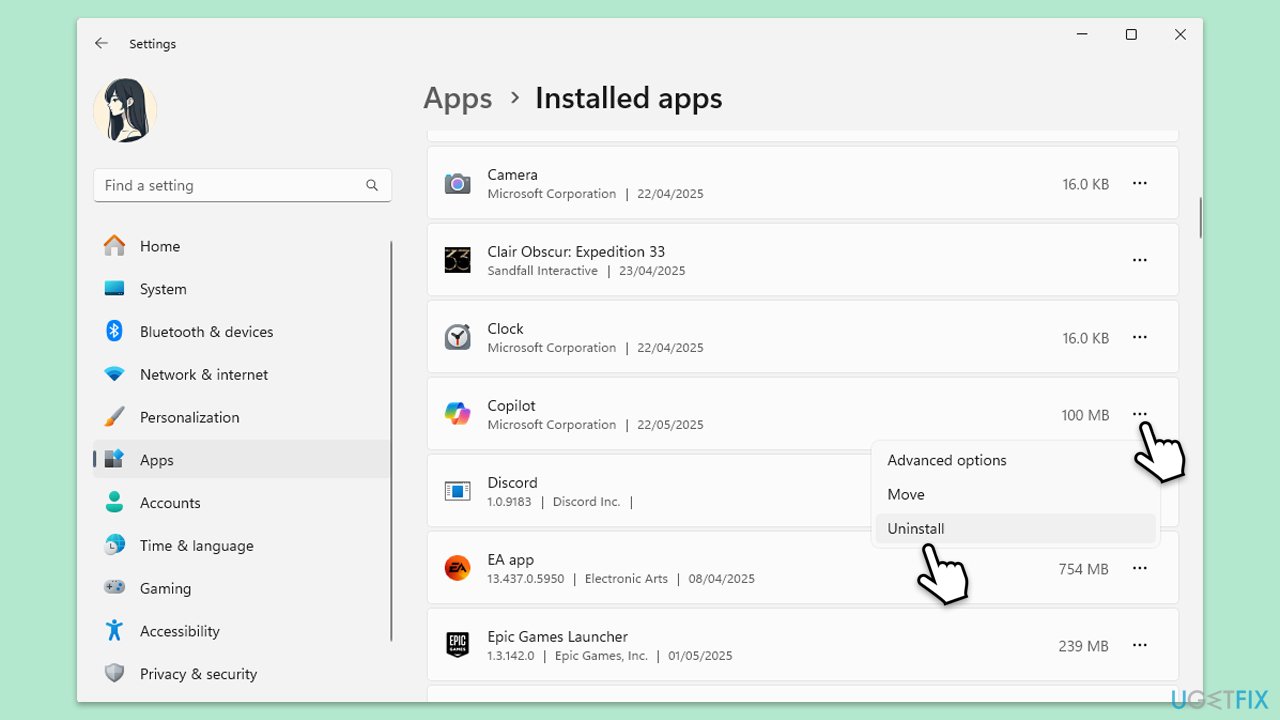
- Right-click on Start and pick Installed apps/Apps & Features.
- Select Copilot/click on three dots, and click Uninstall.
- Confirm any prompts and follow up to get rid of the app.
- Download and install Copilot from the Microsoft Store.
- Check if the issue persists.
Fix 6. Reset network settings
Misconfigured network settings can disrupt Copilot’s ability to connect, and a reset refreshes your system’s internet framework.
- Type cmd in Windows search.
- Right-click on the Command Prompt result and select Run as administrator.
- User Account Control will ask whether you want to allow changes - click Yes.
- Copy and paste each of the following commands, pressing Enter every time:
ipconfig /flushdns
ipconfig /registerdns
ipconfig /release
ipconfig /renew
netsh winsock reset - Reboot your device.

Fix 7. Check region settings
Copilot’s availability can vary by region, and adjusting your system’s location settings might enable the app to display correctly.
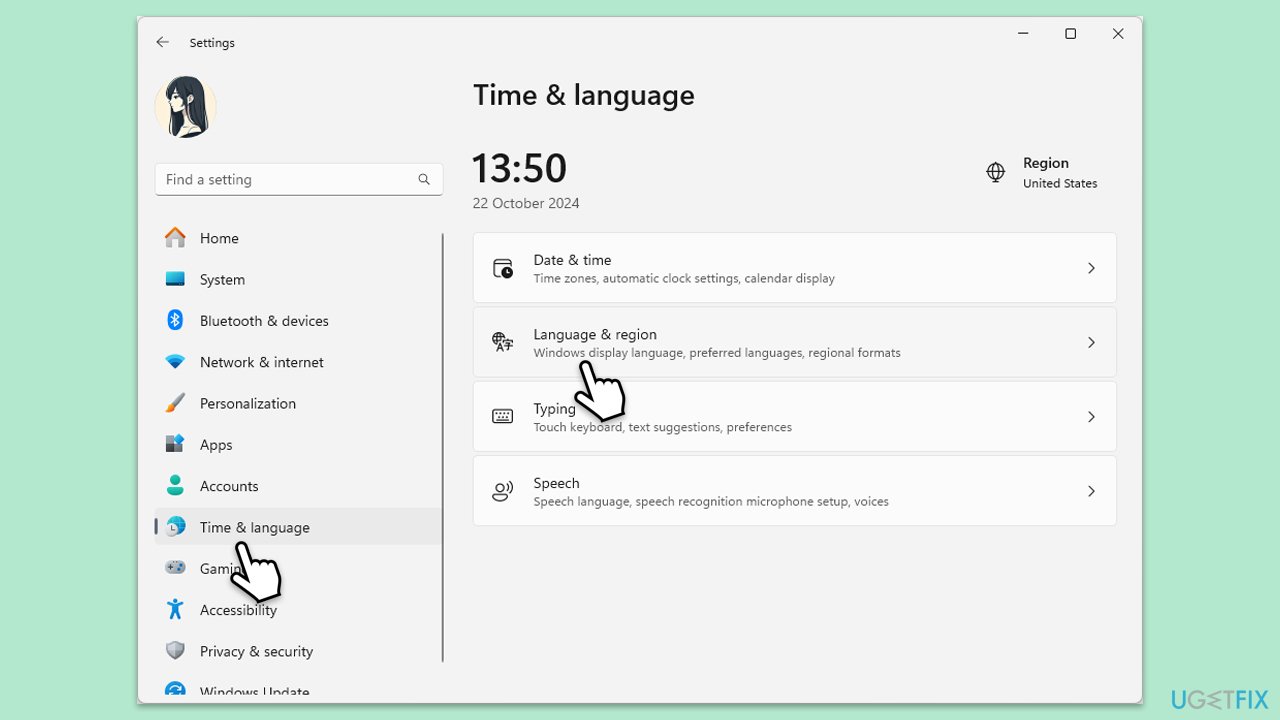
- Right-click on Start and pick Settings.
- Go to Time & language > Region.
- Set your region to a supported area (e.g., United States).
- Restart your computer and launch Copilot.
- Check if the interface loads without a blank screen.
Bottom line
To resolve the Copilot blank screen issue, users can try resetting or reinstalling the application, ensuring a stable internet connection, updating their system, or temporarily disabling security software. If the problem persists, adjusting regional settings or account permissions may also help. If none of these solutions work, consider using repair software for further assistance.
Frequently asked questions
Try restarting the Copilot feature by closing it and reopening it; if the issue persists, check for Windows updates that might resolve the problem.
Yes, certain third-party applications or conflicting software can interfere with Copilot's functionality, so consider disabling them temporarily to see if the issue is resolved.
You can reset Copilot by navigating to Settings > Apps > Apps & features, finding Copilot, and selecting 'Advanced options' to reset the app.




Report an issue
What's wrong with this guide? We review every report and update or remove content.
Report received — thank you. We'll review and fix it.
You need a free account to submit a report.
Be the first to comment