How to fix
Desktop does not show spotlight images
on Windows
Resolve the issue of missing spotlight images on your Windows 10 or Windows 11 desktop with our expert-tested solutions. Fixed in minutes!

![[Fix] Desktop does not show spotlight images in Windows](https://ugetfix.com/wp-content/uploads/articles/askit/fix-desktop-does-not-show-spotlight-images-in-windows_en-768x432.jpg)
What causes [Fix] Desktop does not show spotlight images in Windows?
- Corrupted system files
- Issues with Windows Spotlight settings
- Lack of internet connectivity
- Cached data problems
- System updates pending
Repairs Windows system files, removes malware, and restores a clean OS state — without reinstalling.
Hello. I set up the Spotlight feature in Windows but it does not show any images. How do I fix this?
Users who love the dynamic and aesthetically pleasing backdrops that the Spotlight function offers frequently have the issue of their desktops failing to display Spotlight images in Windows. Windows Spotlight is a feature added by Microsoft in Windows 10 and later versions that periodically provides interesting information, quizzes, or images on the login screen and automatically changes the background image on the lock screen. By providing new and captivating graphics, it seeks to improve the user experience.
Users lose access to the advantages of the Spotlight function when this problem arises. They might see a static image or nothing at all on their lock screen in place of a dynamic and interesting background that changes frequently. The Spotlight feature's ability to offer aesthetically pleasant background images that change over time serves as one of its main objectives. Users are left with a less visually appealing experience when it malfunctions.
Troubleshooting strategies are used to address the issue of missing Spotlight photos. These techniques can be as basic as restarting the computer or checking for updates or as involved as editing system files. Potential solutions may include adjusting system settings, verifying internet connectivity, clearing cached data, or resetting the Spotlight feature.
In this guide, you will find 5 steps that should help you fix desktop not showing spotlight images in Windows. You can also run a maintenance tool like [d1] that can fix most system errors, BSODs,[ref en-1] corrupted files, registry[ref en-2] issues, or clear cookies and cache.[ref en-3] Otherwise, follow the step-by-step instructions below.
Solution 1. Fix Corrupted System Files
Use Command Prompt commands to repair system file corruption:
- Open Command Prompt as administrator
- Use the following command and press Enter:
sfc /scannow
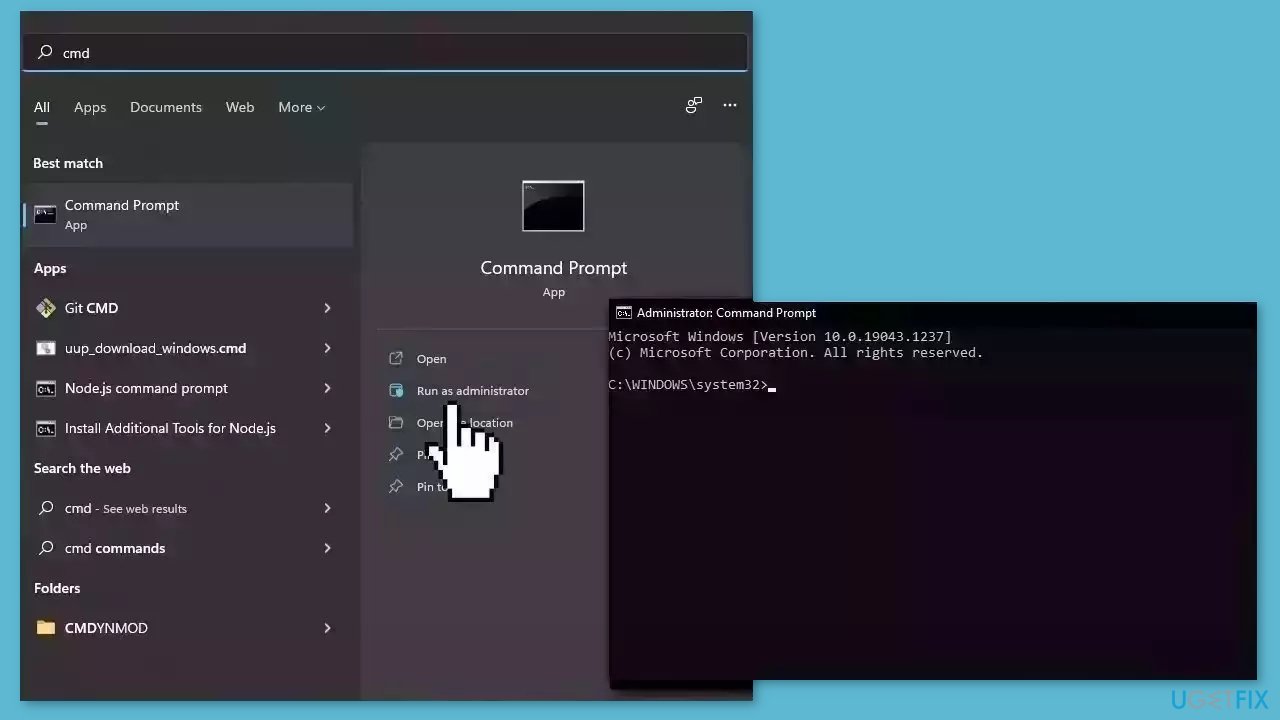
- Reboot your system
- If SFC returned an error, then use the following command lines, pressing Enter after each:
DISM /Online /Cleanup-Image /CheckHealth
DISM /Online /Cleanup-Image /ScanHealth
DISM /Online /Cleanup-Image /RestoreHealth
Solution 2. Restart Windows Spotlight
- Press the Windows key + I to open Windows Settings.
- Click on Personalization.
- In the left-hand panel, select Lock screen.
- Under Background, open the dropdown menu.
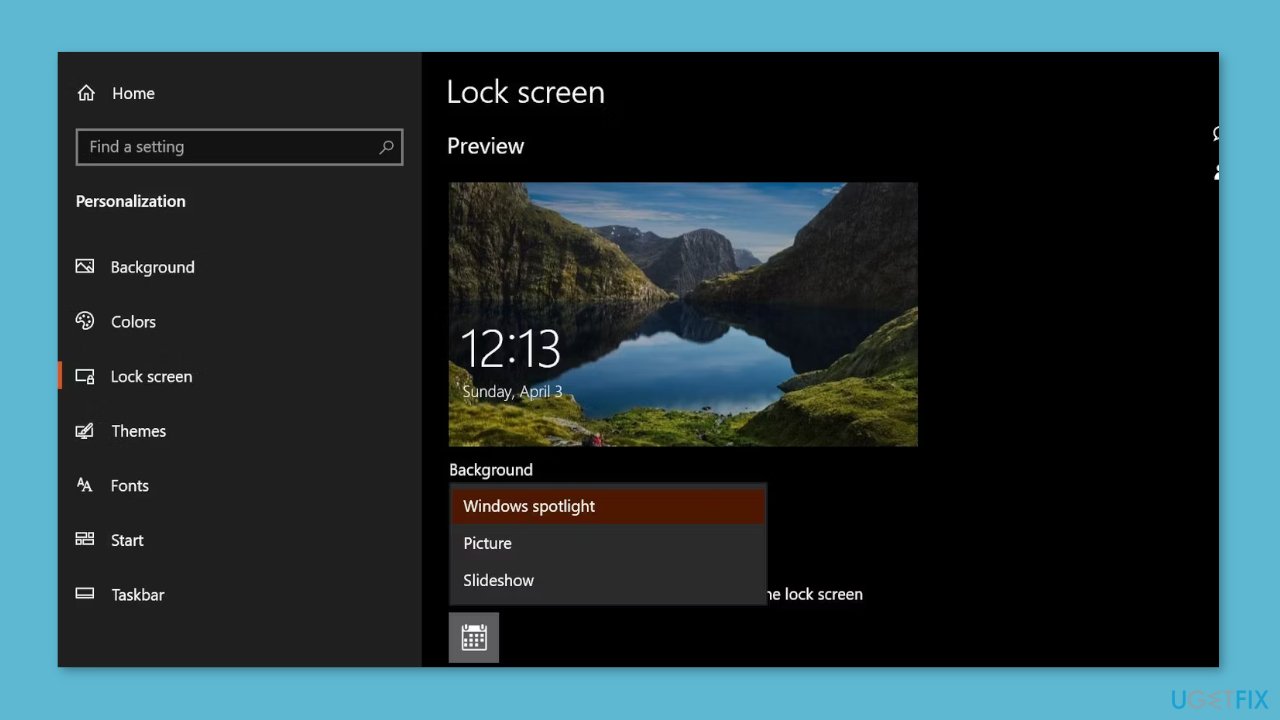
- Choose either Picture or Slideshow as your background option.
- Close the Settings app.
- Restart your computer.
- Follow the above steps to navigate to the Lock screen settings.
- Under Background, choose Windows Spotlight instead of Picture or Slideshow.
Solution 3. Manually Delete Spotlight Assets
- Press the Windows key.
- Type Run and select the appropriate option from the search results.
- In the Run dialog box that appears, paste the following path and click OK:
%USERPROFILE%/AppData\Local\Packages\Microsoft.Windows.ContentDeliveryManager_cw5n1h2txyewy\LocalState\Assets
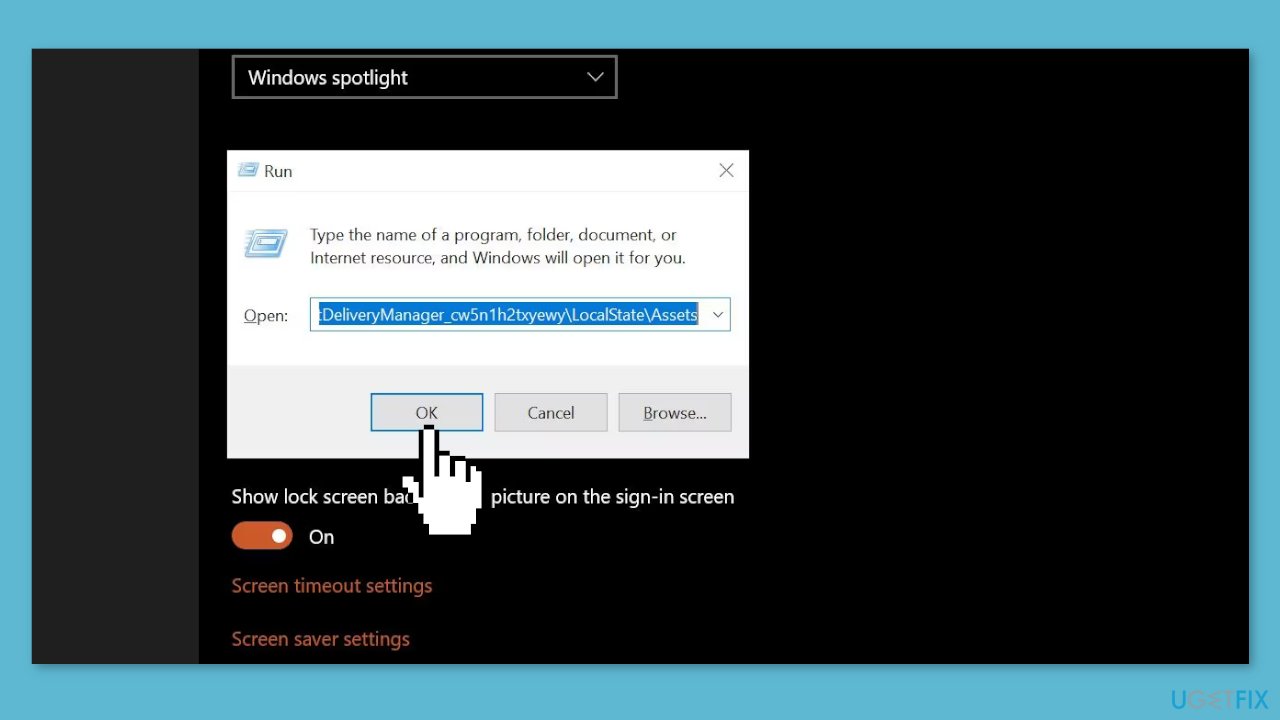
- Once the folder opens, press Ctrl + A to select all files.
- Press the Delete key to remove all the files.
- If you previously disabled the Spotlight feature, re-enable it.
- Restart your computer.
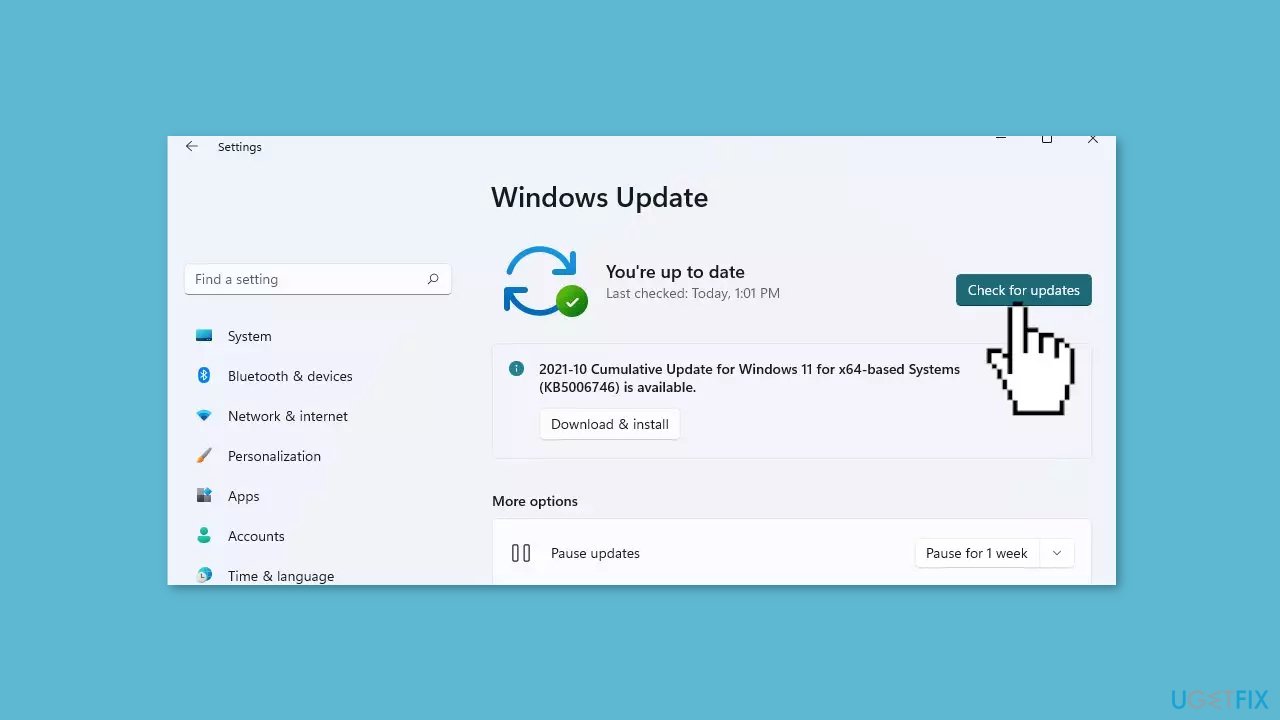
Solution 4. Install Windows Updates
- Click Start on the taskbar.
- Select the Setting app pinned to the Start menu.
- Click Windows Update on the left side of Settings.
- Press the Check for updates button to download and install new patch updates.
Solution 5. Reset Windows Spotlight Settings
- Press the Windows key.
- Type Run and select the appropriate option to open the Run dialog box.
- In the Run dialog box, paste the following path and click OK:
%USERPROFILE%/AppData\Local\Packages\Microsoft.Windows.ContentDeliveryManager_cw5n1h2txyewy\Settings
- Inside the Settings folder, you'll find two files: settings.dat and roaming.lock.
- To rename these files, right-click on each file.
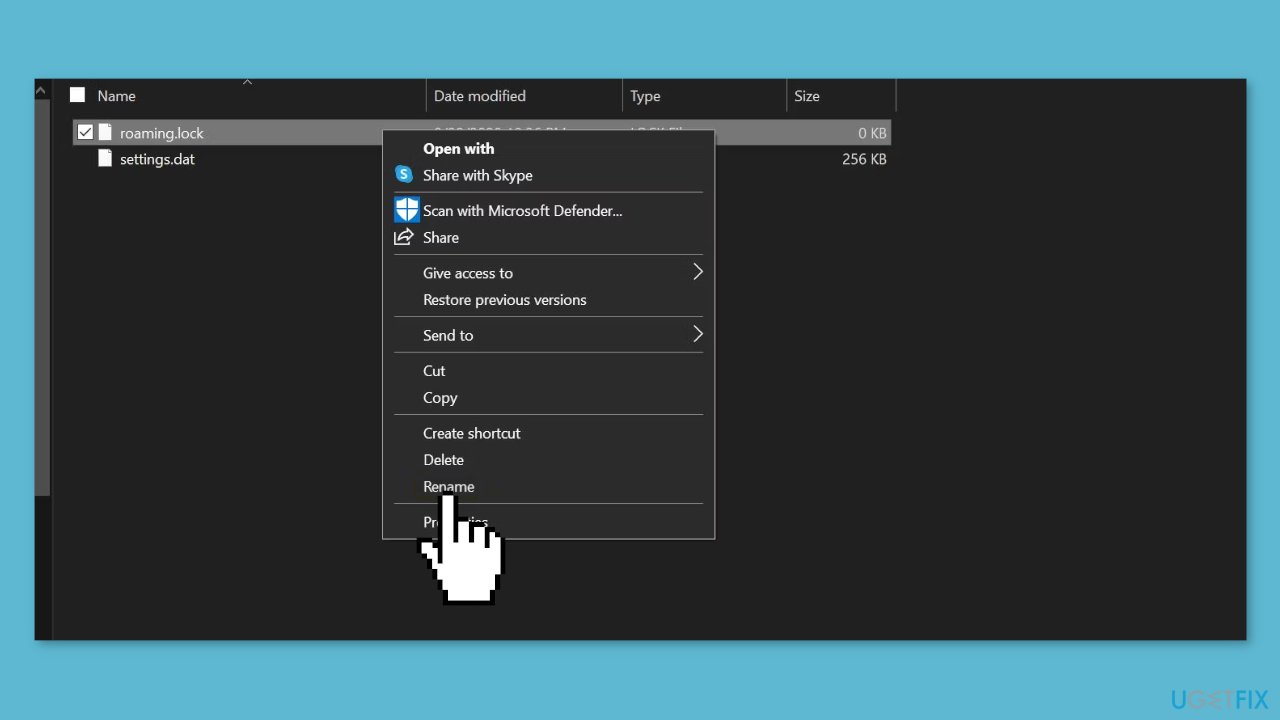
- Select Rename and add .bak to the end of their names, so they become settings.dat.bak and roaming.lock.bak, respectively.
- Close the folder.
- Restart your computer.
Bottom line
To resolve the issue of missing Spotlight images, you can repair corrupted system files using Command Prompt, restart the Windows Spotlight feature, and ensure your internet connection is stable. If these solutions do not work, consider running a maintenance tool to fix system errors or clearing cached data.
Frequently asked questions
To enable spotlight images, go to Settings > Personalization > Background, and select 'Windows Spotlight' from the dropdown menu.
If spotlight images are not showing in Windows 11, try resetting the Spotlight feature by navigating to Settings > Personalization > Lock screen, then toggle the background type to Picture and back to Windows Spotlight.
Spotlight images require an active internet connection and are best supported on Windows 10 and Windows 11 devices with updated graphics drivers.




Report an issue
What's wrong with this guide? We review every report and update or remove content.
Report received — thank you. We'll review and fix it.
You need a free account to submit a report.
Be the first to comment