How to fix
Device limit reached when installing apps
on Windows
Resolve the "device limit reached" error when installing apps on Windows 10 and Windows 11 quickly with expert-tested solutions and clear screenshots.

![[Fix] Device limit reached when installing apps in Windows](https://ugetfix.com/wp-content/uploads/articles/askit/fix-device-limit-reached-when-installing-apps-in-windows_en-768x432.jpg)
What causes [Fix] Device limit reached when installing apps in Windows?
- User has reached the maximum number of devices allowed for their Microsoft account
- User is attempting to install an app on a device that exceeds the device limit
- A bug in the Microsoft Store may incorrectly report the device limit as reached
- User's Microsoft account type may have a lower device limit than typical
- User has not removed previously registered devices from their account
Repairs Windows system files, removes malware, and restores a clean OS state — without reinstalling.
After upgrading to Windows 10, I continuously receive a notification stating that my device limit has been reached, and in order to install an app or game from the Microsoft store, I need to remove a device, despite having only one Windows 10 device; is this a bug or how could I have possibly exceeded my device limit?
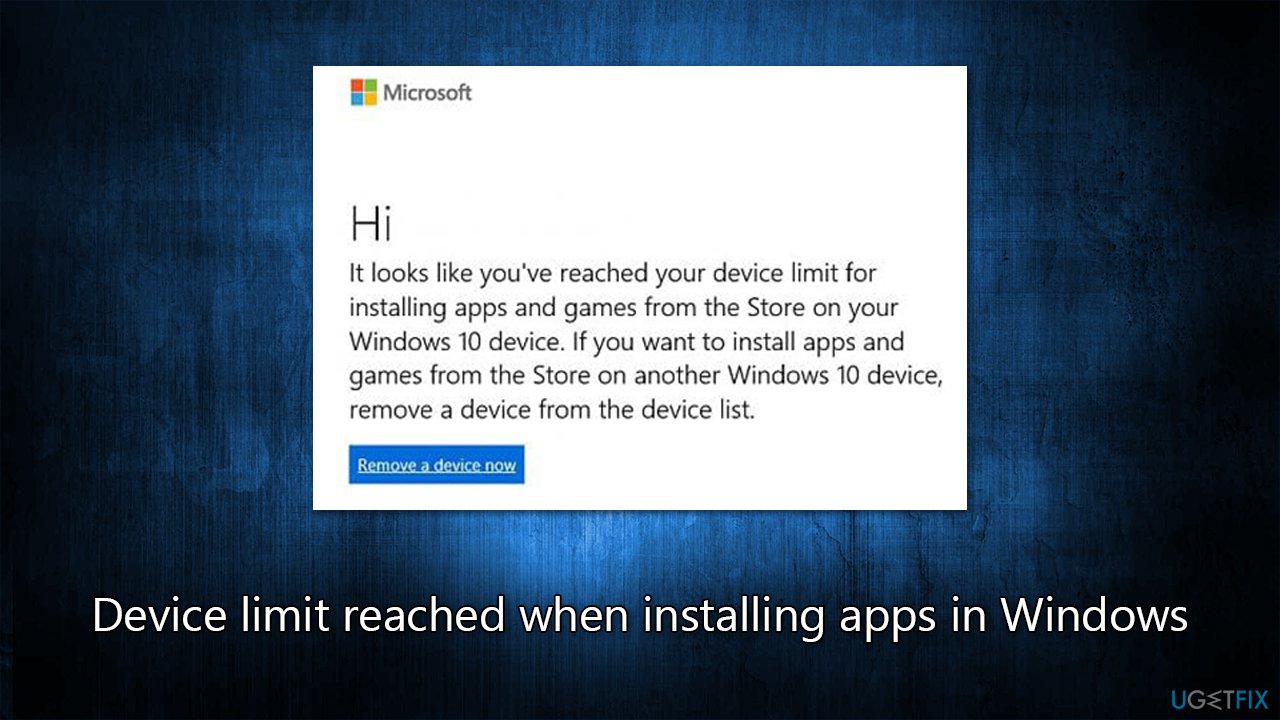
The "Device limit has been reached" error in Windows is an issue that can occur when a user tries to install an app or game from the Microsoft Store but they have reached the maximum number of devices allowed to use their Microsoft account.
When users create a Microsoft account, they are given a device limit that determines how many devices can use that account to install apps or games from the Microsoft Store. This limit is typically 10 devices, but it can vary depending on the account type.
If a user tries to install an app or game on a device that exceeds the device limit, they will receive an error message stating that the device limit has been reached and that they need to remove a device before proceeding. This error message is intended to prevent piracy and unauthorized sharing of apps and games among multiple devices.
To fix the "Device limit has been reached" when installing apps, users can either remove one of the previously registered devices from their Microsoft account or upgrade their account to a higher device limit.
However, if the user is sure that they have not exceeded the device limit, then the issue may be caused by a bug in the Microsoft Store or their account, in which case we recommend following other solutions we provide below. Before proceeding, we recommend you check your system with [d1] to ensure there are no underlying issues with Windows.
Fix 1. Remove some devices from your account
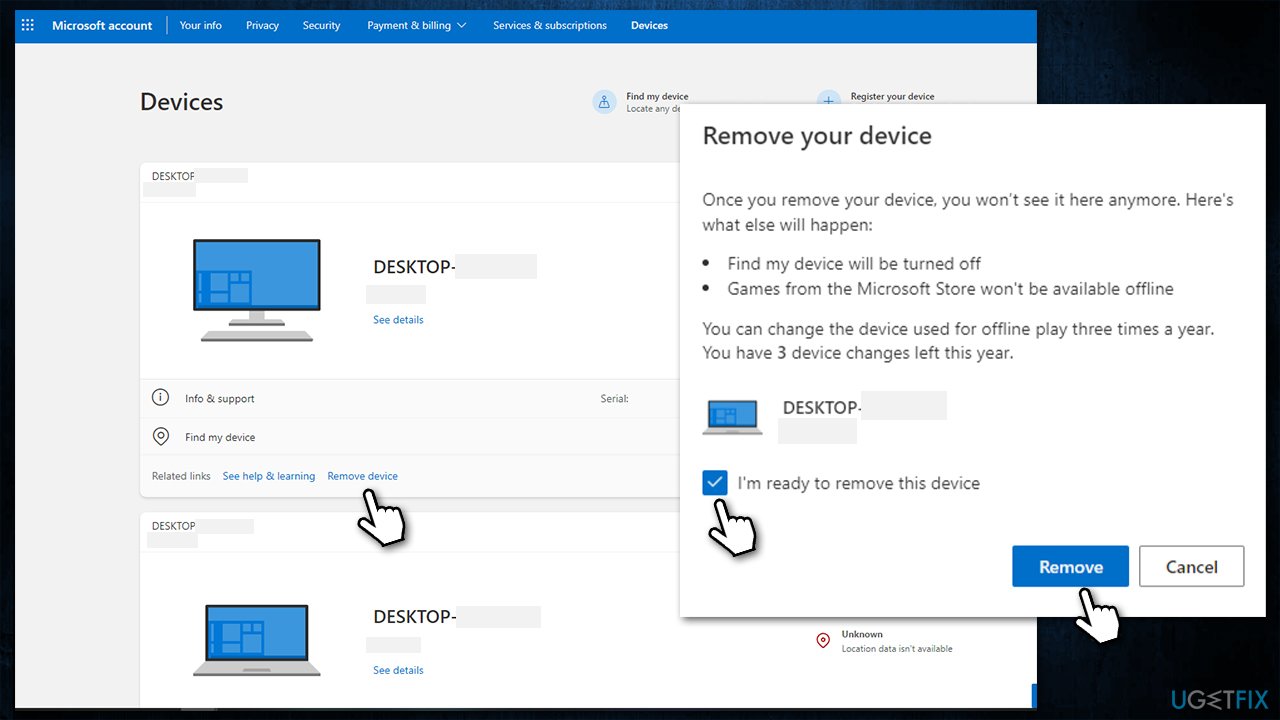
In the vast majority of cases, the device limit is actually reached, so the simplest solution here would be to remove one or a few unused devices. For that, you need to log into your Microsoft account:
- Log in to your Microsoft account with your credentials.
- Here, you will be presented with the Devices page.
- From the listed devices, pick one you don't use and click Remove device.
- You will see a warning/confirmation prompt.
- Mark the I'm ready to remove this device checkmark and click Remove.
Fix 2. Install all the pending updates
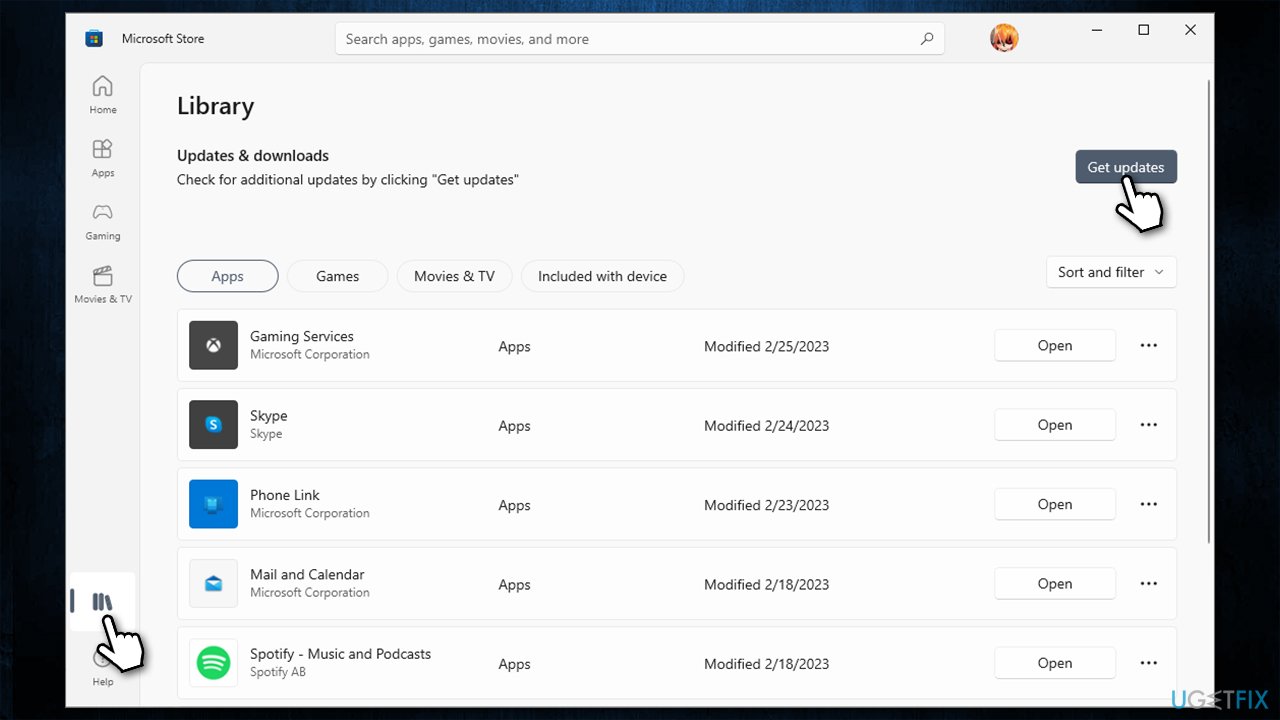
In some cases, you might receive the Device limit reached error due to pending updates in Microsoft Store, so you should apply the app.
- Open Microsoft Store.
- Go to your Library.
- Here, click Get updates.
- If pending updates are present, install them too.
Fix 3. Reset Microsoft Store cache
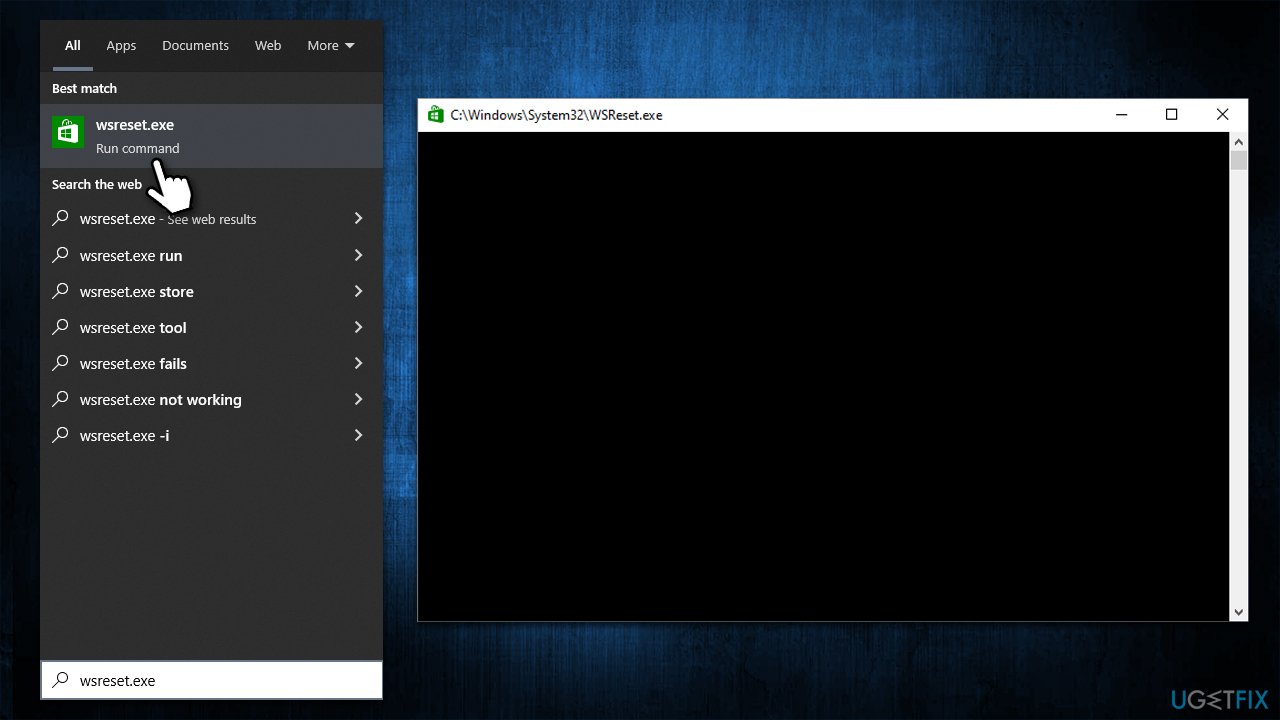
- In Windows search, type wsreset.exe and press Enter.
- Wait till a black window shows up – do not interact with it or close it.
- Once it's gone, Microsoft Store should restart.
- Try downloading apps once again.
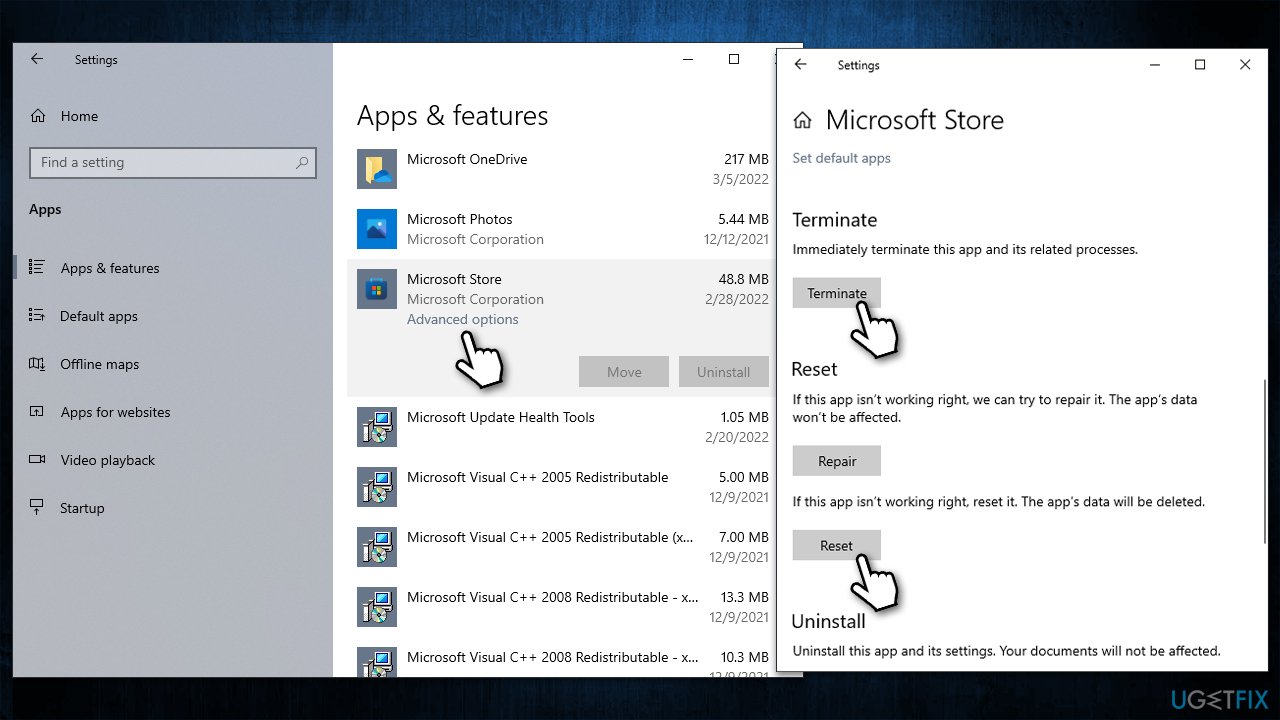
Fix 4. Reset Microsoft Store App
- Right-click on Start and pick Apps & Features.
- Scroll down to locate Microsoft Store and click Advanced options.
- Click Terminate and then pick Reset.
- Check if the error is gone.
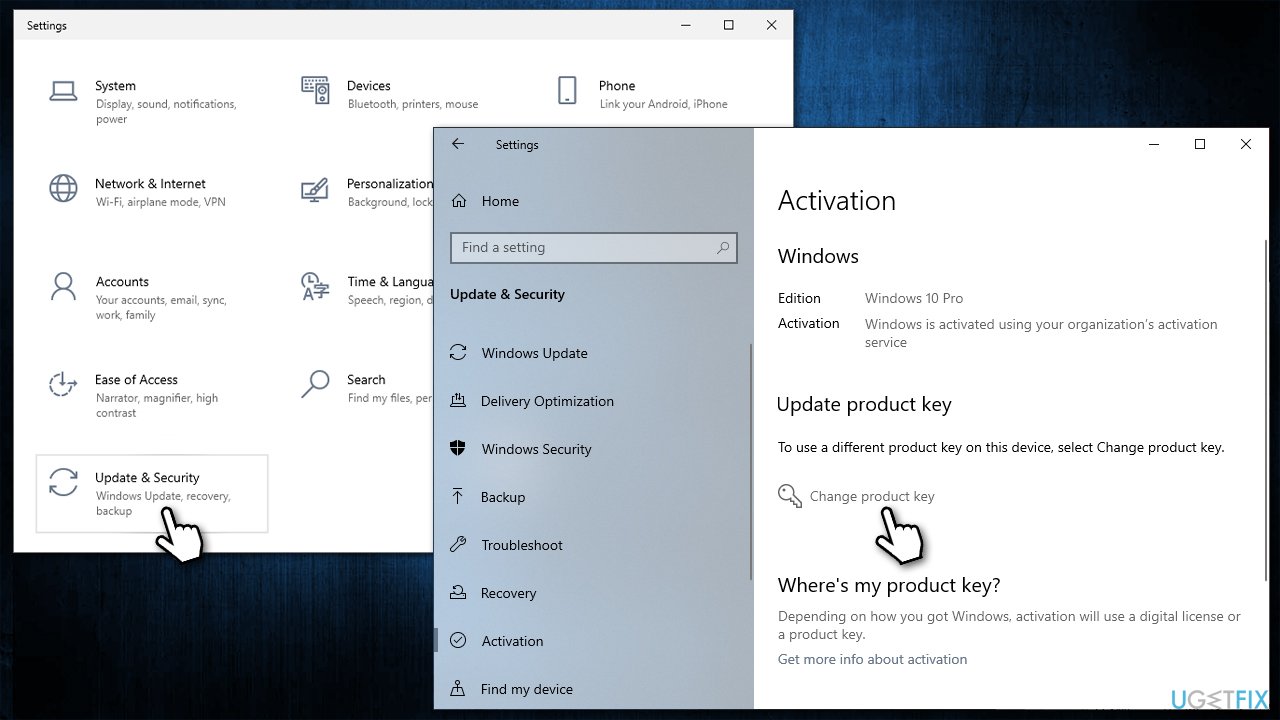
Fix 5. Activate Windows
Some users claimed that they managed to fix the error once they activated their Windows systems. This is usually caused by a common bug.
- Right-click on Start and pick Settings.
- Go to the Update & Security section.
- On the left side of the window, click Activation.
- Click Change product key.
- Enter your product key and follow the on-screen instructions to finalize the process.
Bottom line
To resolve the 'Device limit has been reached' error, users can remove unused devices from their Microsoft account or consider upgrading their account for a higher device limit. If the issue persists and users believe they have not exceeded the limit, they should explore additional solutions or check for bugs in the Microsoft Store.
Frequently asked questions
This error indicates that you have reached the maximum number of devices allowed for the installation of apps linked to your Microsoft account. To resolve this, you may need to remove some devices from your account or manage your app installations.
You can check linked devices by visiting the Microsoft account devices page online and signing in with your credentials. From there, you can view and manage all devices associated with your account.
To fix this error, you can either uninstall the app from other devices or remove those devices from your Microsoft account. Additionally, resetting the Microsoft Store cache may help resolve any related installation issues.




Report an issue
What's wrong with this guide? We review every report and update or remove content.
Report received — thank you. We'll review and fix it.
You need a free account to submit a report.
Be the first to comment