How to fix
Error 0x80071128: The data present in the reparse point buffer is invalid
on Windows
Resolve error 0x80071128 on Windows 10 and 11 effortlessly. Follow our expert-tested solutions for quick fixes and regain full functionality in minutes.

![[Fix] Error 0x80071128: The data present in the reparse point buffer is invalid in Windows](https://ugetfix.com/wp-content/uploads/articles/askit/error-0x80071128-invalid-windows_en-768x480.jpg)
What causes [Fix] Error 0x80071128: The data present in the reparse point buffer is invalid in Windows?
- Trying to delete a particular folder or its contents
- Attempting to copy or move a folder from one location to another
- Issues with Windows reparse point access
- Files on Demand enabled in OneDrive
- Corrupted reparse points
Repairs Windows system files, removes malware, and restores a clean OS state — without reinstalling.
Hello. Is there anyone who could help me? I am worried and have no solutions for the error 0x80071128: The data present in the reparse point buffer is invalid in Windows. The message comes to the screen continuously when I try to do something. I want to delete some data from my older Windows 10 computer. Otherwise, it seems to work well.
Error 0x80071128: "The data present in the reparse point buffer is invalid" in Windows might be the issue that users encounter on their computers. Some users have reported this online.[ref en-1] This error bothers them a lot.
The Invalid Reparse Point Buffer Error 0x80071128 can occur in two situations:
- When you try to delete a particular folder or its contents.
- When you try to copy or move that folder from one location to another.
When this error occurs, you might see a message like this:
"An unhandled exception has occurred in a component in your application. If you click Continue, the application will ignore this error and attempt to continue."
The error is related to a particular part of the machine called Windows reparse point. Once this part is not accessed as it is supposed to be accessed, the Error 0x80071128: The data present in the reparse point buffer is invalid occurs in Windows. A Windows reparse point is a data structure that tells the system how to access files and directories.
It links one piece of data to another, such as a file, directory, or volume mount point. Reparse points are used to create shortcuts, links, or special attributes for files and directories. For example, icons on your computer screen are not the actual programs but shortcuts pointing to those programs.
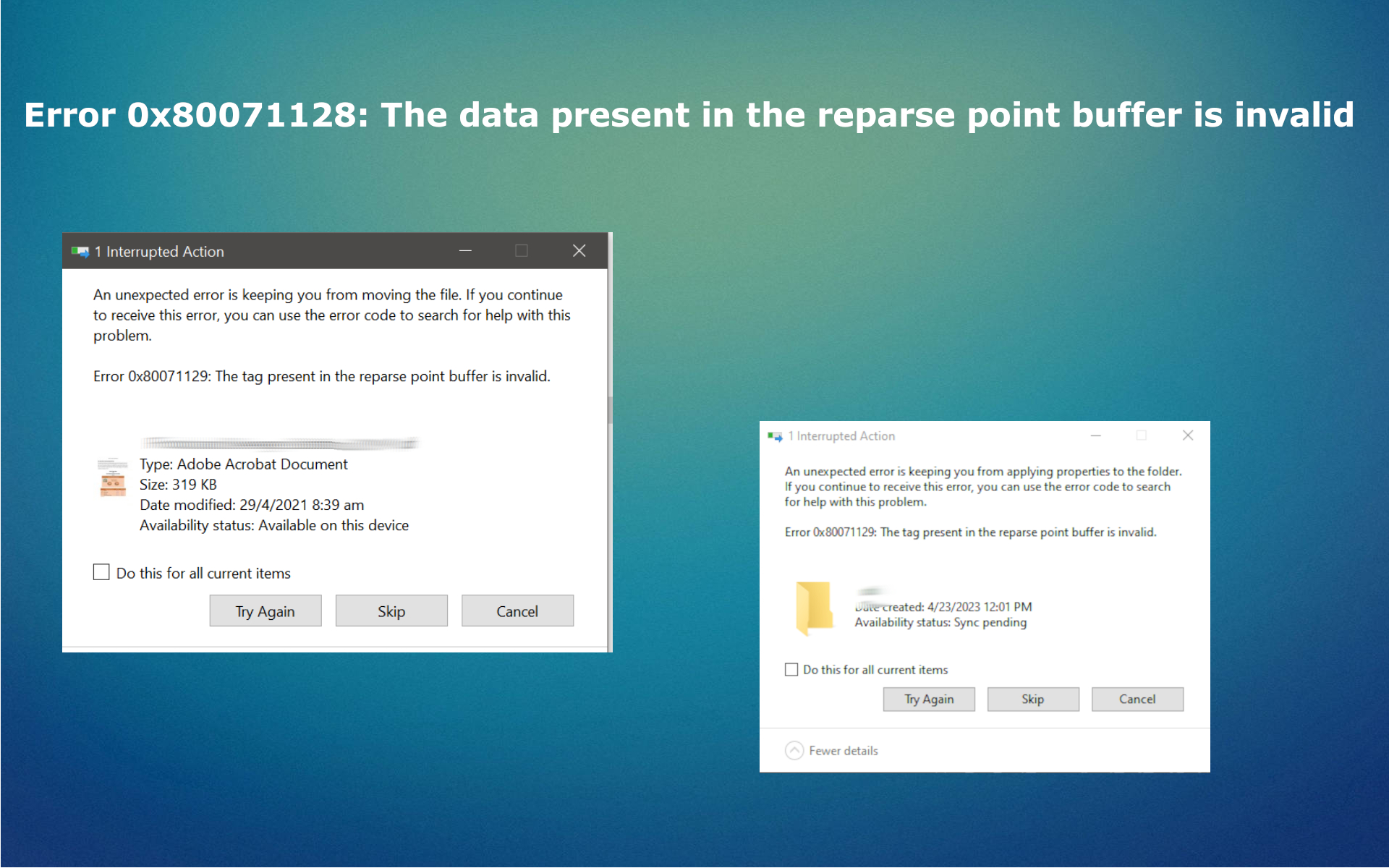
Fixing the Error 0x80071128: The data present in the reparse point buffer is invalid
Issues with these system parts can cause the appearance of error messages with codes like Error 0x80071128: The data present in the reparse point buffer is invalid. When Files on Demand is enabled in OneDrive, all synced files and folders are implemented as reparse points. Once OneDrive is unlinked or stopped from syncing a library, the system automatically removes all the reparse points.
Error 0x80071128 can occur when the reparse points are invalid, or OneDrive cannot remove them. The system can get damaged during installation or uninstallation of programs or even due to malware infections and problems that PUPs[ref en-2] create in the background. Resolutions for the particular error issue include checking for altered or corrupt files and repairing the machine. You can rely on automatic tools capable of doing so and run [d1], or try to solve the issues yourself with the help of our guide.
Run a System File Checker
- Search for 'command prompt' using a Search.
- From the results, right-click on Command Prompt and select Run as administrator.
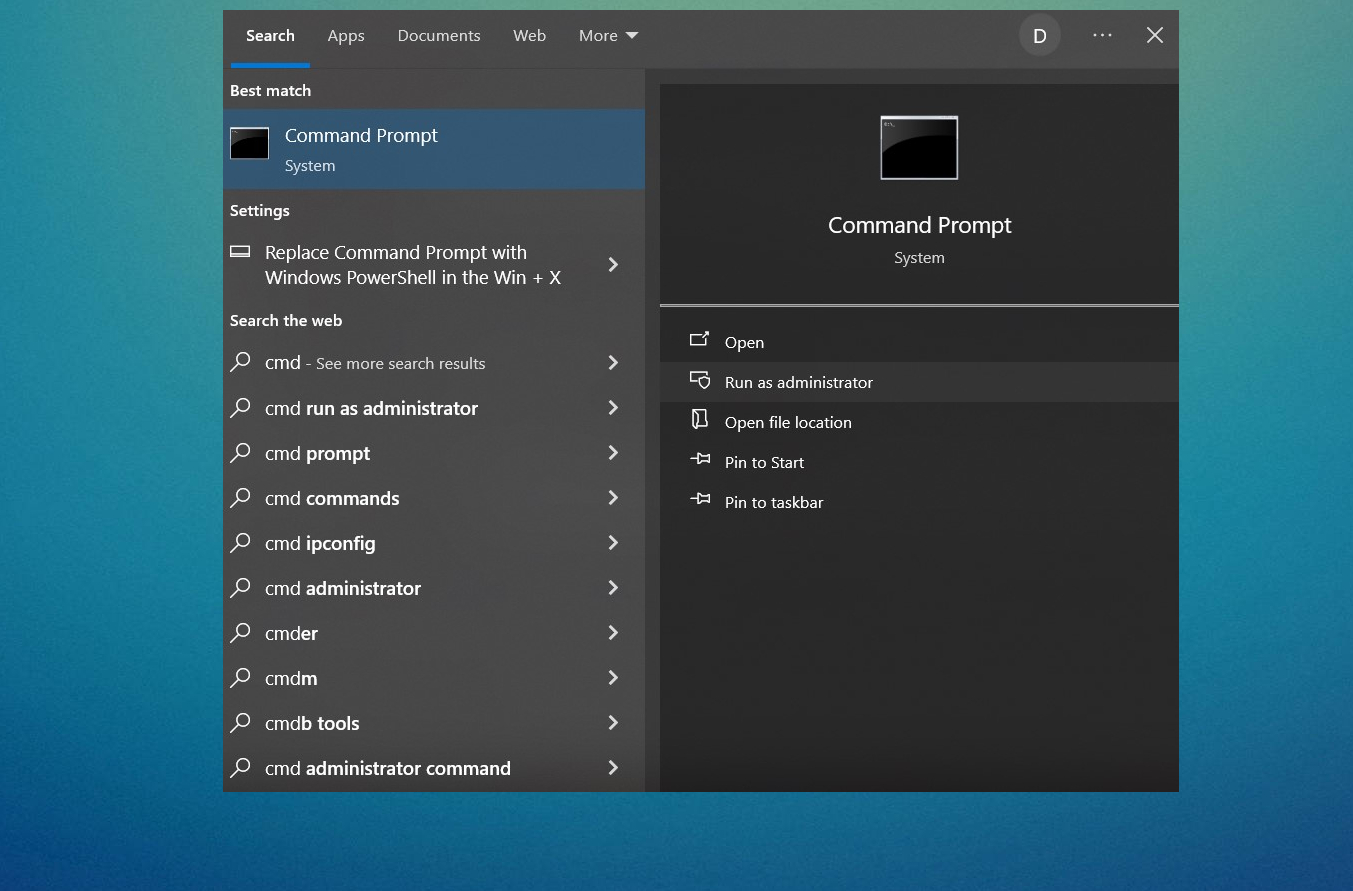
Error 0x80071128 invalid windows cmd - Type sfc /scannow command and press Enter key.
- Let the command complete and then reboot the machine.
Run DISM scan
- Run Command Prompt as an administrator again.
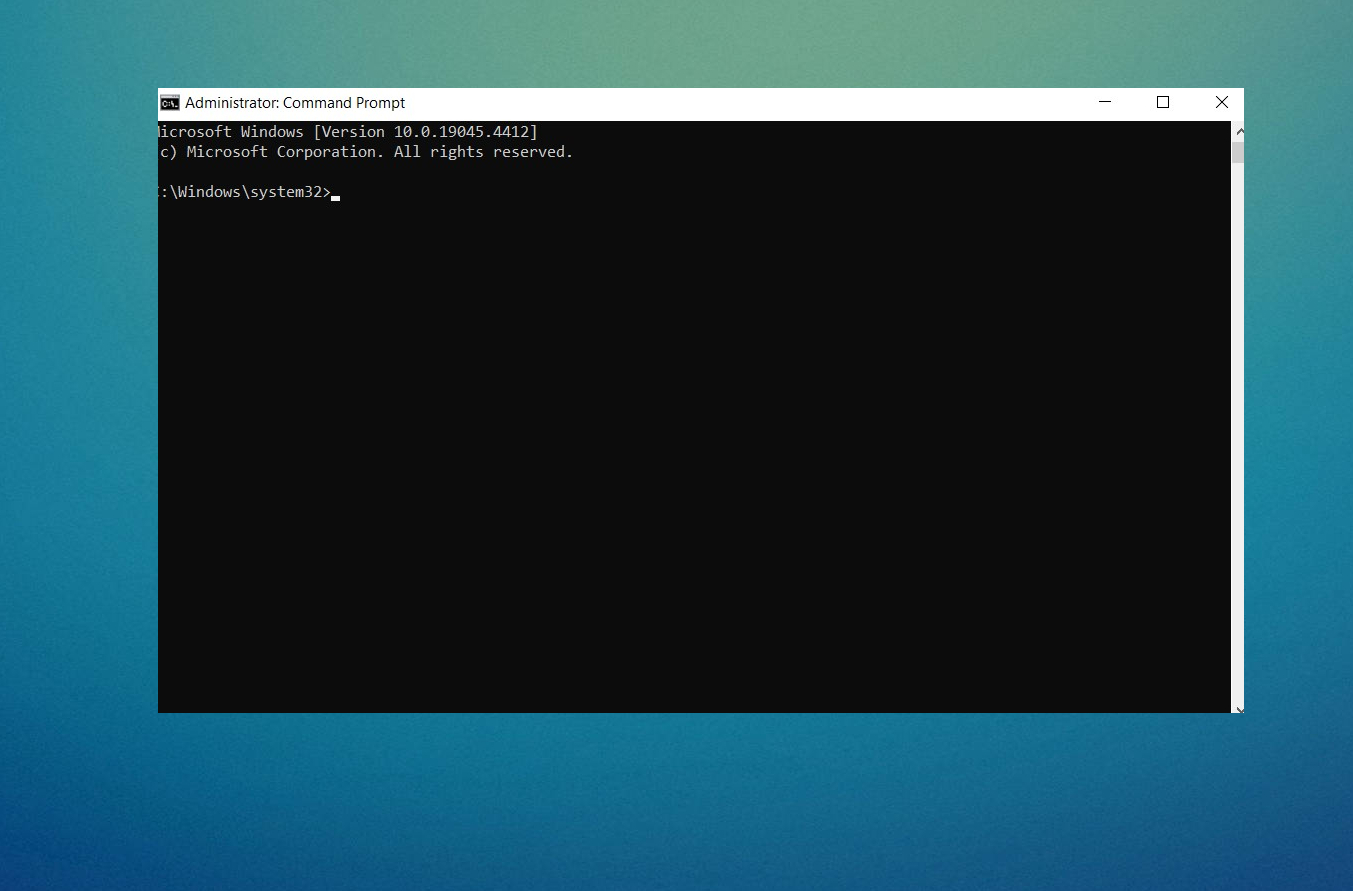
Error 0x80071128 invalid windows command - Type DISM.exe /Online /Cleanup-Image /ScanHealth and press Enter.
- Type DISM.exe /Online /Cleanup-Image /CheckHealth and press Enter.
- Type DISM.exe /Online /Cleanup-Image /RestoreHealth and press Enter.
- Once done, check if the error is fixed.
Run another check via the CHKDSK command
- Run the Command Prompt again.
- Type chkdsk C: /f /r in the prompt and press Enter.
- You need to press Y for the question (if it appears), CHKDSK cannot run because the volume is in use by another process. Would you like to schedule this volume to be checked the next time the system restarts?
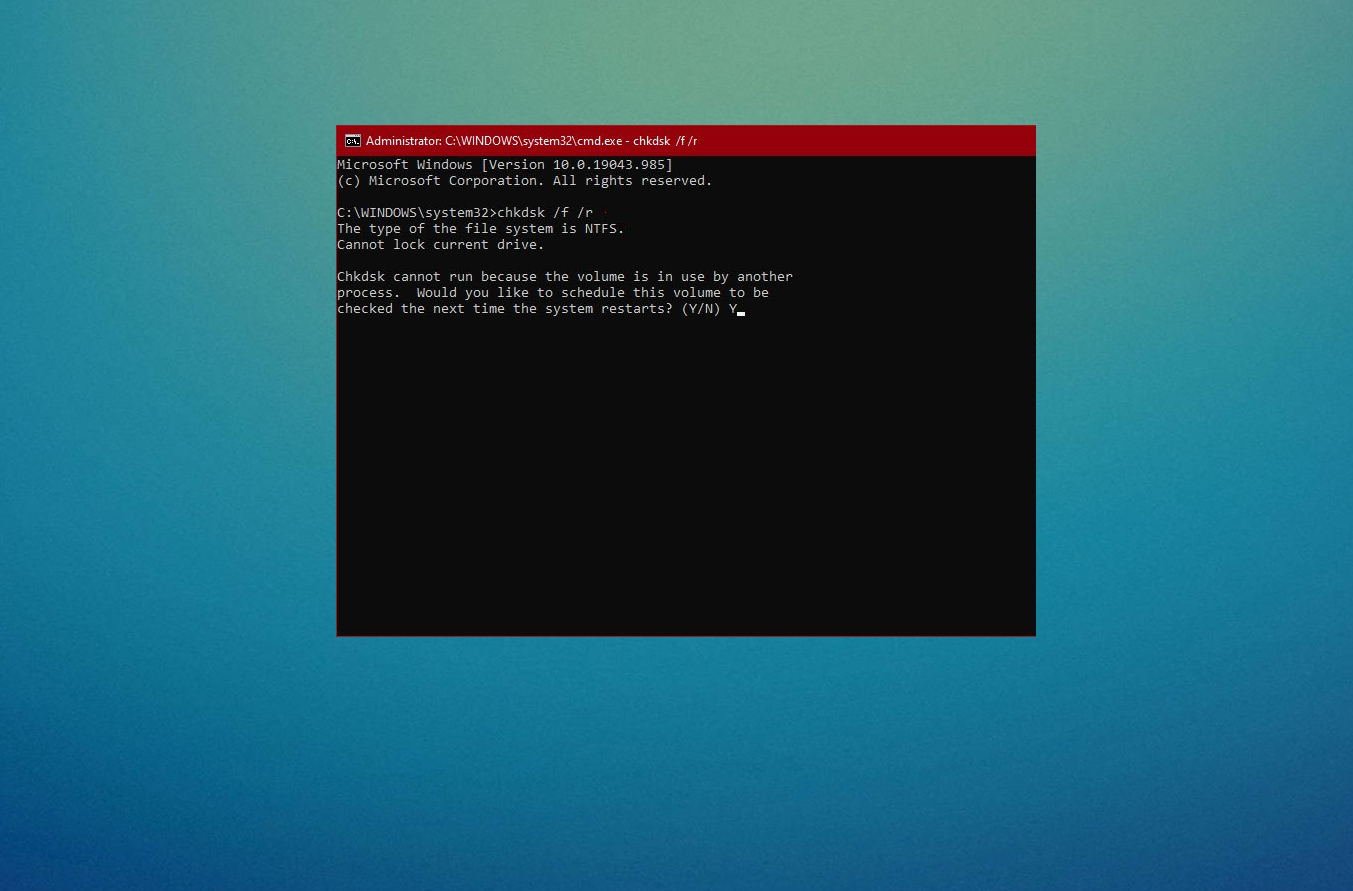
Error 0x80071128 invalid windows chdsk - Then the CHKDSK will continue to scan and fix your device after you turn it off.
Bottom line
To fix the Error 0x80071128, you can unlink OneDrive, check for corrupted reparse points, or try accessing the folder in Safe Mode. If none of these solutions work, consider seeking professional assistance.
Frequently asked questions
Error 0x80071128 typically occurs due to a corrupted reparse point or issues with symbolic links in the file system. This can happen after system updates or improper file management.
To fix this error, you can try running the 'chkdsk' command in the Command Prompt to repair file system errors. Additionally, ensure that all system updates are installed and consider resetting the affected application.
To prevent this error, regularly maintain your file system by using built-in tools like 'Disk Cleanup' and 'Storage Sense'. Also, avoid moving or modifying files with complex reparse points unless necessary.




Report an issue
What's wrong with this guide? We review every report and update or remove content.
Report received — thank you. We'll review and fix it.
You need a free account to submit a report.
Be the first to comment