How to fix
File Explorer freezes when creating a new folder
on Windows
Resolve File Explorer freezing when creating new folders in Windows 10 or 11 effortlessly. Expert-tested solutions to get you back on track in minutes.

![[Fix] File Explorer freezes when creating a new folder in Windows](https://ugetfix.com/wp-content/uploads/articles/askit/fix-file-explorer-freezes-when-creating-a-new-folder-in-windows_en-768x432.jpg)
What causes [Fix] File Explorer freezes when creating a new folder in Windows?
- Corrupt system file
- Outdated drivers
- Conflicts with other programs
- Issues with third-party software
- System errors
Repairs Windows system files, removes malware, and restores a clean OS state — without reinstalling.
Hello. When I open Windows Explorer and try to create a new folder, the window completely freezes. How do I fix this? Any tips would be appreciated.
File Explorer is Windows' default file management tool, allowing users to browse, manage, and access their files and folders. It has a graphical user interface (GUI) that allows users to navigate the file system and interact with their files and folders by dragging and dropping, copying and pasting, and other convenient methods. File Explorer in Windows is a powerful tool for organizing files, searching for files and folders, viewing file and folder properties, and much more.
However, some users have reported problems when creating a new folder in File Explorer. File Explorer freezes and becomes unresponsive when they attempt to create a new folder. This problem can occur for a variety of reasons, including a corrupt system file, outdated drivers,[ref en-1] or conflicts with other programs that are running in the background.
Users who frequently create new folders while working with files and folders may be affected by this issue. It can complicate their workflow and cause frustration if they are unable to complete their tasks due to File Explorer freezing. This problem can be resolved by updating Windows, updating device drivers, running a system file checker scan, disabling third-party programs, and other measures. However, depending on the cause of the problem, the solution may differ.
In this guide, you will find 9 steps that should help you fix File Explorer freezing when creating a new folder. Keep in mind that the manual troubleshooting process may be lengthy. Instead, you can use a maintenance tool like [d1] that can fix most system errors, BSODs,[ref en-2] corrupted files, and registry[ref en-3] issues, Otherwise, follow the step-by-step instructions below.
Solution 1. Restart Windows Explorer
- Press the Windows key + X and select Task Manager
- Locate the Windows Explorer or Explorer.exe process
- Right-click on the process and select End task
- A warning message will appear, click End process to confirm
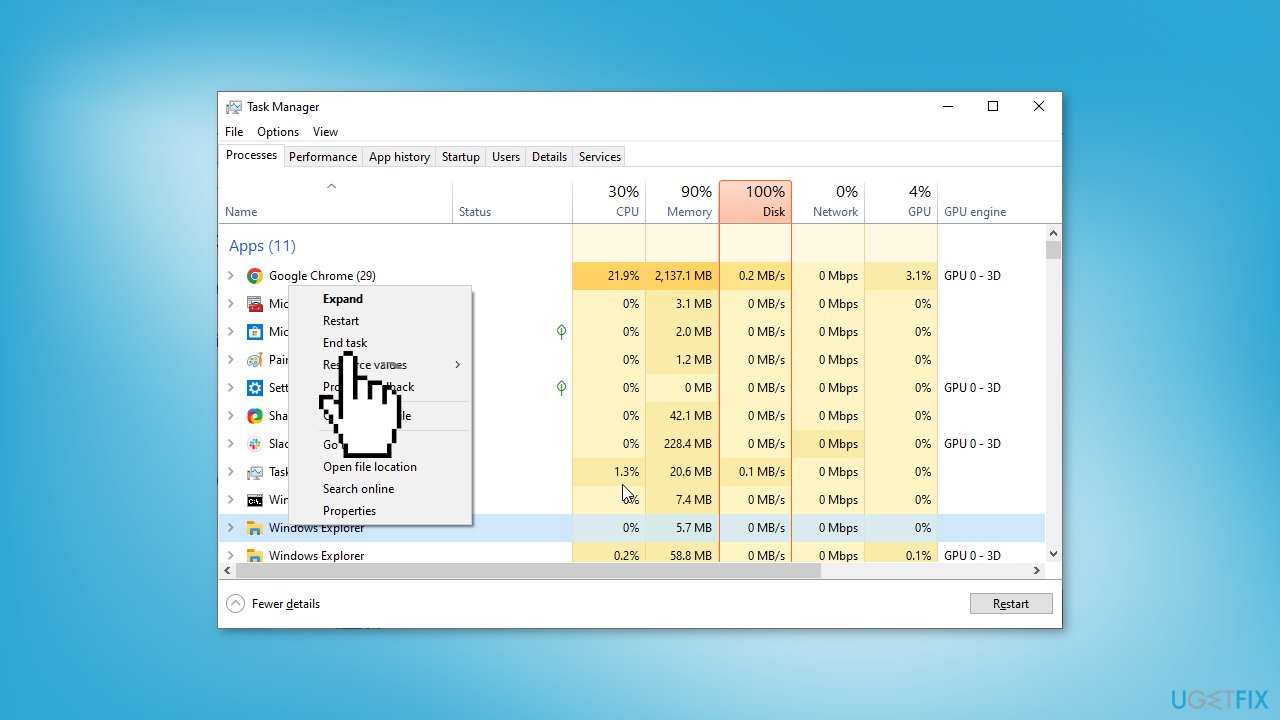
- After the process is terminated, click on File in the top left corner of the Task Manager window
- From the dropdown menu, select Run new task
- In the Create new task window, type Explorer.exe
- Click OK or press Enter
- This will restart the Windows Explorer process and restore your desktop and taskbar
Solution 2. Fix Corrupted System Files
Use Command Prompt commands to repair system file corruption:
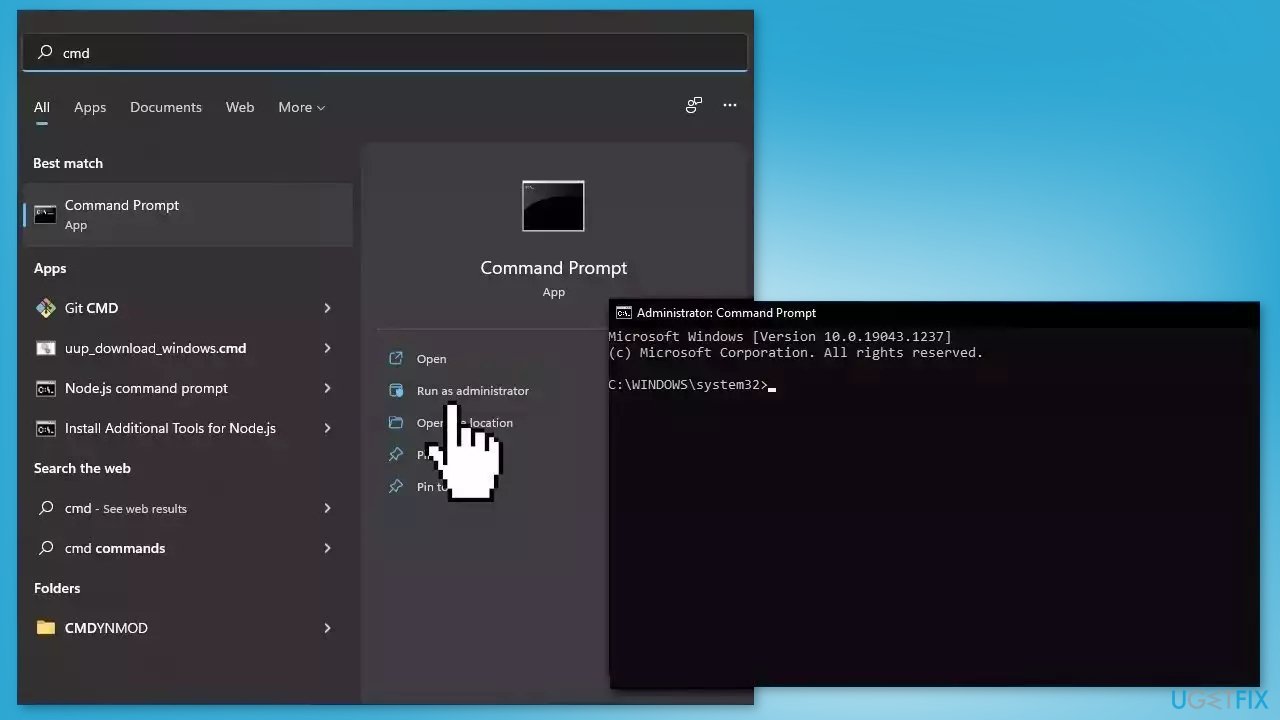
- Open Command Prompt as administrator
- Use the following command and press Enter:
sfc /scannow
- Reboot your system
- If SFC returned an error, then use the following command lines, pressing Enter after each:
DISM /Online /Cleanup-Image /CheckHealth
DISM /Online /Cleanup-Image /ScanHealth
DISM /Online /Cleanup-Image /RestoreHealth
Solution 3. Install Windows Updates
- Press the Windows key + R to open the Run box
- Type ms-settings:windowsupdate in the text box and press Enter
- Click the Check for updates button
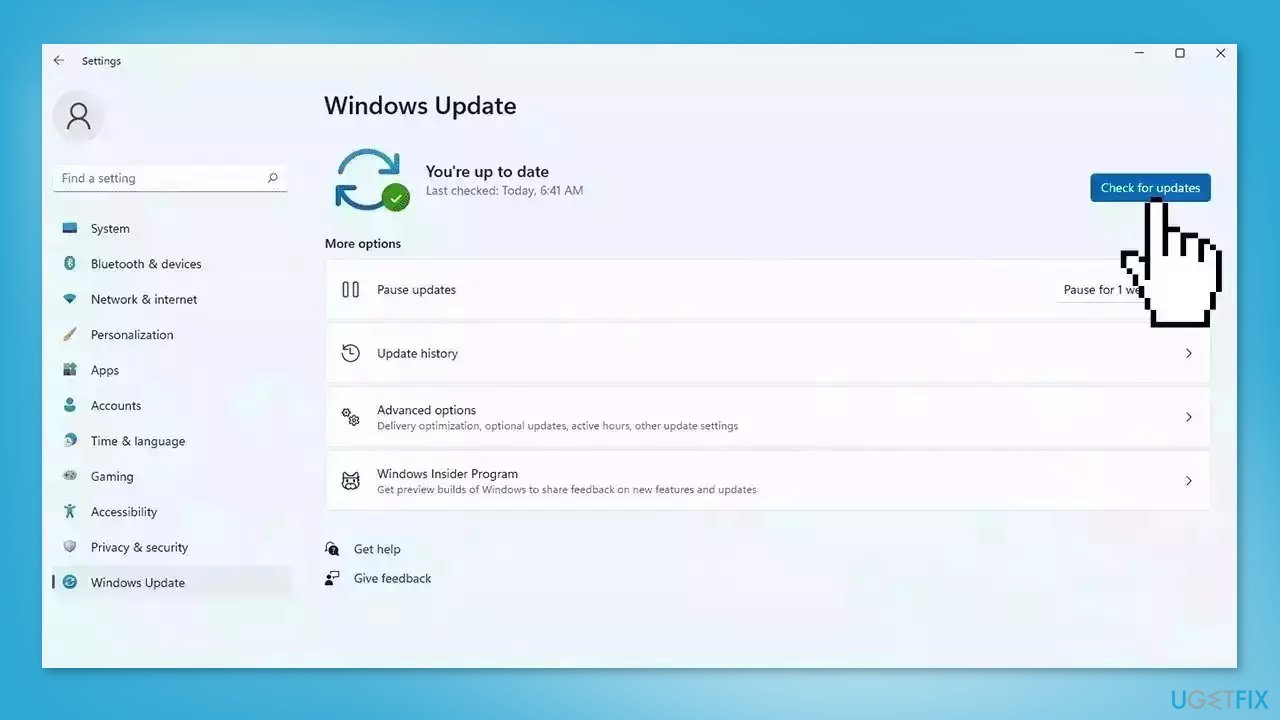
- If a new update is available, click the Download & Install all button.
- Restart your computer after the process is finished and check to see if the problem is fixed
Solution 4. Update Drivers
Outdated drivers could be the cause of this issue. In this case, you can fix it automatically by using [rev id="DriverFix"], which will scan your PC for missing and out-of-date device drivers. Or you can update them manually:
- Open Settings
- Click on Update & Security
- Click on Windows Update
- Click the Check for updates button
- Click the View optional updates option
- Click the Driver updates tab
- Select the driver you want to update
- Click the Download and install button
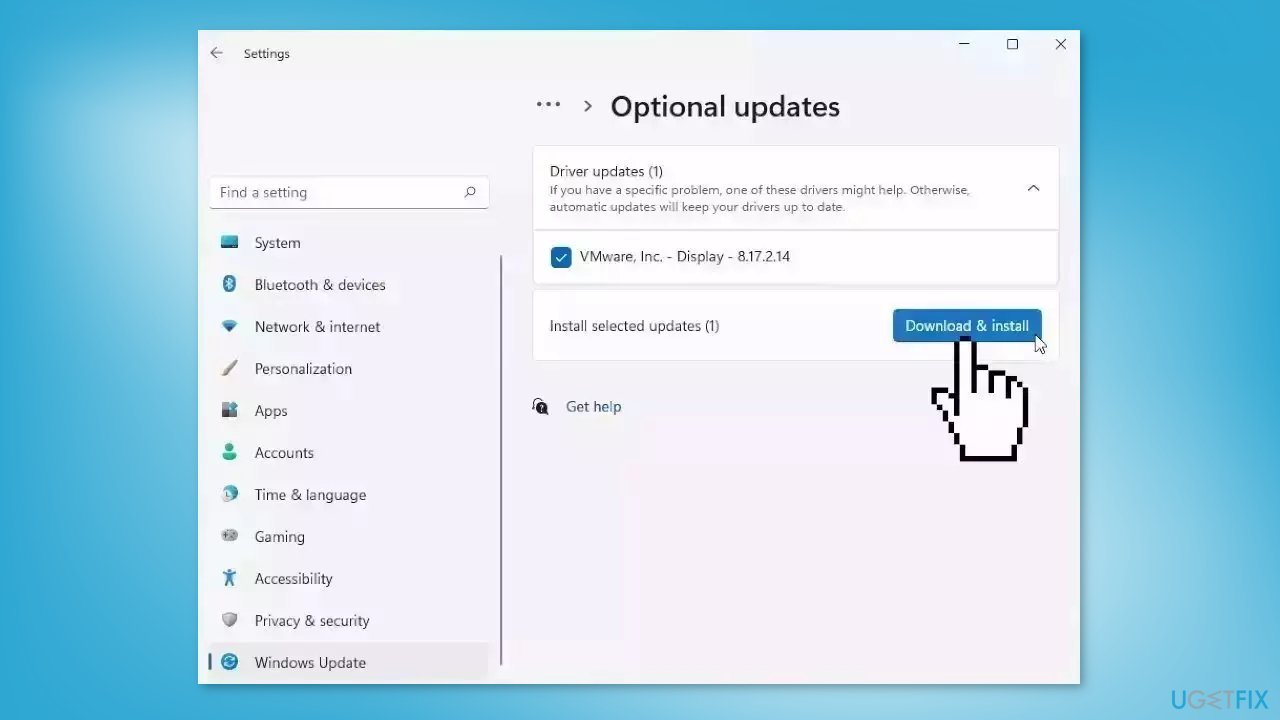
If the View optional updates link is not available after checking for updates, then Windows Update does not have any new drivers or any updates for other products at that particular time.
Solution 5. Modify Windows Registry
- Press the Windows key + R to open the Run dialog box
- Type regedit and click OK
- In the Registry Editor window, navigate to the following path in the left pane:
HKEY_CLASSES_ROOT > CLSID > {8E74D236-7F35-4720-B138-1FED0B85EA75}
- Right-click on the ShellFolder key and select Permissions
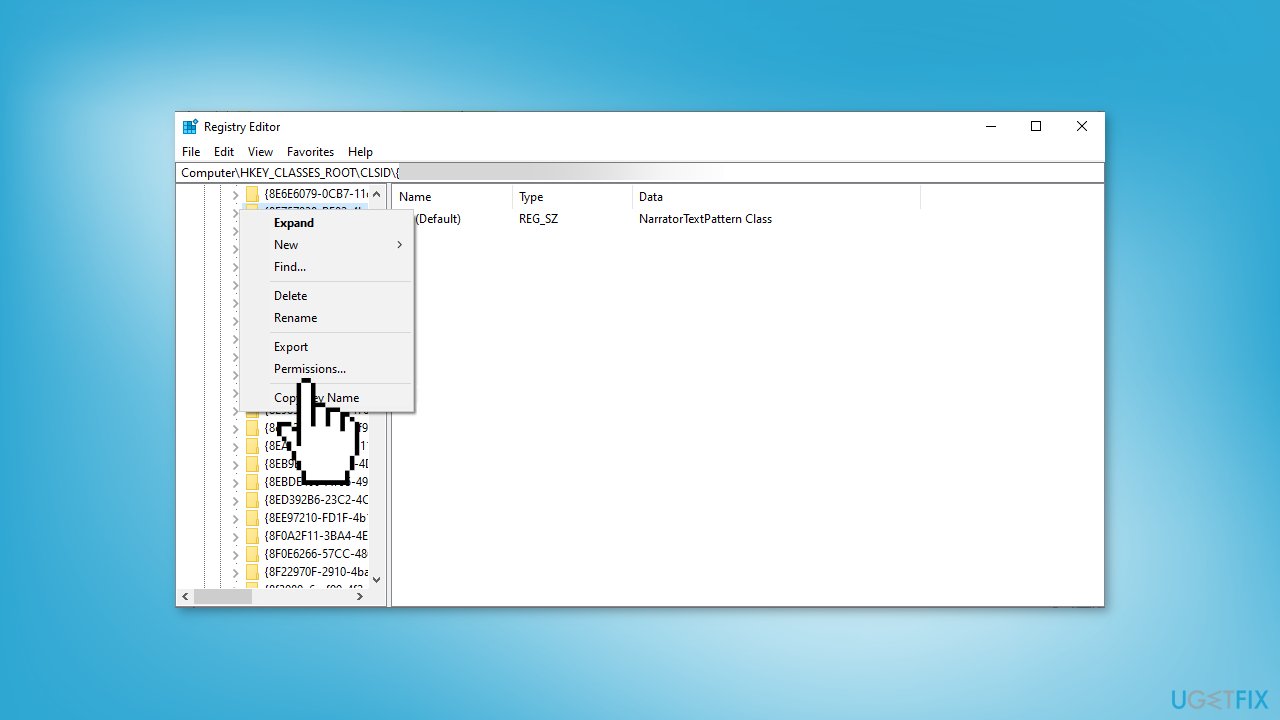
- Click the Advanced button in the Permissions window
- In the Advanced Security Settings window, click on the Change button located in the Owner tab
- In the Select User or Group window, type your username in the Enter the object name to select box and click Check Names. Your username should now be displayed.
- Check the box next to Replace owner on subcontainers and objects and click OK
- In the Advanced Security Settings window, check the box next to Replace all child object permissions with inheritable permissions from this object and click OK
- In the Permissions for ShellFolder window, select your username from the list of usernames and click Edit
- Check the box next to Full Control under the Allow column and click OK
- In the Registry Editor window, locate and double-click on the Attributes icon located in the DWORD window on the right side of the screen
- Set the Value data to 0 and click OK
- Finally, restart your PC to apply the changes
Solution 6. Change Shell Extensions
- Launch the Registry Editor
- Navigate to the following path in the left pane:
HKEY_LOCAL_MACHINE\SOFTWARE\Microsoft\Windows\CurrentVersion\Shell Extensions
- Select the Approved folder
- In the right panel, locate the following key:
{289AF617-1CC3-42A6-926C-E6A863F0E3BA}
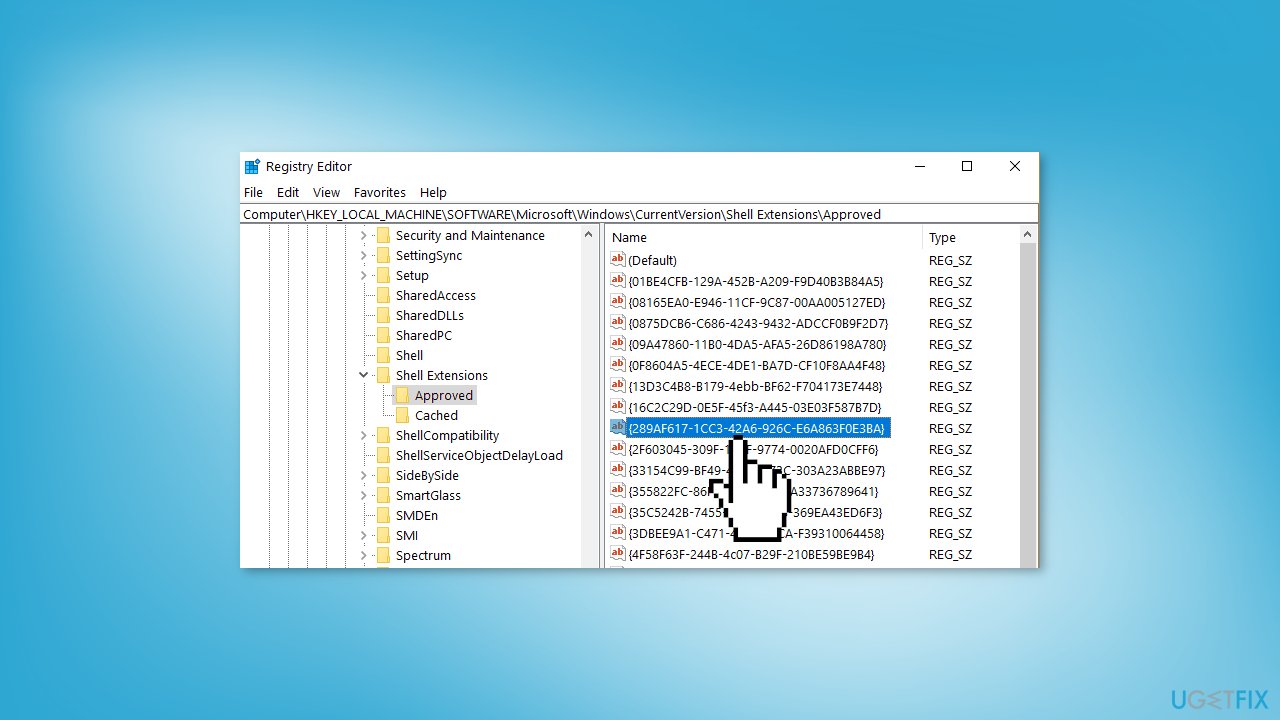
- Double-click on the key to modify its value
- Under the Value data field, remove the existing value and type 0
- Click OK to save the changes
- Finally, restart your PC to apply the changes
Solution 7. Disable Wallpaper Slideshow
- Press the Windows key + I on your keyboard
- From the Windows Settings menu, select the Personalization option
- In the left pane of the Personalization settings window, click on the Background option
- Click on the Background dropdown menu
- Choose Picture from the dropdown menu instead of Slideshow
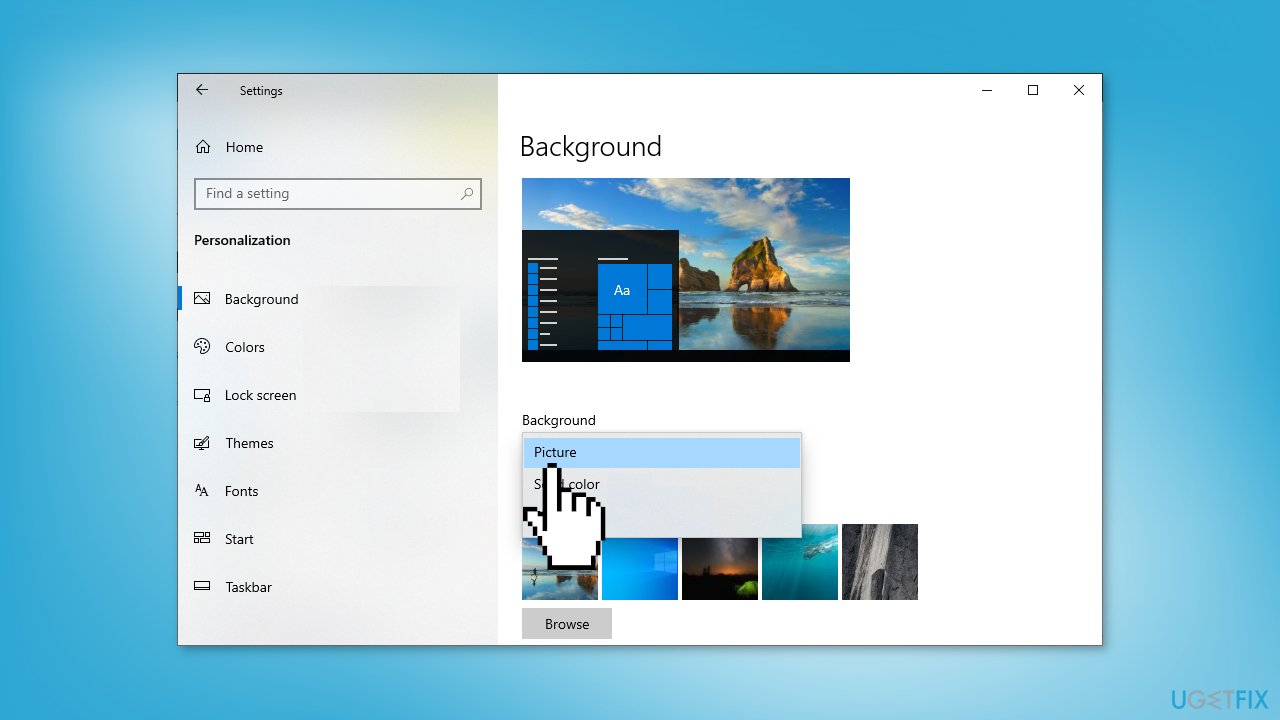
Solution 8. Disable Quick Access and File Preview
- Open File Explorer Options
- Click on the General tab at the top of the window
- Click on the dropdown menu next to Open File Explorer and select This PC
- Uncheck the boxes next to Show recently used files in Quick access and Show frequently used folders in Quick access
- Click on the Clear button to clear the history, then click Apply
- Click on the View tab and uncheck Show preview handlers in preview pane
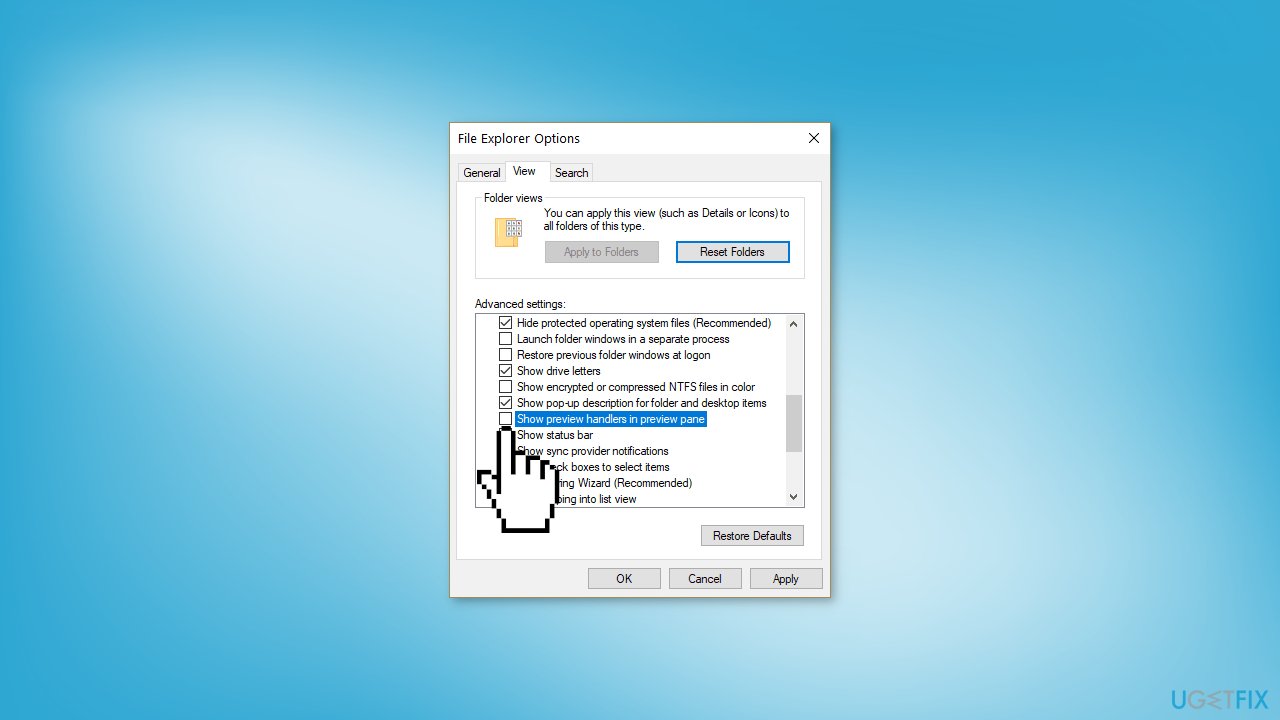
- Click the Apply button, followed by OK to save your new settings
- To disable the Preview pane, open File Explorer and press the Alt + P keys
Solution 9. Reset Windows
If none of the previous solutions resolve the issue, consider resetting Windows. Keep in mind that this is a time-consuming process, as the Windows reset will remove all your apps and require reinstallation.
- Open the Start Menu and click on Settings
- Press on Update & security
- Click on Recovery in the left pane
- In the right pane, click on Reset PC next to Reset this PC
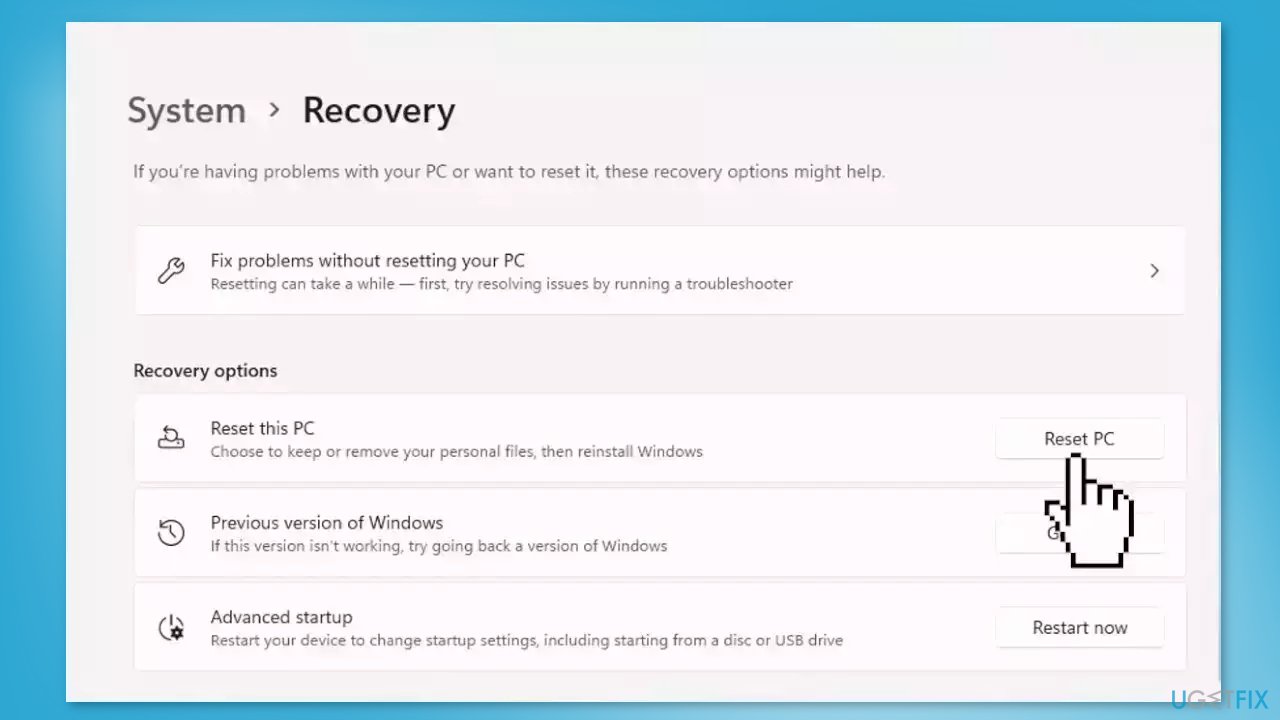
- Click on either Keep my files (if you want the computer to be reset without losing any of the user data stored on it) or Remove everything (if you want the computer to be reset and any and all user data stored on it to be deleted
- If presented with a warning, simply click on Next
- When prompted to do so, click on Reset
Bottom line
This problem can be resolved by updating Windows, updating device drivers, running a system file checker scan, and disabling third-party programs. If these steps do not resolve the issue, consider using a maintenance tool to fix system errors.
Frequently asked questions
This issue may occur due to corrupted system files or conflicting software. Running the System File Checker tool can help identify and resolve these problems.
You can try restarting File Explorer through the Task Manager or updating Windows to the latest version, which may fix bugs related to this issue.
Yes, certain third-party applications can interfere with File Explorer's functionality; disabling or uninstalling such applications may resolve the freezing issue.




Report an issue
What's wrong with this guide? We review every report and update or remove content.
Report received — thank you. We'll review and fix it.
You need a free account to submit a report.
Be the first to comment