How to fix
File Explorer is slow to load when opening folders
on Windows
Is File Explorer slow on Windows 10 or 11? Discover effective solutions to speed it up, with expert-tested tips to resolve the issue in minutes.

![[Fix] File Explorer is slow to load when opening folders](https://ugetfix.com/wp-content/uploads/articles/askit/fix-file-explorer-is-slow-to-load-when-opening-folders_en-768x432.jpg)
What causes [Fix] File Explorer is slow to load when opening folders?
- General File Explorer bugs
- Corrupted system files
- Incompatibilities with third-party software
- Creative Cloud software from Adobe
Repairs Windows system files, removes malware, and restores a clean OS state — without reinstalling.
When I attempt to open a folder in File Explorer, it shows a loading circle for several seconds before it actually opens. This is very annoying. It started happening several days ago and I don't know why. Please help me.
A key feature of the Windows operating system is File Explorer, which provides users with a graphical user interface for accessing files, folders, and network locations on their PCs. Everything on your computer, from documents and photos to programs and system data, may be easily accessed and managed with its help.
There is, however, a problem where File Explorer is slow to load when opening folders. In particular, there could be a long wait (shown by a spinning circle) after you click on a folder before it opens - up to several seconds instead of it being almost instant. It's frustrating when trying to browse or manage files can result from this lag, which can linger for many seconds.
Numerous issues may cause File Explorer to be slow when opening folders, such as general File Explorer bugs, corrupted system files that interfere with the program's functionality, or incompatibilities with third-party software that you have installed on your computer.
Notably, Creative Cloud software from Adobe has been linked to this problem, however, it's only one example of a larger list of programs that can affect File Explorer's functionality. It's critical to realize that, despite its inconvenience, this problem is frequent and solvable with the right troubleshooting techniques.
If you find that your File Explorer is slow to open folders, be assured that there are strategies and solutions available to help mitigate this issue. These fixes, which are meant to bring File Explorer's functionality and responsiveness back, will be described in detail in the section that follows below - they don't require a lot of technical expertise.
Meanwhile, using a PC repair app [d1] could be a good alternative for people looking for a quick and less manual way to fix this and any other Windows problems.
Fix 1. Restart File Explorer
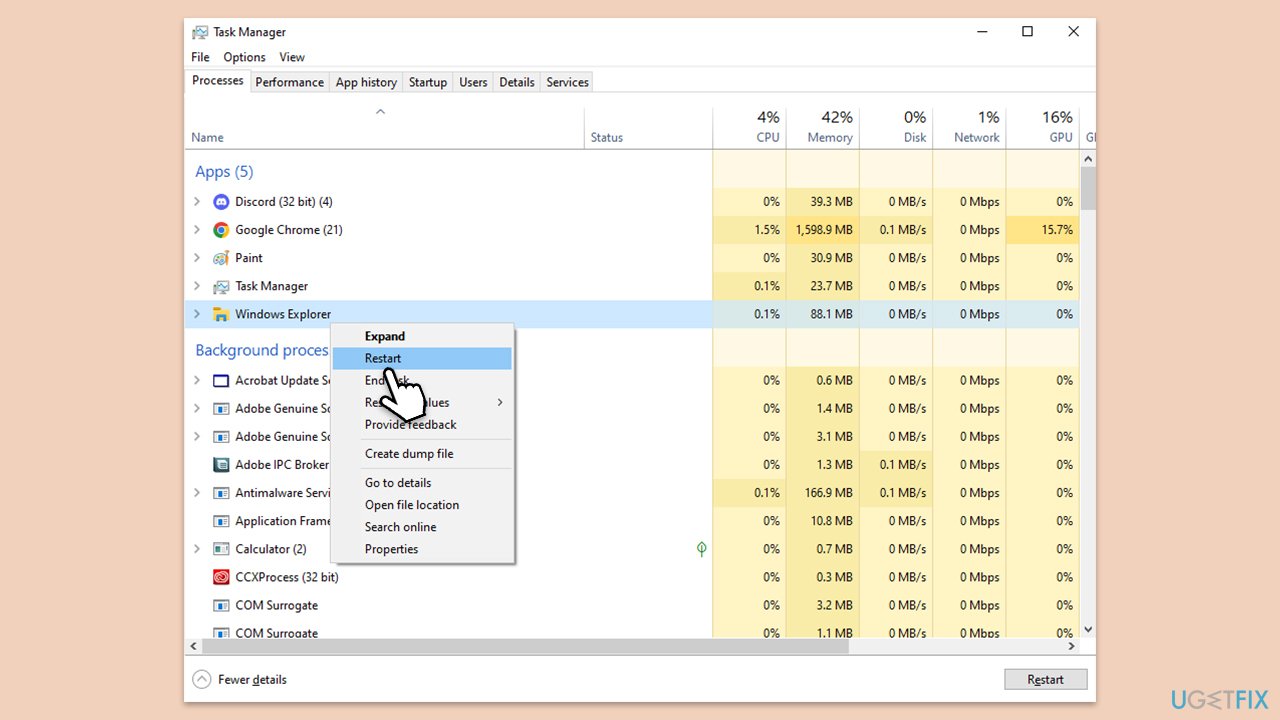
Restarting File Explorer can often resolve minor glitches and performance issues by refreshing its process. This method effectively closes and reopens the File Explorer, which can eliminate temporary bugs affecting its speed.
- Press Ctrl + Shift + Esc to open Task Manager.
- In the Processes tab, find Windows Explorer.
- Right-click on Windows Explorer and select Restart.
- Wait for a few seconds as the taskbar and desktop icons disappear and reappear.
Fix 2. Run Search and Indexing troubleshooter
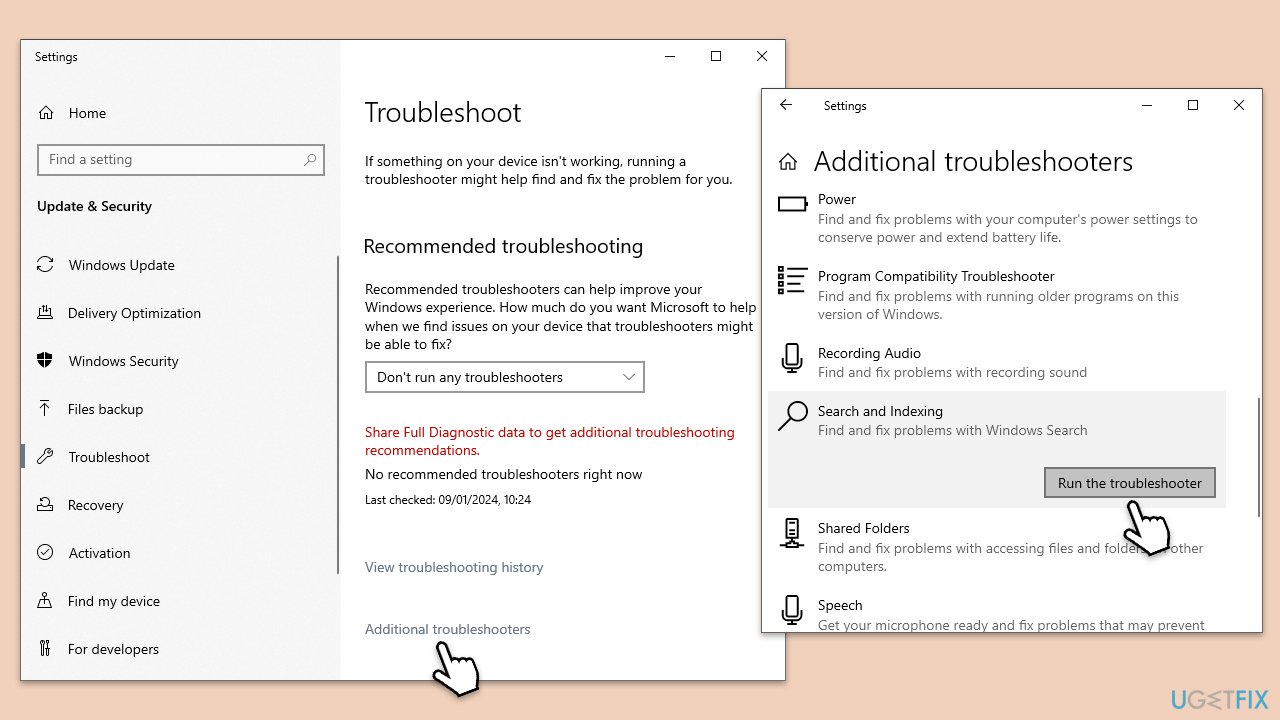
The Search and Indexing troubleshooter can diagnose and fix problems with Windows Search and the indexing of files, which might be causing File Explorer to load folders slowly.
- Type Troubleshoot in Windows search and hit Enter.
- Select Additional troubleshooters/Other troubleshooters.
- Find Search and indexing from the list and select Run the troubleshooter/Run.
- Wait till the scan is finished - you will be provided with potential causes so you can proceed with fixes.
- If no suggestions were given, proceed with the solutions below.
Fix 3. Update Adobe Cloud
A recent Adobe update addressed syncing issues that affected File Explorer's performance. Updating Adobe Cloud can resolve slow folder loading times by fixing the underlying syncing problem.
- Open the Adobe Creative Cloud application.
- Go Help section in the menu.
- Click Check for updates.
- If updates are available, click Update All to apply them.
- Restart your system.
Fix 4. Deny permissions to Adobe OS Extension folder (if applicable)
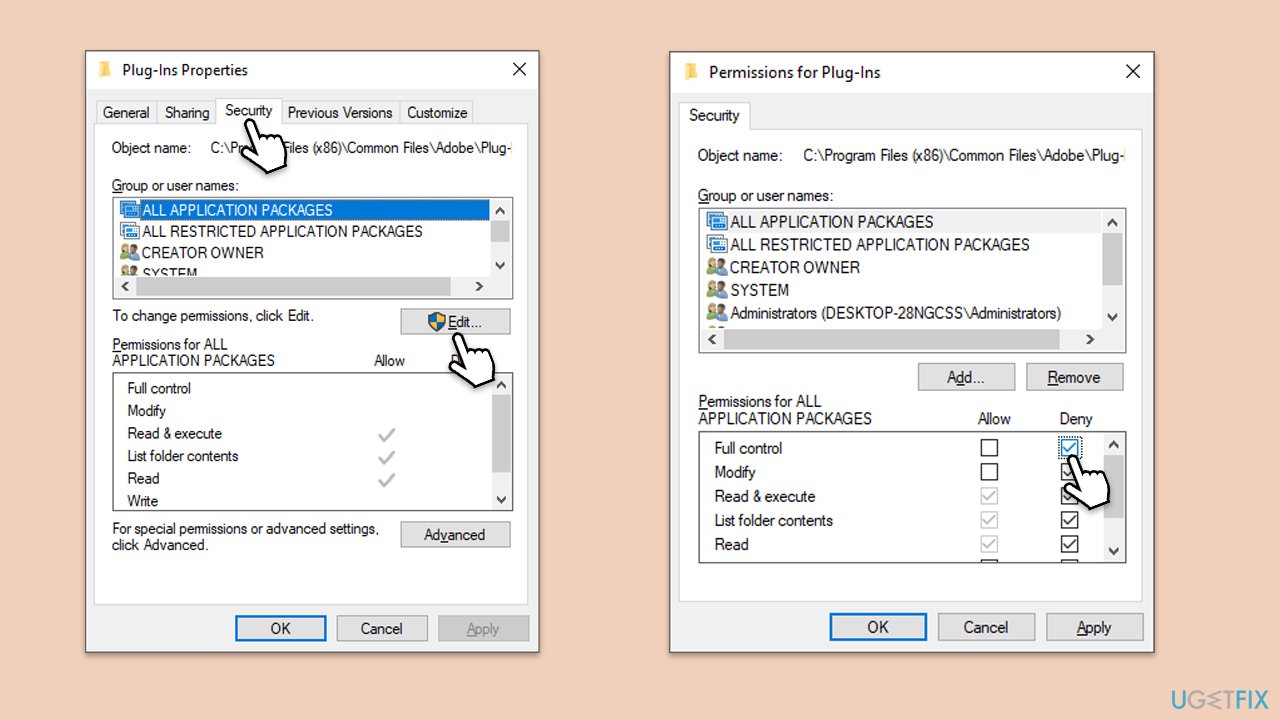
Limiting access to the Adobe OS Extension folder can prevent Adobe services from interfering with File Explorer's operation, improving folder loading times. If installing updates for Adohe software did not work, try using this method.
- Press Win + E to open File Explorer.
- Navigate to the following location (note that this may vary):
C:\Program Files\Common Files\Adobe\Adobe OS Extension - Right-click on the Adobe OS Extension folder and select Properties.
- Go to the Security tab and click Edit.
- Click Deny for everything and click OK.
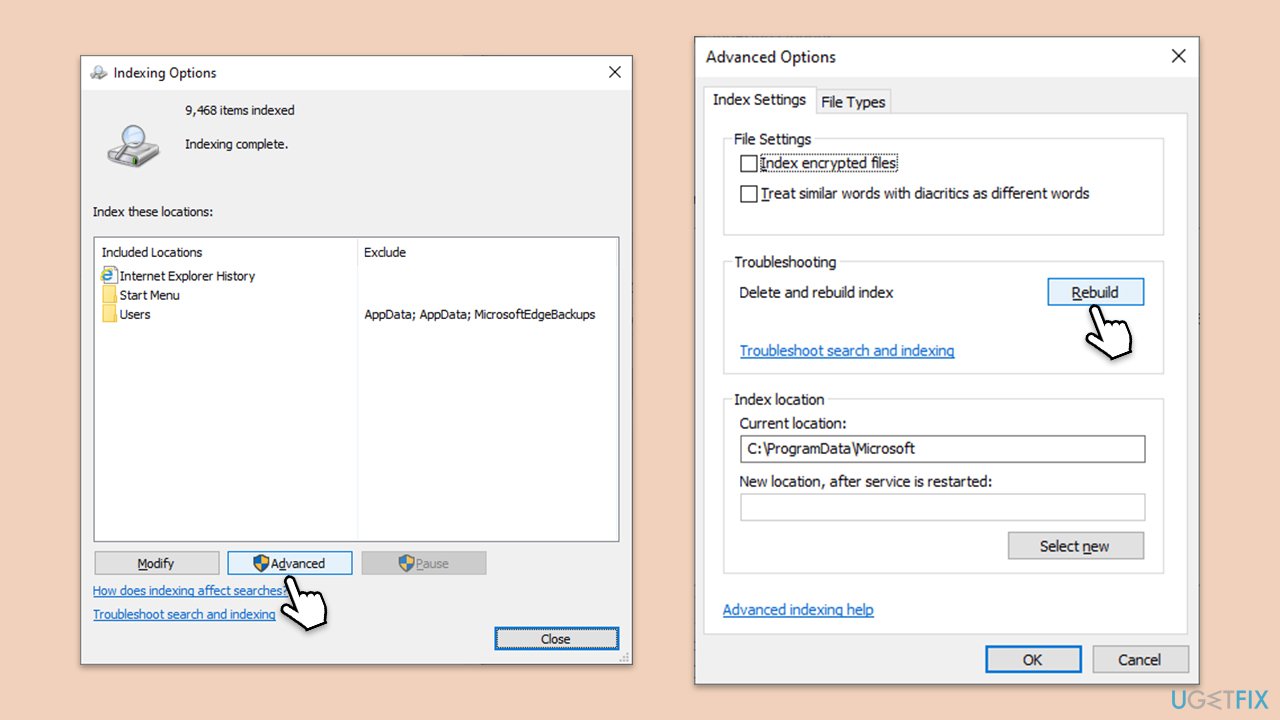
Fix 5. Rebuild Index
Rebuilding the search index can improve File Explorer's performance by refreshing the database of files and folders, making searches and folder access faster.
- Type Control Panel in Windows search and press Enter
- On the top-right corner, click on View by option and select Small icons
- Pick Indexing options
- Click Modify
- Mark the locations that you want to be indexed and click OK (you can also use Show all locations at the bottom-left of the window if you can't see the location you are looking for)
- In the Indexing Options window, click Advanced
- Click Rebuild under Delete and rebuild index. This might take a while, depending on how large your drives are. During the rebuilding process, you might not be able to use the search bar or receive incomplete results
- Click OK.
Fix 6. Use the "Optimize this folder for" option
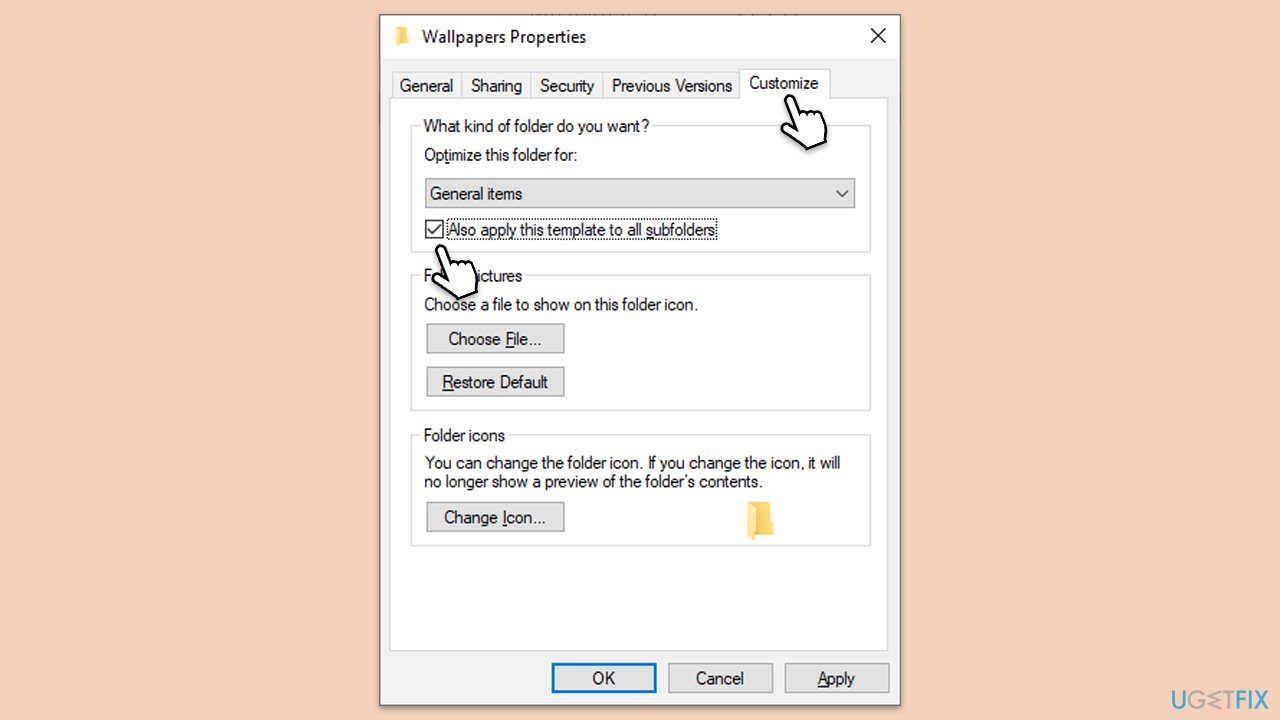
Optimizing folders based on their content type can enhance File Explorer's efficiency in displaying files, leading to faster folder loading.
- Right-click the folder that takes too long to open and click Properties
- Go to the Customize tab
- Under Optimize this folder for section, pick General items from the drop-down menu
- Mark Also apply this template to all subfolders option
- Click Apply and OK.
Fix 7. Perform Disk Cleanup
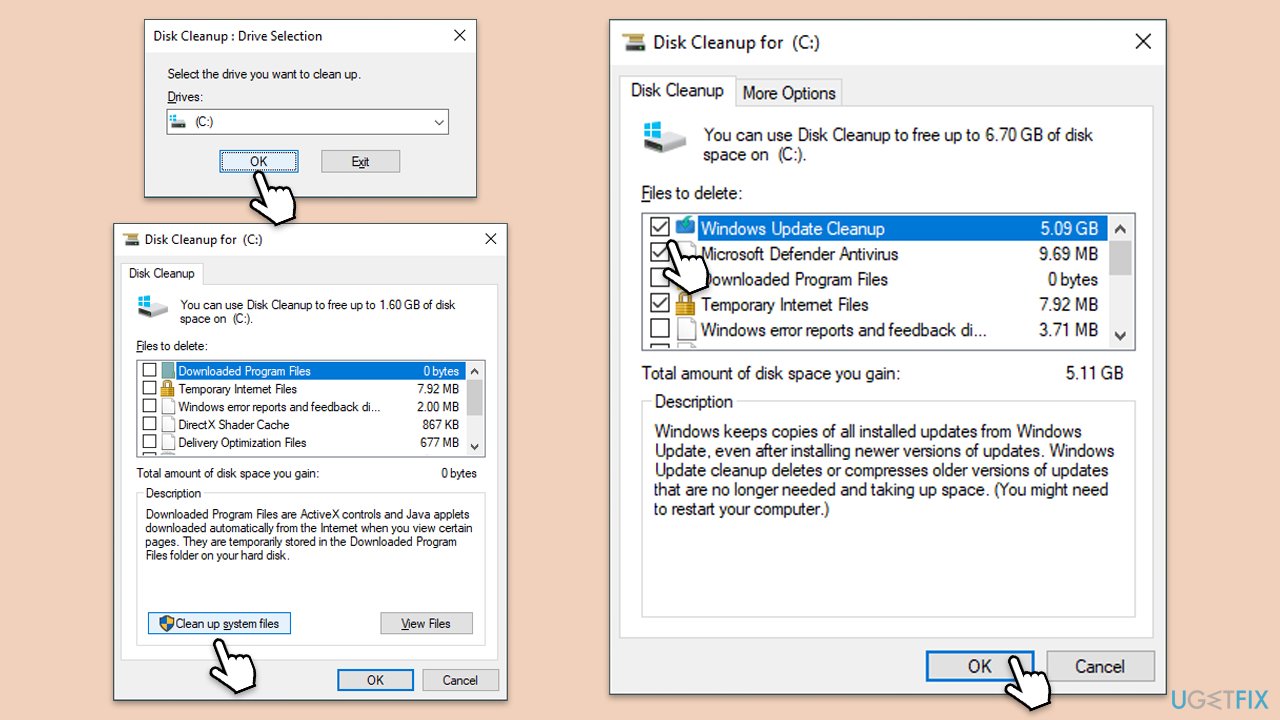
Disk Cleanup can free up space on your hard drive and improve overall performance by removing temporary files and system files that may be slowing down File Explorer.
- Type Disk Cleanup in Windows search and hit Enter
- If your Windows is installed on drive C, pick it from the list (should be by default) and press OK
- Click Clean up system files
- Select your main disk again and click OK
- Here, select the largest portions of the data used - these typically include Temporary Internet Files, Windows Update, Temporary Files, Recycle Bin, Delivery Optimization Files, and others.
- Click OK and wait for the cleanup process to finish.
Fix 8. Use System Restore
You might avoid this problem entirely by using System Restore to take your system back to a time when File Explorer did not have poor loading speeds.
- Type in Create a Restore point in Windows search and hit Enter.
- Go to the System Protection tab and pick System Restore.
- Click Next.
- Click Show more restore points.
- Pick a different restore point you tried last time and click Next.
- Follow the prompts to finish the process.
Bottom line
File Explorer can be slow to load folders due to various issues, including bugs and corrupted files. To address this, you can try restarting File Explorer or using a PC repair app for a quicker solution. If these fixes do not resolve the issue, further troubleshooting may be necessary.
Frequently asked questions
File Explorer may be slow due to various reasons, such as corrupted cache files or a large number of items in the folder. Clearing the cache and optimizing folder settings can improve loading times.
To speed up File Explorer on Windows 11, try disabling Quick Access and clearing the recent files history, as these can slow down the folder opening process.
If File Explorer is consistently slow, consider running the System File Checker tool to repair any corrupted system files that may affect performance.




Report an issue
What's wrong with this guide? We review every report and update or remove content.
Report received — thank you. We'll review and fix it.
You need a free account to submit a report.
Be the first to comment