How to fix
File Explorer slow unless restarted frequently
on Windows
Resolve the slow performance of File Explorer in Windows 10 and 11 with effective solutions that deliver results quickly. Expert-tested for your conveni…

![[Fix] File Explorer slow unless restarted frequently in Windows](https://ugetfix.com/wp-content/uploads/articles/askit/fix-file-explorer-slow-unless-restarted-frequently-in-windows_en-768x432.jpg)
What causes [Fix] File Explorer slow unless restarted frequently in Windows?
- Corrupt system files
- Outdated Windows operating system
- Outdated drivers
- System crashes
- Random errors
- Unstable systems
Repairs Windows system files, removes malware, and restores a clean OS state — without reinstalling.
Hello. The File Explorer on my Windows PC takes a long time to open folders and perform other tasks unless I restart it. Is there a way to fix this?
Users may find it annoying and distracting when File Explorer on a Windows computer performs slowly or sluggishly. This issue might show up in a number of ways, including poor response from the File Explorer search bar or delays when opening or transferring files. Corrupt system files are a common source of this delay, however, the precise causes may differ.
Users' productivity and efficiency are greatly impacted when File Explorer becomes unresponsive. Workflow can be interrupted and operations can be slowed down by a slow response while opening files or folders. Users who regularly use File Explorer for file management may find this especially annoying. Furthermore, a sluggish search bar might impede rapid access to files and documents, making it more difficult to locate and obtain the necessary information quickly.
System file corruption can cause more than just delayed File Explorer operations. They may also lead to crashes, random errors, and unstable systems. Consequently, fixing this problem is necessary for a more dependable and seamless Windows PC user experience.
To resolve this problem, users typically need to perform system file checks and repairs, which can be done through built-in Windows utilities like the System File Checker (sfc) and Deployment Image Service and Management Tool (DISM). These tools can help identify and repair damaged or missing system files, potentially alleviating the slowdown issue. Updating the Windows operating system and drivers is another advised step, as out-of-date software may greatly worsen performance issues.
In more serious situations, users may need to think about more involved fixes, such as system restoration or, on very rare occasions, a fresh Windows installation. In this guide, you will find 6 steps that should help you fix File Explorer slow unless restarted frequently in Windows. You can also run a maintenance tool like [d1] that can fix most system errors, BSODs,[ref en-1] corrupted files, registry[ref en-2] issues, or clear cookies and cache[ref en-3] automatically. Otherwise, follow the step-by-step instructions below.

Method 1. Fix Corrupted System Files
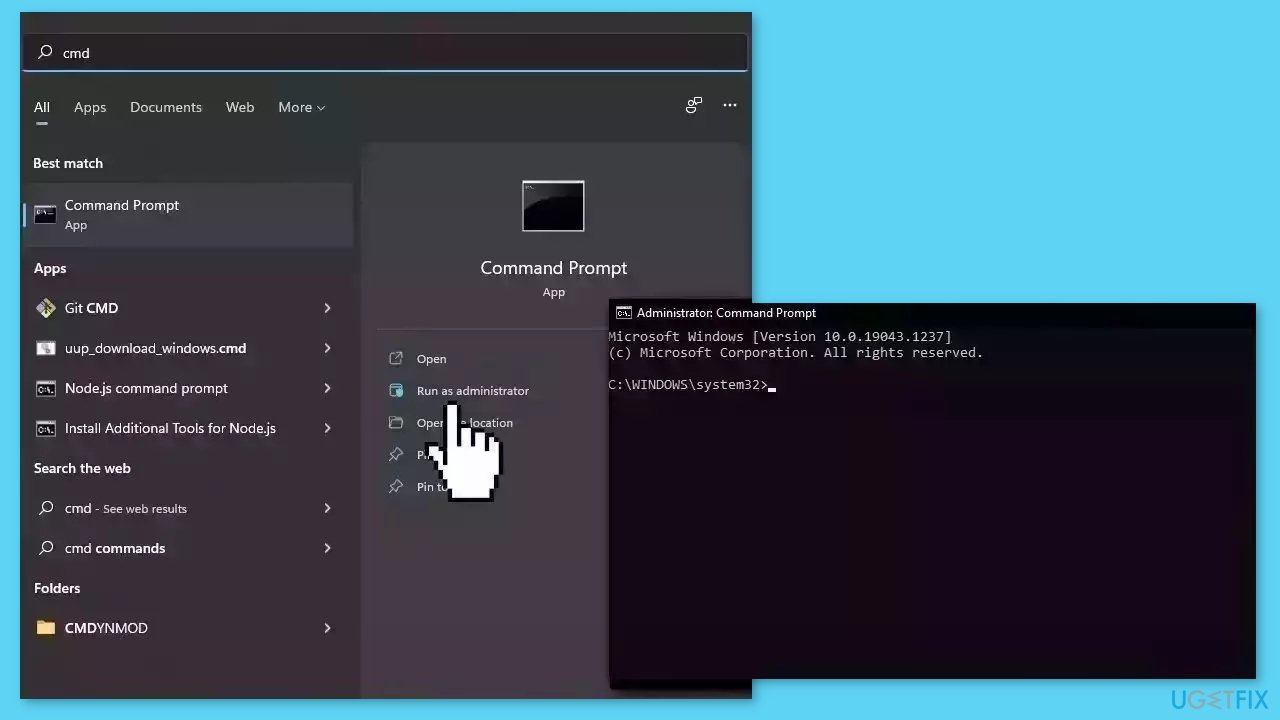
Use Command Prompt commands to repair system file corruption:
- Open Command Prompt as administrator
- Use the following command and press Enter:
sfc /scannow
- Reboot your system
- If SFC returned an error, then use the following command lines, pressing Enter after each:
DISM /Online /Cleanup-Image /CheckHealth
DISM /Online /Cleanup-Image /ScanHealth
DISM /Online /Cleanup-Image /RestoreHealth
Method 2. Close Background Apps
- Open the Task Manager by pressing Ctrl + Shift + Esc.
- Go to the Processes tab.
- Scroll down to the Apps section.
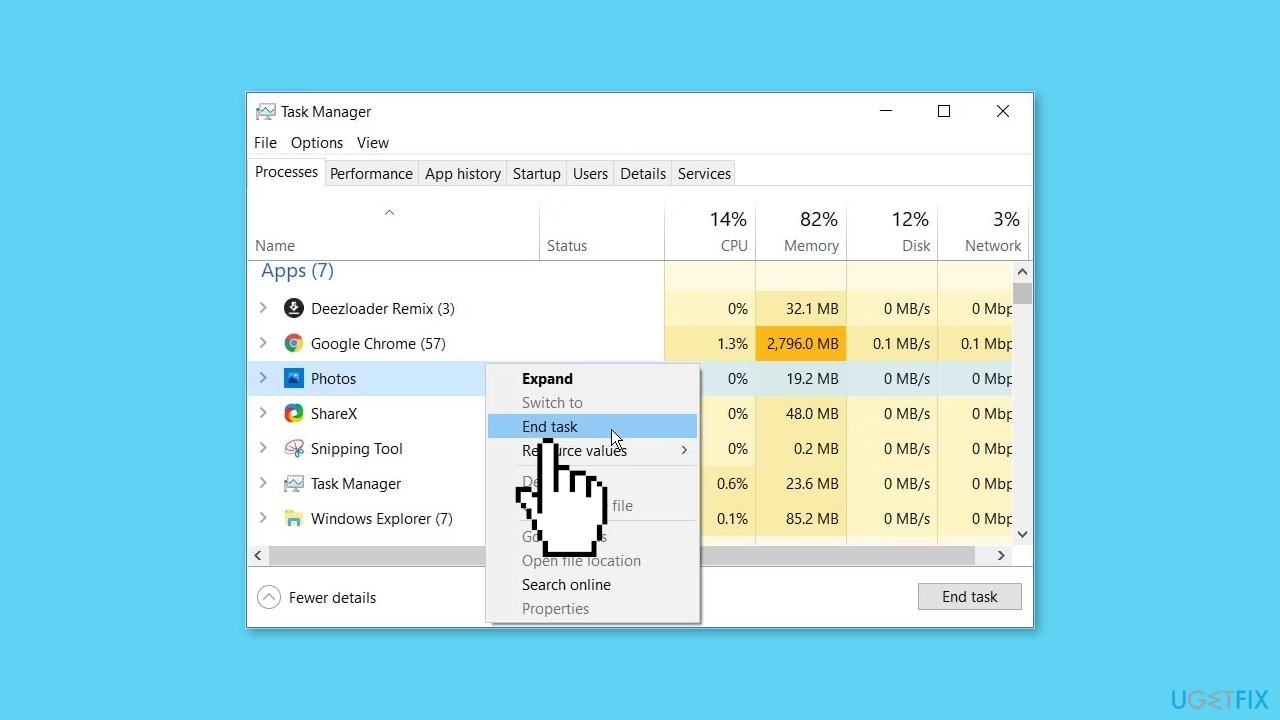
- Right-click on a specific program.
- Select End task.
- Repeat this process for all other redundant programs in the Apps section.
- In the Processes tab, scroll down to the Background processes section.
- Right-click on any unused program.
- Select End task.
- Finally, disable unnecessary startup apps and processes to prevent File Explorer from slowing down.
Method 3. Run the Search and Indexing Troubleshooter
- Type Control Panel in the Windows search bar and select the Best match.
- Select Small icons in the View by drop-down menu.
- Select Indexing Options.
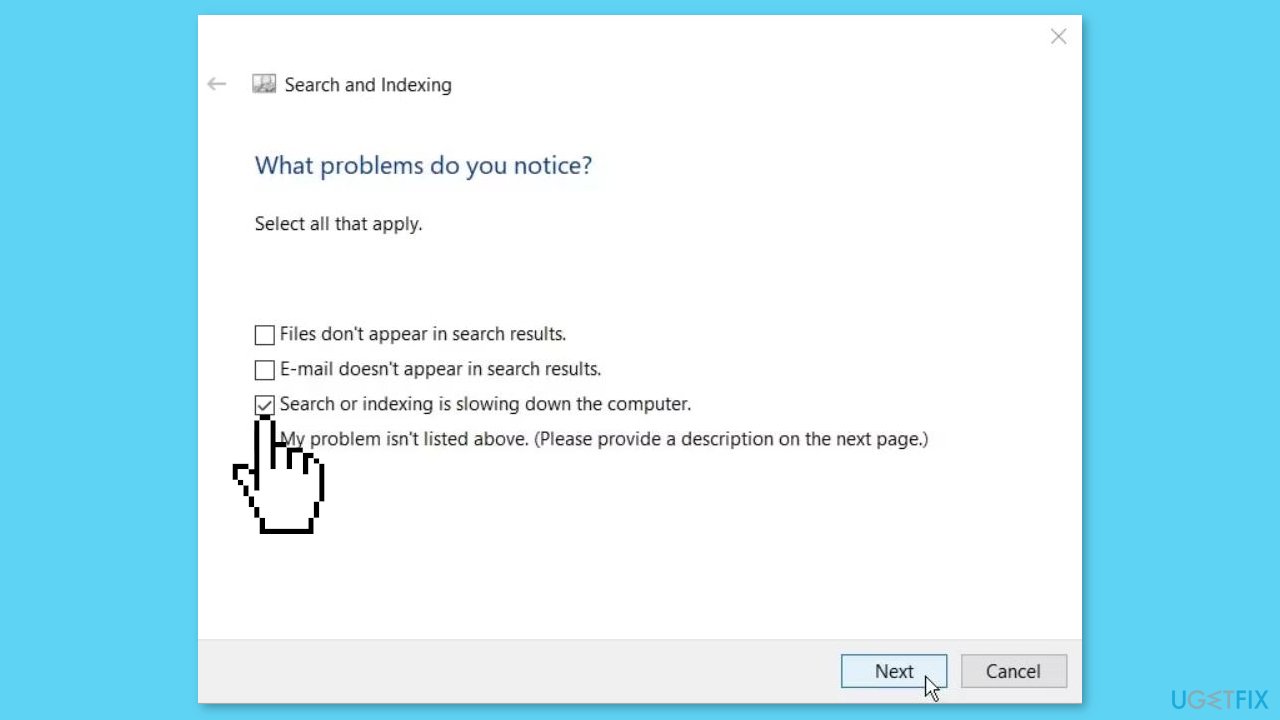
- In the following window, select Troubleshoot search and indexing.
- Now, check the box that says Search or indexing is slowing down the computer.
- Press Next to complete the process.
Method 4. Disable Quick Access and Clear File Explorer History
- Open File Explorer and click the File option in the top-left corner of the screen.
- Select Change folder and search options.
- In the next window, go to the General tab.
- Click the Open File Explorer to drop-down menu and select This PC.
- Uncheck Show recently used files in Quick access and Show frequently used folders in Quick access options.

- Click the Clear button under the Privacy options. This action will clear File Explorer history.
- Click Apply, and then click OK to apply these changes.
- Restart your PC to save these changes.
Method 5. Configure the Folder Optimization Settings
- Right-click the problematic folder and select Properties.
- Go to the Customize tab.
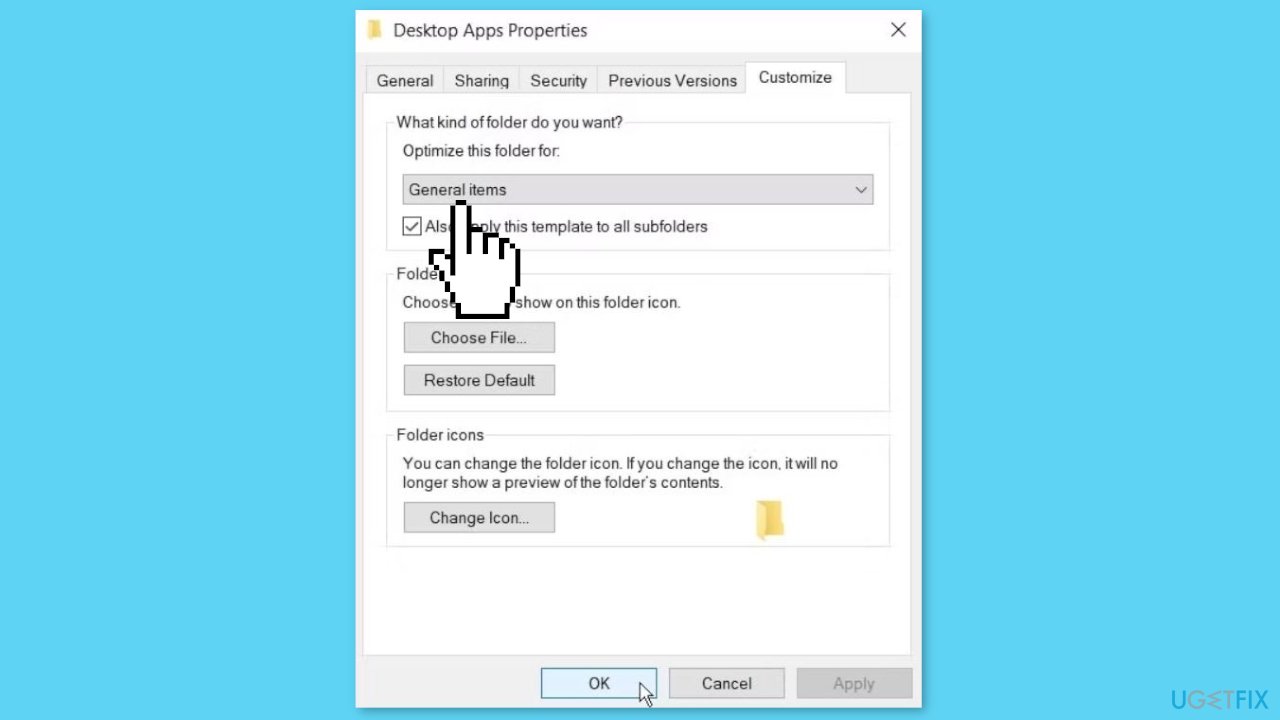
- Click the Optimize this folder for drop-down menu and select General items.
- Check the Also apply this template to all subfolders box.
- Click Apply, and then click OK to apply these changes.
Method 6. Disable the Windows Search Service
- Press the Windows key + R and enter services.msc. Press Enter or click OK.
- When the Services window opens, locate Windows Search and double-click it.
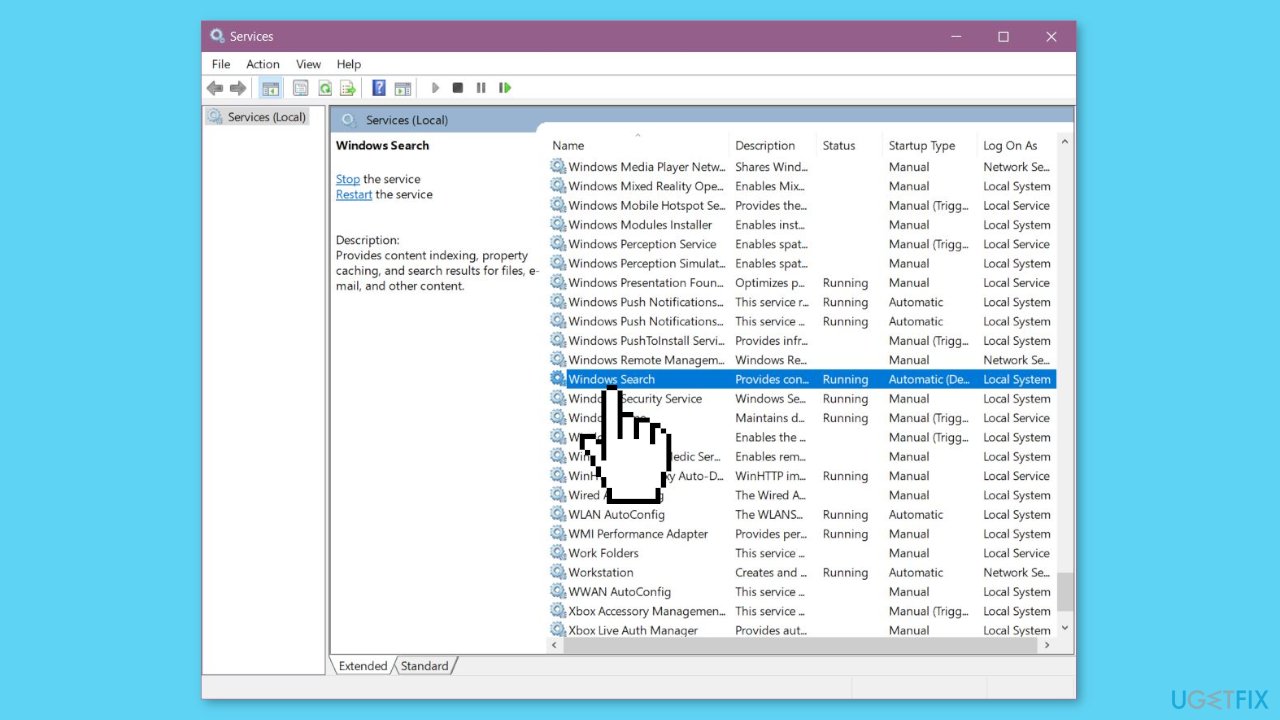
- Once the Properties window opens, set the Startup type to Disabled.
- If the service is running, click the Stop button to stop it.
- Now, click Apply and OK to save changes.
Bottom line
To resolve the slow performance of File Explorer, users should perform system file checks and repairs using tools like System File Checker (sfc) and Deployment Image Service and Management Tool (DISM). Additionally, updating the Windows operating system and drivers is recommended. If these steps do not resolve the issue, consider system restoration or a fresh Windows installation.
Frequently asked questions
File Explorer may become slow due to various reasons such as corrupted cache, outdated drivers, or conflicting software. Regularly restarting File Explorer can temporarily alleviate the issue but addressing the root cause is essential for a permanent fix.
You can try clearing the File Explorer history, disabling unnecessary startup programs, or checking for Windows updates to improve performance. Additionally, running the System File Checker tool can help identify and fix corrupted files.
Yes, optimizing File Explorer can include disabling Quick Access, adjusting folder options, and ensuring your system has enough RAM and storage space. Regular maintenance such as disk cleanup and defragmentation can also enhance its performance.




Report an issue
What's wrong with this guide? We review every report and update or remove content.
Report received — thank you. We'll review and fix it.
You need a free account to submit a report.
Be the first to comment