How to fix
File preview not working when file is renamed
on Windows
Resolve file preview issues when renaming in Windows 10 or 11. Follow our expert-tested solutions for instant fixes and smooth operation.

![[Fix] File preview not working when file is renamed in Windows](https://ugetfix.com/wp-content/uploads/articles/askit/file-preview-not-working-when-file-is-renamed-fix_en-768x433.jpg)
What causes [Fix] File preview not working when file is renamed in Windows?
- Changes in default settings
- Restricted file types
- Buggy Windows updates
- Corrupted or damaged system files
- Issues with the preview pane
Repairs Windows system files, removes malware, and restores a clean OS state — without reinstalling.
Hey. My computer is having an issue when I rename a file. I cannot preview the file after that. I cannot preview my files once I change the name. Is this a File Explorer issue? Or I can do something to fix this? I use the Windows 10 computer, updates are the newest. Help me. It is annoying
File preview not working when the file is renamed in Windows is the problem often occurring on machines because of the changes in default settings. Users[ref en-1] report the issue online and complain about the issue that creates frustration when multiple files are processed, altered and the lack of the working preview method triggers lost time and sometimes leads to other issues.
The preview pane is the feature of the explorer, and when it is failing to do what it is supposed to the "File not found" message can even occur on the screen. The error with a code or without one can create frustration for users and often does exactly that. Just renaming the file is not the cause for this, but there are additional issues that can contribute to this. However, it is possible to solve the issue.
No preview available can also be the error that appears on the screen when the File preview pane is missing or not working when a file is renamed in Windows. It is possible that sometimes file types get restricted, and it might be the issue. Image preview might work, but no other files or even other media pieces like video or audio.
The problem with these issues on the machine can be related to buggy Windows updates because those often lead to common feature failure.[ref en-2] This is not a crucial problem like BSOD[ref en-3] or malware, so do not panic. However, it is really important to fix the issue by addressing the cause. Preview pane not working when the file is renamed in Windows can be fixed by enabling the system file checking scan because the affected system data can lead to issue with common features.
Corrupted or damaged files on the system can trigger more serious issues, so scanning the machine with a tool like [d1] can not only solve these problems with the machine but also improve the performance of the computer significantly. Those files can be damaged during the failure of installation of the OS or when third-party applications are incompatible.
There are ways to fix the File preview not working when a file is renamed issue, just rely on the guide and try a few methods. Of course, always remember that there are some of the particular characters that shouldn't be in the filename. Like # or other symbols.
Method 1. Edit registry
- Hit Windows and R keys to open Run box.
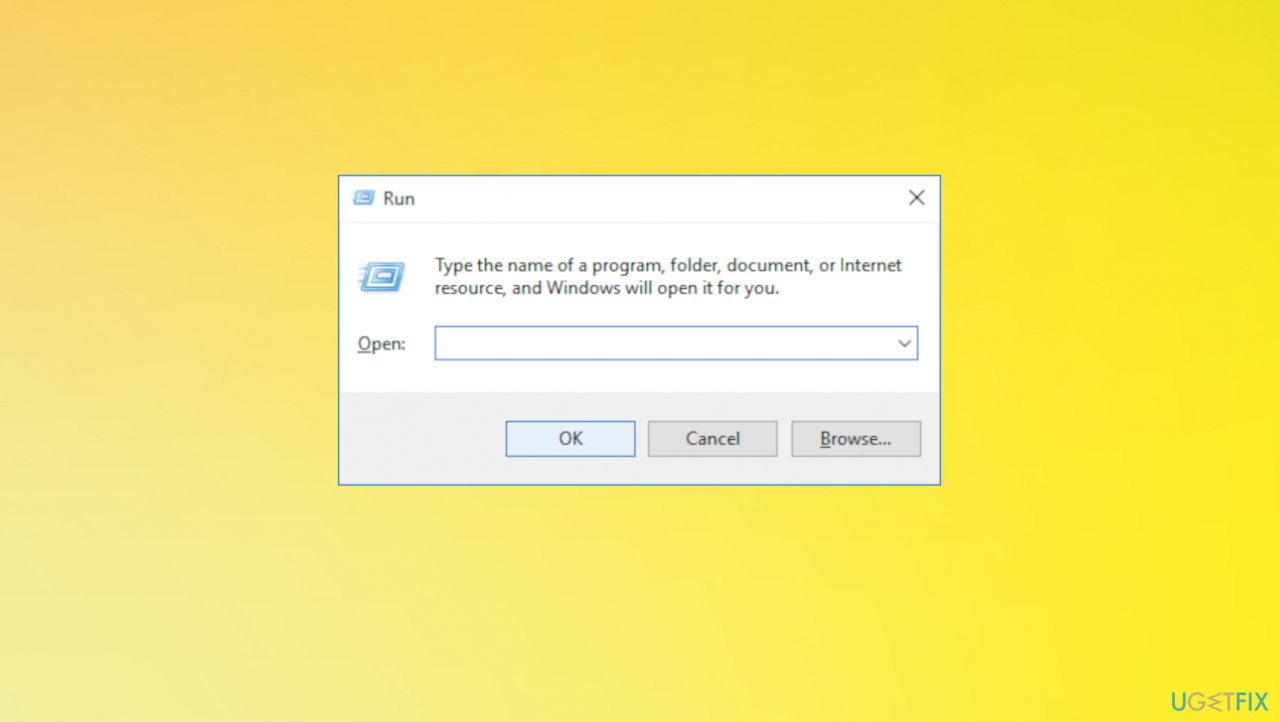
File preview not working when file is renamed fix run - Type regedit and hit Enter or OK.
- In Regedit go to:
HKEY_LOCAL_MACHINE\\SOFTWARE\\Microsoft\\Windows\\CurrentVersion\\PreviewHandlers - Copy the Value Name for the Previewer that you want to use.
- Go to:
HKEY_CLASSES_ROOT\\.pdf\\shellex\\{8895b1c6-b41f-4c1c-a562-0d564250836f} - Change the Default to the Value Name you copied before.
Method 2. Run SFC
- Open the command prompt as administrator.
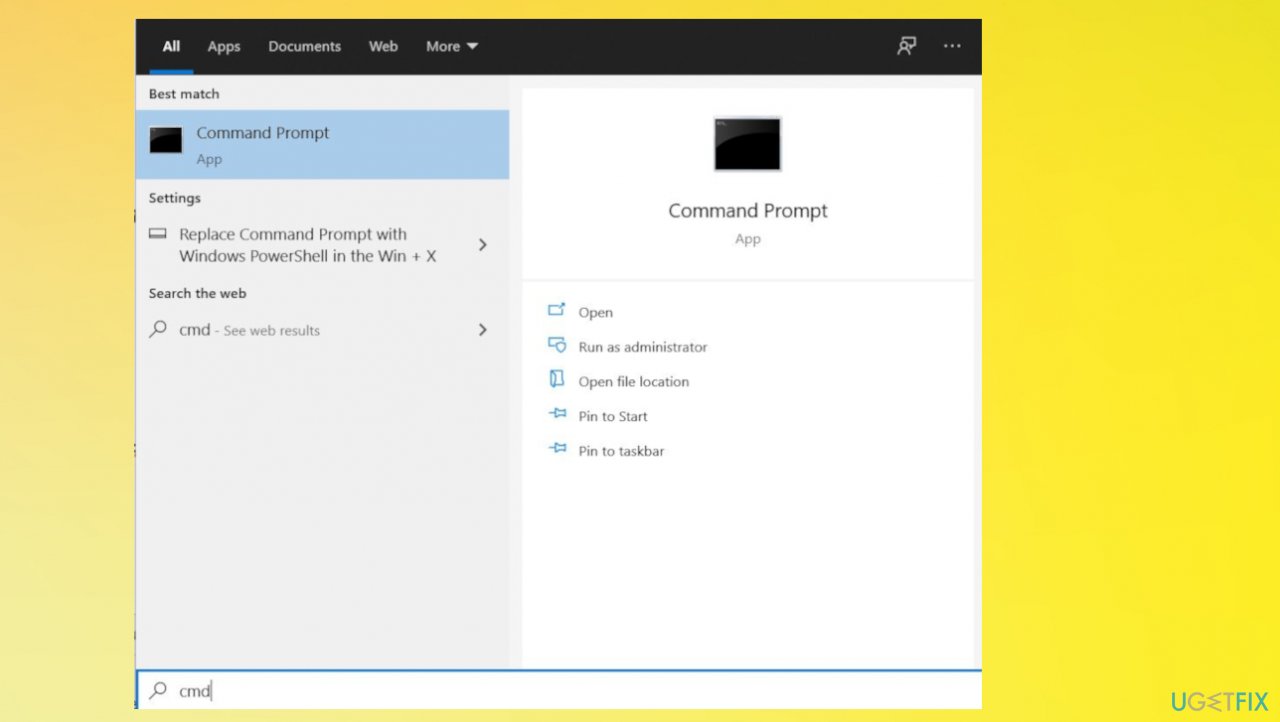
File preview not working when file is renamed fix cmd - Type command: sfc /scannow
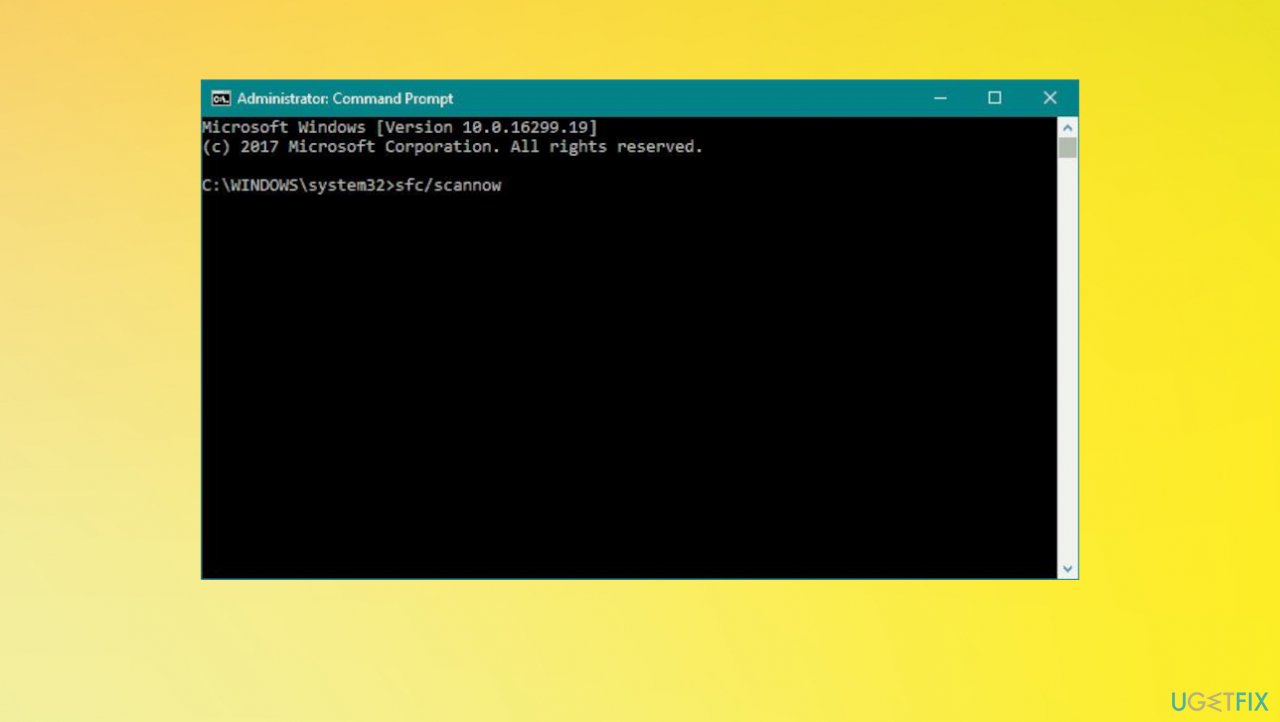
File preview not working when file is renamed fix sfc - Let system file checker utility detect and restore missing system files.
- Restart the machine.
Method 3. Enable preview pane
- Open File Explorer.
- Switch to the View section.
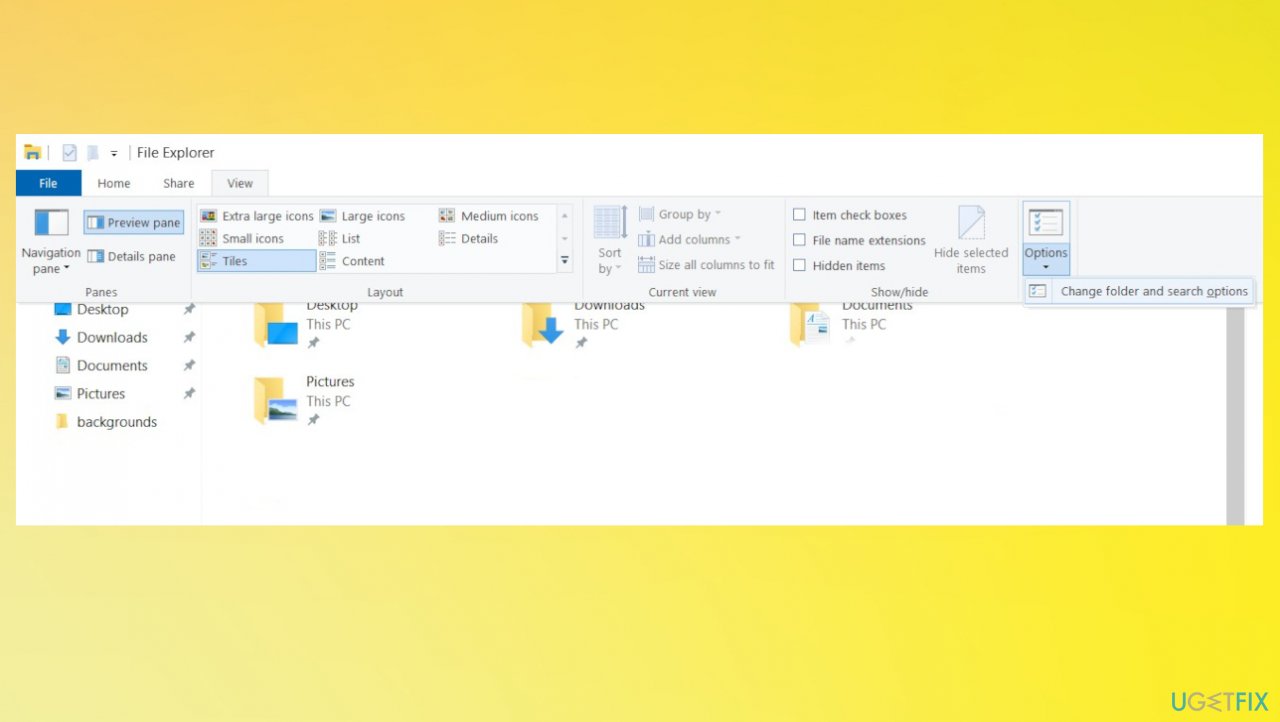
File preview not working when file is renamed fix file options - Select Options menu and then go to Change folder and search options button.
- In the Folder Options section.
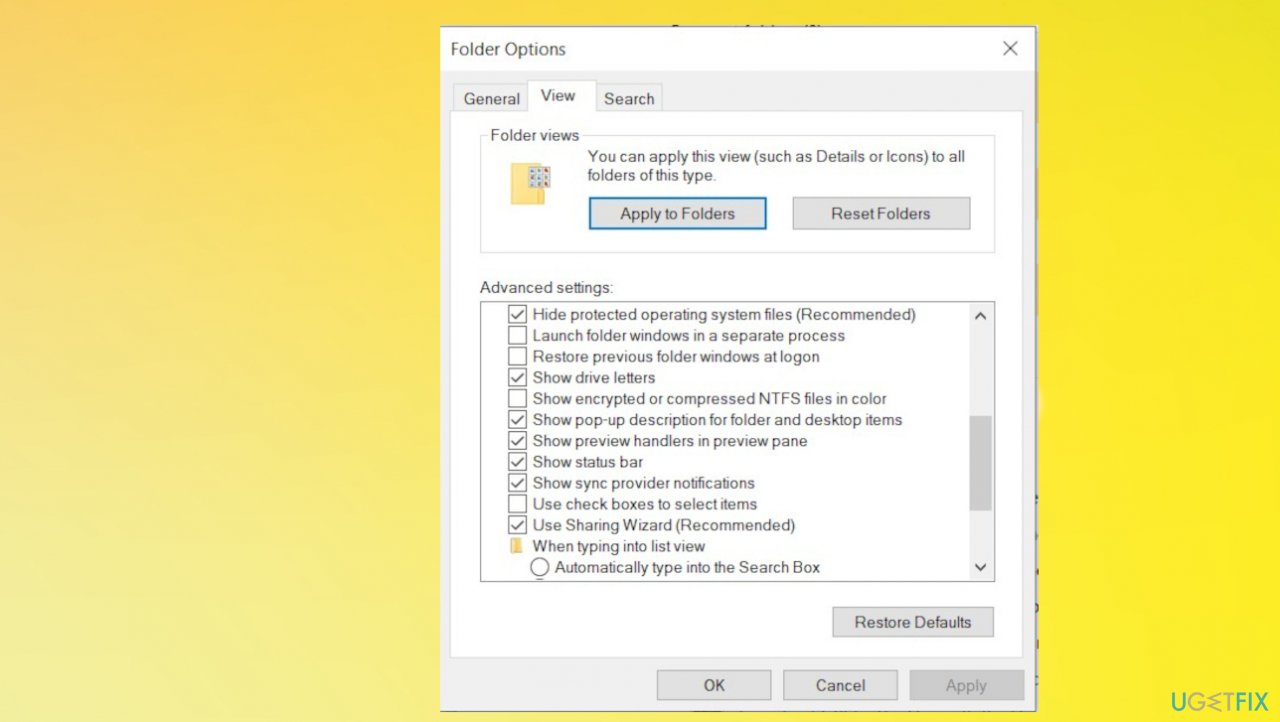
File preview not working when file is renamed fix folder - Switch to the View tab.
- Select the checkbox against Show Preview Handlers in Preview Pane.
Bottom line
The issue of file preview not working after renaming can be addressed by enabling the system file checking scan and ensuring that the correct file types are allowed. If these solutions do not resolve the problem, further investigation into Windows updates or system settings may be necessary.
Frequently asked questions
This issue can occur due to a glitch in the File Explorer or a problem with the thumbnail cache. Restarting Windows Explorer or clearing the thumbnail cache can often resolve this issue.
In Windows 11, you may need to reset the app associated with the file type or re-enable the preview pane in File Explorer to restore functionality.
Ensure that the preview pane is enabled and check if any third-party applications are interfering with file previews in both Windows 10 and Windows 11.




Report an issue
What's wrong with this guide? We review every report and update or remove content.
Report received — thank you. We'll review and fix it.
You need a free account to submit a report.
Be the first to comment