How to fix
HDR video streaming keeps turning off
on Windows
Resolve HDR video streaming issues in Windows 10 or 11 with our expert-tested solutions. Enjoy uninterrupted viewing with zero traces left!

![[Fix] HDR video streaming keeps turning off in Windows](https://ugetfix.com/wp-content/uploads/articles/askit/fix-hdr-video-streaming-keeps-turning-off-in-windows-copy_en-768x432.jpg)
What causes [Fix] HDR video streaming keeps turning off in Windows?
- Incompatible or outdated display drivers
- Incorrect display settings
- Hardware limitations
- Using an incompatible HDMI cable or port
- Windows power settings conserving energy
- Background applications or software conflicts
Repairs Windows system files, removes malware, and restores a clean OS state — without reinstalling.
Hello. I have a problem where HDR streaming is running off by itself. I have a high-end PC so I don't see why this should be happening.
HDR video streaming provides a better visual experience by offering richer colors and deeper contrasts for a more realistic view on the capable display. However, some users have found the problem with HDR video streaming that turns off repeatedly in Windows impeding negatively in the quality and enjoyment of viewing.
This problem can be particularly frustrating when you have the necessary hardware and subscriptions for HDR content. You might notice that the HDR setting disables itself automatically or receive notifications indicating it's been turned off. This can happen during video playback or when launching certain applications, disrupting the seamless experience HDR is meant to provide.
There can be a few reasons for HDR video streaming turning itself off. Some of the most common causes of this are incompatible or outdated display drivers. If your graphics drivers are not up to date, they may not fully support HDR, and hence, the feature automatically turns itself off. Another common cause of this is incorrect display settings. If Windows or your monitor is not set up correctly to run HDR, then your system might automatically turn the feature off just to save itself from any performance issues.
Hardware limitations play a part, too. Not every monitor or TV is compatible with HDR, and again, the means of connection does, too. Using an incompatible HDMI cable or port that doesn't support the required bandwidth can disable HDR.
Additionally, Windows power settings might be set to conserve energy, limiting the system's ability to maintain HDR streaming. Background applications or software conflicts could interfere with HDR settings, causing them to switch off without your input.
Possible solutions include updating display drivers to ensure they support HDR functionality. Adjusting display and Windows settings might resolve the issue if misconfigurations are the cause. Verifying that all hardware components, including cables and ports, meet HDR requirements is essential.
Adjusting power settings to favor performance over energy saving can help maintain HDR streaming. Closing background applications that might interfere with display settings could also prevent HDR from turning off unexpectedly.
Using the [d1] repair tool can help resolve this issue by fixing underlying Windows problems that might affect HDR functionality.
Fix 1. Update display drivers
Outdated or incompatible display drivers can cause HDR settings to turn off unexpectedly. To update drivers, you can use an automatic driver updater such as [rev id="DriverFix"] or employ the manual method:
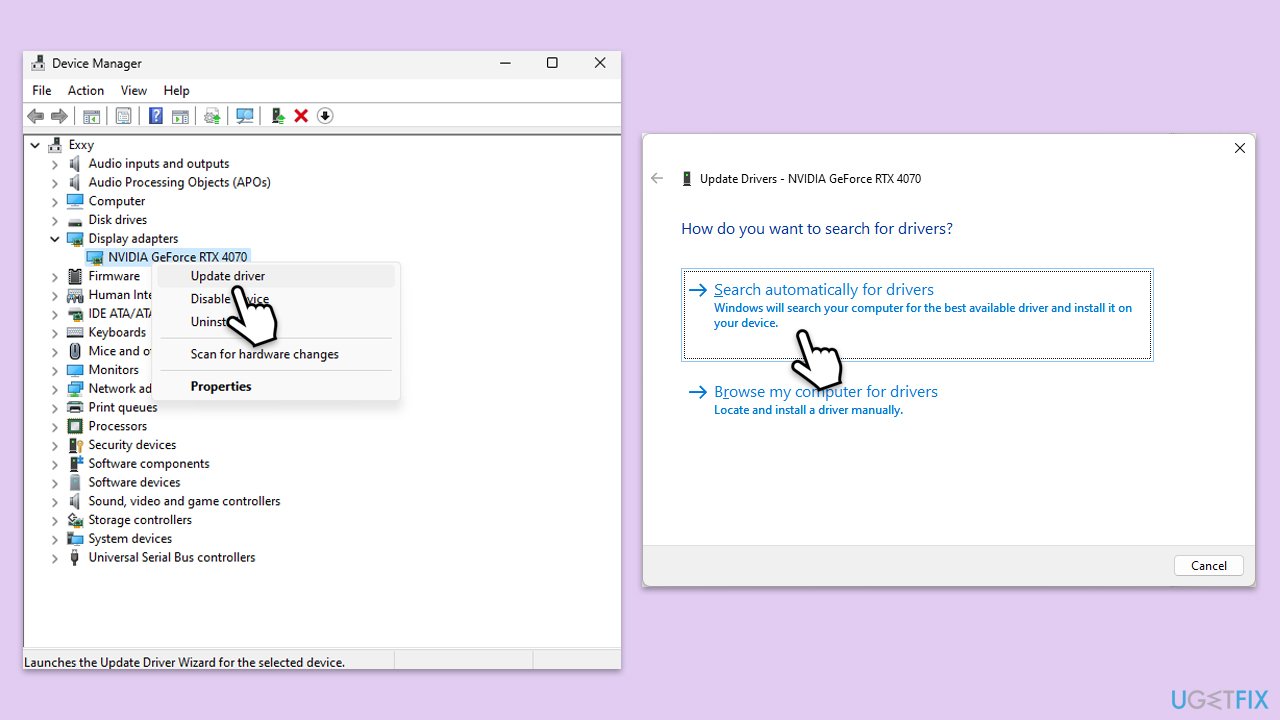
- Right-click on Start and pick Device Manager.
- Expand Display Adapters section.
- Right-click on your GPU and select Update driver.
- Select Search automatically for drivers.
- After the installation is complete, restart your system.
Fix 2. Reinstall display drivers
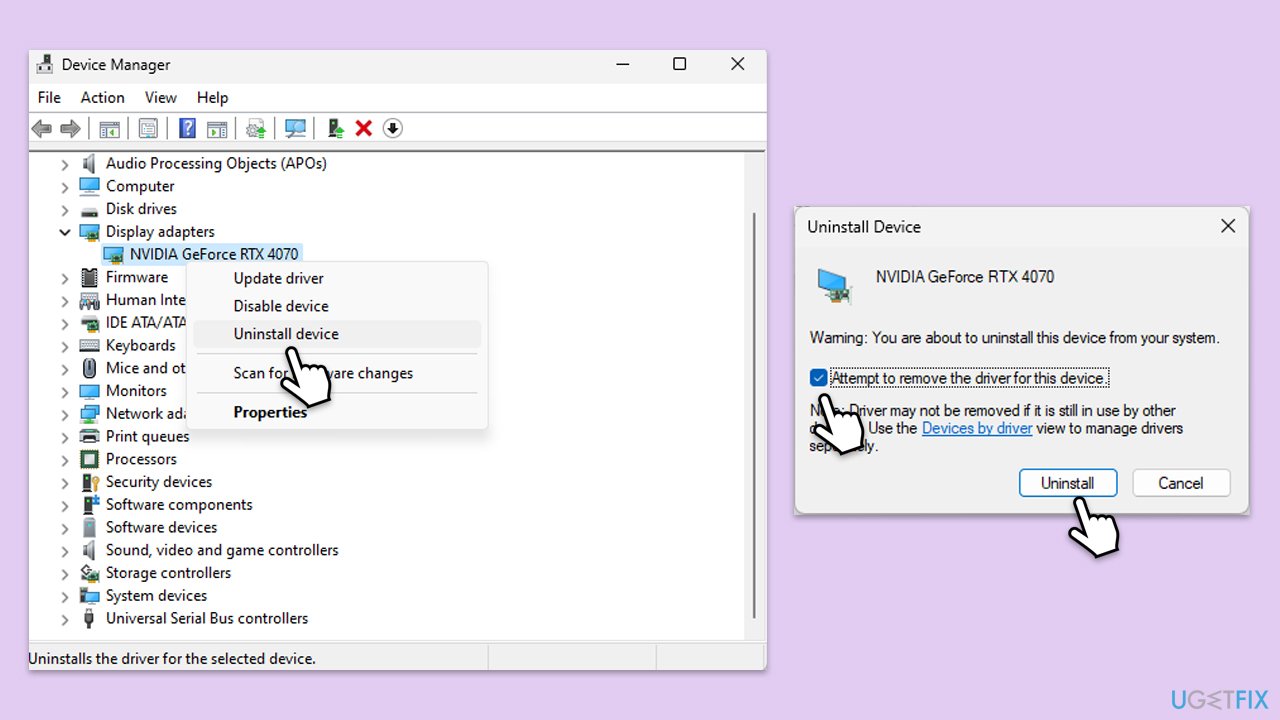
- Open Device Manager again.
- Expand the Display adapter section.
- Right-click on your GPU and choose Uninstall device.
- Tick the Delete the driver software for this device option if available, then click Uninstall.
- Restart your computer.
Fix 3. Enable HDR in Windows display settings
HDR might be disabled in your Windows settings, causing it to turn off during use.
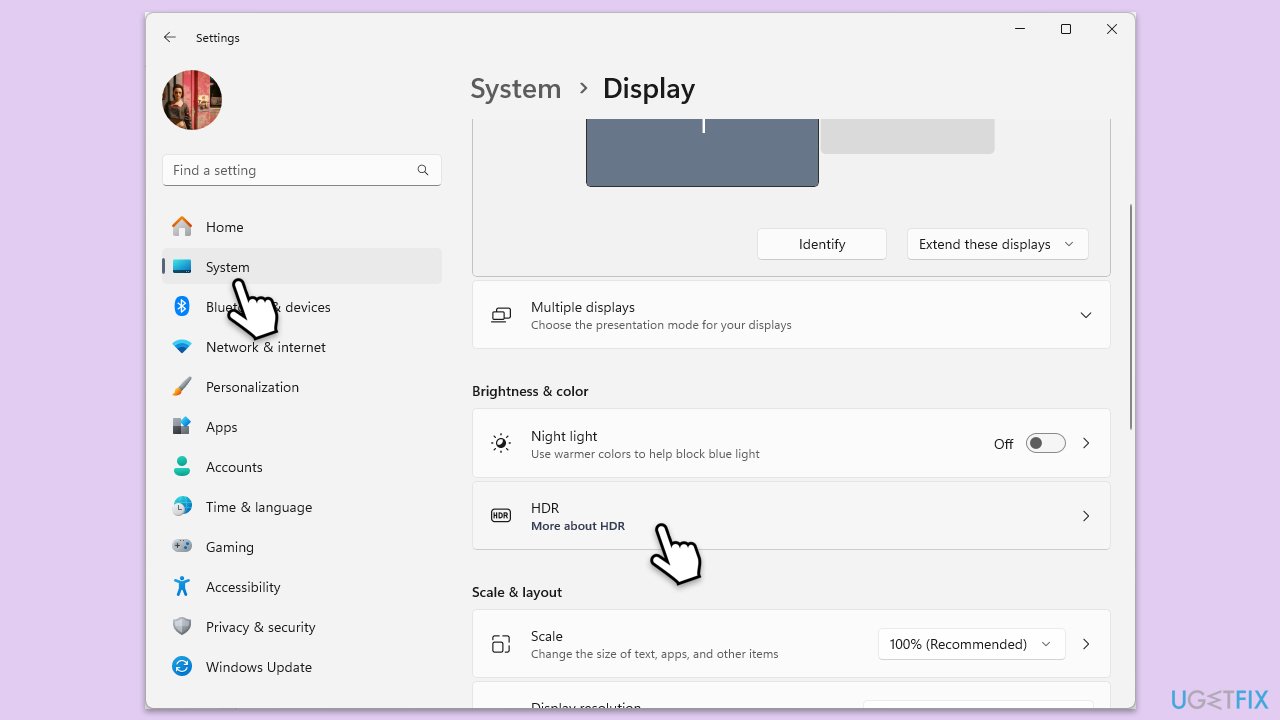
- Right-click on Start and pick Settings.
- Click on System and select Display.
- Find the Brightness & color section and select HDR.
- Toggle the HDR and WCG settings to On.
- Ensure that Stream HDR video is also enabled.
Fix 4. Check monitor compatibility and settings
Your monitor or TV must support HDR for it to function correctly.
- Verify that your display is HDR-compatible by checking the manufacturer's specifications.
- Access your monitor's on-screen display (OSD) menu.
- Navigate to the picture or display settings.
- Ensure that HDR mode is enabled on the monitor.
Fix 5. Use compatible HDMI or DisplayPort cables
Incompatible cables or ports may not support HDR streaming.
- Use a high-speed HDMI 2.0 or DisplayPort 1.4 cable that supports HDR.
- Connect the cable to a port on your computer and monitor that supports HDR.
- Avoid using adapters or docking stations that may not transmit HDR signals.
Fix 6. Adjust Windows power settings
Power-saving modes can disable HDR to conserve energy.
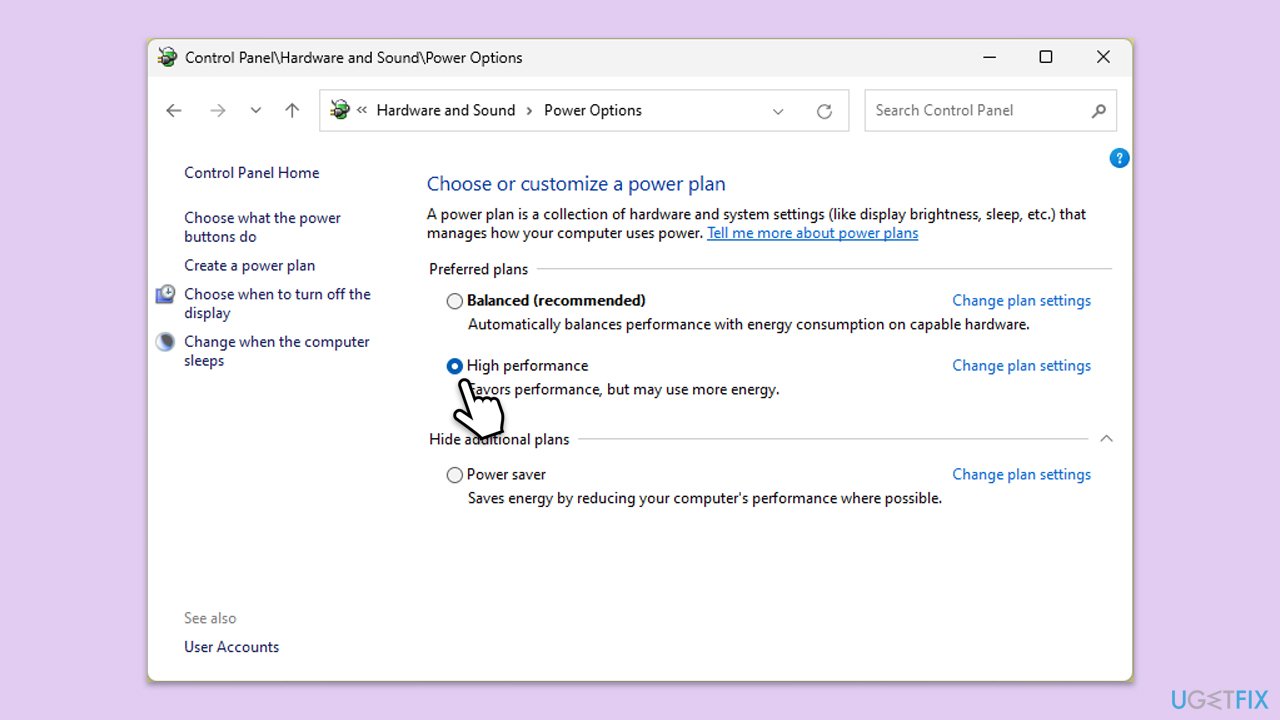
- In Windows search, type Control Panel and press Enter.
- Here, go to Hardware and Sound > Power options.
- Here, you will see the listed plans.
- Change the plan from Power saver to High performance.
Fix 6. Update Windows operating system
An outdated operating system can cause compatibility issues with HDR.
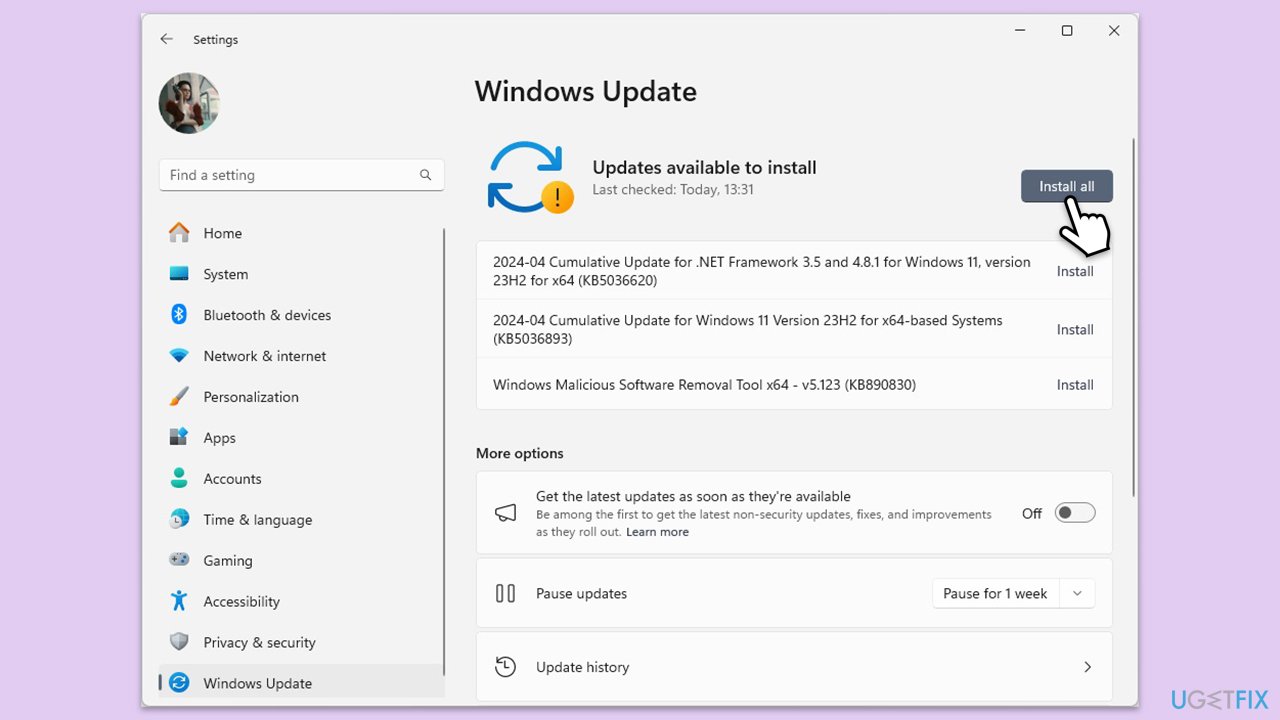
- Type Updates in Windows search and press Enter.
- When the new window opens, click Check for updates (or Install all if pending) and wait.
- If there are optional updates available, install them as well.
- After updating, restart your computer.
Fix 7. Perform in-place upgrade
This method uses the Media Creation Tool to repair Windows issues and update it to the latest version. Your personal files will remain intact.
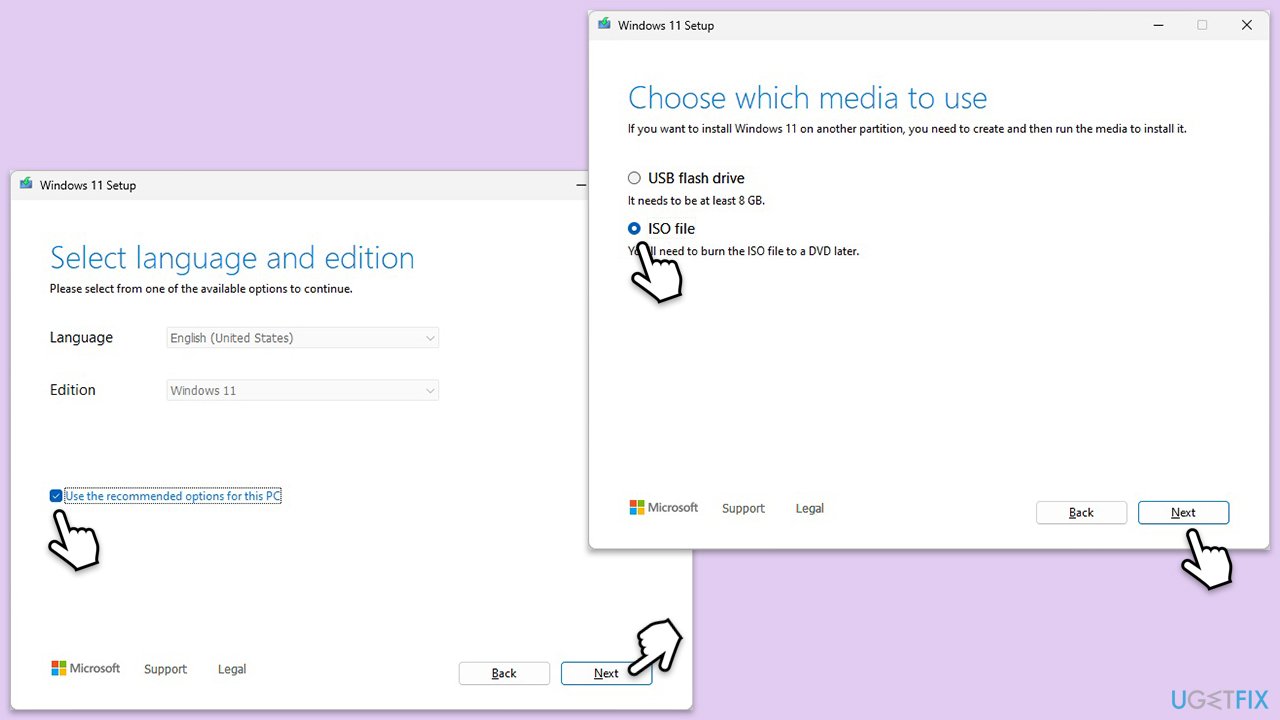
- Visit the official Microsoft website and download Windows 10 installation media (Windows 11 version).
- Double-click the installer, select Yes when UAC shows up, and agree to the terms.
- Select the ISO file and click Next, then follow the instructions to finish the process.
- Right-click on ISO and click Mount.
- Open the location of the ISO, right-click on it, and select Mount.
- Launch the installer.
- Select Upgrade this PC now and click Next.
- Windows will start downloading the needed files.
- Agree to the terms once again and click Next.
- Before installing, ensure you are happy with your choices (otherwise, you can click the Change what to keep option).
- Finally, click Install to begin the upgrade process.
Bottom line
To resolve the issue of HDR video streaming turning off, consider updating your display drivers, adjusting display and Windows settings, and verifying that all hardware components meet HDR requirements. Additionally, adjusting power settings to prioritize performance may help. If none of these solutions work, further troubleshooting may be necessary.
Frequently asked questions
This issue may occur due to incorrect display settings or outdated graphics drivers. Ensure your display supports HDR and that your drivers are updated to the latest version.
To enable HDR in Windows 11, go to Settings > System > Display, and toggle on 'Use HDR' for your connected display. Make sure your display is HDR-compatible and properly configured.
If HDR keeps turning off, check your graphics settings and ensure that your video playback software supports HDR. Additionally, consider resetting display settings or reinstalling your graphics drivers.




Report an issue
What's wrong with this guide? We review every report and update or remove content.
Report received — thank you. We'll review and fix it.
You need a free account to submit a report.
Be the first to comment