How to fix
Keyboard beeps and won’t type
on Windows
Resolve keyboard beeping and typing issues on Windows 10 or 11 quickly and easily. Expert-tested solutions for seamless functionality, fixed in minutes.

![[Fix] Keyboard beeps and won’t type on Windows](https://ugetfix.com/wp-content/uploads/articles/askit/keyboard-beeps-not-typing-fix_en-768x432.jpg)
What causes [Fix] Keyboard beeps and won’t type on Windows?
- Sticky keys function enabled
- Active Filter keys causing keystroke suppression
- Driver issues with the keyboard
- Outdated keyboard drivers
- Faulty keyboard hardware
Repairs Windows system files, removes malware, and restores a clean OS state — without reinstalling.
Hello. I cannot fix the issue with the useless keyboard. It won't type when I try to, but it beeps and make sound, so I guess it works. It was all good moments ago, but this sudden change is out of nowhere. Can you help me fix this?
The sound the keyboard makes when punching keys is the Windows 10 thing, and some users report[ref en-1] that the issue when the keyboard beeps and won't type on Windows often occurs and is annoying. When the keyboard doesn't allow you to press any keys, it is a serious issue because you cannot do your needed work. This feature can be triggered with particular keys on the keyboard pressed in a specific way.
Shortcut keys can be hit accidentally and enable the option of beeping noise and make the typing difficult. It can happen due to the sticky keys function[ref en-2] that can be turned off by hitting the SHIFT key 5 times. Sticky keys trigger the Shift and Ctrl to stick until released or until the particular combination is hit. Active Filter, Toggle can also lead to this problem. Filter keys cause the OS to suppress keystrokes that are too fast or those simultaneous presses.
Unfortunately, this can happen due to the driver issues and adjusted settings of the input devices. Sometimes outdated files and pieces like drivers can cause issues like this because functions and features are not properly enabled. You can update such things, adjust keyboard settings to solve the keyboard beeps, and won't type issue. Of course, these changes should be made after checking the keyboard itself since the piece might be faulty and require a replacement.
You can solve the affected or outdated issue with a tool like [d1] that finds corrupted or even malware[ref en-3] affected pieces and repairs them automatically. Unfortunately, Windows updates can also cause some issues with common device functions, so checking for the latest version might be helpful.
Before doing anything to solve the Keyboard won't type on Windows problem, you should assess some things: have you installed anything recently; did any hardware changes were made before the issue; what device you are using - PC or laptop; model of the keyboard and the device. Once you double-checked and tried the quick repair method and nothing changed, move on to the manual changes in settings.
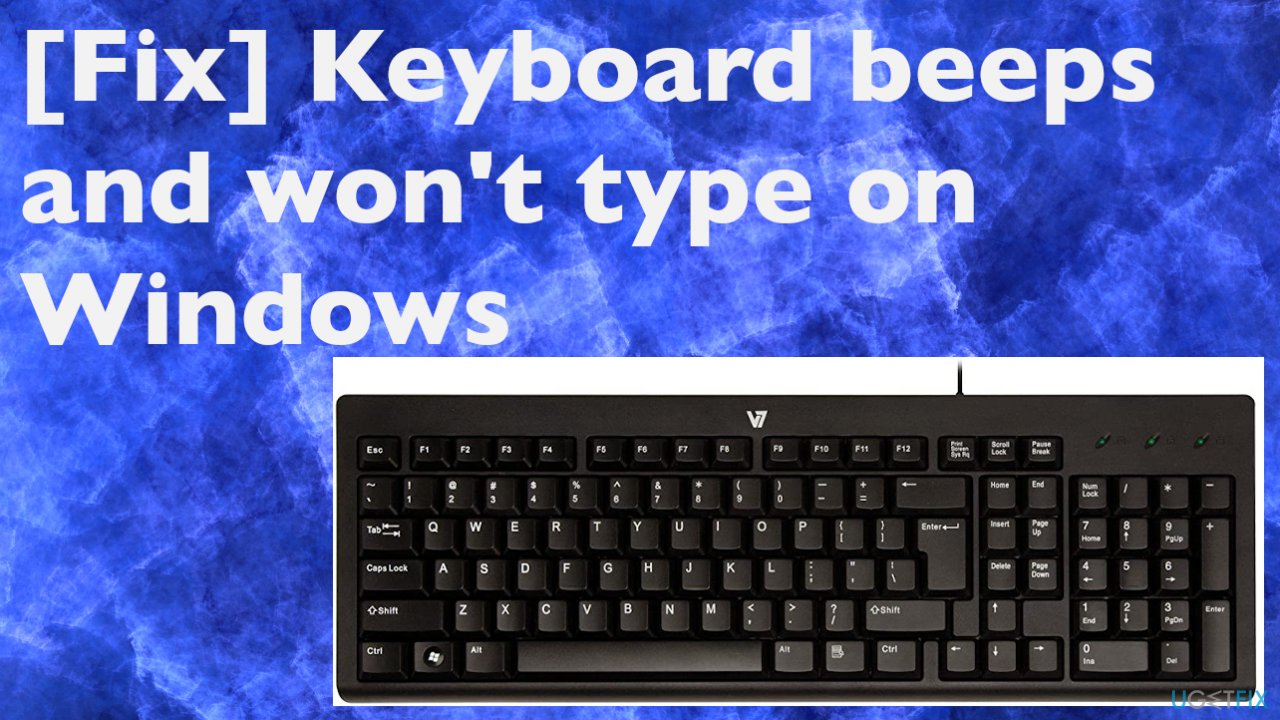
1. Check keyboard power management settings
- Go to Control Panel.
- Click Devices and Printers to expand.
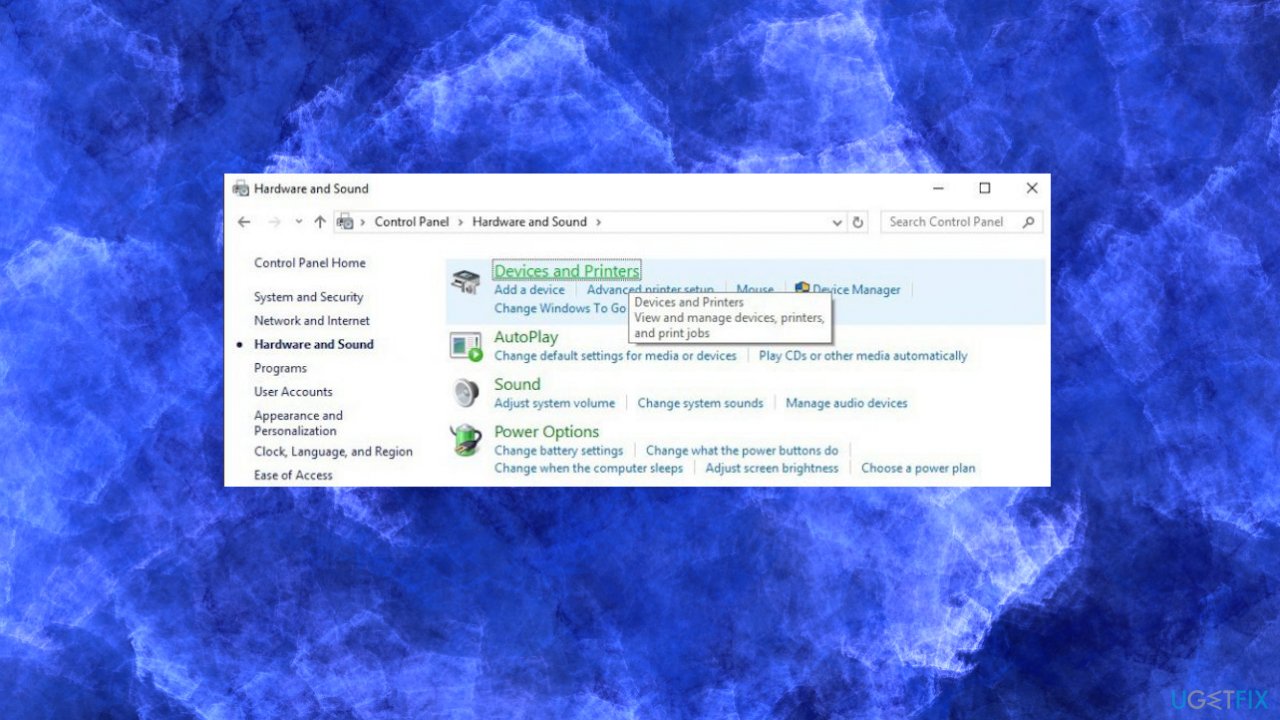
Keyboard beeps not typing devices printers - Right-click on your keyboard and select Properties.
- Choose the Hardware tab.
- Hit the Properties button.
- Click Change settings button.
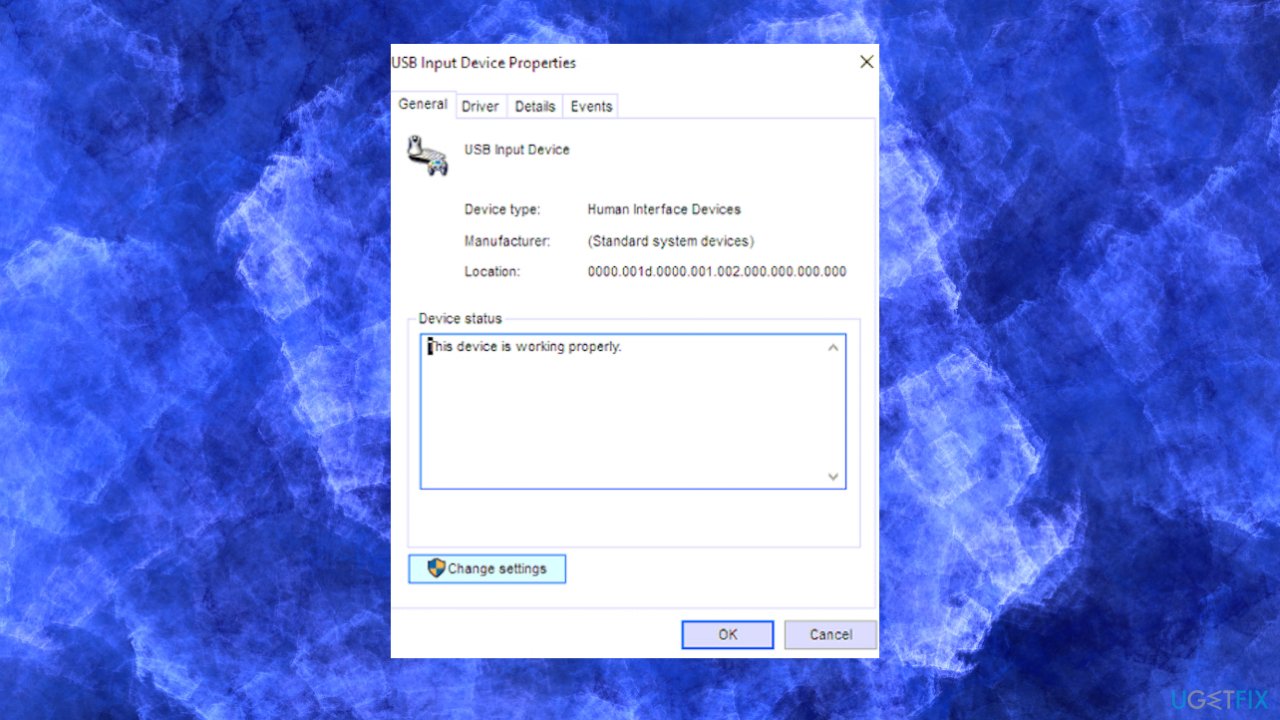
Keyboard beeps not typing device settings - Select the Power Management tab.
- Uncheck the Allow computer to turn off this device to save power option.

Keyboard beeps not typing allow - Click OK to save changes.
2. Disable non-plug and play driver
- Right-click Start.
- Choose the Device Manager from menu.
- Locate the View tab and click on it.
- Select Show Hidden Devices.
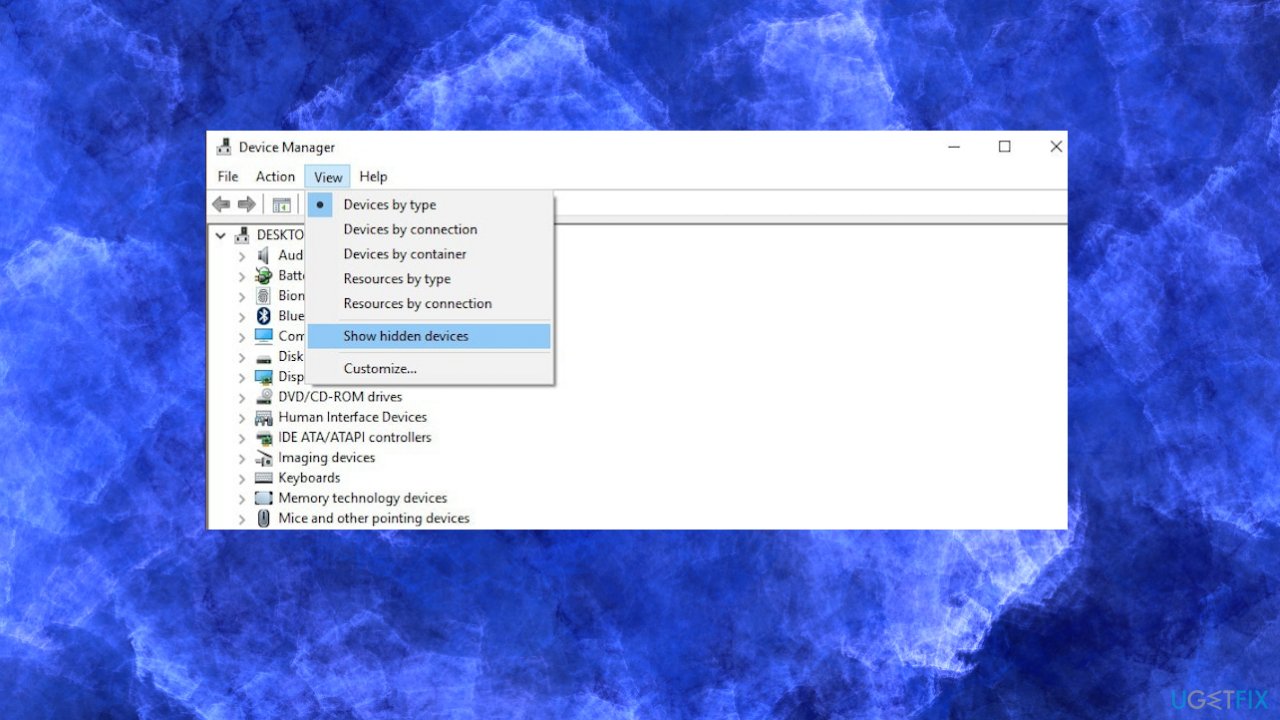
Keyboard beeps not typing hidden devices - Select Non-Plug and Play Driver.
- Right-click the Beep option and choose Properties.
- Select the Driver tab and hit Disable.
- Press Apply and then OK.
3. Update drivers
- Right-click Start.
- Choose Device manager.
- Choose your hardware from the list.
- Expand the specific category.
- Right-click your device.
- Choose the Update Driver option.
- Choose to Search automatically for updated driver software.
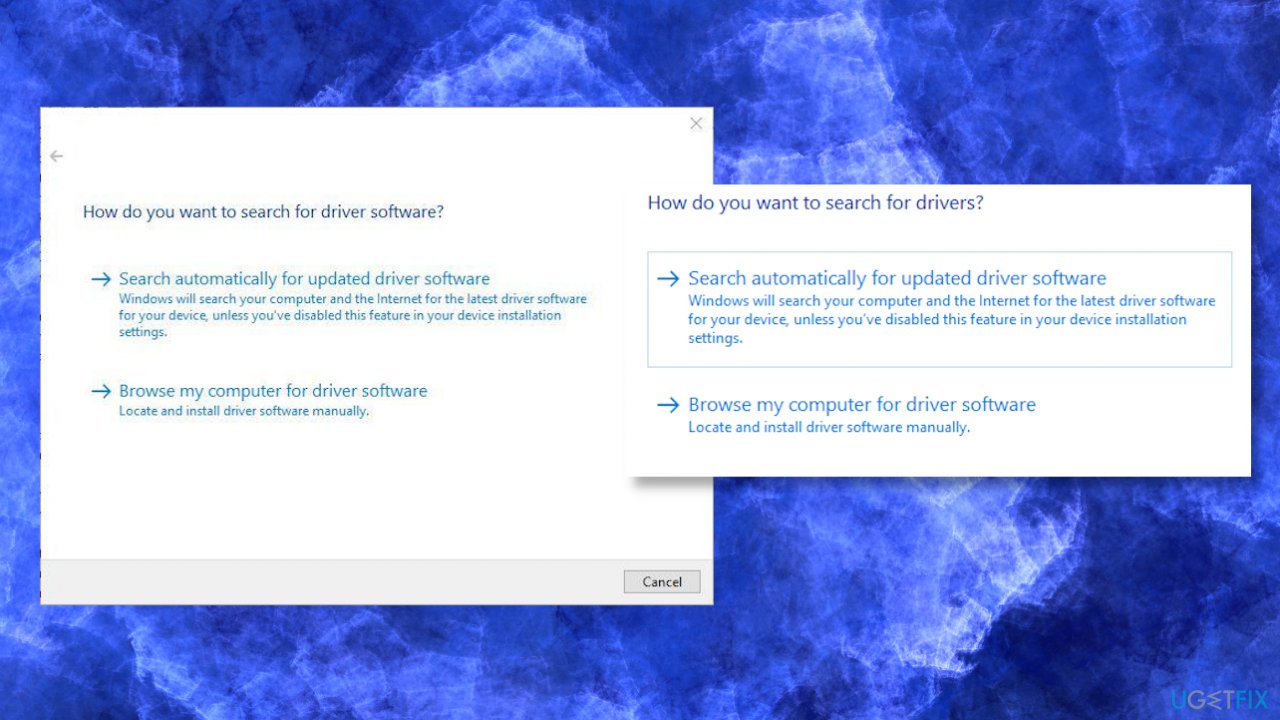
Keyboard beeps not typing automatic update
You can also use the automatic tools for such purposes. Searching for the proper driver software can be tedious and takes time until you find the proper driver, so the automatic assistant can help with the driver updates. We advise you to get [rev id="DriverFix"] and use it for this purpose since it can update system drivers correctly and quickly without causing any additional issues.
4. Turn off Filter Keys
- Click Start.
- Select Settings.
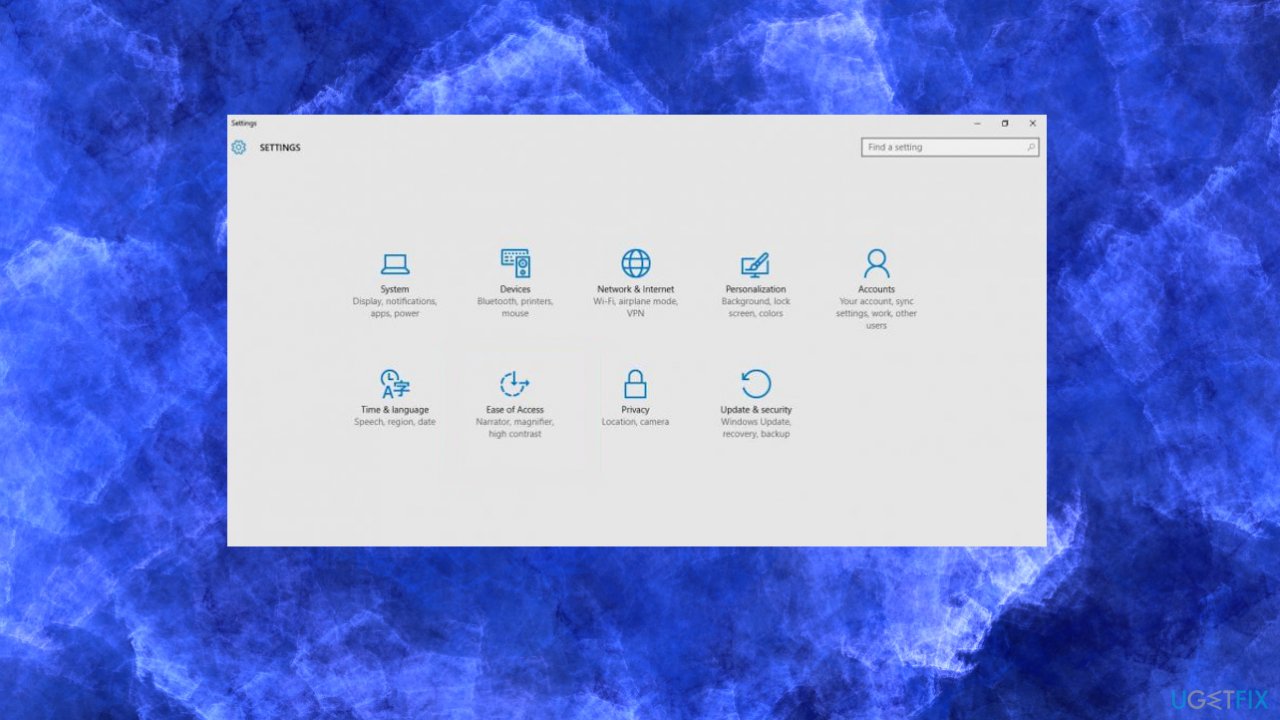
Keyboard beeps not typing settings - Choose Ease of Access.
- Keyboard.
- Filter keys.
- Click the site to turn it off.
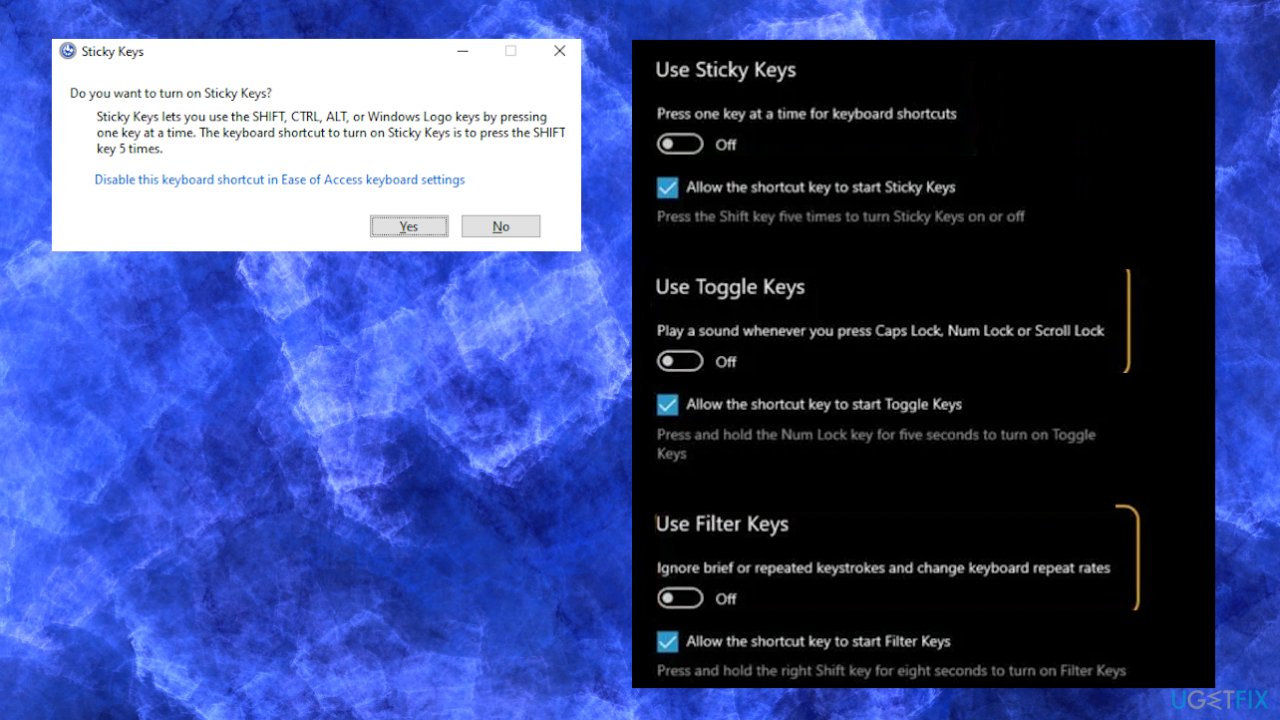
Keyboard beeps not typing key features - You can do the same steps to turn off the Toggle keys and Sticky keys if those got turned on.
Bottom line
To resolve the keyboard beeping and not typing issue, you can disable sticky keys by pressing the SHIFT key five times, check for active filter keys, and update your keyboard drivers. If these solutions do not work, consider checking the keyboard hardware for faults or replacing it.
Frequently asked questions
This issue may occur due to a stuck key or an incorrect keyboard setting. Check for any physical obstructions and ensure that your keyboard layout is correctly set in the Windows settings.
You can start by restarting your PC and checking the device manager for any driver issues. If the problem persists, try connecting the keyboard to another USB port or use a different keyboard to isolate the issue.
If the issue started after a Windows update, consider rolling back the update or checking for new updates that may fix the problem. Additionally, reinstalling the keyboard drivers can also help resolve the issue.




Report an issue
What's wrong with this guide? We review every report and update or remove content.
Report received — thank you. We'll review and fix it.
You need a free account to submit a report.
Be the first to comment