How to fix
Laptop touchepad doesn’t work properly when battery is charging
on Windows
Solve your touchpad issues on Windows 10 or 11 while charging your laptop. Get expert-tested fixes to restore functionality quickly and easily.

![[Fix] Laptop touchepad doesn’t work properly when battery is charging](https://ugetfix.com/wp-content/uploads/articles/askit/fix-laptop-touchepad-doesnt-work-properly-when-battery-is-charging-copy_en-768x432.jpg)
What causes [Fix] Laptop touchepad doesn’t work properly when battery is charging?
- Electrical interference from the charger
- Lower-quality or non-original chargers introducing electrical noise
- Voltage fluctuations during charging
- Power settings in Windows prioritizing the touchpad differently when plugged in
Repairs Windows system files, removes malware, and restores a clean OS state — without reinstalling.
Normally, my laptop works well with a touchpad when operating on a battery. However, when I plug in a charger, it stops working well-although the external mouse works perfectly. When I unplug the charger, both of them work perfectly. What is going on and is there anything I can do about this?
Why your laptop touchpad doesn't work correctly when plugged in/charging
The touchpad is a very important means of navigation on a laptop when there is no available external mouse. However, quite a large amount of users face such a problem: the perfect work of a touchpad in the case of work on the batteries after connecting a laptop to a charger starts malfunctioning.
Although it might seem minor, this problem could go on to upset productivity patterns which could be highly inconveniencing, especially when reliable and continuing touchpad functionality becomes imperative.
The problem: touchpad doesn't work properly when charging
The issue manifests when the laptop is connected to a charger. When running on battery, the touchpad operates as expected. However, once the charger is plugged in, users often notice that the touchpad becomes unresponsive or behaves erratically, while an external mouse still functions perfectly. Unplugging the charger usually restores the touchpad's normal performance. This inconsistency suggests that the problem is linked to the laptop’s power supply.
Why does the touchpad malfunction?
This issue is often related to electrical interference from the charger, which affects the laptop's touchpad. In many cases, lower-quality or non-original chargers introduce electrical noise that disrupts the sensitive components of the touchpad. Additionally, voltage fluctuations during charging can interfere with the touchpad's operation. The problem may also stem from power settings in Windows, which prioritize the touchpad differently when the laptop is plugged in.
What can be done about the laptop's touchpad not working properly when charging the battery?
The full guide to fix this problem will be provided later - steps of troubleshooting include updating or reinstalling the drivers for the touchpad, using an original or high-quality charger, and modifying the Windows power settings to optimize the functioning of the touchpad.
Meanwhile, diagnosing and repairing underlying Windows problems, such as corrupted system files or DLL errors, which may also cause malfunctioning with [d1] PC repair software, is worth trying. Utilities of that kind serve well in resolving a wide range of system performance problems.
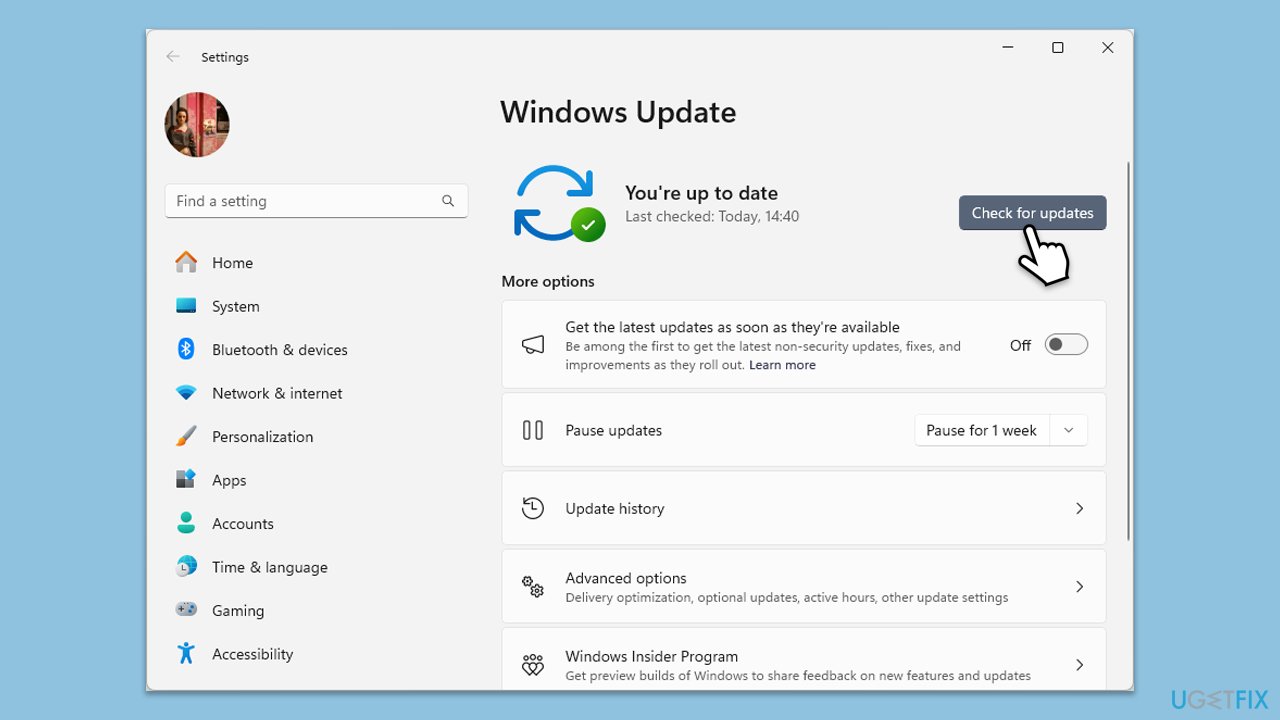
Fix 1. Check for Windows updates
Sometimes, Windows updates include important fixes for touchpad functionality. Installing the latest updates can solve issues caused by software glitches or compatibility problems.
- Type Updates and press Enter.
- In the new window, click Check for updates.
- Wait till all the files are downloaded and installed.
- If optional updates are available, install them as well.
- Restart your device when done.
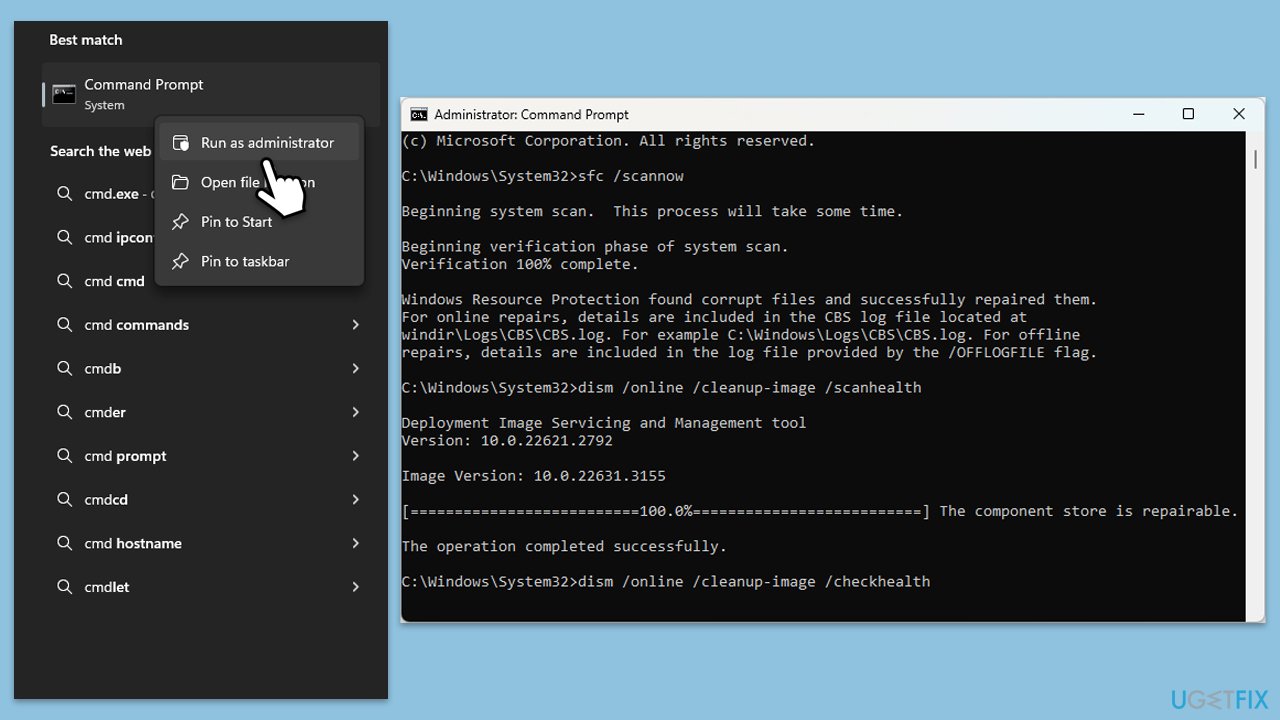
Fix 2. Run a system scan for corrupted files
Corrupted system files can interfere with your laptop's hardware, including the touchpad. Running a system scan can identify and repair these issues.
- Type cmd in Windows search.
- Right-click on Command Prompt and pick Run as administrator.
- User Account Control window will show up - click Yes when prompted.
- Type this command and press Enter:
sfc /scannow - Wait for the scan to finish.
- As soon as the scan finishes, Windows will report whether integrity violations were found and if they could be fixed. Regardless of the outcome, use these commands next, pressing Enter after each:
Dism /Online /Cleanup-Image /CheckHealth
Dism /Online /Cleanup-Image /ScanHealth
Dism /Online /Cleanup-Image /RestoreHealth
(Note: if you get an error executing this last command, add /Source:C:\RepairSource\Windows /LimitAccess to it and try again). - Close down the Command Prompt and restart your computer.
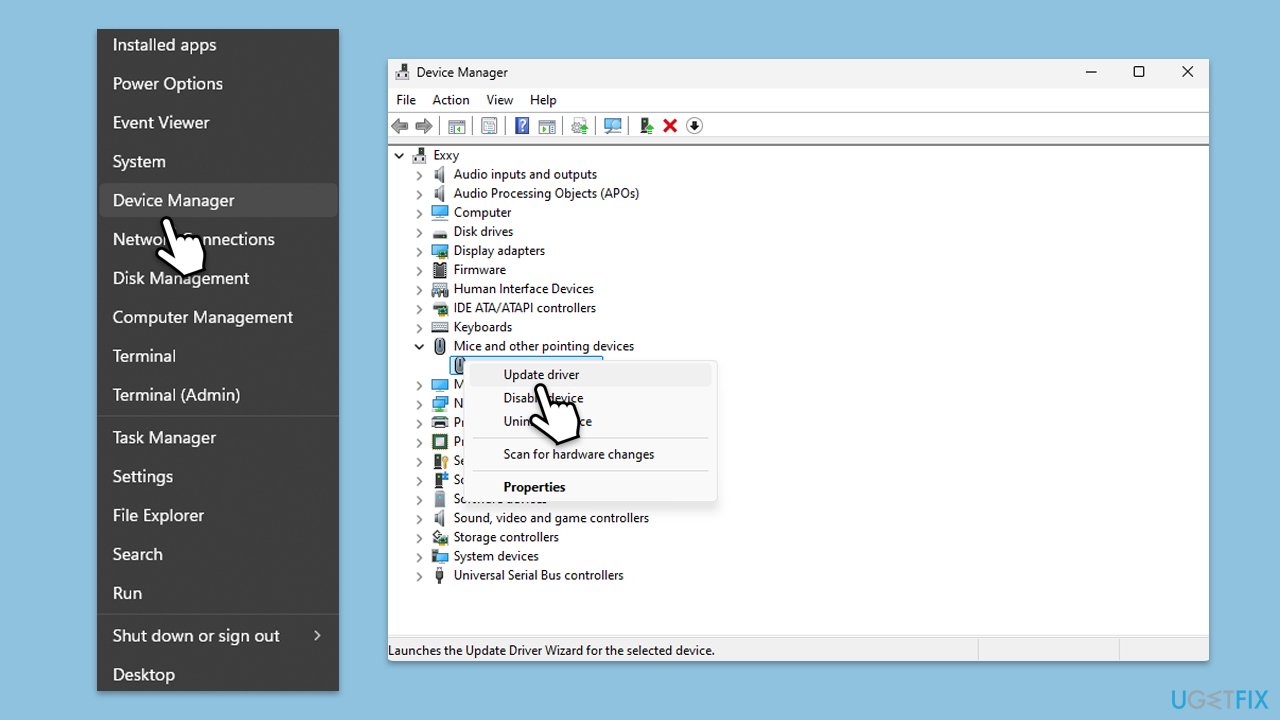
Fix 3. Update touchpad driver
Issues can happen with outdated or corrupted drivers, especially when your laptop is plugged in. Updating the driver will ensure that your touchpad works well in both power modes: on battery and while charging.
- Right-click on the Start button Device Manager.
- Expand the Mice and other pointing devices section.
- Right-click on your touchpad device and select Update driver.
- Choose Search automatically for drivers to let Windows find the latest version.
- Restart your laptop after the update is complete.
- For an easier way to update drivers, use tools such as [rev id="DriverFix"].
Fix 4. Adjust power settings
Some laptops use power-saving settings for the touchpad that may lead to problems when the device is connected to a charger. Turning off these settings might help the touchpad work better.
- Open the Control Panel and go to Power options.
- Click Change Plan settings next to your selected power plan.
- Select Change Advanced Power settings.
- Expand the pointing devices option (or similar) and adjust the settings to prevent power-saving behavior.
- Click Apply, then OK.
Fix 5. Use the original charger
Non-original or low-quality chargers can introduce electrical interference, which affects the touchpad's sensitivity and responsiveness. Using the original charger provided by the manufacturer can often resolve this issue.
- Disconnect any third-party charger.
- Plug in the original charger that came with your laptop.
- Test the touchpad performance while charging to see if the issue is resolved.
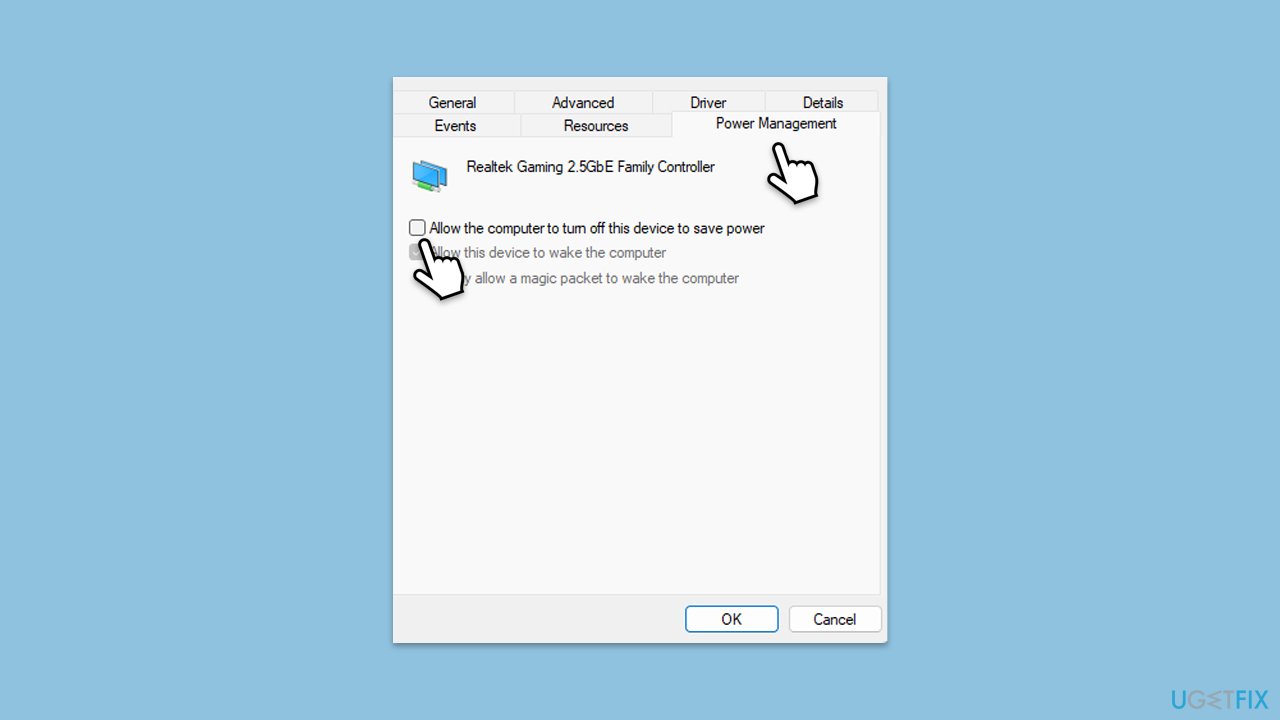
Fix 6. Disable touchpad power-saving
Some laptops have power-saving features for the touchpad that can cause issues when the laptop is plugged in. Disabling these options can help the touchpad function smoothly.
- Open Device Manager.
- Find your touchpad under Mice and other pointing devices.
- Right-click the touchpad and select Properties.
- Go to the Power Management tab.
- Uncheck the option that allows the computer to turn off the device to save power.
- click OK and restart your laptop.
Bottom line
To address the touchpad issue when charging, consider updating or reinstalling the touchpad drivers, using an original or high-quality charger, and modifying the Windows power settings. If these solutions do not resolve the problem, further diagnosis may be necessary.
Frequently asked questions
This issue could be related to power management settings in Windows 10 or Windows 11 that prioritize battery performance over touchpad functionality. Check your touchpad settings and power options to ensure they are properly configured.
Try updating your touchpad drivers through Device Manager or the manufacturer's website, as outdated drivers can cause functionality problems. Additionally, adjusting the power settings to prevent the touchpad from disabling while charging may help.
Yes, go to Settings > Devices > Touchpad and ensure that the touchpad is enabled and that any related settings are not set to disable during charging.




Report an issue
What's wrong with this guide? We review every report and update or remove content.
Report received — thank you. We'll review and fix it.
You need a free account to submit a report.
Be the first to comment