How to fix
Last session Notepad text files start automatically
on Windows
Resolve the issue of Notepad text files opening automatically in Windows 10 and 11 effortlessly. Get expert-tested solutions to fix it in minutes.

![[Fix] Last session Notepad text files start automatically in Windows](https://ugetfix.com/wp-content/uploads/articles/askit/fix-last-session-notepad-text-files-start-automatically-in-windows_en-768x432.jpg)
What causes [Fix] Last session Notepad text files start automatically in Windows?
- Notepad default feature called 'Open content from the previous session'
- Tabbing feature implementation
- Automatic reopening of text files from prior sessions
- Multiple tabs opening with previous sessions
- Potential privacy issues with sensitive content
Repairs Windows system files, removes malware, and restores a clean OS state — without reinstalling.
Hello. When I launch Notepad on Windows, multiple tabs open automatically with previous sessions. I don't want this. Is there any way to disable this?
The addition of additional Notepad tabs in Windows 11 22H2 was a welcome change that gave users better functionality and organization. However, this new feature came with a bothersome problem that can interfere with users' daily activities. No matter how the application is used, the issue at hand is the automatic reopening of text files from prior sessions whenever the Notepad application is launched or previously saved files are opened.
The main cause of this problem is a Notepad default feature called "Open content from the previous session." It is a feature that was added to the program after the tabbing feature was implemented. When this feature is on, users could see a rather perplexing situation wherein several older text files repeatedly appear in different tabs whenever they open Notepad.
The effect of this problem on users is notable. When someone is unfamiliar with this behavior, it might cause confusion and annoyance. For example, users who depend on Notepad for quick note-taking or editing may discover that they need to close many tabs, which can be time-consuming and ineffective. Additionally, if several files containing sensitive content are unexpectedly reopened, it may be a privacy issue for people handling confidential or sensitive information.
There are methods to lessen the effects of this problem in terms of solutions. In order to prevent several tabs from automatically appearing again upon the next launch of Notepad, users can explicitly save and close their text files before quitting the program. A different strategy is to modify the application's settings to remove the checkbox next to "Open content from the previous session."
In this guide, you will find a workaround for this issue. We hope that Microsoft will address this bug in the coming updates. If you have any other OS issues, you can use a maintenance tool like [d1] that can fix most system errors, BSODs,[ref en-1] corrupted files, and registry[ref en-2] issues. Otherwise, follow the step-by-step instructions below.

Solution 1. Change the Default Setting in the App
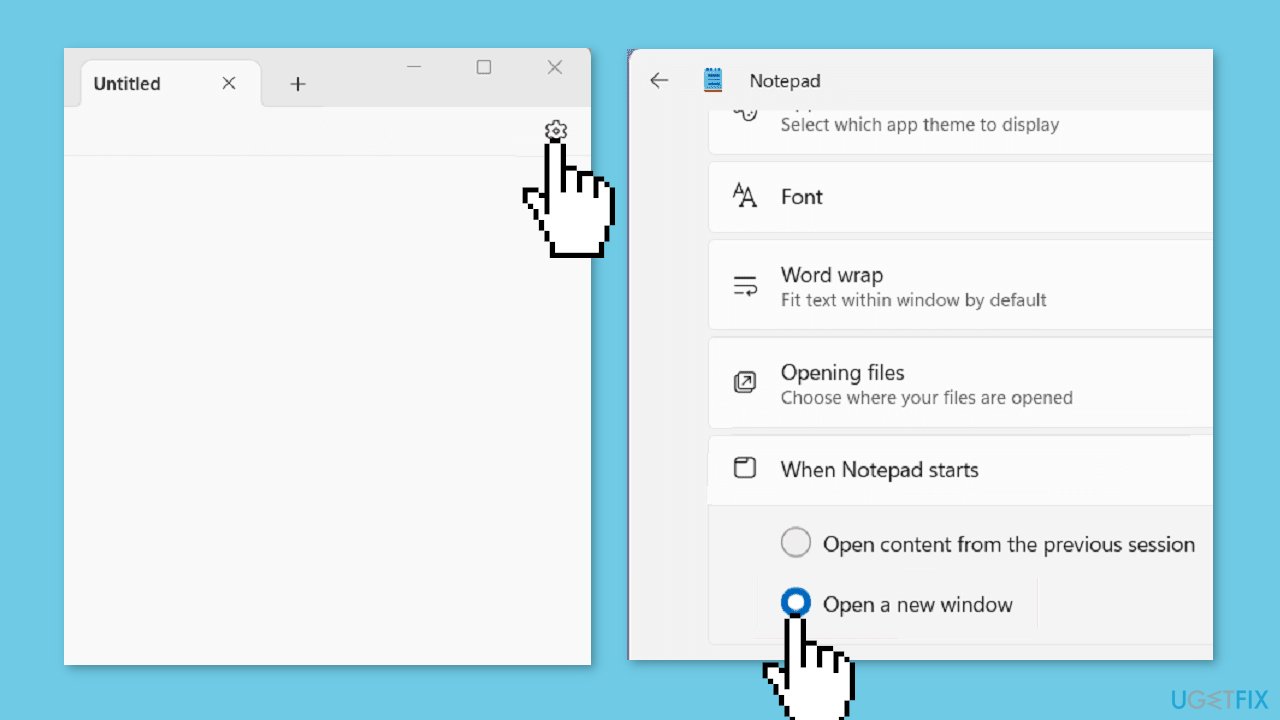
The tabbed Notepad has two settings to consider: "Open content from the previous session" and "Open a new window". Switching to the second option, "Open a new window," will result in the disappearance of all previously saved text files. Recovering both saved and unsaved Notepad files can be a challenging task following this change.
To prevent potential file loss, it's advisable to manually save all your text files to a location of your choice, such as the desktop or a document folder, before making the switch to "Open a new window" in Notepad's startup settings.
- Open Notepad.
- Click on Settings located in the top right corner of the file.
- In the Settings menu, scroll to the bottom.
- Click on When Notepad starts.
- Check the option Open a new window.
- At this point, you may notice that your previously saved files are missing.
- Go back to Notepad Settings.
- Select the previous option Open content from the previous session under When Notepad starts.
- Close the Notepad application.
- Reopen Notepad.
- You will see that all your previous tabs have been restored.
- Go to a specific tab.
- Click on File.
- Select Save as.
- Name the file and save it to your preferred location, such as the desktop or a document folder.
- Save the content of each tab sequentially.
- After saving your content, follow these steps to ensure your files are not lost in the future:
- Navigate to Notepad Settings by clicking on its icon.
- In the When Notepad starts section, check Open a new window.
- Your files will remain safe, and you won't encounter any missing files. This method serves as a workaround to recover your files, while we wait for Microsoft to address this bug. It will also ensure that Notepad's last session text files start automatically in Windows.
Solution 2. Install Windows Updates
Maybe at the time you are reading this, Microsoft has released an update to change the default Notepad setting. Try updating your operating system:
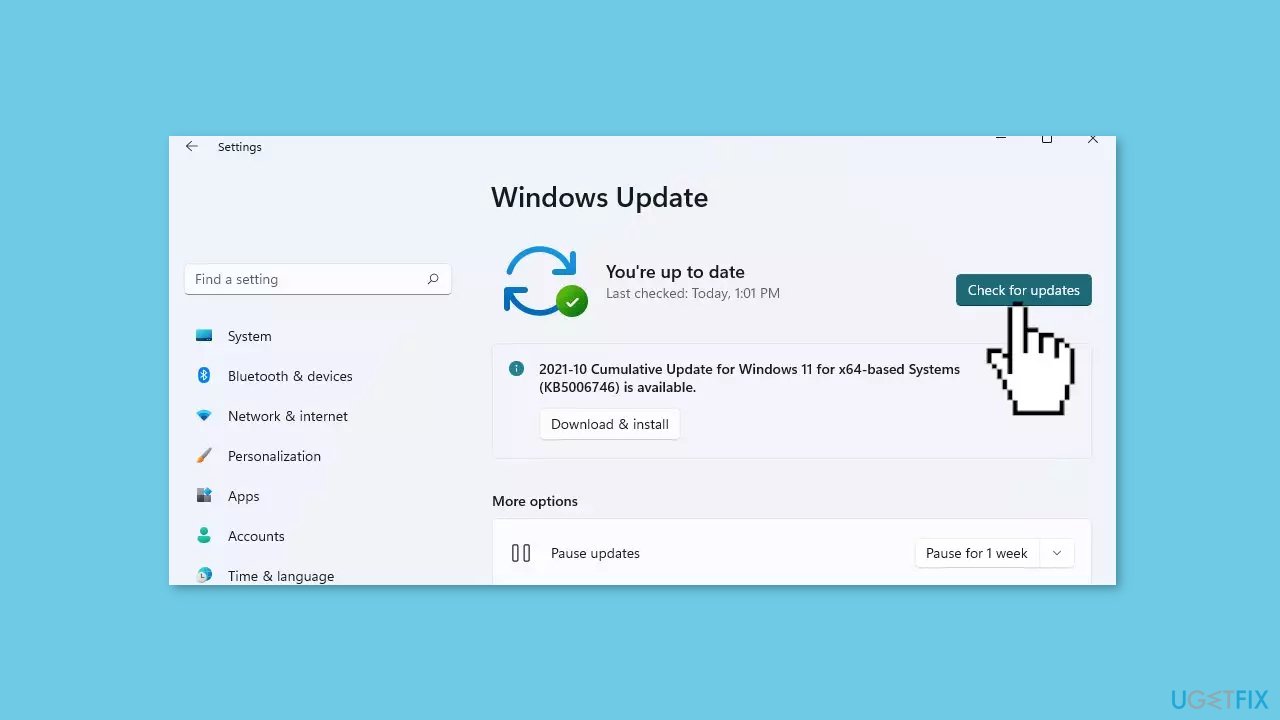
- Click Start and select Settings.
- Go to the Windows Update section.
- Click Check for updates and wait.
- Go to the Advanced options and install optional updates.
- Reboot your system.
Bottom line
To prevent multiple tabs from opening automatically in Notepad, users can save and close their text files before quitting the program or modify the application settings to uncheck 'Open content from the previous session.' If these solutions do not resolve the issue, consider using a maintenance tool to fix system errors.
Frequently asked questions
This issue may occur due to a setting that enables Notepad to restore the last session's files on startup. You can disable this feature by adjusting the Notepad settings in Windows 10.
To prevent Notepad from restoring previous files in Windows 11, go to the app settings and turn off the 'Restore previous session' option.
If you prefer not to change settings, you can clear the recent files list in Notepad, which may help stop it from reopening those files in future sessions.




Report an issue
What's wrong with this guide? We review every report and update or remove content.
Report received — thank you. We'll review and fix it.
You need a free account to submit a report.
Be the first to comment