How to fix
Marvel Rivals “Failed to connect to Steam. Error Code: 211”
on Windows
Resolve the "Failed to connect to Steam. Error Code: 211" issue in Marvel Rivals on Windows 10 and 11 quickly. Expert-tested solutions await!

![[Fix] Marvel Rivals “Failed to connect to Steam. Error Code: 211”](https://ugetfix.com/wp-content/uploads/articles/askit/fix-marvel-rivals-failed-to-connect-to-steam-error-code-211-copy_en-768x432.jpg)
What causes [Fix] Marvel Rivals “Failed to connect to Steam. Error Code: 211”?
- Communication problem between the game client and Steam's network
- Unpredictable internet connection
- Background programs refusing access
- Third-party antivirus software or firewalls interfering
- Corrupted Steam files
- Out-of-date game components
Repairs Windows system files, removes malware, and restores a clean OS state — without reinstalling.
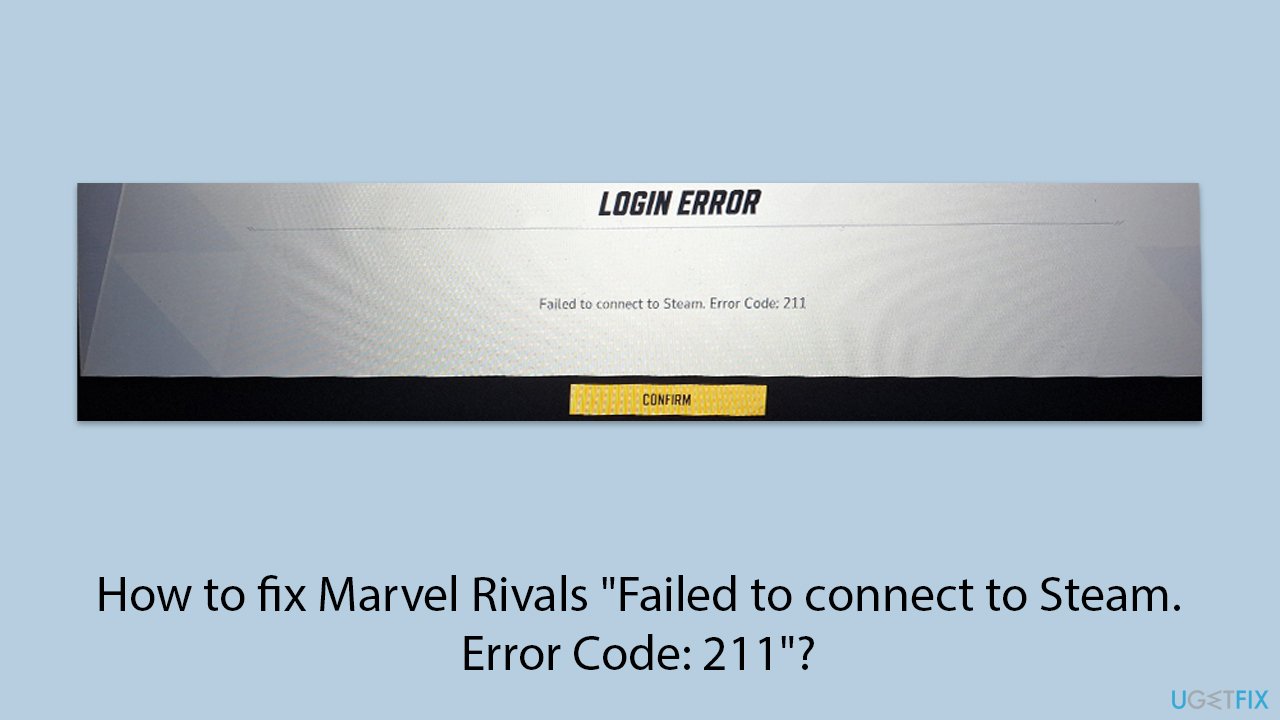
I wanted to try Marvel Rivals for a while now, so I finally downloaded it yesterday on Steam. However, I can't play it. Every time I attempt to launch it, it gives me error "Failed to connect to Steam. Error Code: 211." Please help.
Marvel Rivals has quickly gained a reputation as a competitive, hero-based shooter with a clear comic-book flavor, but not everyone is seeing it. Players who are trying to launch the game through Steam have been the victim of a frustrating bug: "Failed to connect to Steam. Error Code: 211." This error happens a second after a try at launching the game and prevents access to any online feature. For a title of the game so reliant on multiplayer, this has understandably created a buzz in the community.
The "Failed to connect to Steam. Error Code: 211" error generally signifies a communication problem between the game client and Steam's network. For most gamers, the issue is not with the game but rather how Steam is attempting to establish the connection at that particular time.
This can be dictated by a variety of different factors - unpredictable internet, background programs refusing access, or even temporary outages within Steam itself. Sometimes the problem is within the Steam client not having proper permissions to launch online games properly, and this could cause Marvel Rivals' request to fail.
Players have also speculated that third-party antivirus software or firewalls may be interfering with Marvel Rivals, preventing it from establishing the required online session. There's also a possibility that corrupted Steam files, out-of-date game components, or lingering cache information are the source of the problem. Some managed to fix it by reinstalling Marvel Rivals or verifying game files through Steam, while others had to investigate network restrictions or router-level configurations.
Ultimately, the "Failed to connect to Steam. Error Code: 211" message will typically be some kind of system-level or network-level miscommunication. If this is hindering your gaming, we recommend that you check out the potential solutions outlined below. Alternatively, you can employ the use of a PC repair tool such as [d1], which will fix most Window-related issues automatically.
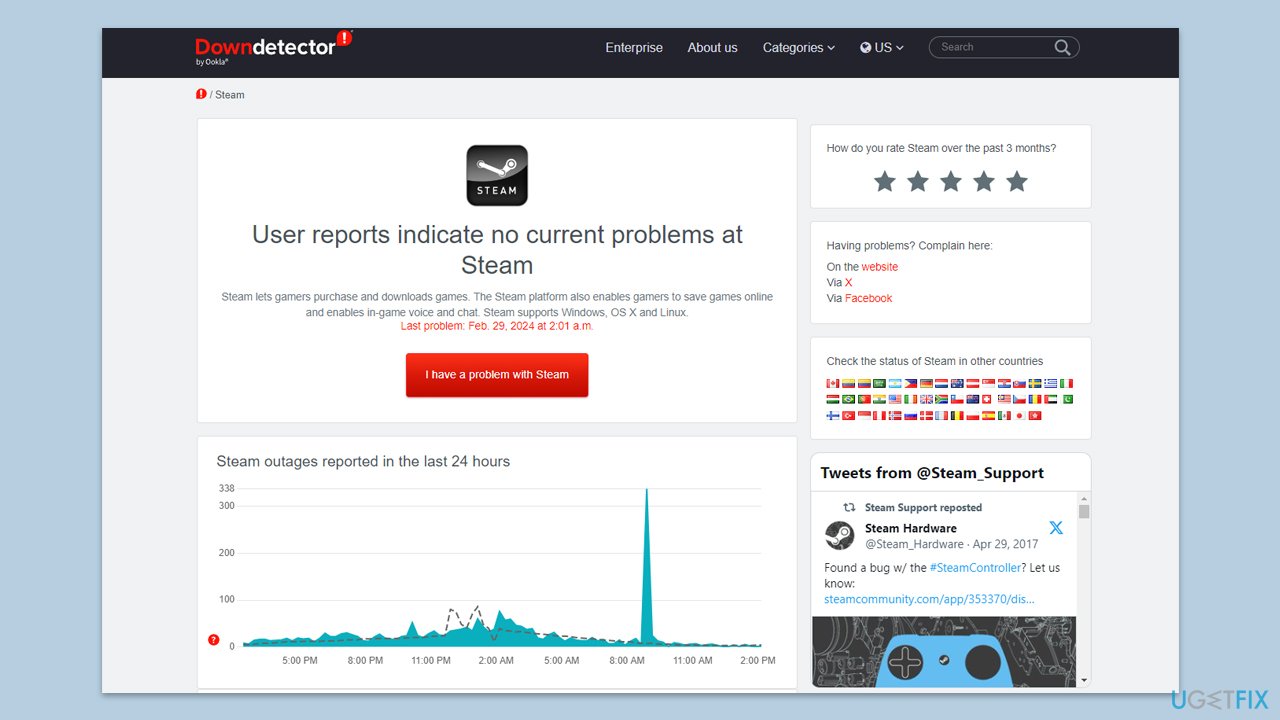
Fix 1. Check Steam server status
Steam occasionally goes offline for maintenance or due to regional server issues. If the platform is having connection problems, Marvel Rivals will also fail to connect. You can use sources like Downdetector, Steam server status page, or their X account to verify server availability.
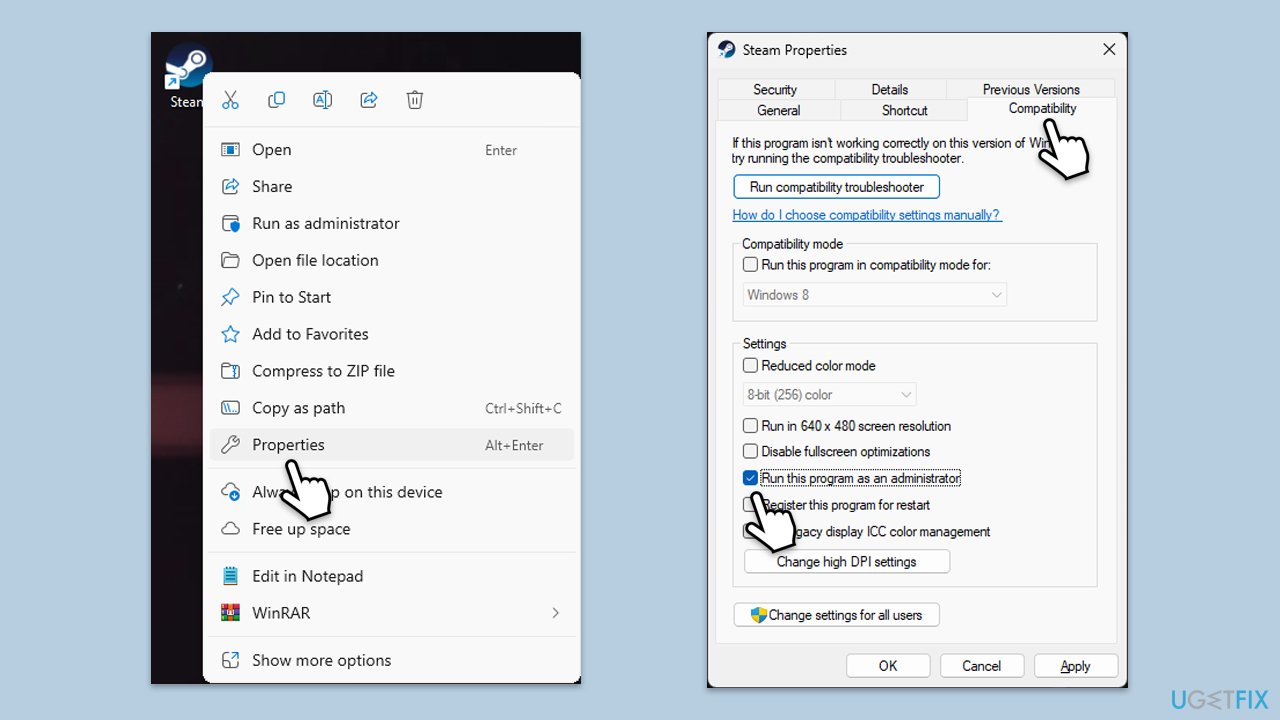
Fix 2. Run as administrator
Running Steam and Marvel Rivals with elevated permissions can help avoid permission-related issues that block network access.
- Right-click on the Steam shortcut on your desktop.
- Select Properties from the context menu.
- Go to the Compatibility tab.
- Check the box next to Run this program as an administrator.
- Click Apply and then OK.
- Double-click on the Steam shortcut to run it as an administrator.
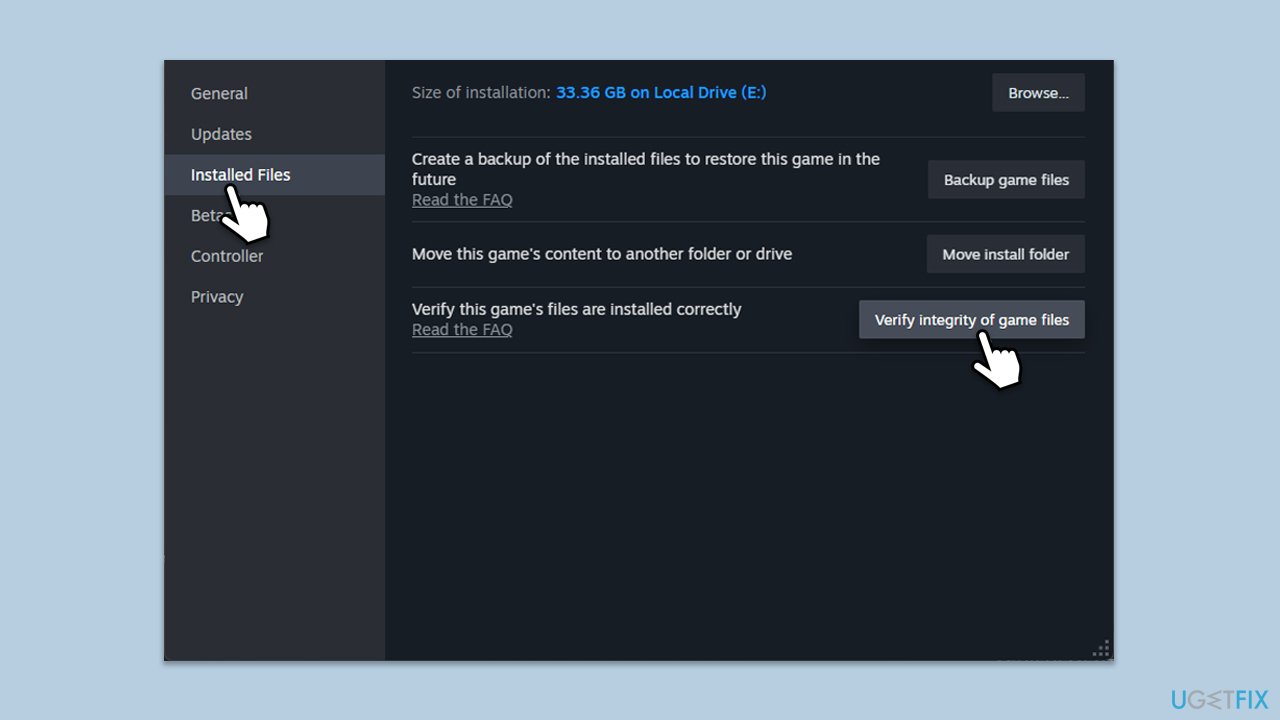
Fix 3. Verify game files
Missing or corrupted files can prevent the game from connecting properly. Verifying the files checks for issues and automatically fixes them.
- Open Steam and go to your Library.
- Right-click on the Marvel Rivals and pick Properties.
- Go to Installed Files and click Verify integrity of game files.
- Wait till the scan is finished and attempt to launch the game again.
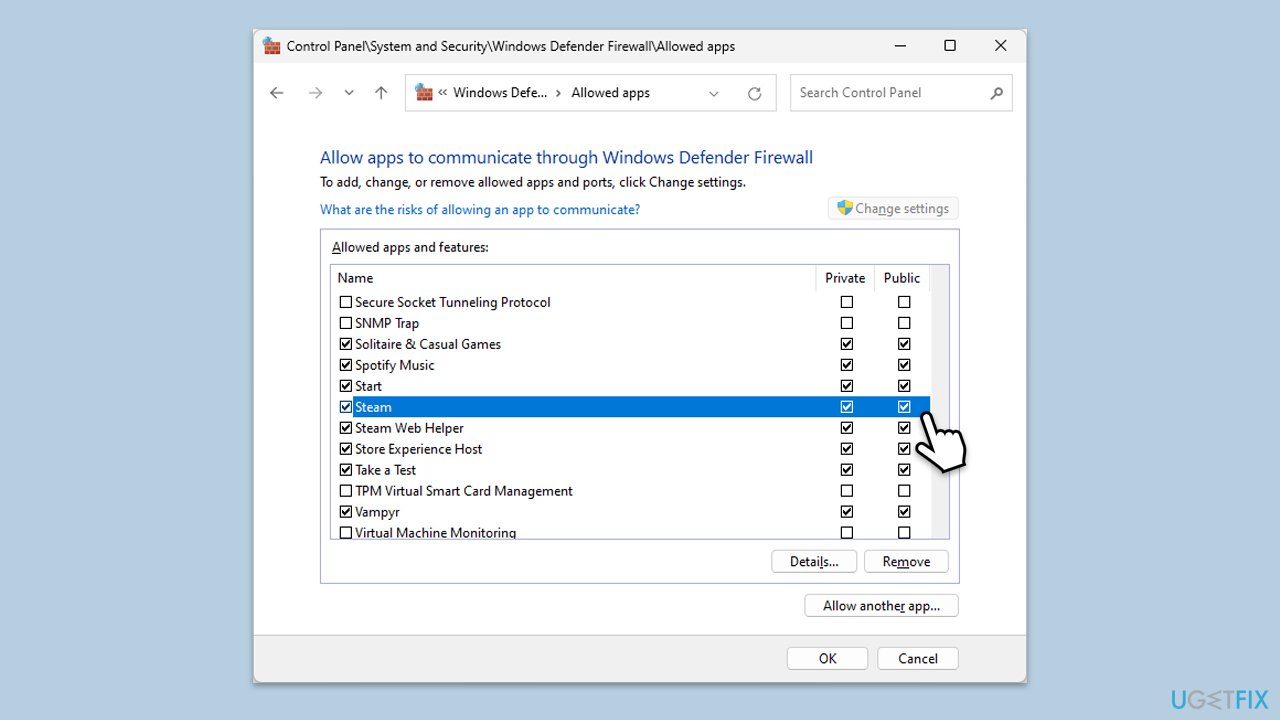
Fix 4. Allow through Windows Firewall
Your firewall might be preventing Marvel Rivals or Steam from connecting to the internet. Allowing them through helps restore network communication.
- Type in Control Panel in Windows search and press Enter.
- Go to System and Security and click on Windows Defender Firewall.
- On the left side of the window, click Allow an app or feature through Windows Defender Firewall.
- Click Change settings (if you are not on an administrator account, you will be asked to enter a password).
- Scroll down and enable Private and Public access to the following entries:
Steam
Steam Web Helper - Finally, click OK.
Fix 5. Clear Steam download cache
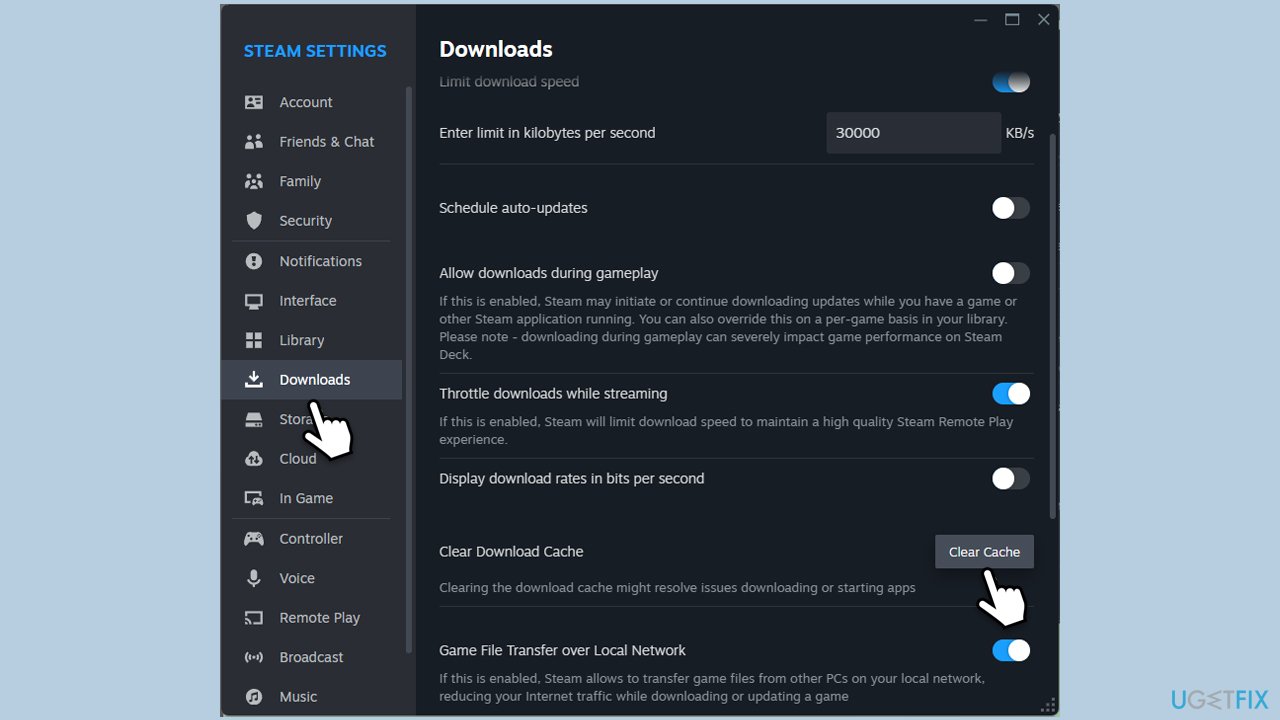
Cached download data can become corrupted and interfere with online games. Clearing the cache helps reset Steam's connection behavior.
- Open the Steam app.
- Go to Steam > Settings.
- Select the In Game section on the left.
- Scroll down to the Delete Web Browser Data section.
- Click Delete.
- Go to the Downloads section.
- Under Clear Download Cache, click Clear Cache.
- Restart Steam.
Fix 6. Reinstall Marvel Rivals
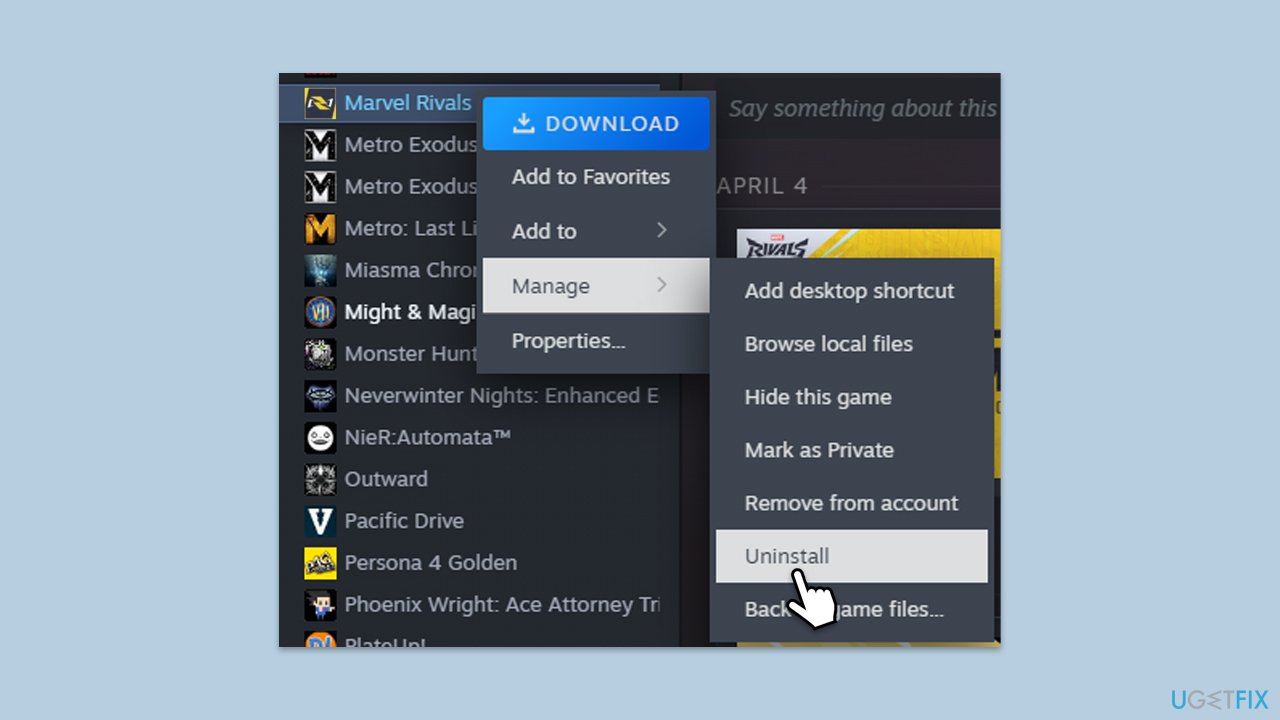
If core game files are damaged and verifying doesn’t help, a full reinstall may be necessary.
- Open Steam and go to your Library.
- Right-click Marvel Rivals and choose Uninstall.
- After removal, click Install to download it again.
- Launch the game and check if the error is gone.
Fix 7. Reset network settings
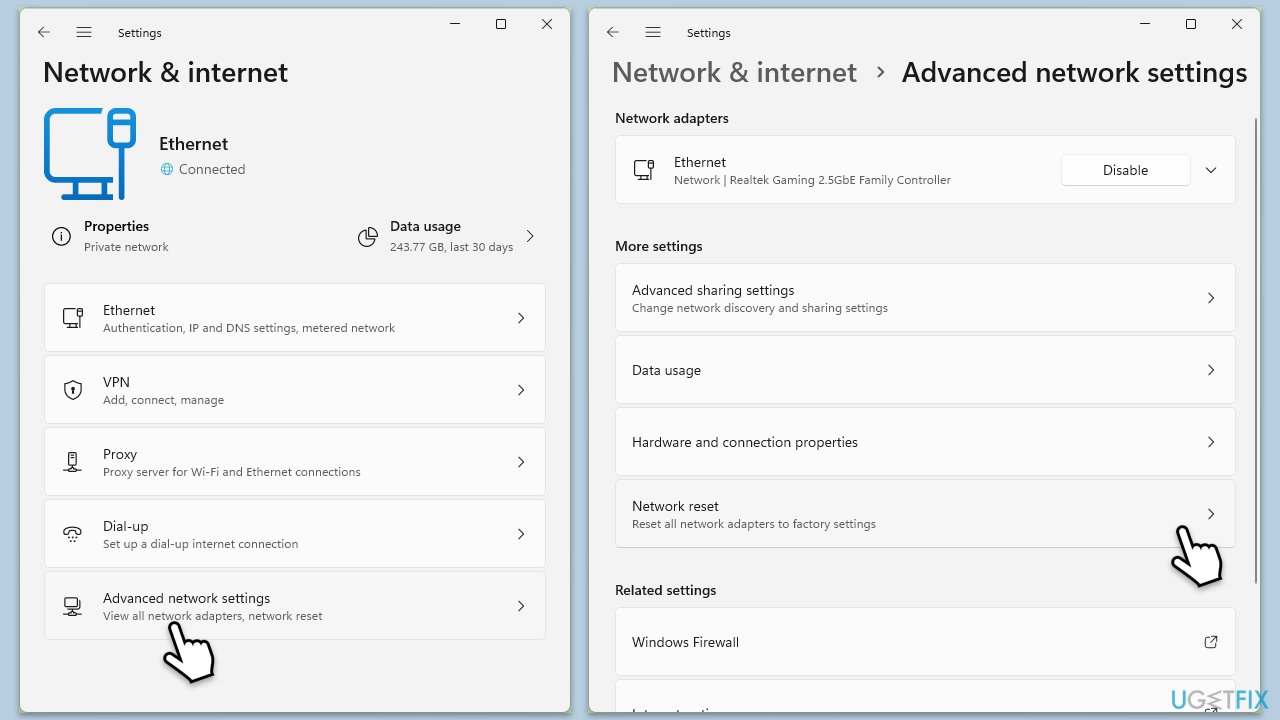
Incorrect or outdated network configurations in Windows may block proper communication with game servers. Resetting them can help.
- Right-click on Start and pick Settings.
- Go to Network & Internet.
- Under Advanced network settings, click Network reset.
- Click Reset Now.
- Confirm the action and then restart your system.
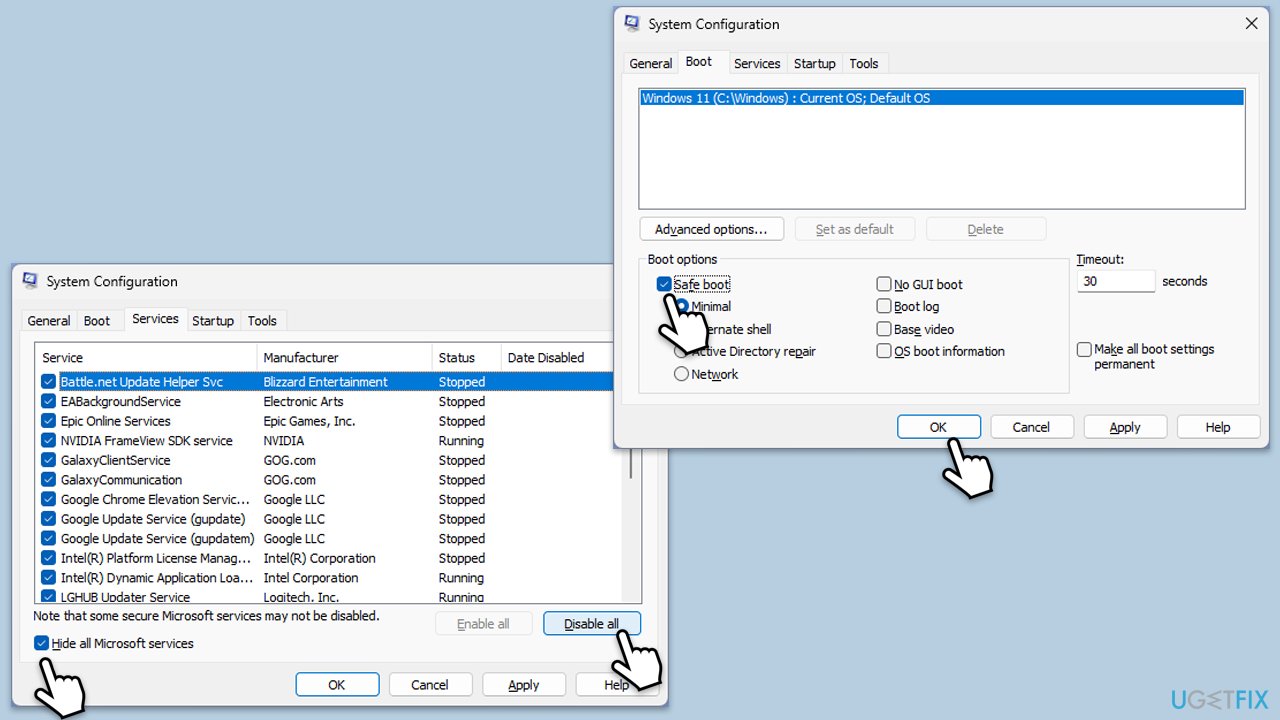
Fix 8. Run a clean boot
This method will help you to determine whether third-party software is causing the problem.
- Type msconfig in Windows Search and press Enter to open the System Configuration window.
- Click on the Services tab and check the Hide all Microsoft Services box.
- Click Disable all to disable non-Microsoft services, then click the Startup tab.
- Open the Task Manager, disable all startup items, and close the Task Manager.
- Go to the Boot tab and mark the Safe boot option.
- Click OK on the System Configuration window and restart your computer.
- If the problem does not exist, third-party software is at fault. To determine which app is causing it try enabling half of the available programs, restarting, and checking if the the problem is still absent. Continue till you find the offending software and either update or uninstall it.
Bottom line
To resolve the 'Failed to connect to Steam. Error Code: 211' issue, players can try reinstalling Marvel Rivals, verifying game files through Steam, or checking network restrictions and router configurations. If these solutions do not work, consider using a PC repair tool or seeking further technical support.
Frequently asked questions
Error code 211 typically indicates a connection issue with Steam, preventing Marvel Rivals from launching properly. This can be due to network problems or Steam server issues.
To resolve this, ensure your internet connection is stable, restart your router, and check for any Steam server outages. Additionally, try running Steam as an administrator on your Windows 10 system.
Yes, you can try verifying the integrity of the game files in Steam, as corrupted files can lead to connection errors like code 211. Also, temporarily disabling your firewall or antivirus may help if they are blocking the connection.




Report an issue
What's wrong with this guide? We review every report and update or remove content.
Report received — thank you. We'll review and fix it.
You need a free account to submit a report.
Be the first to comment