How to fix
Microsoft Store Apps are getting stuck at 1% download
on Windows
Resolve Microsoft Store app downloads stuck at 1% on Windows 10 and 11. Quick fixes and expert-tested solutions await you for a smooth experience.

![[Fix] Microsoft Store Apps are getting stuck at 1% download](https://ugetfix.com/wp-content/uploads/articles/askit/fix-microsoft-store-apps-are-getting-stuck-at-1percent-download_en-768x432.jpg)
What causes [Fix] Microsoft Store Apps are getting stuck at 1% download?
- Unstable network connections
- Temporary issues with Microsoft's servers
- Accumulation of cache in the Microsoft Store
- Issues with Windows Update components
- Corrupted system files
Repairs Windows system files, removes malware, and restores a clean OS state — without reinstalling.
My Microsoft Store is not working properly. Every time I attempt to update an app, it keeps getting stuck at 1% while the update button continues to spin forever. Ultimately, the download always fails, be it updating the installed apps or downloading new ones.
Microsoft Store Apps getting stuck at 1% is a common issue encountered by users of Windows 10 and Windows 11. This problem typically arises when attempting to download new apps or update existing ones through the Microsoft Store, and users are unable to install vital security patches for apps, which is just one of the major problems.
Microsoft Store is an essential component of the Windows operating system, providing users with access to a multitude of applications and services. When functioning optimally, it offers a smooth and user-friendly experience. However, when Microsoft Store Apps get stuck at 1%, it becomes a significant inconvenience, disrupting the process of acquiring new software and updates.
There are several reasons why Microsoft Store Apps getting stuck at 1% might occur. It could be due to unstable network connections or temporary issues with Microsoft's servers, which impede the download process. Another contributing factor could be the accumulation of cache in the Microsoft Store, leading to operational glitches.
Issues with Windows Update components, which are crucial for the download and update processes, can also cause this problem. Additionally, the malfunction might stem from corrupted system files that affect the Microsoft Store's functionality.
To alleviate the issue of Microsoft Store Apps getting stuck at 1%, various strategies can be employed. Resetting the Windows update components is often an effective first step in resolving download and update issues. Clearing the cache in the Microsoft Store might also help by removing temporary files that could be causing the error.
Ensuring that all services essential for app downloads and updates are active is crucial. In more extreme cases, repairing corrupted system files or reinstalling the Microsoft Store may be necessary to get it back in working condition.
If you're facing a frustrating situation where Microsoft Store Apps are stuck at 1%, consider using a reliable PC repair tool like [d1]. Such tools are designed to automatically detect and fix underlying issues in Windows, which can help resolve the problem of apps not downloading properly in the Microsoft Store.
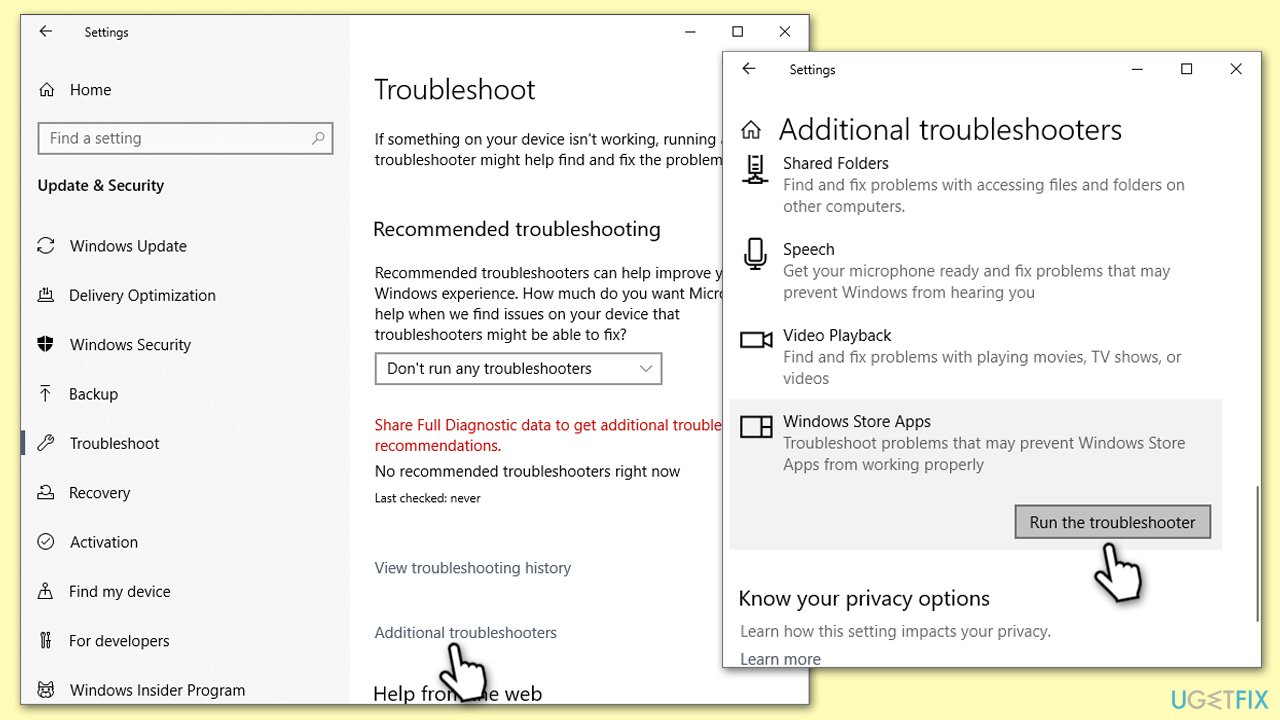
Fix 1. Run Microsoft Store Apps troubleshooter
Microsoft Store Apps troubleshooter is an automatic tool in Windows that identifies and resolves common issues with the Store and its applications. It scans the system for any problems and attempts to fix them.
- Type troubleshoot in Windows search and press Enter.
- On the right, choose Additional troubleshooters/ Other troubleshooters.
- Find Windows Store Apps and click Run the troubleshooter/Run.
- Wait till the process is finished and apply the suggested changes.
Fix 2. Run Network connection troubleshooter
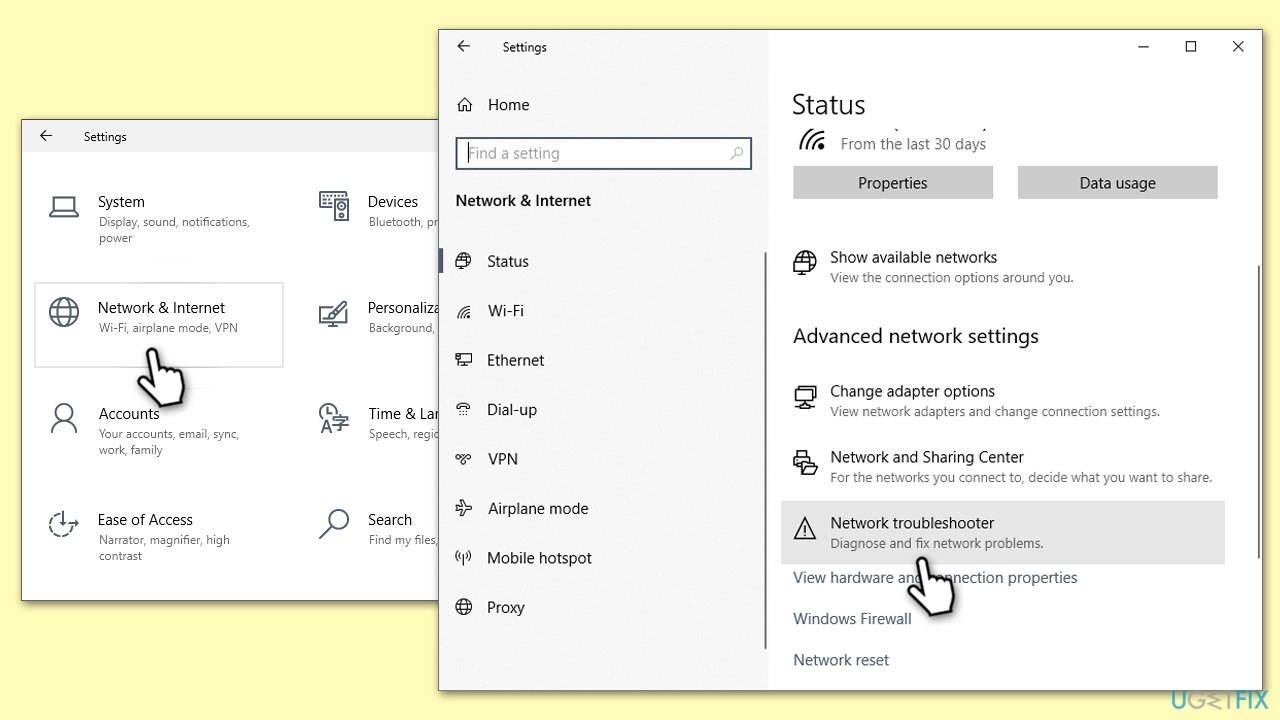
Network issues can affect the downloading process in the Microsoft Store. The Network connection troubleshooter checks for and resolves these issues. Switching from a WiFi to an Ethernet connection has also helped some users.
- Right-click on Start and pick Settings.
- Go to the Network & Internet section.
- On the right side, find the Advanced network settings section.
- Click Network troubleshooter - Windows should apply the fix automatically.
- If the problem persists, try switching from WiFi to an Ethernet connection.
Fix 3. Perform SFC and DISMscans
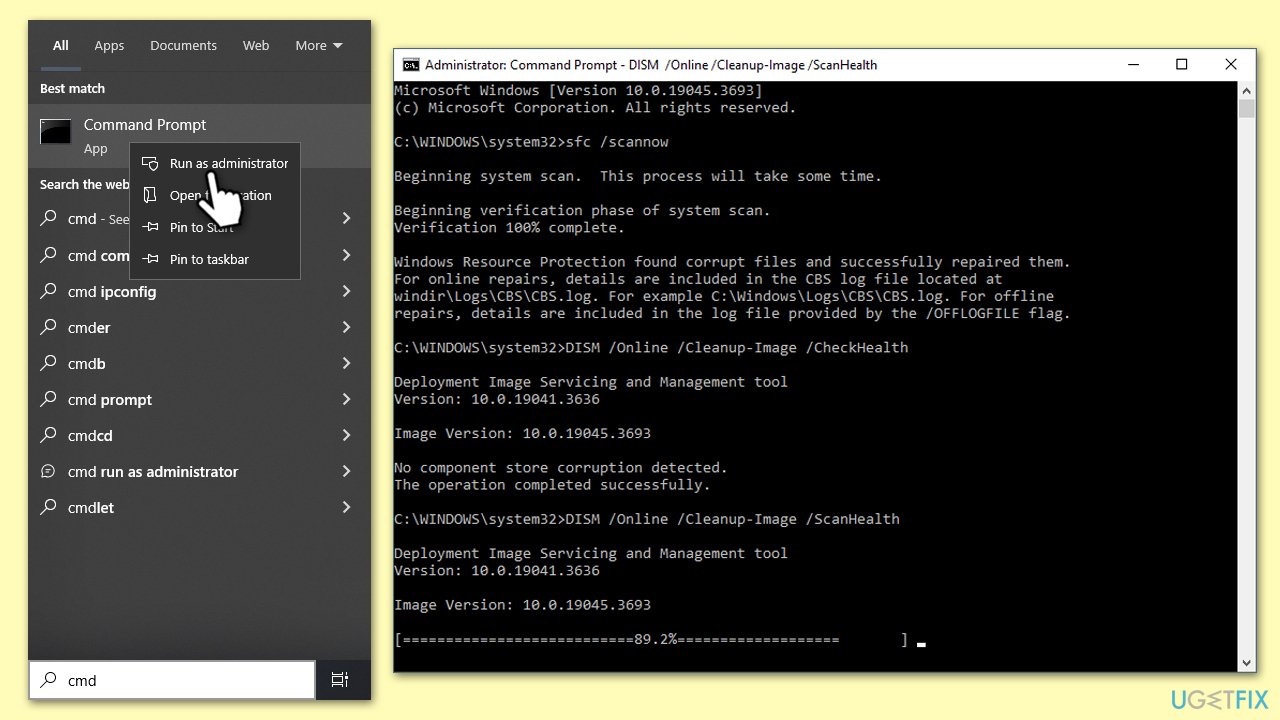
Repairing corrupted system files might resolve the issue that could be causing the Microsoft Store Apps to get stuck at 1%.
- Type cmd into Windows search.
- Right-click on Command Prompt and select Run as administrator.
- When the User Account Control (UAC) window shows up, click Yes.
- Next, type in the following command and press Enter:
sfc /scannow - When done, run the following commands as well:
dism /online /cleanup-image /scanhealth
dism /online /cleanup-image /checkhealth
dism /online /cleanup-image /restorehealth
(Note: if you get an error executing the last command, add /Source:C:\RepairSource\Windows /LimitAccess to it and try again.) - Restart your PC.
Fix 4. Reset Microsoft Store cache
Clearing the Microsoft Store cache can resolve issues by removing temporary files that might be causing download problems.
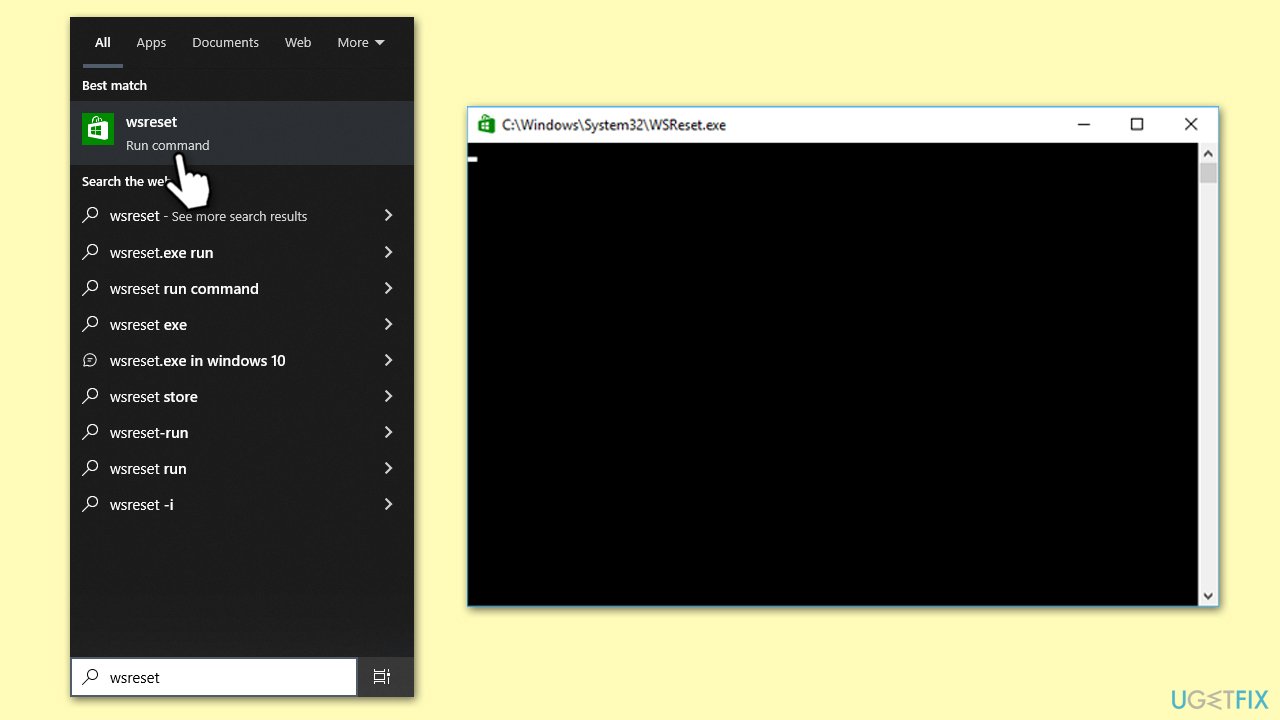
- Type wsreset in Windows search and press Enter.
- Wait until a pop-up window shows up - do not close it.
- As soon as it closes automatically, the store cache should be reset and will reopen.
- Try updating or downloading apps again.
Fix 5. Make sure relevant services are running
Windows Update and Microsoft Store Install Service are essential for downloading apps and must be running correctly.
- Type Services in Windows search and press Enter.
- Make sure these services are set to Automatic and are running: Windows Update, Background Intelligent Transfer Service, and Microsoft Store Install Service.
- If any service is not running, double-click it to open Properties.
- Under Startup type, pick Automatic from the drop-down menu.
- Click Start, and then OK.
Fix 6. Reset Windows update components
Resetting Windows update components can help resolve download issues in the Microsoft Store.
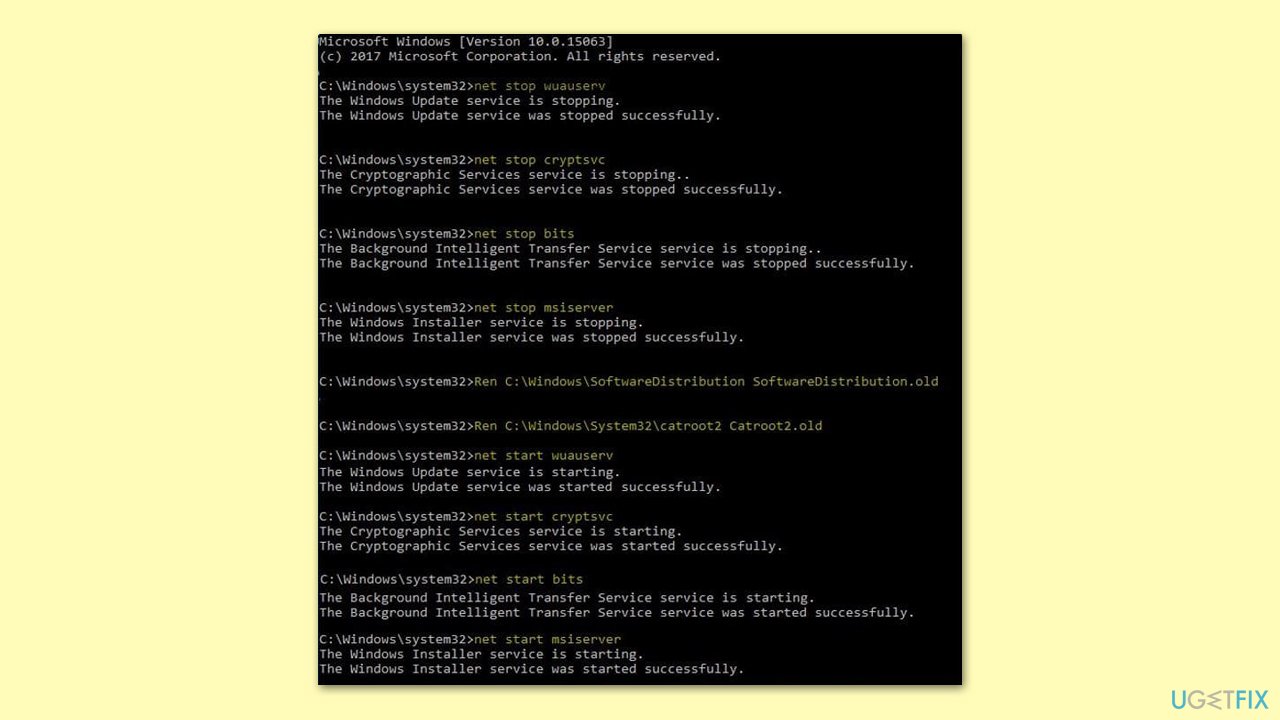
- Open Command Prompt as administrator.
- In the Command Prompt window, copy and paste each of these commands, pressing Enter after each:
Net Stop bits
Net Stop wuauserv
Net Stop appidsvc
Net Stop cryptsvc
Ren %systemroot%\SoftwareDistribution SoftwareDistribution.bak
Ren %systemroot%\system32\catroot2 catroot2.bak
Net Start bits
Net Start wuauserv
Net Start appidsvc
Net Start cryptsvc - Close down everything and restart your PC.
Fix 7. Reset Microsoft Store
Resetting the Microsoft Store restores its default settings without affecting your installed apps.
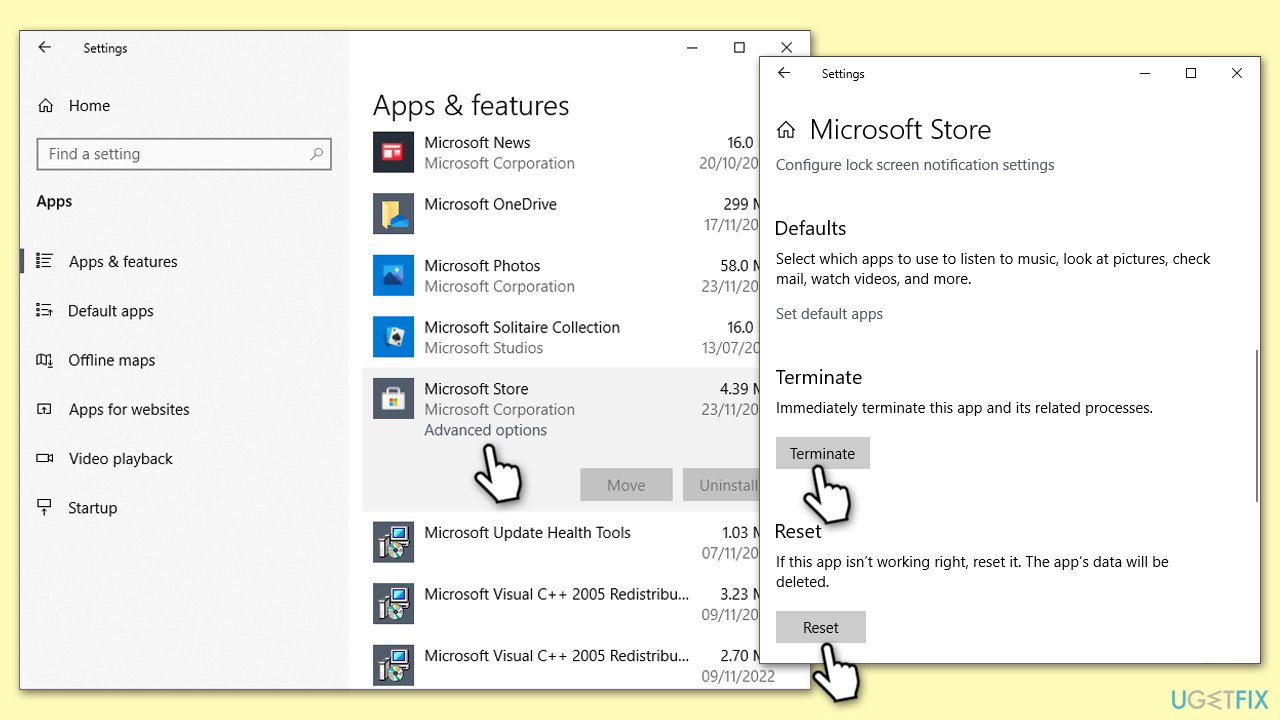
- Right-click on Start and select Apps & Features.
- Scroll down to find Microsoft Store and click Advanced options.
- Scroll down again and click Terminate and Reset.
- Wait till the process is complete and try installing new apps again.
Fix 8. Reinstall Microsoft Store via PowerShell
Reinstalling the Microsoft Store through PowerShell can refresh the app and its components.
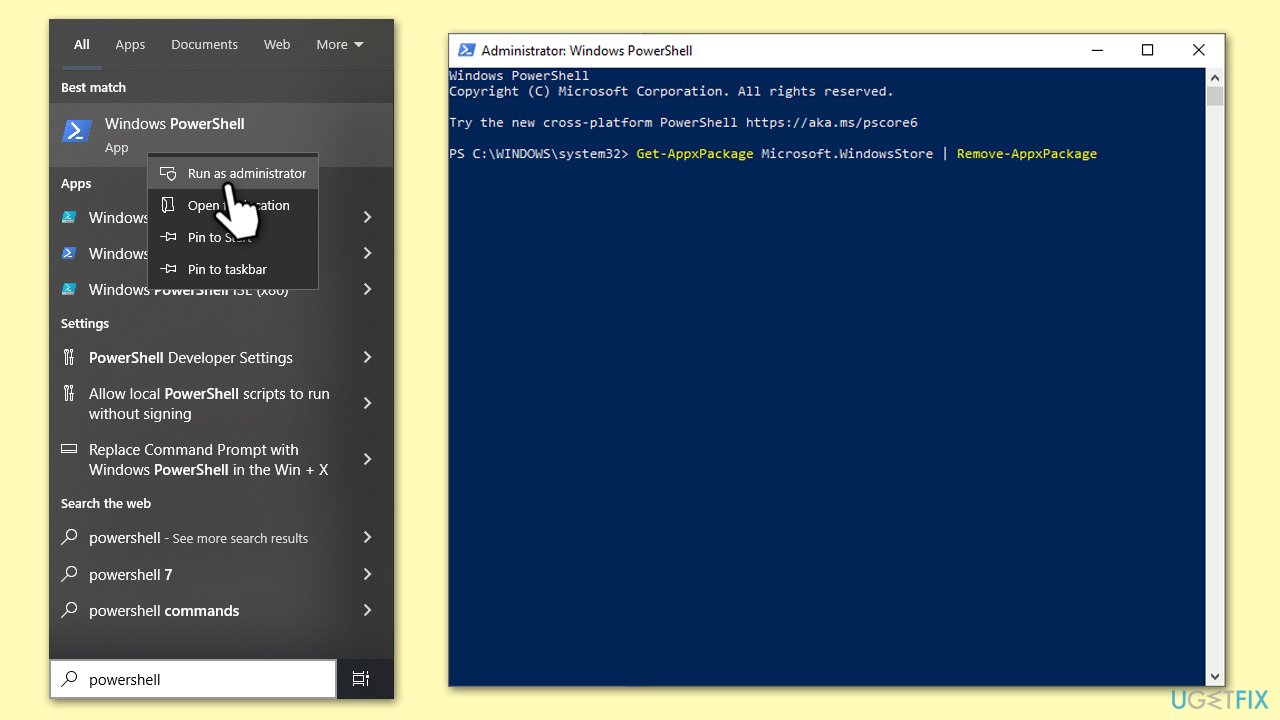
- Type PowerShell in Windows search.
- Right-click on the result and select Run as administrator.
- When UAC shows up, click Yes.
- In the new window, copy and paste the following command, pressing Enter after:
Get-AppxPackage Microsoft.WindowsStore | Remove-AppxPackage - With the next command, you can install the Store:
Add-AppxPackage -register "C:\Program Files\WindowsApps\Microsoft.WindowsStore*\AppxManifest.xml" -DisableDevelopmentMode - Press Enter and close down PowerShell.
Bottom line
To resolve the issue of Microsoft Store Apps getting stuck at 1%, you can reset the Windows update components, clear the cache in the Microsoft Store, and ensure all essential services are active. In more severe cases, repairing corrupted system files or reinstalling the Microsoft Store may be necessary. If none of these solutions work, consider seeking further technical support.




Report an issue
What's wrong with this guide? We review every report and update or remove content.
Report received — thank you. We'll review and fix it.
You need a free account to submit a report.
Be the first to comment