How to fix
Microsoft Store not installing any apps
on Windows
Resolve Microsoft Store app installation issues on Windows 10 or 11 effortlessly. Get expert-tested solutions and fix it in minutes!

![[Fix] Microsoft Store not installing any apps](https://ugetfix.com/wp-content/uploads/articles/askit/fix-microsoft-store-not-installing-any-apps_en-768x432.jpg)
What causes [Fix] Microsoft Store not installing any apps?
- Glitches in the Microsoft Store
- Temporary service disruptions
- Outdated Windows operating system
- Conflicts with system settings
- Network connectivity issues
- Insufficient storage space
Repairs Windows system files, removes malware, and restores a clean OS state — without reinstalling.
I have an issue where the Microsoft Store is not installing any apps. I click the Install button and then it starts loading but then it simply goes back to "Install" again. As a result, no apps can be installed or even updated, and it is annoying to no end. I am using Windows 11.
Microsoft Store is an essential platform for Windows users, offering a vast selection of secure applications. However, a prevalent issue some individuals face is when Microsoft Store is not installing any apps. In this scenario, users attempting to download an app find that the "Install" button initiates the process but then unexpectedly reverts to its original state, failing to complete the installation or update.
An issue where Microsoft Store is not installing any apps can arise from various internal and external factors. It may be due to glitches in the Microsoft Store or temporary service disruptions. Alternatively, the problem could originate from an outdated Windows operating system, conflicts with system settings, network connectivity issues, or insufficient storage space. These elements can interfere with the Microsoft Store's functionality, preventing successful app installations.
If you encounter this issue, examining your device's internet connection and storage capacity can be a starting point. Ensuring your Windows operating system is up-to-date is also crucial, as this can rectify compatibility issues and refresh system components, including the Microsoft Store. Additionally, reviewing system settings for any discrepancies that might hinder the Microsoft Store's operations is advisable.
In summary, while the inability of the Microsoft Store to install apps is a common inconvenience, it is often resolvable with careful consideration of the potential causes. For a more direct approach to solving underlying Windows issues, utilizing a specialized PC repair tool, such as [d1], could provide an automated solution, simplifying the troubleshooting process.
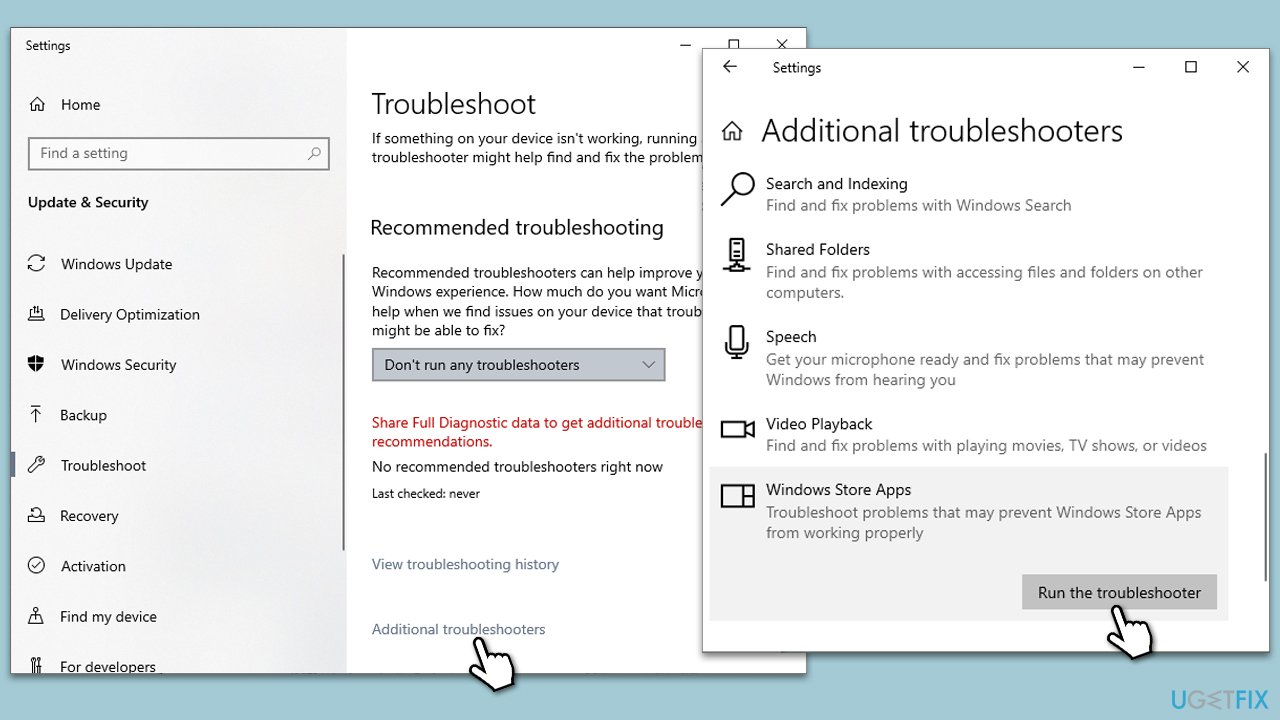
Fix 1. Run Windows Store apps troubleshooter
The Windows Store apps troubleshooter is a built-in utility in Windows designed to diagnose and resolve issues related to the Microsoft Store and its applications. It scans for common problems and attempts to fix them automatically, making it a useful first step for troubleshooting.
- Type Troubleshoot in Windows search and press Enter.
- On the right side, click Additional troubleshooters/Other troubleshooters.
- Scroll down to find the Windows Store Apps entry.
- Select it and click Run the troubleshooter/Run.
- Wait till the scan finishes and apply the suggested fixes, then reboot your system.
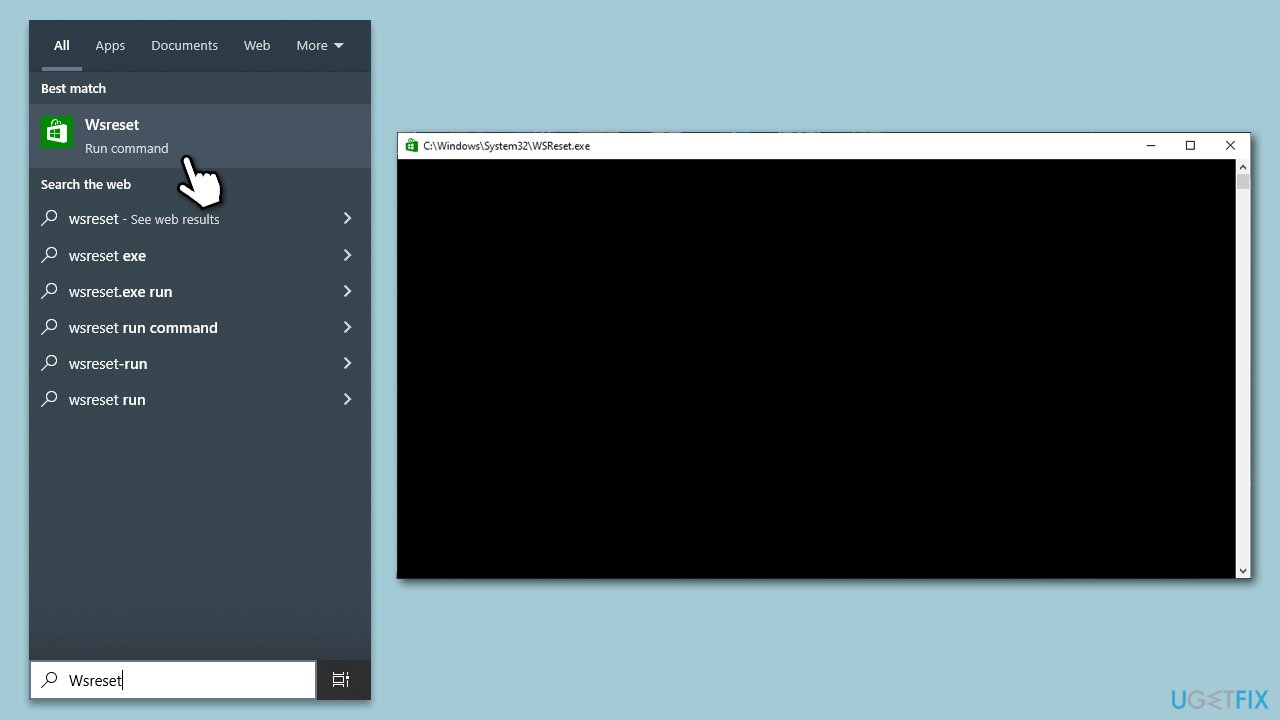
Fix 2. Reset Store cache
Resetting the Store cache clears the stored data that might be causing issues with the Microsoft Store's performance. This process can resolve problems related to app installation and updates by refreshing the cache.
- In Windows search, type Wsreset and press Enter
- Wait till a black window shows up – do not close it
- Once it's gone, the Microsoft Store should restart
- Try using the Store again.
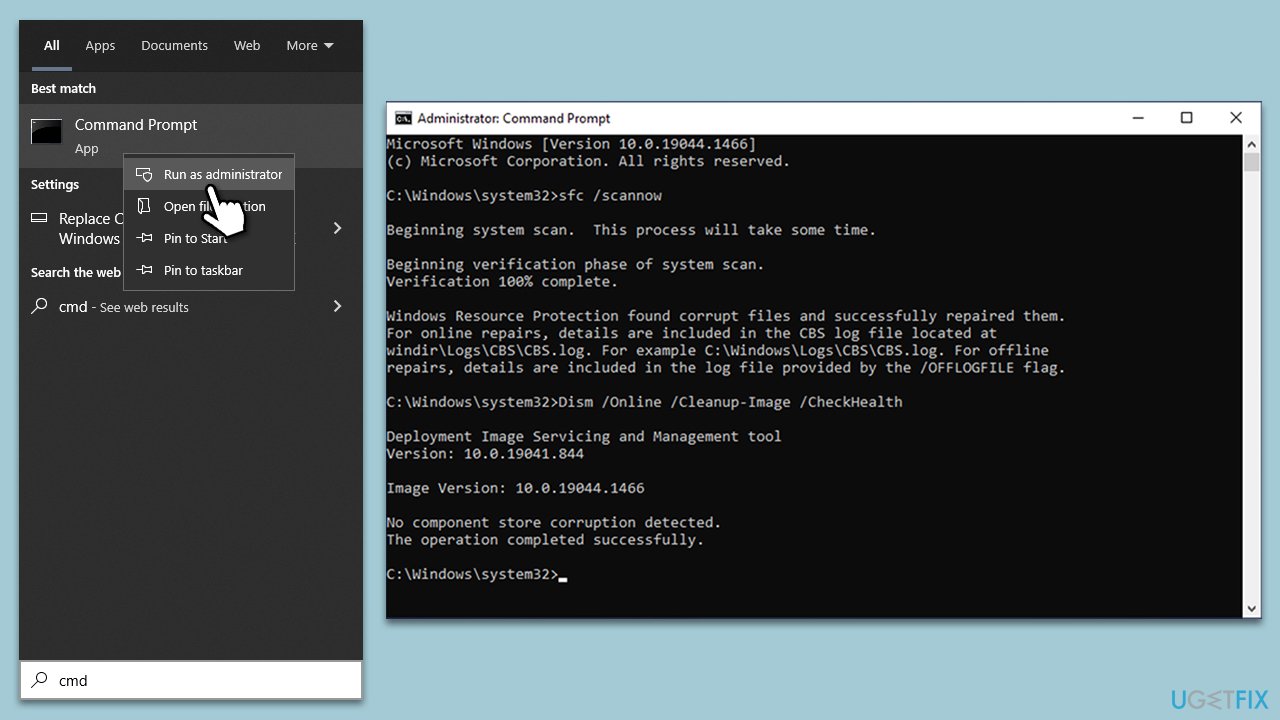
Fix 3. Check for corrupted files
System File Checker (SFC) and Deployment Image Servicing and Management (DISM) are tools that scan for and repair corrupted Windows system files. Running these scans can resolve issues caused by file corruption that might be affecting the Microsoft Store.
- Type in cmd in Windows search.
- Right-click on Command Prompt and select Run as administrator.
- When User Account Control shows up, click Yes.
- In the Command Prompt window, paste the following command and hit Enter:
sfc /scannow - Next, use the following commands, pressing Enter each time:
Dism /Online /Cleanup-Image /CheckHealth
Dism /Online /Cleanup-Image /ScanHealth
Dism /Online /Cleanup-Image /RestoreHealth
(Note: if you get an error executing this last command, add /Source:C:\RepairSource\Windows /LimitAccess to it and try again). - Reboot your PC.
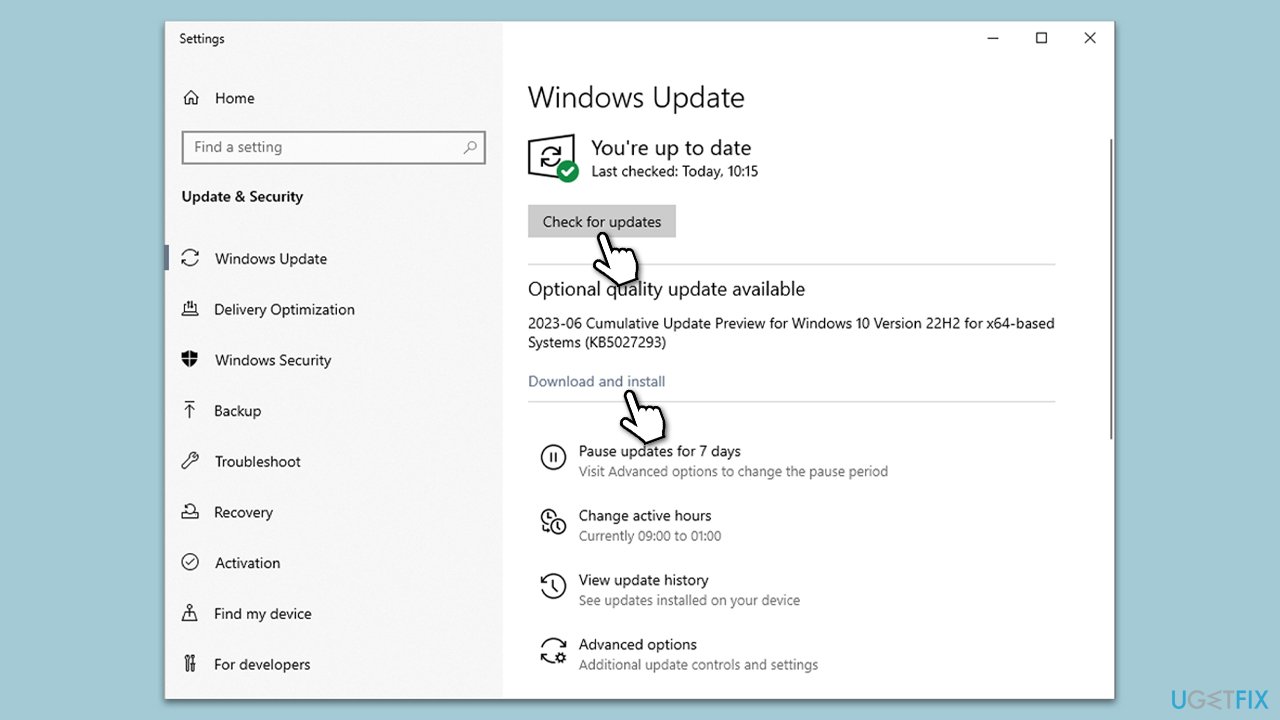
Fix 4. Update Windows
Keeping Windows up-to-date ensures that you have the latest security patches and system improvements, which can resolve issues with the Microsoft Store.
- Type Updates in Windows search and press Enter.
- Here, click Check for updates.
- Wait till Windows downloads and installs all the files.
- If optional updates are available, install them as well.
- Reboot your device.
Fix 5. Check your Time and Region settings
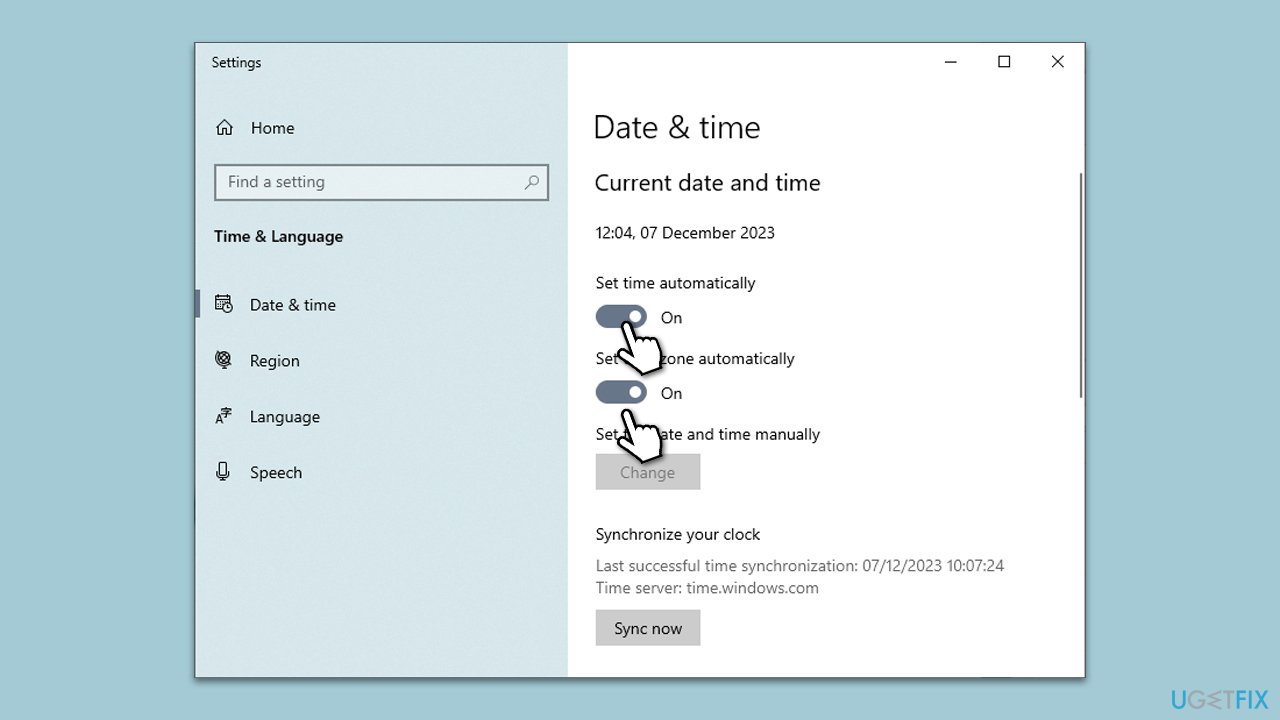
Incorrect Time and Region settings can cause synchronization issues with the Microsoft Store.
- In Windows search, type date and time.
- Select Date and time settings from the search results.
- Ensure Set time automatically and Set time zone automatically are turned on.
- If they are off, switch them on, and your PC will update these settings automatically.
Fix 6. Re-register the Microsoft Store
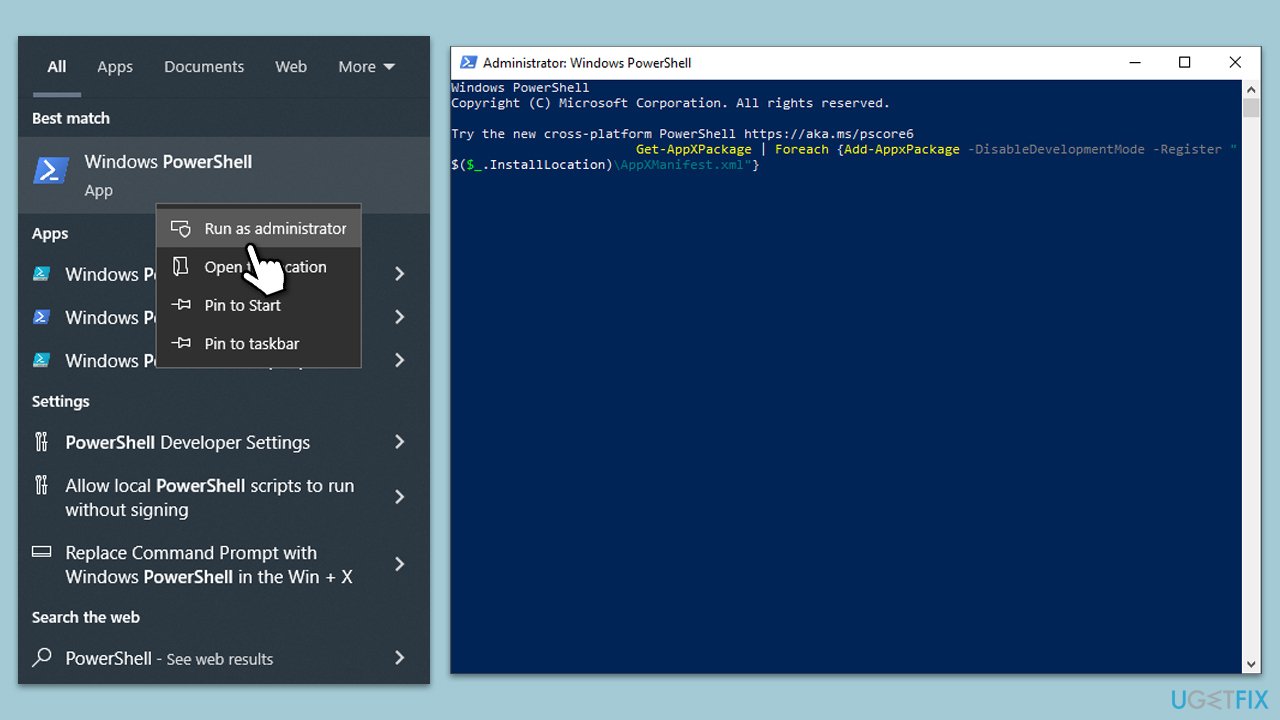
Re-registering the Microsoft Store can resolve issues by refreshing the store's registration status on your device.
- Type PowerShell in Windows search, right-click, and select Run as administrator.
- When UAC shows up, click Yes.
- Copy and paste the following command, pressing Enter after each:
Get-AppXPackage | Foreach {Add-AppxPackage -DisableDevelopmentMode -Register "$($_.InstallLocation)\AppXManifest.xml"} - Close down PowerShell and restart your system.
Fix 7. Create a new user account
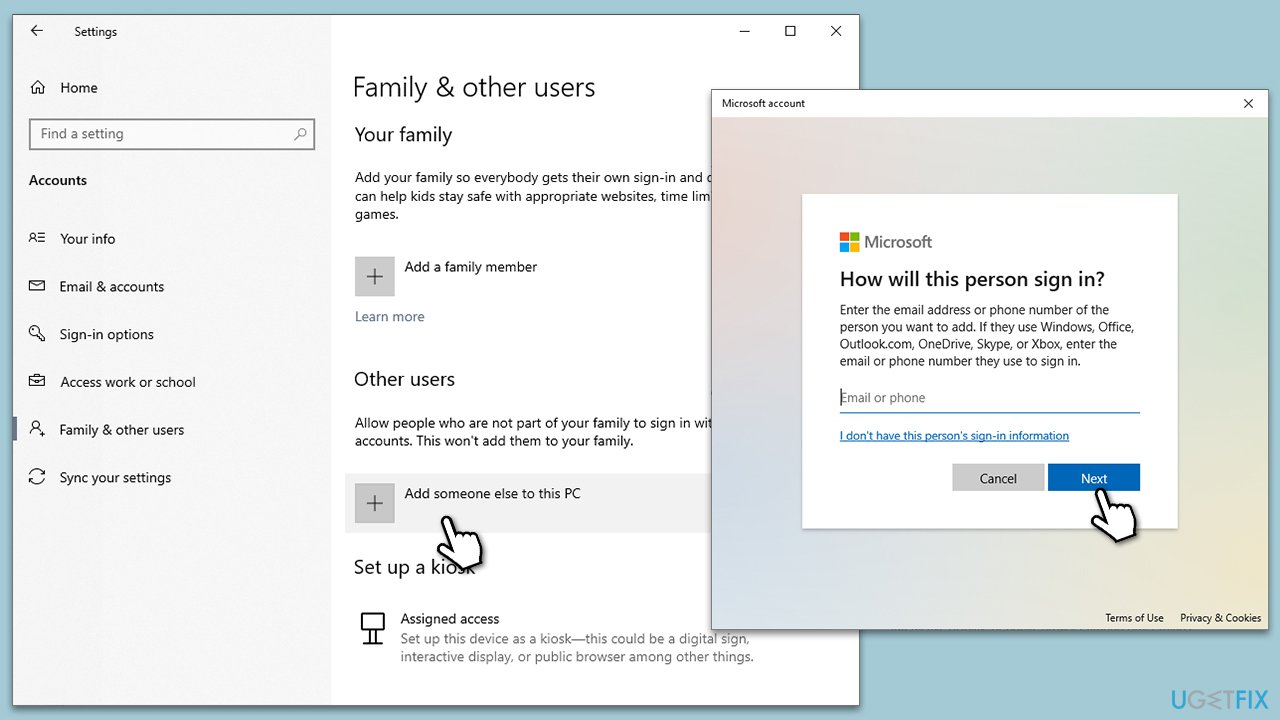
Sometimes, creating a new user account can resolve issues with the Microsoft Store, as the problem might be specific to your current user profile.
- Right-click on Start and pick Settings.
- Go to the Accounts section.
- Select Family & other users on the left.
- Under Other users, click Add someone else to this PC.
- Select I don't have this person's sign-in information > Add a user without a Microsoft account.
- Enter the required information and click Next.
- Restart your device once done.
- Log out from the current account and log into the new account.
Fix 8. Perform a Clean Boot
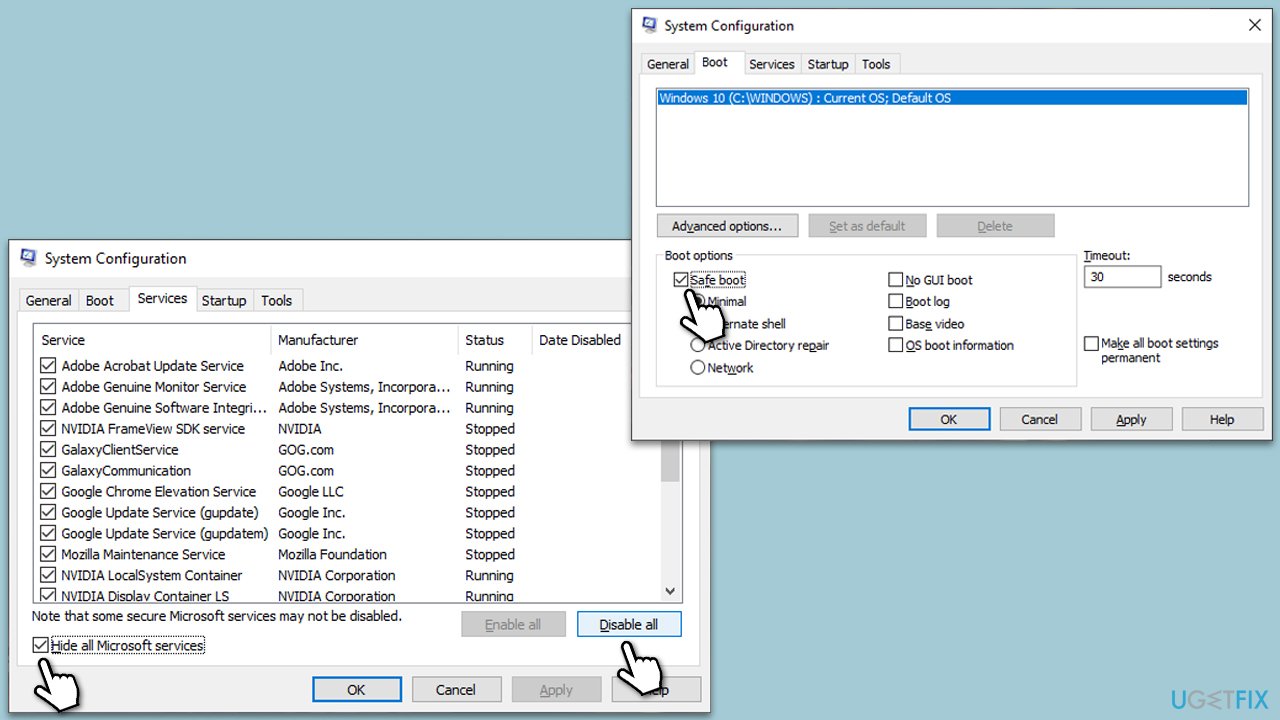
Performing a clean boot starts Windows with a minimal set of drivers and startup programs, which can help identify if background applications are causing issues with the Microsoft Store.
- Type msconfig in Windows search and press Enter.
- In the System Configuration window, click on the Services tab.
- Check the box that says Hide all Microsoft services, then click Disable all.
- Next, click on the Startup tab.
- Click on Open Task Manager.
- Under the Startup tab in Task Manager, for each startup item, select the item and then click Disable.
- Close Task Manager.
- On the Startup tab of the System Configuration dialog box, click OK, and then restart your computer.
Bottom line
To resolve the issue of the Microsoft Store not installing apps, users can run the Windows Store apps troubleshooter, ensure their Windows operating system is up-to-date, and check their internet connection and storage capacity. If these solutions do not work, consider utilizing a specialized PC repair tool for further assistance.




Report an issue
What's wrong with this guide? We review every report and update or remove content.
Report received — thank you. We'll review and fix it.
You need a free account to submit a report.
Be the first to comment