How to fix
Microsoft Teams keeps asking to sign in
on Windows
Resolve the annoying sign-in prompts from Microsoft Teams on Windows 10 or 11 easily. Quick fixes and expert-tested solutions await you!

![[Fix] Microsoft Teams keeps asking to sign in on Windows](https://ugetfix.com/wp-content/uploads/articles/askit/fix-microsoft-teams-keeps-asking-to-sign-in-on-windows_en-768x432.jpg)
What causes [Fix] Microsoft Teams keeps asking to sign in on Windows?
- Software updates are not installed
- Cached credentials are causing conflicts
- Teams app needs repair or reset
- Incorrect account credentials are being used
Repairs Windows system files, removes malware, and restores a clean OS state — without reinstalling.
Hello. When I try to sign into Teams on my Windows PC, it keeps repeatedly asking me to enter my credentials. How do I fix this?
The issue of Microsoft Teams repeatedly requesting users to sign in on Windows can be a vexing one. When users attempt to sign in and enter their login credentials, Teams prompts them to do so again, resulting in a loop that prevents users from successfully logging in to the platform. This constant sign-in prompt can be annoying and disrupt users' workflow.
Microsoft Teams is a popular Microsoft collaboration and communication platform. It functions as a team hub, offering a variety of features to facilitate seamless collaboration and effective communication. Users can chat in real-time, attend audio and video meetings, share files and documents, collaborate on projects, and integrate with other Microsoft tools and applications. It has become an indispensable tool for remote work, online learning, and small and medium-sized businesses alike.
When confronted with the issue of continuous sign-in prompts, users may experience a number of negative consequences. For starters, it can result in significant time waste and frustration as users attempt to sign in repeatedly without success. This hiccup in the sign-in process can result in delays in accessing critical messages, files, and meetings, impeding effective communication and collaboration among team members. Furthermore, frequent sign-in requests can disrupt workflow and cause annoyance and distraction, affecting productivity and user experience.
There are several potential solutions to this sign-in issue on Microsoft Teams that users can investigate. Checking for software updates, clearing cached credentials, repairing or resetting the Teams app, or ensuring that the correct account credentials are entered are all possible solutions. It is important to note, however, that the specific steps to resolve the issue may differ depending on the underlying cause.
In this guide, you will find 6 steps that should help you fix Microsoft Teams sign-in issue. You can also use a repair tool like [d1] that can fix most system errors, BSODs,[ref en-1] corrupted files, and registry[ref en-2] issues. Otherwise, follow the step-by-step instructions provided below.
Solution 1. Restart the App
If Microsoft Teams is continuously asking you to sign in, it might be due to a temporary app glitch. In such cases, the first troubleshooting step is to restart the app. However, simply closing Microsoft Teams won't suffice because its background processes may still be running.
To fully restart the app, follow these steps:
- Press Ctrl + Shift + Esc on your keyboard to launch the Task Manager.
- In the Task Manager window, locate Microsoft Teams.
- Right-click on Microsoft Teams and select End Task from the context menu.
Solution 2. Update Microsoft Teams
- Launch the Microsoft Teams app.
- Open the three-dot menu located next to your profile icon.
- Select Settings from the menu.
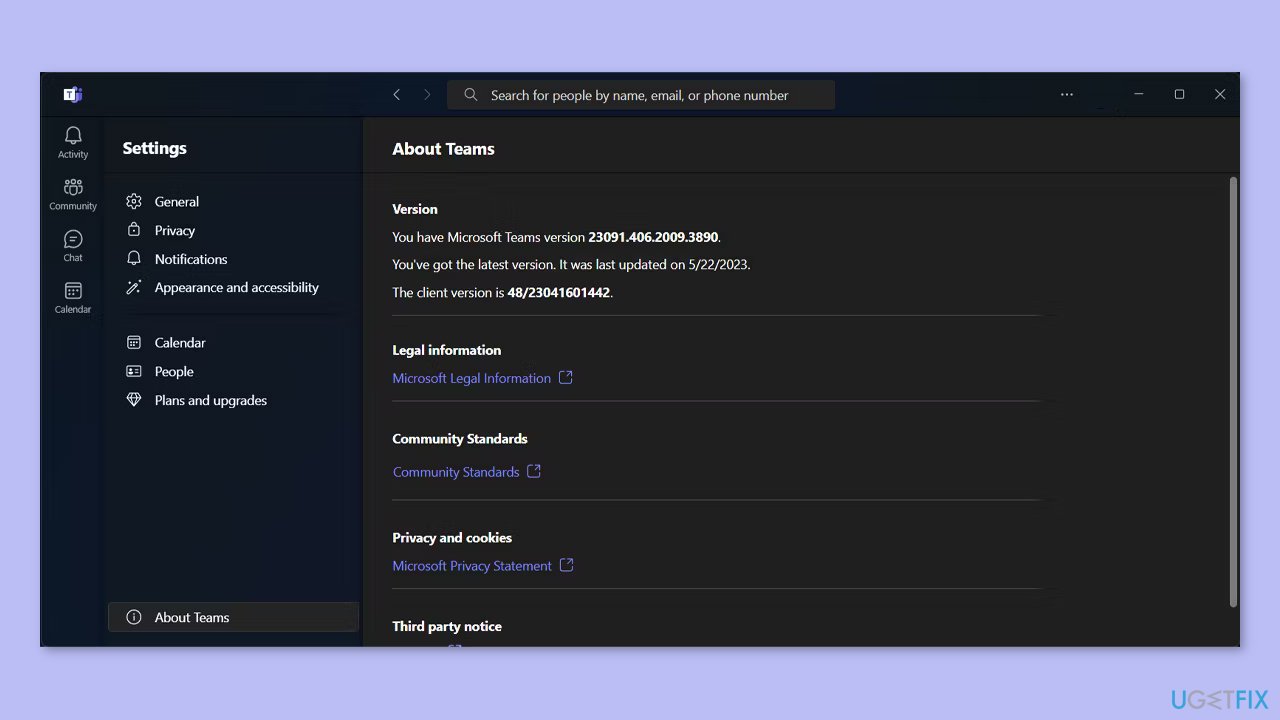
- Click on About Teams in the settings menu.
- Microsoft Teams will automatically check for any available updates.
- If updates are available, Teams will proceed to install them.
Solution 3. Use Microsoft Teams Online
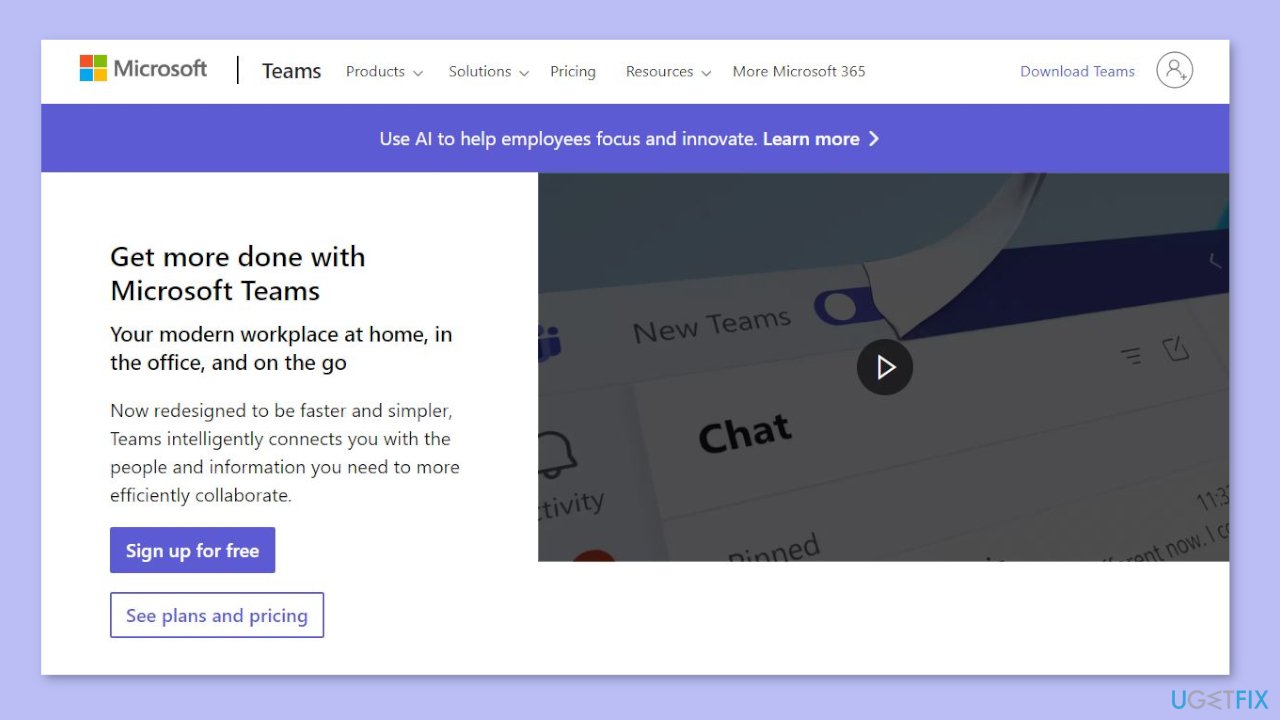
If updating the app didn't stop Microsoft Teams from asking you to sign in, there's an easy alternative for you. Instead of relying on the desktop app, you can use Microsoft Teams online.
To get started, simply visit the Microsoft Teams website. Once there, sign in using your credentials. This way, you can continue your work and stay connected without missing anything important, even while you figure out how to fix the desktop app.
Solution 4. Clear the Microsoft Teams Cache
- Press the Windows key + R to bring up a Run dialog.
- Type %appdata% in the Run dialog and click Ok.
- In the File Explorer window that opens, navigate to the Microsoft > Teams directory.
- Select all the folders within the Teams directory.
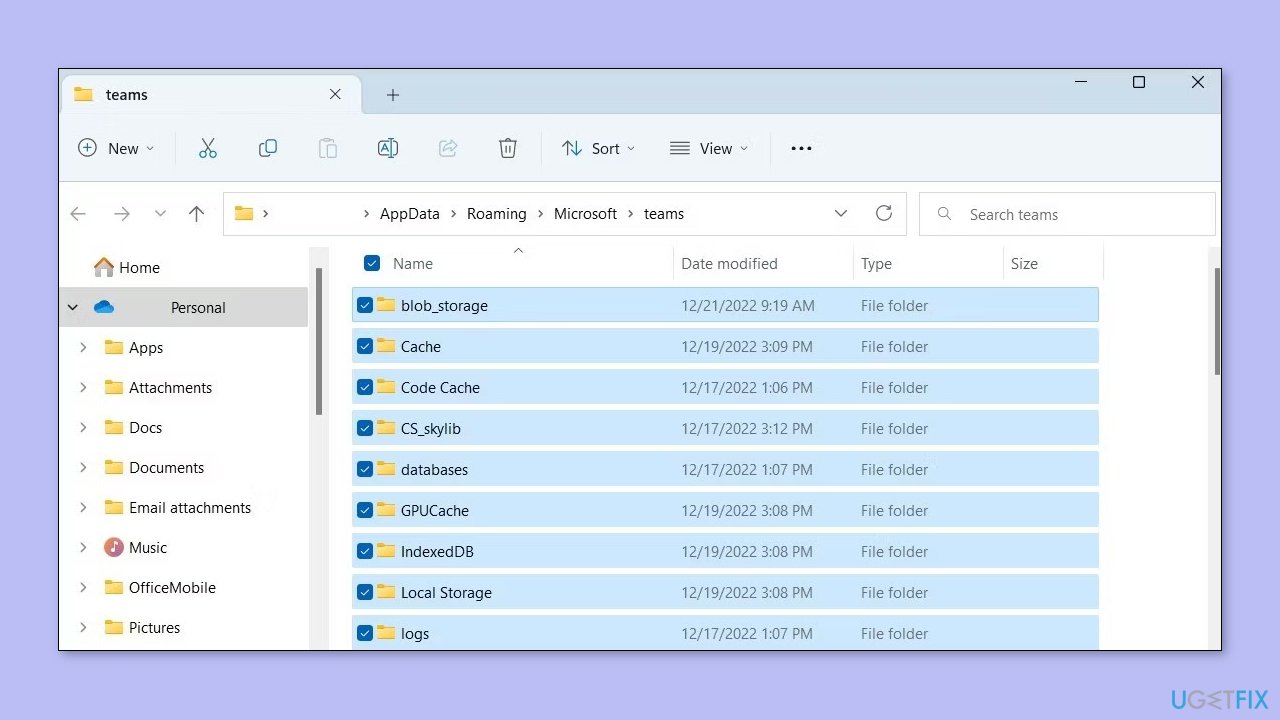
- Permanently delete the selected folders.
- Restart Microsoft Teams.
- Check if the issue is resolved now.
Solution 5. Repair or Reset Microsoft Teams
- Close the Microsoft Teams app if it is currently open.
- Open the Windows Settings by pressing the Windows key + I.
- In the Settings window, click on Apps or Apps & features.
- Scroll down and locate Microsoft Teams in the list of installed apps.
- Click on Microsoft Teams and then select Advanced options.
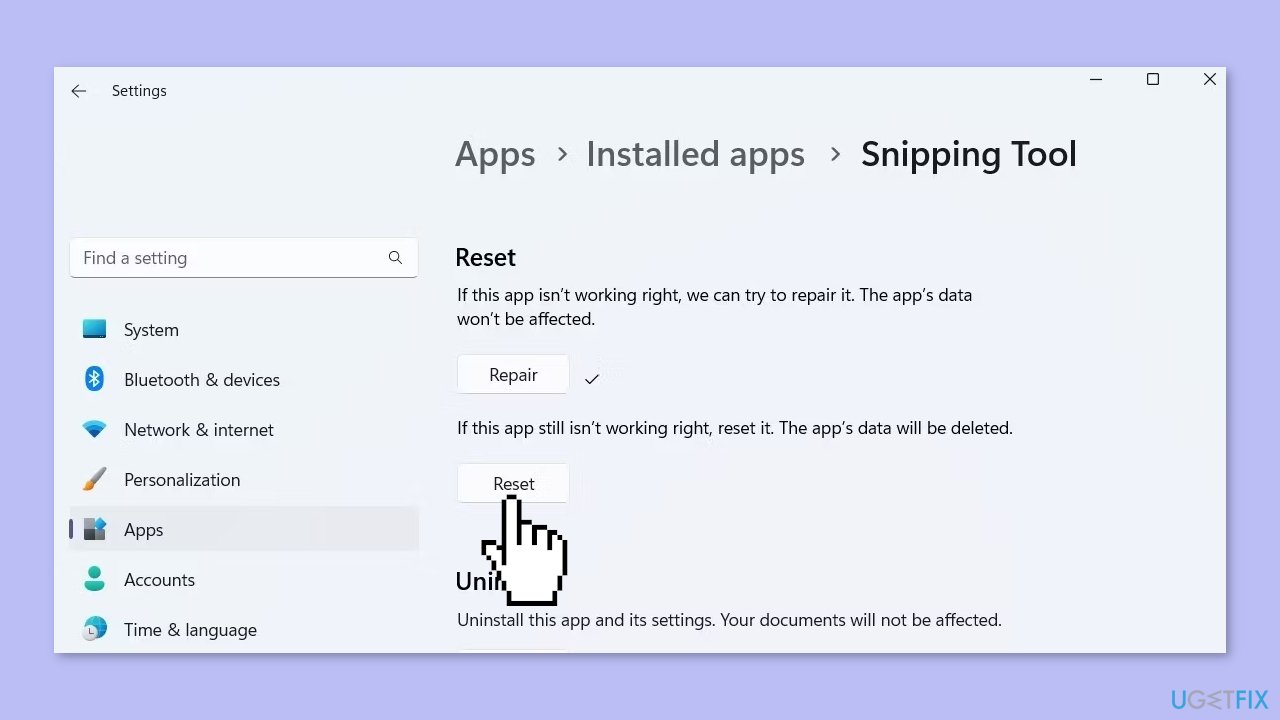
- In the advanced options menu, click on Repair.
- Follow the on-screen prompts to complete the repair process.
- If this did not solve the issue, go back, but press Reset instead.
Solution 6. Remove App Credentials
- Press the Windows key + R to open the Run dialog.
- Type control /name Microsoft.CredentialManager in the Run dialog and press Enter.
- The Credential Manager window will open.
- In the Credential Manager window, locate and select Windows Credentials.
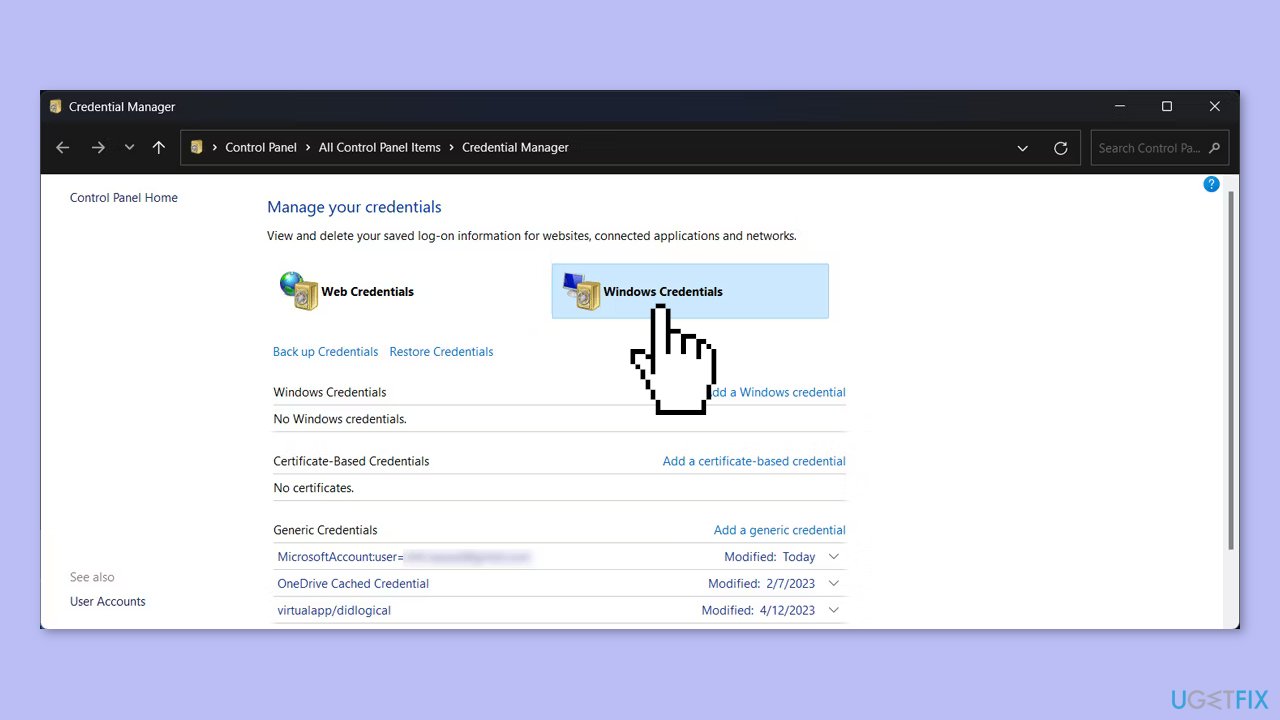
- Under the Generic Credentials section, locate the Microsoft Teams credentials.
- Click on the Microsoft Teams credentials to select them.
- Select the Remove option to delete the Microsoft Teams credentials from the list.
Bottom line
To resolve the Microsoft Teams sign-in issue, users can check for software updates, clear cached credentials, repair or reset the Teams app, and ensure that the correct account credentials are entered. If these solutions do not work, consider using a repair tool to fix system errors or further investigate the underlying cause.
Frequently asked questions
This issue may be caused by corrupted credentials or outdated Teams cache. Try clearing the cache or removing and re-adding your account in Teams settings.
You can resolve this by ensuring that your Windows 11 is updated and by checking your network connection, as unstable connections can trigger repeated sign-in requests.
If the problem persists after reinstalling, consider checking your system's date and time settings or looking for conflicting software that might affect Teams.




Report an issue
What's wrong with this guide? We review every report and update or remove content.
Report received — thank you. We'll review and fix it.
You need a free account to submit a report.
Be the first to comment