How to fix
Mobile Hotspot connected but there’s No Internet
on Windows
Resolve the Mobile Hotspot issue on Windows 10 and 11 with our expert-tested solutions. Get connected in minutes and enjoy seamless internet access.

![[Fix] Mobile Hotspot connected but there’s No Internet](https://ugetfix.com/wp-content/uploads/articles/askit/fix-mobile-hotspot-connected-but-theres-no-internet-copy_en-768x432.jpg)
What causes [Fix] Mobile Hotspot connected but there’s No Internet?
- Insufficient signal strength
- Data restrictions from mobile service
- Incorrect network settings on Windows device
- Outdated device drivers
- Temporary software glitches
- Conflicts with other network connections
Repairs Windows system files, removes malware, and restores a clean OS state — without reinstalling.
Hi. So yesterday I went on a trip and I needed to do some work on my Windows laptop (it requires me to have an internet connection), and I tried using a mobile hotspot. I did connect it but the laptop kept showing "No internet." Why is this happening? My phone has a good connection and speed. Is there something wrong with my laptop?
A mobile hotspot allows you to share your mobile device’s internet connection with other devices. This feature turns your phone into a wireless access point, granting internet access to devices connected via Wi-Fi. Essentially, it uses your mobile data to offer internet connectivity to laptops, tablets, and other phones.
Despite successfully connecting devices to the mobile hotspot, you might still encounter a "No Internet" status. This frustrating situation means that while the connection to the hotspot is active, the internet access is unavailable.
Possible reasons for "No Internet" status when connecting to Mobile Hotspot
Several factors could lead to the "No Internet" error even when your device shows a connection to the mobile hotspot. Firstly, the issue might stem from the mobile service itself; insufficient signal strength or data restrictions can disrupt internet availability.
Secondly, incorrect network settings or outdated device drivers on your Windows device could interfere with internet connectivity. Additionally, temporary software glitches in the operating system or conflicts with other network connections might be at fault.
Resolving connectivity issues
To address the lack of internet access while connected to a mobile hotspot, several steps can be taken. It's important to verify that the mobile device has a stable data connection and is not restricted by service limits or signal issues.
Checking the network settings on your Windows device for accuracy and ensuring that all network drivers are updated can also help resolve the problem. Restarting both the mobile device and the Windows device might clear any temporary glitches affecting connectivity.
More extensive actions may be necessary for persistent connectivity problems, particularly those caused by corrupt files or system failures. In certain situations, utilizing a PC repair program [d1] may work well, as it optimizes your system for improved performance and connectivity by automatically identifying and resolving underlying Windows problems.
Fix 1. Restart both devices
Restarting both your mobile device and your Windows device can resolve temporary connectivity issues, such as glitches in network processes or minor software bugs that might be causing the "No Internet" status despite a connected hotspot.
- Turn off your mobile device that is serving as the hotspot.
- Shut down your Windows device that is trying to connect to the hotspot.
- Wait for about 30 seconds to clear any residual charge that might be holding temporary settings.
- Turn on your mobile device and allow it to fully boot up.
- Reactivate the mobile hotspot feature on your mobile device.
- Turn on your Windows device and reconnect to the hotspot.
Fix 2. Run network & internet troubleshooter
Windows includes a built-in tool to diagnose and fix common network connectivity issues, which can resolve problems related to the mobile hotspot connection.
Windows 11
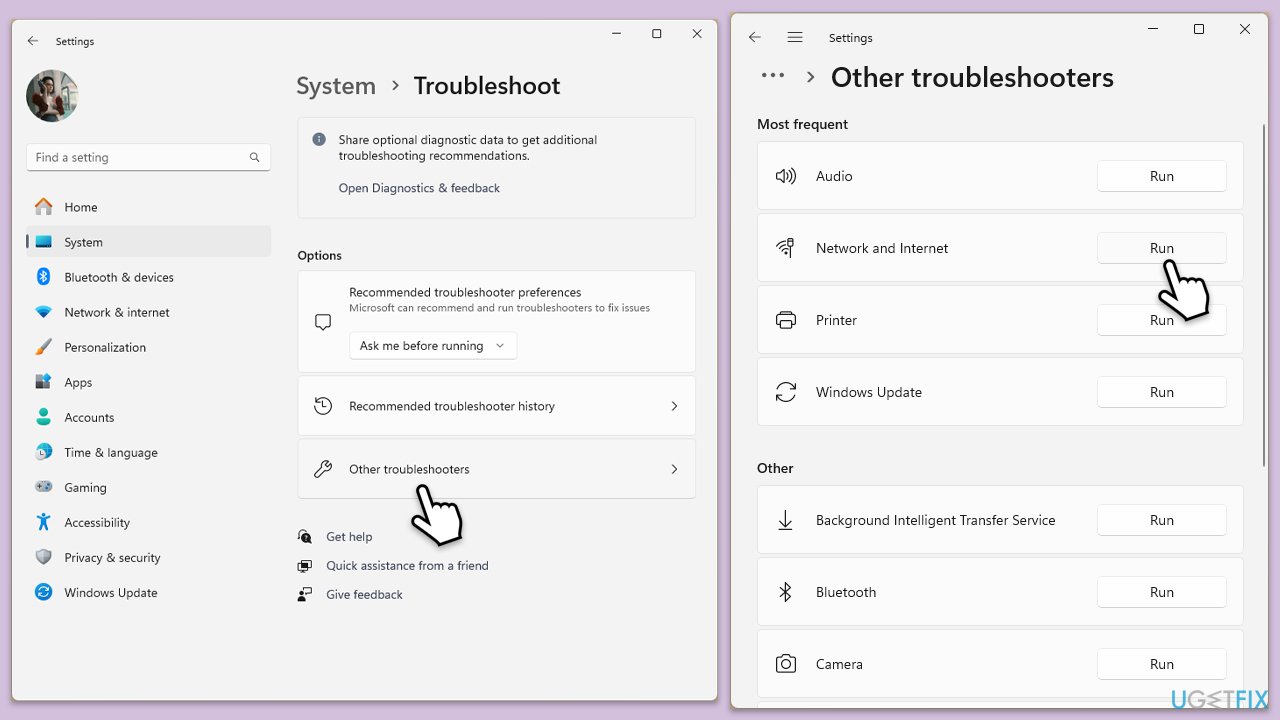
- Type Troubleshoot in Windows search and press Enter.
- Select Other troubleshooters.
- Find Network & Internet troubleshooter from the list and select Run.
- Wait till the process is finished and apply the offered fixes.
- Restart your computer.
Windows 10
- Right-click on Start and pick Settings.
- Go to the Network & Internet section.
- On the right side, find the Advanced network settings section.
- Click Network troubleshooter and wait.
- The fixes will be automatically applied.
Fix 3. Update your network drivers
Outdated or corrupted network drivers can cause issues with connecting properly to networks, including mobile hotspots. Updating these drivers can restore connectivity.
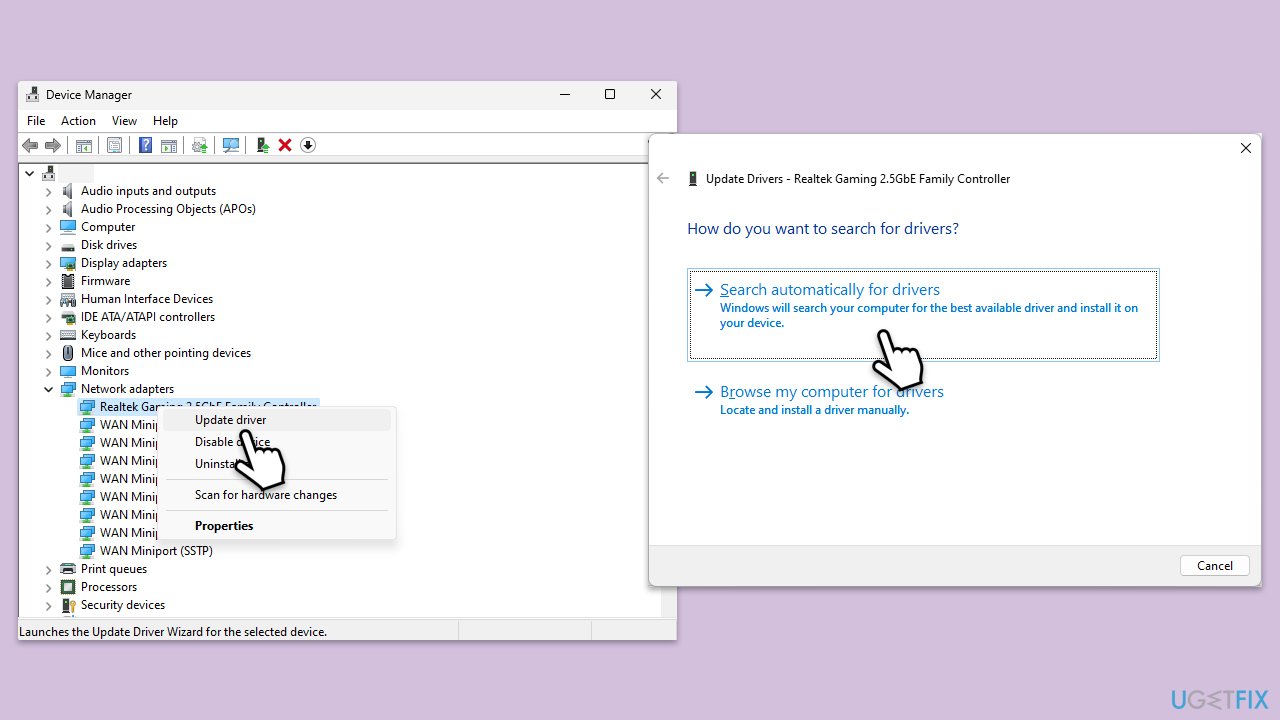
- Right-click on the Start button and select Device Manager.
- Expand the Network adapters section.
- Right-click on your network adapter and select Update driver.
- Choose Search automatically for drivers.
- Follow the prompts to install any available updates.
- Restart your computer after updating the drivers.
- For a quicker solution, you can always use an automatic driver updater such as [rev id="DriverFix"].
Fix 4. Reinstall your network drivers
If updating does not resolve the issue, reinstalling the network drivers can help by removing any corrupted files and replacing them with fresh, error-free versions.
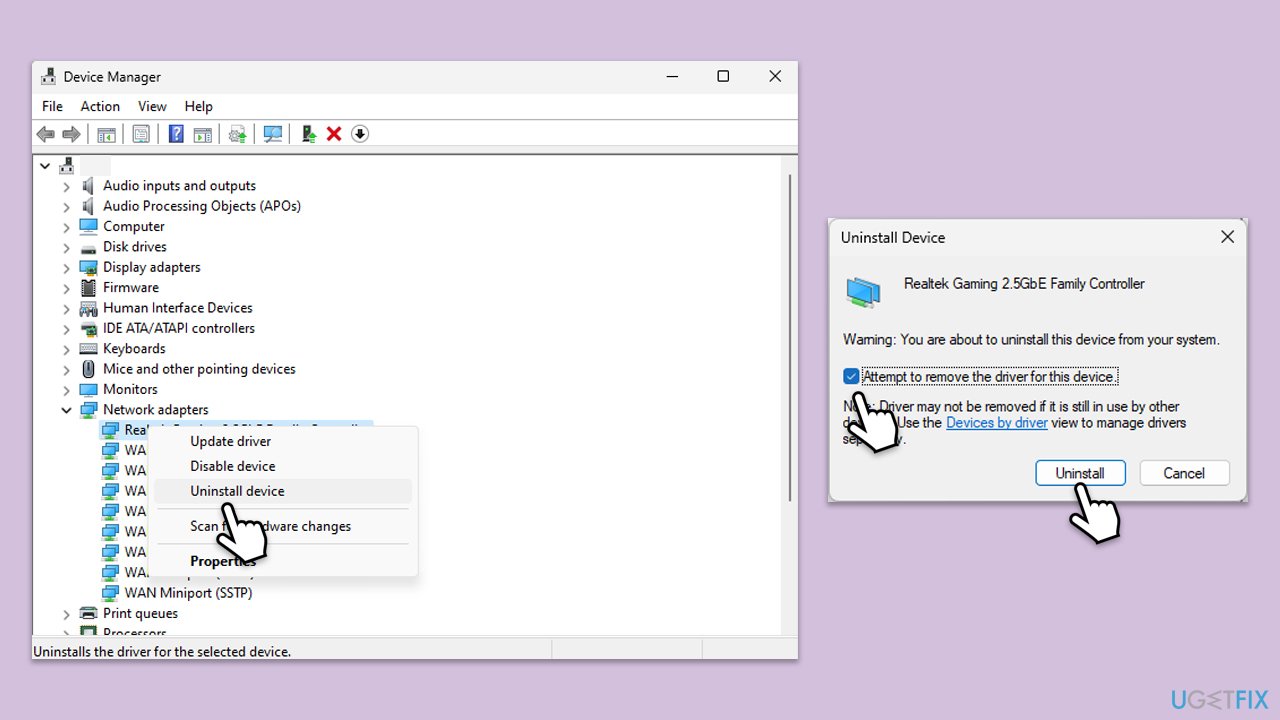
- Open Device Manager from the Start menu.
- Expand the Network adapters section.
- Right-click on one of the Intel network adapter and select Uninstall device.
- Confirm the uninstallation.
- Restart your device.
- Windows will automatically reinstall the network adapter upon reboot. If it doesn't, download the driver manually or use automatic tools.
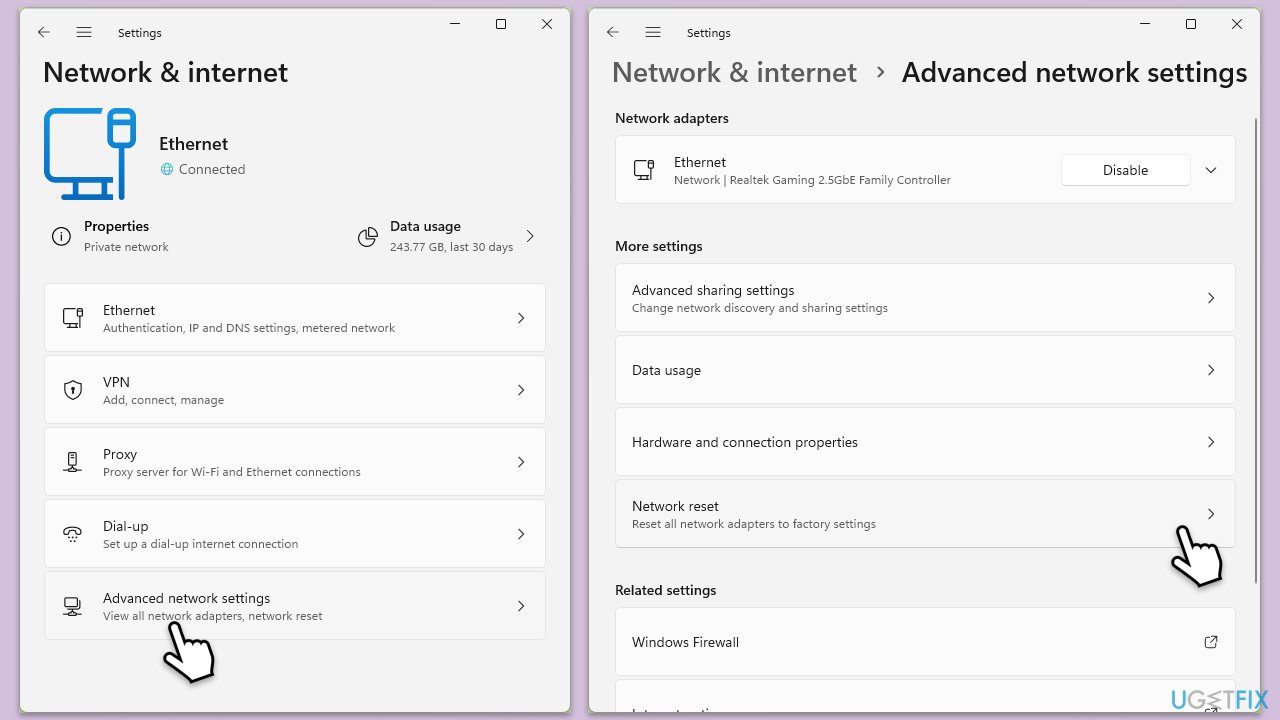
Fix 5. Reset your internet connection via Windows settings
This method can resolve deeper issues related to network configurations that might be affecting your hotspot connection.
- Right-click on Start and pick Settings.
- Go to Network & Internet.
- Under Advanced network settings, click Network reset.
- Click Reset Now.
- Confirm the action and then restart your computer.
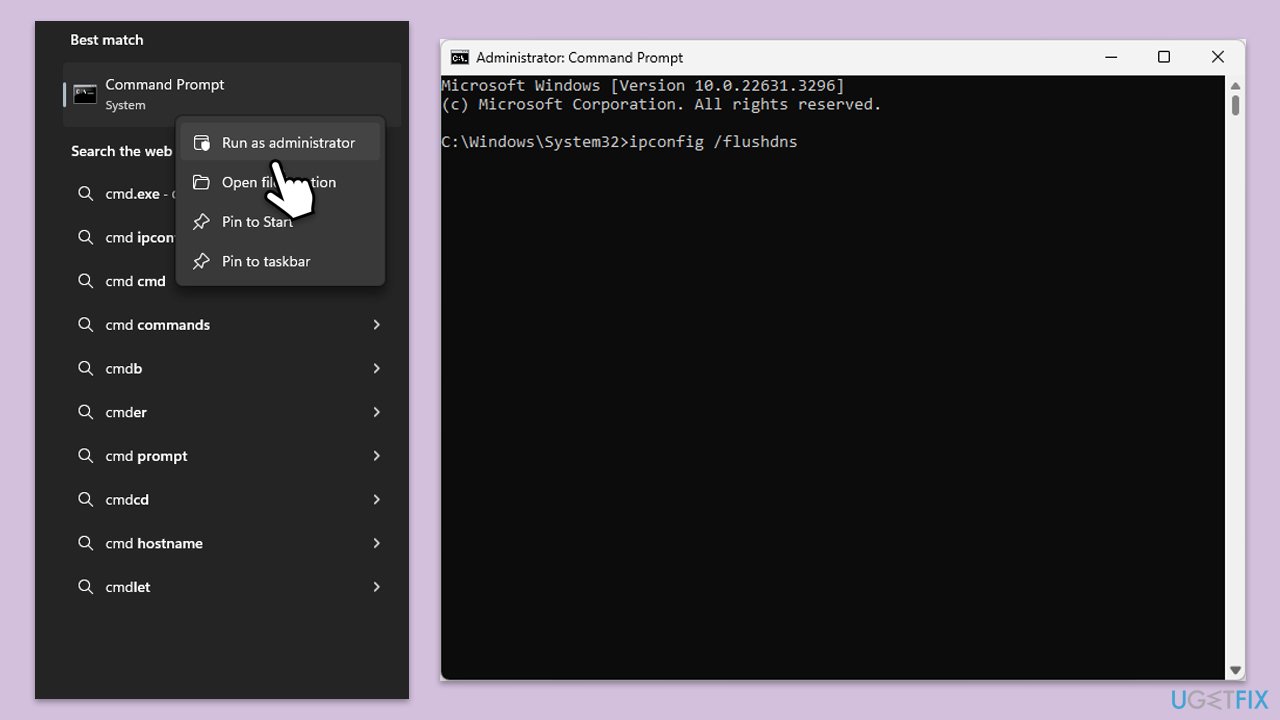
Fix 6. Reset TCP/IP, flush DNS cache, reset Windows sockets
These network commands can help reset your network settings, resolving issues caused by misconfigurations or data corruption within your connection settings.
- Type cmd in Windows search.
- Right-click on the Command Prompt result and select Run as administrator.
- Copy and paste each of the following commands, pressing Enter every time:
ipconfig /flushdns
ipconfig /registerdns
ipconfig /release
ipconfig /renew
netsh winsock reset - Restart your PC.
Other solutions you might find useful:
- Make sure your mobile phone is close enough to your laptop or another device you are trying to connect to.
- Forget the WiFi network created on your mobile device you are trying to host the connection from.
- Try to move your devices to another location to improve the signal strength.
Bottom line
To resolve the lack of internet access while connected to a mobile hotspot, verify that the mobile device has a stable data connection, check network settings on the Windows device, and ensure all network drivers are updated. Restarting both devices may also help clear temporary glitches. If these steps do not work, consider utilizing a PC repair program for more extensive issues.
Frequently asked questions
This issue may occur due to incorrect network settings or problems with your internet connection. Check your network settings and ensure your primary internet connection is working properly.
You can try resetting your network settings or updating your network adapter drivers, as this often resolves connectivity issues. Additionally, ensure that your mobile data is enabled and functioning on your primary device.
First, restart both your Windows 10 device and the device using the hotspot to refresh connections. If the problem persists, check for any Windows updates or network driver updates that might be needed.




Report an issue
What's wrong with this guide? We review every report and update or remove content.
Report received — thank you. We'll review and fix it.
You need a free account to submit a report.
Be the first to comment