How to fix
Mouse settings keep resetting
on Windows
Resolve mouse settings resetting issues in Windows 10 and 11 quickly. Follow expert-tested solutions that ensure your settings stay intact for good.

![[Fix] Mouse settings keep resetting in Windows](https://ugetfix.com/wp-content/uploads/articles/askit/fix-mouse-settings-keep-resetting-in-windows_en-768x432.jpg)
What causes [Fix] Mouse settings keep resetting in Windows?
- Corrupted system files
- Registry issues
- Hardware malfunctions
- User account control settings
- Incompatible mouse drivers
Repairs Windows system files, removes malware, and restores a clean OS state — without reinstalling.
Hello. Every time I restart my Windows PC, the mouse settings keep resetting. I'm tired of adjusting them. Is there a way to fix this?
For Windows users, the recurrent issue of mouse settings resetting after a system restart has been a source of aggravation and inconvenience. The capacity to adjust mouse settings to meet ergonomic constraints, work requirements, or personal preferences is widely relied upon by users. But often resetting these parameters ruins the user experience and reduces the effectiveness that comes with personalization.
This problem affects users in several ways. Firstly, it hampers the individualized nature of user workspaces, where fine-tuned mouse settings contribute to a smoother and more productive workflow. For example, users who work on activities ranging from graphic design to precise document editing need to adjust the mouse wheel scrolling speed, double-click speed, and sensitivity. Users are forced to adjust their preferences due to the repeated reset of these parameters, which disrupts their work routine and reduces productivity.
Furthermore, because of ergonomic concerns, the problem can negatively impact users who depend on particular mouse settings. The frequent resetting of setups may be bothersome to people with accessibility needs or those who have customized their mouse settings for maximum comfort, not to mention possibly harmful to their physical health. The repetitive adjustment process undermines the purpose of customization intended to enhance user comfort and prevent strain during prolonged computer use.
In this guide, you will find 5 steps that should help you fix mouse settings in Windows. You can also run a maintenance tool like [d1] that can fix most system errors, BSODs, corrupted files, and registry issues. Otherwise, follow the step-by-step instructions below.
Solution 1. Run the Hardware and Devices Troubleshooter
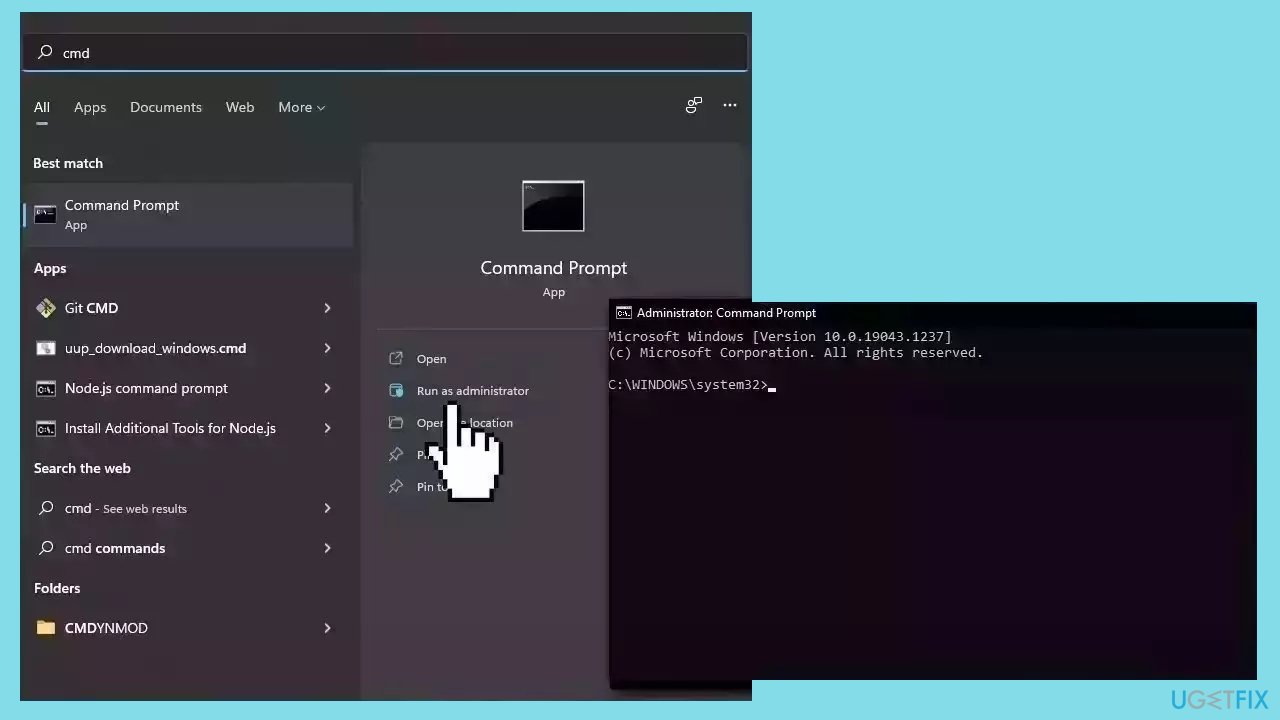
- Left-click the Start button.
- Type Command Prompt.
- Click the Run as administrator option.
- Click Yes on the User Account Control (UAC) prompt.
- Type the following and press Enter to open the Windows Hardware and Device Troubleshooter:
msdt.exe -id DeviceDiagnostic
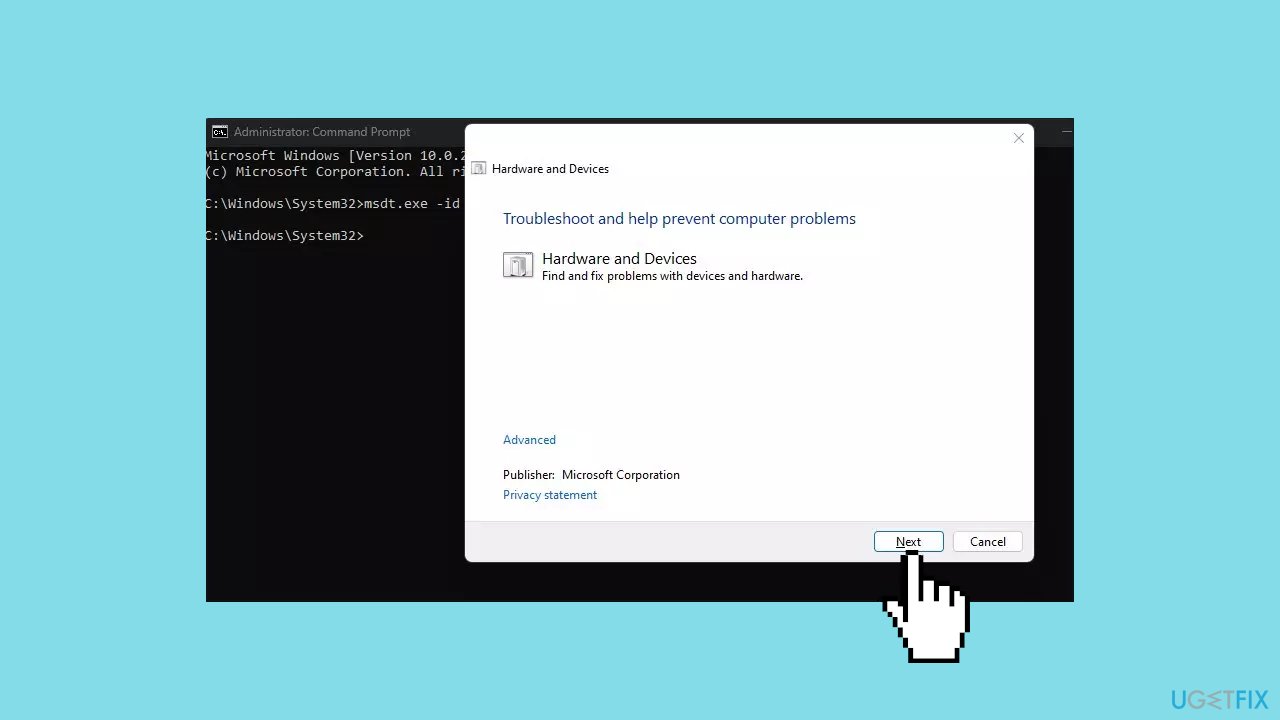
- Click Next to proceed with the scan and troubleshooting process.
- After the troubleshooting, attempt the task and verify if it functions correctly.
Solution 2. Fix Corrupted System Files
Use Command Prompt commands to repair system file corruption:
- Open Command Prompt as administrator
- Use the following command and press Enter:
sfc /scannow
- Reboot your system
- If SFC returned an error, then use the following command lines, pressing Enter after each:
DISM /Online /Cleanup-Image /CheckHealth
DISM /Online /Cleanup-Image /ScanHealth
DISM /Online /Cleanup-Image /RestoreHealth
Solution 3. Update the Mouse Driver
- Press the Windows key + R keys to open the Run window.
- Type devmgmt.msc and click OK to access the Device Manager.
- In the Device Manager, locate and click on Mice and Other Pointing devices entry.
- Right-click on your mouse device within the list.
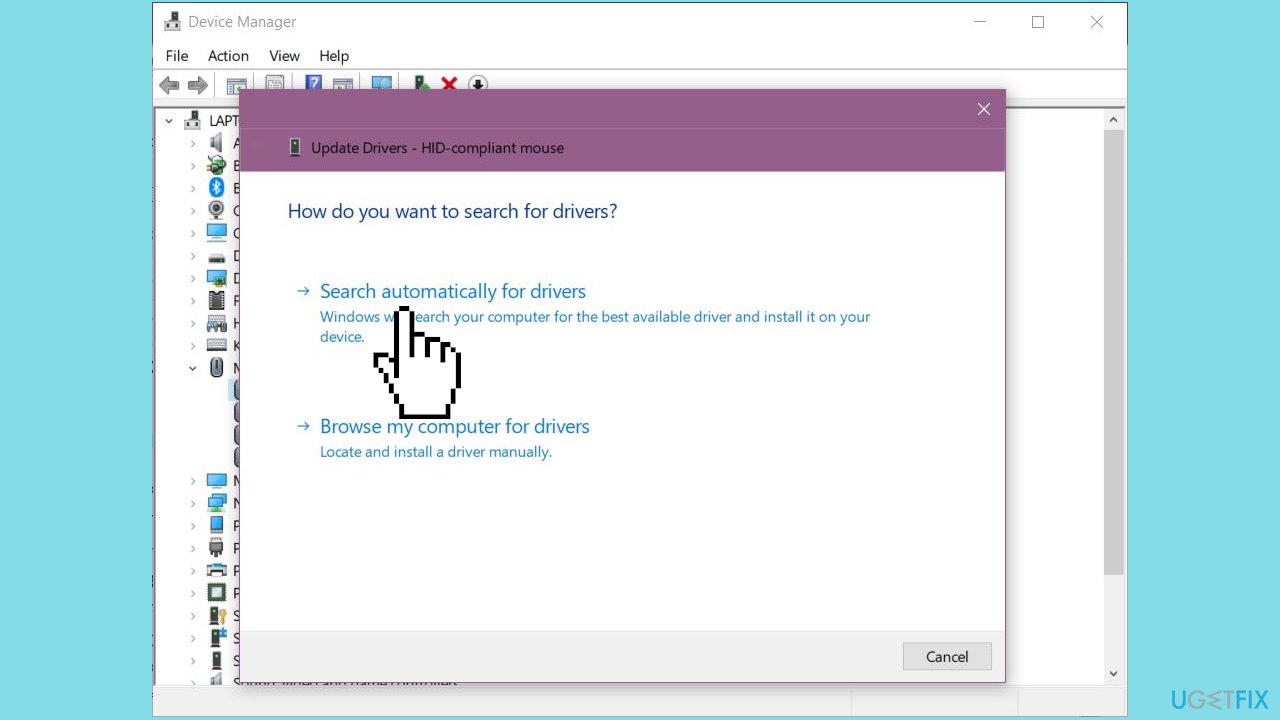
- From the drop-down menu that appears, choose Update driver.
- Choose Search automatically for drivers.
- Proceed with the steps.
- If Windows does not find new mouse drivers, continue with the next solution.
Solution 4. Reinstall the Mouse Driver
- Press the Windows key + R keys to open the Run window.
- Type devmgmt.msc and click OK to access the Device Manager.
- In the Device Manager, locate and click on Mice and Other Pointing devices entry.
- Right-click on your mouse device within the list.
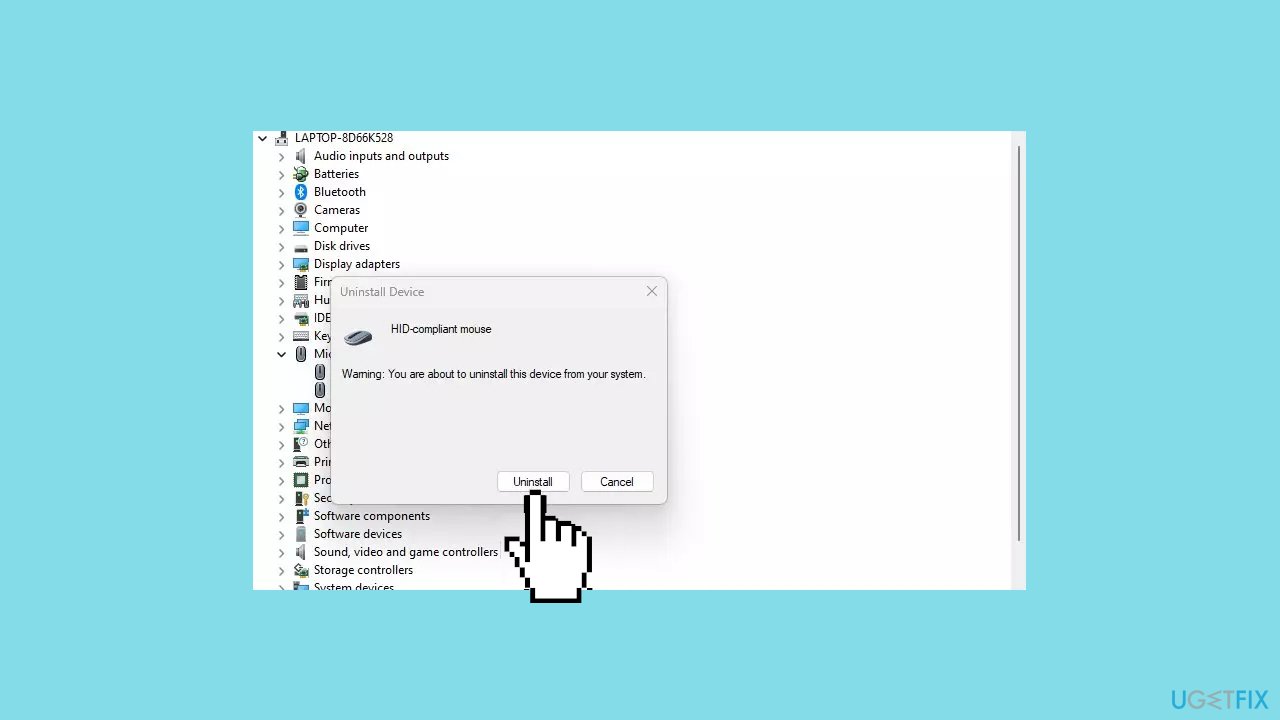
- From the drop-down menu that appears, choose Uninstall device.
- Confirm the action by clicking Uninstall in the confirmation dialog box.
- Wait for the uninstallation process to complete.
- Restart your PC.
- The system will automatically install the missing driver.
You can also use a dedicated utility like [rev id="DriverFix"] that can find the best drivers for your machine and install them automatically.
Solution 5. Try Clean Boot
- Open the Search menu, type in system configuration, and press Enter.
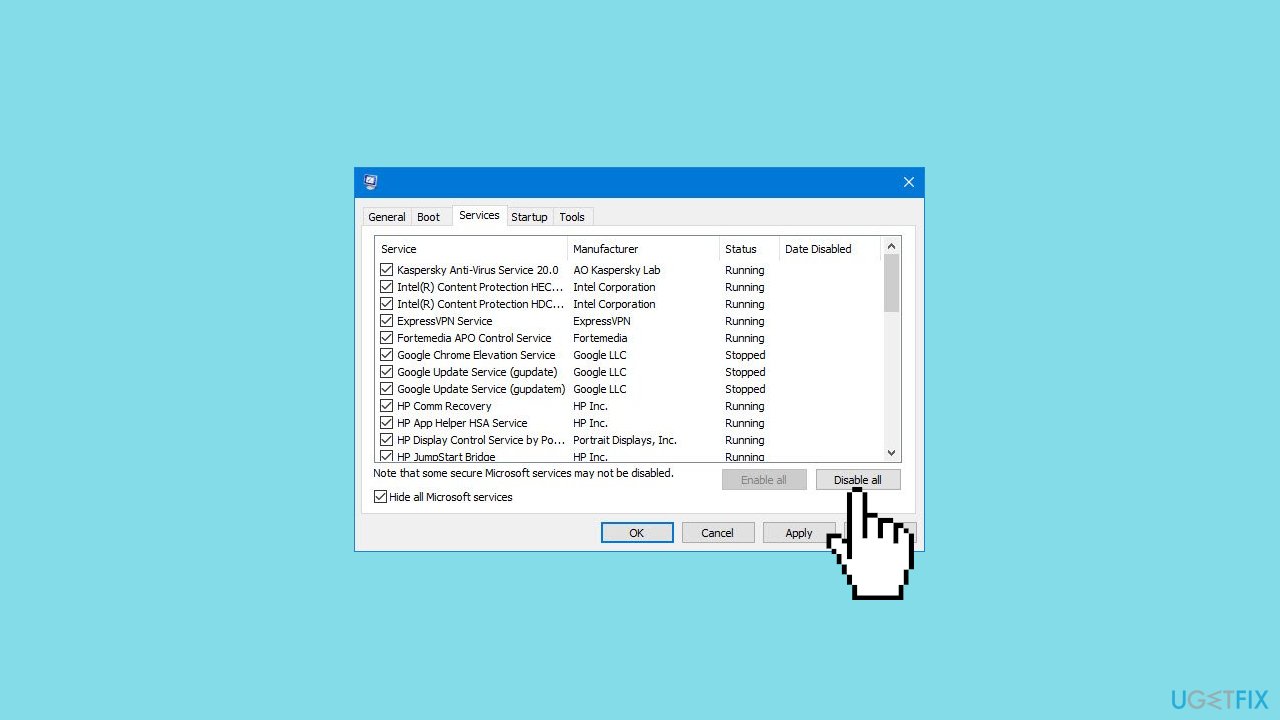
- Under the Services tab, tick the Hide all Microsoft services box.
- Click on Disable all button.
- Head over to the Startup tab and click on Open Task Manager.
- Select a third-party program and click on Disable at the top.
- Repeat this step to disable all third-party apps and programs.
- Restart your PC to enter the clean boot state and see if the issue persists.
- If the issue disappeared in the clean boot state, then you can be certain that a third-party app is causing it.
- Go through all recently installed apps or programs and remove them one by one.
Bottom line
To fix the issue of mouse settings resetting in Windows, you can run the Hardware and Devices Troubleshooter and check for corrupted system files. If these steps do not resolve the problem, consider using a maintenance tool or further troubleshooting methods.
Frequently asked questions
Mouse settings in Windows 10 can reset due to system updates, driver issues, or corrupted settings. To resolve this, ensure your mouse drivers are up to date and check for any conflicting software.
In Windows 11, frequent mouse setting resets may occur due to third-party applications or corrupted user profiles. Try creating a new user account and see if the issue persists.
If your mouse sensitivity keeps changing in Windows, check for any mouse software that might be overriding system settings and consider resetting the mouse settings to default.




Report an issue
What's wrong with this guide? We review every report and update or remove content.
Report received — thank you. We'll review and fix it.
You need a free account to submit a report.
Be the first to comment