How to fix
News app fails to load: page shows “Failed to forward request through Maestro” error
on Windows
Resolve the "Failed to forward request through Maestro" error in Windows 10 and 11 with this expert-tested guide. Get your News app working again!

![[Fix] News app fails to load: page shows “Failed to forward request through Maestro” error in Windows](https://ugetfix.com/wp-content/uploads/articles/askit/fix-news-app-fails-to-load-page-shows-failed-to-forward-request-through-maestro-error-in-windows_en-768x432.jpg)
What causes [Fix] News app fails to load: page shows “Failed to forward request through Maestro” error in Windows?
- Notification feature malfunction
- App configuration issues
- Network connectivity problems
- Corrupted app files
- Outdated app version
Repairs Windows system files, removes malware, and restores a clean OS state — without reinstalling.
Hello. When I click on a Windows News notification, it opens an empty window with an error message "Failed to forward request through Maestro." Is there a way to fix this?
The recent widespread problem affecting the Windows News app has left many users frustrated and dissatisfied with their experience. When users click on a News app notification that should take them to a specific article, they are met with an error message that reads, "Failed to forward request through Maestro." This error prevents them from viewing the content they were hoping to see. Surprisingly, the app works perfectly when opened without using the notification feature, making the situation even more perplexing for affected users.
The gravity of this problem is demonstrated by its impact on user convenience and overall user experience. News app notifications are intended to provide users with quick access to timely information, allowing them to stay current with the latest headlines and stories. The "Failed to forward request through Maestro" error, on the other hand, undermines the core purpose of these notifications by preventing users from accessing content seamlessly. As a result, users may feel disconnected from current events and miss important news stories, potentially influencing their decision-making processes and knowledge of ongoing developments.
Users' frustration grows as they report Microsoft's lack of responsiveness in this matter. Users' dissatisfaction is exacerbated by the company's lack of communication, which leads to a sense of neglect and further erodes trust in Microsoft's commitment to resolving the issue. With multiple users reporting the same issue, the collective outcry emphasizes the gravity of the situation, as the News app is essential for many Windows users to stay informed and engaged.
In this guide, you will find 5 steps that should help you fix "Failed to forward request through Maestro" News app error in Windows. You can also try using a maintenance tool like [d1] that can fix most system errors, BSODs,[ref en-1] corrupted files, and registry[ref en-2] issues. Otherwise, follow the step-by-step instructions below.

Method 1. Repair or Reset the News App
- Press the Windows key + I together to launch Windows Settings.
- Select Apps from the options.
- Click on Apps and features in the left sidebar.
- Look for News in the list of installed apps.
- Click on the three dots (…) next to News.
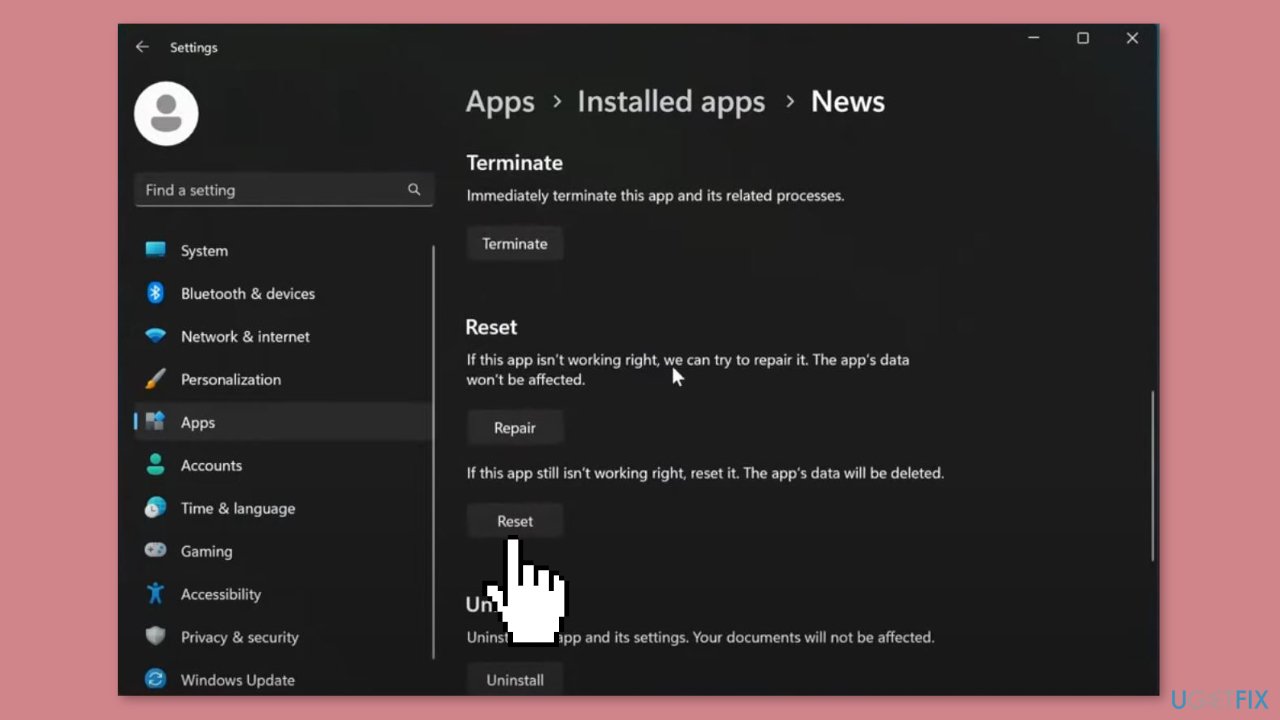
- From the menu that appears, click on Advanced options.
- Scroll down to the Reset section.
- Click on Repair to start the repair process for News.
- Alternatively, you can choose Reset to reset the PC, which will remove all data associated with Microsoft Photos and restore it to its default settings.
Method 2. Install Windows Updates
- Press the Windows key + I on your keyboard to open the Settings window.
- From the left sidebar, click on the Windows Update tab.
- Click on the Check for updates button.
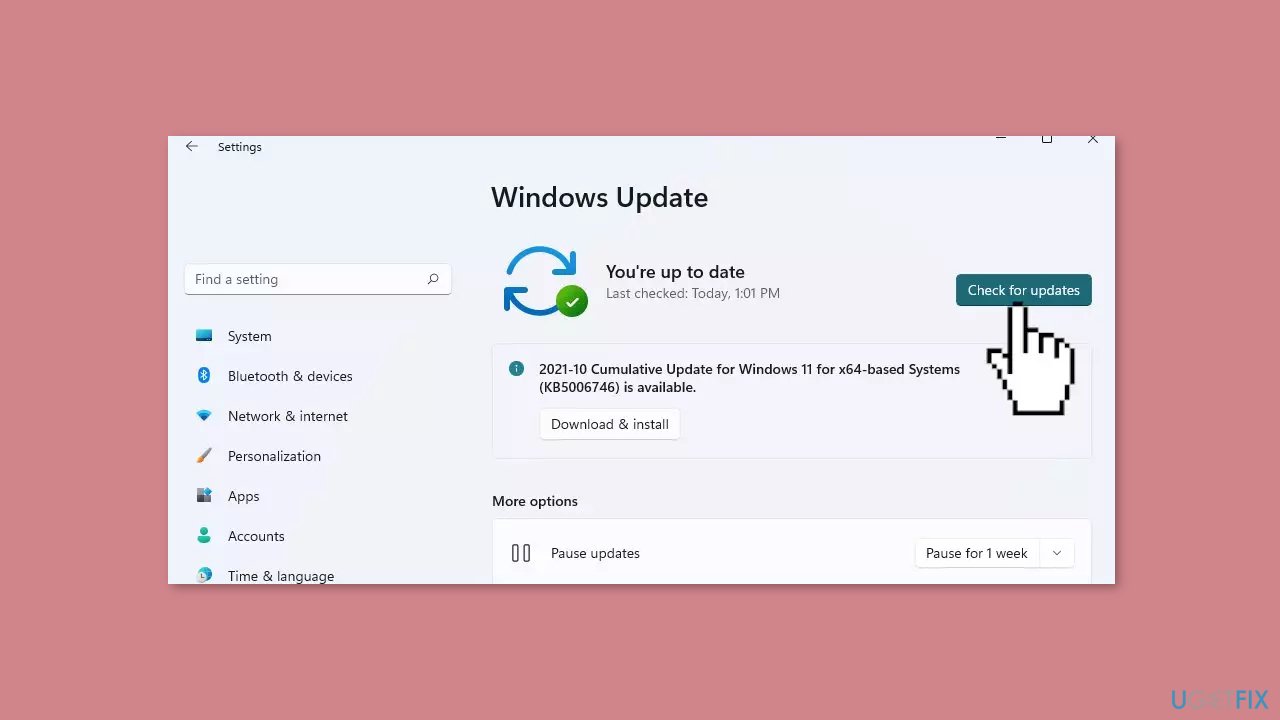
- Wait while Windows checks for available updates.
- If new updates are found, download and install them.
- Follow the on-screen instructions to complete the update process.
Method 3. Fix Corrupted System Files
Use Command Prompt commands to repair system file corruption:
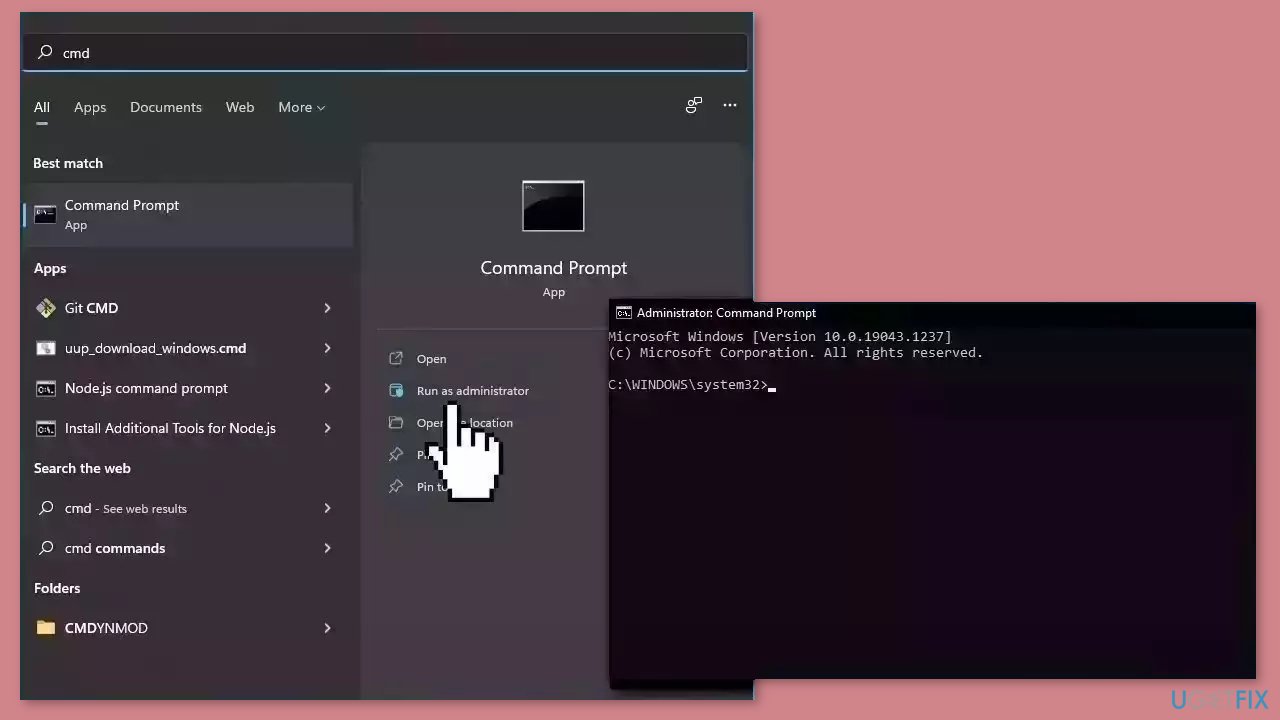
- Open Command Prompt as administrator
- Use the following command and press Enter:
sfc /scannow
- Reboot your system
- If SFC returned an error, then use the following command lines, pressing Enter after each:
DISM /Online /Cleanup-Image /CheckHealth
DISM /Online /Cleanup-Image /ScanHealth
DISM /Online /Cleanup-Image /RestoreHealth
Method 4. Reinstall the News App
- Click on the Start button.
- Scroll down and click on Settings.
- Click on Apps.
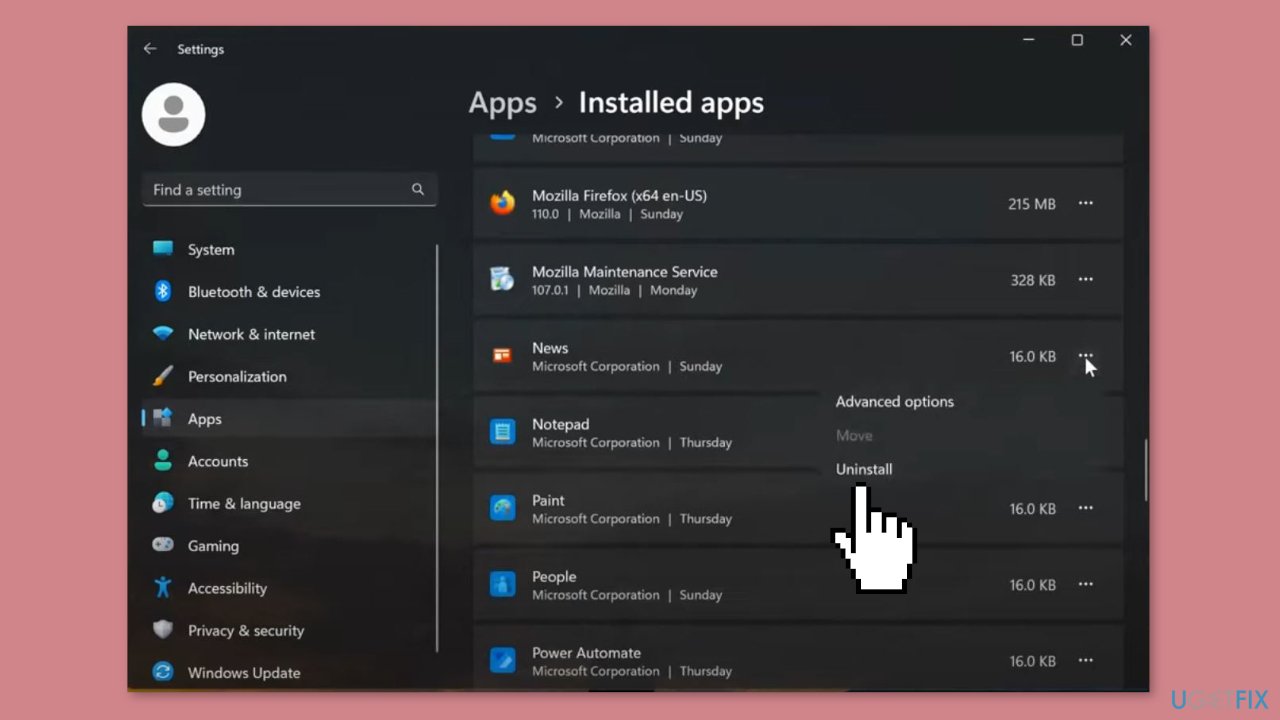
- Scroll down and select the News option.
- Click on the three dots (…) next to News.
- Click on the Uninstall button.
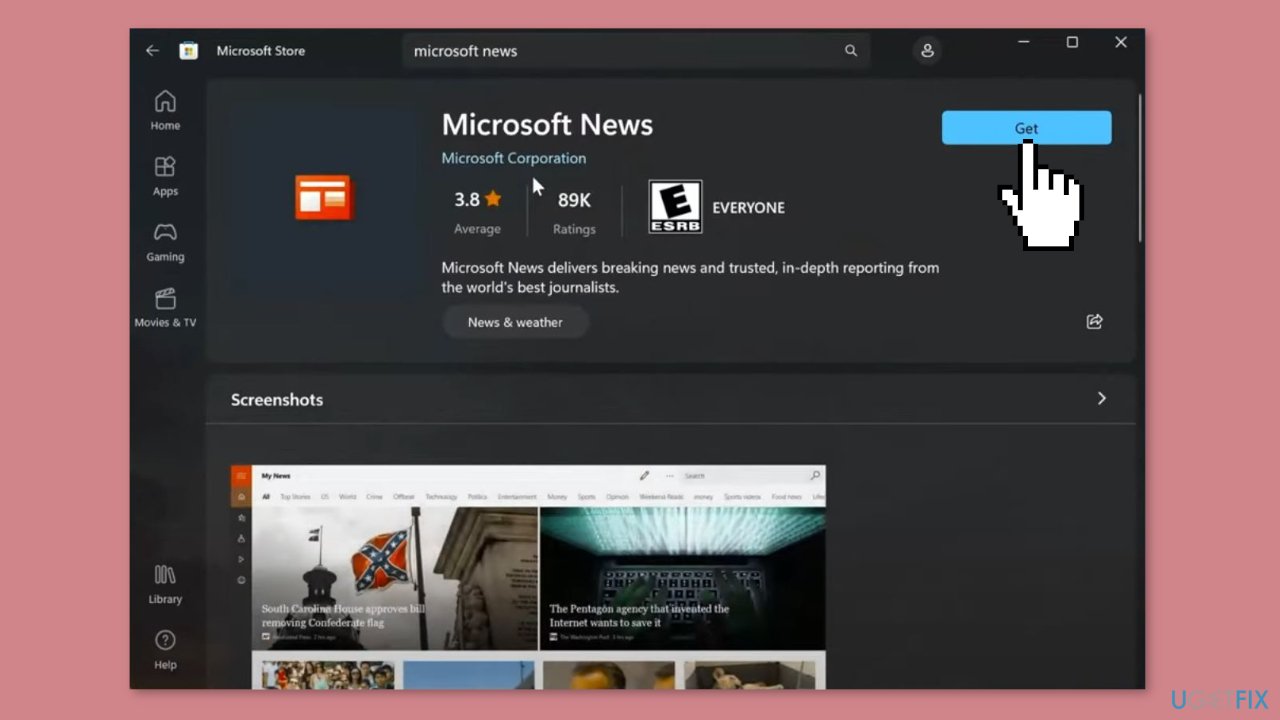
- Go to the Microsoft Store page.
- On the store page, click on the Get in Store app button.
- Proceed with on-screen instructions to install the app.
Method 5. Reset Windows
- Open the Settings menu.
- Select System.
- Click on Recovery.
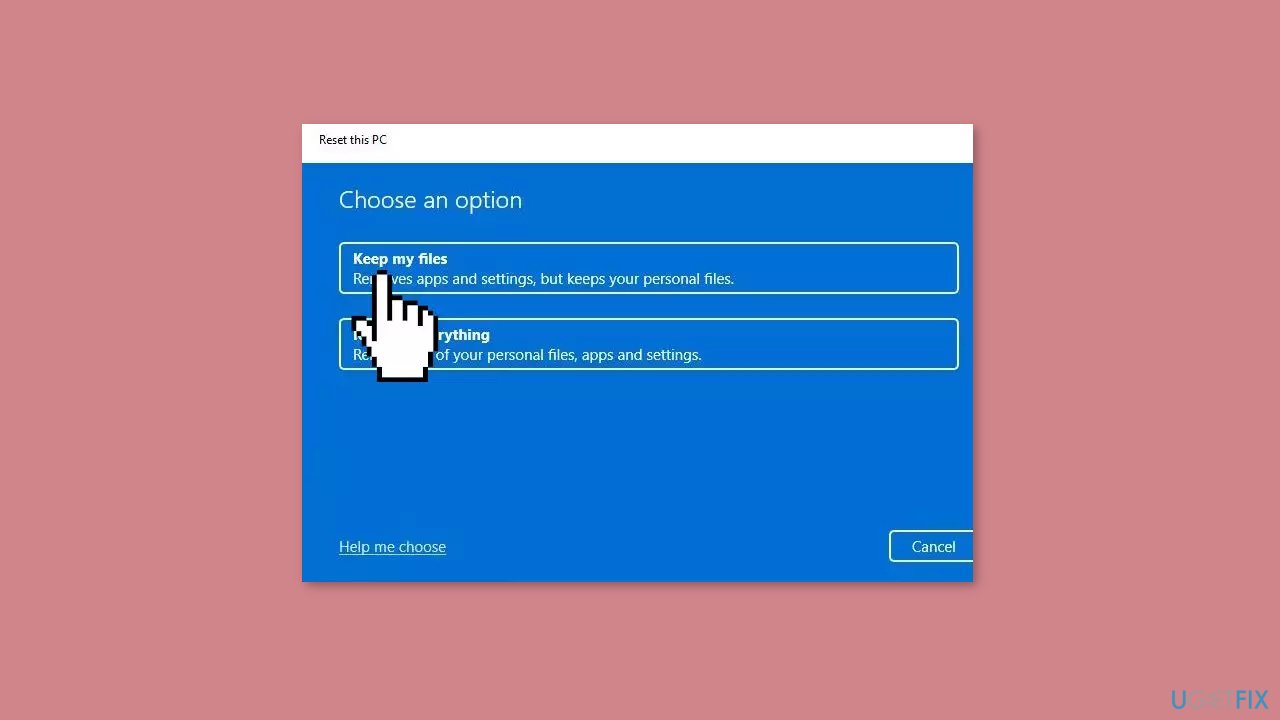
- Look for the Reset this PC option and click on it.
- This will initiate the reset process for your PC.
Bottom line
To resolve the 'Failed to forward request through Maestro' error, you can follow the step-by-step instructions provided in this guide, which include checking app settings, ensuring a stable internet connection, and updating the app. If these steps do not work, consider using a maintenance tool to fix system errors.
Frequently asked questions
This error typically occurs due to connectivity issues or corrupted app data affecting the News app's ability to load content properly on Windows 10.
You can reset the News app by going to Settings > Apps > Apps & features, selecting the News app, and choosing 'Advanced options' to find the reset option.
Yes, ensure that your internet connection is stable and check if any firewall or VPN settings are blocking the News app's access to the internet on Windows 10.




Report an issue
What's wrong with this guide? We review every report and update or remove content.
Report received — thank you. We'll review and fix it.
You need a free account to submit a report.
Be the first to comment