How to fix
No transparent taskbar after Windows update
on Windows
Resolve the no transparent taskbar issue after a Windows 10 or Windows 11 update. Get your sleek look back in minutes with expert-tested solutions.

![[Fix] No transparent taskbar after Windows update](https://ugetfix.com/wp-content/uploads/articles/askit/fix-no-transparent-taskbar-after-windows-update_en-768x432.jpg)
What causes [Fix] No transparent taskbar after Windows update?
- Compatibility issues between third-party software and the Windows operating system
- Conflicts with other programs
- Incorrect system configurations
- Recent Windows updates affecting taskbar functionality
- Limited customization options in Windows 10/11
Repairs Windows system files, removes malware, and restores a clean OS state — without reinstalling.
Hi, I used to use a transparent taskbar before, thanks to OpenShell app. Recently, it suddenly stopped working, and I no longer have a transparent taskbar. My guess would be that it occurred after the Windows update, although I'm not quite sure it's really the case. Please advise if solutions are available.
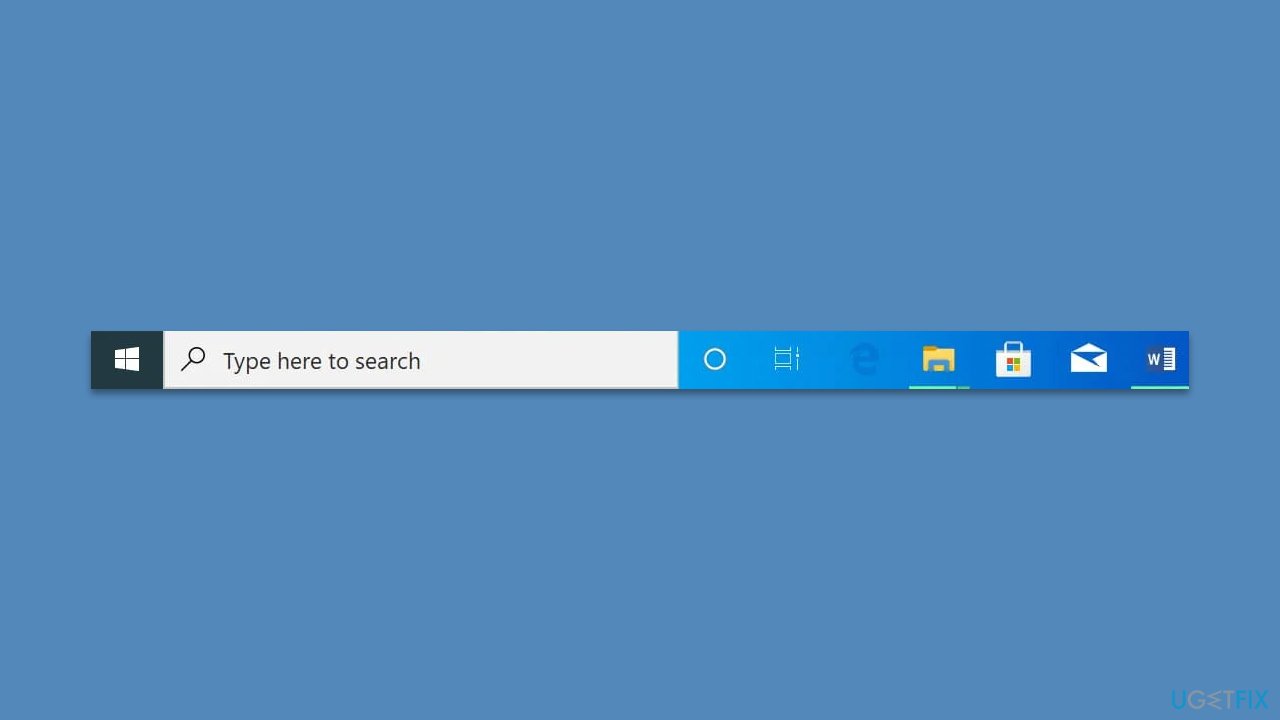
The taskbar is a crucial element of the Windows operating system that plays a vital role in helping users navigate and manage their open applications. It is a horizontal bar that typically appears at the bottom of the screen and contains buttons for launching frequently used programs, displaying running applications, and accessing system settings. The taskbar is essential for multitasking, as it allows users to switch between applications quickly and efficiently.
While the taskbar is a vital component of the Windows operating system, many users have expressed dissatisfaction with the limited customization options available in Windows 10/11. Specifically, users have complained about the lack of transparency options, which prevent them from making the taskbar transparent to match their desktop backgrounds.
To address this issue, some users have turned to third-party software to customize their taskbar, including making it transparent. However, this can sometimes lead to problems, such as the transparent taskbar not working correctly, particularly after Windows updates.
The issue of the transparent taskbar not working is a common problem faced by many Windows users. It can occur for various reasons, such as compatibility issues between third-party software and the Windows operating system, conflicts with other programs, or incorrect system configurations.
If you are facing this problem, you can try troubleshooting your system by checking for updates or uninstalling them, disabling conflicting programs, changing transparency and power options, and more. In some cases, resetting your taskbar settings or creating a new user account may help resolve the issue.
If you want to check for issues on your Windows PC automatically, you can always employ the [d1] utility. This PC repair software can fix various Windows issues by scanning your system for errors, removing junk files, and optimizing system settings. It can also repair corrupted files, fix registry errors, and remove malware, helping to improve your system's overall performance and stability.
Fix 1. Check for corrupted system files
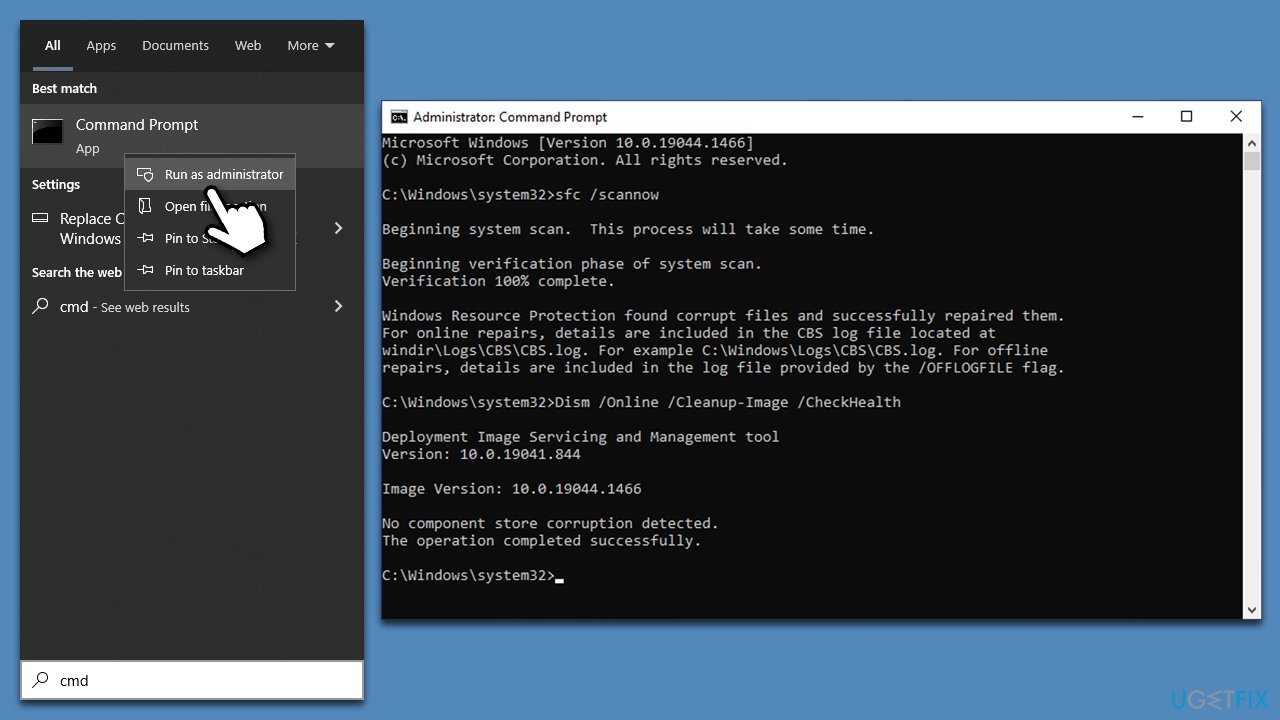
You should firstly try to fix system file corruption by using commands in elevated Command Prompt:
- Type cmd in Windows search.
- Right-click on Command Prompt and select Run as administrator.
- User Account Control will ask if you want to allow the app to make changes, click Yes.
- As the new window shows up, paste the following command:
sfc /scannow - Once completed, run the following commands, pressing Enter every time:
DISM /Online /Cleanup-Image /CheckHealth
DISM /Online /Cleanup-Image /ScanHealth
DISM /Online /Cleanup-Image /RestoreHealth - Restart the PC.
Fix 2. Update third-party software
When some non-native Windows feature stops working after an update, it is likely a compatibility or driver issue. Since we're talking about a transparent taskbar, it is probably compatibility issues in regard to the new Windows update. In such a case, the software developer issues updates that would resolve any conflicts when used in Windows. So make sure you update TranslucentTB, OpenShell, Start 11, or any other third-party app you are using for the transparent taskbar.
Fix 3. Uninstall recent updates
In the vast majority of cases, taskbar transparency disappears after Windows updates. As a workaround,
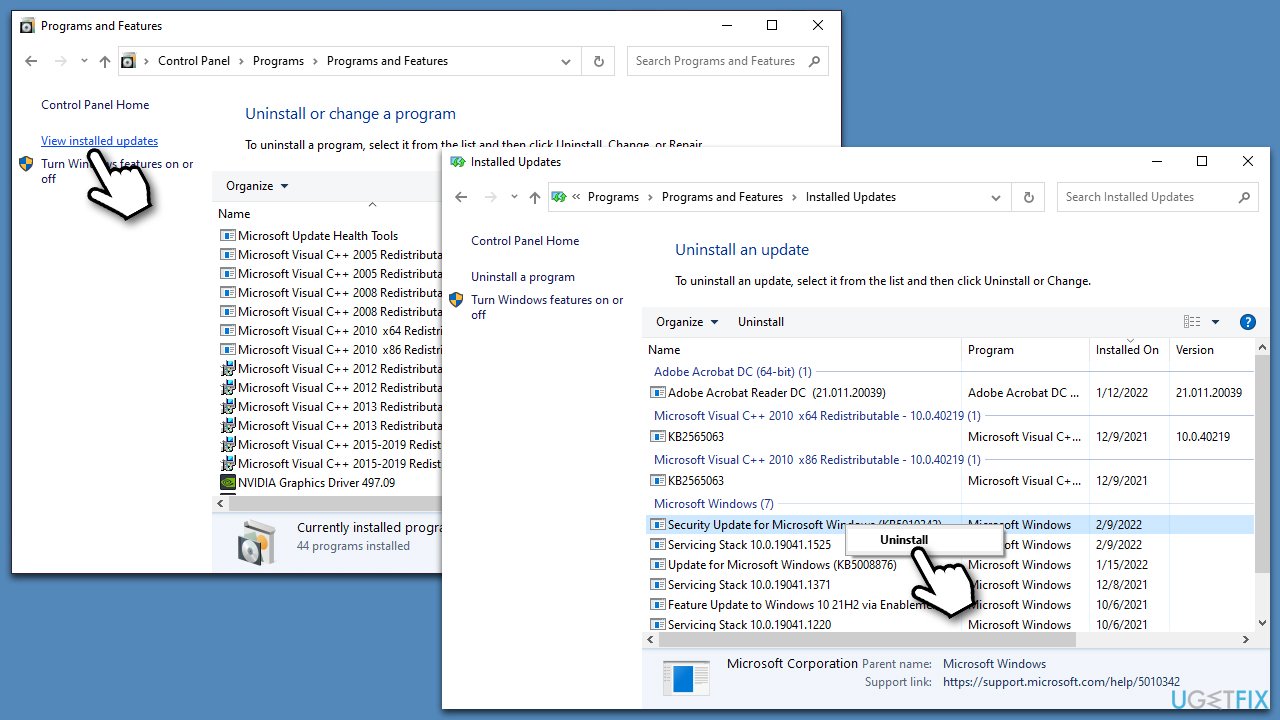
- Type Control Panel in Windows search and press Enter.
- Here, go to Programs > Uninstall a program.
- Select View installed updates.
- Locate the latest update (sort it by the Installed On column), right-click, and select Uninstall.
- Follow the on-screen instructions and restart your system.
Note: if you haven't updated your system for awhile, make sure you do so instead.
Fix 4. Enable transparency effects
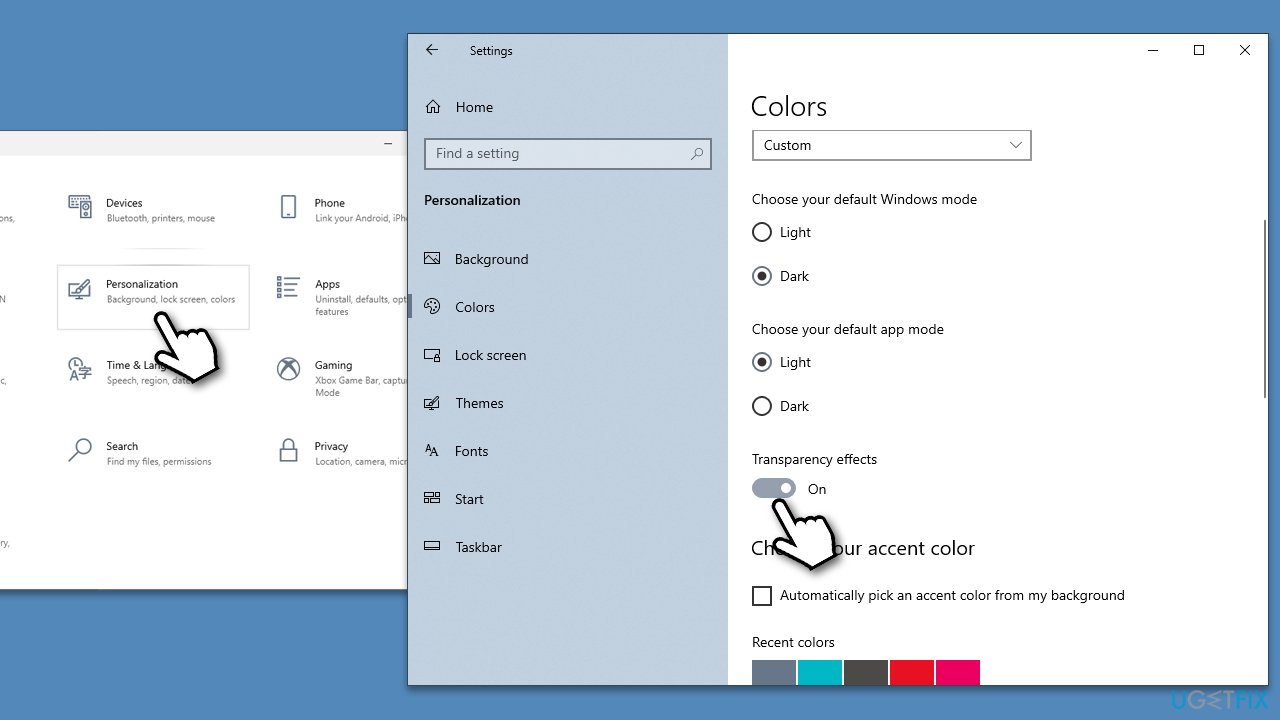
For some reason, your transparency options might be switched off. If that's the case, you can fix this issue as follows:
- Click on Start and pick Settings.
- Go to the Personalization section and select Colors.
- From here, scroll down to see the Transparency effects section.
- Make sure that the toggle is set to the On position.
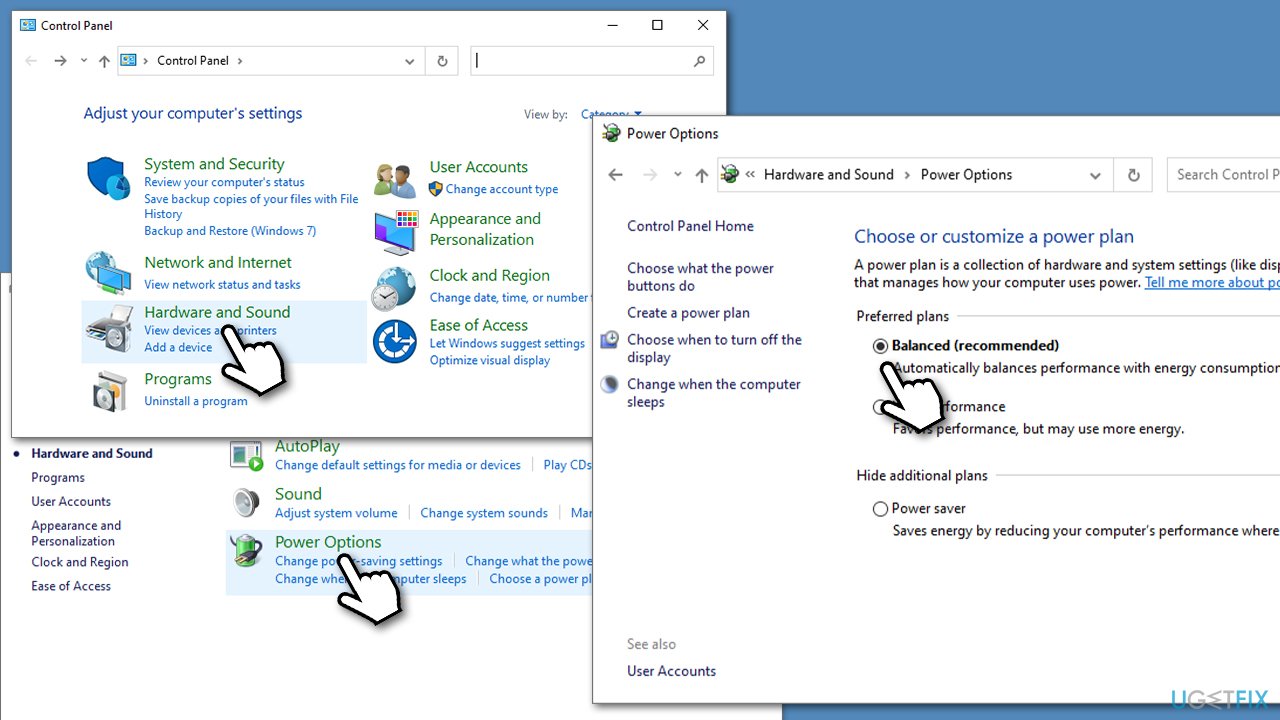
Fix 5. Turn off the power saver
- In Windows search, type Control Panel and hit Enter.
- Here, go to Hardware and Sound > Power options.
- Here, you will see the listed plans.
- Change the plan from Power saver to Balanced or High performance.
Fix 6. Try Clean boot
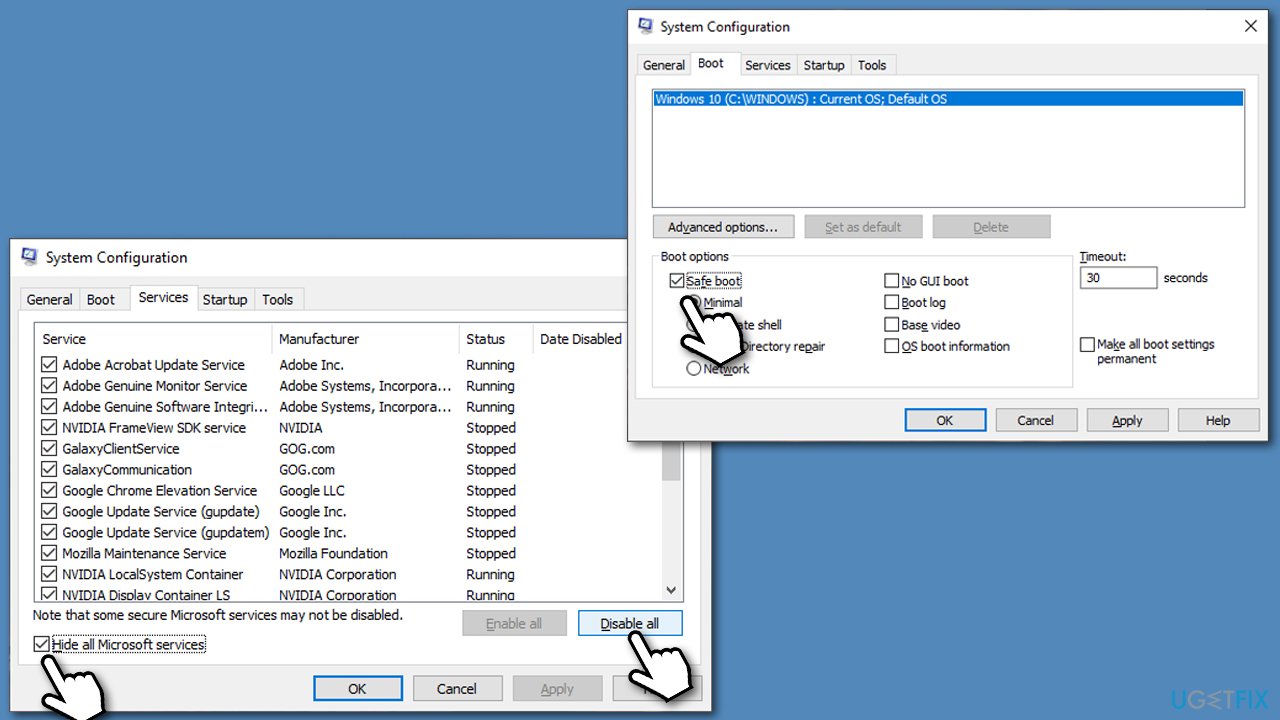
Software conflicts could cause no transparent taskbar to occur. To address this, access clean boot mode and see if the problem exists. If not, you need to uninstall the most recent apps from your system.
- Press Win + R on your keyboard, type msconfig, and hit Enter.
- Go to the Services tab and tick the Hide all Microsoft services box, and click Disable all.
- Now select the Startup tab and click Open Task Manager.
- Here, right-click on each of the non-Windows entries and pick Disable.
- Close down the Task Manager.
- Go to Boot tab and mark the Safe boot option.
- Click Apply, OK, and restart your computer.
Bottom line
To resolve the issue of a non-transparent taskbar, you can try troubleshooting by checking for updates, uninstalling recent updates, disabling conflicting programs, and adjusting transparency and power options. Additionally, resetting taskbar settings or creating a new user account may help. If none of these solutions work, consider using PC repair software to scan for errors and optimize system settings.
Frequently asked questions
After a Windows update, certain display settings may revert, causing the taskbar to lose its transparency. You can adjust these settings in the Personalization menu under Colors.
To restore transparency, go to Settings > Personalization > Colors, and toggle on 'Transparency effects.' This should enable the transparent effect for your taskbar.
If the option is missing, try restarting your PC or running the Windows Troubleshooter for display issues to restore the functionality.




Report an issue
What's wrong with this guide? We review every report and update or remove content.
Report received — thank you. We'll review and fix it.
You need a free account to submit a report.
Be the first to comment