How to fix
Nvidia GeForce drivers not installing
on Windows
Resolve Nvidia GeForce driver installation issues on Windows 10 and 11 effortlessly. Get expert-tested solutions to fix it in minutes!

![[Fix] Nvidia GeForce drivers not installing](https://ugetfix.com/wp-content/uploads/articles/askit/nvidia-geforce-drivers-not-installing_en-768x432.jpg)
What causes [Fix] Nvidia GeForce drivers not installing?
- Conflicts with existing drivers
- Compatibility issues with the operating system
- Problems with the graphics card
- Interference from third-party security software
Repairs Windows system files, removes malware, and restores a clean OS state — without reinstalling.
Hello. I tried to install Nvidia GeForce drivers on my Windows PC but the process fails. What should I do?
Nvidia is a technology company that specializes in producing graphics processing units (GPUs) and related software. The Nvidia GeForce is a line of graphics cards that are designed for use on personal computers, gaming laptops, and workstations. These graphics cards are known for their high performance and are often used by gamers and professionals who require powerful visual capabilities.
Nvidia GeForce drivers[ref en-1] are the software that allows the operating system to communicate with the graphics card. These drivers are necessary for the graphics card to function properly and for users to access the full range of features and performance capabilities of the Nvidia GeForce.
However, many users have reported difficulties in installing Nvidia GeForce drivers on their systems. This can happen for a variety of reasons, such as conflicts with existing drivers, compatibility issues with the operating system, or problems with the graphics card itself.
When Nvidia GeForce drivers fail to install, it can have a significant impact on the user's experience. Without the proper drivers, the graphics card may not function correctly, resulting in poor performance, visual artifacts, or even system crashes. This can be particularly frustrating for gamers who rely on smooth and stable performance for an enjoyable gaming experience.
In this guide, you will find 5 steps that should help you fix the issue of Nvidia GeForce drivers not installing:
Method 1. Disable or Uninstall Third-Party Security Software
Many users have encountered problems while trying to install Nvidia driver and have found that third-party security programs installed on the system may be disrupting the process. To avoid this, you should either disable or uninstall your antivirus software temporarily and try installing the Nvidia driver again.
Method 2. Install the Appropriate Nvidia Driver Version
- Go to the NVIDIA driver download page
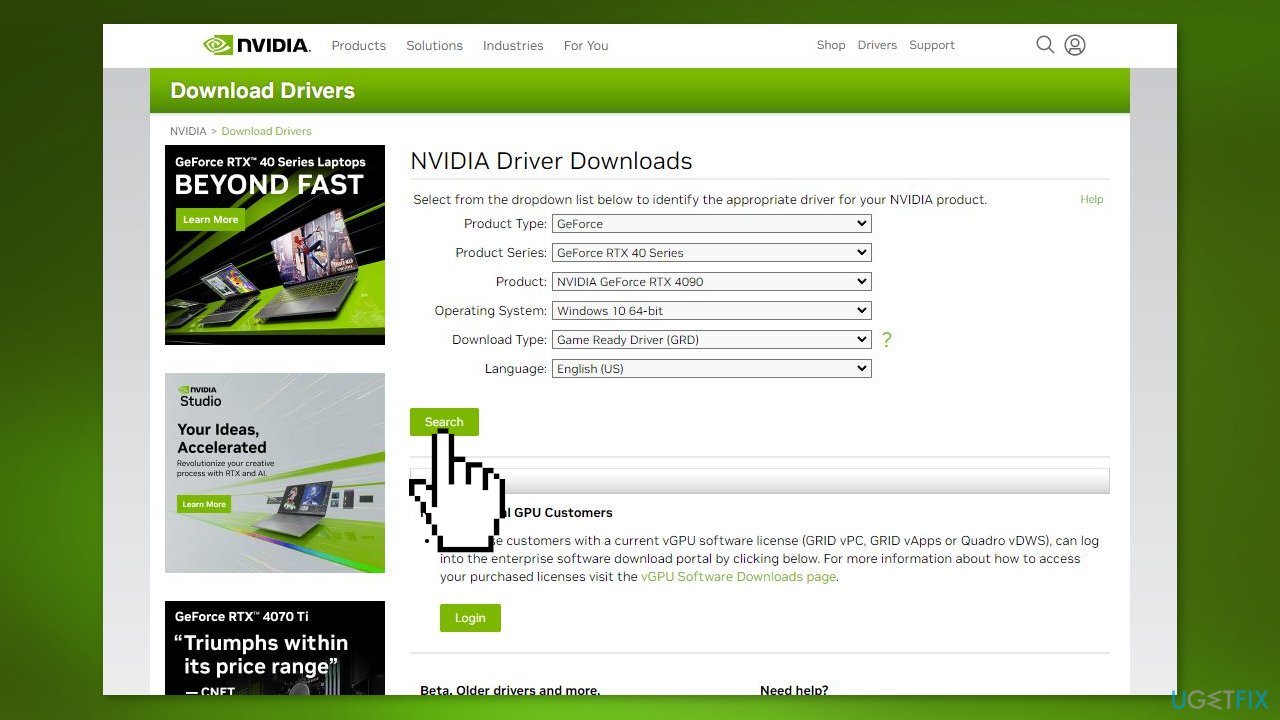
- Choose the appropriate Product Type, Product Series, and Product
- Click SEARCH
- Check if the operating system is detected correctly and click DOWNLOAD
- Right-click the downloaded file and select Run as administrator
- Specify the folder for the driver installer to be installed
- Choose NVIDIA Graphics Driver and click AGREE AND CONTINUE
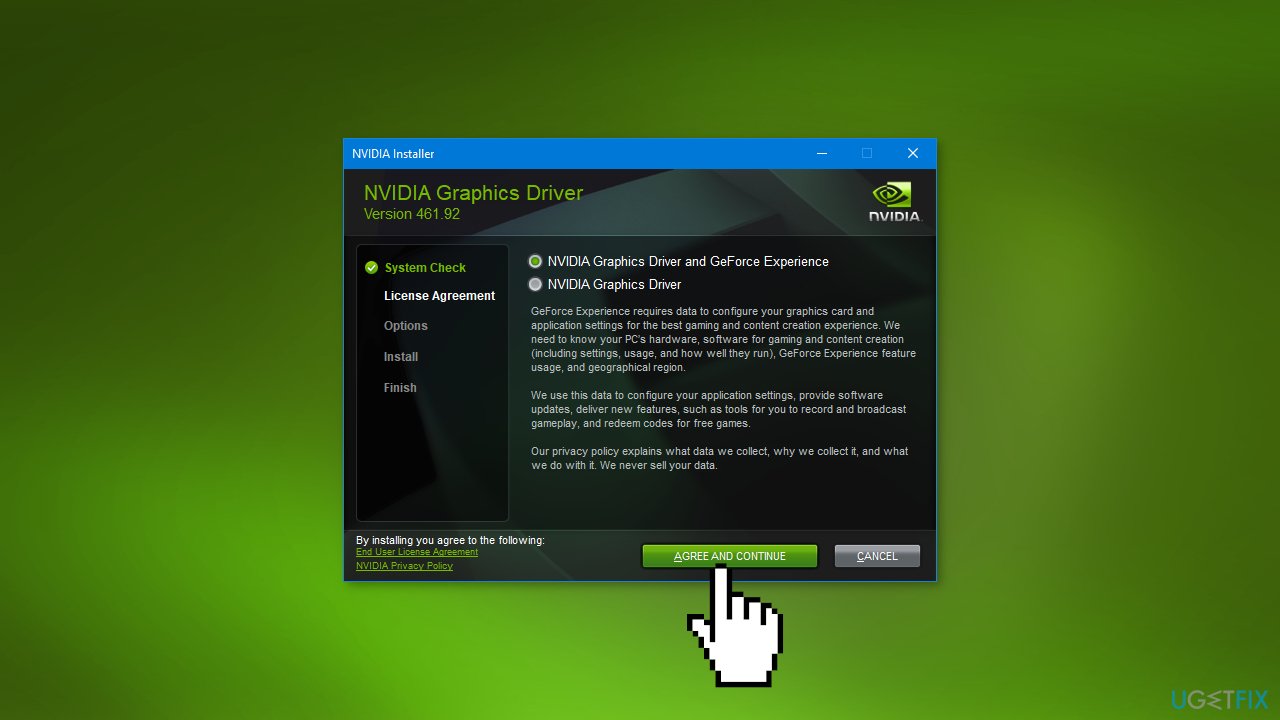
- Select Custom (Advanced) and click NEXT
- Select Perform a clean installation and click NEXT
- Reboot the machine for the changes to take effect after installation is complete
Method 3. Uninstall Nvidia Programs and Install the Driver Manually
- Open the Device Manager on Windows
- Expand Display adapters, right-click your NVIDIA driver, and choose Uninstall device
- Click Uninstall and reboot your computer
- Open the Run window by clicking the Windows key + R, input appwiz.cpl and press Enter
- In the Programs and Features interface, right-click the program related to NVIDIA and choose Uninstall
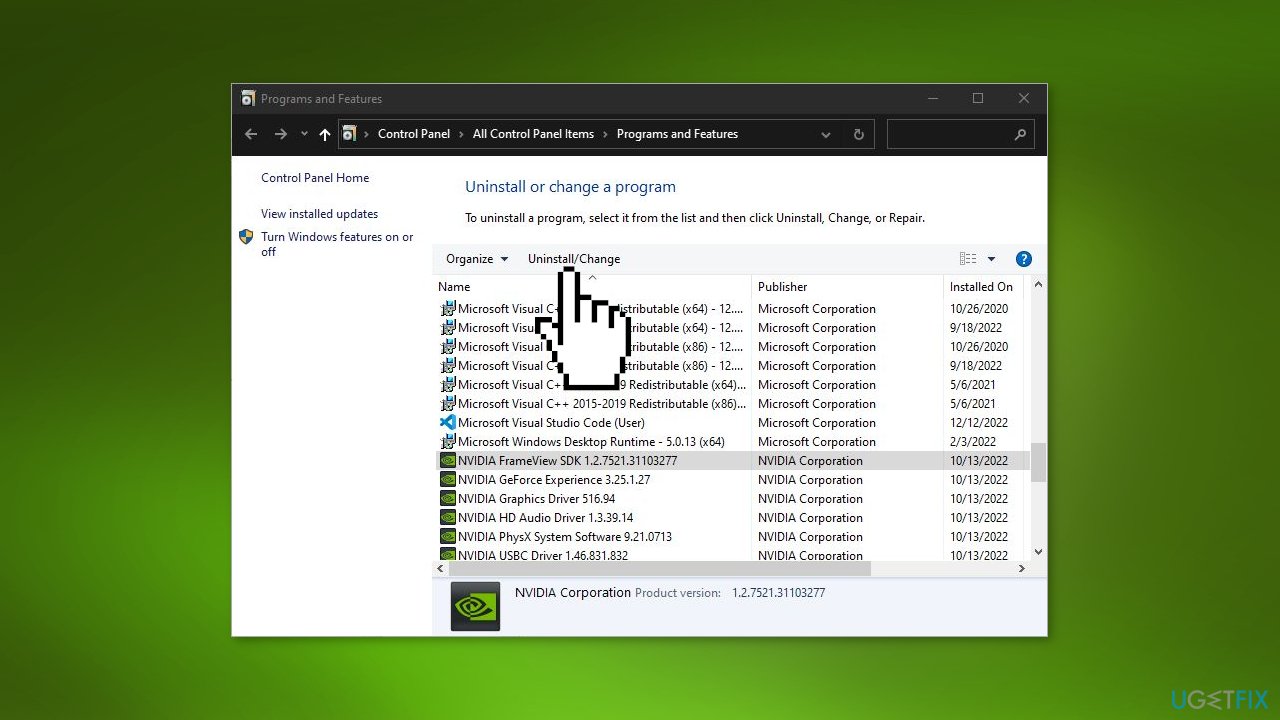
- Repeat this step to uninstall all NVIDIA programs
- Restart your PC again
- Open Device Manager, right-click the NVIDIA graphics card driver and choose Update driver
- Click Browse my computer for driver software
- Click Browse to find the NVIDIA folder. Ensure the box Include subfolders is selected.
- Reboot the machine. Then, click the .exe file of the NVIDIA driver to run
- Choose Custom install and check Perform a clean install. Then, finish the process by following the on-screen prompts.
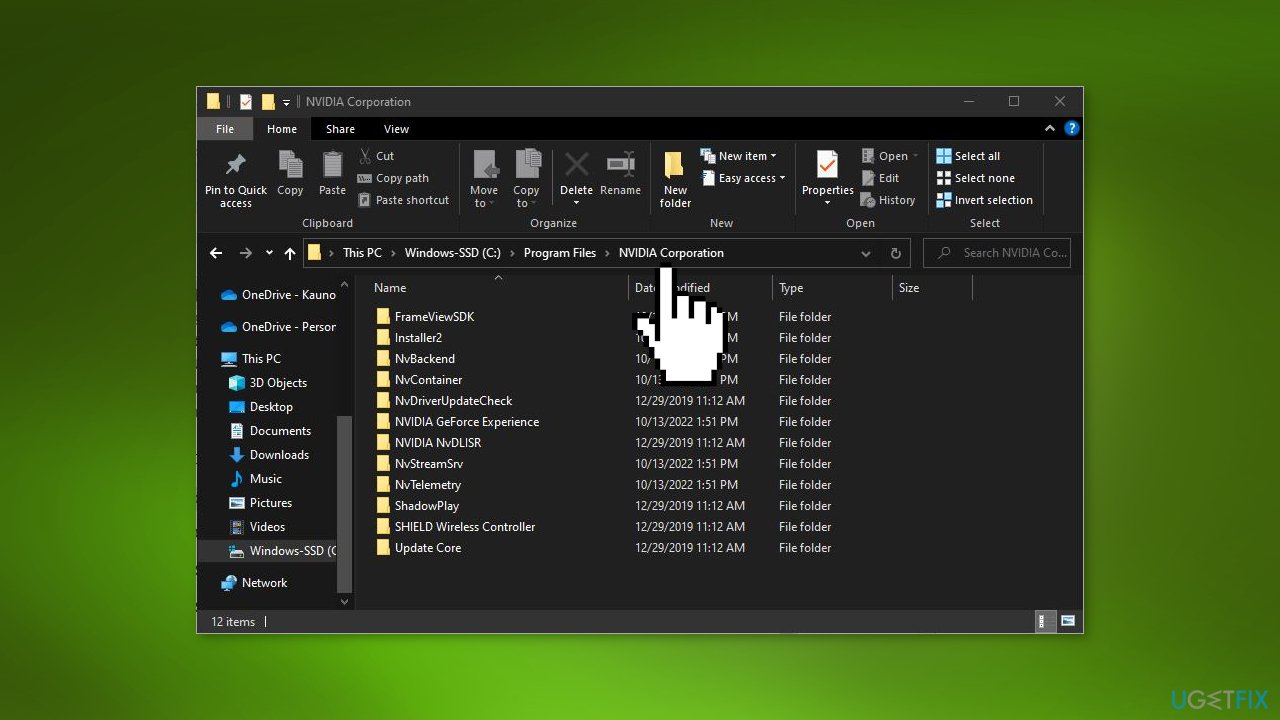
- If you still can't install NVIDIA drivers, try to delete extra files by going to these paths:
C:\Program Files\NVIDIA Corporation
C:\Program Files (x86)\NVIDIA Corporation
C:\Windows\System32\DriverStore\FileRepository\nv_lh document
C:\Windows\System32\DriverStore\FileRepository\nvoclock document
C:\Windows\System32\DriverStore\FileRepository\nvdsp.inf document
Method 4. Install Nvidia Drivers Automatically
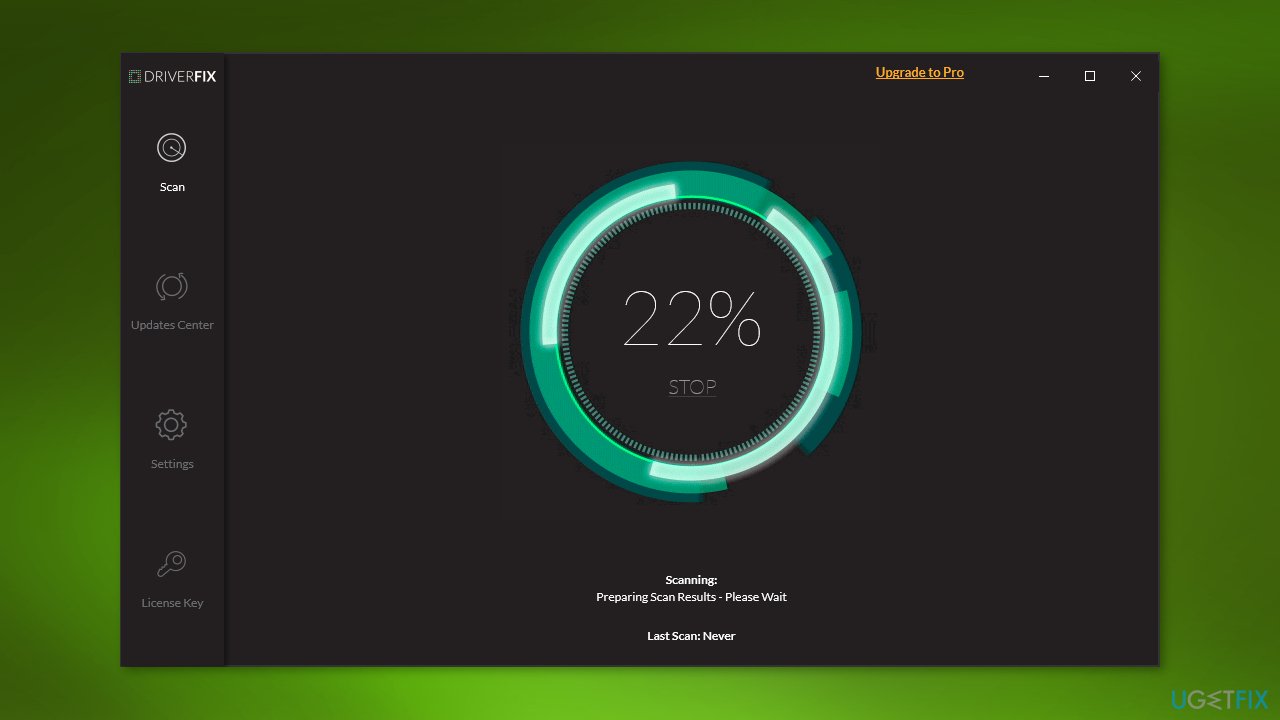
Installing graphics drivers on a PC can be challenging for users who lack technical expertise. A simpler alternative is to use [rev id="DriverFix"], a tool that automatically detects, downloads, and installs any necessary driver updates for your computer. With DriverFix, you don't need to know the specific system your computer is running, or worry about downloading or installing the wrong drivers. It eliminates the need for manual troubleshooting and reduces the risk of errors.
Method 5. Fix your System
If previous methods have not resolved the issue, it may be a critical system problem. Missing or damaged system files can cause various installation issues on your computer. To fix the problem and maintain optimal system performance, a thorough scan and repair are recommended.
[d1] is a safe and professional repair solution that offers various functions. It can replace corrupted Windows files and components, fix BSODs,[ref en-2] registry[ref en-3] issues, clear cookies and cache, and improve stability. Importantly, it will not harm your custom settings or personal data during the process.
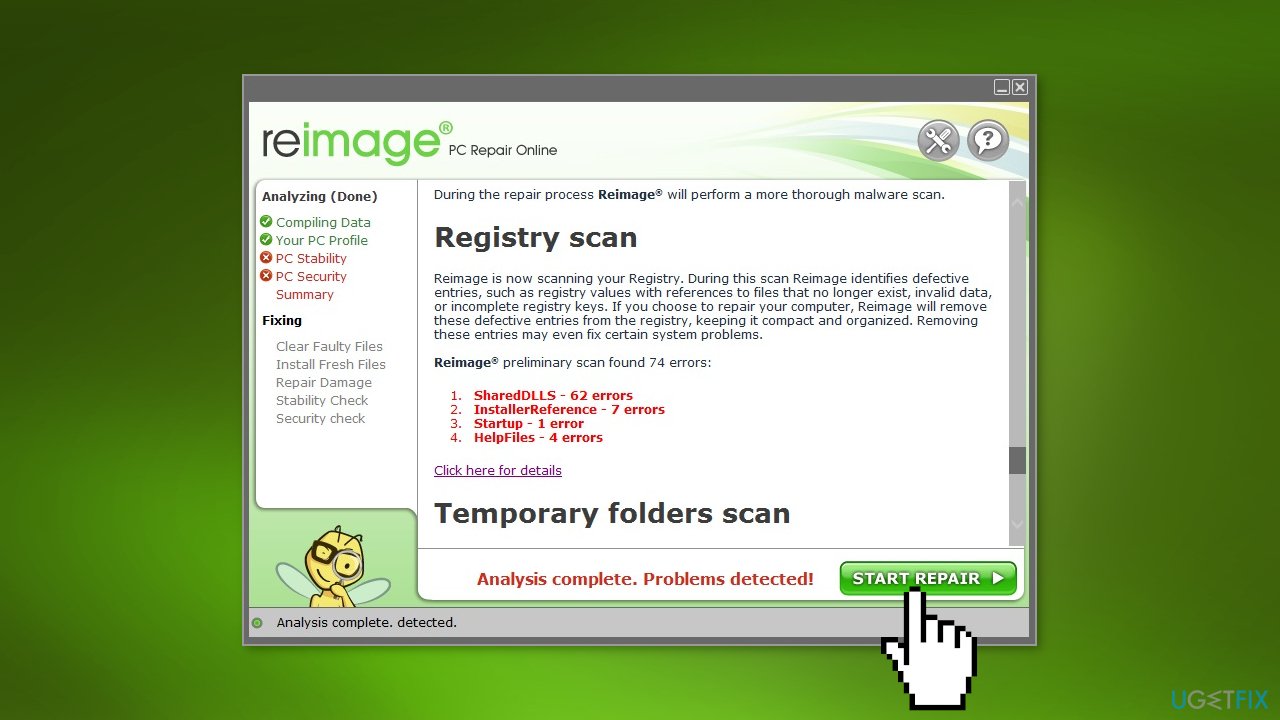
- Open Reimage and click Yes to initiate a free scan of your PC
- Wait for the scan to complete, which may take a few minutes
- Review the detailed report of all the issues on your PC
- To fix the issues automatically, click START REPAIR. This requires purchasing the full version, which comes with a 60-day money-back guarantee, allowing you to request a refund if Reimage fails to solve the issue.
Bottom line
To fix the issue of Nvidia GeForce drivers not installing, you can disable or uninstall third-party security software and ensure you are installing the appropriate Nvidia driver version. If these steps do not resolve the problem, further troubleshooting may be necessary.
Frequently asked questions
First, ensure that you are downloading the correct drivers for your specific GPU model from the Nvidia website. If the installation still fails, try using the Display Driver Uninstaller (DDU) to remove any existing drivers before attempting a fresh installation.
Yes, Nvidia provides compatible drivers for Windows 11, but make sure to check for the latest version on their official site. If you encounter installation problems, consider temporarily disabling any antivirus software and retrying the installation.
You can troubleshoot by checking for Windows updates, ensuring your system meets the driver requirements, and running the installer as an administrator. Additionally, reviewing the installation logs can provide specific error codes that can help identify the issue.




Report an issue
What's wrong with this guide? We review every report and update or remove content.
Report received — thank you. We'll review and fix it.
You need a free account to submit a report.
Be the first to comment