How to fix
Photos staying as a background process
on Windows
Resolve the issue of Photos lingering as a background process on Windows 10 or 11. Get quick, effective solutions with expert-tested steps.

![[Fix] Photos staying as a background process on Windows](https://ugetfix.com/wp-content/uploads/articles/askit/fix-photos-staying-as-a-background-process-on-windows-copy_en-768x432.jpg)
What causes [Fix] Photos staying as a background process on Windows?
- Changes in the app’s behavior due to updates
- A bug in the app that prevents it from properly closing processes
- Corrupted or incomplete app files
- System settings allowing background processes to continue running
- The app handling background tasks such as syncing or processing
Repairs Windows system files, removes malware, and restores a clean OS state — without reinstalling.
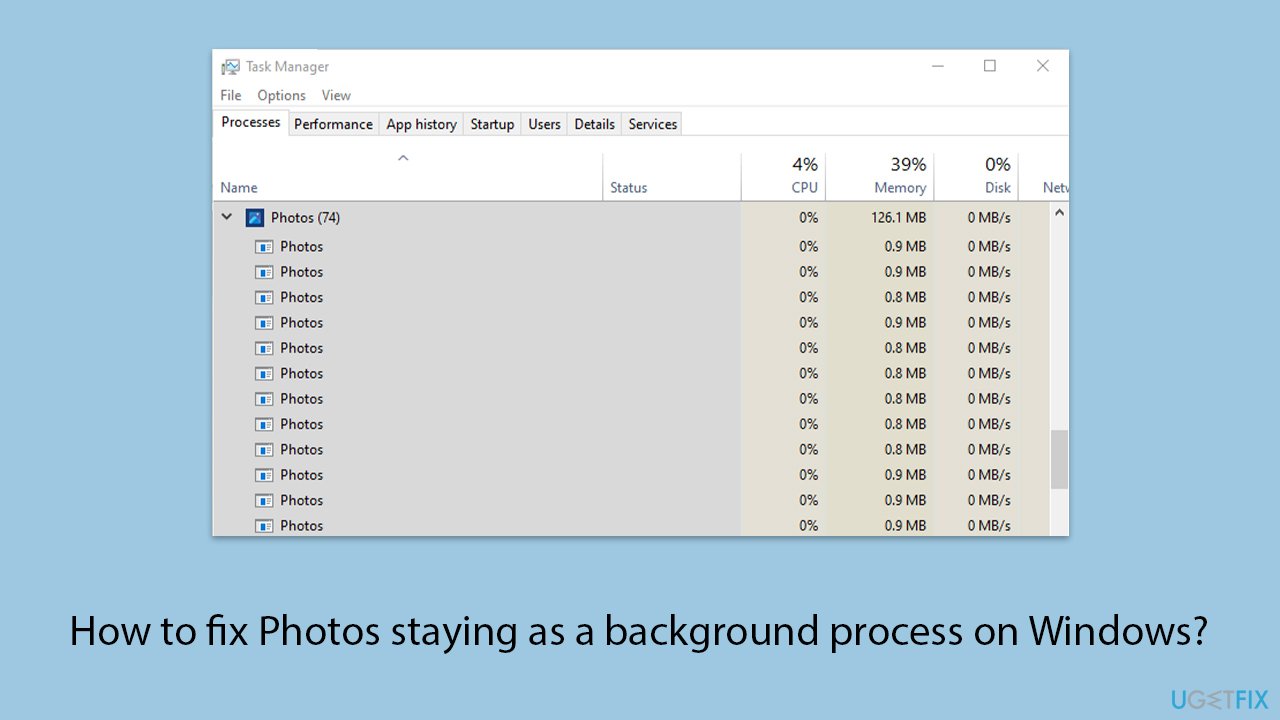
Hi, I've noticed that the Photos app on my Windows PC doesn’t seem to fully close after I view a photo. Instead, it moves from "Apps" to "Background Processes" in Task Manager. It even stacks multiple instances, like "Photos (15)," even though the app isn’t open or minimized. Why is this happening, and how can I fix it?
Why does the Photos App stay as a background process in Windows?
The Photos app in Windows is used for viewing and managing pictures, but some users have reported a weird issue where the application does not close itself, even after being closed-just minimizes to the back. This can be seen in the Task Manager, where the app moves from "Apps" to "Background Processes" without actually shutting down. This is even more apparent to some when the Photos app multiplies into numerous instances and causes entries in Task Manager such as "Photos (15)".
This can be confusing, especially when the application does not appear to be open or minimized, and could be using up your system's resources pointlessly. Causes of this are discussed, as well as some troubleshooting steps, in this article.
Possible reasons for Photos App running in the background
The Photos app continuing to run in the background can occur for several reasons. One possible cause could be changes in the app’s behavior due to updates, which may allow the app to remain active for better performance or preloading of features. Another potential cause could be a bug in the app that prevents it from properly closing processes once it’s no longer in use.
If the app files are corrupted or incomplete, it might also fail to terminate correctly when closed. In some cases, system settings might allow background processes to continue running for certain apps, including Photos. Additionally, the app may be handling background tasks such as syncing, processing, or updating its cache, which can explain its presence in the Task Manager even when it appears to be closed.
How to fix the Photos App running in the background
The fix for this issue depends largely on the underlying cause. For example, if the problem is due to corrupted app files, resetting or reinstalling the app could be effective. If Windows settings are the issue, disabling the option to run apps in the background might resolve the problem. Additionally, if there is a pending background task or process, ensuring that the app finishes its work or manually stopping the process might help.
It is important to try different solutions to identify the one that works best for you, as the root cause can vary. If you're unsure or want to take a quick approach to resolving this, [d1] can help. This repair tool is designed to fix a range of Windows issues, including app malfunctions, system file corruption, and performance problems.
Fix 1. Check for updates for the Photos app
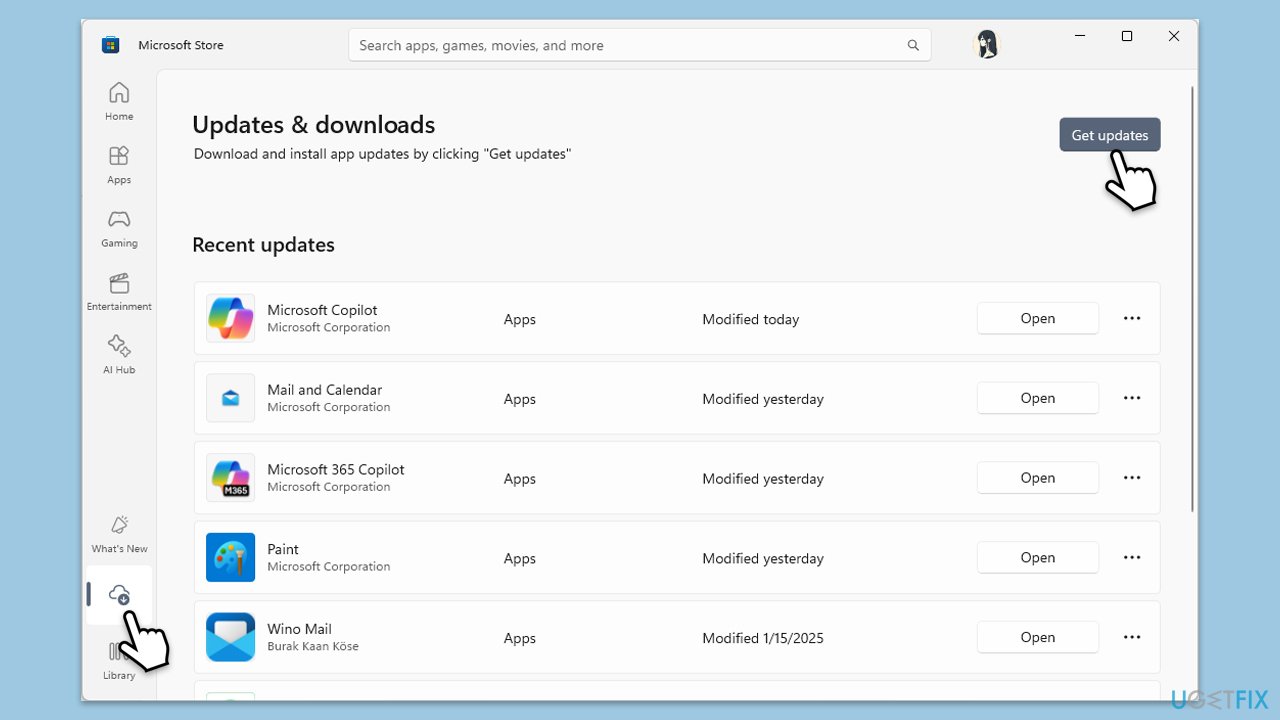
Sometimes, issues with the Photos app occur because an outdated version is installed. Updating the app can fix any bugs or issues that prevent it from functioning properly.
- Open the Microsoft Store.
- Go to the Downloads section.
- Click Get updates to ensure all apps, including Photos, are updated.
Fix 2. Restart your computer
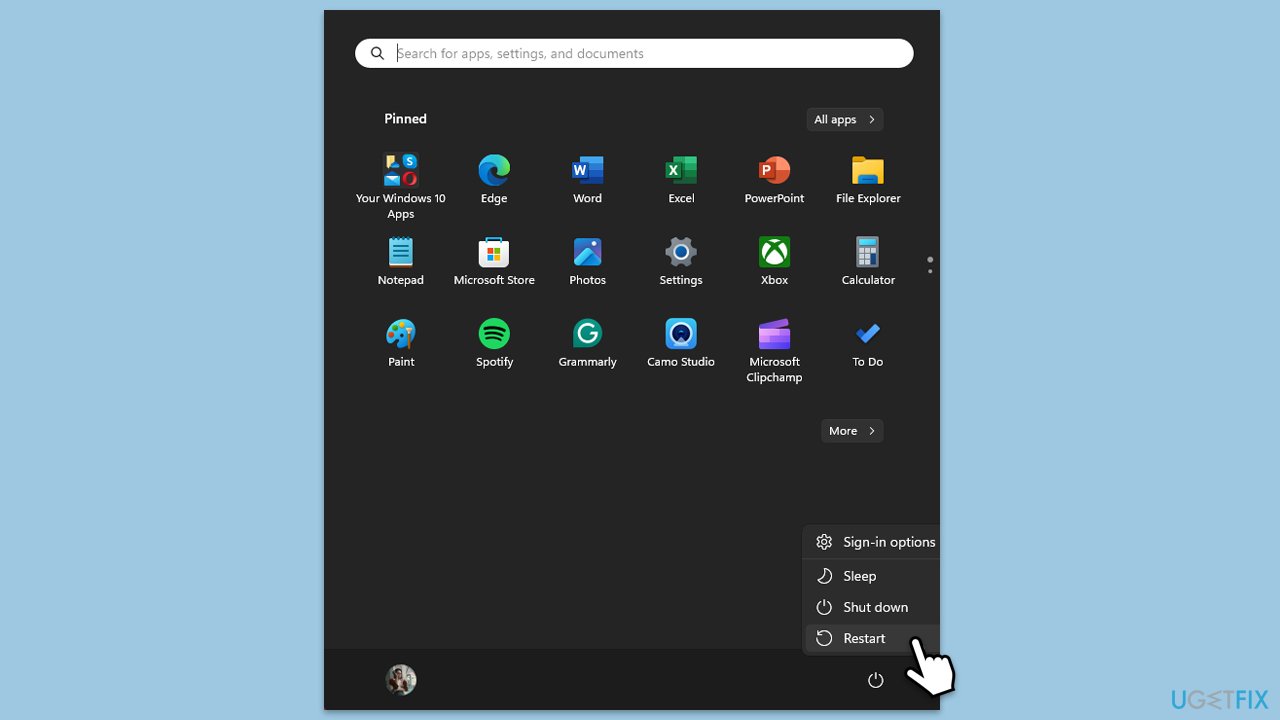
A simple restart can resolve background process issues by resetting the system's handling of apps. This can terminate any processes that should not be running.
- Close all applications.
- Click on the Start menu.
- Select Restart.
Fix 3. Close Photos using Task Manager
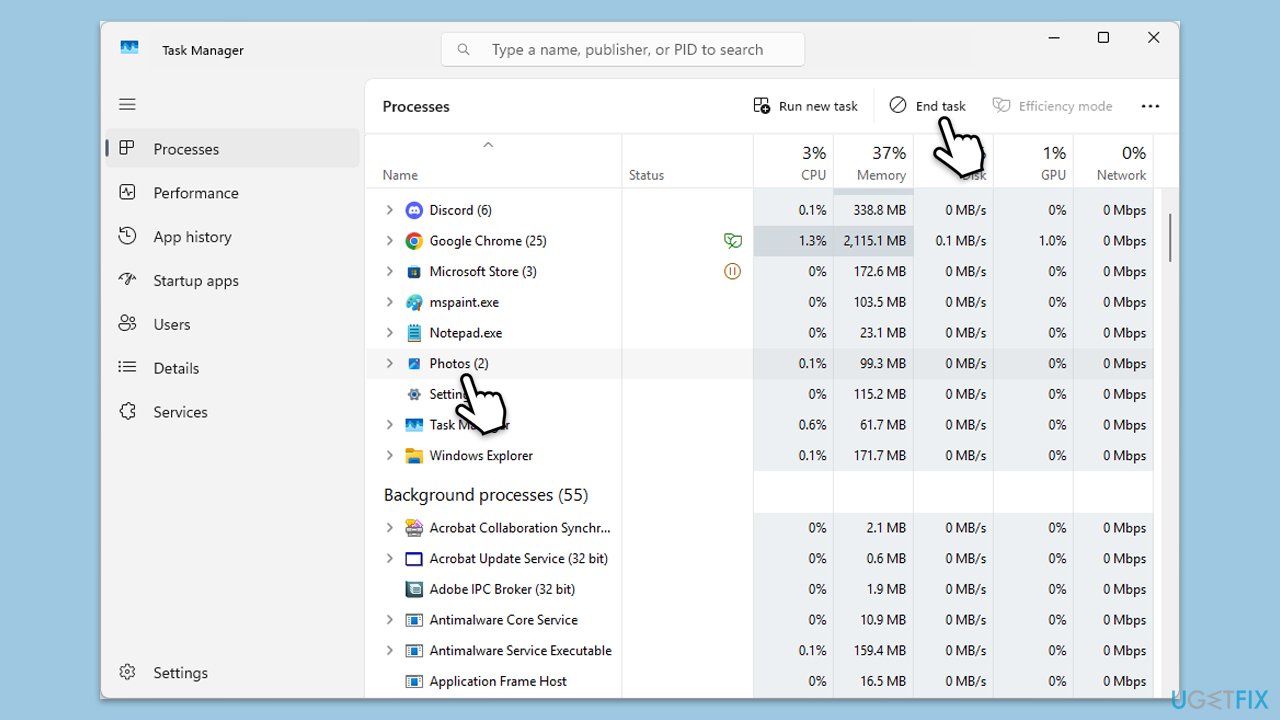
If the Photos app continues running in the background, it may cause problems. You can manually close the app through the Task Manager.
- Press Ctrl + Shift + Esc to open Task Manager.
- Find Photos under Background processes.
- Select Photos and click End Task at the bottom-right.
Fix 4. Repair or reset the Photos app
Resetting the app restores it to its default state, which can fix any issues with it failing to close properly.
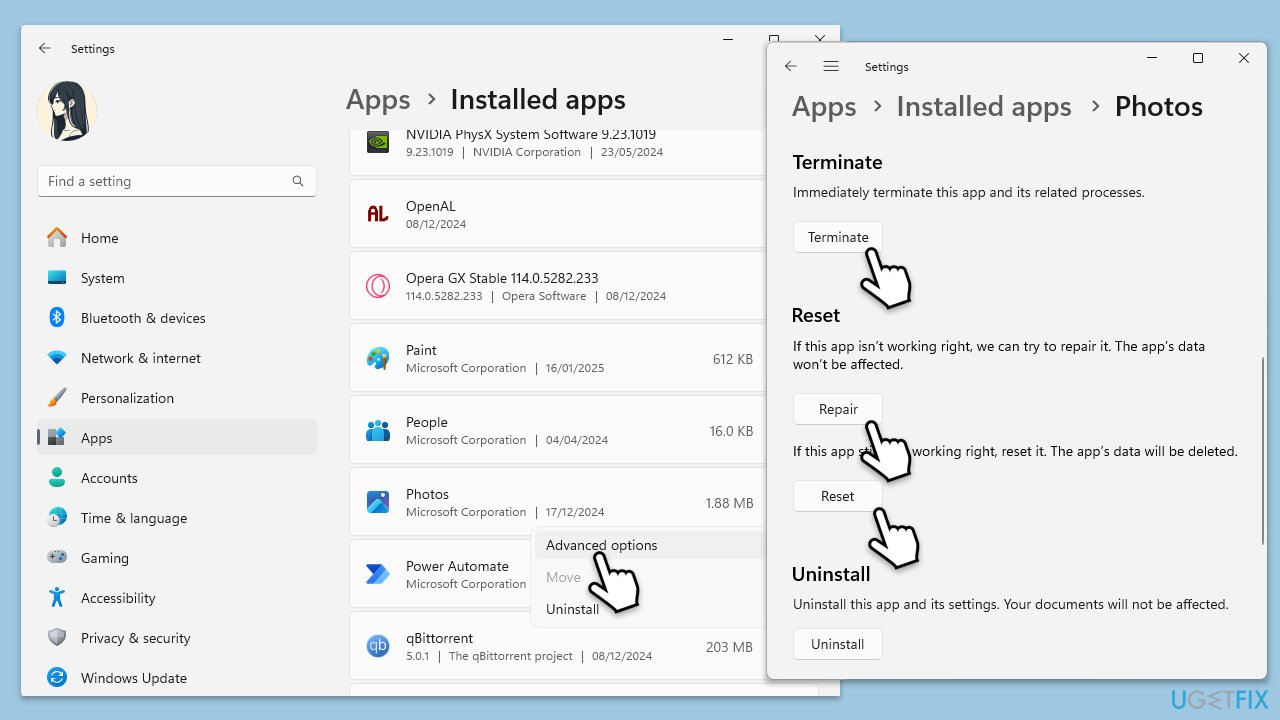
- Right-click on Start and pick Apps & Features/Installed apps.
- Scroll down to locate the Photos app and click Advanced options.
- Click Terminate and Repair.
- If that does not help, try the Reset option instead.
Fix 5. Reinstall the Photos app
If resetting the app doesn’t work, reinstalling it can replace corrupted files and fix any underlying problems.
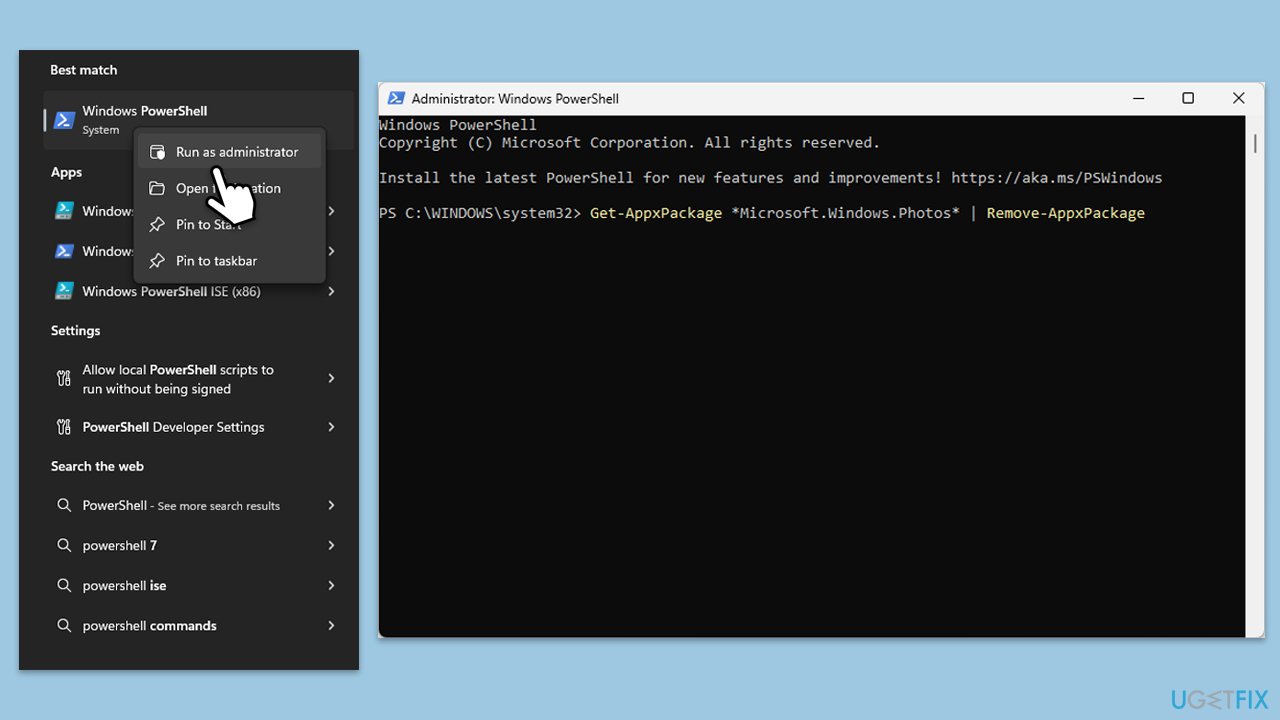
- Type PowerShell in Windows search.
- Right-click on the result and select Run as administrator.
- When User Account Control shows up, click Yes.
- In the new window, copy and paste the following command and hit Enter:
Get-AppxPackage *Microsoft.Windows.Photos* | Remove-AppxPackage - After the command runs, open the Microsoft Store and reinstall the Photos app.
Fix 6. Run the Windows Store Apps troubleshooter
The built-in troubleshooter can help diagnose and fix issues with the Photos app. It automatically checks for and resolves problems with apps installed from the Microsoft Store.
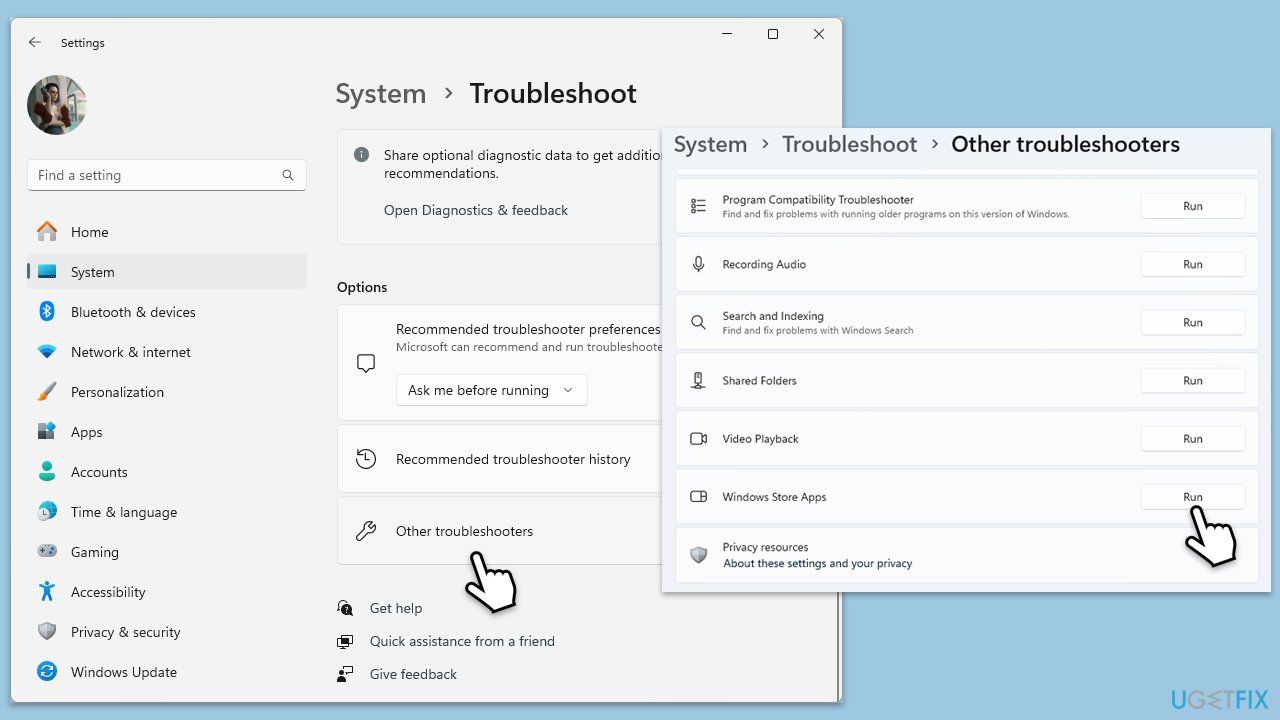
- Type Troubleshoot in Windows search and hit Enter.
- Click Additional troubleshooters/Other troubleshooters.
- Scroll down to find Windows store apps and select it.
- Click Run the troubleshooter/Run.
- Wait till the process is finished and apply the fixes.
Fix 7. Check for system updates
System updates often include fixes for underlying problems with apps. Ensuring your operating system is up to date can resolve issues with Photos and background processes.
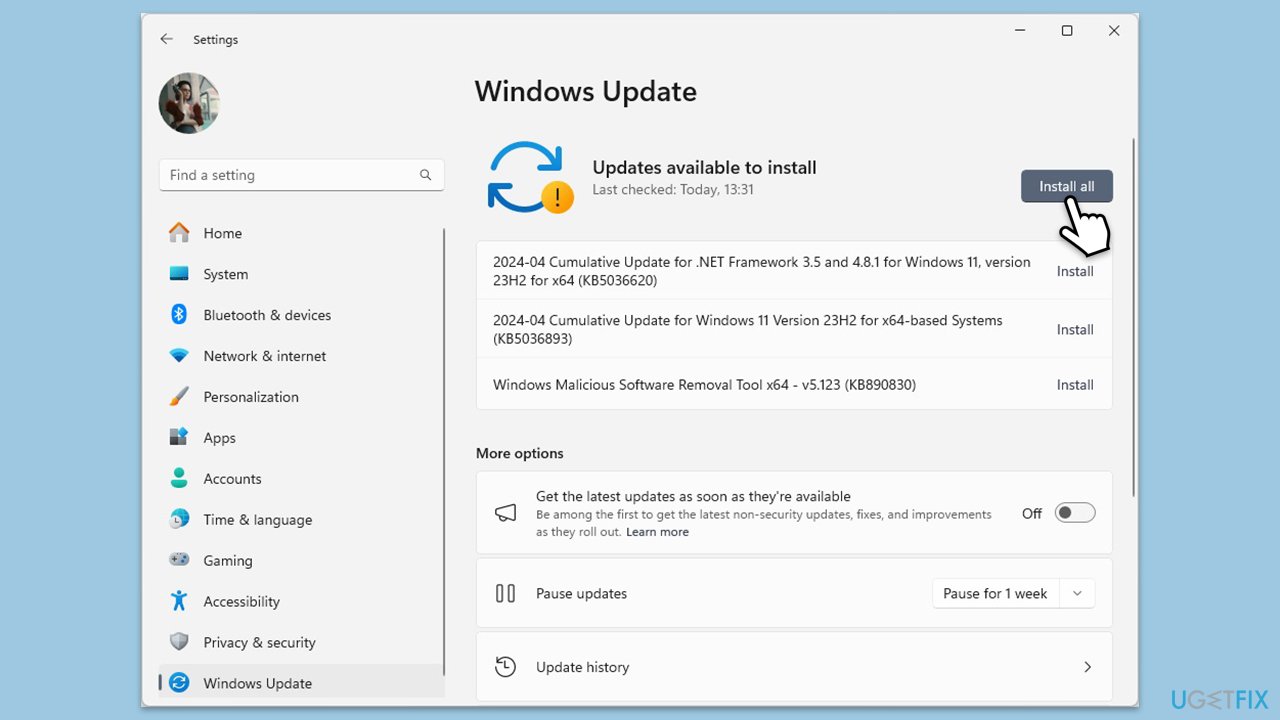
- Click on the Start and go to Settings.
- Select Update & Security.
- Click on Windows Update.
- If there are updates available (including optional ones), click Install. If not, click Check for updates.
- Restart your PC to implement the changes.
Bottom line
To fix the issue of the Photos app running in the background, you can try updating the app, repairing or resetting it, or checking system settings related to background processes. If these solutions do not work, consider reinstalling the app or checking for Windows updates.
Frequently asked questions
The Photos app may remain as a background process due to a glitch or an unfinished task, which prevents it from closing properly. Restarting the app or your computer can often resolve this issue.
To stop the Photos app from running in the background on Windows 11, go to Settings > Apps > Apps & features, find Photos, and adjust its background app permissions.
If the Photos app keeps starting on its own, check if it is set as the default app for image files and consider resetting its settings or reinstalling the app to fix the issue.




Report an issue
What's wrong with this guide? We review every report and update or remove content.
Report received — thank you. We'll review and fix it.
You need a free account to submit a report.
Be the first to comment