How to fix
Power & battery settings missing
on Windows
Resolve missing Power & battery settings in Windows 11 effortlessly. Get expert-tested solutions to restore functionality in minutes.

![[Fix] Power & battery settings missing in Windows 11](https://ugetfix.com/wp-content/uploads/articles/askit/fix-power-and-battery-settings-missing-in-windows-11-copy_en-768x432.jpg)
What causes [Fix] Power & battery settings missing in Windows 11?
- Corrupted system files
- Outdated drivers
- Issues with recent Windows updates
- Bugs in the operating system
- Broken registries or DLLs
Repairs Windows system files, removes malware, and restores a clean OS state — without reinstalling.
Upon installing Windows 11, I am unable to access the Power & battery feature - it's not opening the settings. In a similar way, a window appears and then closes when I right-click the battery icon in the system tray and select "Power and sleep settings." Is this fixable?
Numerous people have complained about problems with Windows 11's Power & Battery settings. Since it helps users control power plans and battery usage, this Windows Settings feature is quite important, especially for laptop users. In addition to this, the Power & Battery section does not display any information after a button in system tray is clicked.
Users describe the issue as follows: when they click on the Power & Battery section in the Windows Settings menu, nothing appears. The section is completely empty, leaving them unable to adjust any power settings. Similarly, when they right-click on the battery icon in the system tray, an empty window pops up instead of the usual options.
This issue can be very frustrating, as it prevents users from managing their device's power consumption, which is essential for extending battery life and ensuring optimal performance.
The Power & Battery settings may go missing due to various reasons, such as corrupted system files, outdated drivers, or issues with recent Windows updates. Potential solutions include running the Windows Troubleshooter, updating system drivers, or performing a system file check to identify and repair corrupted files.
For users dealing with such issues, using the [d1] maintenance and repair utility can be particularly helpful. This tool is effective for fixing broken registries or DLLs, corrupted system files, BSODs, and more, especially when it’s difficult to identify the underlying cause.
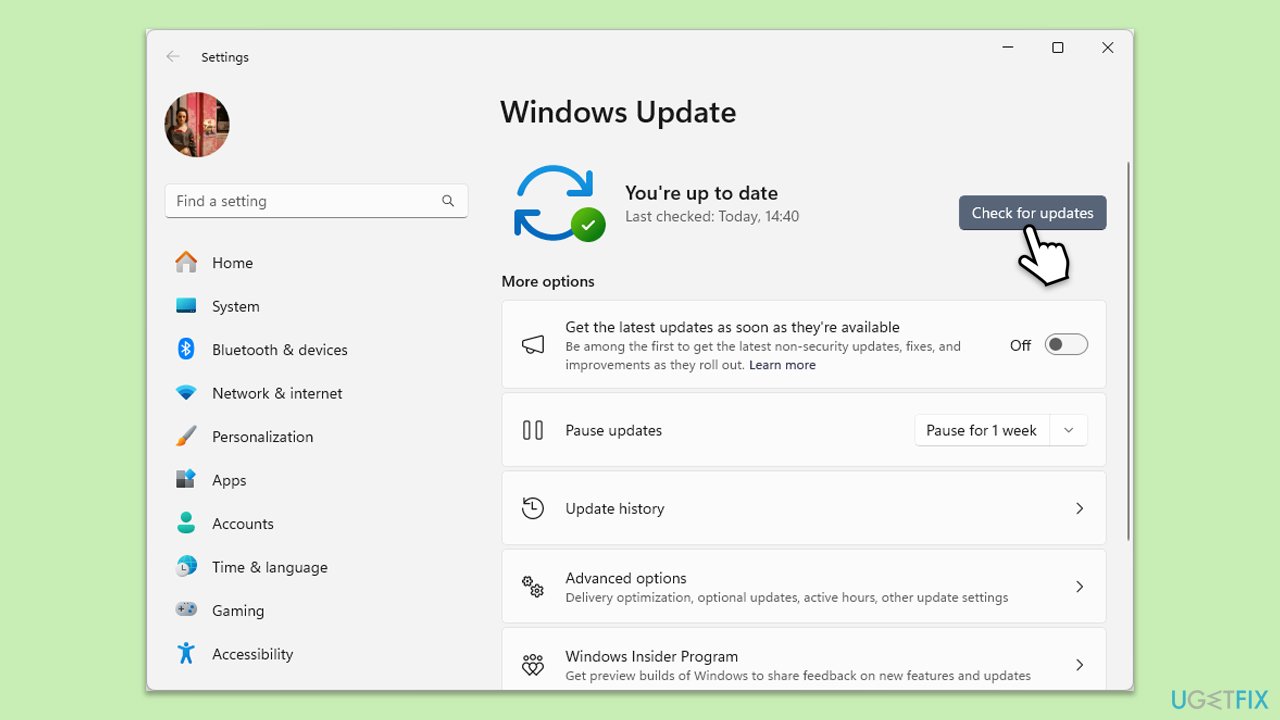
Fix 1. Install Windows updates
Keeping Windows updated can resolve many issues by installing patches and fixes for known problems. Updates can fix bugs that might be causing the Power & Battery settings to disappear.
- In Windows search, type Updates and hit Enter.
- In the new window, click Check for updates and wait till everything is installed.
- Make sure you also install any available optional updates.
- When done, restart your system to implement the changes.
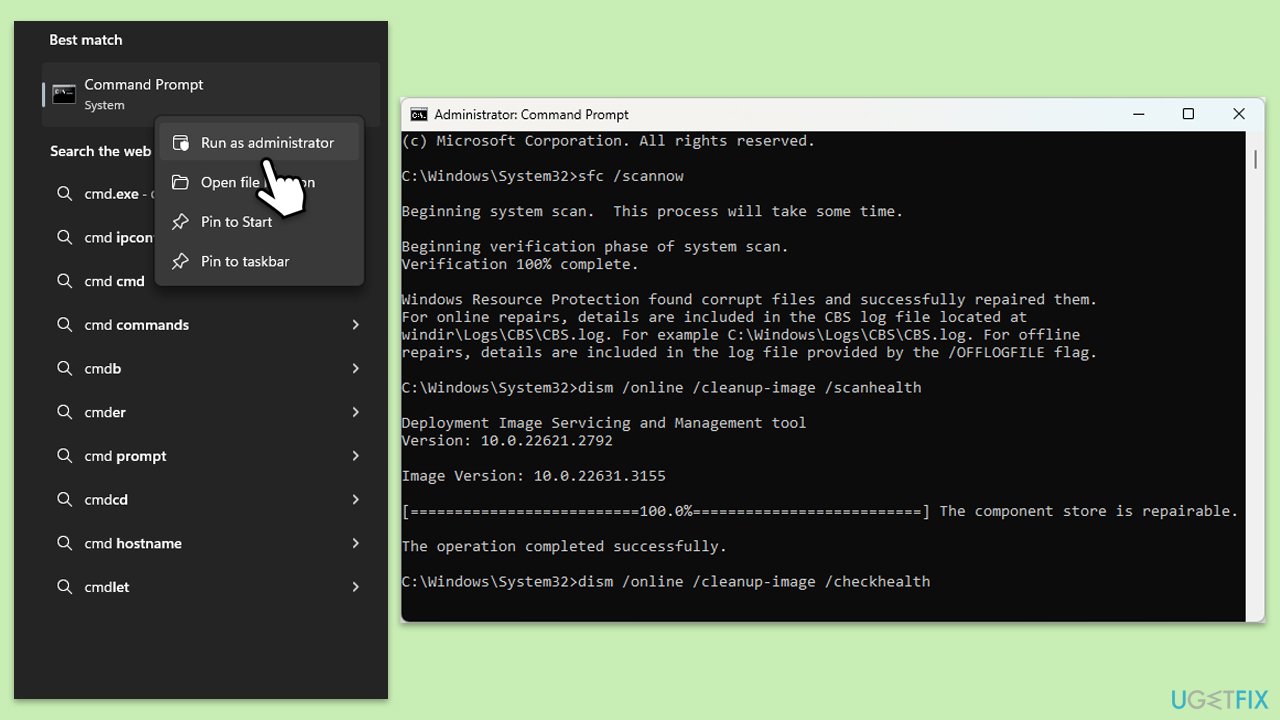
Fix 2. Run SFC and DISM
Repair corrupted system files, as this could be one of the main reasons why some settings are missing in Windows.
- Type cmd in Windows search.
- Right-click on Command Prompt and pick Run as administrator.
- When UAC asks you whether you want to make changes, agree by pressing Yes.
- Next, copy and paste the following commands, pressing Enter each time:
sfc /scannow
DISM /Online /Cleanup-Image /CheckHealth
DISM /Online /Cleanup-Image /ScanHealth
DISM /Online /Cleanup-Image /RestoreHealth
(Note: if you get an error executing the last command, add /Source:C:\RepairSource\Windows /LimitAccess to it and try again.) - Restart your computer.
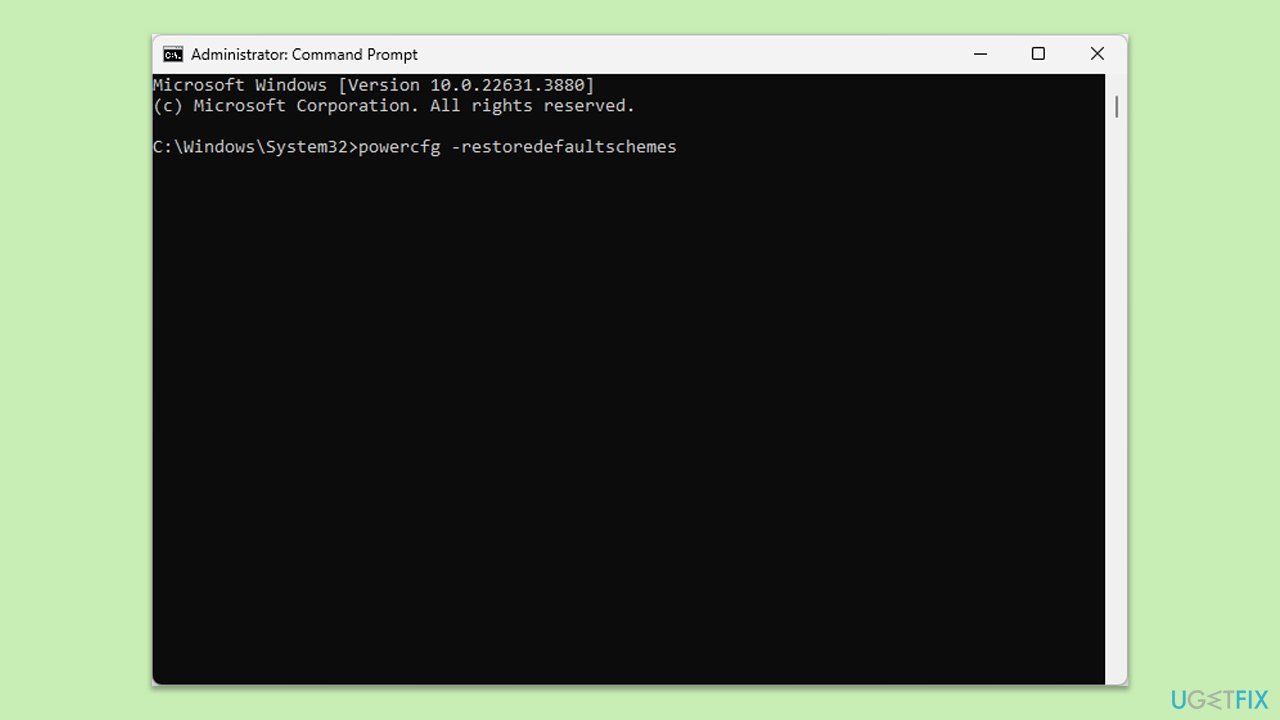
Fix 3. Reset Power Plan settings via Command Prompt
Resetting the power plan settings can help if the current settings are corrupted or misconfigured.
- Open Command Prompt as administrator.
- When the new window opens, copy and paste the following command:
powercfg –restoredefaultschemes - Press Enter and close down Command Prompt.
- Try changing using Power settings again.
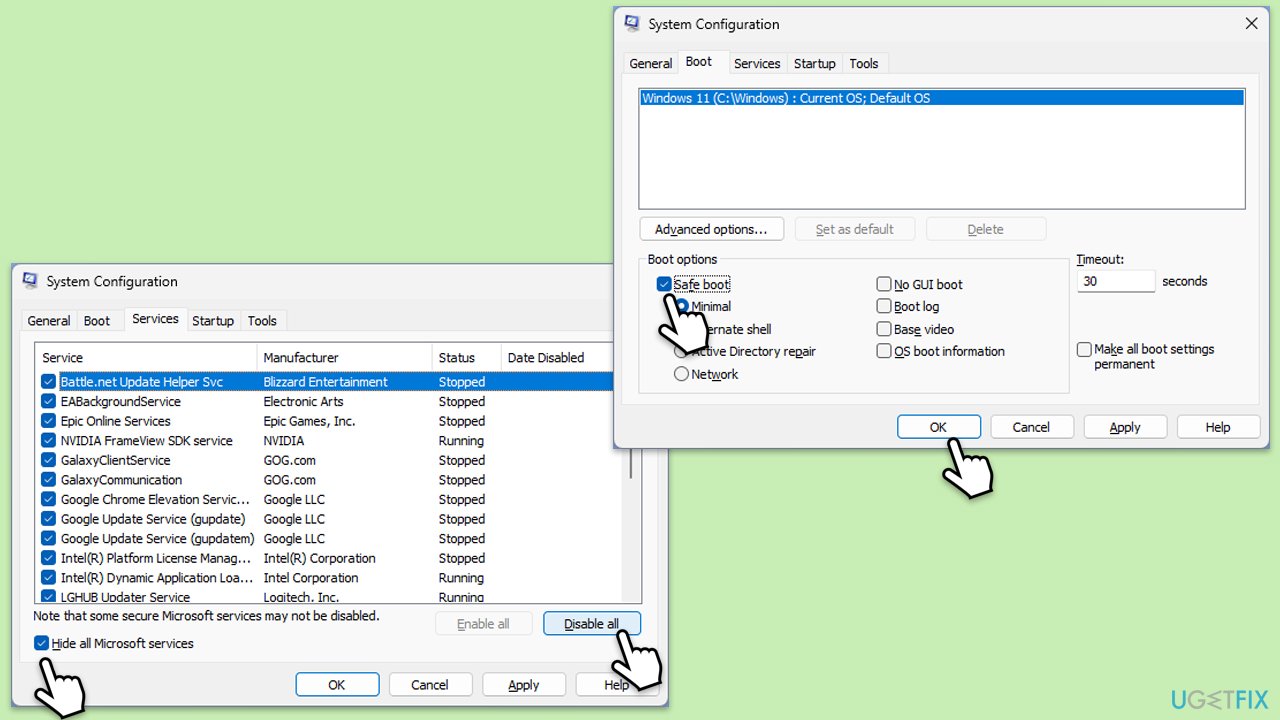
Fix 4. Try Clean Boot
Performing a clean boot can help determine if background programs are interfering with system settings.
- Type msconfig in Windows search and press Enter.
- Go to the Services tab.
- Mark Hide all Microsoft services and select Disable all.
- Go to the Startup tab and click Open Task Manager.
- In the Task Manager, right-click on each of the items and select Disable, then close the Task Manager.
- Go to the Boot tab, and tick Safe Boot.
- Click Apply and OK, and restart your PC.
- To find out which app(s) is causing conflicts, enable each of the processes (or you can do it in groups), restart, and see if the problem persists. Repeat until you find the faulty app, then either update or uninstall it.
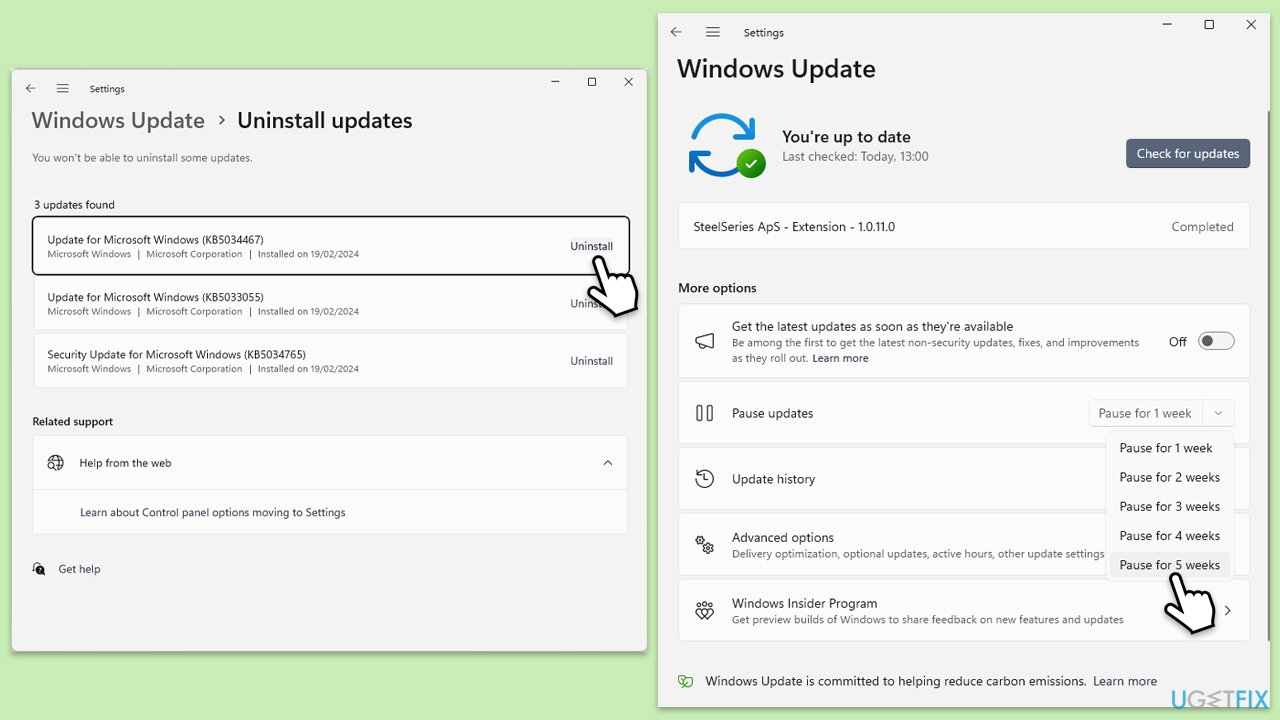
Fix 5. Uninstall the most recent Windows update
Sometimes, a recent update might cause issues with system settings. Uninstalling it can help resolve the problem.
- Type Control Panel in Windows search and press Enter.
- Select Programs > Uninstall a program.
- Click on View installed updates on the left side of the window.
- Uninstall the most recent update.
- Proceed with on-screen instructions.
- Don't forget to pause the update.
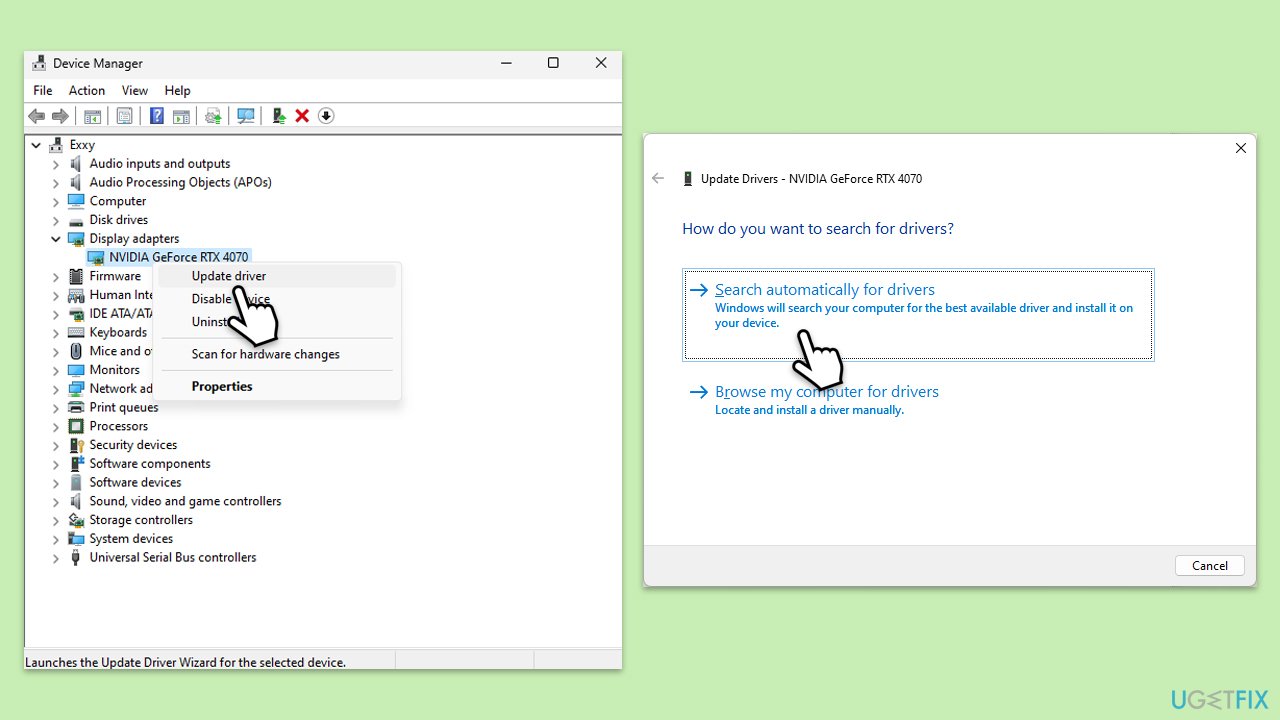
Fix 6. Update your graphics drivers
Outdated or corrupt graphics drivers can sometimes cause display issues, including problems with the Power & Battery settings.
- Right-click on the Start button and select Device Manager from the menu.
- Expand the Display adapters section.
- Right-click on your graphics card and select Update driver.
- Pick Search automatically for drivers.
- If updates are found, allow them to install.
- Restart your computer after updating all necessary drivers.
Fix 7. Repair-install Windows
A repair installation can fix many issues without affecting your personal files or applications.
- Download Windows 11 Installation media from the official Microsoft website.
- Double-click the MediaCreationTool.exe file to launch it.
- When UAC shows up, click Yes.
- Accept license terms.
- Select Language and Edition (make sure it matches the one you have currently installed) or simply mark the Use the recommended options for this PC and click Next).
- Select the ISO file and click Next.
- Pick the location for your ISO file and wait till all the needed files are downloaded, then click Finish.
- Go to the location of your ISO file, right-click, and select Mount.
- Run the setup.exe file.
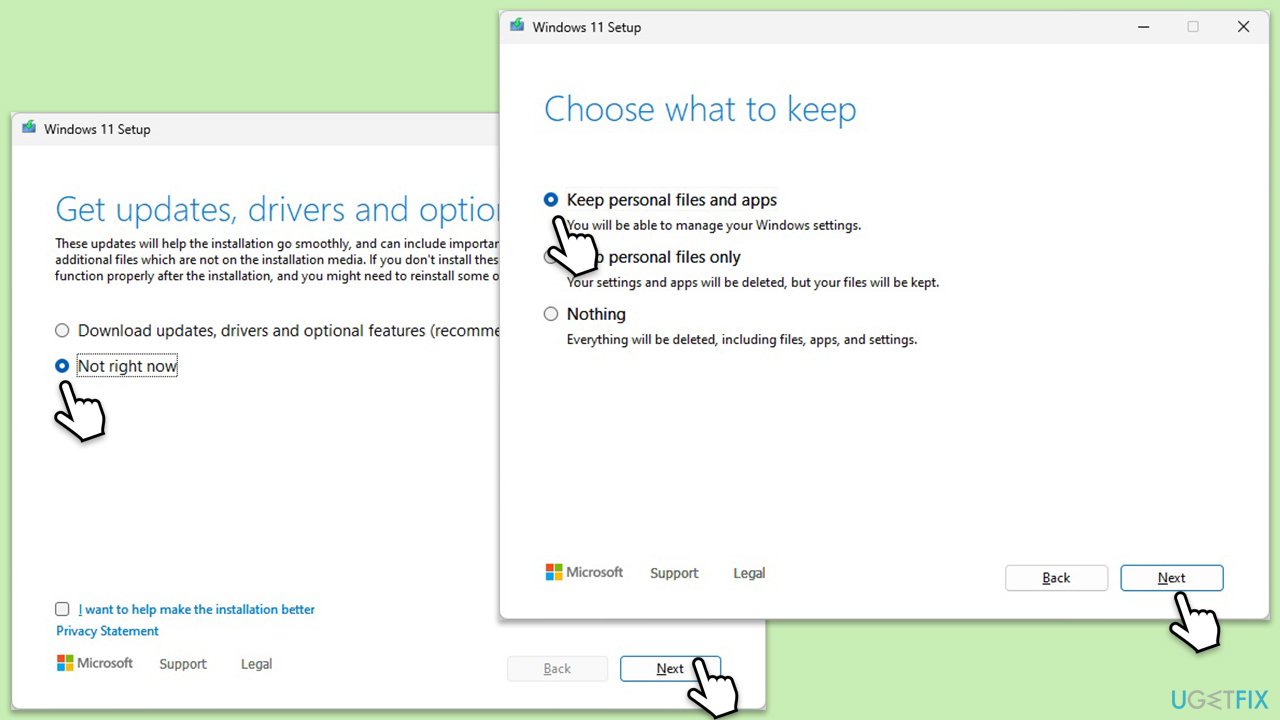
- You will be asked whether you want to update Windows to the latest version - pick Not right now and click Next.
- Accept Terms and Windows will make several checks to ensure everything is fine.
- Click Change what to keep.
- Here, you have several options: Keep your files and apps, Keep files only, or Keep nothing - choose what suits you the best. Click Next.
- Finally, click Install to begin the installation process.
Bottom line
To resolve the missing Power & Battery settings in Windows 11, users can try running the Windows Troubleshooter, updating system drivers, or performing a system file check. Keeping Windows updated is also crucial as it can fix bugs that lead to this issue. If none of these solutions work, consider using a maintenance and repair utility to address deeper system problems.
Frequently asked questions
You can try restoring the missing settings by running the Windows Troubleshooter for power issues or by resetting the System Management Controller (SMC). If that doesn't work, consider updating your Windows 11 to the latest version.
You can access the Power & battery settings by opening the Settings app, then navigating to System > Power & battery, or by using the search bar to find it directly.
Yes, certain third-party applications, particularly those that manage power settings or system tweaks, can interfere with Windows 11's default settings, leading to missing options.




Report an issue
What's wrong with this guide? We review every report and update or remove content.
Report received — thank you. We'll review and fix it.
You need a free account to submit a report.
Be the first to comment