How to fix
Printer allows only Default settings after upgrading to 22H2
on Windows
Resolve your printer's default settings issue on Windows 11 after the 22H2 upgrade. Expert-tested solutions ensure your printer works perfectly again!

![[Fix] Printer allows only Default settings after upgrading to 22H2 in Windows 11](https://ugetfix.com/wp-content/uploads/articles/askit/printer-allows-only-default-settings-after-upgrading_en-768x434.jpg)
What causes [Fix] Printer allows only Default settings after upgrading to 22H2 in Windows 11?
- Glitch in the installed Microsoft IPP Class driver
- Glitch in the Universal Print Class driver
- Issues with printing in color
- Problems with duplex printing
- Malware leftovers
- Damaged or corrupted files
Repairs Windows system files, removes malware, and restores a clean OS state — without reinstalling.
Hello. I have a problem with the default settings related to the printer. I updated my Windows 11, and now the printer allows only Default settings after upgrading. No printers are found, and I can't add them again. Why is this version doing so? Can I fix the issue somehow myself?
The printer allows only Default settings after upgrading to 22H2 in Windows 11 is an issue that users have encountered with the recent update of Windows. The latest update rollout has been creating problems with machines.[ref en-1] Microsoft has confirmed the issues that occur with printer default settings too.
This issue is occurring due to a glitch in the installed Microsoft IPP Class driver or the Universal Print Class driver. The problem causes the issue with printing generally, and people cannot print in color, duplex, two-sided, etc. The problem can come up when upgrading Windows 11 tor version 22H2, but the company does not have a solution yet.
There are some workarounds and solutions for this time until Microsoft comes up with a fix for the Printer allows only Default settings after upgrading to 22H2 in Windows 11 issue. Those solutions listed below can work for devices with printers that use those two drivers.
Checking for additional updates and fixes recently can help too, because upgrades can be released later on with the particular fix for this issue. Windows upgrades generally create issues with the machine. Especially when it comes to recent Windows releases[ref en-2] and the version of Windows 11 that has been released very recently and is still getting fixes and improvements to this day.
Printer allows only Default settings after upgrading to 22H2 in Windows 11 can be worse if some of the existing issues on the machine trigger problems with performance and common functions. Malware[ref en-3] leftovers, damaged, corrupted files, and damaged pieces on the machine can often lead to problems with drivers and general functions.
Running the tools like [d1] can help with the repair of these issues and even the elimination of malware pieces and leftovers. This is not the correct way to fix the issues completely, but can help to deal with additional issues stemming from the affected data on the machine that interferes with the additional problem with the Printer allows only Default settings after upgrading to 22H2 in Windows 11.
Method 1. Uninstall the printer and install it after the upgrade
- Press Winkey and I to open the Settings menu.
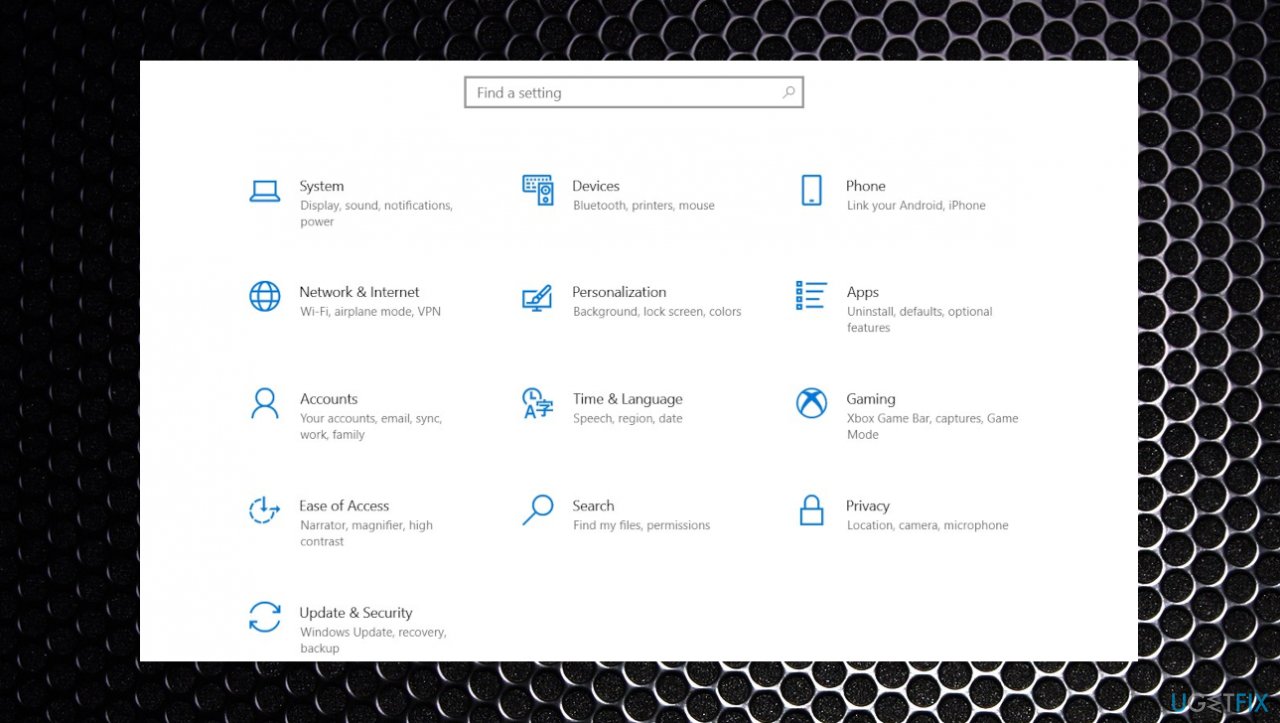
Printer allows only default settings after upgrading settings - Select Apps from the left pane.
- On the right, click on Installed apps.
- Find the printer in the list and click the three dots menu.
- Select Uninstall.
- Confirm by clicking again on Uninstall.
- If any instructions appear, so follow them and go through them for complete removal.
- Restart the computer.
Method 2. Uninstall the printer driver
- Right-click on Start.
- Select Device Manager.
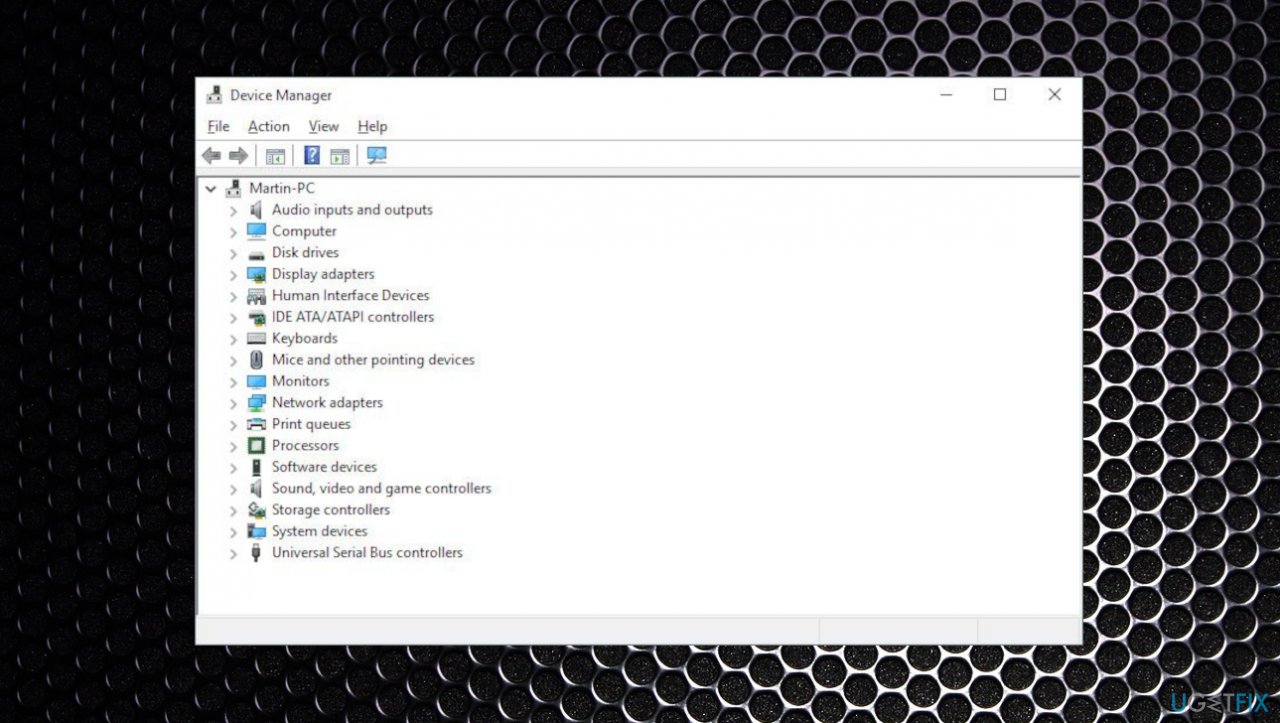
Printer allows only default settings after upgrading device managr - Find the printer in the list that is causing the problem.
- If the device is not available, then click on View from the menu bar and select Show hidden devices.
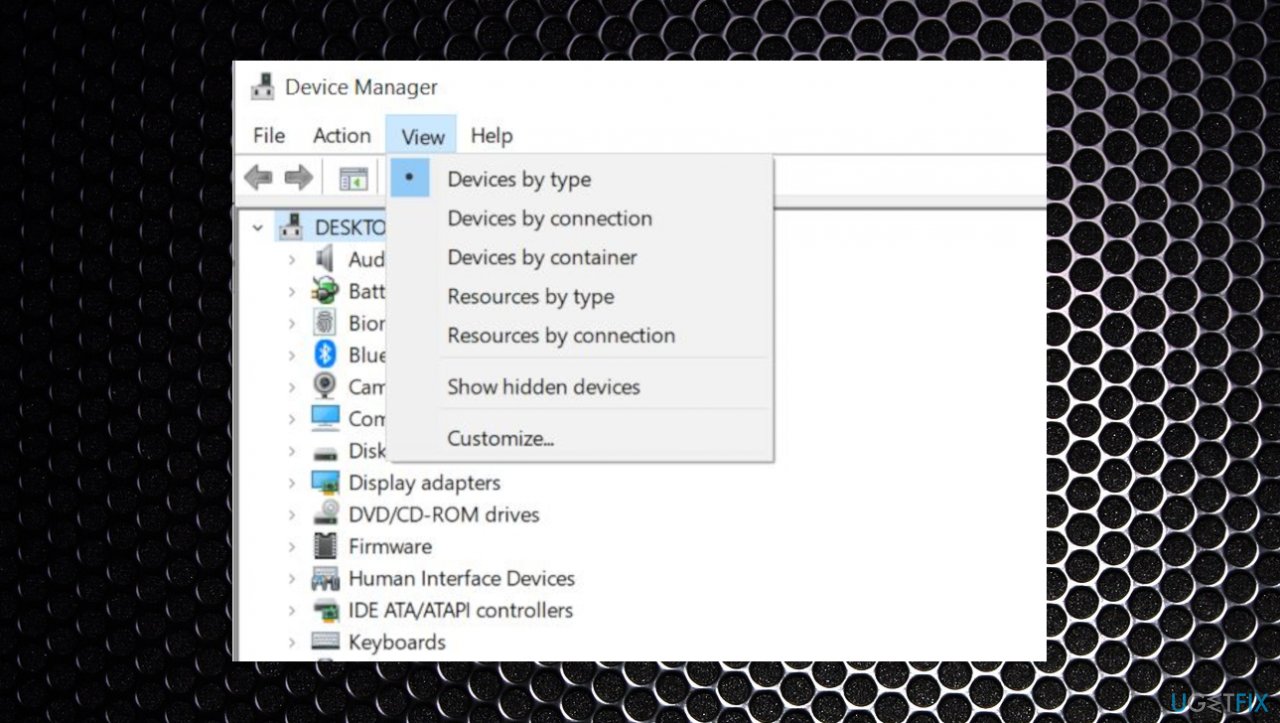
Printer allows only default settings after upgrading hidden - Right-click on the driver and select Uninstall device.
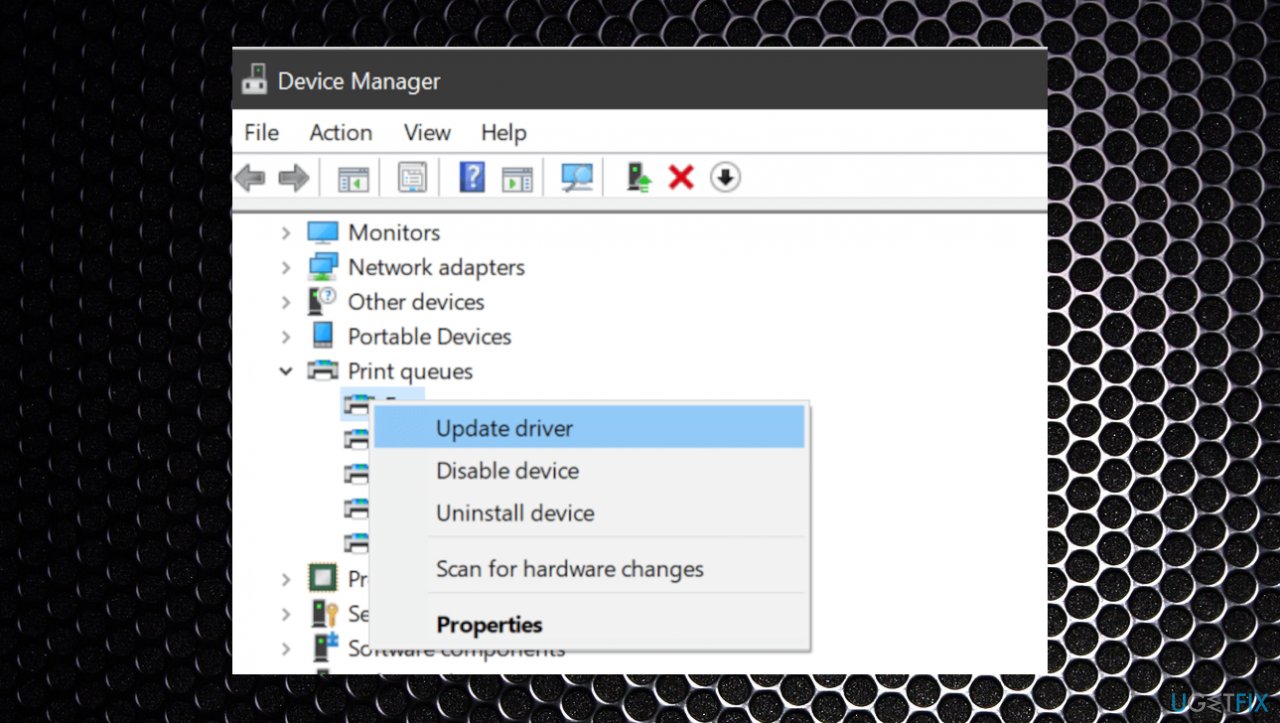
Printer allows only default settings after upgrading driver upd - On the verification dialog, check the box.
- Click on Uninstall.
- Restart the device and see if the printer problem is solved.
- Go to Settings again.
- Go to Update & security.
- Choose Windows update and then click on Check for updates.
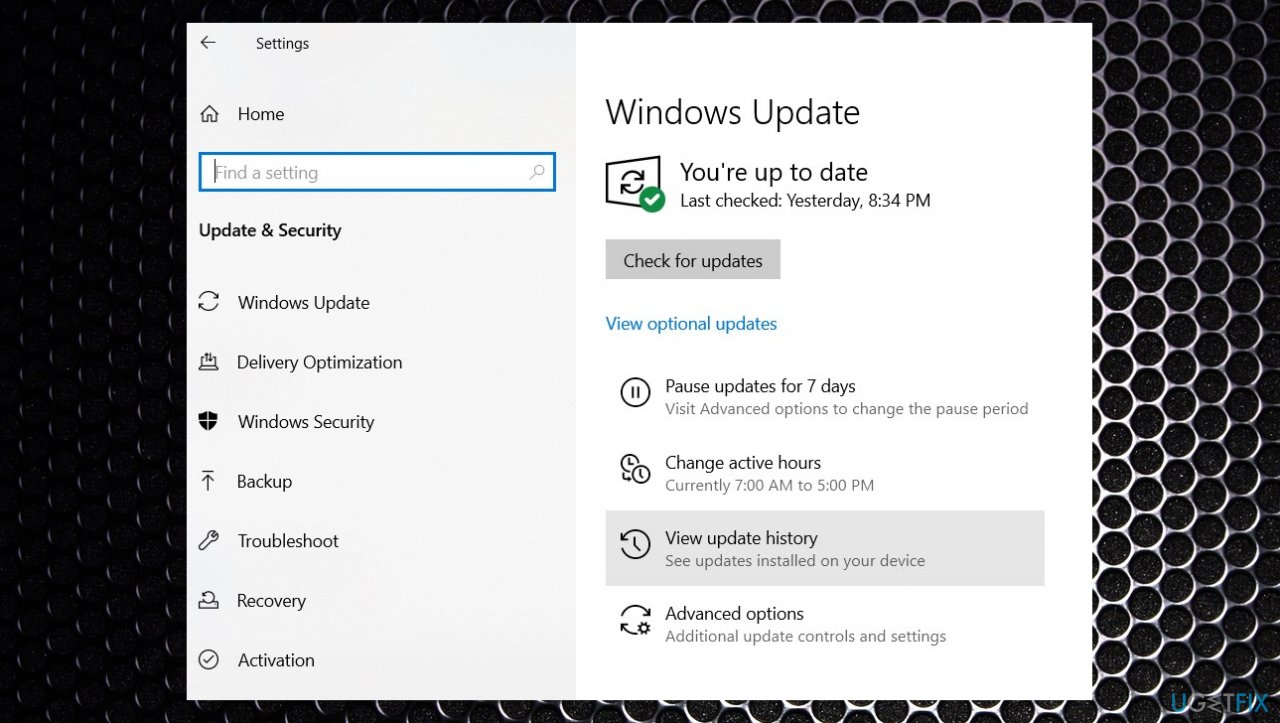
Printer allows only default settings after upgrading win upd - Download and install the update.
Bottom line
To address the issue of the printer allowing only default settings after upgrading to 22H2 in Windows 11, users can check for additional updates, run repair tools, and eliminate malware. If these solutions do not resolve the problem, it may be necessary to wait for a specific fix from Microsoft.
Frequently asked questions
This issue may occur due to compatibility problems or corrupted printer drivers following the upgrade to Windows 11 22H2. It's recommended to check for updated drivers or reinstall the printer to resolve the issue.
To restore custom settings, access the printer properties through the Control Panel, and check if your preferences are saved. If not, you may need to reconfigure your settings and save them as defaults.
Start by updating your printer drivers and ensuring they are compatible with Windows 11 22H2. Additionally, try running the built-in Printer Troubleshooter from Windows Settings to identify and fix any potential issues.




Report an issue
What's wrong with this guide? We review every report and update or remove content.
Report received — thank you. We'll review and fix it.
You need a free account to submit a report.
Be the first to comment