How to fix
Snipping Tool Ruler missing
on Windows
Is the ruler missing in Snipping Tool on Windows 10 or 11? Discover effective solutions to restore it quickly and hassle-free. Expert-tested fixes!

![[Fix] Snipping Tool Ruler missing in Windows](https://ugetfix.com/wp-content/uploads/articles/askit/fix-snipping-tool-ruler-missing-in-windows-copy_en-768x432.jpg)
What causes [Fix] Snipping Tool Ruler missing in Windows?
- Malfunctioning app
- Corrupted system files
- General software glitches
- Using an outdated version of Windows
- Using Snip & Sketch instead of Snipping Tool
Repairs Windows system files, removes malware, and restores a clean OS state — without reinstalling.
Suddenly, the ruler has disappeared from Snipping Tool. How do I get it back?
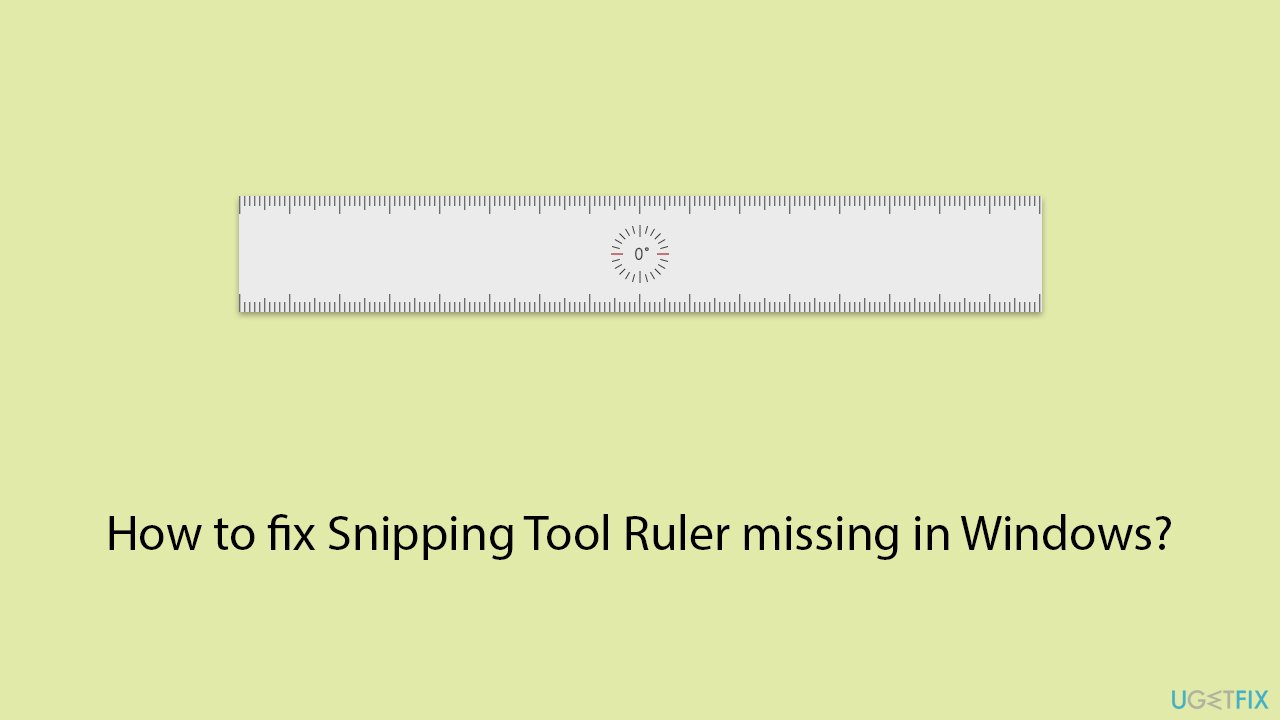
Snipping Tool, a popular screenshot software for Windows, received significant upgrades with the Windows 11 April 2021 release. This improvement involved integrating with the Snip & Sketch app, and it now has new features including screen recording. Traditionally, the Snipping Tool included a ruler function, which allowed for precise alignments and measurements for users who required specific screenshot dimensions.
However, some users have reported that the Snipping Tool ruler is missing from the app. This issue has proven inconvenient for those who rely on this feature for detailed screen capture tasks. The absence of the ruler can be attributed to various factors including a malfunctioning app, corrupted system files, or general software glitches that occasionally occur within the operating system.
If the ruler in the Snipping Tool is missing, it might be resolved by attempting several corrective actions. Repairing or resetting the Snipping Tool through the Windows settings can often restore missing functionalities. Alternatively, reinstalling the application or ensuring that your system is up to date with the latest Windows updates may also rectify the problem.
If the issue stems from corrupted system files, running system file repair processes could be beneficial. If the ruler in the Snipping Tool is missing, using the Straight-Line option is a practical workaround for drawing straight lines.
It is also important to confirm that you are using the correct version of the tool. If your system is not updated to the latest version of Windows, you might inadvertently be using Snip & Sketch instead of the updated Snipping Tool. Regular updates are essential for keeping all functionalities accessible and working properly.
Consider using a PC repair app [d1] for a comprehensive solution to any persistent issues with Windows functionalities. This software can automatically diagnose and fix underlying system problems, ensuring optimal performance and functionality across your Windows applications.
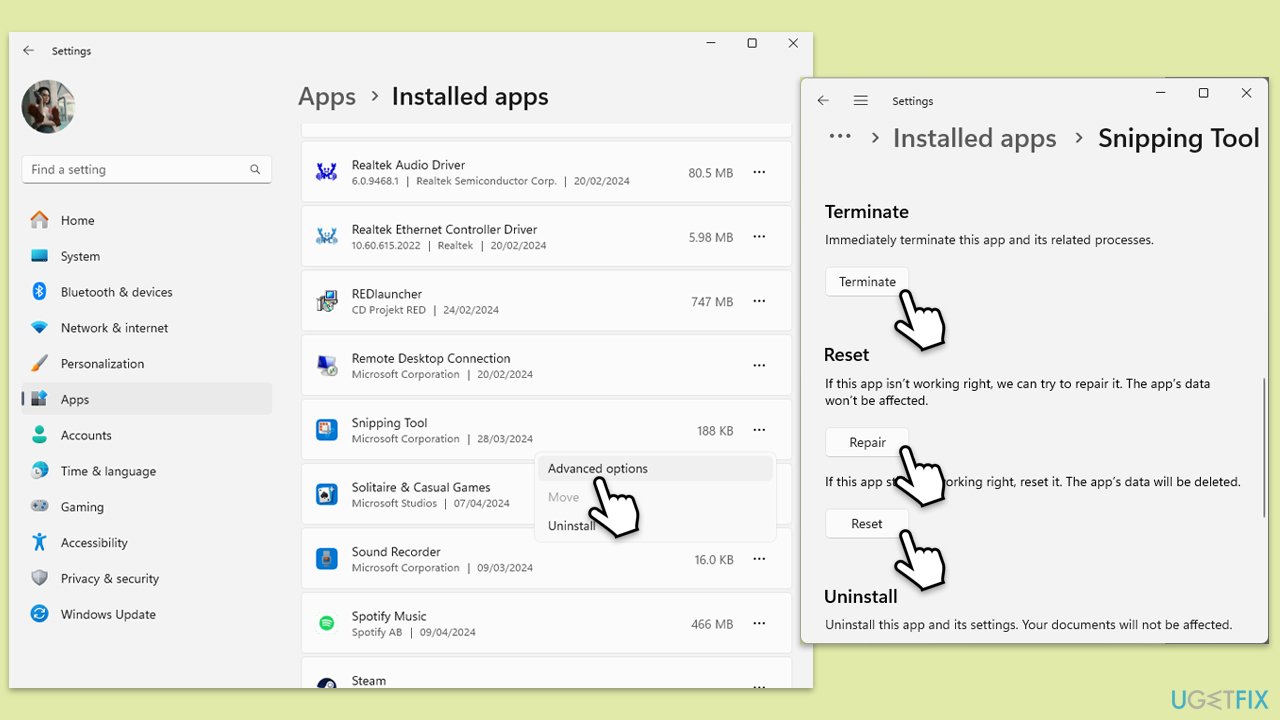
Fix 1. Repair or reset Snipping Tool
This solution works by restoring the Snipping Tool to its original settings, potentially resolving any issues caused by changes or updates that may have disrupted the ruler functionality.
- Right-click on Start and select Apps & Features/Installed apps.
- Scroll down to find Snipping Tool: either click Advanced options or three dots > Advanced options.
- Scroll down again, click Terminate, and click Repair.
- If that has no effect, try the Reset option instead.
- Wait till the process is complete.
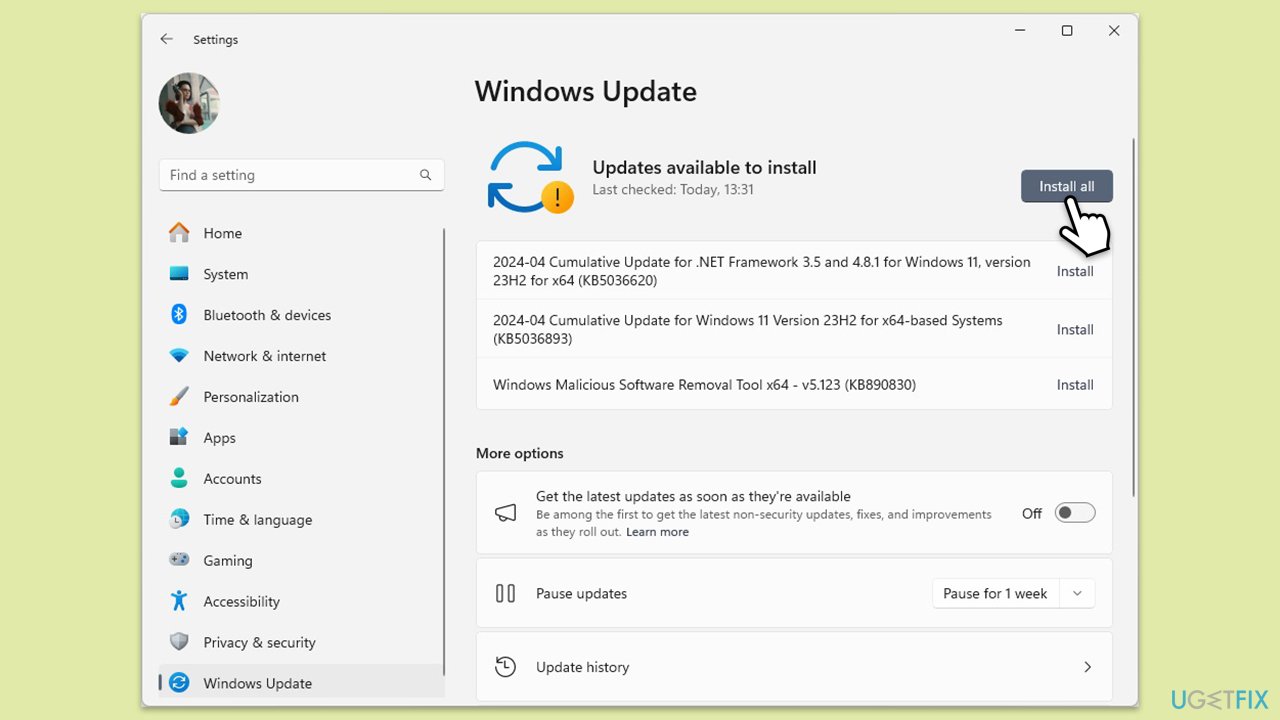
Fix 2. Run Windows Update
Running Windows Update ensures that your system and its applications are up to date, which can fix bugs or compatibility issues that might be causing the ruler to disappear.
- In Windows search, type Updates and hit Enter.
- The new window will open and you should be notified about available updates - click Install all.
- If none are available, click Check for updates, and they should be installed automatically.
- Don't forget to install all the available optional updates.
- When done, reboot your computer.
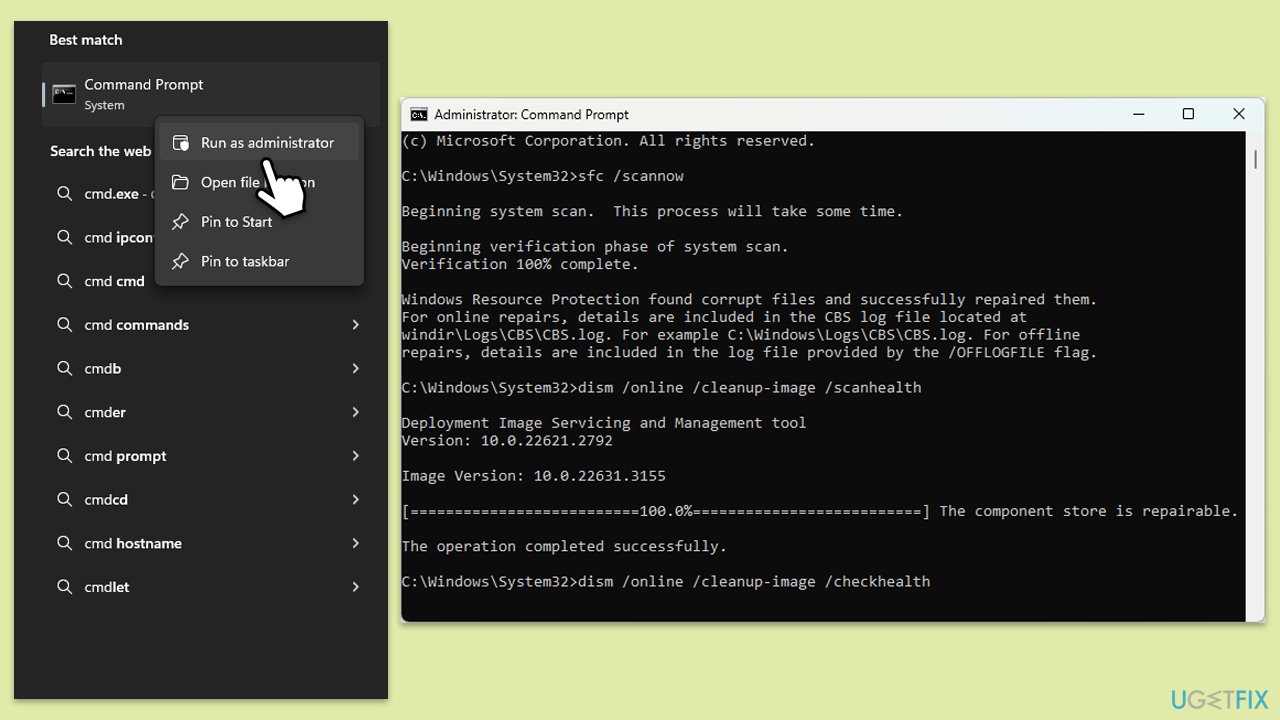
Fix 3. Repair system files
This solution involves using System File Checker and DISM to repair missing or corrupted system files that might affect the functionality of the Snipping Tool.
- Type cmd in Windows search.
- Right-click on the Command Prompt result and select Run as administrator.
- When the UAC window pops up, click Yes.
- In the Command Prompt window, paste the following command and press Enter:
sfc /scannow - Wait for the scan to complete.
- Once the SFC scan is finished, run the following set of DISM commands, pressing Enter after each one:
DISM /Online /Cleanup-Image /CheckHealth
DISM /Online /Cleanup-Image /ScanHealth
DISM /Online /Cleanup-Image /RestoreHealth - After completing the DISM commands, restart your computer.
Fix 4. Reinstall the Snipping Tool
Reinstalling the Snipping Tool can fix issues by completely removing the current installation and replacing it with a fresh version.
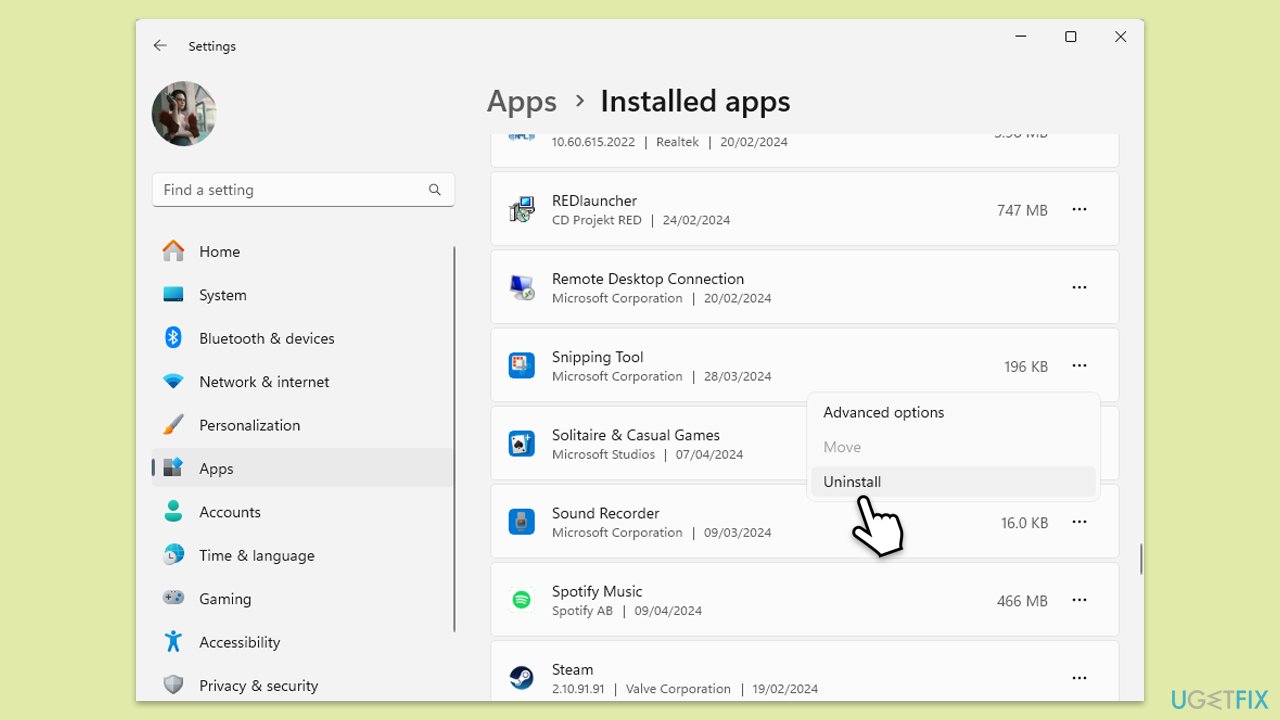
- Right-click on Start and select Apps & Features/Installed apps.
- Scroll down to locate the Snipping Tool.
- Click on Uninstall and confirm any prompts.
- When done, restart your computer.
Fix 5. Download and install the app from the Microsoft Store
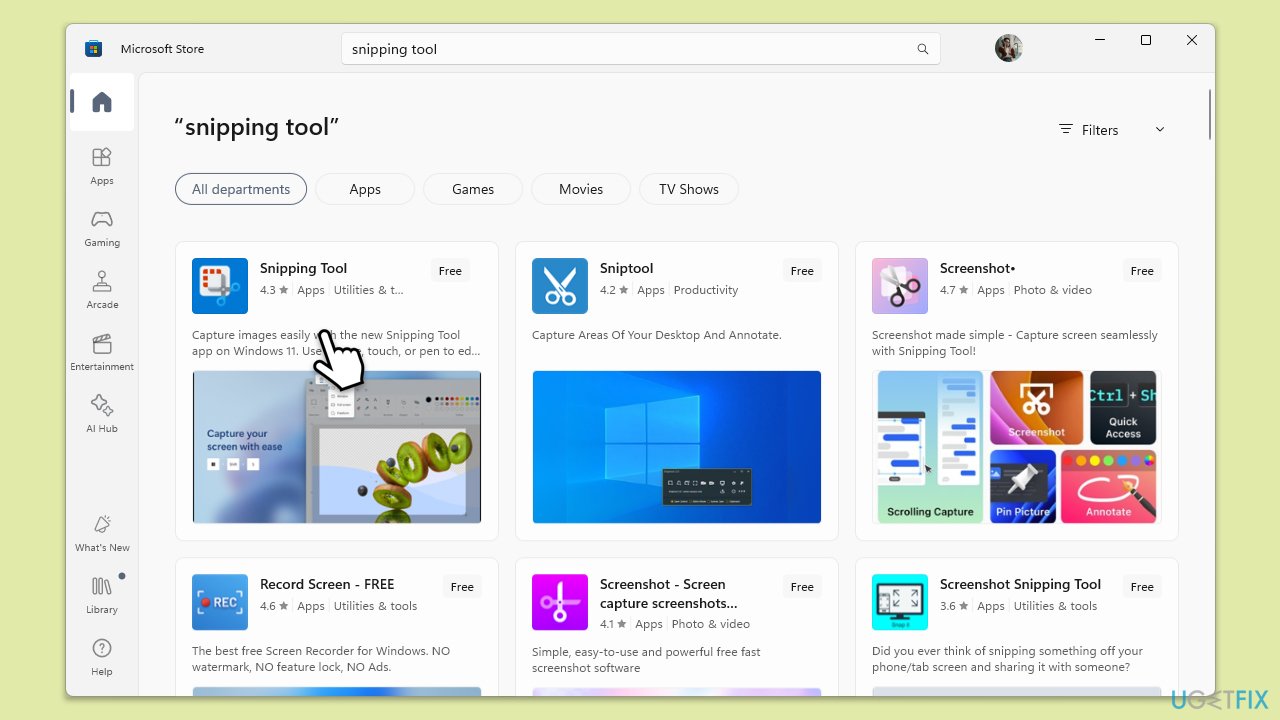
Some users said that they managed to fix the missing ruler in the Snipping Tool after downloading the latest version of the app from the Microsoft Store.
- Open Microsoft Store.
- In the search window, type Snipping Tool and press Enter or click Search.
- Install the app and see if that helps you with the missing ruler issue.
Fix 6. Re-register Microsoft Store apps
Reregistering Store apps might resolve issues within.
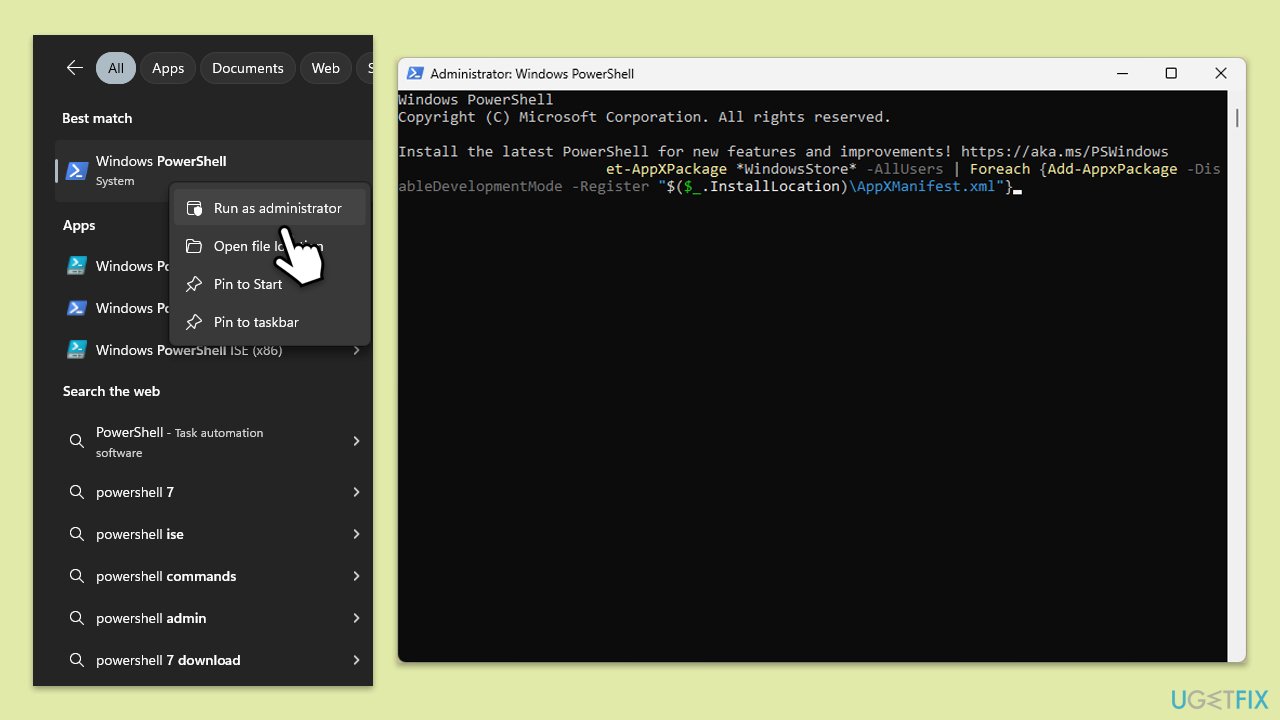
- Type PowerShell in Windows search.
- Right-click on PowerShell and select Run as administrator.
- When the UAC window shows up, click Yes.
- In the new window, copy and paste the following, and then press Enter:
Get-AppXPackage -AllUsers | Foreach {Add-AppxPackage -DisableDevelopmentMode -Register "$($_.InstallLocation)\AppXManifest.xml"} - Wait for the process to complete, then restart your device.
Fix 7. Use the Straight-Line tool as a temporary workaround
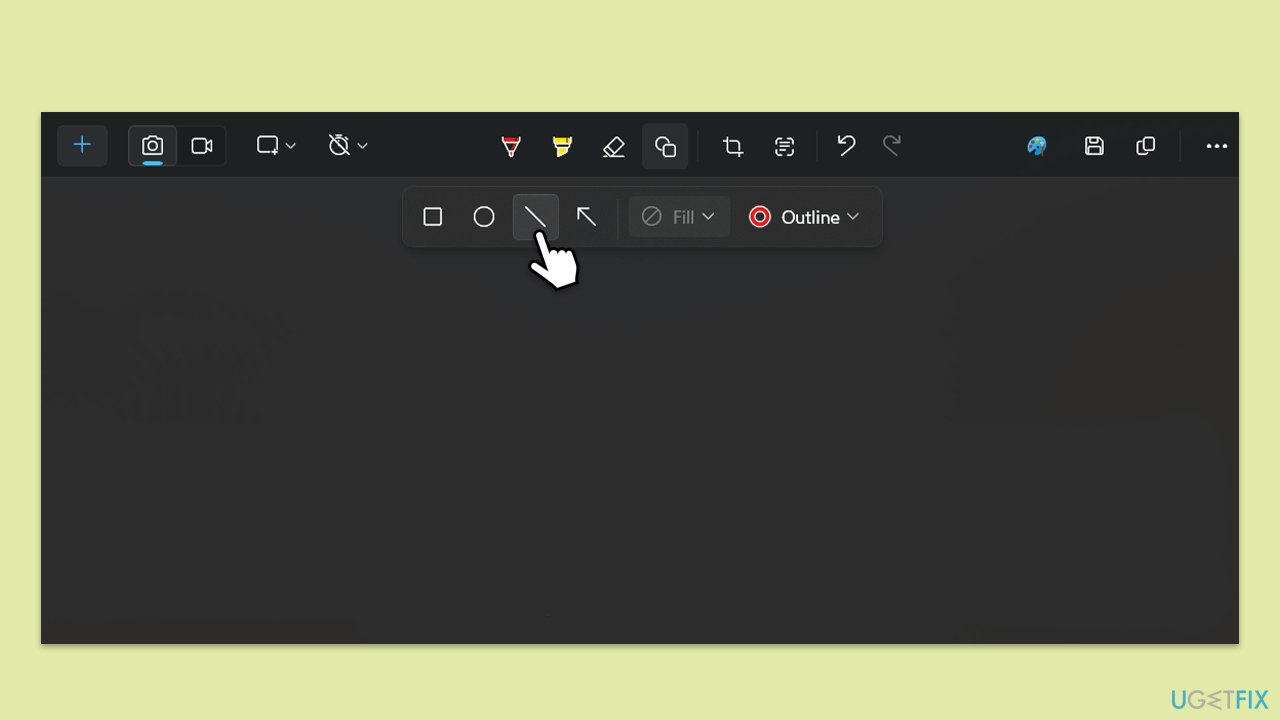
While not a fix, using the Straight-Line tool can serve as a temporary solution for drawing straight lines without the ruler.
- Open the Snipping Tool from your start menu.
- Click on the Shapes icon.
- Select the Straight-Line tool from the options.
- Use this tool to draw straight lines as needed until the ruler functionality is restored.
Bottom line
To resolve the missing ruler in Snipping Tool, you can repair or reset the application, reinstall it, or ensure your system is updated. If the issue persists, running system file repair processes or using a PC repair app may help. If none of these solutions work, consider seeking further technical assistance.
Frequently asked questions
The ruler may be missing due to a temporary glitch or if the Snipping Tool has not been updated. Ensure your Windows 10 is up to date and restart the application to see if the ruler reappears.
If the ruler feature is missing in Windows 11, try resetting the Snipping Tool app through Settings > Apps > Apps & features, then select Snipping Tool and choose 'Advanced options' to reset it.
Yes, you can enable the ruler by checking the app settings or using the shortcut keys; make sure you are in the correct mode that supports ruler features.




Report an issue
What's wrong with this guide? We review every report and update or remove content.
Report received — thank you. We'll review and fix it.
You need a free account to submit a report.
Be the first to comment