How to fix
“The installer has insufficient privileges to access this directory” error
on Windows
Troubleshoot the "insufficient privileges" error on Windows 10/11 effortlessly. Get expert-tested methods to resolve installation issues quickly and eff…

![[Fix] “The installer has insufficient privileges to access this directory” error in Windows](https://ugetfix.com/wp-content/uploads/articles/askit/fix-the-installer-has-insufficient-privileges-to-access-this-directory-error-in-windows_en-768x432.jpg)
What causes [Fix] “The installer has insufficient privileges to access this directory” error in Windows?
- User does not have sufficient privileges to install software
- Compatibility issues with the software being installed
- Installer program encounters a read-only file
- User is logged in as an administrator but still receives the error
- Software may not be compatible with the version of Windows
Repairs Windows system files, removes malware, and restores a clean OS state — without reinstalling.
Hi, I can't install programs on Windows anymore due to the error "The installer has insufficient privileges to access this directory." It's strange because it's my personal Windows machine, and I am logged in as an administrator.
Windows is a widely used operating system that offers users a variety of features and functionalities. However, users face a common issue while installing software (or sometimes when trying to update it) on their PC - the "The installer has insufficient privileges to access this directory" error. This error prevents users from installing software and can be frustrating.
When users install software on their Windows PC, they are required to run an installer program. It is designed to simplify the installation process for users by automating various tasks. However, the installer program sometimes may encounter an error message that says, "The installer has insufficient privileges to access this directory."
There are several reasons why users may encounter this error message. One of the main reasons is that the user does not have sufficient privileges to install software on their PC.
In this case, the user must log in with an administrator account or contact their system administrator to grant them the necessary permissions. The problem here is that users reported they were indeed using an administrator's account on their Windows systems and getting the error regardless.
Another reason for this error message could be compatibility issues with the software being installed. Some software may not be compatible with the version of Windows or the hardware configuration of the PC, leading to the "The installer has insufficient privileges to access this directory" error.
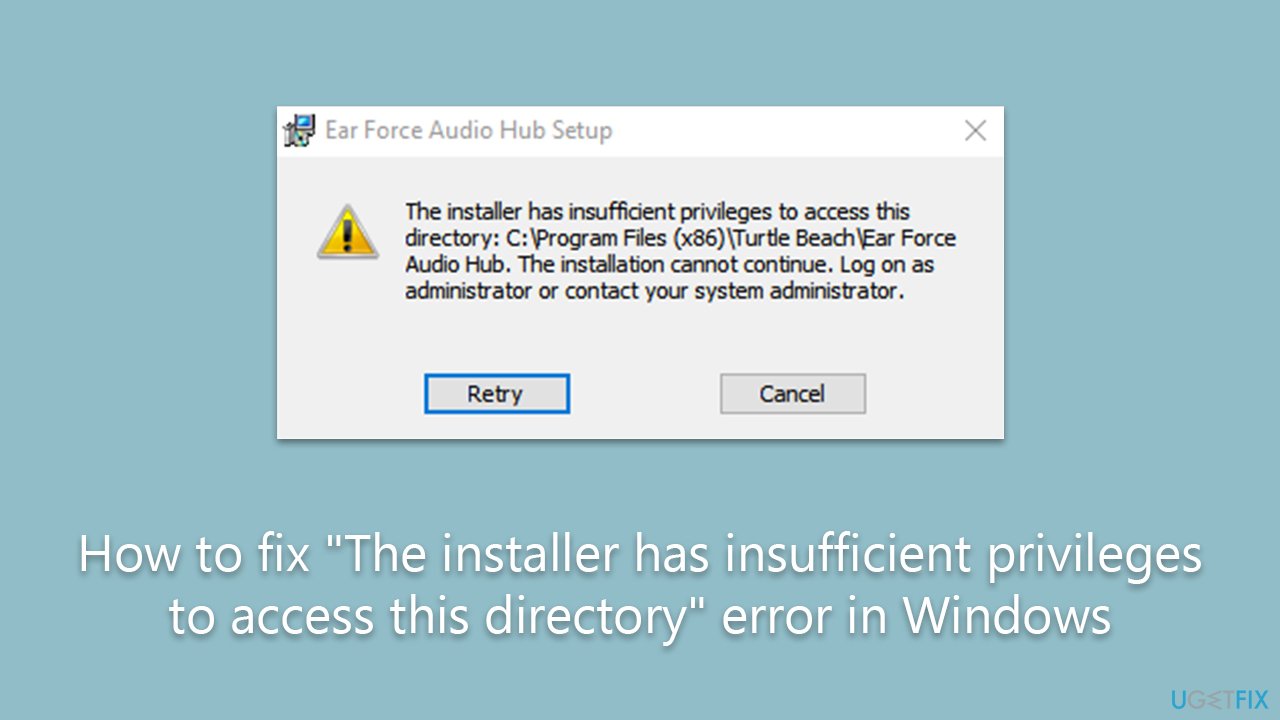
The error may also occur if the installer program encounters a read-only file. This means that the installer program cannot write to the file and hence cannot complete the installation process.
Luckily, there are several ways to fix the "The installer has insufficient privileges to access this directory" error, and you can achieve that by following the instructions below. If you want to try an automatic approach, we recommend using [d1] PC repair tool - it can quickly and easily replace damaged system components with working ones.
Fix 1. Set the administrator account
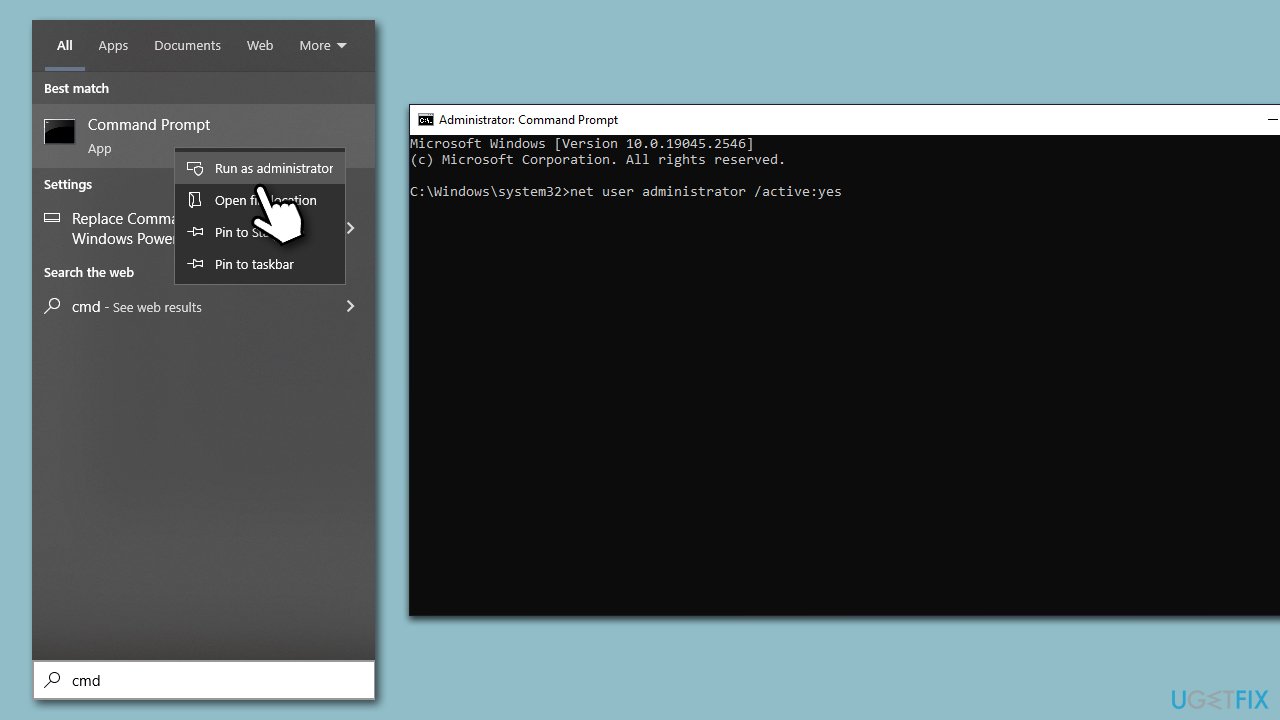
You might not have set your account as administrator's, hence the error. In this case, you can enable it by using commands in the elevated Command Prompt.
- Type cmd in Windows search.
- Right-click on Command Prompt and select Run as administrator.
- User Account Control will ask whether you want to allow to make changes - click Yes.
- In the new window, copy and paste the following command:
net user administrator /active:yes - Press Enter and restart your PC - make sure you log in as an administrator.
Fix 2. Run the installer as administrator
Another simple fix would be running the installer as an administrator:
- Open File Explorer by pressing Win + E and navigating to your installer's location.
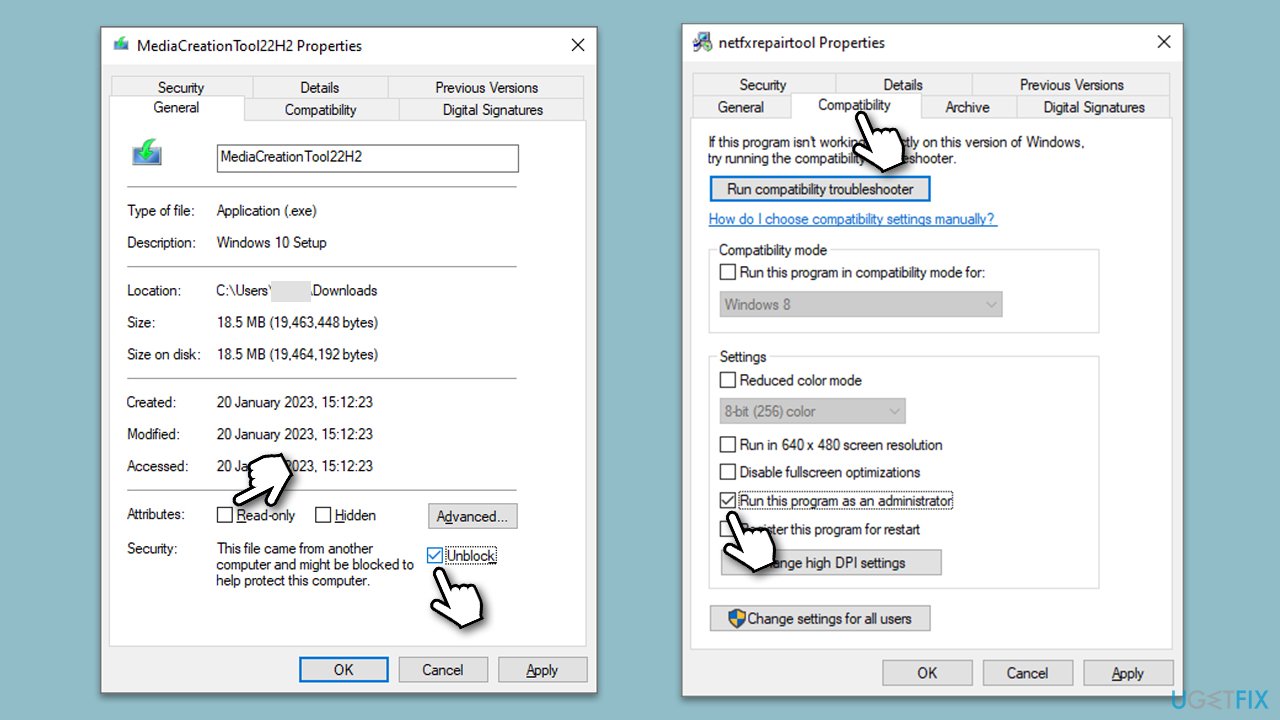
- Right-click on the installer and select Properties.
- In the General tab, under Attributes, remove the check from Read-only.
- [If applicable] In the Security section at the bottom and mark the Unblock checkbox.
- Go to the Compatibility tab and mark the Run as administrator checkbox.
- Click Apply and OK.
Fix 3. Change the owner of the folder
- Right-click on the folder the installer is located and pick Properties.
- Go to the Security tab and pick Advanced.
- Under Owner, click the Change button.
- In the new window, type in the name of your account (Microsoft account email) or simply use Administrator (make sure you are logged in as one) and click Check Names.
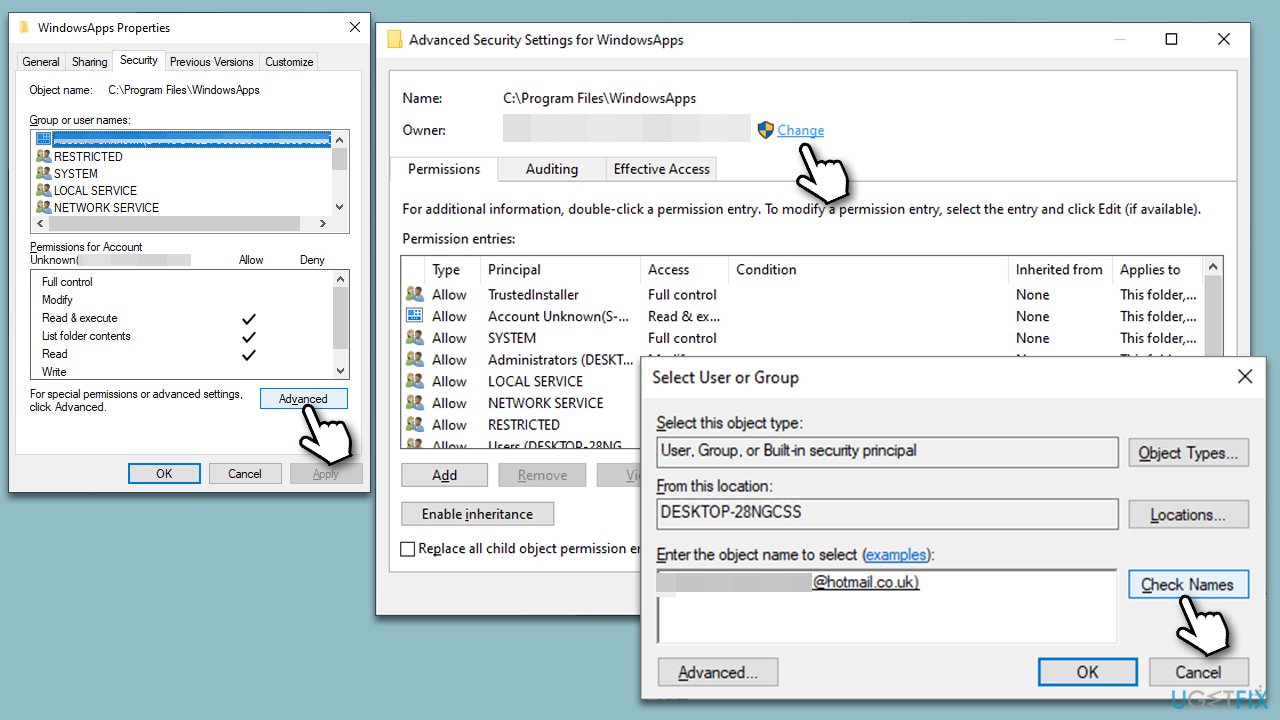
- When shown, select your account and click OK.
- Mark the Replace owner on subcontainers and objects checkbox and click Apply and OK.
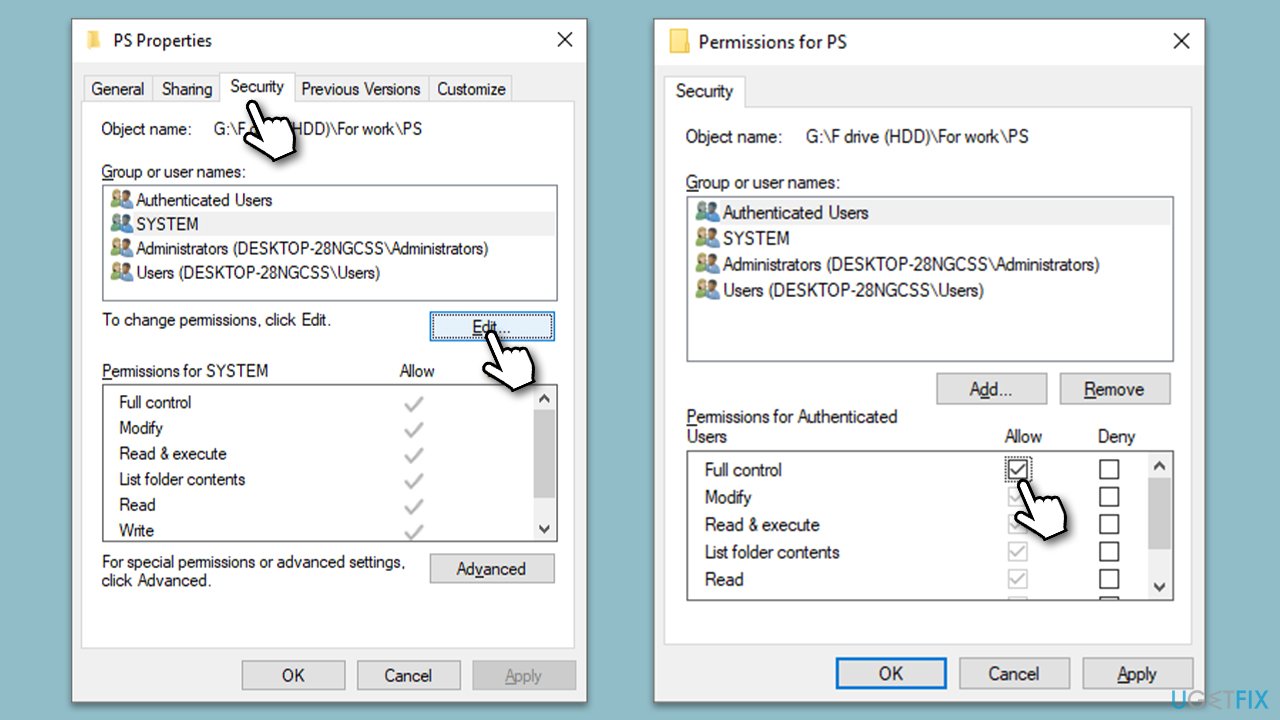
- Now go back to Properties > Security tab of the folder and select Edit under Permissions.
- Select the group that you are using (for example, User group) and make sure that Full control is selected.
- Click Apply and OK, and try running the installer again.
Fix 4. Disable/uninstall third-party anti-malware or similar apps
Third-party security software, such as antivirus programs and firewalls, is designed to protect the computer from potential threats and keep it secure. However, sometimes these security programs may interfere with the installation process of software and lead to the "The installer has insufficient privileges to access this directory" error.
Disabling or uninstalling third-party security software could fix this error because these programs may restrict access to certain directories or files to prevent malware or unauthorized access. This can prevent the installer program from accessing the necessary files or directories required for the installation process.
Disabling or uninstalling the third-party security software temporarily can allow the installer program to access the necessary files and directories and complete the installation process without any issues. Once the installation is complete, the security software can be re-enabled or re-installed to ensure the computer remains protected.
Fix 5. Check relevant services
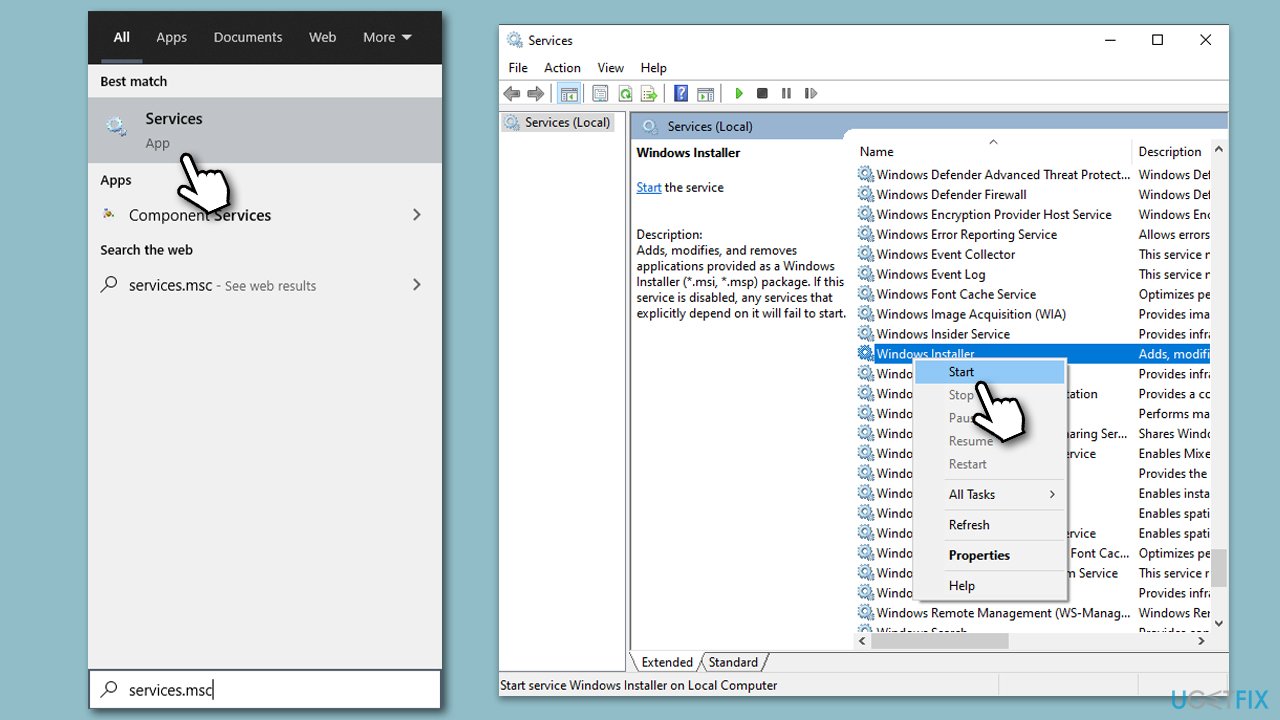
- Type Services in Windows search and press Enter.
- Scroll down to find Windows Installer service.
- If the service is already running, right-click and select Restart.
- If the service is not running, right-click and select Start.
Fix 6. Temporarily disable UAC
If the installer you are trying to use has no signature, it might cause an error. The workaround could be to disable the UAC for the time being.
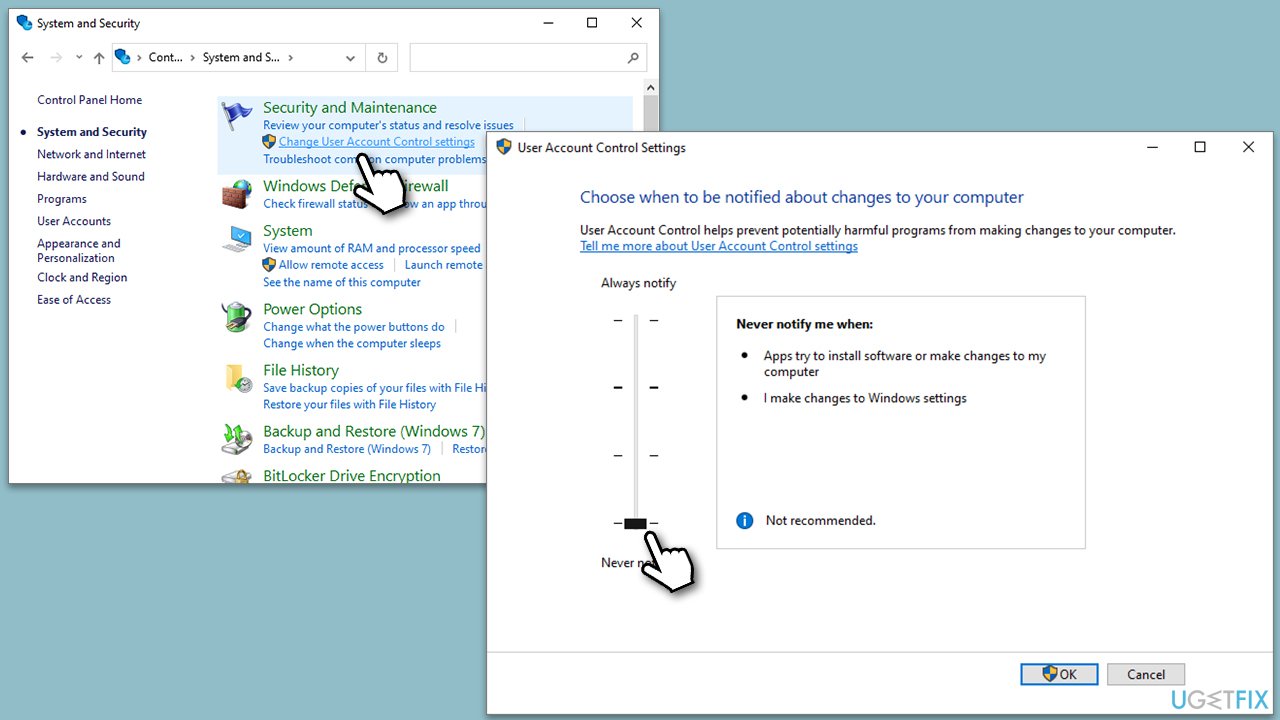
- Type Control Panel in Windows search and hit Enter.
- Go to System and Security.
- Select Change User Account Control settings.
- Pick the Never notify option and click OK.
- Don't forget to revert this selection when done, as UAC is an important security feature in Windows.
Fix 7. Run SFC and DISM
Corrupted system files could be the reason for the error. Try running SFC and DISM to repair them:
- Type cmd in Windows search.
- Right-click on the Command Prompt result and select Run as administrator.
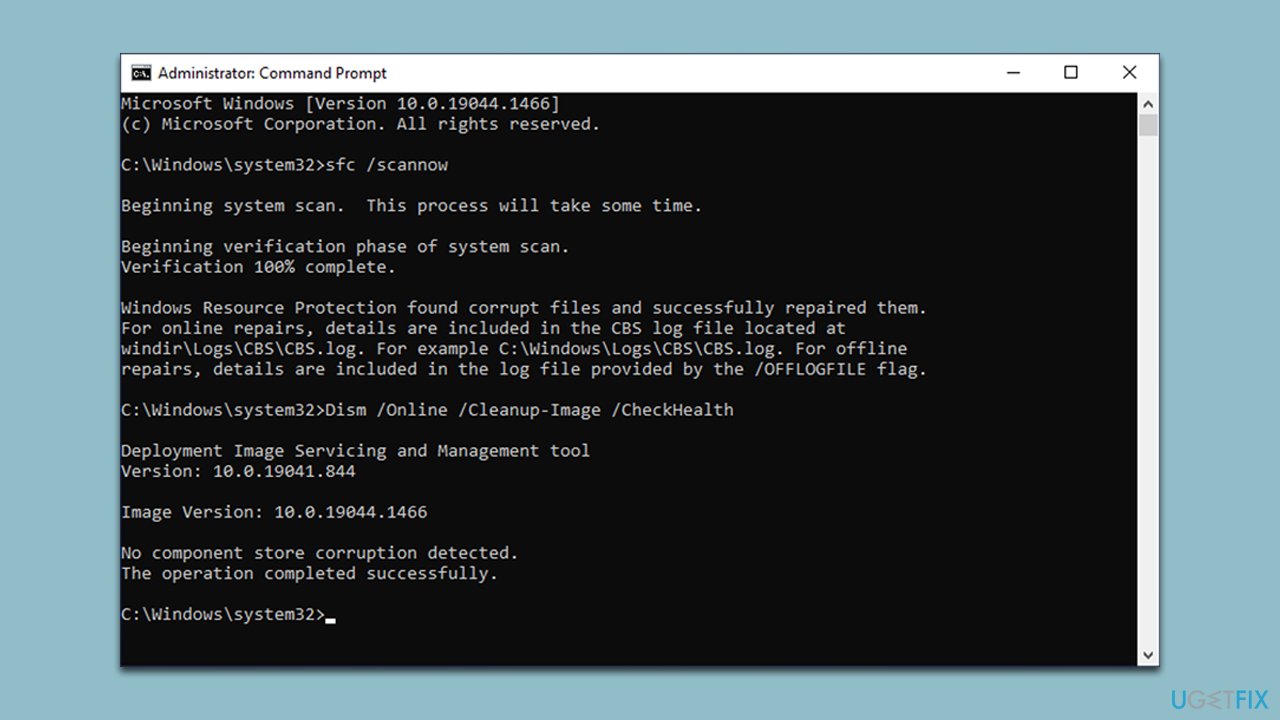
- Next, copy and paste the following commands, pressing Enter after each:
sfc /scannow
How to fix windows error 0x800701e1 run sfc scan
DISM /Online /Cleanup-Image /CheckHealth
DISM /Online /Cleanup-Image /ScanHealth
DISM /Online /Cleanup-Image /RestoreHealth - Restart your PC.
Bottom line
To fix the error, users can try logging in with an administrator account, checking for software compatibility, or ensuring that files are not set to read-only. If none of these solutions work, users may need to seek further assistance or contact their system administrator.
Frequently asked questions
This error indicates that the installer does not have the necessary permissions to access the specified directory, often due to user account control settings or file permissions.
You can resolve this by right-clicking the installer and selecting 'Run as administrator' to grant it elevated permissions.
Yes, ensure that your user account has full control permissions for the directory where the installer is trying to write files.




Report an issue
What's wrong with this guide? We review every report and update or remove content.
Report received — thank you. We'll review and fix it.
You need a free account to submit a report.
Be the first to comment