How to fix
“There are currently no power options available” with Power button settings missing
on Windows
Resolve the "no power options available" error in Windows 10/11 effortlessly. Follow our expert-tested solutions to restore your power settings!

![[Fix] “There are currently no power options available” with Power button settings missing in Windows](https://ugetfix.com/wp-content/uploads/articles/askit/fix-there-are-currently-no-power-options-available-with-power-button-settings-missing-in-windows-copy_en-768x432.jpg)
What causes [Fix] “There are currently no power options available” with Power button settings missing in Windows?
- Corrupted system files
- Permissions issues
- Altered group policies
- Changes to user account settings
- Recent major Windows update
Repairs Windows system files, removes malware, and restores a clean OS state — without reinstalling.
Hey there. My laptop started showing the message "There are currently no power options available" and there are no options available when I press the Power button. Any help available?
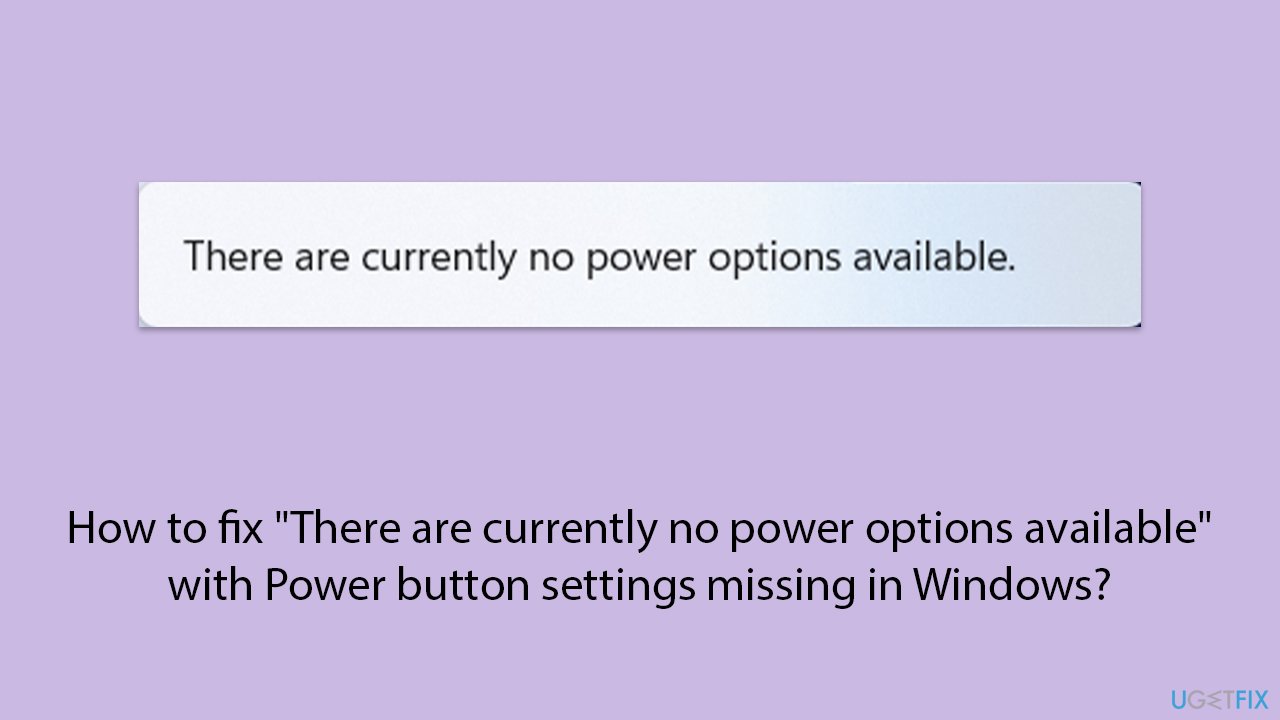
The "There are currently no power options available" message appears when users try to shut down, restart, or put their Windows system to sleep through the Start menu or power button, and affects numerous Windows versions such as 10 and 11. This issue can be particularly frustrating as it removes convenient access to power management features, leaving users with no option but to force shut down or restart their device manually.
Users experiencing the "There are currently no power options available" problem have noted that it often occurs after installing a major Windows update or making changes to user account settings, group policies, or power configurations.
In some cases, this message appears due to corrupted system files or permissions issues that prevent the system from accessing power-related settings. It can also be triggered if certain group policies have been altered to restrict access to power options.
To fix the "There are currently no power options available" issue, users generally need to review their system’s power settings, check group policy configurations, or reset the power plan settings. Additionally, verifying user permissions and restoring any missing or corrupted system files may help restore access to power options.
For users looking for a more automated approach, using a trusted [d1] repair tool can help detect and fix system-level issues that may be contributing to the problem, ensuring smooth access to power management functions again.
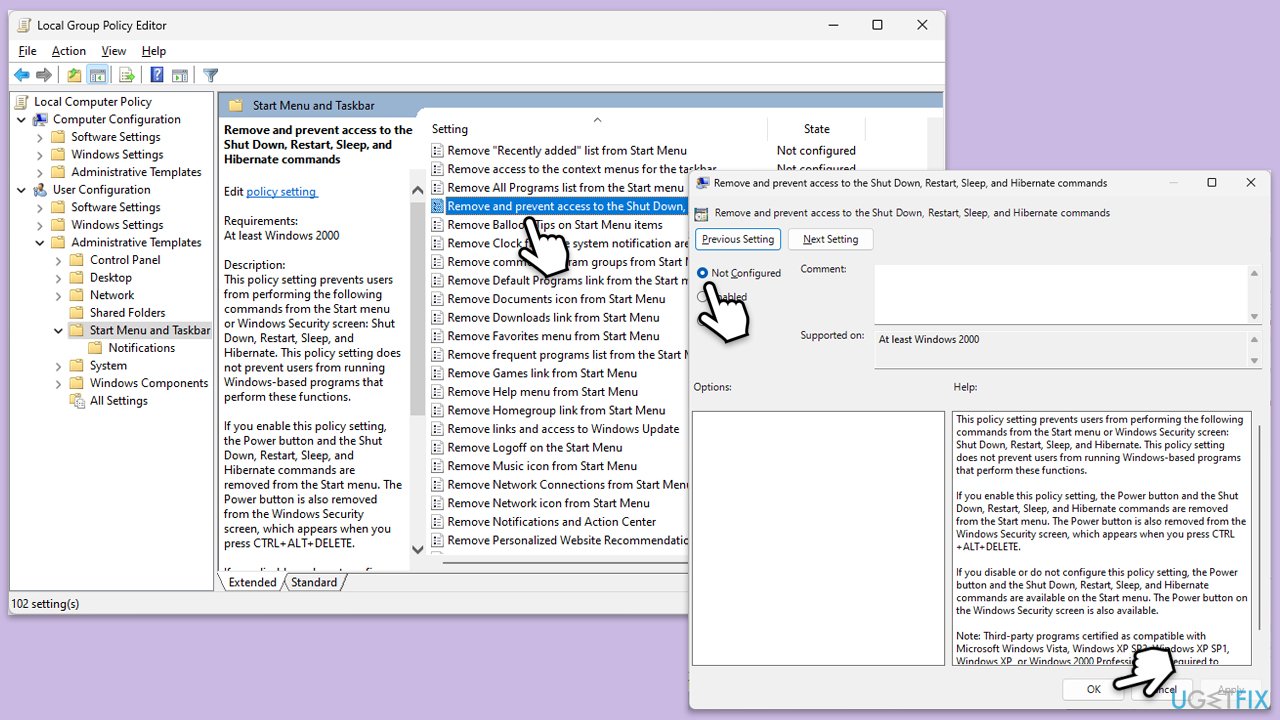
Fix 1. Re-enable power options via Group Policy
Sometimes group policy settings disable power options. Restoring these settings can bring back the shutdown, restart, and sleep options.
- Press Win + R, type gpedit.msc, and press Enter.
- Navigate to User Configuration > Administrative Templates > Start Menu and Taskbar.
- Find Remove and prevent access to the Shut Down, Restart, Sleep, and Hibernate commands and ensure it is set to Not Configured or Disabled.
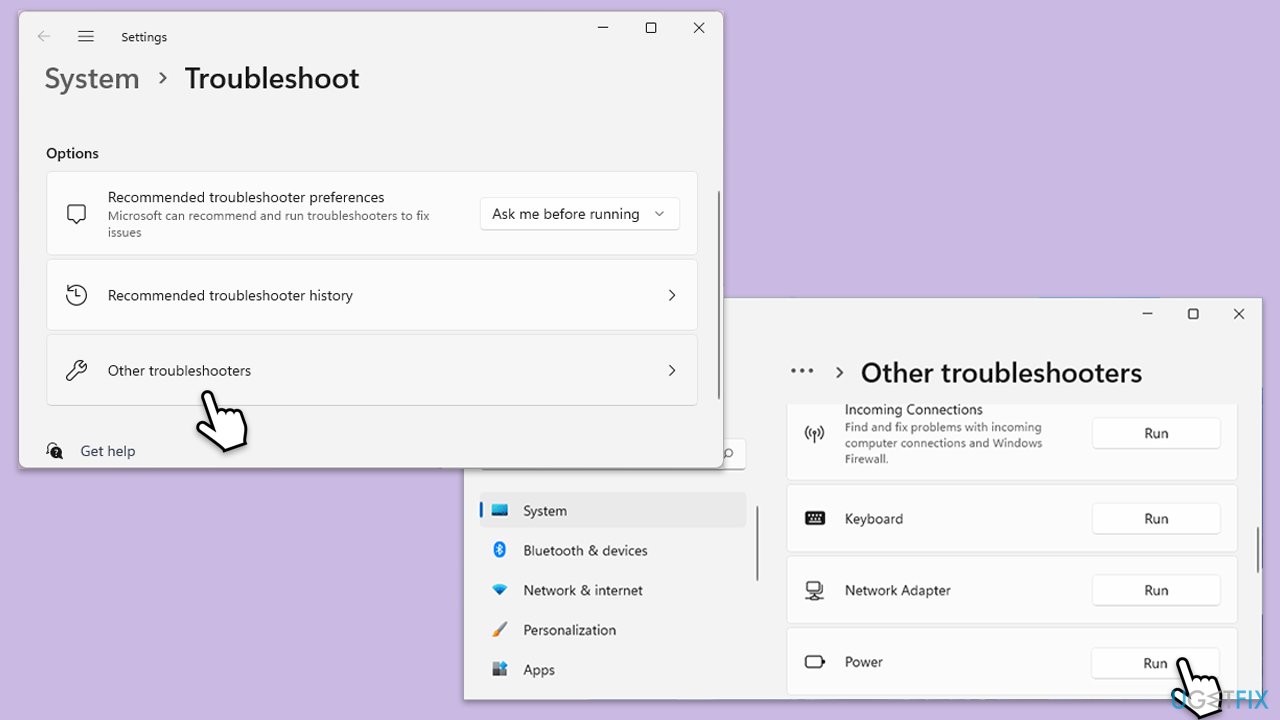
Fix 2. Run Power Troubleshooter
Running the Windows Power Troubleshooter helps detect and fix issues related to power management.
- Type troubleshoot in Windows search and hit Enter.
- Click Additional troubleshooters/Other troubleshooters.
- Find Power.
- Click on it, and select Run the troubleshooter/Run.
- Wait for the scan to be completed and apply the suggested fixes.
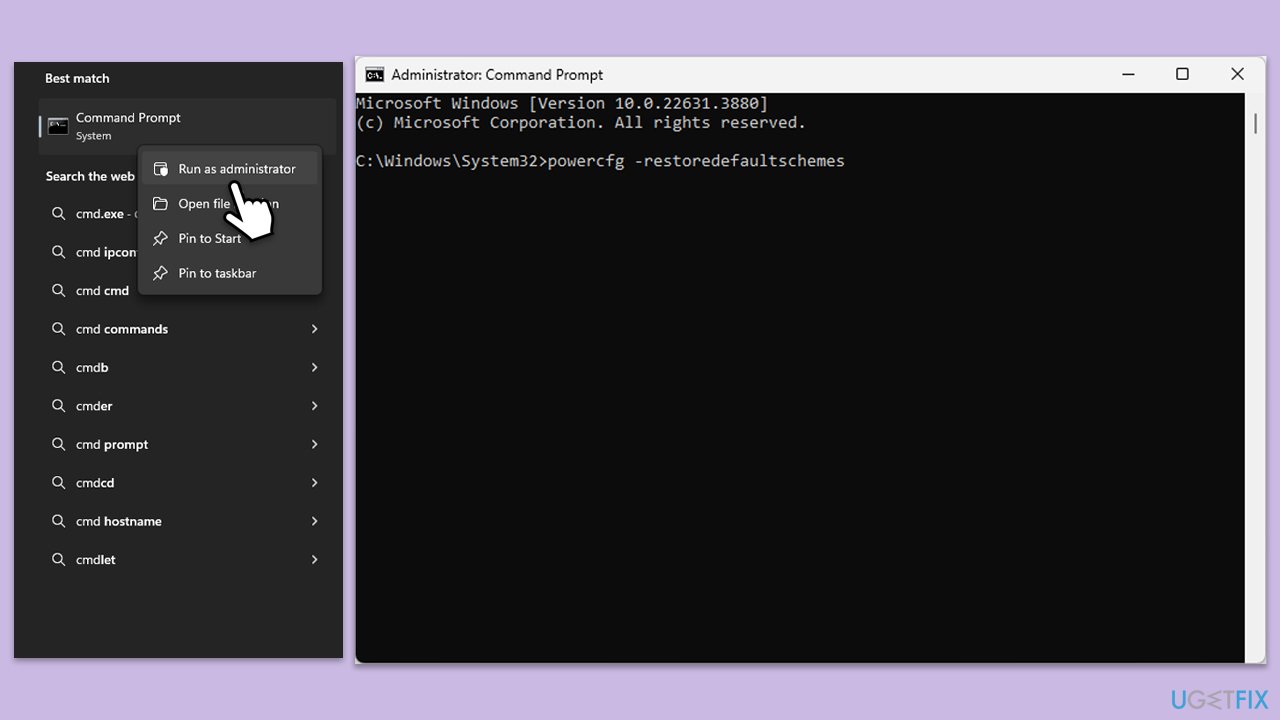
Fix 3. Reset power settings via Command Prompt
Corrupted power settings can result in the "no power options" error. Resetting them to default can resolve the issue.
- Type cmd in Windows search.
- Right-click on Command Prompt and select Run as administrator.
- User Account Control will ask you whether you want to make changes - click Yes.
- When the new window opens, copy and paste the following command:
powercfg –restoredefaultschemes - Press Enter and close down Command Prompt.
Fix 4. Make your account administrator
Issues with user account permissions can cause the power options to disappear. Ensuring the user account has the necessary permissions can fix the problem.
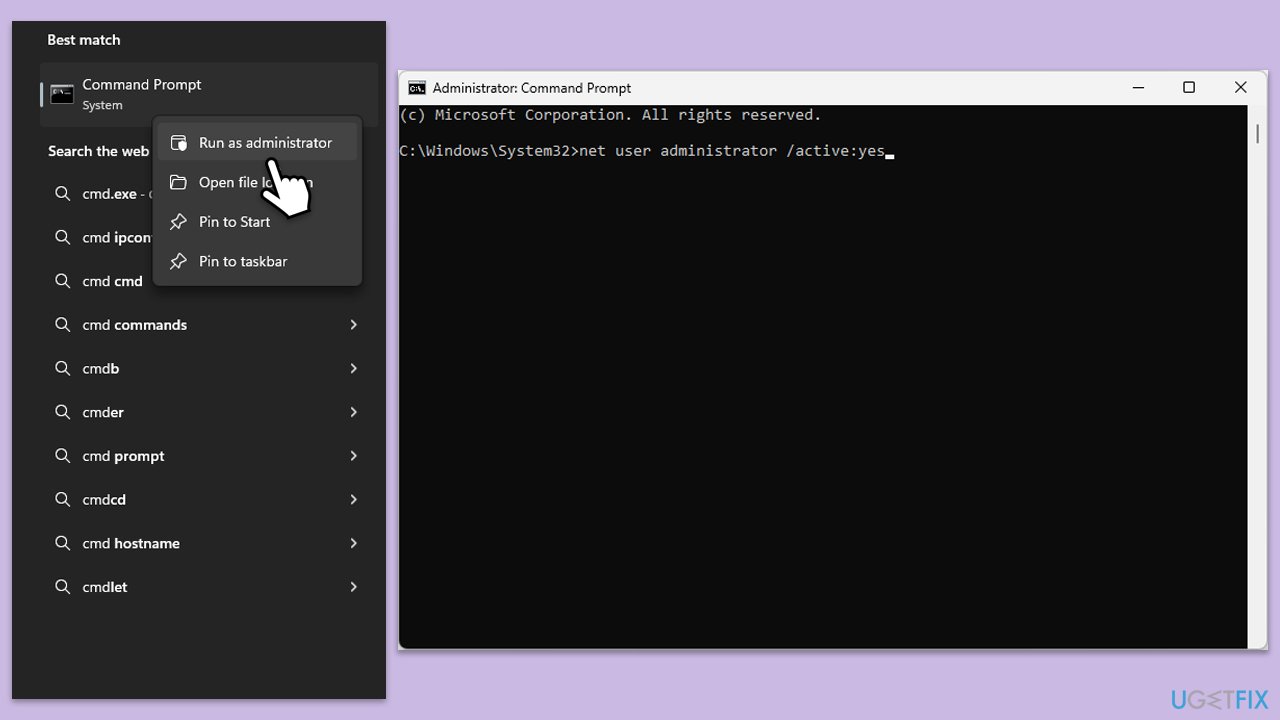
- Type cmd in Windows search.
- Right-click on the Command Prompt and select Run as administrator.
- The User Account Control window will ask whether you want to allow changes - click Yes.
- In Command Prompt, type in the following and press Enter:
net user administrator /active:yes - Close down the Command Prompt
Fix 5. Update Windows
Outdated system files can cause power management features to disappear. Installing the latest Windows updates can restore access to power options.
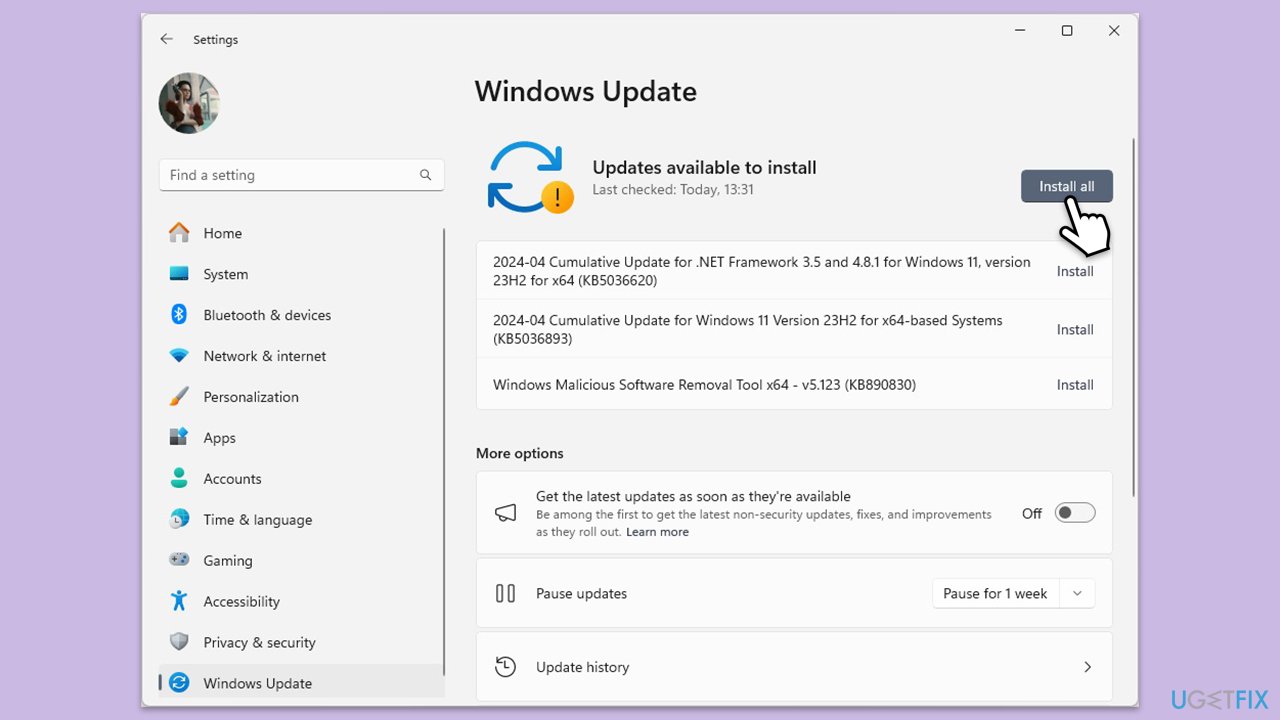
- Type Updates in Windows search and press Enter.
- When the new window opens, click Check for updates (or Install all if pending) and wait.
- If there are optional updates available, install them as well.
- After updating, restart your computer.
Fix 6. Restore missing system files with SFC and DISM
Corrupted system files can lead to issues with power management. Running the System File Checker can repair these files.
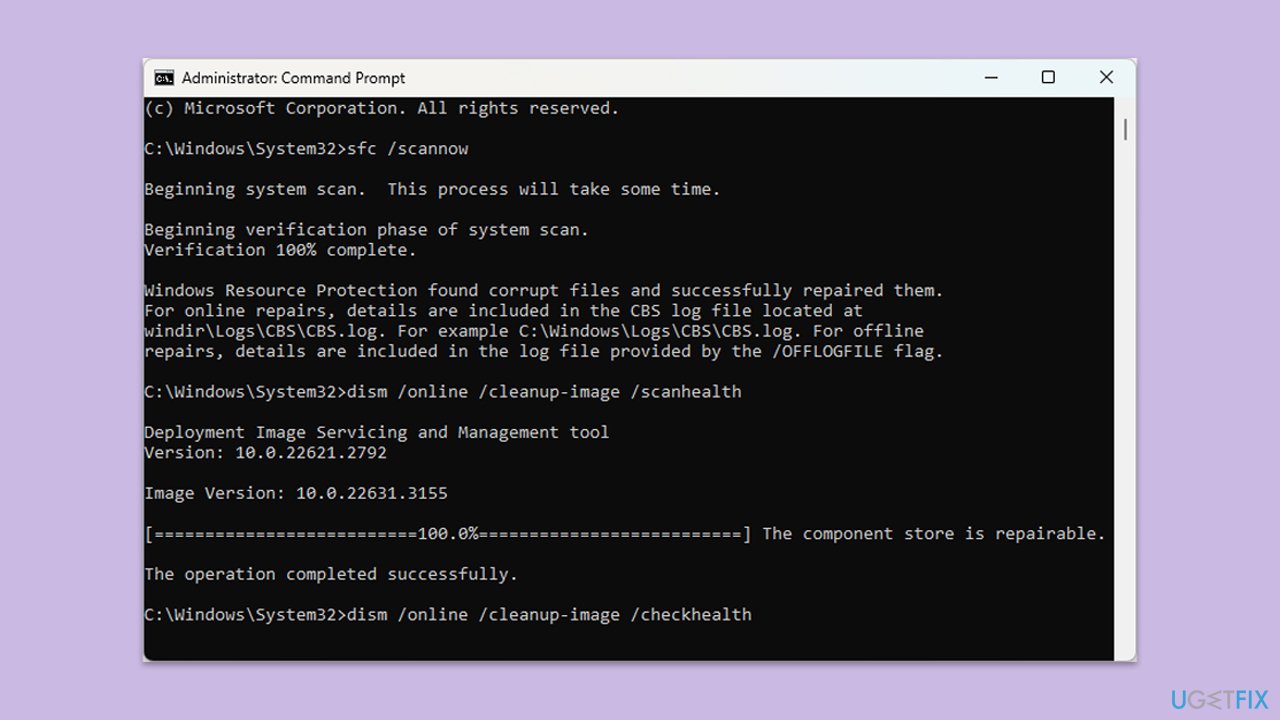
- Open Command Prompt as administrator.
- Use the following command in the new window:
sfc /scannow - Press Enter and wait till the scan is finished.
- As soon as it is done, Windows will report whether integrity violations were found and if they could be fixed. Regardless of the outcome, use these commands next, pressing Enter after each:
DISM /Online /Cleanup-Image /CheckHealth
DISM /Online /Cleanup-Image /ScanHealth
DISM /Online /Cleanup-Image /RestoreHealth - (Note: if you get an error executing this last command, add /Source:C:\RepairSource\Windows /LimitAccess to it and try again).
- Close down the Command Prompt and restart your system.
Fix 7. Modify registry settings
Registry settings related to power options can sometimes get altered. Modifying these settings can bring back the power options.
- Press Windows + R, type regedit, and press Enter.
- Navigate to HKEY_CURRENT_USER\Software\Microsoft\Windows\CurrentVersion\Policies\Explorer.
- Find and delete the NoClose value if it exists.
Bottom line
To resolve the "There are currently no power options available" issue, users can re-enable power options via Group Policy, review system power settings, and check group policy configurations. Additionally, verifying user permissions and restoring missing or corrupted system files may help. If these solutions do not work, consider using a trusted repair tool to detect and fix underlying system issues.
Frequently asked questions
You can try restarting the 'Power' service by typing 'services.msc' in the Run dialog, locating 'Power', and clicking 'Restart'. If that doesn't work, check for any pending Windows updates that might resolve the issue.
To restore the power button, go to Settings > Personalization > Taskbar, then ensure that 'Show taskbar buttons on all displays' is enabled and that the power settings are correctly configured in the Control Panel.
Yes, you can run the Power Troubleshooter by going to Settings > Update & Security > Troubleshoot > Additional troubleshooters and selecting 'Power', which can help identify and fix common problems.




Report an issue
What's wrong with this guide? We review every report and update or remove content.
Report received — thank you. We'll review and fix it.
You need a free account to submit a report.
Be the first to comment